Implementing Product Schema Markup For Ecommerce Product Pages using Google Tag Manager
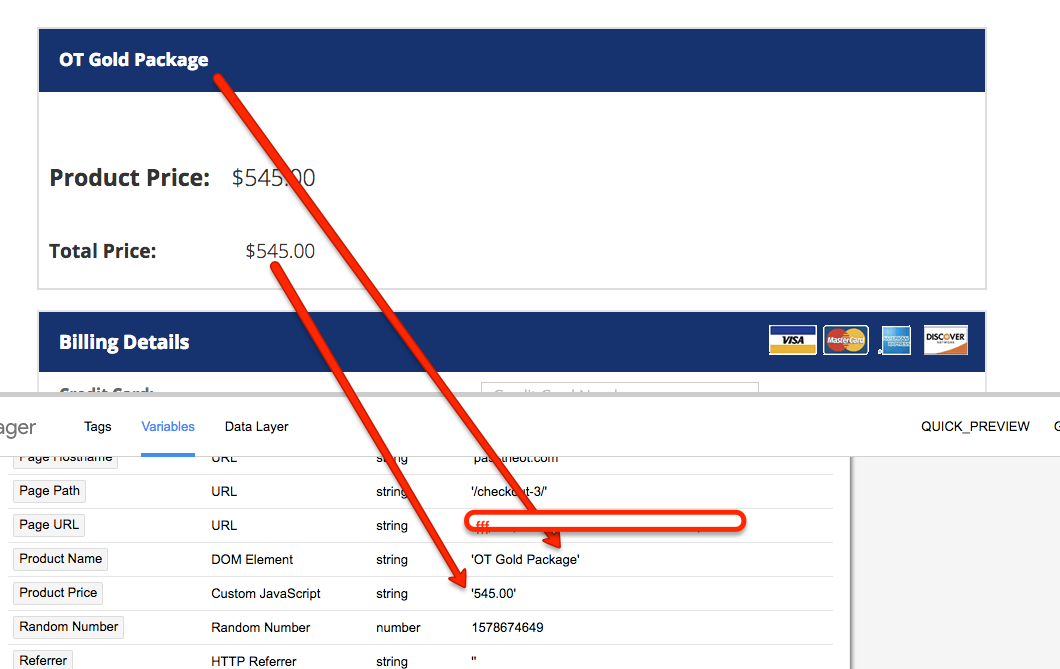
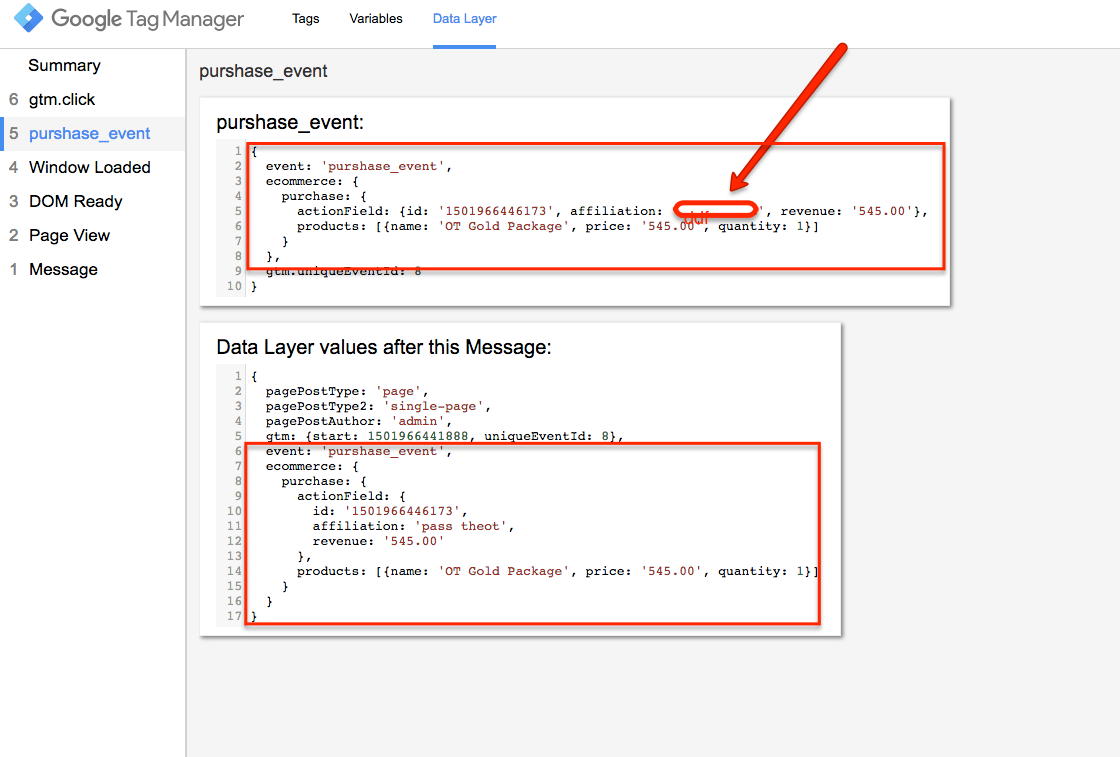
Recently once client ask me to implement schema on e-commerce website and other local website using Google Tag Manager, once I look his website I said it’s possible to implement schema using Google Tag Manager with with JSON-LD. For Tracking product page schema need to apply some custom javascript or Data layer to Getting like Product price and Stock in or Stock out.
Implementing Product Schema markup involves adding structured data tags to the HTML code of a webpage. The specific tags and attributes used will depend on the product and the information you want to provide about it. Here are some general steps for implementing Product Schema markup:
- Familiarize yourself with the Product schema vocabulary available on schema.org
- Identify the product pages on your website that you want to markup.
- Review the information you want to provide about the products on those pages and determine which tags and attributes you will need to use.
- Add the structured data tags to the HTML code of the relevant pages. The most common way to do this is by adding the tags to the page’s
<head>or<body>section. - Test the implemented schema using Google’s Structured Data Testing Tool to ensure that it is properly formatted and contains no errors.
- Once you have added the schema, you can monitor it using Google Search Console, which enables you to check for errors and see how Google is interpreting your structured data.
First you need to generate Product schema code using schema.org some other website to generate product schema with JSON-LD.
<div itemscope itemtype=”http://schema.org/Product”>
    <h1 itemprop=”name”>Prodcut Name</h1>
    <img src=”-product.png” alt=”Prodcut Alt Tag” itemprop=”image” />
    <p itemprop=”description”>
        This is a really amazing product. In fact, we think you will be amazed.
        <span itemprop=”sku”>123456789</span>
    </p>
    <div itemprop="aggregateRating" itemscope itemtype="http://schema.org/AggregateRating">
        <span itemprop=”ratingValue”>4</span> stars, based on
        <span itemprop=”reviewCount”>1,987</span> reviews.
    </div>
    <div itemprop=”offers” itemscope itemtype=”http://schema.org/Offer”>
        <meta itemprop=”priceCurrency” content=”USD” />
        $<span itemprop=”price”>For Product Price need to write custom javascript</span> |
        <span itemprop=”availability”>In-stock</span>
    </div>
</div>
It’s important to note that the implementation process can be complex and may require knowledge of HTML and web development. If you are not familiar with these technologies, it may be helpful to work with a developer or technical SEO expert to implement the schema correctly.
Warning: If you do n’t know about javascript or do n’t have developing knowledge then do n’t try to Implementing Product Schema Markup & Structured Data SEO For Ecommerce Product Pages that can broke your site, Cart and other functionality
Disclaimer: Google tag manager belongs to Google property
For Contact: mappchero@gmail.com
I am available for Hire on Freelancer: Freelancer.com
I am available for Hire on Upwork: Upwork.com
I am available for Hire on Peopleperhour: Peopleperhour.com
I am available for Hire on Guru: Guru.com