
Sidebar

I am Available for Hire on Upwork

I am Available for Hire on Freelancer

Mohammad Margub Alam

Google Analytics Expert | Google Adwords Certified

Hire me on Freelancer.com

Categories

  • Adword Conversion Tracking
  • All
  • Angular JS Ecommerce Tracking
  • Bigcommerce
  • Call Forwarding
  • Chat Event Tracking
  • Conversion Pixel
  • Criteo OneTag
  • Drupal
  • Dynamic Remarketing
  • E-commerce Tracking
  • Facebook pixel
  • Form Submission
  • GA4 Implementation
  • GA4 Server Side
  • Google Optimize
  • Iframe Tracking
  • Joomla
  • Lightspeed eCommerce
  • Magento
  • Opencart
  • OS Commerce
  • Php Frameworks
  • Prestashop
  • Ruby on Rails
  • Shopify
  • SnapChat Pixel
  • Tiktok Pixel
  • Volution
  • Wordpress
  • Youtube Video Tracking

Recent Posts

  • CleverTap + GA4 Audience Sync for Real-Time Retargeting in OpenCart
  • Personalizing Product Recommendations Based on GA4 User Properties
  • Auto-Triggering Abandoned Cart Emails from GA4 + OpenCart Events
  • Creating GA4 Audiences for Personalized Email Journeys from OpenCart Events
  • Triggering Exit-Intent Popups Based on Scroll + GA4 Engagement in OpenCart

Recent Comments

  • nonton bokep tanpa VPN on Google Adwords Website Call Conversion Integration With WordPress
  • margub on Embadded Tracking Vimeo video in Google Analytics using Tag Manager
  • David on Embadded Tracking Vimeo video in Google Analytics using Tag Manager
  • Anthony on pop up and Lightbox youtube video tracking using Google Tag Manager
  • Suresh on Google Tag Manager for BigCommerce E-Commerce & Enhanced Ecommerce Tracking

Archives

  • June 2025
  • May 2025
  • April 2025
  • July 2024
  • January 2024
  • July 2023
  • May 2023
  • April 2023
  • March 2023
  • February 2023
  • January 2023
  • December 2022
  • November 2022
  • September 2022
  • July 2022
  • March 2022
  • August 2021
  • December 2020
  • June 2020
  • April 2020
  • January 2020
  • July 2019
  • May 2019
  • March 2019
  • February 2019
  • September 2018
  • August 2018
  • July 2018
  • June 2018
  • May 2018
  • April 2018
  • March 2018
  • February 2018
  • January 2018
  • December 2017
  • November 2017
  • October 2017
  • September 2017
  • August 2017
  • July 2017
  • June 2017
  • March 2017
  • October 2016
  • August 2016
  • July 2016
  • June 2016
  • May 2016

Exclude Login Traffic from Google Analytics

Exclude Login Traffic from Google Analytics using Google Tag Manager

Standard

Exclude Login Traffic from Google Analytics using Google Tag Manager without putting Code on the Website 

Recently I am trying to exclude login traffic from Google Analytic using Google Tag Manager in WordPress/Woocommerce. Once I started looking to tracking solution, How that will be happening on the WordPress/Woocommerce, I found there was couple of methods to already written on the internet and also a couple of WordPress/Woocommerce plugin that’s allow two ways to exclude login traffic from Google Analytic. Either I can use data layer on directly on the WordPress/WooCommerce or Use Plugin on WordPress to Exclude Login Traffic in Google Analytic.

Step 1. First Install Google Tag Manager on Your  website  to Exclude Login Traffic from Google Analytic using Google Tag Manager without putting a single a code on the website 

Paste this code as high in the <head> of the page as possible:
<!– Google Tag Manager –>
<script>(function(w,d,s,l,i){w[l]=w[l]||[];w[l].push({‘gtm.start’:
new Date().getTime(),event:’gtm.js’});var f=d.getElementsByTagName(s)[0],
j=d.createElement(s),dl=l!=’dataLayer’?’&l=’+l:”;j.async=true;j.src=
‘https://www.googletagmanager.com/gtm.js?id=’+i+dl;f.parentNode.insertBefore(j,f);
})(window,document,’script’,’dataLayer’,’GTM-XXXX’);</script>
<!– End Google Tag Manager –>
Additionally, paste this code immediately after the opening <body> tag:
<!– Google Tag Manager (noscript) –>
<noscript><iframe src=”https://www.googletagmanager.com/ns.html?id=GTM-XXXX”
height=”0″ width=”0″ style=”display:none;visibility:hidden”></iframe></noscript>
<!– End Google Tag Manager (noscript) –>

Note: Make you will replace GTM Tracking Code with your GTM ID XXXXX

Step 2. Written a javascript and DOM to make verify when admin Login  to exclude traffic from Google Analytic using Google Tag Manager. 

Step 3. Create an Exception trigger in Google Tag Manager to make condition to exclude traffic  using Google Tag Manager
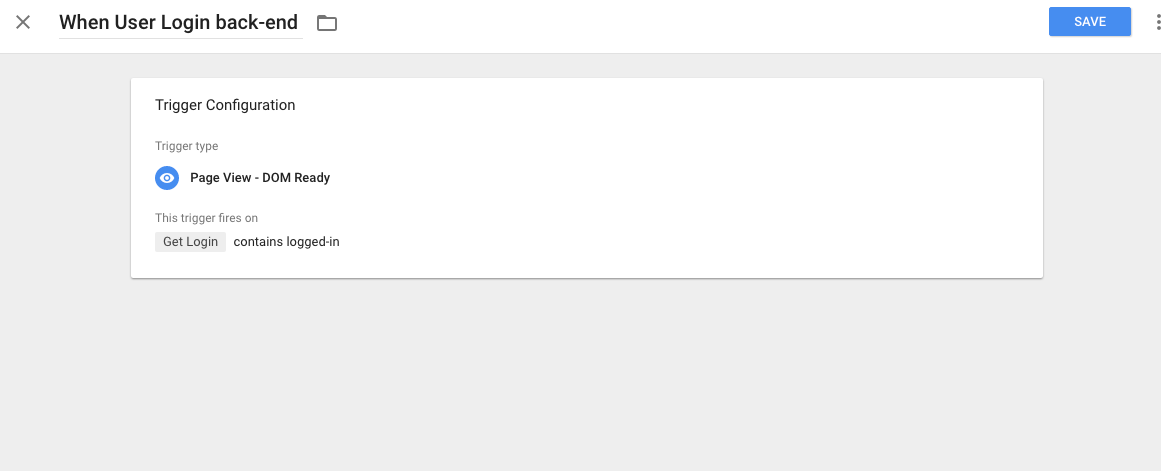
Exclude Login Traffic from Google Analytics

Step 4. Now it’s time to verify exception trigger whether it’s working or not using Google Tag Manager preview mode to Exclude Login Traffic from Google Analytics using Google Tag Manager
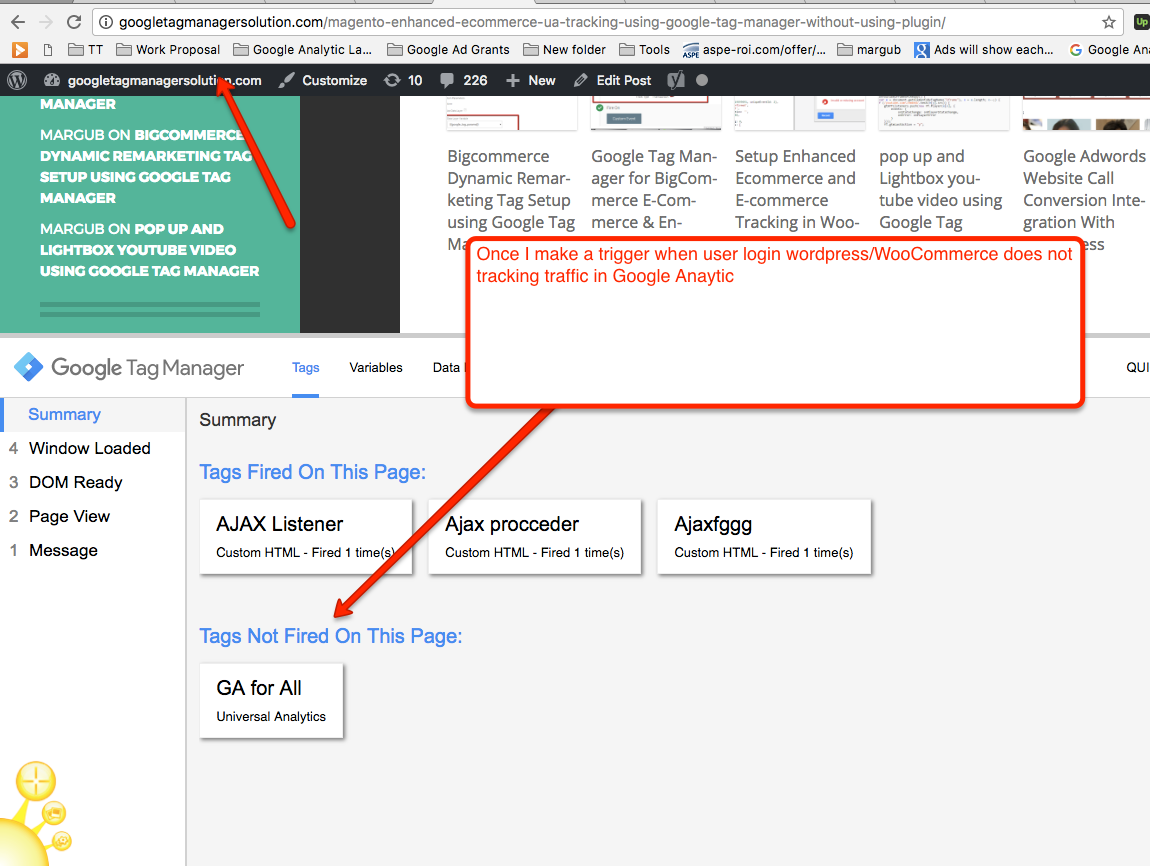
Exclude Login Traffic from Google Analytics using Google Tag Manager

Warning:if you do n’t know about javascript or do n’t have developing knowledge then do n’t try to Exclude Login Traffic from Google Analytics using Google Tag Manager without putting Code on the Websitethat can broke your site, Cart and other functionality 

Disclaimer: Google tag manager belongs to Google property 

For Contact: mappchero@gmail.com

No Fields Found.
  • Date July 19, 2017
  • Tags Exclude Login Traffic from Google Analytics
  • Comments Leave a comment
Proudly powered by WordPress
Theme: Writr by WordPress.com.