Shopify (Non-Plus) Google Analytics (GA4) Ecommerce Tracking using Google Tag Manager

Standard

Setup Google Analytics 4 Ecommerce Tracking on Shopify (Non-Plus) without an App

Google Tag Manager (GTM) is a free tool offered by Google that helps manage marketing tags (such as tracking and marketing optimization JavaScript tags) on your website.

Shopify is an e-commerce platform that provides a simple and convenient way to create an online store.

Google Analytics 4 (GA4) is the latest version of Google Analytics. It is a platform for collecting, processing, and analyzing customer data from websites and mobile apps.

Google Tag Manager can be integrated with Shopify and GA4 to enable e-commerce tracking. This involves setting up tracking tags in GTM to track various e-commerce-related events, such as product impressions, add-to-cart events, and purchases. The data collected through these tags is then sent to GA4, where it can be used to gain insights into customer behavior and to optimize your online store’s conversion rate.

Shopify Non-Plus eCommerce tracking refers to tracking e-commerce data and metrics on a Shopify store that doesn’t have the Plus plan. With GTM and GA4, you can still track e-commerce data and metrics on a non-Plus Shopify store, but you may need to customize your tracking implementation.

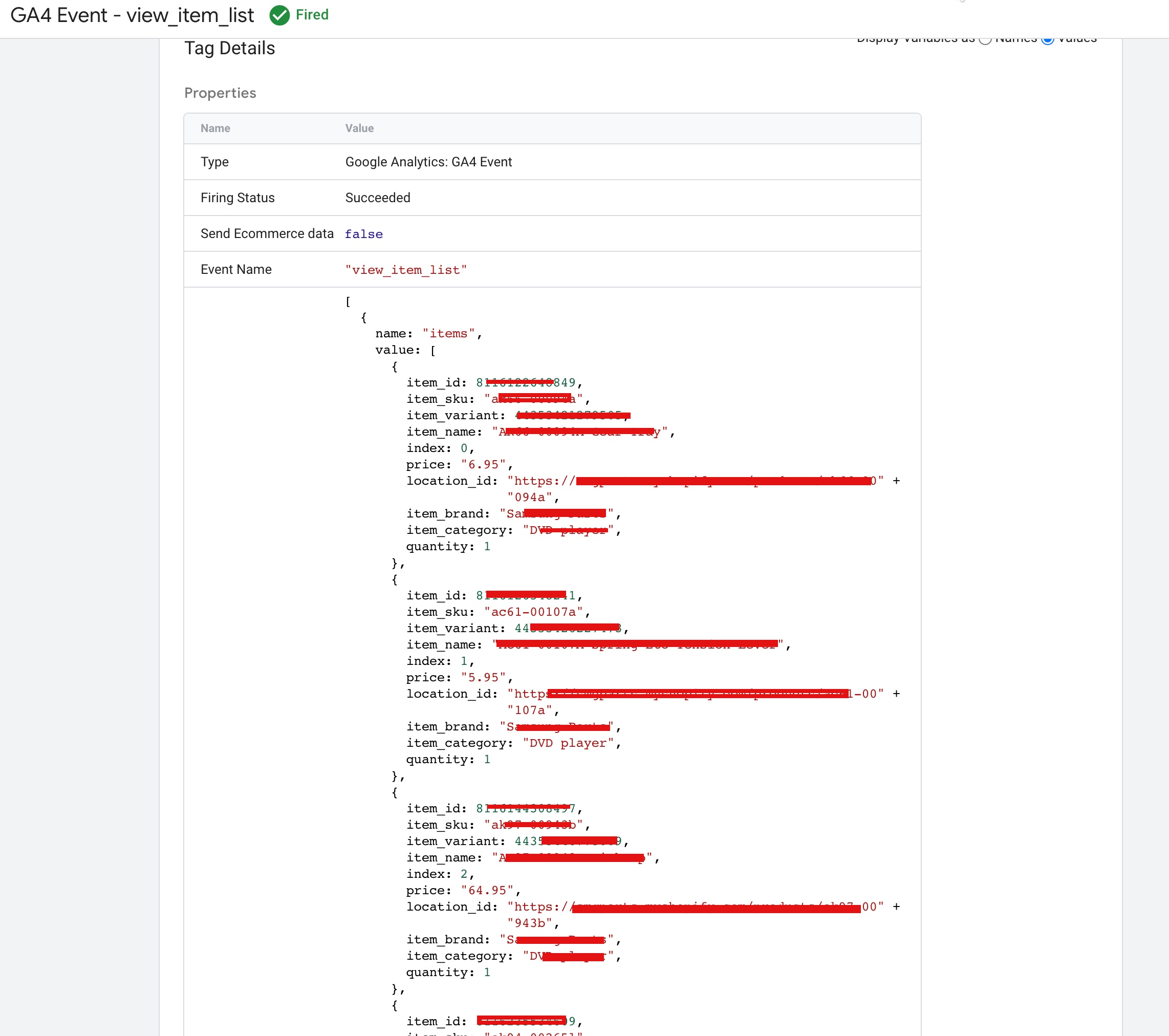
Event “view_item_list”: The “view_item_list” event in non-Shopify Plus ecommerce platforms with Google Analytics 4 (GA4) is used to track the view of a list of products on an ecommerce website. It is typically triggered when a customer views a product category page or a search results page. The event sends data to GA4, such as the products viewed, their IDs, and the categories they belong to, which can then be used to understand customer behavior and improve the shopping experience. This event is a key part of ecommerce tracking and is essential for measuring the effectiveness of product listings and category pages.

Set up GA4 eCommerce tracking on Non Shopify Plus using Google Tag Manager

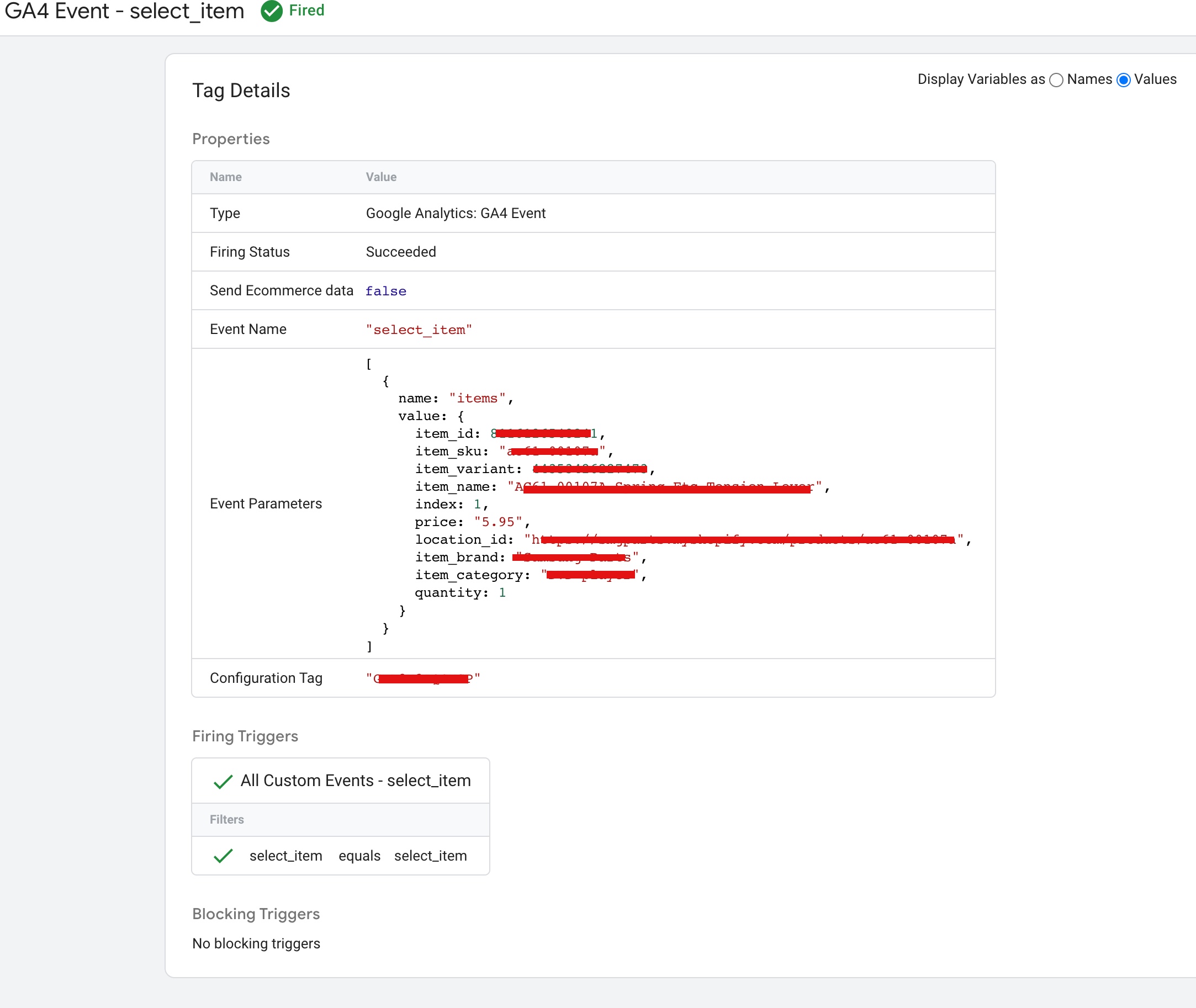
Event “select_item”: The “select_item” event in non-Shopify Plus ecommerce platforms with Google Analytics 4 (GA4) is used to track when a customer selects a product for further information or purchase. This event is typically triggered when a customer clicks on a product from a list view, such as a product category or search results page. The event sends data to GA4, such as the product ID, name, and category, which can be used to understand customer behavior and preferences. This event is a key part of ecommerce tracking and helps to measure the success of product listings and determine which products are most popular with customers.

Add Google Analytics 4 to Non Shopify Plus

Setting up Google Analytics 4 (GA4) on Non Shopify Plus using Google Tag Manager

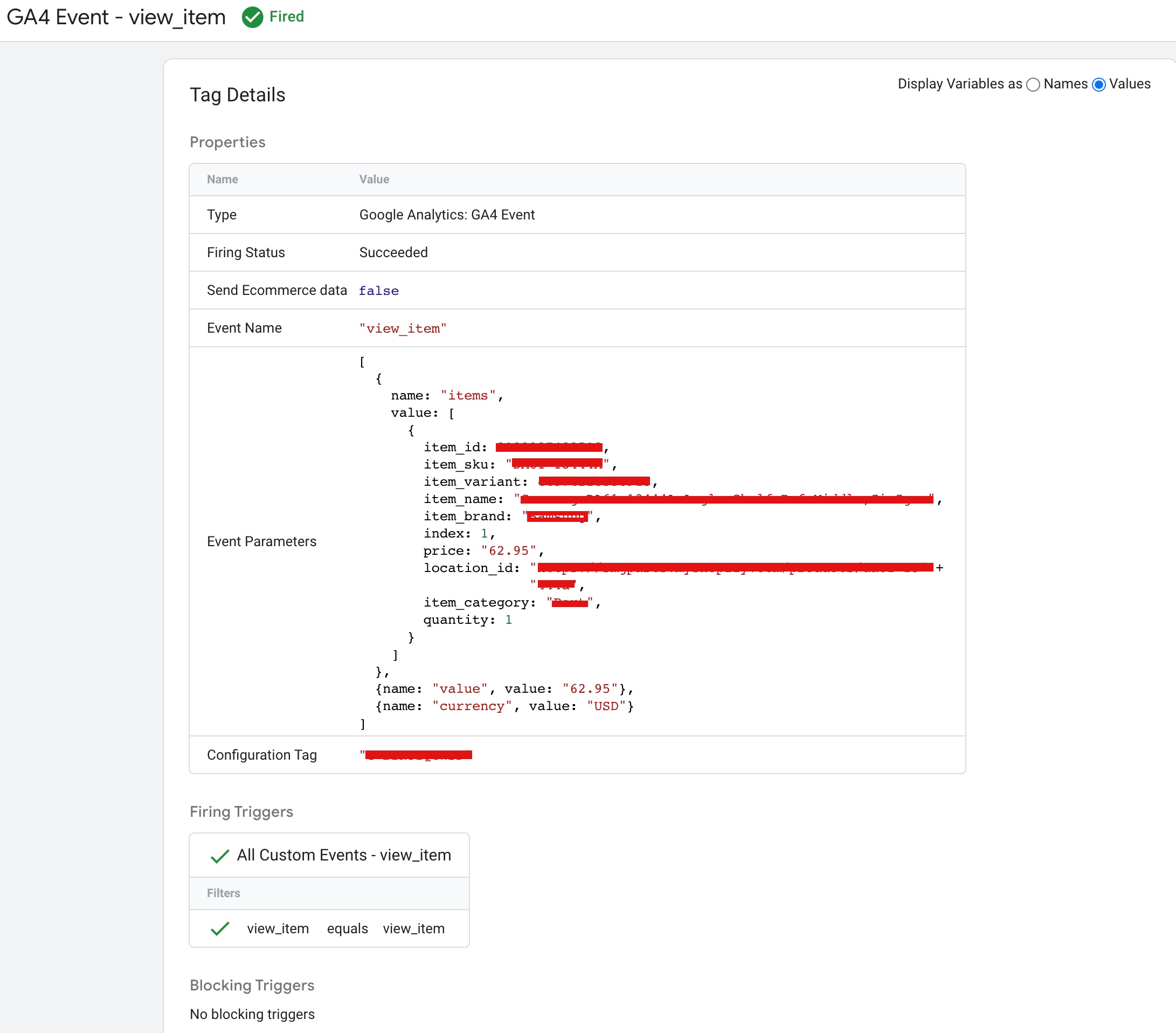
Event “view_item”:  The “view_item” event is a type of e-commerce tracking event that is triggered when a customer views a specific product on an online store. This event can provide valuable information about customer behavior, such as which products are attracting the most attention and which ones are being ignored.

In Google Analytics 4 (GA4), the “view_item” event can be tracked by sending the appropriate data to GA4 whenever the event occurs. If you are using Shopify and do not have the Plus plan, you can still track the “view_item” event by using Google Tag Manager (GTM) to set up a tracking tag that triggers when the event occurs. The data collected by the tag can then be sent to GA4 for analysis.

Non Shopify Plus GA4 eCommerce Tracking

Implement Non Shopify Plus GA4 Ecommerce Tracking using Google Tag Manager

Event “add_to_cart”: The “add_to_cart” event is a type of e-commerce tracking event that is triggered when a customer adds a product to their shopping cart on an online store. This event provides valuable information about customer behavior, such as which products are popular and which ones are being abandoned in the cart.

In Google Analytics 4 (GA4), the “add_to_cart” event can be tracked by sending the appropriate data to GA4 whenever the event occurs. If you are using Shopify and do not have the Plus plan, you can still track the “add_to_cart” event by using Google Tag Manager (GTM) to set up a tracking tag that triggers when the event occurs. The data collected by the tag can then be sent to GA4 for analysis.

Non Shopify Plus GA4 Analytics Setup

Ecommerce Tracking GA4 Non Shopify Plus on Google Tag Manager

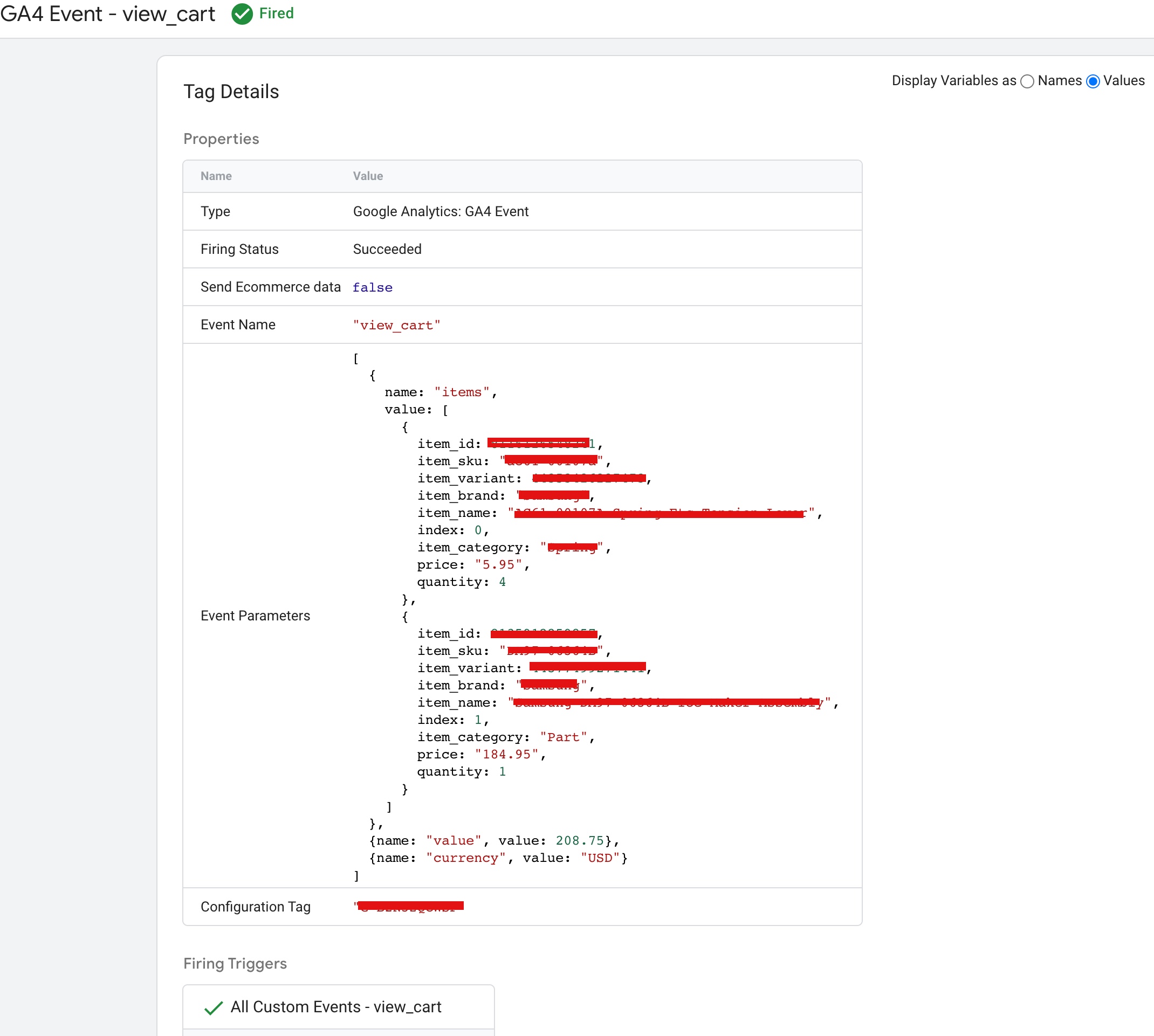
Event “view_cart”:  The “view_cart” event is a type of e-commerce tracking event that is triggered when a customer views their shopping cart on an online store. This event provides valuable information about customer behavior, such as how often customers view their carts and whether they abandon their carts before completing a purchase.

In Google Analytics 4 (GA4), the “view_cart” event can be tracked by sending the appropriate data to GA4 whenever the event occurs. If you are using Shopify and do not have the Plus plan, you can still track the “view_cart” event by using Google Tag Manager (GTM) to set up a tracking tag that triggers when the event occurs. The data collected by the tag can then be sent to GA4 for analysis.

 Add Google Tag Manager Snippet to Shopify (Non-Plus)

Shopify (Non-Plus) Google Analytics 4 (GA4) eCommerce Tracking for Shopify using Google Tag Manager

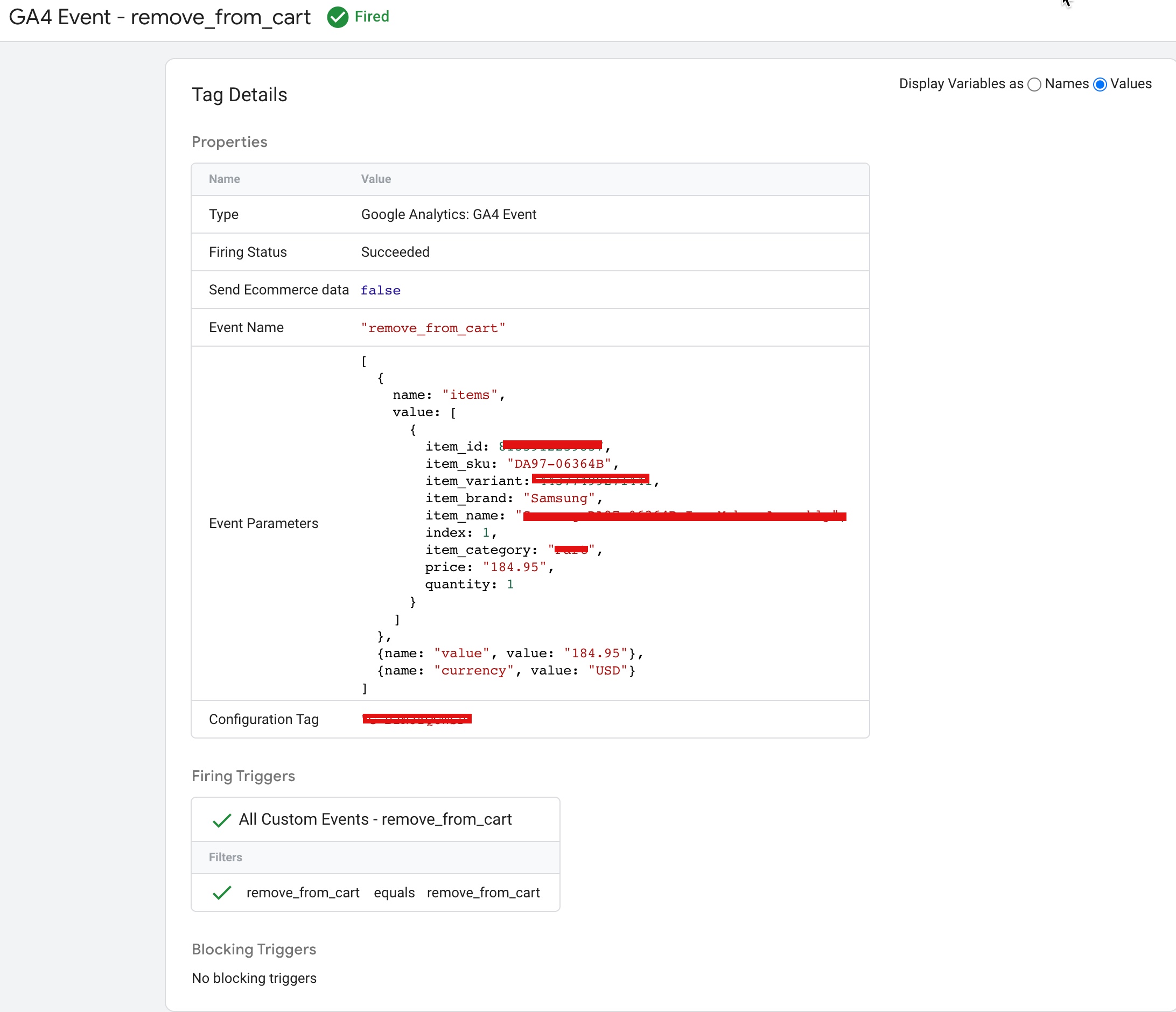
Event “remove_from_cart”: The “remove_from_cart” event is a type of e-commerce tracking event that is triggered when a customer removes a product from their shopping cart on an online store. This event provides valuable information about customer behavior, such as which products are being removed from carts and why.

In Google Analytics 4 (GA4), the “remove_from_cart” event can be tracked by sending the appropriate data to GA4 whenever the event occurs. If you are using Shopify and do not have the Plus plan, you can still track the “remove_from_cart” event by using Google Tag Manager (GTM) to set up a tracking tag that triggers when the event occurs. The data collected by the tag can then be sent to GA4 for analysis.

 Install Google Analytics 4 on Shopify (Non-Plus)

Migrate All UA Events to Google Analytics 4 (GA4) In Shopify (Non-Plus) using Google Tag Manager

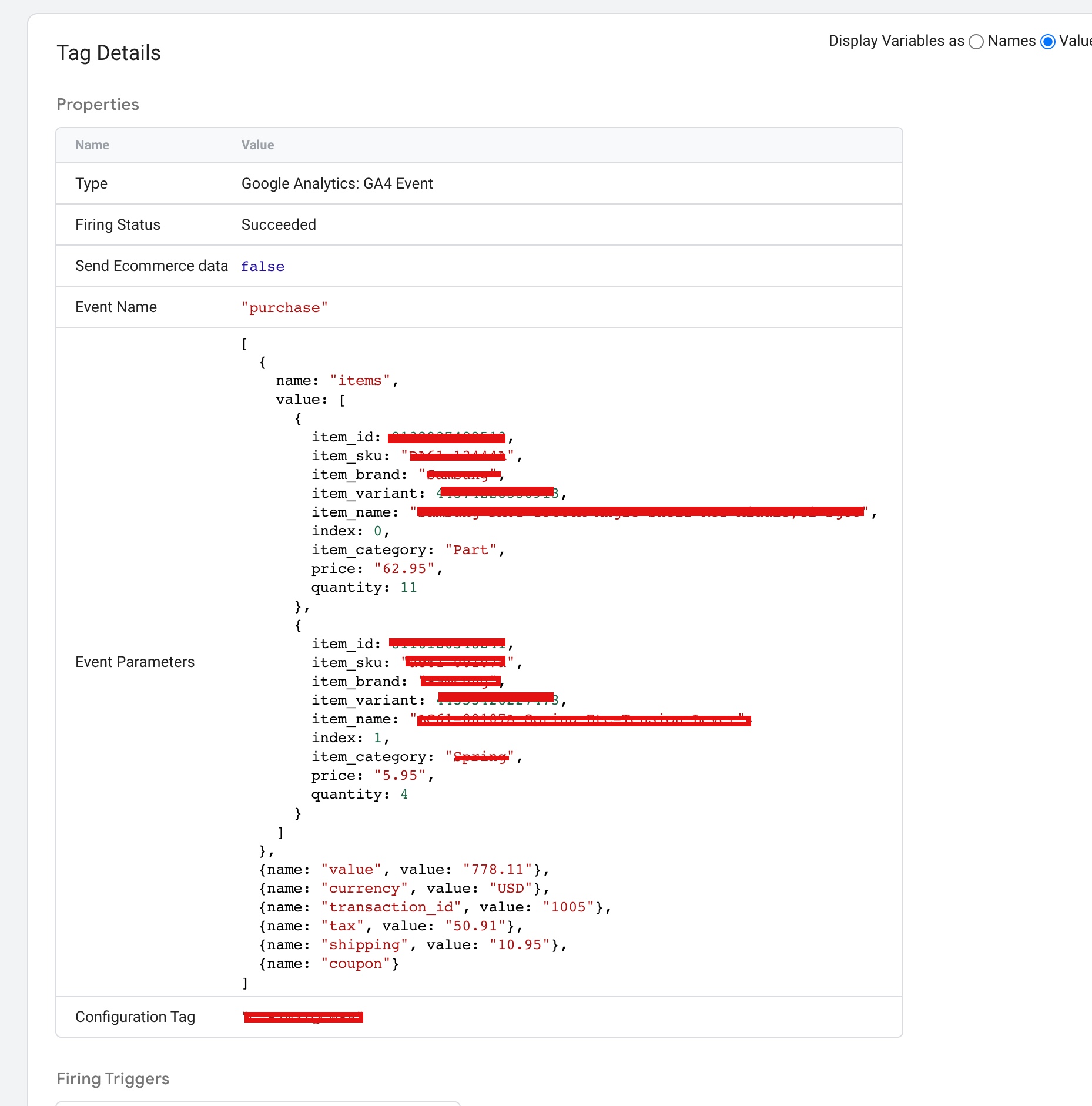
Event “purchase”: The “purchase” event is a type of e-commerce tracking event that is triggered when a customer completes a purchase on an online store. This event is crucial for measuring the success of an online store, as it provides information about revenue, average order value, and conversion rates.

In Google Analytics 4 (GA4), the “purchase” event can be tracked by sending the appropriate data to GA4 whenever the event occurs. If you are using Shopify and do not have the Plus plan, you can still track the “purchase” event by using Google Tag Manager (GTM) to set up a tracking tag that triggers when the event occurs. The data collected by the tag can then be sent to GA4 for analysis.

Google Analytics 4 Implementation Purchase Tracking in Shopify (Non Plus)

Set Up Google Analytics 4 (GA4) Ecommerce Purchase Tracking in Shopify (Non Plus) using Google Tag Manager

Warning: If you do n’t know about javascript or do n’t have developing knowledge then do n’t try to Set Up GA4 eCommerce tracking on Shopify (Non Plus) with Google Tag Manager without module that can broke your site, Cart and other functionality 

Disclaimer: Google tag manager belongs to Google property 

For Contact: mappchero@gmail.com

I am available for Hire on Freelancer: Freelancer.com

I am available for Hire on Upwork: Upwork.com

I am available for Hire on Peopleperhour: Peopleperhour.com

I am available for Hire on Guru: Guru.com


Set Up GA4 eCommerce tracking on Shopify Plus with Google Tag Manager

Standard

Set Up Advance eCommerce Google Analytics 4 (GA4) on Shopify Plus with Google Tag Manager without Any Shopify App

Google Tag Manager (GTM) can be used to track ecommerce activity on a Shopify Plus website with Google Analytics 4 (GA4). GA4 is the latest version of Google Analytics and has a different tracking methodology compared to Universal Analytics. To track ecommerce activities in Google Analytics 4 (GA4), you need to create a GA4 property and install the Google Analytics 4 (GA4) tracking code on your Shopify Plus website. Once the tracking code is installed, you can set up tags in GTM to track important events such as product views, add to carts, and purchases, and send that data to your Google Analytics 4 (GA4) property for analysis. GTM provides a user-friendly interface for setting up and managing tracking, making it easier for non-technical users to implement ecommerce tracking.

Google Tag Manager (GTM) can be used in conjunction with Google Analytics 4 (GA4) to track ecommerce activity on a Shopify Plus website.

Here’s the process:

  1. Create a Google Analytics 4 (GA4) property: This can be done in the Google Analytics interface.

2. Install the Google Tag Manager (GTM) code: The Google Tag Manager (GTM) code can be added to the Shopify Plus website through the Shopify theme editor or by using a data layer  from the Shopify Store.

3. Install the GA4 tracking code: The GA4 tracking code can be added to the website through Google Tag Manager (GTM) by creating a tag in Google Tag Manager (GTM) and configuring it to send data to your Google Analytics 4 (GA4) property.

3. Set up ecommerce tracking in Google Tag Manager (GTM): You need to set up ecommerce tracking in Google Tag Manager (GTM) by creating tags that track important events such as product views, add to carts, and purchases.

4. Test tracking: Before using the data in your Google Analytics 4 (GA4) reports, it is recommended to test your tracking implementation to ensure that it is working correctly.

By using Google Tag Manager (GTM) to track ecommerce activity on a Shopify Plus website with GA4, you can take advantage of the user-friendly interface and robust tracking capabilities of Google Tag Manager (GTM), while also using Google Analytics 4 (GA4) to analyze the ecommerce data and make informed business decisions.

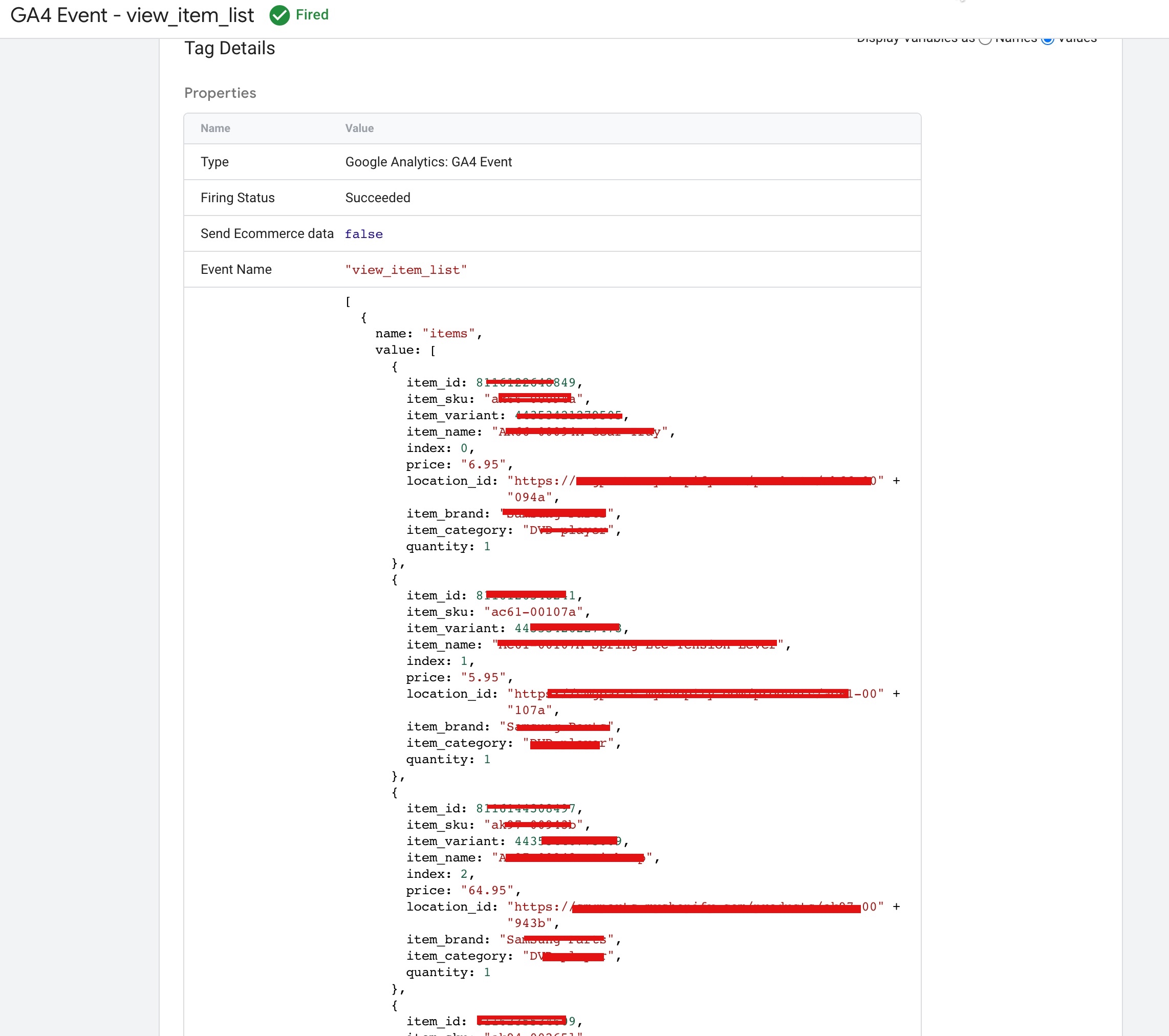
“view_item_list” : In Google Analytics 4 (GA4) and Google Tag Manager (GTM), the “view_item_list” event can be used to track when a user views a list of items, such as a category page, on a Shopify Plus website.

Here’s how you can track this event:

1 Implement a data layer: On the Shopify Plus website, you need to implement a data layer to hold data about the “view_item_list” event. This can be done by adding a JavaScript object to the page that holds information about the event, such as the list name or the number of items.

2. Set up the “view_item_list” event in GTM: In GTM, you can create a tag that uses the data layer to track the “view_item_list” event by using the GA4 Event Tracking template. In the tag configuration, you need to specify the event name as “view_item_list” and map the event data from the data layer to the GA4 event fields.

Here is an example of how you can implement a data layer to track the “view_item_list” event in Google Analytics 4 (GA4) and Google Tag Manager (GTM) on a Shopify Plus website:

<script>
  window.dataLayer = window.dataLayer || [];
  dataLayer.push({
  event: "view_item_list",
  ecommerce: {
    item_list_id: "related_products",
    item_list_name: "Related products",
    items: [
     {
      item_id: "SKU1,Productid1",
      item_name: "Produt1",
      index: 0,
      item_brand: "brand2",
      item_category: "Category1",
      item_variant: "variant2",
      location_id: "2ahYfAR_6128fGcTUEo",
      price: 9.99,
      quantity: 1
    },
    {
      item_id: "SKU_12346",
      item_name: "Produt2",
      index: 1,
      item_brand: "brand2",
      item_category: "Category2",
      item_variant: "variant2",
      location_id: "ChffIJIQBpAGEo",
      price: 20.99,
      quantity: 1
    }]
  }
});
</script>
Google Analytics 4 Ecommerce Tracking to Shopify Site

GA4 Ecommerce Tracking on Shopify Plus in Google Analytics 4 using Google Tag Manager

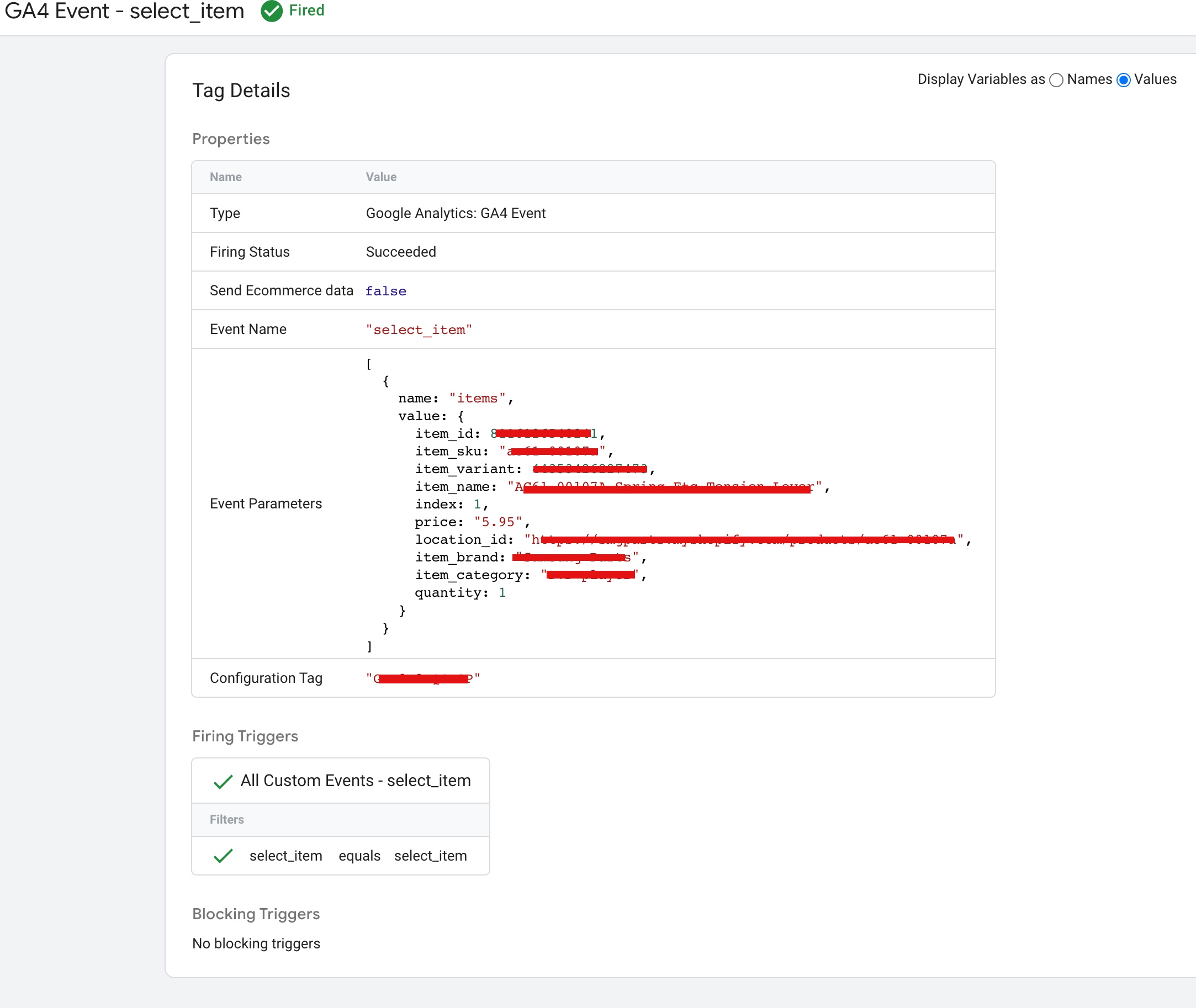
“select_item” : The “select_item” event in Google Analytics 4 (GA4) and Google Tag Manager (GTM) can be used to track user interactions with items on a Shopify Plus.

Here’s how you can track this event:

  1. Implement GA4 event tracking: On the Shopify Plus website, you need to implement event tracking to capture the “select_item” event. This can be done by using JavaScript to send an event to GTM when the user interacts with an item on the website, such as by clicking on it.

2. Set up the “select_item” event in GTM: In GTM, you can create a tag that tracks the “select_item” event by using the GA4 Event Tracking template. In the tag configuration, you need to specify the event name as “select_item” and map the event data from the JavaScript event to the GA4 event fields.

Here is an example of how you can implement a data layer to track the “select_item” event in Google Analytics 4 (GA4) and Google Tag Manager (GTM) on a Shopify Plus website:

<script>
  dataLayer.push({
    'event': 'select_item',
    'item_name': 'Product',
    'item_id': '123456789',
    'item_brand': 'Brand',
    'index': 0,
    'item_category': 'category',
    'item_variant': '123456789',
    'quantity': '1',
    'price': 50.00
  });
</script>
Setting up Google Analytics 4 (GA4) on Shopify

Implement Google Analytics 4 for E-commerce on Shopify Plus Stores using Google Tag Manager

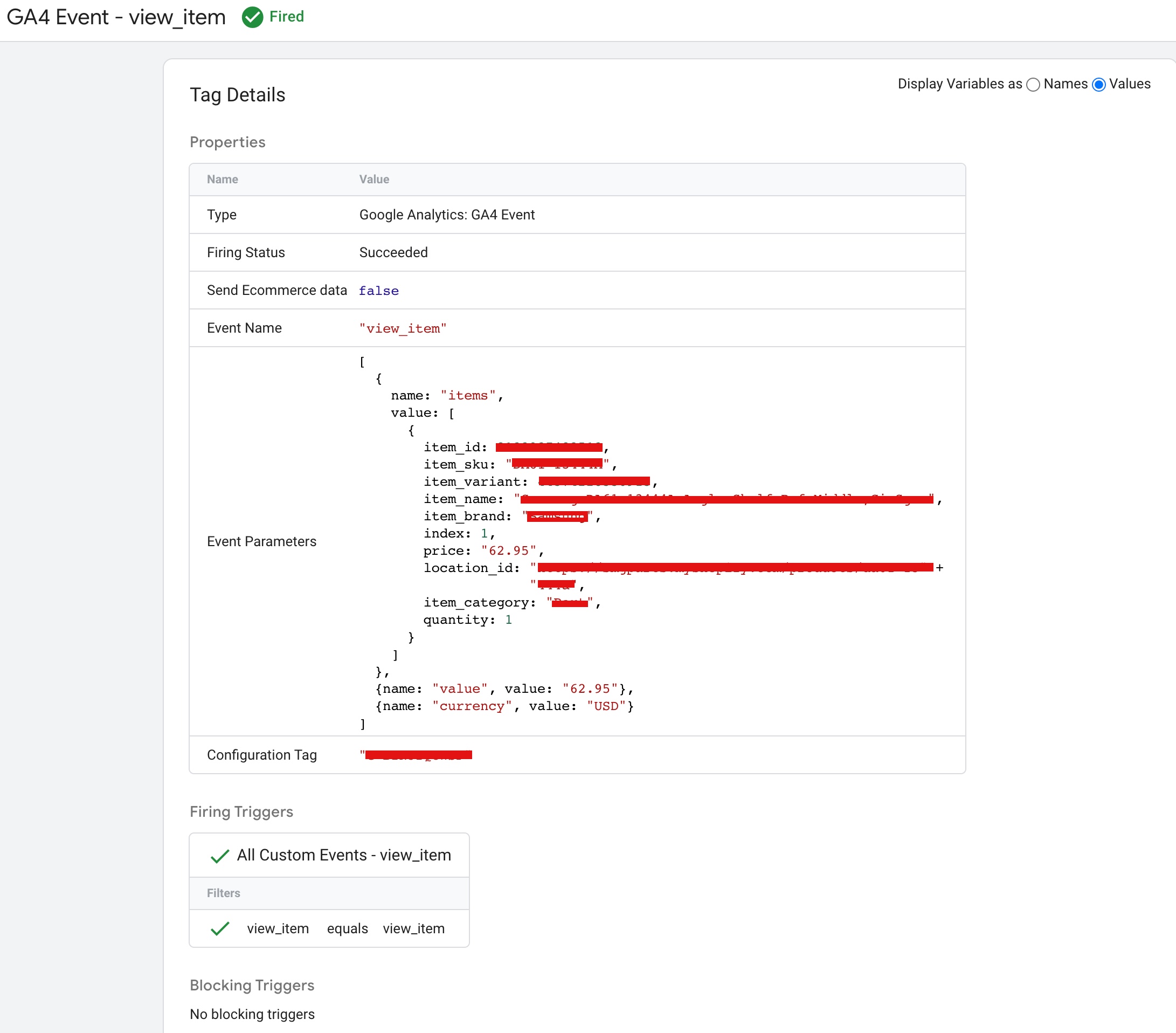
“view_item” : The “view_item” event in Google Analytics 4 (GA4) and Google Tag Manager (GTM) can be used to track when a user views an item on a Shopify Plus.

Here’s how you can track this event:

1. Implement event tracking: On the Shopify Plus website, you need to implement event tracking to capture the “view_item” event. This can be done by using JavaScript to send an event to GTM when the user views an item on the website, such as by navigating to its product detail page.

2. Set up the “view_item” event in GTM: In GTM, you can create a tag that tracks the “view_item” event by using the GA4 Event Tracking template. In the tag configuration, you need to specify the event name as “view_item” and map the event data from the JavaScript event to the GA4 event fields.

Here is an example of how you can implement a data layer to track the “view_item” event in Google Analytics 4 (GA4) and Google Tag Manager (GTM) on a Shopify Plus website:

<script>
  window.dataLayer = window.dataLayer || [];
  dataLayer.push({
    'event': 'view_item',
    'item_name': 'Product2',
    'item_id': '12346789',
    'item_category': "Category2",
    'item_brand': "brand2",
    'index': 6,
    'price': 50.00,
    'quantity': 1

  });
</script>
GA4 Ecommerce Enhanced Conversion Tracking for Shopify Plus

Set Up Google Analytics 4 (GA4) Ecommerce Purchase Event Tracking in Shopify Plus using Google Tag Manager

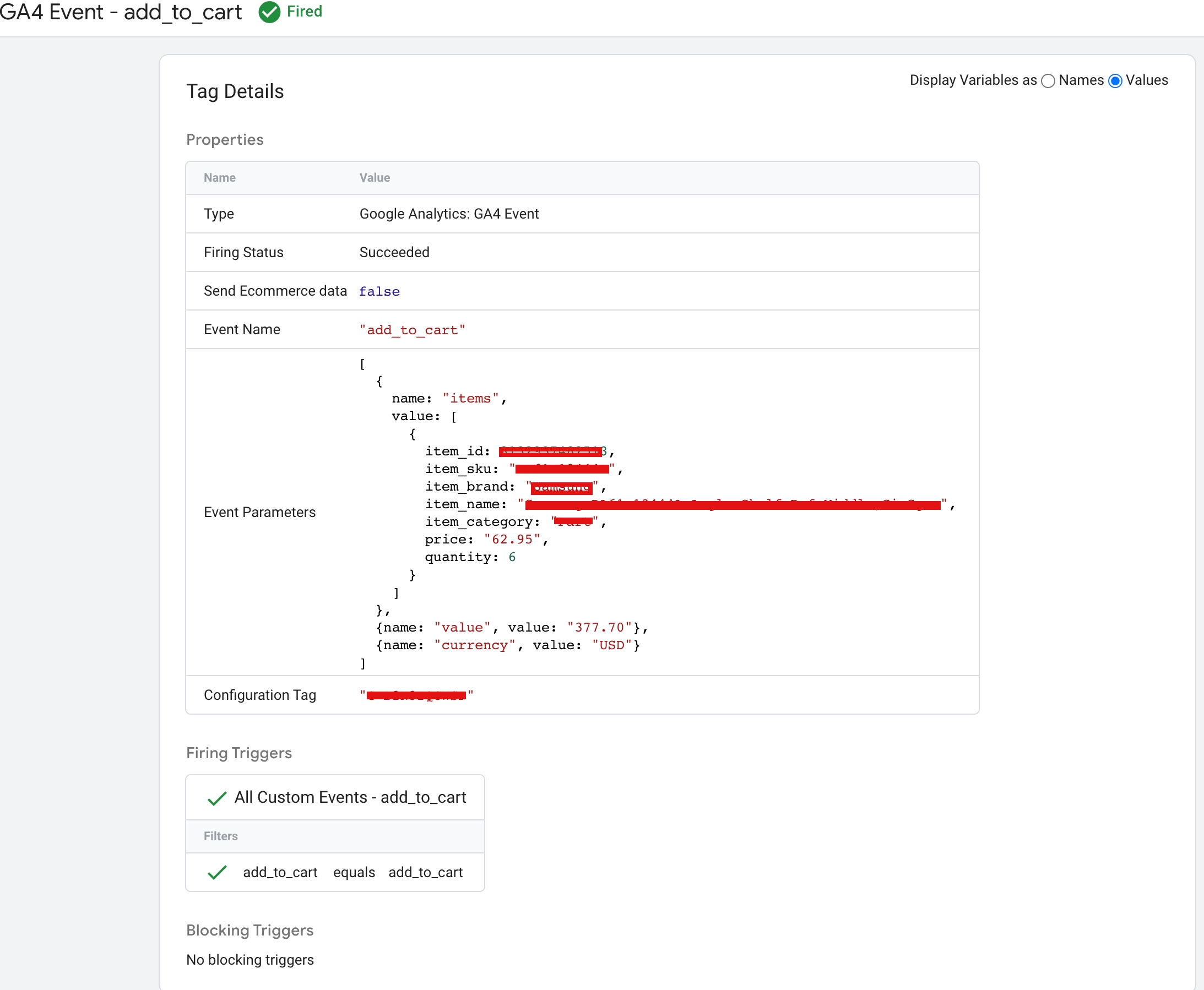
“add_to_cart” : The “add_to_cart” event in Google Analytics 4 (GA4) and Google Tag Manager (GTM) can be used to track when a user adds an item to their shopping cart on a Shopify Plus.

Implement event tracking: On the Shopify Plus website, you need to implement event tracking to capture the “add_to_cart” event. This can be done by using JavaScript to send an event to GTM when the user adds an item to their cart, such as by clicking an “Add to Cart” button.

Set up the “add_to_cart” event in GTM: In GTM, you can create a tag that tracks the “add_to_cart” event by using the GA4 Event Tracking template. In the tag configuration, you need to specify the event name as “add_to_cart” and map the event data from the JavaScript event to the GA4 event fields.

Here is an example of how you can implement a data layer to track the “add_to_cart” event in Google Analytics 4 (GA4) and Google Tag Manager (GTM) on a Shopify Plus website:

<script>
  window.dataLayer = window.dataLayer || [];
  dataLayer.push({
    'event': 'add_to_cart',
    'item_name': 'Product5',
    'item_id': '1256789',
    'index': 9,
    'item_brand': "brand5",
    'item_category': "category6",
    'price': 50.00,
    'quantity': 1
  });
</script>
Add Google Analytics 4 to Shopify

Shopify Enhanced Ecommerce Tracking with Google Analytics 4 (GA4) using Google Tag Manager

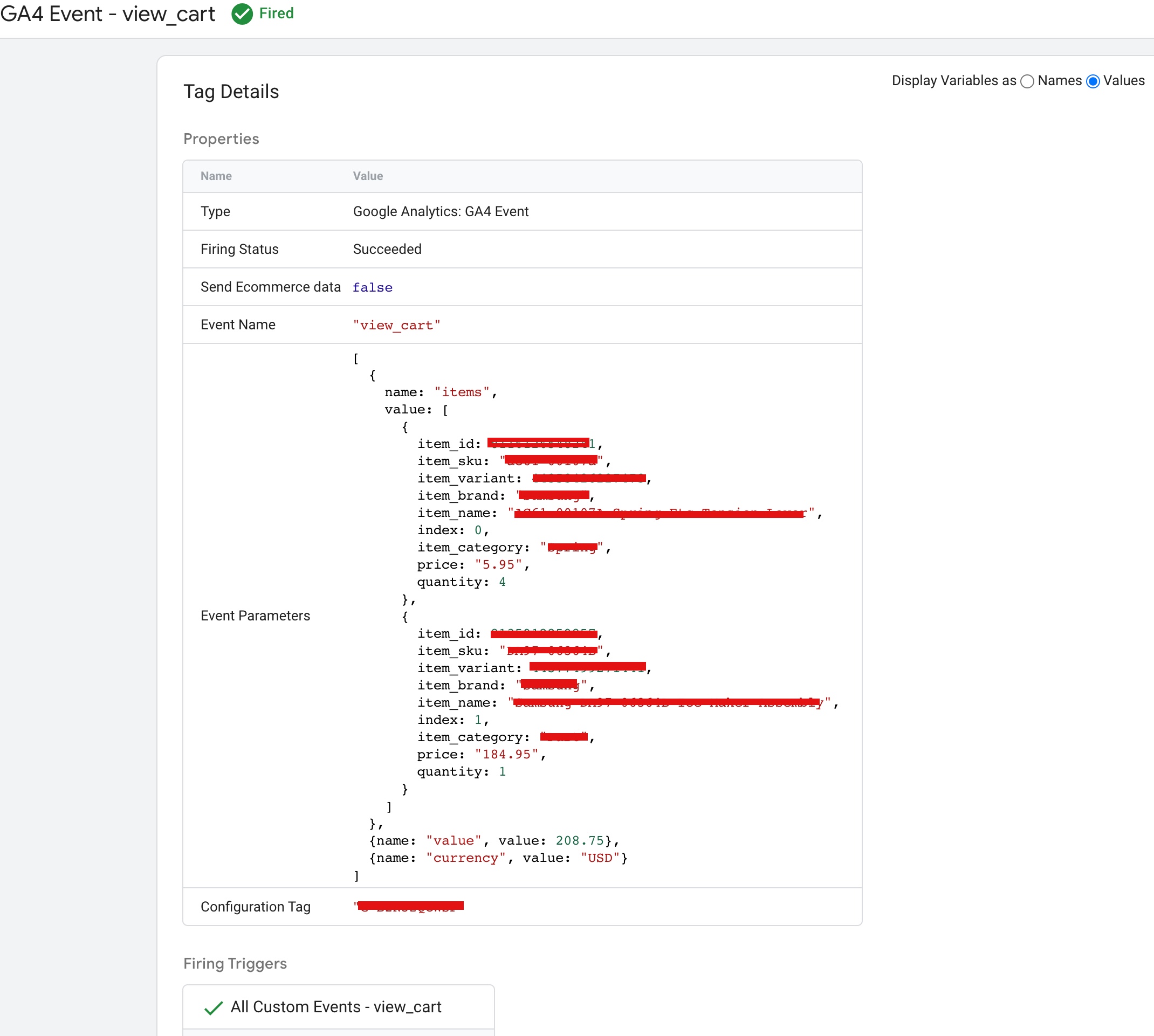
“view_cart” : The “view_cart” event in Google Analytics 4 (GA4) and Google Tag Manager (GTM) can be used to track when a user views their shopping cart on a Shopify Plus e-commerce website.

Here’s how you can track this event:

Implement event tracking: On the Shopify Plus website, you need to implement event tracking to capture the “view_cart” event. This can be done by using JavaScript to send an event to GTM when the user views their cart, such as by clicking a “View Cart” button.

Set up the “view_cart” event in GTM: In GTM, you can create a tag that tracks the “view_cart” event by using the GA4 Event Tracking template. In the tag configuration, you need to specify the event name as “view_cart”.

<script>
window.dataLayer = window.dataLayer || [];
dataLayer.push({
    'event': 'view_cart',
    'ecommerce': {
            'products': [{
                'item_name': 'Product7',
                'item_id': '12334566','
index: 89, 'price': 50.00, 'item_brand': 'Brand4', 'item_category': 'cateogry21', 'quantity': 1 }] } }); </script>

This data layer code makes use of Shopify Liquid syntax to dynamically populate the product information in the data layer.

In order to make use of this data layer, you’ll need to have Google Tag Manager set up on your Shopify Plus store. You can then create a tag in GTM that will fire when the view_cart event is pushed to the data layer.
Shopify Enhanced eCommerce GA4

Shopify Plus Google Tag Manager Enhanced Ecommerce Tracking Google Analytic 4 (UA/GA4) Tracking

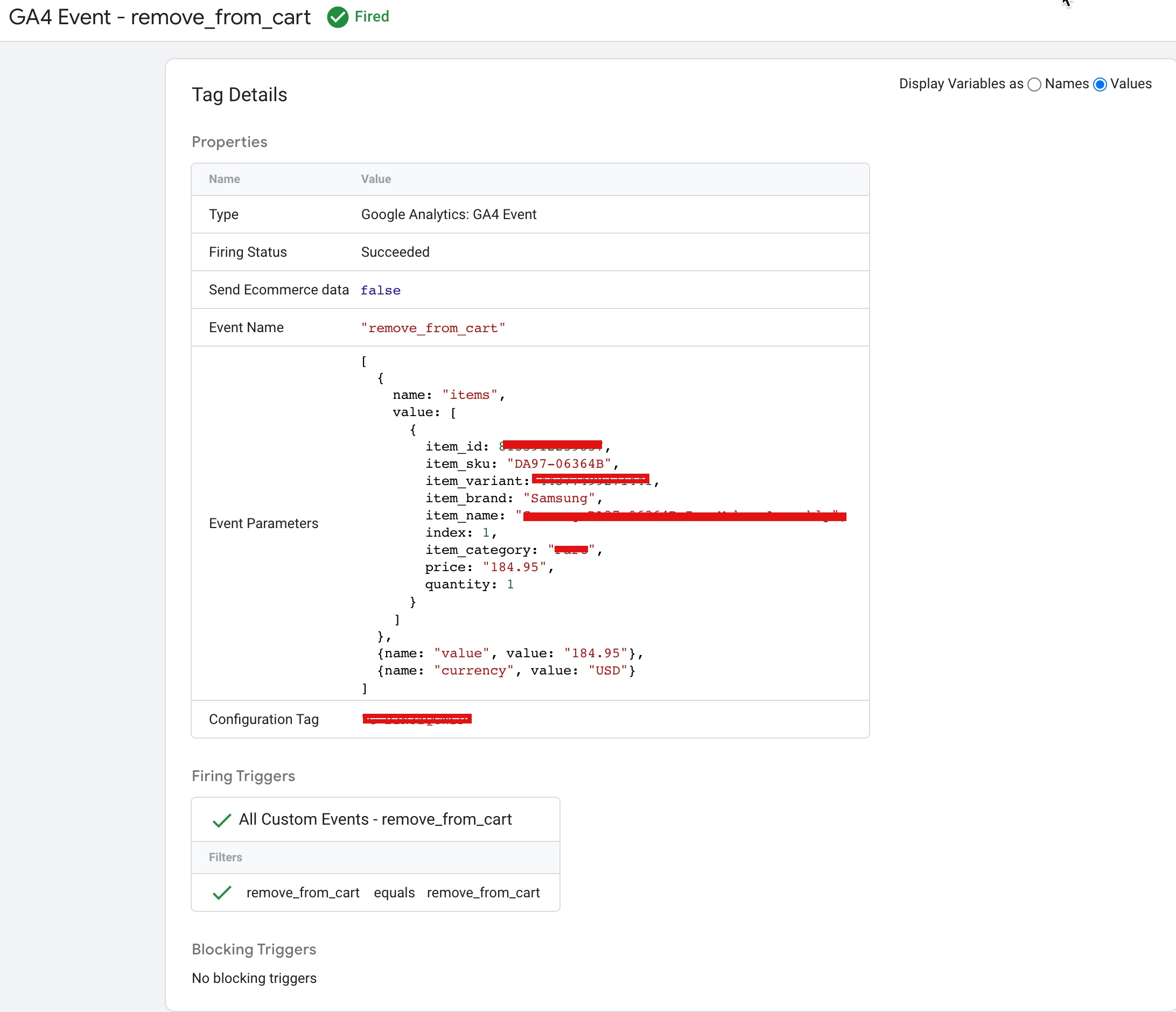
“remove_from_cart” : The event “remove_from_cart” is a type of tracking event used to monitor when an item is removed from a customer’s shopping cart in  a Shopify Plus store. The event is being tracked through GA4 (Google Analytics 4), which is a new version of Google Analytics, and is implemented on a Shopify Plus platform using Google Tag Manager. This event helps in understanding customer behavior and making data-driven decisions to improve the shopping experience.

To track the “remove_from_cart” event in Google Analytics 4 (GA4) with Google Tag Manager (GTM), you would need to set up the appropriate data layer and trigger in GTM.

Here’s an example of how you might set up the data layer in Shopify Plus:

<script>
  window.dataLayer = window.dataLayer || [];
  dataLayer.push({
    event: "remove_from_cart",
    items: [
      {
        item_id: "12345", // Replace with the actual product ID
        item_name: "Example Product", // Replace with the actual product name
        price: "9.99", // Replace with the actual product price
        quantity: "1" // Replace with the actual quantity removed
      }
    ]
  });
</script>
GA4 Ecommerce Tracking Shopify Plus

Set up GA4 E-commerce Tracking using Shopify Plus with Google Tag Manager

“begin_checkout” : is an event that can be used in Shopify Plus ecommerce tracking with GA4 (Google Analytics 4). It represents the initiation of the checkout process and can be recorded using GA4 tracking code and data layer with the help of Google Tag Manager. The “begin_checkout” event can be used to understand and analyze customer behavior, including the number of initiated checkouts and how far customers progressed through the checkout process.

The event “begin_checkout” refers to the action of starting the checkout process on an e-commerce website. The e-commerce platform being used is Shopify Plus and is being tracked using Google Analytics 4 (GA4) with data layer implementation.

Here is an example code of pushing the “begin_checkout” event to the data layer in a Shopify Plus:

dataLayer.push({
  event: "begin_checkout",
  items: [
    {
      item_id: "item-id",
      item_name: "item-name",
index: 0,
item_brand: "brand_3",
item_category: "Apparel_3", price: "item-price", quantity: "item-quantity" } ] });

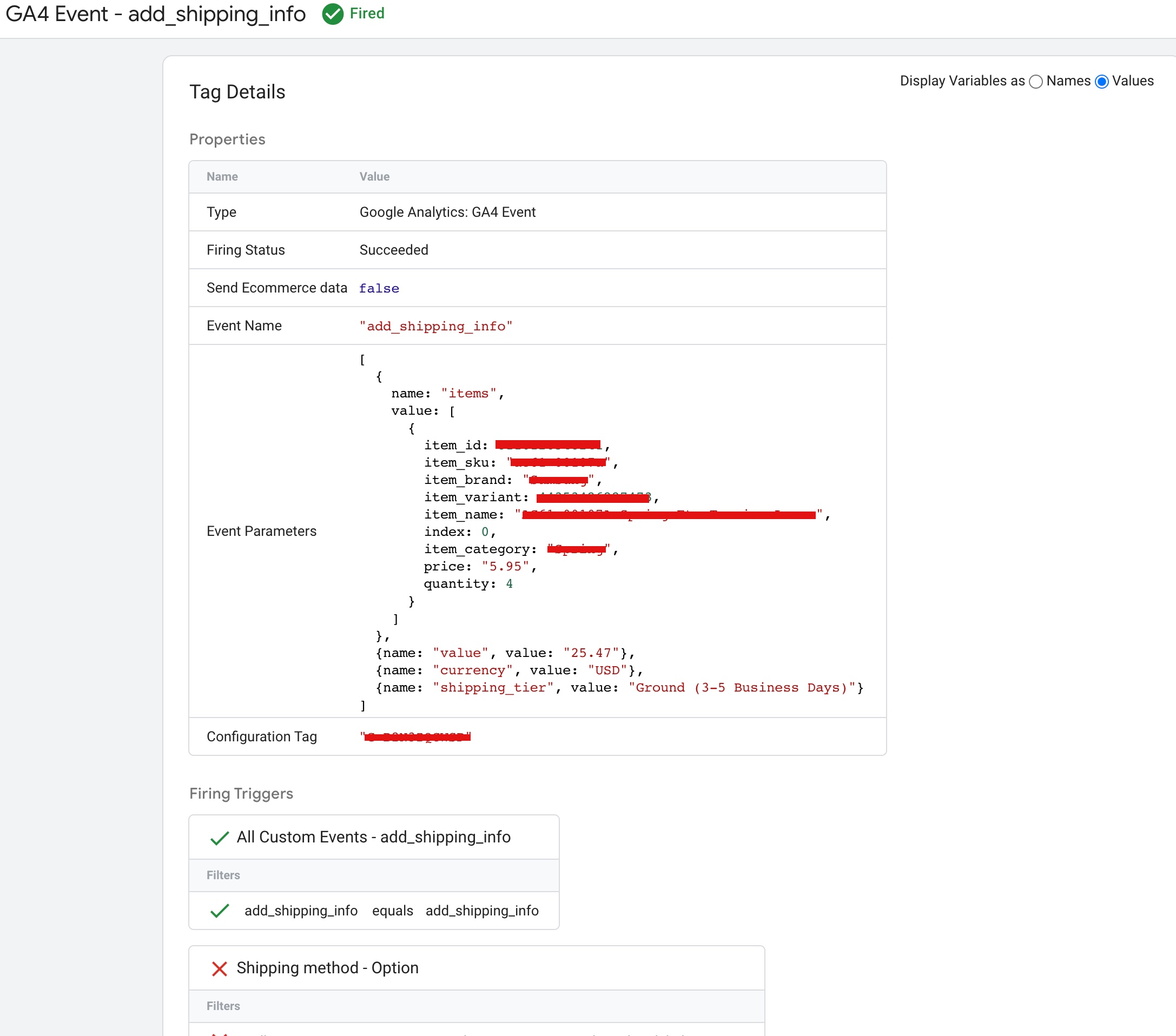
“add_shipping_info” : The “add_shipping_info” event is a custom event used to track the addition of shipping information in an e-commerce store that uses GA4 (Google Analytics 4) and Google Tag Manager, and is built on the Shopify Plus platform. The event can be triggered when a customer adds their shipping information during the checkout process. The event can be implemented using a data layer in which you push an object that contains the event name and other relevant data to the data layer. This information can then be used to trigger tags in Google Tag Manager that send the event data to GA4 for tracking and analysis.

Here’s an example code to implement “add_shipping_info” event with ecommerce data layer in Google Analytics 4 (GA4) with Google Tag Manager to the data layer in a Shopify Plus:

dataLayer.push({
  event: "add_shipping_info",
  ecommerce: {
    currency: "USD",
    value: 7.77,
    shipping_tier: "shipping method",
    items: [
    {
      item_id: "productsku/id",
      item_name: "producname",
      index: 0,
      item_brand: "brand",
      item_category: "category45"
      price: 9.99,
      quantity: 1
    }
    ]
  }
});
Shopify Plus Ecommerce Tracking in Google Analytics 4 (GA4)

Shopify Plus Advance GA4 eCommerce Tracking using Google Tag Manager

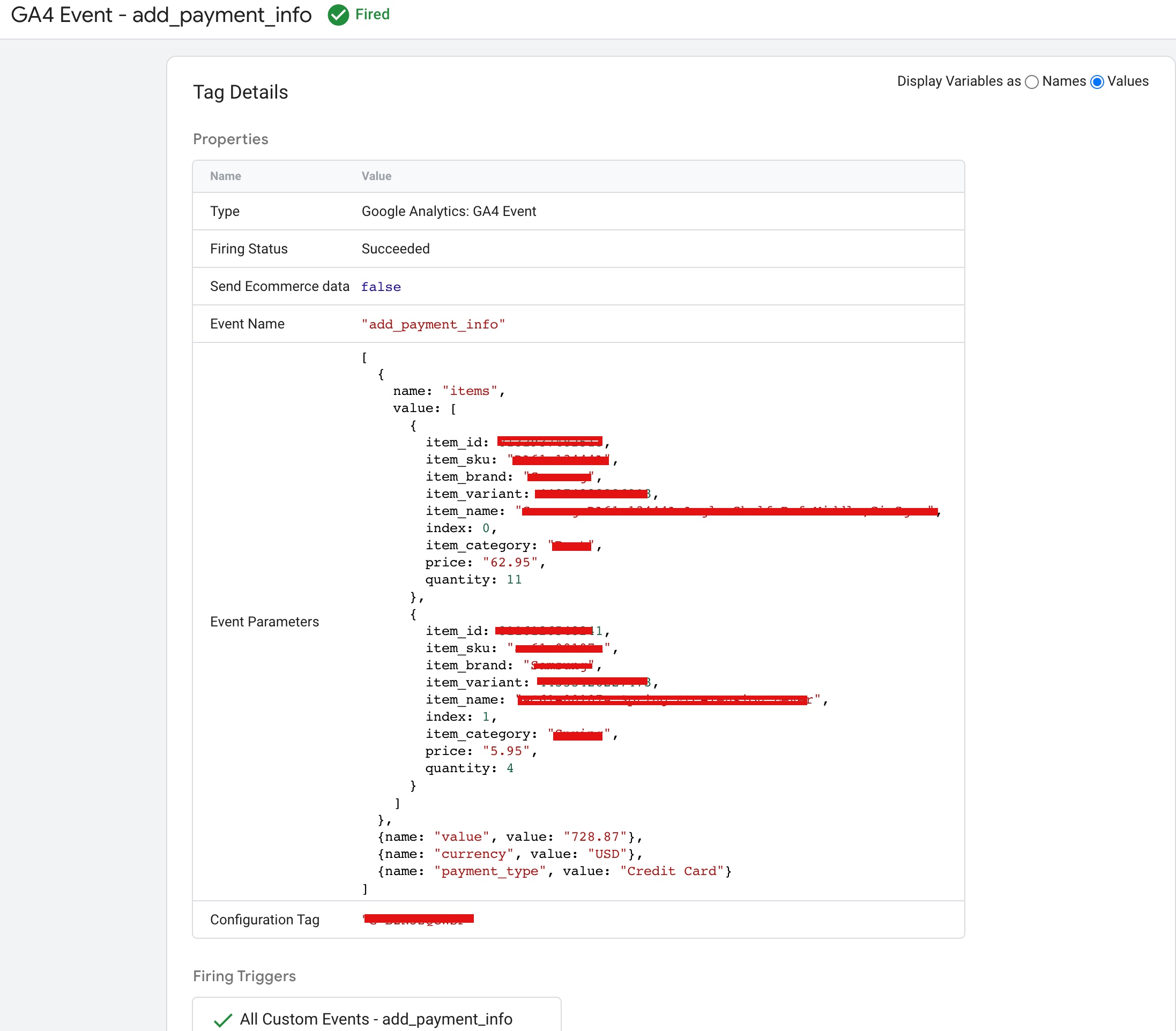
“add_payment_info” is an event that can be used in ecommerce tracking to record when a customer has added payment information on a website. The event can be implemented using Google Analytics 4 (GA4) and Google Tag Manager (GTM). In this setup, GTM collects data from the website and sends it to GA4 for analysis. The data layer is used to push information about the event to GTM, including the event name and any relevant details such as payment information.

The event “add_payment_info” is used in Shopify Plus ecommerce tracking with Google Analytics 4 (GA4) and Google Tag Manager. The data layer code would look similar to the following example:

dataLayer.push({
  event: "add_payment_info",
  ecommerce: {
   payment_type: "Credit Card",
    items: [
    {
      item_id: "Productid 1",
      item_name: "producname7",
      index: 0,
      item_brand: "brand",
      item_category: "category45"
      price: 9.99,
      quantity: 1
    }
    ]
  }
});
Google Analytics 4 Integration for Shopify Plus

Connect Google Analytics 4 (GA4) eCommerce Tracking for Shopify Plus using Google Tag Manager

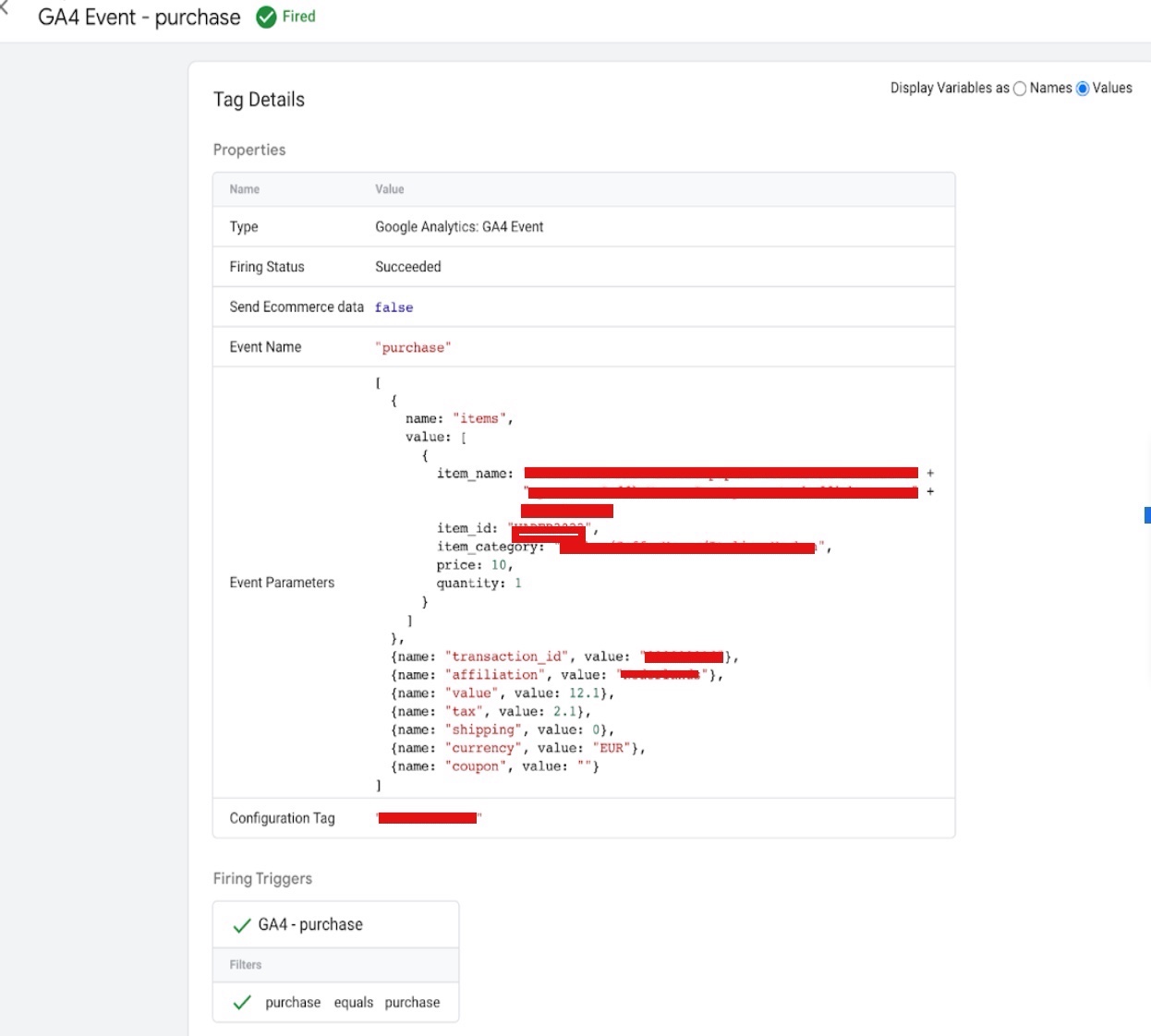
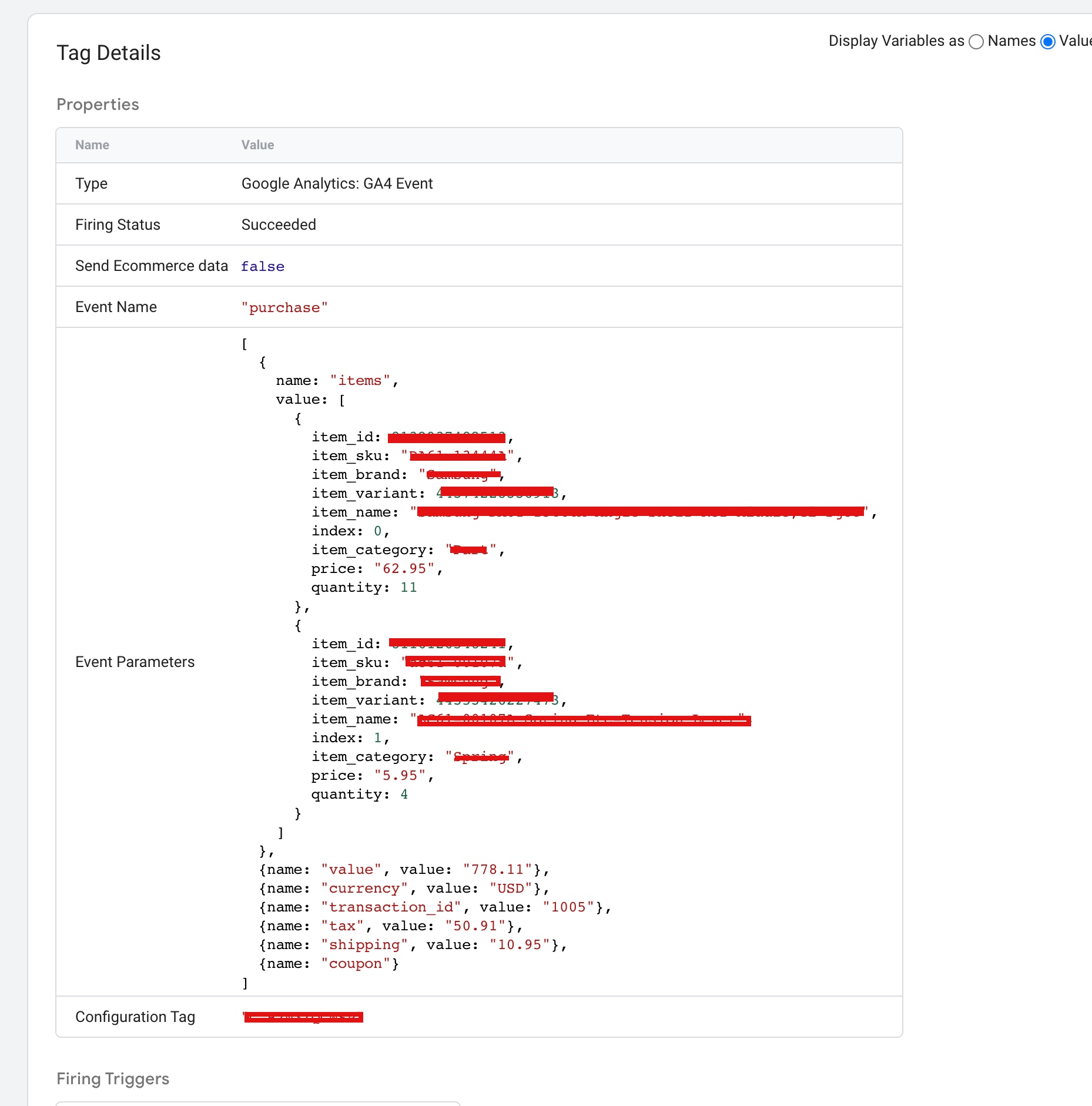
“purchase”: The event “purchase” is a standard ecommerce event in Google Analytics 4 (GA4) that tracks the completion of a transaction on a website. The event is usually set up with the help of Google Tag Manager and can be integrated with Shopify Plus to track ecommerce data. When the event is triggered, the data related to the purchase, such as product and transaction information, is sent to GA4 for analysis.

The event “purchase” is a commonly used event in ecommerce tracking to track when a customer has completed a transaction and purchased items from a website. When using Shopify Plus with Google Tag Manager and GA4, you can use the following code in your data layer to trigger this event:

dataLayer.push({
event: "purchase",
ecommerce: {
transaction_id: "transaction_id", // replace with actual transaction ID
affiliation: "your store",
value: "your_revenue", // replace with actual revenue value
tax: "your_tax", // replace with actual tax value
shipping: "your_shipping", // replace with actual shipping value
coupon: "your_coupon" // replace with actual coupon value (if any)
},
items: [{
item_name: "product_name", // replace with actual product name
item_id: "product_id", // replace with actual product ID
price: "product_price", // replace with actual product price
item_brand: "product_brand", // replace with actual product brand
item_category: "product_category", // replace with actual product category
item_variant: "product_variant", // replace with actual product variant (if any)
quantity: "product_quantity" // replace with actual product quantity
}]
});
Shopify GA4 Purchase eCommerce tracking

Setup Google Analytics 4 eCommerce on Shopify Plus without an App using Google Tag Manager

Warning: If you do n’t know about javascript or do n’t have developing knowledge then do n’t try to Set Up GA4 eCommerce tracking on Shopify Plus with Google Tag Manager without module that can broke your site, Cart and other functionality 

Disclaimer: Google tag manager belongs to Google property 

For Contact: mappchero@gmail.com

I am available for Hire on Freelancer: Freelancer.com

I am available for Hire on Upwork: Upwork.com

I am available for Hire on Peopleperhour: Peopleperhour.com

I am available for Hire on Guru: Guru.com

 

Google Analytics 4(GA4) Ecommerce Tracking with Shopware

Standard

GA4 (Google Analytics 4) Ecommerce Tracking Shopware with Google Tag Manager 

Google Analytics 4 (GA4) is a next-generation analytics solution offered by Google that provides a comprehensive suite of tools for tracking and analyzing user behavior on websites and mobile applications. Shopware is a popular e-commerce platform that enables online businesses to build and manage their online stores.

To use GA4 with Shopware, you would need to integrate GA4 tracking code into your Shopware store. This can usually be done through the Shopware back-end or by setup a data layer that integrates GA4 with Shopware. Once the integration is set up, you can start tracking various user actions and metrics on your Shopware store, such as page views, user acquisition, e-commerce transactions, and more.

With the data collected by GA4, you can gain insights into the performance of your online store and make data-driven decisions to optimize your e-commerce strategy and improve your website’s user experience.

To track purchase events in Google Analytics 4 (GA4) for your Shopware store, you need to send an e-commerce transaction data to GA4. This data should include information about the items purchased, the transaction itself, and the customer information.

In Shopware, you can send the e-commerce transaction data to GA4 by using the GA4 measurement code and the ecommerce object. The ecommerce object is used to define the transaction data and should include details such as the transaction ID, revenue, tax, and shipping information.

To track purchase events, you can use the ecommerce.purchase method, which sends the transaction data to GA4. The method should be called when a customer completes a purchase on your Shopware store, and should include the transaction data defined in the ecommerce object.

Here’s an example of what the GA4 measurement code with the ecommerce.purchase method might look like:

<script>
  window.dataLayer = window.dataLayer || [];
  window.dataLayer.push({
    'event': 'purchase',
    'transaction_id': '1234',
    'affiliation': 'Acme Clothing',
    'value': 35.43,
    'tax': 4.90,
    'shipping': 5.99,
    'items': [
      {
        'item_id': '123-ABC',
        'item_name': 'T-Shirt',
        'item_category': 'Apparel',
        'price': 15.75,
        'quantity': 1
      },
      {
        'item_id': '456-DEF',
        'item_name': 'Jeans',
        'item_category': 'Apparel',
        'price': 19.68,
        'quantity': 1
      }
    ]
  });
</script>
Shopware GA4 Setup For eCommerce

Implement Ecommerce tracking Shopware with Google Tag Manager for GA4

By using data layers to track purchase events in GA4, you can centralize the data collection process and ensure that the data being sent to GA4 is consistent and accurate. This can help you gain a deeper understanding of your e-commerce performance and customer behavior, and make informed decisions to optimize your online store.

Warning: If you do n’t know about javascript or do n’t have developing knowledge then do n’t try to Google Analytics 4(GA4) Ecommerce Tracking with Shopware without module that can broke your site, Cart and other functionality 

Disclaimer: Google tag manager belongs to Google property 

For Contact: mappchero@gmail.com

I am available for Hire on Freelancer: Freelancer.com

I am available for Hire on Upwork: Upwork.com

I am available for Hire on Peopleperhour: Peopleperhour.com

I am available for Hire on Guru: Guru.com
Track Custom Events With Google Analytics 4 using Google Tag Manager

Standard

Track Custom Events With Google Analytics 4 (GA4) refers to the process of measuring and collecting data about specific user interactions with a website or app that go beyond the standard pageviews and sessions. Custom events can include actions such as clicking a button, filling out a form, or making a purchase. The data collected from custom events can provide valuable insights into user behavior, helping website and app owners improve their user experience and meet their business goals. Google Analytics 4 is the latest version of Google’s web analytics 4 (GA4) service and offers features that make it easier to track custom events.

Tracking custom events with Google Analytics 4 using Google Tag Manager (GTM) is a more advanced method, but offers more flexibility and control over the implementation. The process typically involves the following steps:

  1. Set up a Google Analytics 4 property: You will need to have a Google Analytics 4 property set up for your website or app. If you don’t already have one, you can create a new property in your Google Analytics account.

2. Set up Google Tag Manager: You will need to set up Google Tag Manager on your website. This involves creating a GTM account and adding the GTM container code to your website.

3. Define the custom event: In order to track a custom event, you will need to define what the event is and what data you want to collect. This includes specifying the event name, any associated event parameters, and the value of the event.

4. Create a GTM tag for the custom event: You will need to create a GTM tag that sends the custom event data to Google Analytics 4. You can do this by using a predefined tag template in GTM, or by creating a custom tag using the Google Analytics 4 tag type.

6. Fire the custom event tag: You will then need to configure the custom event tag to fire when the custom event occurs. This can be done using GTM triggers, which determine when the tag should be executed.

7. Verify the custom event data: You can verify that your custom event data is being collected by checking the Real-time or DebugView report in your Google Analytics 4 property. You can also create custom reports in Google Analytics 4 to see the data collected from your custom events over time.

Disclaimer: Google tag manager belongs to Google property 

For Contact: mappchero@gmail.com

I am available for Hire on Freelancer: Freelancer.com

I am available for Hire on Upwork: Upwork.com

I am available for Hire on Peopleperhour: Peopleperhour.com

I am available for Hire on Guru: Guru.com
Send user IDs in Google Analytics 4 (GA4) using Google Tag Manager

Standard

Setup User-ID in Google Analytics 4 (GA4) using Google Tag Manager

User ID is a unique identifier that you can assign to a user in Google Analytics 4 (GA4) to track a user’s interactions across multiple devices and sessions. A User ID can be any unique identifier that you choose to assign to a user, such as an email address, username, or customer ID. By tracking a user’s interactions with your website or app with a User ID, GA4 can provide more accurate user-level data and provide insights into cross-device and cross-session behavior.

User ID in Google Analytics 4 (GA4) can also be tracked as a custom dimension. A custom dimension is a piece of information that you can add to your GA4 data to provide additional context and insights. 

User ID in Google Analytics 4 (GA4) can also be tracked as a custom dimension using the data layer in Google Tag Manager (GTM). A custom dimension is a piece of information that you can add to your GA4 data to provide additional context and insights. To track User ID as a custom dimension in GA4 with the data layer in GTM:

  • In the GA4 property, go to the Custom Definitions section and create a new custom dimension with the name “User ID”.
  • Create a data layer variable in GTM to store the User ID
  • Push the User ID to the data layer using the following code:
window.dataLayer = window.dataLayer || [];
window.dataLayer.push({
  'userId': '{{User ID}}'
});

Replace “user ID” with the actual user ID.

The “user_id” parameter in the config command is typically used to identify the user or device associated with a measurement. It allows the measurement code to associate a specific measurement with a unique user or device, allowing you to track user behavior, performance, or other metrics over time. The exact implementation of the user_id parameter may vary depending on the measurement code and the platform it is being used on, but it is commonly used in tracking and analytics applications to provide better insights into user behavior.

Disclaimer: Google tag manager belongs to Google property 

For Contact: mappchero@gmail.com

I am available for Hire on Freelancer: Freelancer.com

I am available for Hire on Upwork: Upwork.com

I am available for Hire on Peopleperhour: Peopleperhour.com

I am available for Hire on Guru: Guru.com