
Google Analytics 4 Conversion Tracking

Standard

Google Analytics 4 (GA4) is a powerful web analytics platform that provides businesses with tools to track and analyze user behavior on their websites. One of the key features of GA4 is conversion tracking, which allows businesses to track user actions that lead to a desired outcome, such as a sale or a lead generation form submission. In this article, we will delve deeper into GA4 conversion tracking and explore how businesses can leverage this feature to improve their website performance and achieve their marketing goals.

What is Conversion Tracking in GA4?

Conversion tracking is the process of tracking user actions on a website that lead to a predefined goal or outcome. In GA4, conversions are tracked through events. An event is an interaction that a user has with a website, such as clicking on a button or filling out a form. By tracking events, website owners can gain insight into user behavior and optimize their website to achieve their conversion goals.

Conversion tracking in GA4 can help businesses achieve a range of goals, including:

Increasing online sales: Conversion tracking can help businesses track the conversion rates of different products, product categories, and marketing campaigns to optimize their website and marketing strategies to increase sales.

Lead generation: Businesses can use conversion tracking to track form submissions, phone calls, and other actions that generate leads. By tracking these events, businesses can optimize their lead generation strategies and increase the number of high-quality leads they generate.

Improving user experience: Conversion tracking can help businesses identify areas of their website that are not performing well and make changes to improve the user experience, such as redesigning a checkout process or simplifying a lead generation form.

How to Set Up Conversion Tracking in GA4

Setting up conversion tracking in GA4 is a three-step process that involves defining conversion goals, creating conversion events, and setting up conversion tracking.

Step 1: Define Conversion Goals

Before setting up conversion tracking, businesses need to define their conversion goals. Conversion goals are the actions that users take on a website that are valuable to the business, such as purchasing a product or submitting a lead generation form. Businesses should identify the most important conversion goals for their website and set up conversion tracking for each of these goals.

Step 2: Create Conversion Events

Once businesses have identified their conversion goals, they need to create conversion events in GA4. Conversion events are the actions that users take on a website that trigger conversion tracking. Businesses can create conversion events for a wide range of actions, such as clicking on a button, visiting a certain page, or submitting a form.

To create a conversion event, businesses need to follow these steps:

  • Log in to their GA4 account and click on the “Events” tab in the left-hand menu.
  • Click on the “Create Event” button.
  • Give the event a name and specify the event parameters, such as the category, action, and label.
  • Choose the trigger for the event, such as a click or a page view.
  • Set the conversion goal as the destination URL that users will reach after completing the event.

Businesses can create multiple conversion events for each conversion goal to track different actions that contribute to the overall goal.

Step 3: Set Up Conversion Tracking

The final step in setting up conversion tracking is to set up the tracking for each conversion event. To set up conversion tracking, businesses need to follow these steps:

  • Click on the “Conversions” tab in the left-hand menu.
  • Click on the “Create Conversion Event” button.
  • Choose the conversion event that they want to track.
  • Specify the conversion parameters, such as the conversion value and the currency.
  • Choose the attribution model that they want to use to credit conversions to different marketing channels

Warning: If you don’t know about javascript or don’t have developing knowledge then don’t try to Google Analytics 4 Conversion Tracking Conversions that can break your site, Cart and other functionality 

Disclaimer: Google tag manager belongs to Google property 

For Contact: mappchero@gmail.com

I am available for Hire on Freelancer: Freelancer.com

I am available for Hire on Upwork: Upwork.com

I am available for Hire on Peopleperhour: Peopleperhour.com

I am available for Hire on Guru: Guru.com
Connect Calendly to Google Analytics 4 (GA4)

Standard

Calendly is a popular scheduling tool used by individuals and businesses to schedule appointments and meetings with their clients and teams. On the other hand, Google Analytics 4 (GA4) is the latest version of the Google Analytics platform that provides advanced analytics and reporting capabilities to help you understand your website and app users better. Connecting Calendly to GA4 will allow you to track and analyze important metrics related to your appointments and meetings, such as conversion rates, source of traffic, and more.

Here is a detailed guide on how to connect Calendly to Google Analytics 4

Step 1: Create a Google Analytics 4 Property

The first step in connecting Calendly to GA4 is to create a GA4 property in your Google Analytics account. Here is how you can create a GA4 property:

  • Sign in to your Google Analytics account and click on the “Admin” button in the lower-left corner of the screen.
  • In the “Property” column, click on the drop-down menu and select “Create Property.”
  • Follow the on-screen instructions to create a new GA4 property.

Once you have created your GA4 property, you will be directed to the Property settings page, where you can access your GA4 Measurement ID.

Step 2: Get your GA4 Measurement ID

Your GA4 Measurement ID is a unique identifier that you need to connect Calendly to GA4. To get your GA4 Measurement ID, follow these steps:

  • In your GA4 property, click on the “Data Streams” tab.
  • Click on the name of the data stream that you want to use to track Calendly.
  • Under “Measurement ID,” copy the ID that appears.

Step 3: Connect Calendly to GA4

Once you have your GA4 Measurement ID, you can connect Calendly to GA4. Here is how you can do it:

  • Log in to your Calendly account.
  • Click on the “Integrations” tab in the top menu bar.
  • In the “Google Analytics” section, click on the “Connect” button.
  • Enter your Google Analytics Measurement ID and click “Connect.”
  • Follow the on-screen instructions to complete the connection process.
  • Once the connection is complete, all Calendly events will be sent to your GA4 property.

Step 4: Set up Event Tracking in GA4

To track Calendly events accurately, you need to set up event tracking in GA4. Here is how you can do it:

  • In your GA4 property, click on the “Events” tab.
  • Click on the “Create Event” button.
  • Enter a name for your event, such as “Appointment Booked.”
  • Under “Parameters,” select the parameters you want to track, such as “Event Label” and “Event Value.”
  • Click “Save” to create the event.

Note: The parameters you select will determine the data that is sent to GA4. Therefore, it is essential to select parameters that align with your goals and objectives.

Step 5: Add Event Tracking to Calendly

Now that you have set up event tracking in GA4, you need to add the event tracking code to Calendly. Here is how you can do it:

  • In your Calendly account, click on the “Integrations” tab in the top menu bar.
  • In the “Google Analytics” section, click on the “Settings” button.
  • Under “Event Tracking,” select the event that you want to track, such as “Appointment Booked.”
  • Enter the event tracking code for the selected event.
  • Click “Save” to save

Warning: If you don’t know about javascript or don’t have developing knowledge then don’t try to Connect Calendly to Google Analytics 4 (GA4) Conversions that can break your site, Cart and other functionality 

Disclaimer: Google tag manager belongs to Google property 

For Contact: mappchero@gmail.com

I am available for Hire on Freelancer: Freelancer.com

I am available for Hire on Upwork: Upwork.com

I am available for Hire on Peopleperhour: Peopleperhour.com

I am available for Hire on Guru: Guru.com
Google Ads Conversion Tracking (for multi-tier form) on Website

Standard

Google Ads Conversion Tracking is a tool that allows advertisers to track and analyze the actions of users who interact with their ads. By implementing Conversion Tracking, you can gain insights into how many clicks on your ads resulted in valuable actions, such as sign-ups or purchases, on your website. In this article, we will focus specifically on how to set up Conversion Tracking for multi-tier forms on your website.

What is a multi-tier form?

A multi-tier form is a form that requires users to complete several steps or pages before submitting their information. This type of form is commonly used for lead generation, where businesses want to collect as much information as possible about potential customers. Multi-tier forms can be effective in capturing high-quality leads, but they also present a challenge for Conversion Tracking. Because users may leave the form before completing all of the steps, it can be difficult to determine which actions should be counted as conversions.

How to set up Conversion Tracking for multi-tier forms

Step 1: Create a Conversion Action

The first step in setting up Conversion Tracking for multi-tier forms is to create a Conversion Action. A Conversion Action is a specific action that you want to track, such as a sign-up or purchase. To create a Conversion Action, follow these steps:

  • Sign in to your Google Ads account and click on “Tools & Settings” in the upper right corner.
  • Under “Measurement”, click on “Conversions”.
  • Click on the blue plus sign to create a new Conversion Action.
  • Choose “Website” as the source of your conversions.
  • Enter a name for your Conversion Action and select the type of action you want to track.
  • Configure the settings for your Conversion Action, such as the value and the conversion window.
  • Click “Create and Continue” to finish creating your Conversion Action.

Step 2: Set up your multi-tier form

Once you have created your Conversion Action, you need to set up your multi-tier form to track the actions that you want to count as conversions. The exact steps for setting up your form will depend on the platform you are using, but in general, you will need to do the following:

Determine which actions you want to track as conversions.

  • For example, you may want to track when users complete each step of the form, or only when they submit the final page.
  • Set up a thank-you page or confirmation page that users will see after completing the desired action(s).
  • This page should include a conversion tracking code snippet that you will use to track the action(s).
  • Add the conversion tracking code snippet to each page of your multi-tier form where you want to track actions. This code should be placed in the HTML of your page, usually in the header or footer section.

Step 3: Verify your conversion tracking setup

After you have set up your Conversion Action and your multi-tier form, you should verify that your conversion tracking is working correctly. To do this, follow these steps:

  • Go to the “Conversions” page in your Google Ads account.
  • Find the Conversion Action you created and click on “Settings” next to it.
  • Click on “Tag setup” and select “Website tag” from the dropdown menu.
  • Click on “Test” to open the Google Tag Assistant in a new tab.
  • Navigate to the page(s) of your multi-tier form where you have placed the conversion tracking code.
  • Check the Google Tag Assistant to see if the conversion tracking code is firing correctly on each page.

If the conversion tracking code is firing correctly, you should see a green checkmark next to the Google Ads tag in the Google Tag Assistant. If you see a red “X” or a warning message, you may need to troubleshoot your conversion tracking code

Warning: If you don’t know about javascript or don’t have developing knowledge then don’t try to Google Ads Conversion Tracking (for multi-tier form) on Website Conversions that can break your site, Cart and other functionality 

Disclaimer: Google tag manager belongs to Google property 

For Contact: mappchero@gmail.com

I am available for Hire on Freelancer: Freelancer.com

I am available for Hire on Upwork: Upwork.com

I am available for Hire on Peopleperhour: Peopleperhour.com

I am available for Hire on Guru: Guru.com
Migrate Your Google Analytic (GA3) Tags to GA4 Implementation

Standard

Google Analytics is a powerful web analytics tool that allows businesses to monitor website traffic, user behavior, and other important metrics. With the release of Google Analytics 4 (GA4), businesses now have access to new features and data models that can help them gain deeper insights into their online audience. In this article, we will explain how to migrate your Google Analytic (GA3) tags to GA4 implementation.

Step 1: Create a New Google Analytics 4 Property

The first step in migrating your GA3 tags to GA4 is to create a new GA4 property. To do this, log in to your Google Analytics account and navigate to the admin page. Under the “Property” column, click on “Create Property” and follow the prompts to set up a new GA4 property. You can name the property anything you like, but it’s a good idea to use a name that makes it easy to identify which website the property is tracking.

Step 2: Link Your GA4 Property to Your GA3 Property

Once you have created your new GA4 property, you’ll need to link it to your existing GA3 property. To do this, click on “GA4 Setup Assistant” on the admin page and follow the prompts to link your new GA4 property to your existing GA3 property. This will allow you to transfer your existing data and configurations to the new property.

Step 3: Update Your Tracking Code

With your new GA4 property linked to your GA3 property, you’ll need to update your tracking code on your website. The tracking code is a small piece of code that you add to your website to allow Google Analytics to track user behavior. To update your tracking code, simply copy the new GA4 tracking code provided by Google Analytics and replace the existing GA3 tracking code on your website. This will ensure that all new data is being tracked in GA4.

Step 4: Set Up Events and Conversions

In GA4, events and conversions are set up differently than in GA3. In GA3, you would use “Goals” to track conversions, while in GA4 you will use “Events”. Events are actions that users take on your website, such as clicking a button, watching a video, or filling out a form. To set up events in GA4, you’ll need to create new event tags and map them to specific actions on your website. You can then use these events to track user behavior and measure the effectiveness of your website.

Step 5: Set Up Custom Dimensions and Metrics

If you use custom dimensions and metrics in GA3, you’ll need to set them up again in GA4. Custom dimensions and metrics allow you to track additional information about your website visitors, such as their location, device type, or user ID. To set up custom dimensions and metrics in GA4, you’ll need to create new custom definitions and map them to specific actions on your website. This will allow you to gain deeper insights into your website traffic and user behavior.

Step 6: Verify Your Data

Once you have set up your GA4 property and updated your tracking code, you’ll need to verify that your data is being tracked correctly. To do this, you can use the real-time reports in GA4 to ensure that your events and conversions are being tracked correctly. You can also compare your data between GA3 and GA4 to ensure that they are consistent. This step is important to ensure that you’re collecting accurate data and can make informed decisions based on that data.

Step 7: Set Up Data Sharing and Integrations

Finally, you’ll need to set up any data sharing and integrations that you had in GA3. This may include integrations with Google Ads, Google Optimize, and other tools.

Warning: If you don’t know about javascript or don’t have developing knowledge then don’t try to Migrate Your Google Analytic (GA3) Tags to GA4 Implementation Conversions that can break your site, Cart and other functionality 

Disclaimer: Google tag manager belongs to Google property 

For Contact: mappchero@gmail.com

I am available for Hire on Freelancer: Freelancer.com

I am available for Hire on Upwork: Upwork.com

I am available for Hire on Peopleperhour: Peopleperhour.com

I am available for Hire on Guru: Guru.com
Google Analytics 4 (GA4) Audit for eCommerce site

Standard

GA4 (Google Analytics 4) is the latest version of Google Analytics, which is designed to provide a more comprehensive and unified view of customer interactions across multiple channels and platforms. In the context of eCommerce, GA4 can help businesses understand how customers interact with their website, products, and services, and make data-driven decisions to improve the customer experience and increase sales.

An audit of GA4 for an eCommerce site involves reviewing the configuration and implementation of GA4 to ensure that it is set up correctly and collecting accurate and relevant data.

Here are some key steps involved in a GA4 audit for an eCommerce site:

Review the GA4 Configuration: The first step is to review the GA4 configuration, including the property settings, data streams, and user permissions. This involves verifying that the property settings are configured correctly, the data streams are collecting the right data, and the user permissions are set up properly to ensure that only authorized users have access to sensitive data.

Verify Ecommerce Tracking: Ecommerce tracking is critical for eCommerce sites, as it allows businesses to track customer transactions and revenue. In GA4, ecommerce tracking is done using enhanced measurement, which involves sending additional data about the customer’s interaction with the site, such as product impressions, clicks, and purchases. It is important to verify that ecommerce tracking is set up correctly and that all relevant data is being collected.

Check Event Tracking: Event tracking allows businesses to track specific customer interactions on their site, such as clicks on buttons or links, video plays, and form submissions. In GA4, event tracking is done using events, which are triggered when a specific action is taken by the customer. It is important to ensure that all relevant events are being tracked and that they are being sent to the correct data streams.

Validate Custom Dimensions and Metrics: Custom dimensions and metrics allow businesses to track additional data about their customers, such as their age, gender, or location. It is important to ensure that custom dimensions and metrics are set up correctly and that the data being collected is relevant to the business’s goals and objectives.

Analyze User Behavior: User behavior analysis is critical for eCommerce sites, as it allows businesses to understand how customers interact with their site and identify opportunities for improvement. In GA4, user behavior analysis can be done using the analysis hub, which provides a range of reports and insights into customer behavior. It is important to review these reports regularly and use the insights gained to make data-driven decisions.

Monitor Conversions and Sales: Conversions and sales are the ultimate goal of any eCommerce site, and it is important to monitor these metrics regularly to ensure that the site is performing as expected. In GA4, conversion tracking can be done using goals, which are specific actions that customers take on the site, such as completing a purchase or signing up for a newsletter. It is important to ensure that goals are set up correctly and that they are aligned with the business’s objectives.

Test and Debug: Finally, it is important to test and debug the GA4 implementation regularly to ensure that it is working correctly and that all data is being collected accurately. This involves using tools such as the GA4 debugger and the Google Tag Assistant to identify and fix any issues with the implementation.

In conclusion, a GA4 audit for an eCommerce site involves reviewing the configuration and implementation of GA4 to ensure that it is set up correctly and collecting accurate and relevant data. By following the steps outlined above, businesses can ensure that they are getting the most out of GA4 and using data-driven insights to improve the customer experience and increase sales.

Warning: If you don’t know about javascript or don’t have developing knowledge then don’t try to Google Analytics 4 (GA4) Audit for eCommerce site eCommerce Conversions that can break your site, Cart and other functionality 

Disclaimer: Google tag manager belongs to Google property 

For Contact: mappchero@gmail.com

I am available for Hire on Freelancer: Freelancer.com

I am available for Hire on Upwork: Upwork.com

I am available for Hire on Peopleperhour: Peopleperhour.com

I am available for Hire on Guru: Guru.com

Advanced GA4 Revenue issues and Troubleshoot for eCommerce Revenue

Standard

Google Analytics 4 (GA4) is the latest version of Google’s web analytics service. It offers advanced features to help businesses track and analyze their website traffic, user behavior, and conversions. One of the most critical metrics that businesses track in GA4 is revenue. Revenue helps businesses to understand how much money their website is generating and how successful their online marketing campaigns are. In this article, we will discuss advanced GA4 revenue issues and troubleshoot revenue in GA4.

Advanced GA4 Revenue Issues

Duplicate Transactions: One of the most common issues in GA4 is duplicate transactions. Duplicate transactions occur when the same transaction is recorded multiple times in GA4. This can happen due to various reasons such as a glitch in the tracking code, a user reloading the confirmation page, or the same transaction being recorded in multiple sessions. Duplicate transactions can inflate revenue numbers and affect the accuracy of other metrics.

Incorrect Revenue Attribution: Another common issue in GA4 is incorrect revenue attribution. This happens when revenue is attributed to the wrong source, medium, or campaign. Incorrect revenue attribution can lead to wrong conclusions about the effectiveness of marketing campaigns and can cause businesses to make incorrect decisions.

Missing Transactions: Missing transactions occur when GA4 fails to record transactions. This can happen due to technical issues, such as a broken tracking code, a server outage, or user error. Missing transactions can result in underreporting of revenue and affect the accuracy of other metrics.

Cross-Domain Tracking Issues: Cross-domain tracking allows businesses to track user behavior across multiple domains. However, it can also lead to revenue tracking issues. If cross-domain tracking is not set up correctly, transactions may be attributed to the wrong domain or not tracked at all. This can lead to incorrect revenue numbers and affect other metrics.

Troubleshooting Revenue in GA4

Verify Your Tracking Code: The first step in troubleshooting revenue in GA4 is to verify your tracking code. Make sure that the tracking code is installed correctly on all pages of your website, and there are no errors. You can use the Google Tag Assistant Chrome extension to check your tracking code’s installation and troubleshoot any issues.

Check Your Conversion Events: GA4 uses conversion events to track transactions. Make sure that your conversion events are set up correctly, and there are no issues with them. You can use the GA4 DebugView feature to see if your conversion events are firing correctly and troubleshoot any issues.

Check Your Revenue Attribution: Revenue attribution is critical for understanding the effectiveness of your marketing campaigns. Make sure that your revenue is attributed correctly to the source, medium, and campaign. You can use the GA4 Conversions report to see how your revenue is attributed and troubleshoot any issues.

Set Up Cross-Domain Tracking Correctly: If you are using cross-domain tracking, make sure that it is set up correctly. You can use the GA4 Cross-Domain report to see if transactions are being attributed to the correct domain and troubleshoot any issues.

Use Custom Dimensions and Metrics: Custom dimensions and metrics allow businesses to track additional information about their users and transactions. You can use custom dimensions and metrics to troubleshoot revenue issues, such as duplicate transactions or missing transactions. For example, you can use a custom dimension to track transaction IDs and identify duplicate transactions.

Conclusion

Revenue is a critical metric for businesses, and it is essential to track it accurately in GA4. Advanced GA4 revenue issues, such as duplicate transactions, incorrect revenue attribution, missing transactions, and cross-domain tracking issues, can affect the accuracy of revenue tracking. By following the troubleshooting steps outlined in this article, businesses can identify and resolve revenue issues in GA4 and ensure that their revenue data is accurate and actionable.

Warning: If you don’t know about javascript or don’t have developing knowledge then don’t try to Advanced GA4 Revenue issues and Troubleshoot for eCommerce Revenue usig Google Tag Manager that can break your site, Cart and other functionality 

Disclaimer: Google tag manager belongs to Google property 

For Contact: mappchero@gmail.com

I am available for Hire on Freelancer: Freelancer.com

I am available for Hire on Upwork: Upwork.com

I am available for Hire on Peopleperhour: Peopleperhour.com

I am available for Hire on Guru: Guru.com

Dynamic Remarketing Tags for a Shopify store

Standard

Google Ads Dynamic Remarketing Tags for a Shopify store using Google Tag Manager 

Dynamic remarketing tags for a Shopify store are a powerful tool that can help you reach potential customers who have previously interacted with your store. This technology allows you to create personalized ads that show products or services that are relevant to each visitor, based on their previous interactions with your Shopify store.

Dynamic remarketing tags work by tracking the pages that each visitor has viewed on your Shopify store, as well as the products that they have added to their cart or purchased. This data is then used to create ads that are tailored to each visitor’s interests and preferences, increasing the likelihood that they will return to your store and make a purchase.

To set up dynamic remarketing tags for your Shopify store, you will need to create a Google Ads account and connect it to your store. This involves installing a tracking code on your Shopify store that allows Google to track the actions of each visitor, such as the pages they view, the products they add to their cart, and their purchase history.

Once you have installed the tracking code, you can create remarketing lists in Google Ads that target specific groups of visitors based on their behavior on your Shopify store. For example, you could create a remarketing list that targets visitors who have added items to their cart but haven’t completed a purchase, or visitors who have viewed a particular category of products.

When you create dynamic ads in Google Ads, you can choose to show specific products or categories of products to each visitor, based on their behavior on your Shopify store. For example, if a visitor has added a particular item to their cart but hasn’t completed the purchase, you can show them an ad that features that specific product, along with a personalized message encouraging them to complete the purchase.

One of the key benefits of dynamic remarketing tags for Shopify stores is that they allow you to create highly personalized ads that are tailored to each visitor’s interests and preferences. This can be particularly effective in encouraging visitors to return to your store and complete a purchase, as they are more likely to engage with ads that are relevant to their needs and interests.

Another benefit of dynamic remarketing tags for Shopify stores is that they allow you to track the effectiveness of your advertising campaigns and optimize them for better performance. By tracking the behavior of each visitor and measuring the success of your ads in converting them into customers, you can make informed decisions about how to adjust your campaigns to achieve better results.

Overall, dynamic remarketing tags are an essential tool for any Shopify store owner who wants to increase their sales and attract more customers to their store. By creating personalized ads that are tailored to each visitor’s interests and preferences, you can build stronger relationships with your audience and encourage them to return to your store time and time again.

However, it’s important to note that setting up dynamic remarketing tags for your Shopify store requires some technical expertise and a good understanding of Google Ads. If you are not familiar with these technologies, it may be worth seeking the advice of an expert to help you get started and ensure that your campaigns are set up correctly.

In conclusion, dynamic remarketing tags for a Shopify store are a powerful tool that can help you reach potential customers who have previously interacted with your store. By creating personalized ads that are tailored to each visitor’s interests and preferences, you can increase the likelihood that they will return to your store and make a purchase. With the right strategy and expertise, dynamic remarketing tags can be an effective way to grow your Shopify store and achieve your business goals.

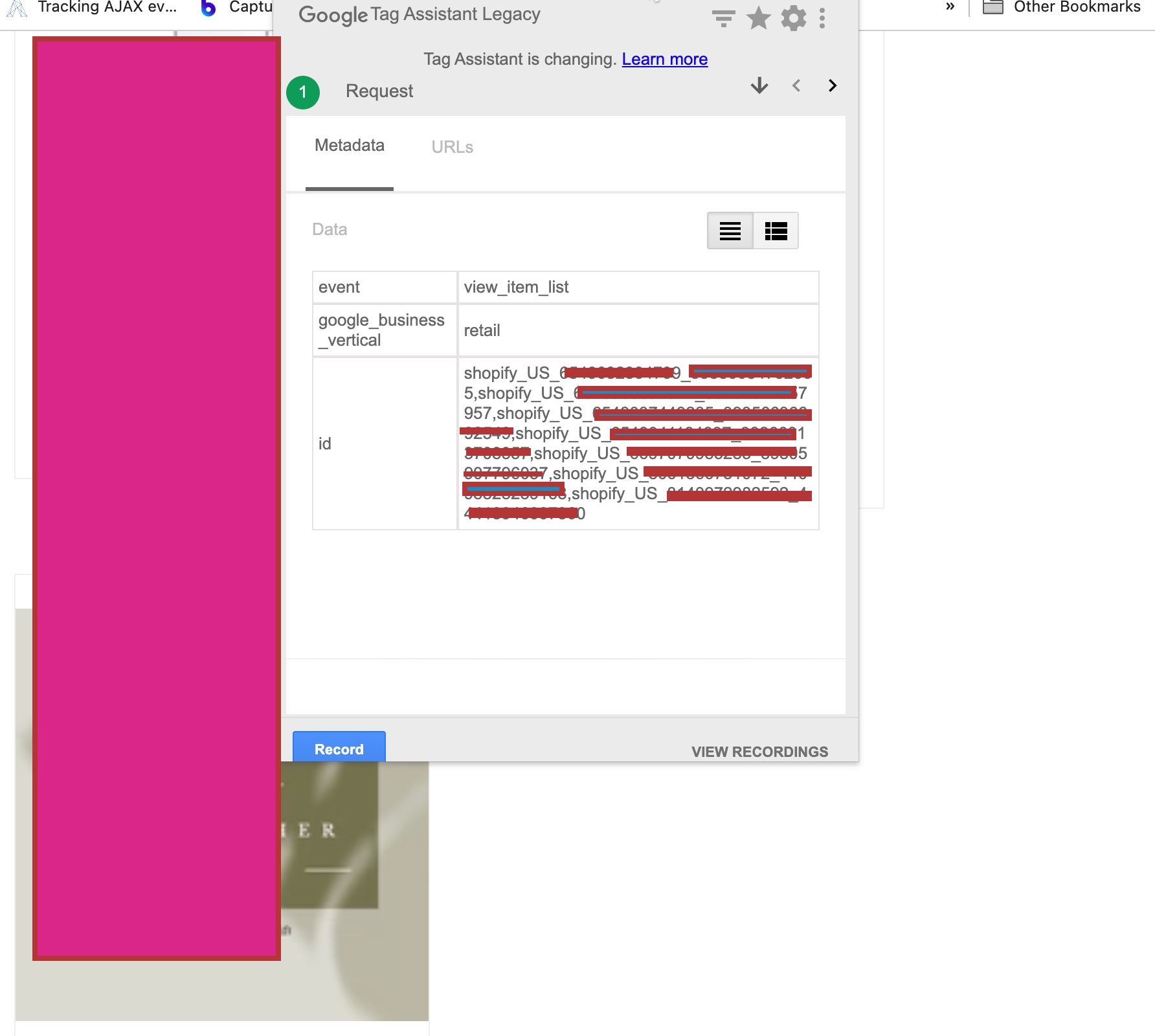
The ‘event’, ‘view_item_list‘ dynamic remarketing tag for a Shopify store is a powerful tool that allows you to track when a visitor views a list of products on your store. This data can then be used to create personalized ads that show relevant products to each visitor, increasing the likelihood that they will return to your store and make a purchase.

Google Ads Remarketing on Shopify

Setup Google Ads Dynamic Remarketing Tag on Shopify using Google Tag Manager

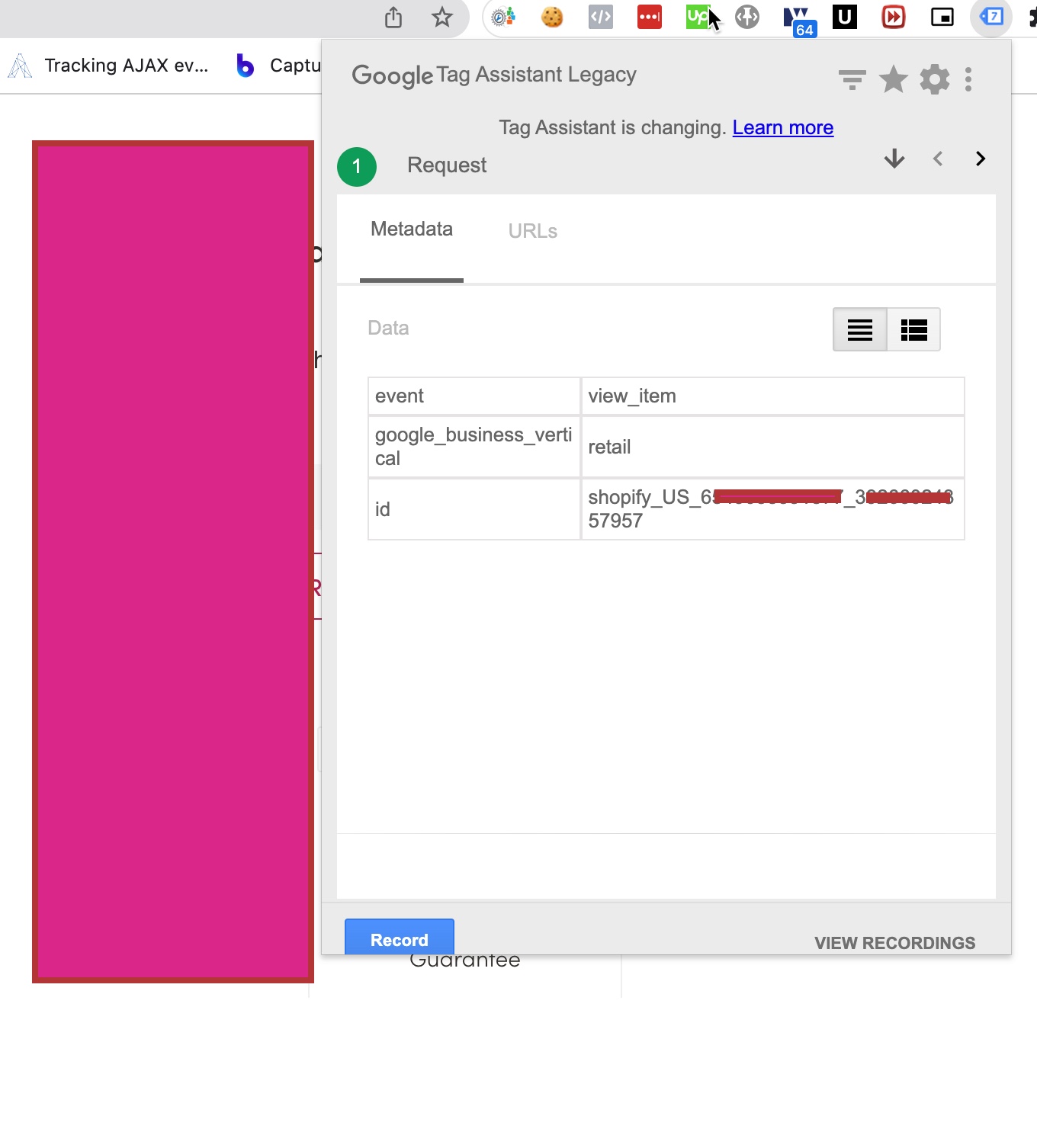
The ‘event’, ‘view_item’ dynamic remarketing tag for a Shopify store is a tracking code that allows you to monitor when a visitor views a specific product page on your store. By using this tag, you can create customized ads that show the exact product or related products to the visitor when they are browsing other websites or platforms.

Set Up Dynamic Remarketing Tag for Shopify

Install Google Ads Dynamic Remarketing on Shopify using Google Tag Manager

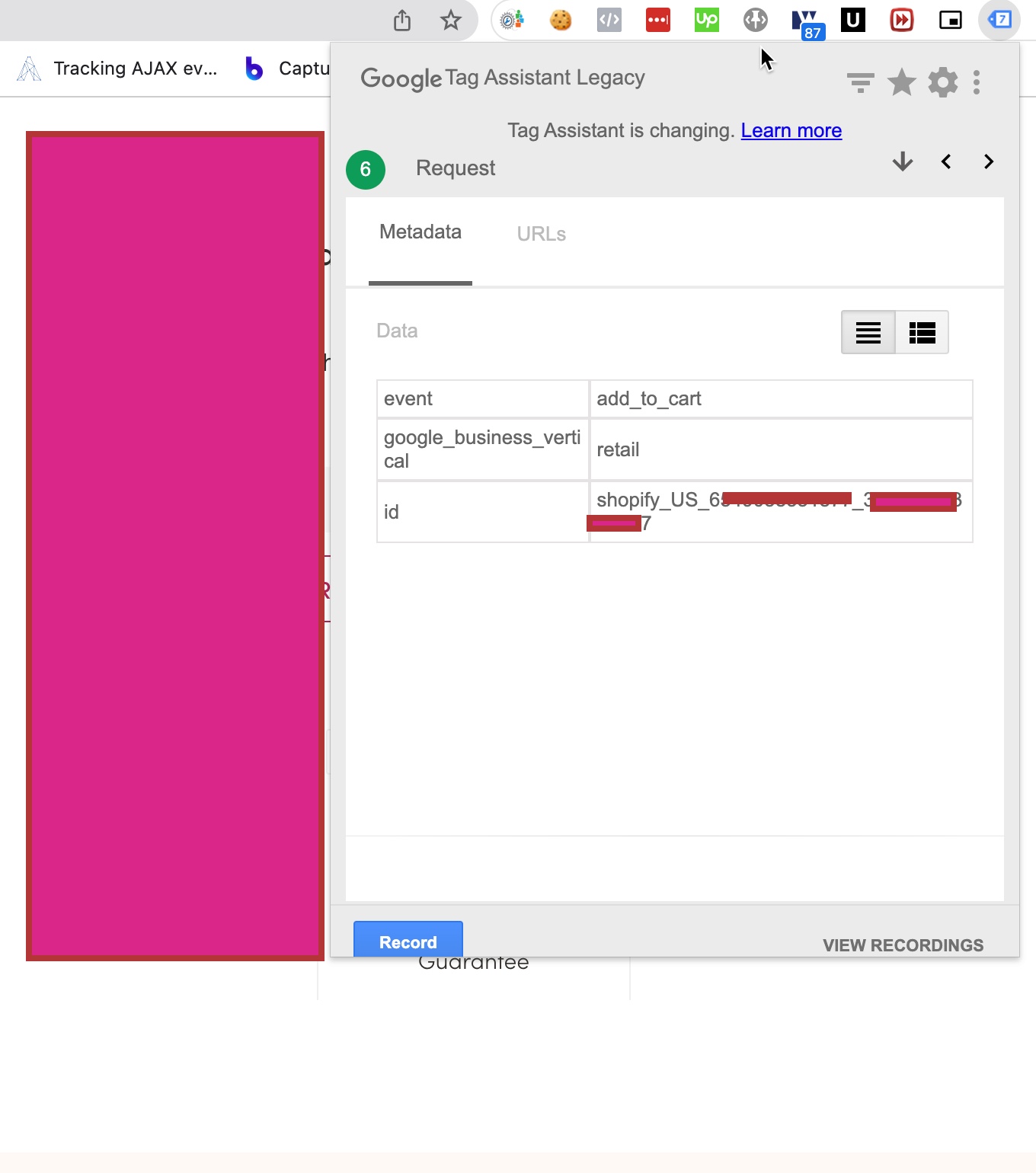
The ‘event’, ‘add_to_cart‘ dynamic remarketing tag for a Shopify store is a tracking code that allows you to monitor when a visitor adds a specific product to their cart on your store. By using this tag, you can create customized ads that show the product the visitor added to their cart or related products to the visitor when they are browsing other websites or platforms. This can help to increase the chances of conversion by reminding the visitor about the product they were interested in and potentially prompting them to return to your Shopify store to complete the purchase.

Dynamic Remarketing Google Ads Shopify

Adding Dynamic Remarketing Tags for Google Ads in Shopify using Google Tag Manager

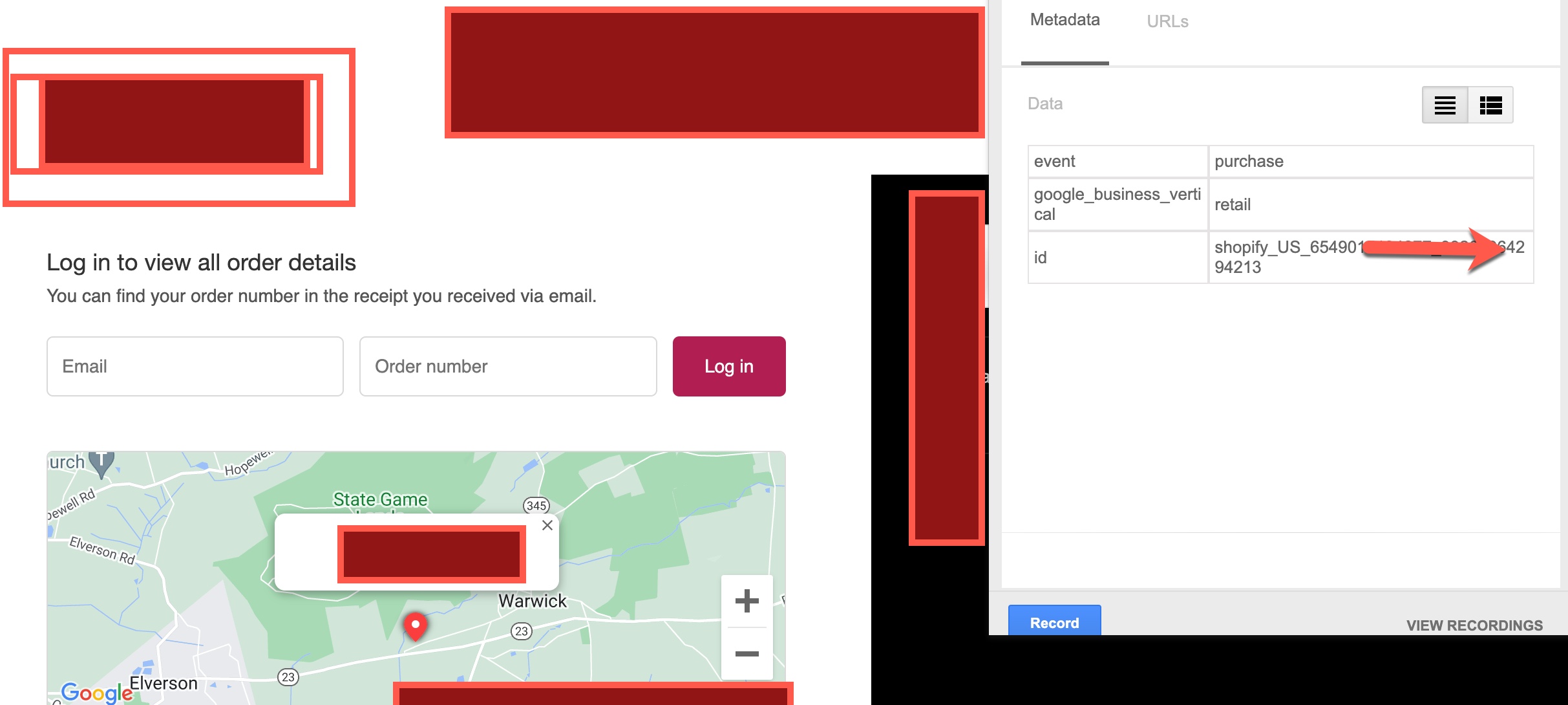
The ‘event’, ‘purchase‘ dynamic remarketing tag for a Shopify store is a tracking code that allows you to monitor when a visitor completes a purchase on your store. By using this tag, you can create customized ads that show the visitor related products or accessories to the ones they have already purchased, or promote future sales and discounts, to encourage repeat purchases and build customer loyalty.

Google Ads Dynamic Remarketing for Shopify

Conversion Tracking and Dynamic Remarketing Tag for Shopify using Google Tag Manager

Warning: If you don’t know about javascript or don’t have developing knowledge then don’t try to Google Ads Dynamic Remarketing Tags for a Shopify store usig Google Tag Manager that can break your site, Cart and other functionality 

Disclaimer: Google tag manager belongs to Google property 

For Contact: mappchero@gmail.com

I am available for Hire on Freelancer: Freelancer.com

I am available for Hire on Upwork: Upwork.com

I am available for Hire on Peopleperhour: Peopleperhour.com

I am available for Hire on Guru: Guru.com

Google Analytics 4 Google Tag Manager audit & Setup for Tracking eCommerce Conversions

Standard

Google Analytics 4 is the latest version of Google’s web analytics tool, which provides marketers with a more comprehensive view of their website’s performance, including customer behavior, conversion rates, and attribution. Google Tag Manager (GTM) is a tag management system that allows marketers to easily add and manage tracking tags on their website without requiring a developer’s help.

To audit and set up GA4 and Tag Manager for e-commerce conversions, follow these steps:

Step 1: Set up a GA4 property

If you don’t already have a GA4 property set up for your website, you can do so by following these steps:

Sign in to your Google Analytics account and navigate to the Admin section.
Select the account and property where you want to set up GA4.
Click on “Create Property” and select “GA4 Setup Assistant”.
Follow the prompts to complete the setup process.
Once you’ve set up your GA4 property, you’ll need to add the GA4 tracking code to your website.

Step 2: Add the GA4 tracking code to your website

To add the GA4 tracking code to your website, follow these steps:

Copy the GA4 tracking code provided in your GA4 property settings.
Paste the tracking code in the header section of your website’s HTML code, just before the tag.
Save and publish the changes to your website.

Step 3: Set up e-commerce tracking in GA4

To track e-commerce conversions in GA4, you’ll need to set up specific e-commerce events and parameters. These include:

  • Product detail view: Triggered when a user views a specific product page.
  • Add to cart: Triggered when a user adds a product to their cart.
  • Remove from cart: Triggered when a user removes a product from their cart.
  • Checkout start: Triggered when a user begins the checkout process.
  • Checkout progress: Triggered when a user progresses through the checkout process.
  • Purchase: Triggered when a user completes a purchase.

To set up e-commerce tracking in GA4, follow these steps:

Sign in to your GA4 property and navigate to the “Admin” section.
Select “E-commerce settings” under the “Property” column.
Toggle on “Enable E-commerce” and “Enable Enhanced E-commerce Reporting”.
Set up the product detail view, add to cart, remove from cart, checkout start, checkout progress, and purchase events and parameters according to your website’s e-commerce structure.
Step 4: Set up Google Tag Manager
To set up Google Tag Manager, follow these steps:

Sign in to your Google Tag Manager account.

Create a new container for your website.
Follow the prompts to set up the container and add the GTM tracking code to your website.
Step 5: Add e-commerce tracking tags in GTM
To track e-commerce conversions in GTM, you’ll need to set up specific tags for each e-commerce event. These tags will fire when the corresponding events occur on your website.

To add e-commerce tracking tags in GTM, follow these steps:

  • Create a new tag and select “Google Analytics: GA4 Event” as the tag type.
  • Configure the tag to fire when the corresponding e-commerce event occurs.
  • Set up the event parameters according to your website’s e-commerce structure.
  • Save and publish the tag.

Step 6: Test and debug your e-commerce tracking
Once you’ve set up your e-commerce tracking in GA

Warning: If you don’t know about javascript or don’t have developing knowledge then don’t try to Google Analytics 4 Google Tag Manager audit & Setup for Tracking eCommerce Conversions that can break your site, Cart and other functionality 

Disclaimer: Google tag manager belongs to Google property 

For Contact: mappchero@gmail.com

I am available for Hire on Freelancer: Freelancer.com

I am available for Hire on Upwork: Upwork.com

I am available for Hire on Peopleperhour: Peopleperhour.com

I am available for Hire on Guru: Guru.com

UA & GA4 Tracking Evaluation and Measurement Plan

Standard

UA (Universal Analytics) and GA4 (Google Analytics 4) are two different versions of the popular web analytics platform, Google Analytics. While UA has been the standard for tracking website performance and user behavior for many years, GA4 is a newer, more advanced version that offers several new features and improvements over the old system. When it comes to evaluating and measuring the performance of your website or online business, it’s important to have a clear plan in place for how you will use these tools to gather data, analyze it, and make decisions based on your findings. In this article, we’ll explore some key considerations and best practices for creating an effective UA and GA4 tracking evaluation and measurement plan.

Define Your Objectives and KPIs

The first step in any effective tracking and measurement plan is to clearly define your business objectives and key performance indicators (KPIs). What are the specific goals you are trying to achieve with your website or online business? What metrics will you use to measure your progress towards these goals? Some common KPIs might include traffic volume, engagement metrics like bounce rate and time on site, conversion rates, revenue or sales figures, and customer lifetime value. Once you have identified your KPIs, you can use UA and GA4 to track and analyze these metrics over time and make data-driven decisions to optimize your performance.

Identify Your Tracking Requirements

Once you have defined your objectives and KPIs, the next step is to identify the specific tracking requirements that will be necessary to collect the data you need. This might include setting up custom events, tracking user behavior across multiple devices or channels, and setting up conversion tracking for specific actions like form submissions or product purchases. It’s important to ensure that your tracking is set up correctly and consistently across all pages of your site, and that you are capturing all the data you need to make informed decisions.

Set Up Your Tracking and Analytics Tools

With your objectives and tracking requirements defined, the next step is to set up your tracking and analytics tools. For UA, this typically involves adding the Google Analytics tracking code to your website and configuring any custom events or goals you have identified. For GA4, you will need to create a new GA4 property and configure your tracking settings to capture the data you need. This may involve setting up new tracking tags, configuring data streams, and integrating with other Google tools like Google Ads or Google Tag Manager.

Monitor Your Metrics and Gather Insights

Once your tracking and analytics tools are set up, it’s time to start monitoring your metrics and gathering insights. This might involve setting up regular reports or dashboards to track your KPIs, or using custom segments and filters to drill down into specific areas of your site or user behavior. It’s important to regularly review your data and look for patterns or trends that can help you identify areas for improvement or optimization.

Use Data to Make Decisions and Optimize Performance

Finally, the most important step in any tracking and measurement plan is to use your data to make informed decisions and optimize your performance. This might involve running A/B tests to evaluate different versions of your site or marketing campaigns, or making changes to your site structure or content based on insights from your analytics data. Whatever approach you take, it’s important to stay focused on your business objectives and KPIs, and to use your data to continually improve your performance over time.

In conclusion, creating an effective UA and GA4 tracking evaluation and measurement plan is critical for any business looking to optimize their online performance. By defining your objectives and KPIs, identifying your tracking requirements, setting up your tracking and analytics tools, monitoring your metrics and gathering insights, and using data to make decisions and optimize performance, you can stay ahead of the curve and achieve success

Warning: If you don’t know about javascript or don’t have developing knowledge then don’t try to UA & GA4 Tracking Evaluation and Measurement Plan that can break your site, Cart and other functionality 

Disclaimer: Google tag manager belongs to Google property 

For Contact: mappchero@gmail.com

I am available for Hire on Freelancer: Freelancer.com

I am available for Hire on Upwork: Upwork.com

I am available for Hire on Peopleperhour: Peopleperhour.com

I am available for Hire on Guru: Guru.com

Google Analytics 4 Implementation & Reporting

Standard

Google Analytics 4 (GA4) is the latest version of Google’s web analytics platform that offers a more advanced tracking system and a new approach to measuring website and app engagement. Here are the steps for implementing and reporting with GA4:

Implementation

Create a GA4 property in your Google Analytics account

To get started with GA4, you will need to create a new property within your Google Analytics account. GA4 properties are separate from Universal Analytics (UA) properties, so you will need to create a new property specifically for GA4 tracking.

Set up data streams for your website or app

Once you have created your GA4 property, you will need to set up data streams for your website or app. Data streams allow GA4 to collect and organize data from different sources, such as a website or mobile app.

To set up a data stream, you will need to provide some basic information about your website or app, such as the URL or package name. GA4 will then generate a tracking code that you can use to start collecting data.

Install the GA4 tracking code on your website or app

After you have set up your data stream, you will need to install the GA4 tracking code on your website or app. The tracking code is a small piece of JavaScript that sends data to GA4 whenever a user interacts with your website or app.

There are several ways to install the GA4 tracking code, depending on your website or app setup. For example, you can add the tracking code directly to your website’s HTML, or you can use a tag manager such as Google Tag Manager to manage your tracking code.

Set up custom events and parameters to track specific user interactions

In GA4, events are the primary way to track user interactions on your website or app. Events are actions that users take, such as clicking a button, submitting a form, or viewing a page.

To track events in GA4, you will need to set up custom events and parameters. Custom events are specific actions that you want to track, while parameters provide additional information about the event, such as the event category, action, and label.

For example, if you want to track when users click a button on your website, you would create a custom event called “button_click” and define parameters such as the button ID, location on the page, and the text of the button.

Configure conversions and goals to track important actions on your website or app

Conversions and goals are specific actions that you want users to take on your website or app, such as making a purchase or submitting a lead form. By tracking conversions and goals in GA4, you can measure the success of your digital marketing efforts and optimize your website or app to encourage more conversions.

To set up conversions and goals in GA4, you will need to define the specific actions that you want to track, such as a purchase or a form submission. You can then create a conversion or goal based on these actions and track how many users complete the action over a given time period.

Reporting

Use the GA4 dashboard to view high-level metrics such as user engagement, traffic sources, and goal completion

The GA4 dashboard provides a high-level overview of your website or app performance, including metrics such as user engagement, traffic sources, and goal completion. You can customize the dashboard to display the metrics that are most important to your business, and use the data to make informed decisions about your digital marketing strategy.

Create custom reports to track specific metrics or segments of your audience

In addition to the GA4 dashboard, you can create custom reports to track specific metrics or segments of your audience. Custom reports allow you to dive deeper into your data and gain insights into user behavior and trends.

Warning: If you don’t know about javascript or don’t have developing knowledge then don’t try to Google Analytics 4 Implementation & Reporting  that can break your site, Cart and other functionality 

Disclaimer: Google tag manager belongs to Google property 

For Contact: mappchero@gmail.com

I am available for Hire on Freelancer: Freelancer.com

I am available for Hire on Upwork: Upwork.com

I am available for Hire on Peopleperhour: Peopleperhour.com

I am available for Hire on Guru: Guru.com