GA4 Event Track Contact Form 7 with Google Tag Manager

Standard

GA4 Event Contact Form 7 Event Tracking with Google Tag Manager

Tracking Contact Form 7 conversions allows you to measure the effectiveness of your forms in converting visitors into leads or customers. There are several ways to track Contact Form 7 conversions, including using Google Tag Manager (GTM) and Google Analytics 4 (GA4), and using JavaScript events.

With GTM, you can create a “Form Submission” trigger that fires when a Contact Form 7 form is submitted, and then create a tag for the appropriate tracking code (such as Google Analytics or GA4) that fires on that trigger.

With GA4, you can use the “wpcf7submit” event to track Contact Form 7 conversions. This event is triggered when a form is submitted, and you can add GA4 event tracking code to run when the event is fired.

To track Contact Form 7 conversions with Google Analytics 4 (GA4) using JavaScript events, you can use the “wpcf7submit” event that is triggered when a form is submitted. Here’s an example of how you can set this up:

  1. Add the following JavaScript code to your WordPress site using Google Tag Manager
document.addEventListener( 'wpcf7submit', function( event ) {
  // Your tracking code here
}, false );

2. Replace “// Your tracking code here” with the appropriate tracking code for the service you are using. For example, if you are using Google Analytics, you can add the following code:

ga('send', 'event', 'Form', 'submit', 'Contact Form 7');

3. Make sure that GA4 tracking code is installed on your site and the script runs after the GA4 tracking code.

4. Once you have added the tracking code, the “wpcf7submit” event will fire whenever a Contact Form 7 form is submitted, and the GA4 event code will run.

Warning: If you do n’t know about javascript or do n’t have developing knowledge then do n’t try to GA4 Event Contact Form 7 Event Tracking with Google Tag Manager without module that can broke your site, Cart and other functionality 

Disclaimer: Google tag manager belongs to Google property 

For Contact: mappchero@gmail.com

I am available for Hire on Freelancer: Freelancer.com

I am available for Hire on Upwork: Upwork.com

I am available for Hire on Peopleperhour: Peopleperhour.com

I am available for Hire on Guru: Guru.com

Google Tag Manager Lookup Table Regular Expression

Standard

Google Tag Manager (GTM) Lookup Table is a built-in feature that allows you to map one set of values to another using regular expressions. This can be useful for situations where you want to simplify complex data, standardize data, or map data from one format to another.

Here are the steps to set up a Lookup Table using regular expressions in Google Tag Manager:

  1. In GTM, go to the Variables tab and create a new variable of the type Lookup Table.
  2. In the Lookup Table variable, create a new row for each mapping you want to make.
  3. In the Input column, enter the regular expression that will match the original value.
  4. In the Output column, enter the value that you want to map to the original value.
  5. In the Triggers or Tag, set the variable you want to map as the Input variable, and the Lookup Table variable as the output variable.
  6. Publish the container.

Regular expressions are a powerful tool that allows you to match complex patterns of characters in a string, making it possible to use GTM Lookup Table for a wide range of use cases.

^product– matches any string that starts with “product-“
[0-9]{3} matches any 3 digits
^(?!.*error).*$ matches any string that doesn’t contain the word “error”

It is important to note that you need to have a good understanding of regular expressions and their syntax to be able to use them effectively in GTM Lookup Table.

Also, it’s recommended to test the regular expressions before using them in production to ensure they are working as expected.

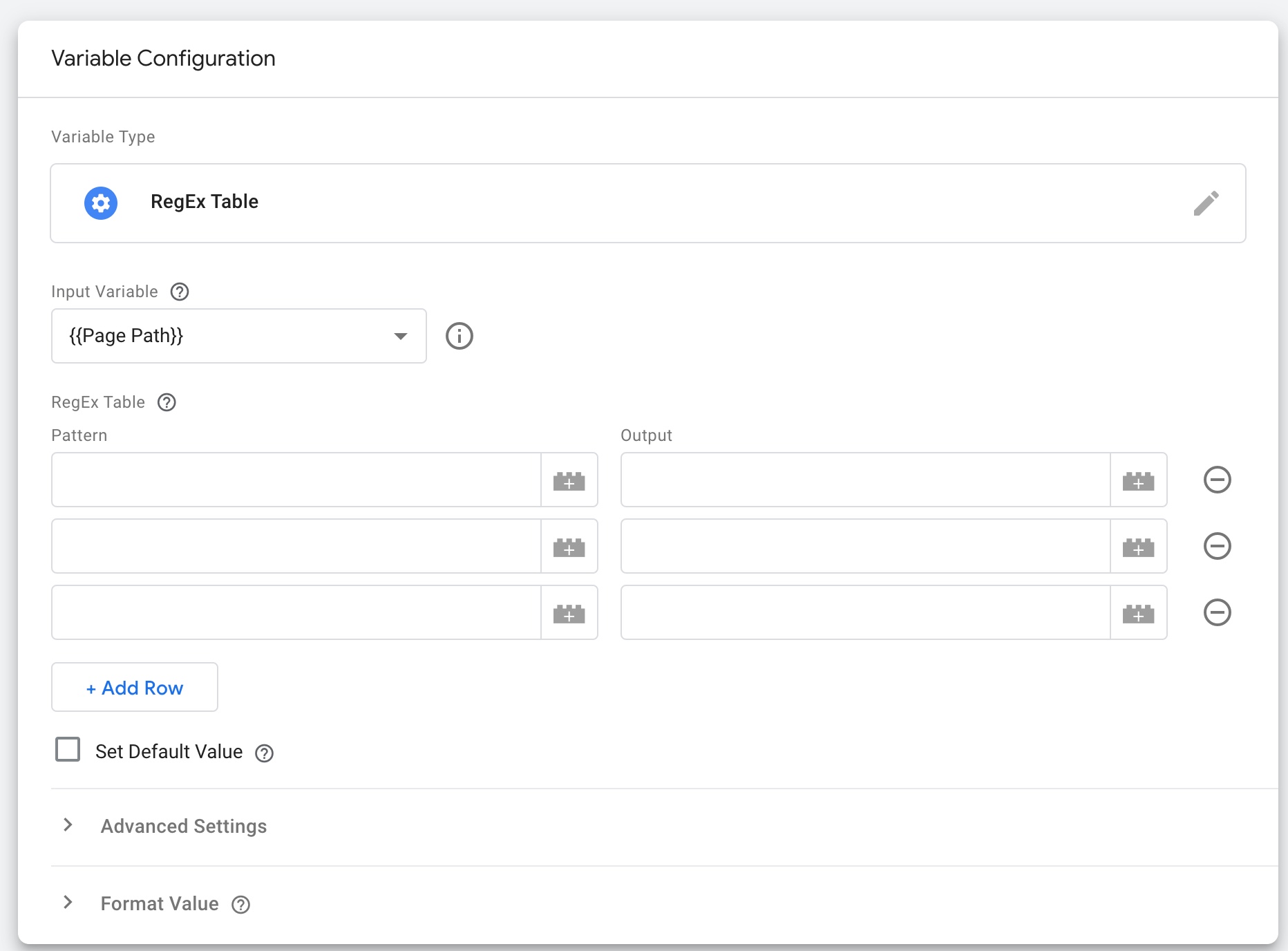
Using Regex (Regular Expressions) Lookup Google Tag Manager

RegEx Lookup Table Variable In Google Tag Manager

Warning: If you do n’t know about javascript or do n’t have developing knowledge then do n’t try to Google Tag Manager Lookup Table Regular Expression without Plugin that can broke your site, Cart and other functionality 

Disclaimer: Google tag manager belongs to Google property 

For Contact: mappchero@gmail.com

I am available for Hire on Freelancer: Freelancer.com

I am available for Hire on Upwork: Upwork.com

I am available for Hire on Peopleperhour: Peopleperhour.com

I am available for Hire on Guru: Guru.com
Way To Filter Out Internal IP Traffic In GA4 Include IP Filtering

Standard

Who Else Wants To Know The Mystery Behind Is There Any Other Way To Filter Out Internal Traffic In GA4 Include IP Filtering

An IP address filter in Google Analytics (GA4) is a feature that allows you to include or exclude certain IP addresses from your GA4 data. This can be useful if you want to exclude traffic from your own office or exclude traffic from known bots and spiders.

For example, if you have a website that is only accessible from a specific IP range, you can set up an IP filter to exclude all other IP addresses, so you only see data from that specific IP range in your GA4 reports. Similarly, you can use an IP filter to exclude traffic from known bots and spiders, which can skew your data and make it difficult to get accurate insights.

To set up IP filters in Google Analytics 4, you will need to follow these steps:

  1. Log in to your Google Analytics account and navigate to the “Admin” section.

2. In the “Property” column, click on “Data Streams” and select the stream for which you want to set up the IP filter.

3. Click on the “Configure Data Stream” button and then select the “Data Processing” tab.

4. Under “IP Filter,” select “Exclude” or “Include” depending on whether you want to exclude or include certain IP addresses.

5. Enter the IP addresses you want to include or exclude, separated by commas. You can also use wildcards (*) to include or exclude ranges of IP addresses.

6. Click “Save” to apply the changes.

7. It’s important to note that IP filters will only apply to data collected after the filter is set up, and it does not affect historical data.

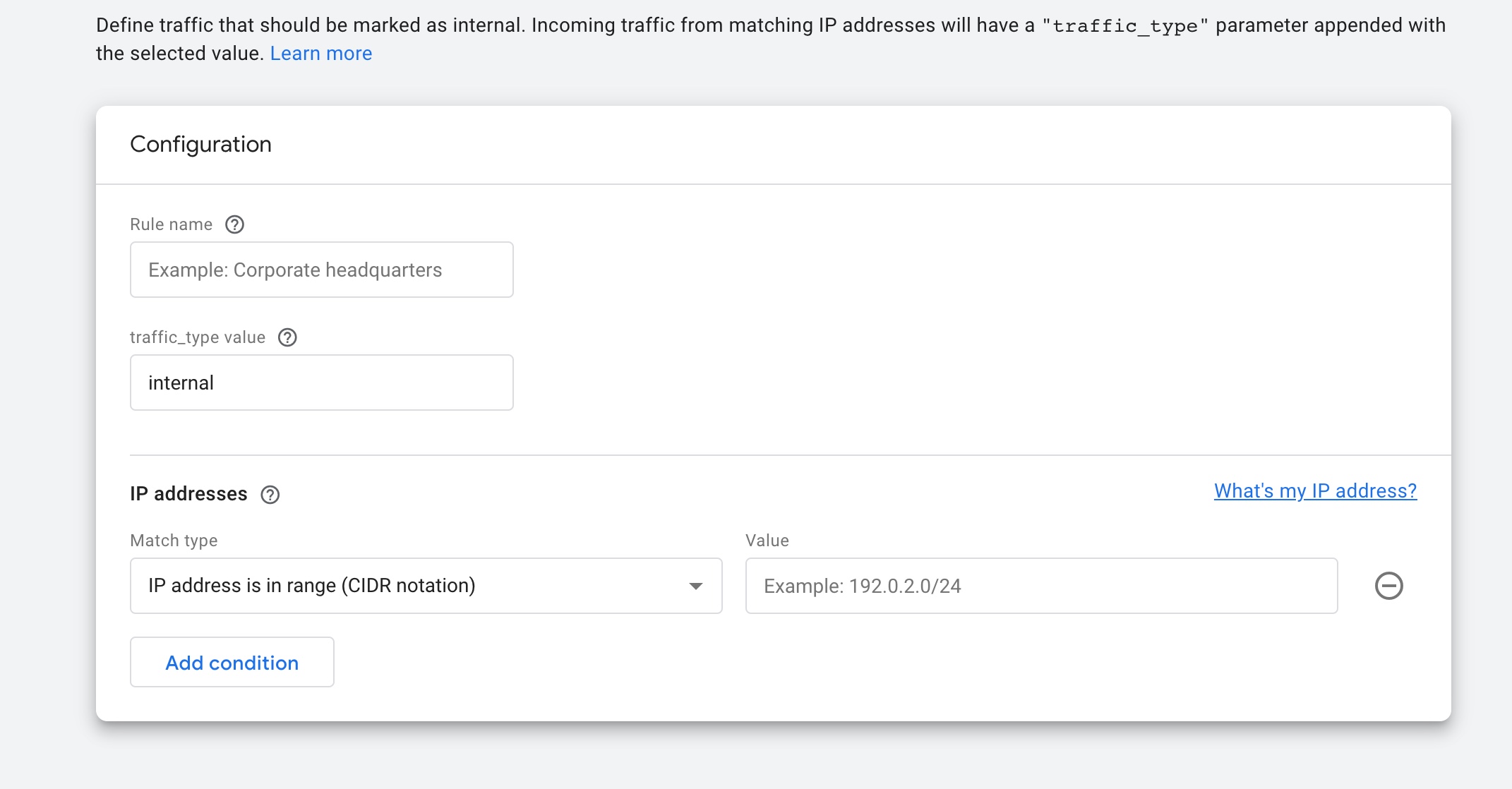
GA4 Include IP Filtering

Way to Filter out Internal Traffic in GA4 IP Filtering

Warning: If you do n’t know about javascript or do n’t have developing knowledge then do n’t try to Way To Filter Out Internal IP Traffic In GA4 Include IP Filtering Woocommerce without Plugin that can broke your site, Cart and other functionality 

Disclaimer: Google tag manager belongs to Google property 

For Contact: mappchero@gmail.com

I am available for Hire on Freelancer: Freelancer.com

I am available for Hire on Upwork: Upwork.com

I am available for Hire on Peopleperhour: Peopleperhour.com

I am available for Hire on Guru: Guru.com
Migrating from Universal Analytics (UA) to Google Analytics 4 (GA4) using Google Tag Manager

Standard

Google Analytics 4 (GA4) is the latest version of Google Analytics, which is a web analytics service offered by Google that tracks and reports website traffic. It is a powerful tool that allows you to understand how users interact with your website, including what pages they visit, how long they stay on your site, and what actions they take.

Unlike Universal Analytics (UA), GA4 is built on a new data model that focuses on user-centric and event-based data collection, providing a more accurate and complete picture of user behavior. It also has a new set of features and functionalities such as:

  • Automatic and enhanced tracking capabilities: GA4 automatically collects data on user interactions such as clicks, scrolls, and form submissions, without the need for custom code.
  • Improved cross-device and cross-platform tracking: GA4 allows you to track users across different devices and platforms, giving you a more holistic view of user behavior.
  • Machine learning-based insights: GA4 uses machine learning to provide insights and predictions about user behavior, such as which users are likely to convert or churn.
  • Built-in privacy controls: GA4 includes built-in privacy controls that allow you to manage user data in compliance with regulations such as GDPR and CCPA.

GA4 also provides new features such as conversion measurement, audiences, and enhanced data governance and data management capabilities.

Overall, Google Analytics 4 provides a more advanced and powerful analytics tool that can help you to gain deeper insights into user behavior, improve your website’s performance, and drive better business results.

Migrating from Universal Analytics (UA) to Google Analytics 4 (GA4) involves several steps:

  1. Create a new GA4 property in your Google Analytics account.
  2. Set up GA4 tracking on your website. This will typically involve adding a new tracking code to your website’s pages.
  3. Configure your GA4 property settings and data streams. This will include setting up event tracking, creating custom dimensions and metrics, and configuring data governance settings.
  4. Import historical data from your UA property into your GA4 property. This can be done using the GA4 import feature.
  5. Update any third-party tools or integrations that you use to work with your GA data, such as Google Tag Manager, Data Studio, or BigQuery.
  6. Test and verify that your GA4 tracking is working correctly by reviewing the data in the GA4 reports and comparing it to your UA data.
  7. Once you are satisfied that your GA4 tracking is working correctly, you can then disable your UA tracking.

It’s important to note that migrating from UA to GA4 can be a complex process and may require technical expertise. Therefore, it’s recommended to have a developer or technical SEO expert to help you with this process. Also, It’s important to have a plan for testing and validation before, during and after the migration.

Disclaimer: Google tag manager belongs to Google property 

For Contact: mappchero@gmail.com

I am available for Hire on Freelancer: Freelancer.com

I am available for Hire on Upwork: Upwork.com

I am available for Hire on Peopleperhour: Peopleperhour.com

I am available for Hire on Guru: Guru.com
 

Set Up Google Ads Dynamic Remarketing Tag for Shopify Using Google Tag Manager

Standard

Implementation Google Ads Dynamic Remarketing for Shopify using Google Tag Manager

Recently once Client ask to implement dynamic remaketing tag for Shopify  using Google Tag Manager to run a dynamic shopping campaign to retarget users who visited the website previously without converting into Sales. 

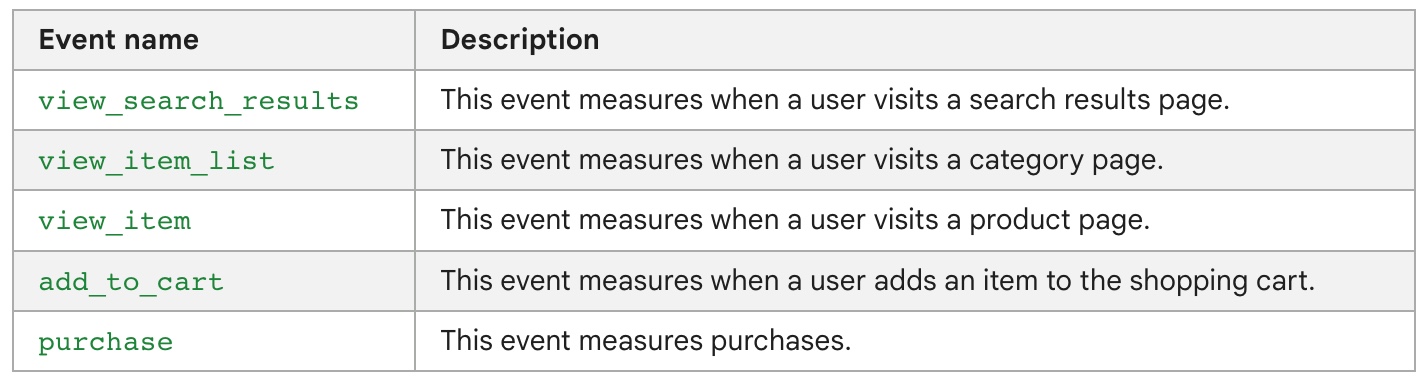
Anatomy of a Google Ads dynamic remarketing event using Google Tag Manager – Dynamic remarketing events and parameters

Setup Google Dynamic Remarketing on Shopify

Implement Google Ads Dynamic Remarketing Tag using Google Tag Manager

Dynamic Remarketing Setup for Shopify

Dynamic Remarketing Setup for Google Ads for Shopify using Google Tag Manager

Google Ads Dynamic Remarketing Tag for Shopify using Google Tag Manager 

Paste this code as high in the <head> of the page as possible:

<!– Google Tag Manager –>

<script>(function(w,d,s,l,i){w[l]=w[l]||[];w[l].push({‘gtm.start’:
new Date().getTime(),event:’gtm.js’});var f=d.getElementsByTagName(s)[0],
j=d.createElement(s),dl=l!=’dataLayer’?’&l=’+l:”;j.async=true;j.src=
‘https://www.googletagmanager.com/gtm.js?id=’+i+dl;f.parentNode.insertBefore(j,f);
})(window,document,’script’,’dataLayer’,’GTM-XXXX’);</script>
<!– End Google Tag Manager –>

Additionally, paste this code immediately after the opening <body> tag:
<!– Google Tag Manager (noscript) –>
<noscript><iframe src=”https://www.googletagmanager.com/ns.html?id=GTM-XXXX”
height=”0″ width=”0″ style=”display:none;visibility:hidden”></iframe></noscript>
<!– End Google Tag Manager (noscript) –>

Note: Make you will replace GTM Tracking Code with your GTM ID XXXXX

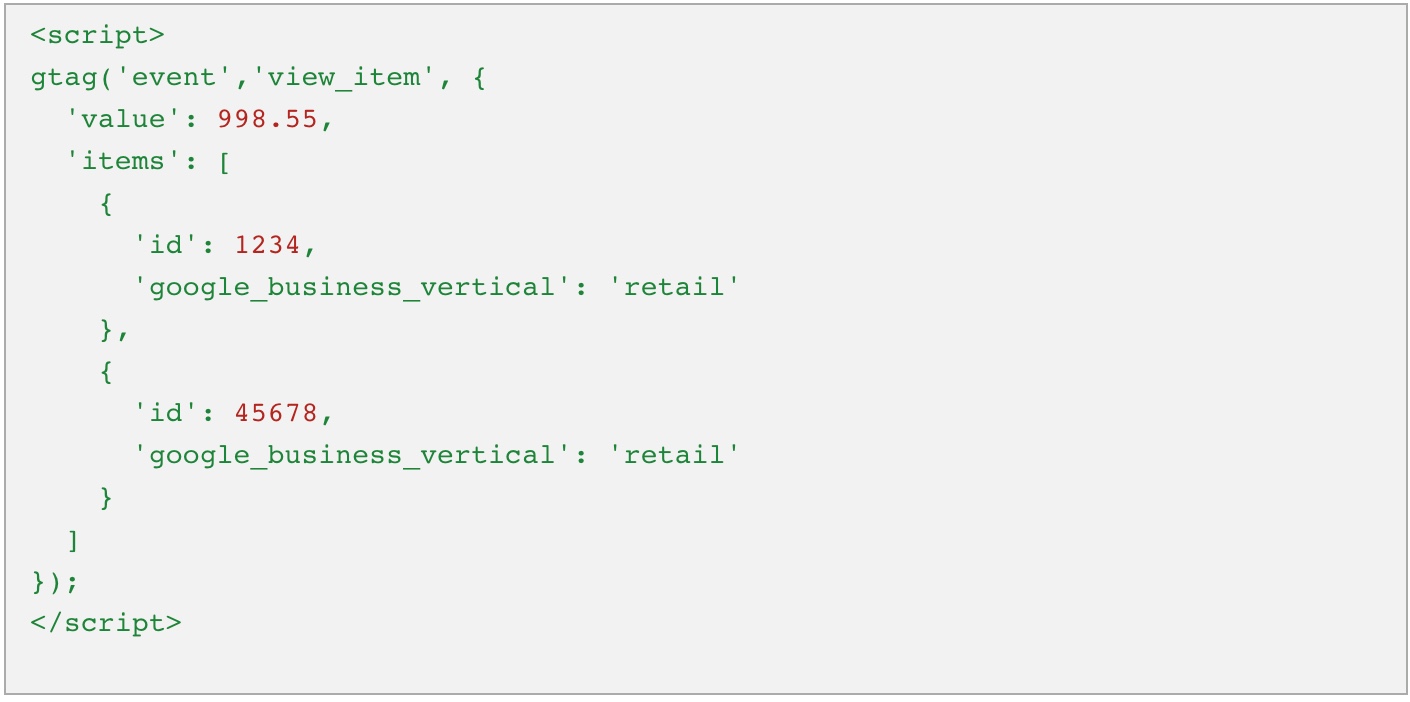
Event parameter Dynamic Remarketing for Shopify for view_item: To Track when user visit a product details page using Event parameter Dynamic Remarketing (‘google_business_vertical’: ‘retail’) & ‘view_item’ using Google Tag Manager

Google Ads Dynamic Remarketing for Shopify

view_item Dynamic Remarketing Events Shopify using Google Tag Manager for Google_business_vertical

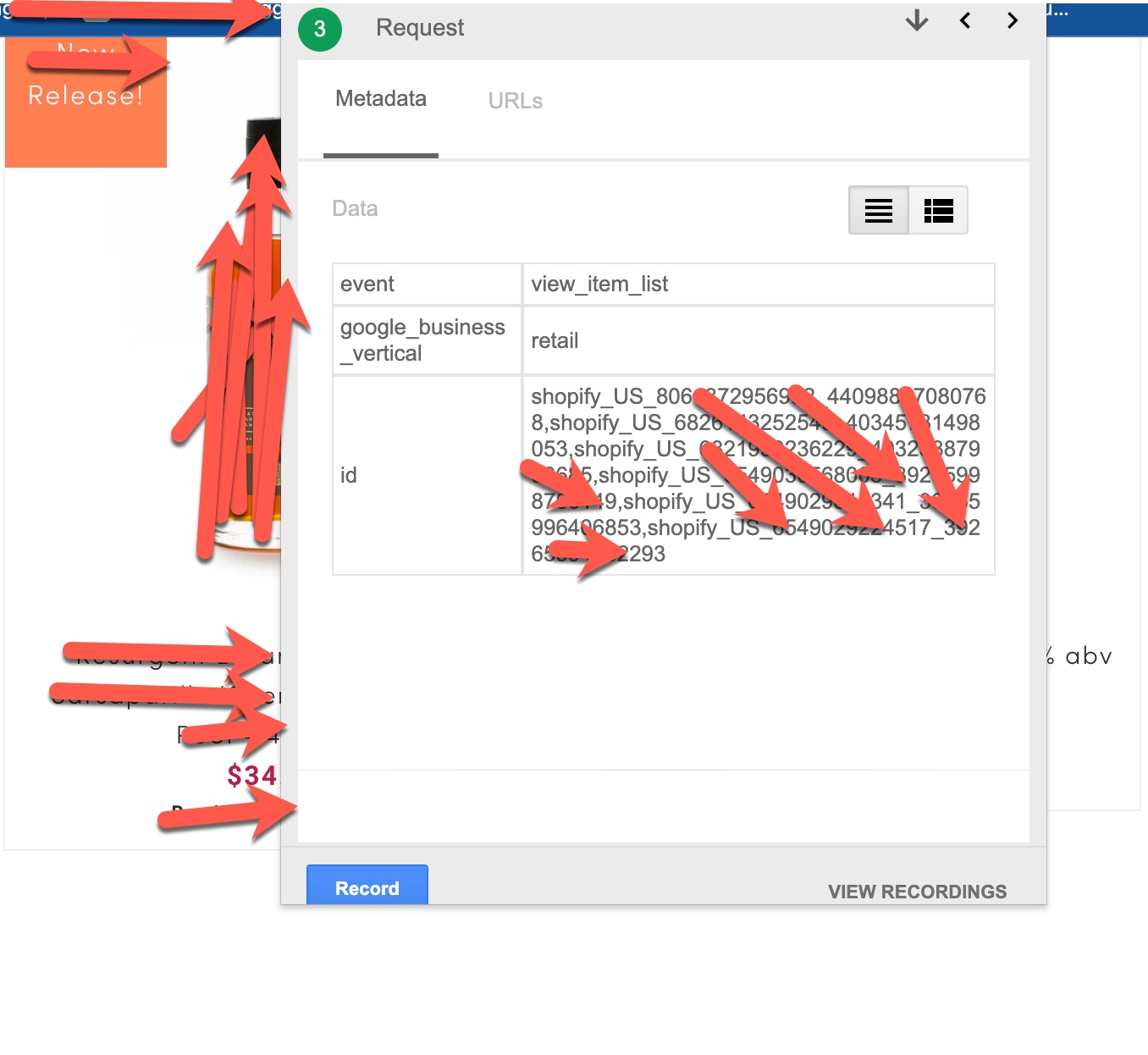
Event parameter Dynamic Remarketing for Shopify for view_item_list: To Track when user reach out category pages where list of product listed using Event parameter Dynamic Remarketing (‘google_business_vertical’: ‘retail’) & ‘view_item_list’ using Google Tag Manager 

 Implementation Dynamic Remarketing for Shopify

view_item_list Dynamic Remarketing Events Google Ads Dynamic Remarketing for Shopify for Google_business_vertical

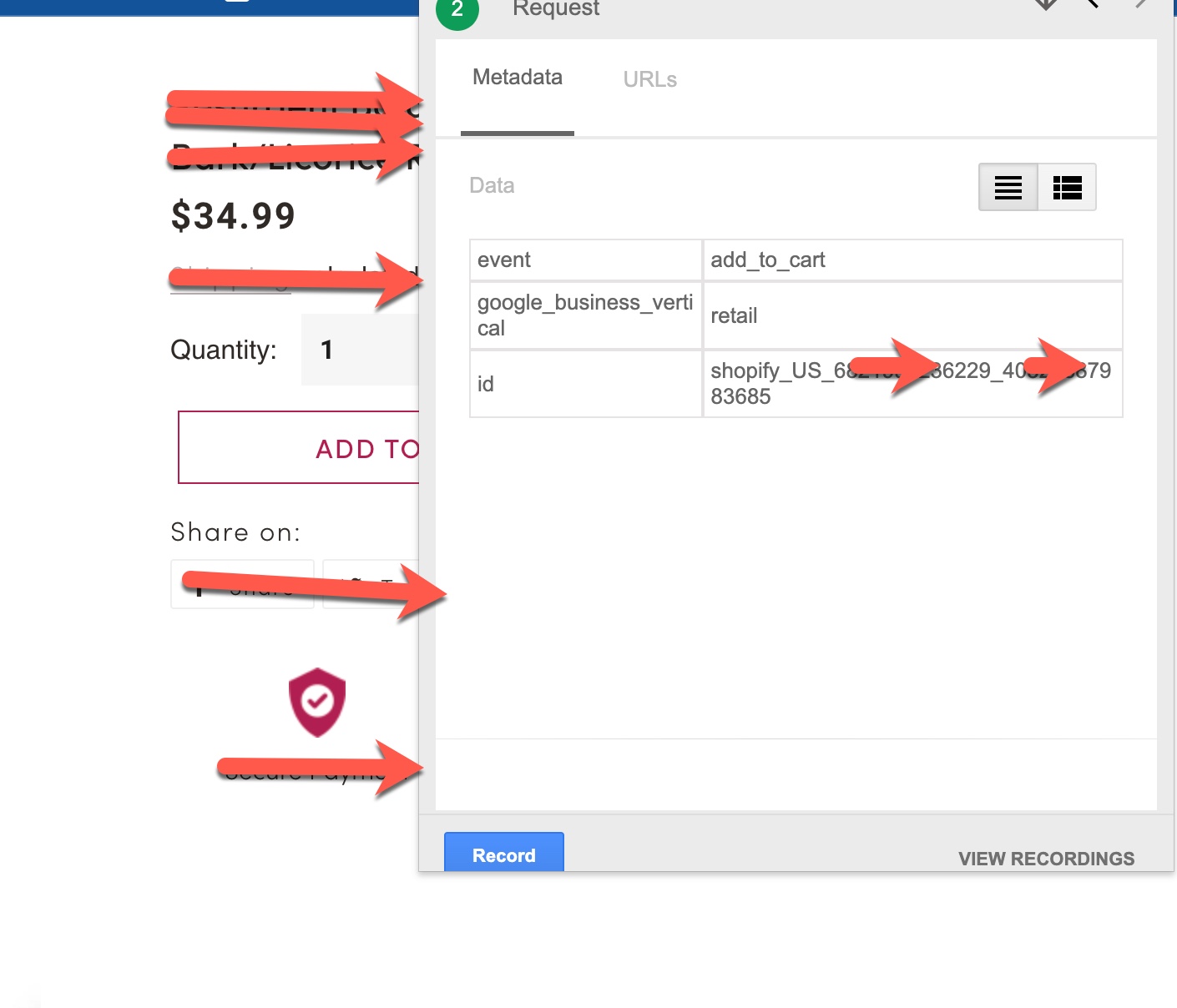
Event parameter Dynamic Remarketing for Shopify for add_to_cart: To Track when user visit a product details page then Click on AddtoCart using Event parameter Dynamic Remarketing (‘google_business_vertical’: ‘retail’) & ‘add_to_cart’ using Google Tag Manager 

Set Up Shopify Google Ads Dynamic Remarketing

add_to_cart Dynamic Remarketing Events Google Ads Dynamic Remarketing for Shopify for Google_business_vertical

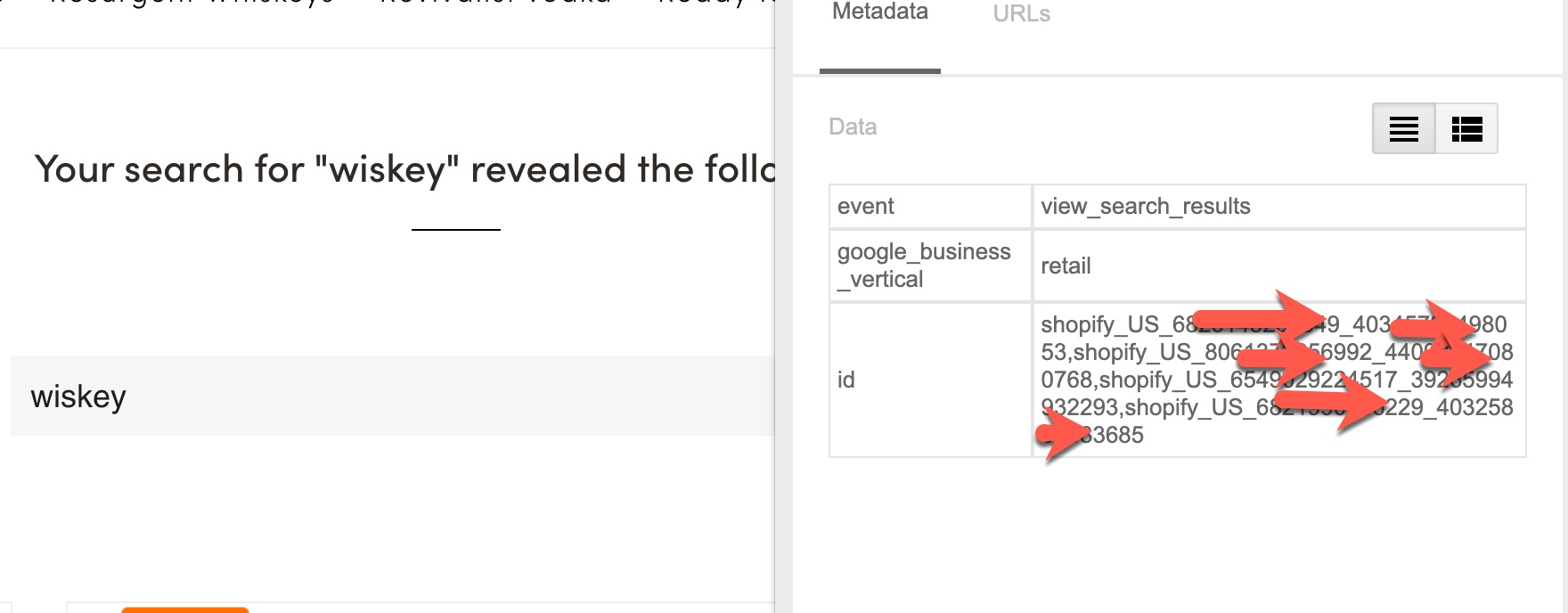
Event parameter Dynamic Remarketing for Shopify for view_search_results: To Track when user search a product on the website Search  using Event parameter Dynamic Remarketing (‘google_business_vertical’: ‘retail’) & ‘view_search_results’ using Google Tag Manager 

 Shopify Dynamic Remarketing Tracking

view_search_results Dynamic Remarketing Events Google Ads Dynamic Remarketing for Shopify for Google_business_vertical

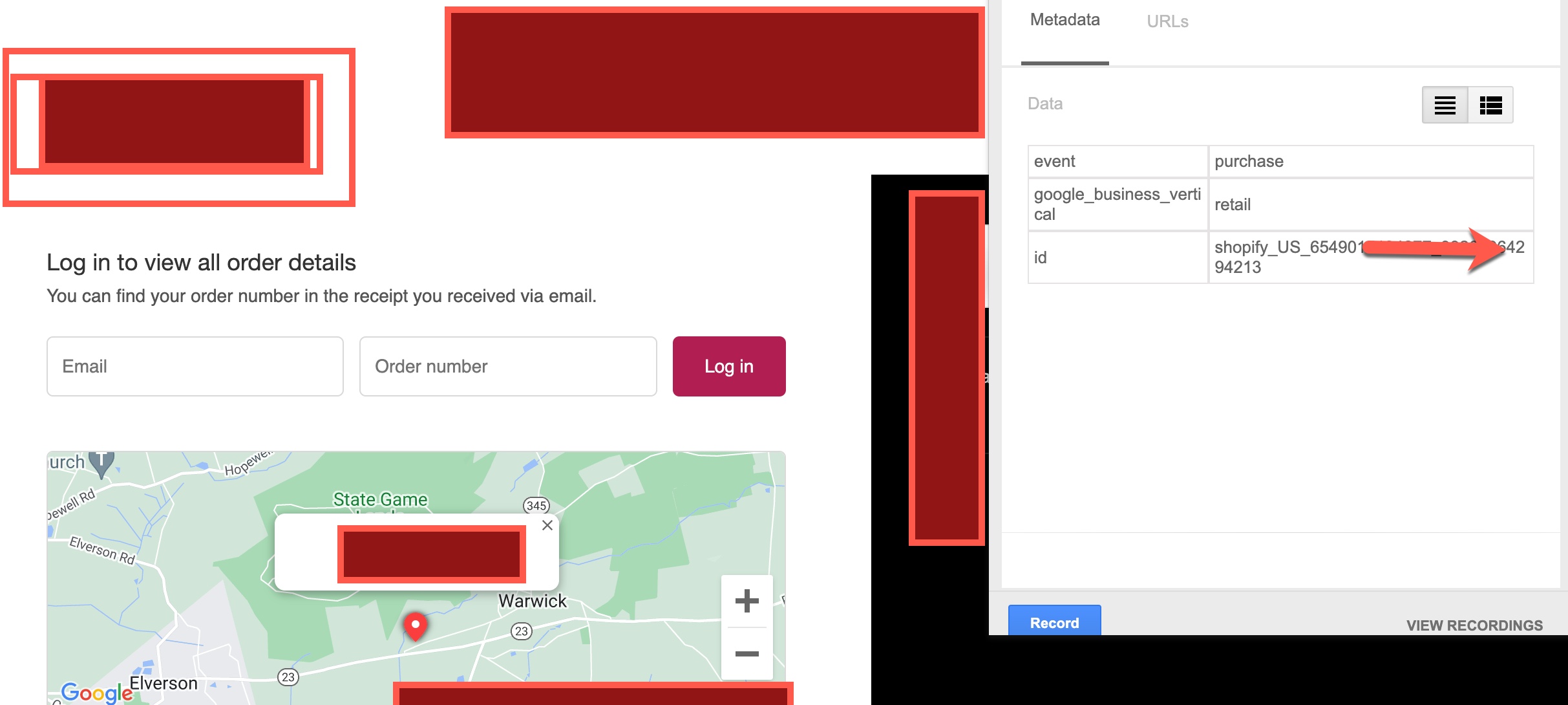
Event parameter Dynamic Remarketing for Shopify for purchase: To Track when user complete a purchase on the shopify using Event parameter Dynamic Remarketing (‘google_business_vertical’: ‘retail’) & ‘purchase’ using Google Tag Manage

purchase Dynamic Remarketing Events Google Ads Dynamic Remarketing for Shopify for Google_business_vertical

Warning: If you do n’t know about javascript or do n’t have developing knowledge then do n’t try to Set Up Google Ads Dynamic Remarketing Tag for Shopify Using Google Tag Manager using Google Tag Manager that can broke your site, Cart and other functionality 

Disclaimer: Google tag manager belongs to Google property 

For Contact: mappchero@gmail.com

I am available for Hire on Freelancer: Freelancer.com

I am available for Hire on Upwork: Upwork.com

I am available for Hire on Peopleperhour: Peopleperhour.com

I am available for Hire on Guru: Guru.com
Get User IP Address With Google Tag Manager

Standard

Visitor IP Address with Google Tag Manager pass into Google Analytic

Recently one of client ask to get visitor IP Address using Google Tag Manager Also other details like City, Country , Longitude, latitude, Region Code, Region Name , Timezone, Currency Code and Currency Symbol etc,

Challenging here without Geo location API, you can not tracking these above details, either you need to buy a paid geo location API or free geo location API. Process involved in tracking Geo location API convert in Data layer to pass those information City, Country , Longitude, latitude, Region Code, Region Name , Timezone, Currency Code and Currency Symbol etc

First Install Google Tag Manager on the website and To get visitor IP Address with Google Tag Manager

Paste this code as high in the <head> of the page as possible:
<!– Google Tag Manager –>
<script>(function(w,d,s,l,i){w[l]=w[l]||[];w[l].push({‘gtm.start’:
new Date().getTime(),event:’gtm.js’});var f=d.getElementsByTagName(s)[0],
j=d.createElement(s),dl=l!=’dataLayer’?’&l=’+l:”;j.async=true;j.src=
‘https://www.googletagmanager.com/gtm.js?id=’+i+dl;f.parentNode.insertBefore(j,f);
})(window,document,’script’,’dataLayer’,’GTM-XXXX’);</script>
<!– End Google Tag Manager –>
Additionally, paste this code immediately after the opening <body> tag:
<!– Google Tag Manager (noscript) –>
<noscript><iframe src=”https://www.googletagmanager.com/ns.html?id=GTM-XXXX”
height=”0″ width=”0″ style=”display:none;visibility:hidden”></iframe></noscript>
<!– End Google Tag Manager (noscript) –>

Note:  Make you will replace GTM Tracking Code with your GTM ID XXXXX

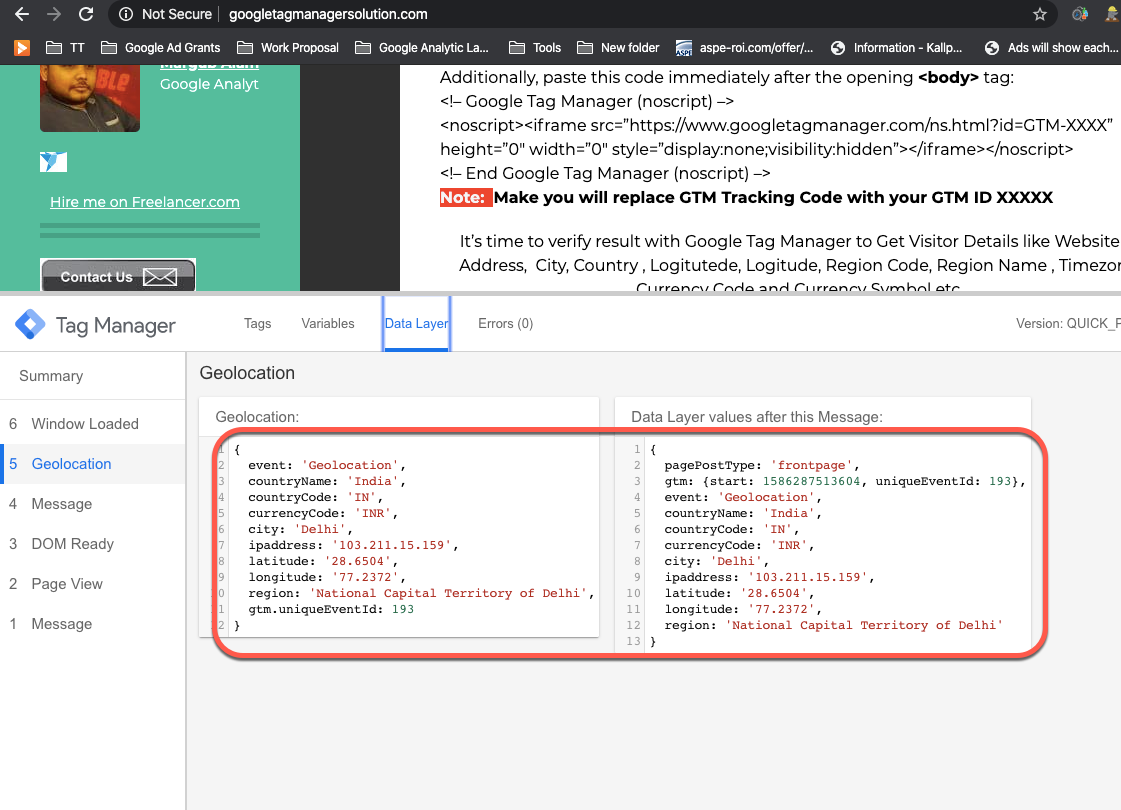
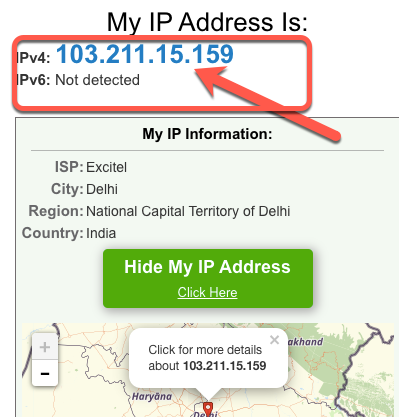
It’s time to verify result with Google Tag Manager to Get Visitor Details like Website IP Address,  City, Country , Longitude, latitude, Region Code, Region Name , Timezone, Currency Code and Currency Symbol etc,

Fetch IP Geolocation Data Using Google Tag Manager

Get an IP address using Google Tag Manager to See Visitor IP Address

Get a Visitor's IP Address in Google Analytics

Get IP address to the Google Tag Manager

Warning: If you do n’t know about javascript or do n’t have developing knowledge then do n’t try to Visitor IP Address using Google Tag Manager that can broke your site, Cart and other functionality 

Disclaimer: Google tag manager belongs to Google property 

For Contact: mappchero@gmail.com

I am available for Hire on Freelancer: Freelancer.com

I am available for Hire on Upwork: Upwork.com

I am available for Hire on Peopleperhour: Peopleperhour.com

I am available for Hire on Guru: Guru.com

Product Schema Code not detected with Structure Data Testing Tool using Google Tag Manager

Standard

Recently once client told me they want to implement schema code using Google Tag Manager, they have already tried but not succeed, he does not know what issue, but he said very easy to implement schema through Google Tag Manager, so many article written on internet but he does not know why it’s not able verify using structure data testing tool.

Product Schema is a specific type of structured data markup that can be added to a webpage to provide search engines with additional information about a product being sold on the page. This information can include the product’s name, price, image, availability, and other details.

When search engines understand the content on a page, they can display it in a more useful way, such as providing rich snippets in the search results that include the product’s name, image, and price.

Product Schema is based on the schema.org vocabulary, which is a set of tags and attributes that can be used to mark up content on a webpage. When these tags are added to a webpage, they create a structured data object that can be understood by search engines. By using Product Schema, you can help search engines understand the products on your site and show them in an enhanced way in the SERP(Search Engine Result Page).

To add product schema using Google Tag Manager, you can create a custom HTML tag and include the following JSON-LD code within it:

<script type="application/ld+json">
{
  "@context": "https://schema.org/",
  "@type": "Product",
  "name": "Product Name",
  "image": "https://example.com/product-image.jpg",
  "description": "Product Description",
  "offers": {
    "@type": "Offer",
    "priceCurrency": "USD",
    "price": "19.99",
    "availability": "https://schema.org/InStock",
    "url": "https://example.com/product-page"
  }
}
</script>

You can use the Google Tag Manager’s Data Layer variables to pass the values dynamically.

Then you can set up a trigger to fire the tag on the appropriate pages, such as product pages.

Please note that the above code is just an example, and you will need to replace the placeholder values (such as “Product Name” and “19.99”) with the actual values for your products. Additionally, you can add more properties as per your requirement.

If your Product Schema is not being detected, there are a few things you can check to troubleshoot the issue:

  1. Verify that your schema markup is properly formatted and contains all required properties.
  2. Check that the schema is correctly implemented on the relevant pages of your website.
  3. Test the markup using Google’s Structured Data Testing Tool to see if there are any errors or warnings.
  4. If you are using a content management system (CMS), make sure that the schema is not being stripped or modified by the CMS.
  5. Check if the page has been indexed by google and also check the robots.txt file if it’s blocking any page.
  6. Check if the website is using any form of redirection, which might affect the schema.

7. A Content Security Policy (CSP) is a security feature that helps prevent cross-site scripting (XSS) and other code injection attacks by specifying which sources of content are allowed to be loaded by a web page. If a CSP is set, any resources (such as scripts, images, or stylesheets) that are not explicitly allowed by the CSP will not be loaded by the browser.

If your CSP is preventing you from enabling the Google Tag Manager schema code, you will need to modify the CSP to include the necessary resources. This can typically be done by adding the appropriate domains or scripts to the “script-src” or “connect-src” directives of the CSP.

For example, if your CSP currently looks like this:

Content-Security-Policy: default-src 'self';

You can add the Google Tag Manager script by adding this line:

Content-Security-Policy: default-src 'self'; script-src 'self' www.googletagmanager.com
 

It’s important to keep in mind that a strict CSP will make your website more secure, but it can also make it more difficult to add new features or scripts. It’s a balance between security and functionality.

You should also consult with your development team or website administrator to ensure that any changes you make to the CSP do not negatively impact the functionality or security of your website.

If none of these steps resolve the issue, you may need to seek further assistance from a developer or technical SEO expert.

Warning: If you do n’t know about javascript or do n’t have developing knowledge then do n’t try to Product Schema Code not detected with Structure Data Testing Tool using Google Tag Managerthat can broke your site, Cart and other functionality 

Disclaimer: Google tag manager belongs to Google property 

For Contact: mappchero@gmail.com

I am available for Hire on Freelancer: Freelancer.com

I am available for Hire on Upwork: Upwork.com

I am available for Hire on Peopleperhour: Peopleperhour.com

I am available for Hire on Guru: Guru.com  
Top Magic Javascript for Daily uses of Google Tag Manager

Standard

Google Tag Manager (GTM) is a tool that allows you to manage and deploy marketing and analytics tags on your website or mobile app, without requiring you to modify the code of your site or app. JavaScript is a programming language that is commonly used in web development. When used in conjunction with GTM, JavaScript can be used to perform various tracking and analytics tasks on your website.

JavaScript can be used in GTM to perform a variety of tasks, such as:

  • Tracking clicks on specific elements on the page, such as buttons or links
  • Tracking form submissions
  • Tracking user interactions on the page, such as scrolling or hovering over specific elements
  • Tracking page views
  • Tracking form field data
  • Tracking user engagement
  • Tracking video interactions
  • Tracking file downloads
  • Tracking scroll depth
  • Tracking user location

You can add JavaScript code to GTM by creating a new tag and selecting “Custom HTML” as the tag type. Then you can configure the tag with your JavaScript code, and set up triggers to determine when the tag should fire. This allows you to use JavaScript to track specific actions or data on your website, without having to modify the website’s code.

It is important to note that GTM is not limited to JavaScript, You can also use it to add tags for other marketing and analytics tools such as Google Analytics, AdWords, and Facebook pixel.

Tracking drop-down text using JavaScript in Google Tag Manager (GTM) involves the following steps:

  1. Create a new custom HTML tag in GTM for the drop-down text tracking.
  2. In the tag configuration, add the JavaScript code that will track the drop-down text. The code should be able to select the drop-down element on the page, add a “change” event listener to it, and retrieve the selected text value when the drop-down selection changes.
  3. Create a new trigger in GTM that will fire the tag when the drop-down text changes. This can be done by using the “Click” trigger type and setting it to fire on the drop-down element.
  4. Publish the container to make the drop-down text tracking live on your website.
  5. Verify that the tracking is working by checking the real-time report in GA4.

Here is a sample JavaScript code that can be used to track drop-down text in GTM:

var dropdown = document.getElementById("dropdownId");

dropdown.addEventListener("change", function() {
  var selectedText = this.options[this.selectedIndex].text;
  dataLayer.push({'event': 'dropdownText', 'dropdownText': selectedText});
});

You can adjust the above code to match the id of your dropdown and the dataLayer variable name.

It’s important to note that the above code is just an example, and should be adapted to the specific needs of your website. It’s also important to understand the basics of JavaScript and GTM in order to implement the tracking correctly.

Tracking “Select” Drop Down Menu “Option” tag value Javascript using Google Tag Manager

In order to track the value of a “select” drop-down menu’s “option” tag in JavaScript, you can use the addEventListener method on the “select” element to listen for the “change” event.

Here’s an example of how you can do this:

var select = document.getElementById("mySelect");
select.addEventListener("change", function() {
    var selectedOption = this.options[this.selectedIndex];
    console.log(selectedOption.value);
});

In this example, document.getElementById(“mySelect”) is used to get a reference to the “select” element, and .addEventListener(“change”, function() is used to listen for the “change” event.

When the “change” event is fired, the anonymous function is executed, which gets the selected option element by using this.options[this.selectedIndex] and then logs the value of the option element using console.log(selectedOption.value).

You could also use Jquery to track the value of the selected option.

$("#mySelect").change(function(){
    console.log($(this).val())
});

In this way, every time the selection change, the console.log($(this).val()) will print the value of the selected option. In all the examples above, the console.log() is just an example of how you can use the selected option value. you could use it in any way you want, such as sending it to a server, storing it in a variable, etc.

Get Text of CheckBox Javascript using Google Tag Manager

In JavaScript, you can use the .textContent property to get the text of a checkbox element. Here’s an example:

var checkbox = document.getElementById("myCheckbox");
var text = checkbox.nextSibling.textContent;
console.log(text);

In this example, document.getElementById(“myCheckbox”) is used to get a reference to the checkbox element, and .nextSibling.textContent is used to get the text of the next sibling node.

For this to work, the checkbox element should be wrapped by a label element and the text should be inside the label element.

<label for="myCheckbox">This is my Checkbox</label>
<input type="checkbox" id="myCheckbox">

You could also use Jquery to get the text of a checkbox:

var text = $("label[for='myCheckbox']").text();
console.log(text);

In this example, $(“label[for=’myCheckbox’]”) is used to select the label element that corresponds to the checkbox element, and .text() is used to get the text inside the label element.

You could also use .innerText property to get the text of a checkbox.

var checkbox = document.getElementById("myCheckbox");
var text = checkbox.nextSibling.innerText;
console.log(text);

These examples assume that the text you want to get is inside a label element. If the text is not inside a label element, you can use parentNode or closest() to traverse the DOM and find the element that contains the text you want to get.

// Using querySelector
var radioButtons = document.querySelectorAll("input[name='color']");
var selectedValue;
for (let i = 0; i < radioButtons.length; i++) {
    if (radioButtons[i].checked) {
        selectedValue = radioButtons[i].value;
        break;
    }
}
console.log(selectedValue); // Output: the value of the selected radio button

// Using getElementsByName
var radioButtons = document.getElementsByName("color");
ar selectedValue;
for (let i = 0; i < radioButtons.length; i++) {
    if (radioButtons[i].checked) {
        selectedValue = radioButtons[i].value;
        break;
    }
}
console.log(selectedValue); // Output: the value of the selected radio button

In the above example, the querySelectorAll or getElementsByName method is used to select a group of radio buttons that have a name attribute of color. The for loop iterates through the group, and the checked property is used to check which radio button is currently selected. The value property of the selected radio button is then stored in the selectedValue variable and output to the console.

Listen for Changes in Drop Down Menu using Google Tag Manager

To listen for changes in a drop-down menu, you can use the “onchange” event in JavaScript. This event is triggered when the value of the drop-down menu is changed by the user. Here’s an example of how you might use this event:

<select id=”mySelect”>
<option value=”option1″>Option 1</option>
<option value=”option2″>Option 2</option>
<option value=”option3″>Option 3</option>
</select>

<script>
var select = document.getElementById(“mySelect”);
select.onchange = function() {
// code to be executed when the value of the drop-down menu changes
console.log(“Selected option: ” + select.value);
}
</script>

In the above example, the onchange event is assigned a function that will be called whenever the user changes the value of the drop-down menu. The function logs the value of the selected option to the console.

You can also use jQuery .change() function that triggers the change event, or .on(“change”) function that attaches a function to the change event.

$(“#mySelect”).change(function(){
console.log(“Selected option: ” + this.value);
});

or

$(“#mySelect”).on(“change”, function(){
console.log(“Selected option: ” + this.value);
});

In both cases the function will be called whenever the user changes the value of the drop-down menu.

Disclaimer: Google tag manager belongs to Google property  For Contact: mappchero@gmail.com

I am available for Hire on Freelancer: Freelancer.com

I am available for Hire on Upwork: Upwork.com

I am available for Hire on Peopleperhour: Peopleperhour.com

I am available for Hire on Guru: Guru.com