Shopify Cross Domain Google Analytics with Buy Button (Shopify Buy Button Embed)
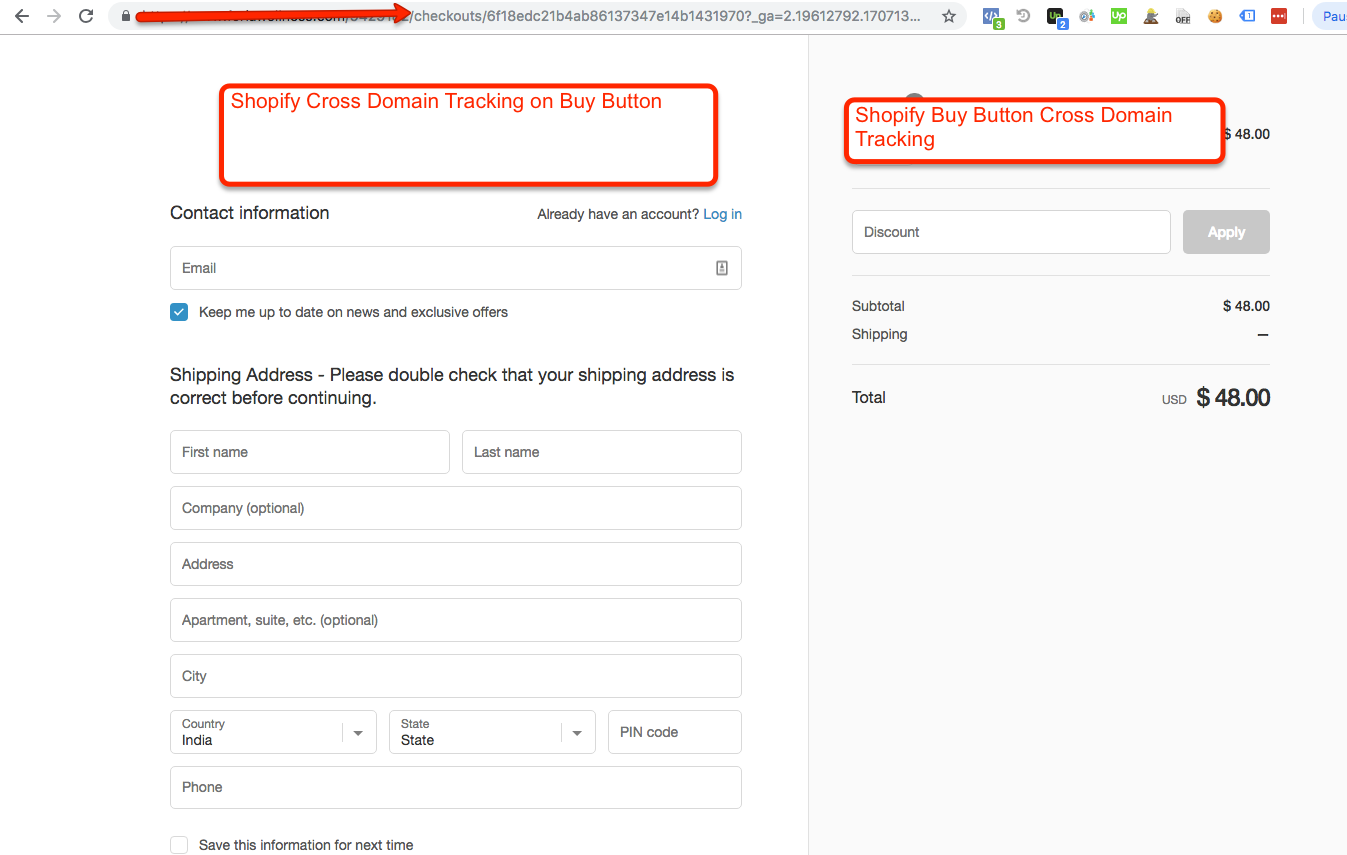
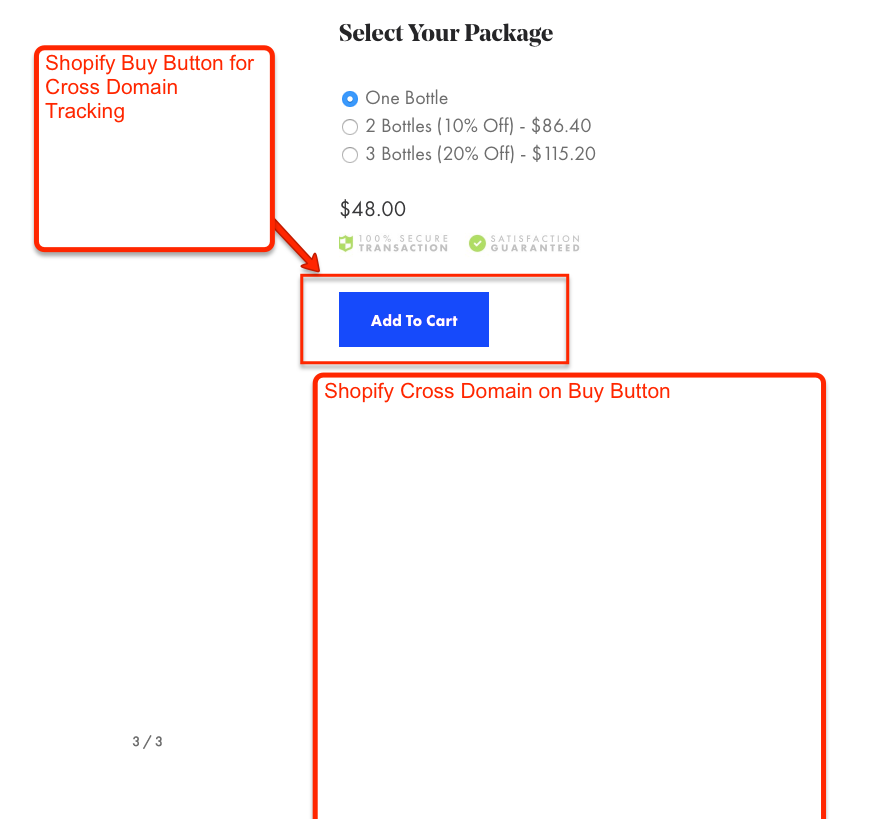
Recently once of client ask me to implement cross domain on Shopify with Buy Button or Shopify Buy Button Embed (either Buy Button on wordPress or Any other Website ) using Shopify Google Analytics Cross Domain Tracking, I ask to client share website url to understand users , How to buy a product through shopify using Buy button and finishing order on shopify. Once I looked his/her website and found it they use Shopify Buy Button to track on another website, once you will Click on Shopify buy Button, they will redirect to shopify Checkout and rest of process need completed before confirm order Like below Screen shot.
Are you looking to Implement Cross Domain any time type of website like Magento, iframe OpenCart , WordPress, Php, .Net, Custom Website or Any type of website with Buy Button using Google Analytic or Google Tag Manager
2. If you are looking to implement Cross Domain Tracking on Iframe using Google Analytic and Google Tag Manager
3. If you are facing issue on Cross Domain direct traffic or Referral issue on Cross Domain Tracking or session broken as direct traffic in Google Analytic
Cross Domain Tracking Shopify Buy Button
2. Written Some custom javascript get Cross domain for Shopify Buy Button using Google Analytic and Shopify Cross Domain tracking lead with _ga Shopify Cross Domain buy button.
Custom Google Analytics Shopify Cross Domain with Buy Button
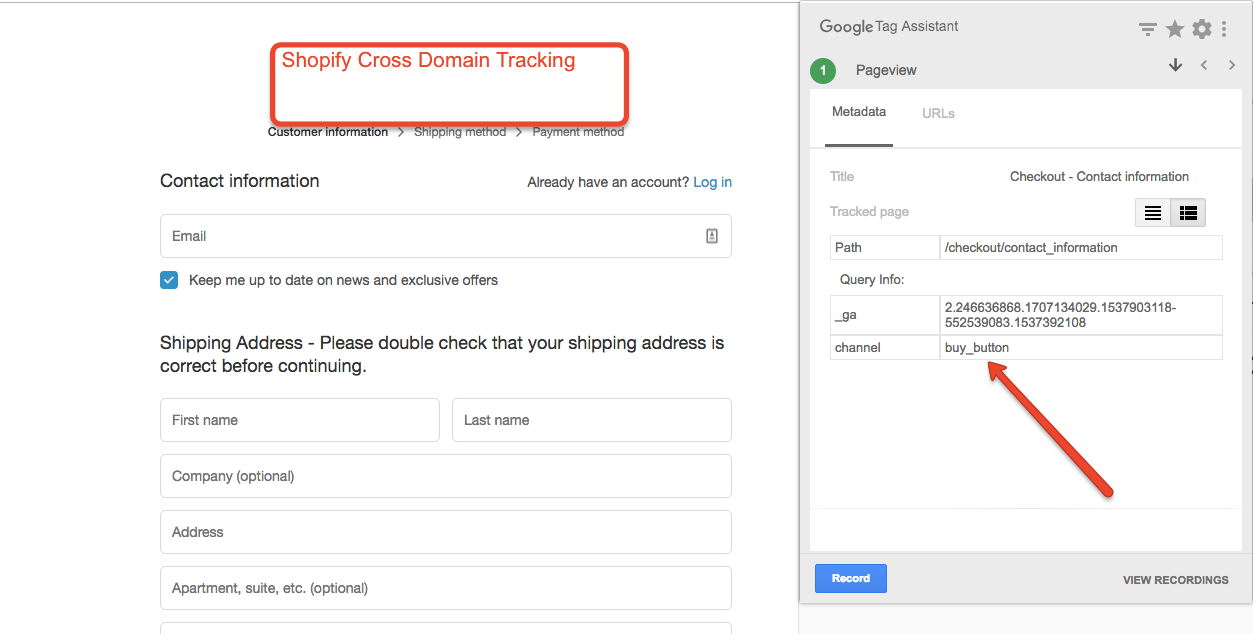
3. It’s time to verify result of Shopify Cross Domain with Buy button using Google Analytic
Shopify Ecommerce Google Analytics Cross Domain with Buy Button
Warning:if you do n’t know about javascript or don’t have developing knowledge then do n’t try to Shopify Cross Domain Google Analytics with Buy Button using Google Analytic a custom javascript without using Any plugin that can broke your site, Cart and other functionality
Disclaimer: Google tag manager belongs to Google property
Marketo Adword Conversion Tracking and Form Submission as Event Tracking in Google Analytic using Google Tag Manager
Recently once of client ask me to implement Marketo Form Submissions using Google Tag Manager, once I looked marketo form and submitted see chance track to write a custom javascript using Google Tag Manager.
I have tried with custom Javascript started successfully Marketo Form Submissions using Google Tag Manager,who does not have know custom javascript very difficult track marketo form submission using Google Tag Manager.
1. First Install Google Tag Manager on Your Marketo Adword Conversion Tracking and Form Submission as Event Tracking in Google Analytic using Google Tag Manager
Paste this code as high in the <head> of the page as possible:
<!– Google Tag Manager –> <script>(function(w,d,s,l,i){w[l]=w[l]||[];w[l].push({‘gtm.start’: new Date().getTime(),event:’gtm.js’});var f=d.getElementsByTagName(s)[0], j=d.createElement(s),dl=l!=’dataLayer’?’&l=’+l:”;j.async=true;j.src= ‘https://www.googletagmanager.com/gtm.js?id=’+i+dl;f.parentNode.insertBefore(j,f); })(window,document,’script’,’dataLayer’,’GTM-XXXX’);</script> <!– End Google Tag Manager –>
Additionally, paste this code immediately after the opening <body> tag:
<!– Google Tag Manager (noscript) –> <noscript><iframe src=”https://www.googletagmanager.com/ns.html?id=GTM-XXXX” height=”0″ width=”0″ style=”display:none;visibility:hidden”></iframe></noscript> <!– End Google Tag Manager (noscript) –>
Note: Make you will replace GTM Tracking Code with your GTM ID XXXXX
2. It’s time to verify Google Analytic Tracking form submissions using Google Tag Manager
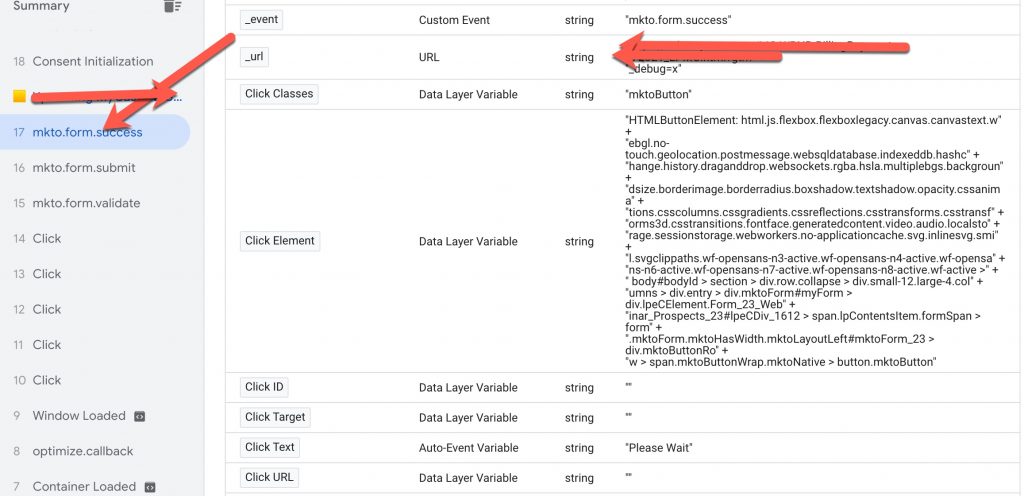
Tracking Marketo Forms in Google Tag Manager
Warning: If you do n’t know about javascript or do n’t have developing knowledge then do n’t try to Google Analytics Marketo Form Submissions using Google Tag Manager without any plugins that can broke your site, Cart and other functionality
Disclaimer: Google tag manager belongs to Google property For Contact: mappchero@gmail.com
Recently once client told me they want to implement schema code using Google Tag Manager, they have already tried but not succeed, he does not know what issue, but he said very easy to implement schema through Google Tag Manager, so many article written on internet but he does not know why it’s not able verify using structure data testing tool.
Product Schema is a specific type of structured data markup that can be added to a webpage to provide search engines with additional information about a product being sold on the page. This information can include the product’s name, price, image, availability, and other details.
When search engines understand the content on a page, they can display it in a more useful way, such as providing rich snippets in the search results that include the product’s name, image, and price.
Product Schema is based on the schema.org vocabulary, which is a set of tags and attributes that can be used to mark up content on a webpage. When these tags are added to a webpage, they create a structured data object that can be understood by search engines. By using Product Schema, you can help search engines understand the products on your site and show them in an enhanced way in the SERP(Search Engine Result Page).
To add product schema using Google Tag Manager, you can create a custom HTML tag and include the following JSON-LD code within it:
You can use the Google Tag Manager’s Data Layer variables to pass the values dynamically.
Then you can set up a trigger to fire the tag on the appropriate pages, such as product pages.
Please note that the above code is just an example, and you will need to replace the placeholder values (such as “Product Name” and “19.99”) with the actual values for your products. Additionally, you can add more properties as per your requirement.
If your Product Schema is not being detected, there are a few things you can check to troubleshoot the issue:
Verify that your schema markup is properly formatted and contains all required properties.
Check that the schema is correctly implemented on the relevant pages of your website.
Test the markup using Google’s Structured Data Testing Tool to see if there are any errors or warnings.
If you are using a content management system (CMS), make sure that the schema is not being stripped or modified by the CMS.
Check if the page has been indexed by google and also check the robots.txt file if it’s blocking any page.
Check if the website is using any form of redirection, which might affect the schema.
7. A Content Security Policy (CSP) is a security feature that helps prevent cross-site scripting (XSS) and other code injection attacks by specifying which sources of content are allowed to be loaded by a web page. If a CSP is set, any resources (such as scripts, images, or stylesheets) that are not explicitly allowed by the CSP will not be loaded by the browser.
If your CSP is preventing you from enabling the Google Tag Manager schema code, you will need to modify the CSP to include the necessary resources. This can typically be done by adding the appropriate domains or scripts to the “script-src” or “connect-src” directives of the CSP.
For example, if your CSP currently looks like this:
Content-Security-Policy: default-src 'self';
You can add the Google Tag Manager script by adding this line:
It’s important to keep in mind that a strict CSP will make your website more secure, but it can also make it more difficult to add new features or scripts. It’s a balance between security and functionality.
You should also consult with your development team or website administrator to ensure that any changes you make to the CSP do not negatively impact the functionality or security of your website.
If none of these steps resolve the issue, you may need to seek further assistance from a developer or technical SEO expert.
Warning: If you do n’t know about javascript or do n’t have developing knowledge then do n’t try to Product Schema Code not detected with Structure Data Testing Tool using Google Tag Managerthat can broke your site, Cart and other functionality
Disclaimer: Google tag manager belongs to Google property
Set up eCommerce Tracking tracking for The Donation/Charity Form using Google Tag Manager
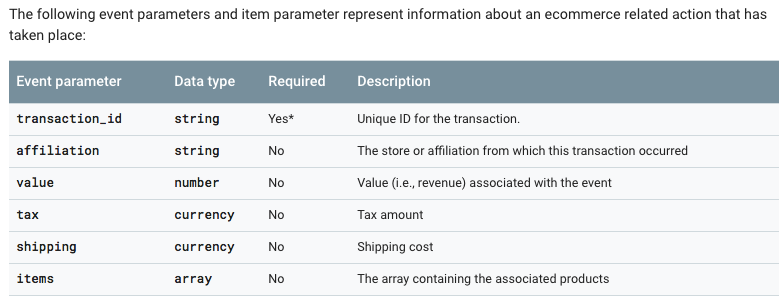
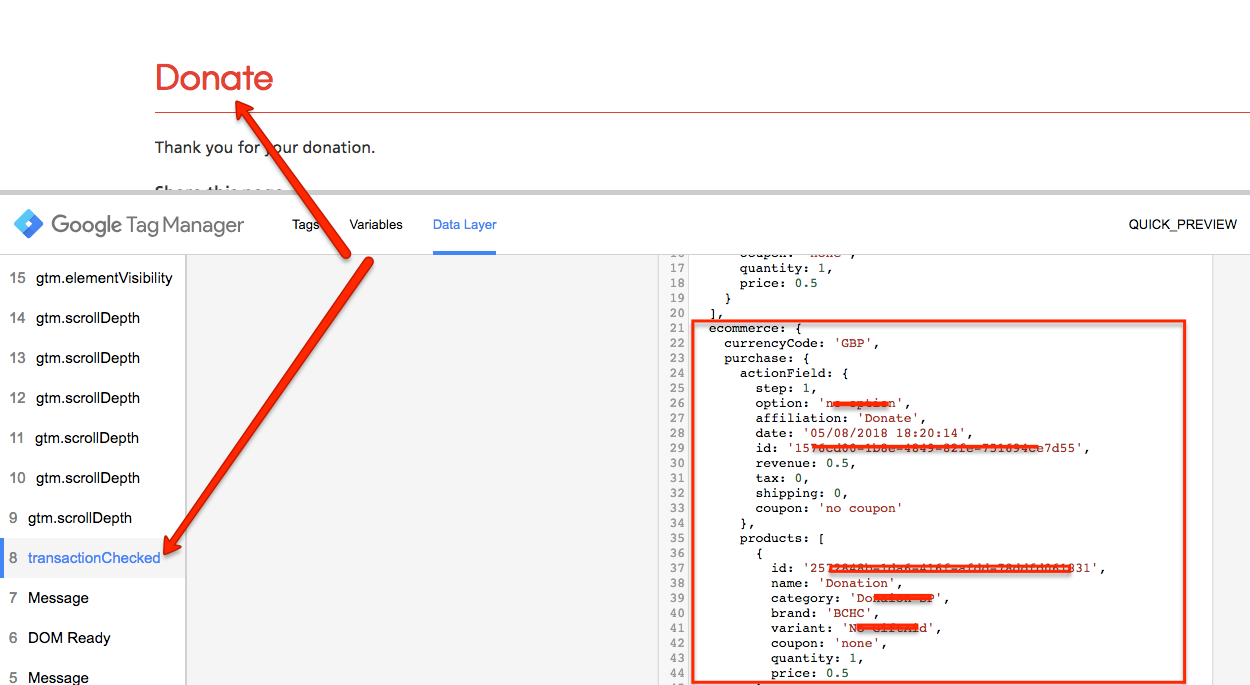
Recently once client ask me they want track ecommerce tracking donation form and charity form based ecommerce tracking using Google Tag Manager, Once I looked this website , I asked I want to make a test order to see based on that I will make require to tags and trigger to see ecommerce tracking in Google Analytic using Google Tag Manager without touching code of Donation Form.
Challenge here to track ecommerce for Donation/Charity form using Google Tag Manager
Order id is not showing most of donation form website
Most time does not redirect to another page and showing message on pop up
Require to identify quantity and Product Name
Make trigger on Success message and Success Page for eCommerce Tracking using Google Tag Manager
Integrate Google Analytics Ecommerce Tracking for Your Donation Form Page
To Implement Ecommerce for Donate/Charity Form using Google Tag Manager using Custom Javascript with touching code
1. First Install Google Tag Manager on Your Donation/Charity Form for Set Up Ecommerce using Google Tag Manager
Paste this code as high in the <head> of the page as possible:
<!– Google Tag Manager –> <script>(function(w,d,s,l,i){w[l]=w[l]||[];w[l].push({‘gtm.start’: new Date().getTime(),event:’gtm.js’});var f=d.getElementsByTagName(s)[0], j=d.createElement(s),dl=l!=’dataLayer’?’&l=’+l:”;j.async=true;j.src= ‘https://www.googletagmanager.com/gtm.js?id=’+i+dl;f.parentNode.insertBefore(j,f); })(window,document,’script’,’dataLayer’,’GTM-XXXX’);</script> <!– End Google Tag Manager –>
Additionally, paste this code immediately after the opening <body> tag:
<!– Google Tag Manager (noscript) –> <noscript><iframe src=”https://www.googletagmanager.com/ns.html?id=GTM-XXXX” height=”0″ width=”0″ style=”display:none;visibility:hidden”></iframe></noscript> <!– End Google Tag Manager (noscript) –>
Note: Make you will replace GTM Tracking Code with your GTM ID XXXXX
2. It’s time to verify Google Analytic eCommerce Tracking tracking for The Donation/Charity Form using Google Tag Manager
Warning:if you do n’t know about javascript or don’t have developing knowledge then do n’t try to Set up eCommerce Tracking tracking for The Donation/Charity Form using Google Tag Manager a custom javascript without using Any plugin that can broke your site, Cart and other functionality
Disclaimer: Google tag manager belongs to Google property
Using Google Tag Manager (GTM) with DotNetNuke (DNN) for Google Analytics to Track Ecommerce and Enhanced Ecommerce, Form Submission and Event Tracking
Recently, one of clients as I implement Google Tag Manager on DotNetNuke (DNN) to track eCommerce tracking, Form Submission and event tracking using Google Tag Manager for DotNetNuke (DNN).
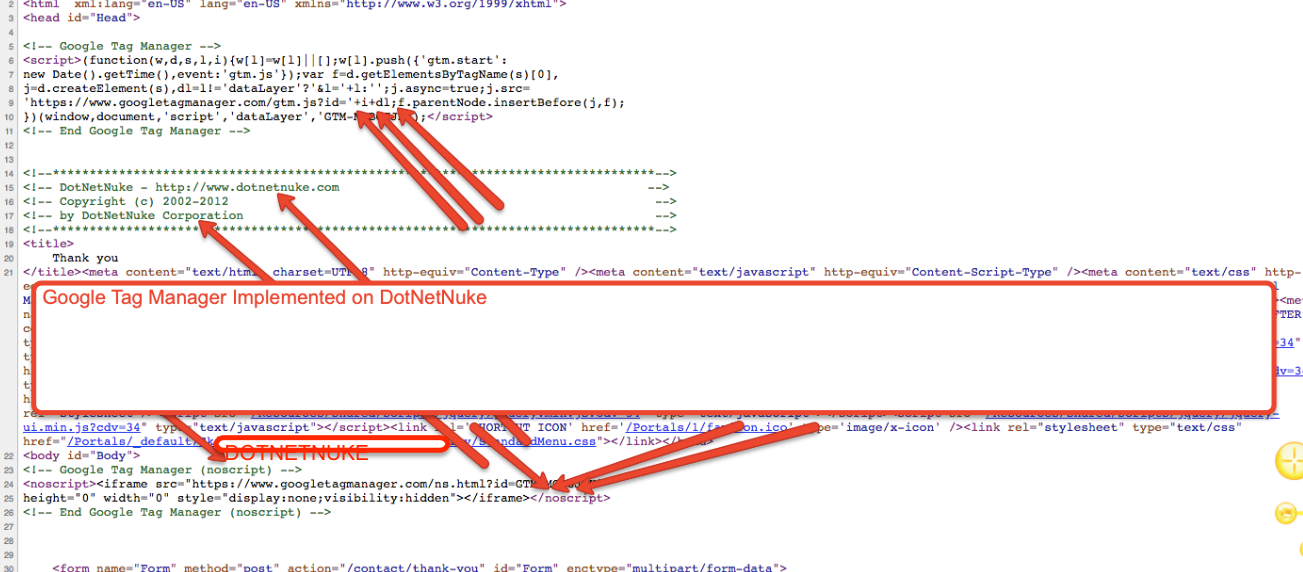
Once I looked DotNetNuke (DNN) back-end and seen all the possible to implement Google Tag Manager put code on body and header. implement tracking form submission, event tracking and ecommerce tracking using Google Tag Manager without touching back-end of DotNetNuke (DNN). Two way to tracking ecommerce tracking using custom JS or directly putting code on success page using Google Tag Manager without touching code of website!!!!
1. Install Google Tag Manager on DotNetNuke (DNN) for Implement Track Ecommerce and enhanced Tracking, Form Submission and Event Tracking
Paste this code as high in the <head> of the page as possible:
<!– Google Tag Manager –> <script>(function(w,d,s,l,i){w[l]=w[l]||[];w[l].push({‘gtm.start’: new Date().getTime(),event:’gtm.js’});var f=d.getElementsByTagName(s)[0], j=d.createElement(s),dl=l!=’dataLayer’?’&l=’+l:”;j.async=true;j.src= ‘https://www.googletagmanager.com/gtm.js?id=’+i+dl;f.parentNode.insertBefore(j,f); })(window,document,’script’,’dataLayer’,’GTM-XXXX’);</script> <!– End Google Tag Manager –>
Additionally, paste this code immediately after the opening <body> tag:
<!– Google Tag Manager (noscript) –> <noscript><iframe src=”https://www.googletagmanager.com/ns.html?id=GTM-XXXX” height=”0″ width=”0″ style=”display:none;visibility:hidden”></iframe></noscript> <!– End Google Tag Manager (noscript) –>
Note: Make you will replace GTM Tracking Code with your GTM ID XXXXX
Install Google Tag Manager in Head and body of DotNetNuke (DNN)
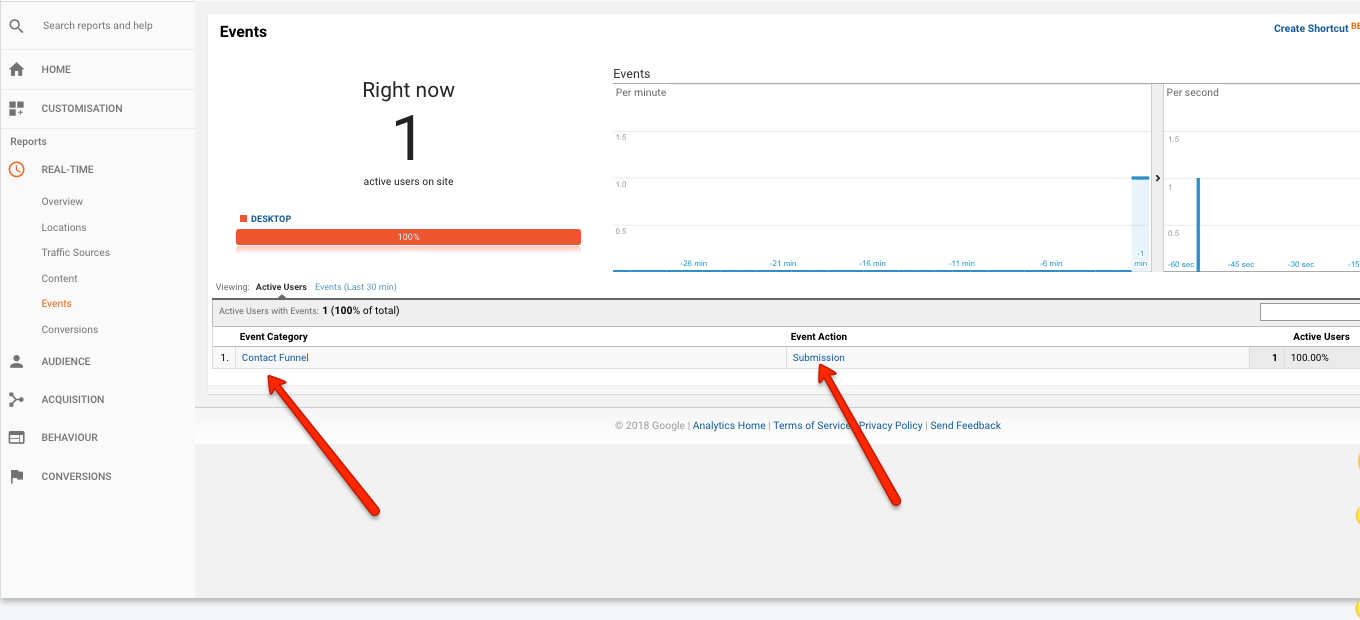
2. It’s time to verify Google Analytic form submission and ecommerce tracking using Google Tag Manager for DotNetNuke (DNN) for Google Analytics to Track Ecommerce and Enhanced Ecommerce, Form Submission and Event Tracking without touching code of DotNetNuke (DNN)
DNN Google Tag Manager integrates website to Track anything
Warning:if you do n’t know about javascript or don’t have developing knowledge then do n’t try to Google Tag Manager (GTM) with DotNetNuke (DNN) for Google Analytics to Track Ecommerce and Enhanced Ecommerce, Form Submission and Event Tracking a custom javascript without using Any plugin that can broke your site, Cart and other functionality
Disclaimer: Google tag manager belongs to Google property
Setup of Creating the Emarsys Tag Data Collection using Google Tag Manager without Touching Code
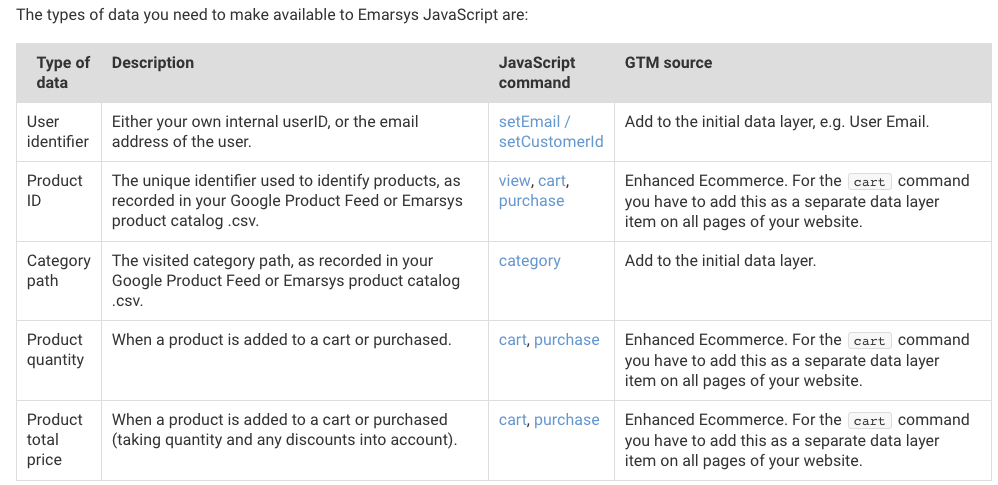
Recently once of client ask to me implement Emarsys Tag Data Collection using Google Tag Manager. Once I looked Emarsys Tag Data Collection, basically these tags are working enhanced ecommerce tracking, if you already implemented enhanced ecommerce tracking either datalayer or custom javascript that will more easier to implement Emarsys Tag Data Collection!!
First you need understand to requirement of Emarsys Tag Data Collection using Google Tag Manager without touching code
ecommerce – Include all the details product details, cart details , Checkout and purchase details using Google Tag Manager without touching code Website
Category path – Category of Website page, it will be trigger way to browser category
Cart content – Cart details included through Google Tag Manager for Emarsys Data Collection
Implementing Emarsys Tag Data Collection using Google Tag Manager Scripts – Emarsys
1. Install Google Tag Manager on the website for Emarsys Data Collection
Paste this code as high in the <head> of the page as possible:
<!– Google Tag Manager –> <script>(function(w,d,s,l,i){w[l]=w[l]||[];w[l].push({‘gtm.start’: new Date().getTime(),event:’gtm.js’});var f=d.getElementsByTagName(s)[0], j=d.createElement(s),dl=l!=’dataLayer’?’&l=’+l:”;j.async=true;j.src= ‘https://www.googletagmanager.com/gtm.js?id=’+i+dl;f.parentNode.insertBefore(j,f); })(window,document,’script’,’dataLayer’,’GTM-XXXX’);</script> <!– End Google Tag Manager –>
Additionally, paste this code immediately after the opening <body> tag:
<!– Google Tag Manager (noscript) –> <noscript><iframe src=”https://www.googletagmanager.com/ns.html?id=GTM-XXXX” height=”0″ width=”0″ style=”display:none;visibility:hidden”></iframe></noscript> <!– End Google Tag Manager (noscript) –>
Note: Make you will replace GTM Tracking Code with your GTM ID XXXXX
<script type=”text/javascript”>;
var ecom = {{ecommerce}};
var pagecat = {{Page Category}};
var cartcontent = {{Cart Content}};
var ScarabQueue = ScarabQueue || [];
(function(id) {
if (document.getElementById(id)) return;
var js = document.createElement(‘script’); js.id = id;
js.src = ‘//cdn.scarabresearch.com/js/MERCHANT_ID/scarab-v2.js’;
var fs = document.getElementsByTagName(‘script’)[0];
fs.parentNode.insertBefore(js, fs);
})(‘scarab-js-api’);
if ( ecom && ecom.purchase ) {
var emarsys_purchase_command = {
“orderId”: ecom.purchase.actionField.id,
“items”: []
}
for ( var i=0; i<ecom.purchase.products.length; i++ ) {
emarsys_purchase_command.items.push({
“item”: ecom.purchase.products[ i ].id,
“quantity”: ecom.purchase.products[ i ].quantity,
“price”: ecom.purchase.products[ i ].price,
});
}
2. It’s time to verify Emarsys Data Collection using Google Tag Manager
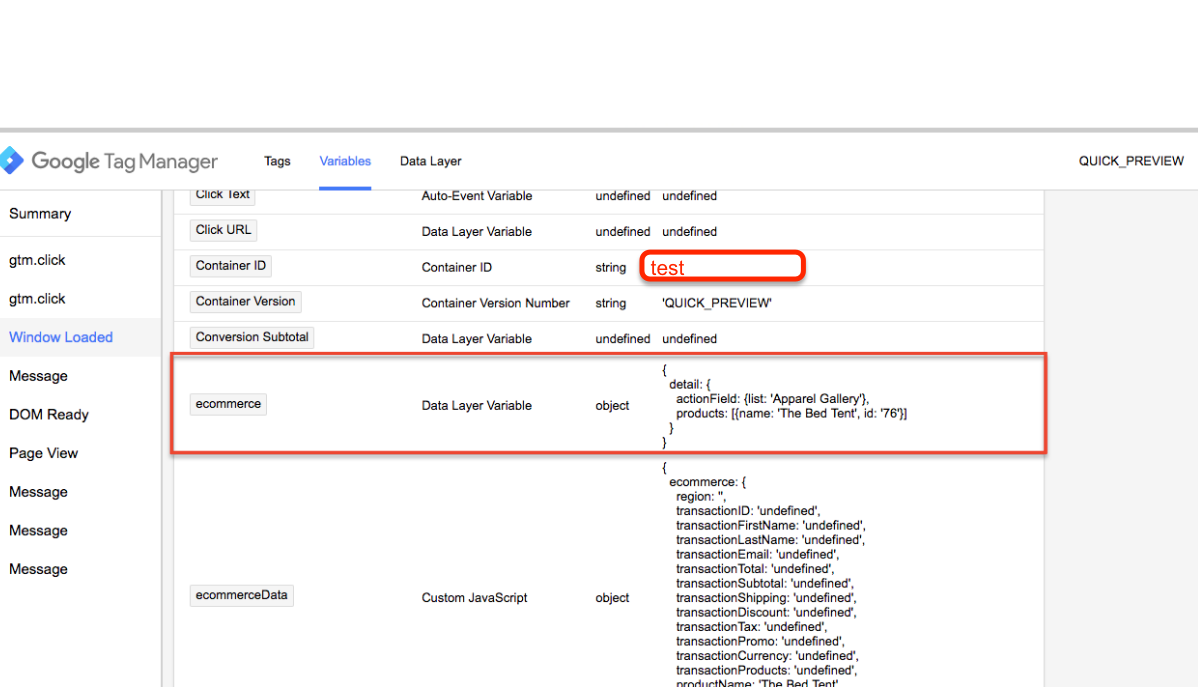
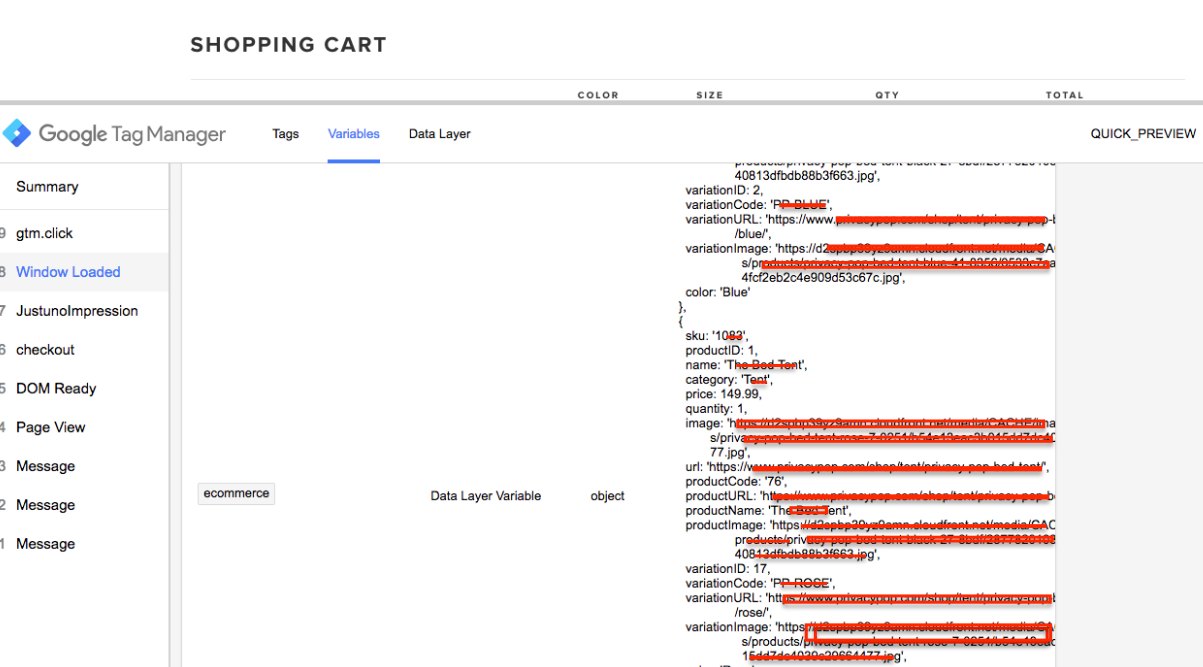
Written a separate datalayer each steps now you can see datalayer on “{{ecommerce}}” , You will see ecommerce data layer variable on product page , Add to cart button, Cart Pages and Success
Implementation of the Emarsys Data Collection using Google Tag Manager Tags
Warning:if you do n’t know about javascript or don’t have developing knowledge then do n’t try to Google Tag Manager (GTM) with Implementation of the Emarsys Data Collection using Google Tag Manager a custom javascript without using Any plugin that can broke your site, Cart and other functionality
Disclaimer: Google tag manager belongs to Google property
Lead Source Form Tracking using Google Tag Manager on CRM, Zoho Form, Gravity Form, Contact7 Form, UTM Parameters and Salesforce Form Tracking
Recently, one of Client asks me to Implement Lead Source Form Tracking using Google Tag Manager on Zoho, Gravity Form, Contact 7 Form, UTM Parameters and Salesforce Form Tracking, Because Client wants to know true source form tracking inside a Form Using Google Tag Manager.
I asked the client why you want tracked, He said heavy spend on marketing from different source using UTM Parameters to track the correct source of traffic to pass source in CRM, Zoho Form, Gravity Form, Contact7 Form and Salesforce Form or any other form using Google Tag Manager, So that he can calculate true ROI vs Spend from each marketing source.
1. Install Google Tag Manager on Google Tag Manager on your website
Paste this code as high in the <head> of the page as possible:
<!– Google Tag Manager –> <script>(function(w,d,s,l,i){w[l]=w[l]||[];w[l].push({‘gtm.start’: new Date().getTime(),event:’gtm.js’});var f=d.getElementsByTagName(s)[0], j=d.createElement(s),dl=l!=’dataLayer’?’&l=’+l:”;j.async=true;j.src= ‘https://www.googletagmanager.com/gtm.js?id=’+i+dl;f.parentNode.insertBefore(j,f); })(window,document,’script’,’dataLayer’,’GTM-XXXX’);</script> <!– End Google Tag Manager –>
Additionally, paste this code immediately after the opening <body> tag:
<!– Google Tag Manager (noscript) –> <noscript><iframe src=”https://www.googletagmanager.com/ns.html?id=GTM-XXXX” height=”0″ width=”0″ style=”display:none;visibility:hidden”></iframe></noscript> <!– End Google Tag Manager (noscript) –>
Note: Make you will replace GTM Tracking Code with your GTM ID XXXXX
2. Write Custom Html Code to Capture Lead Source Form Tracking using Google Tag Manage for CRM, Zoho Form and Salesform Gravity Form, Contact7 Form, UTM Parameters Form Tracking
Capturing Lead Source Using UTM Field using Googel Tag Manager
3. It’s time to verify Lead Source Form Tracking using Google Tag Manager for Form and CRM
ZOHO Form Submission Lead Source
Tracking Lead Sources using Marketing Automation Using Google Tag Manager
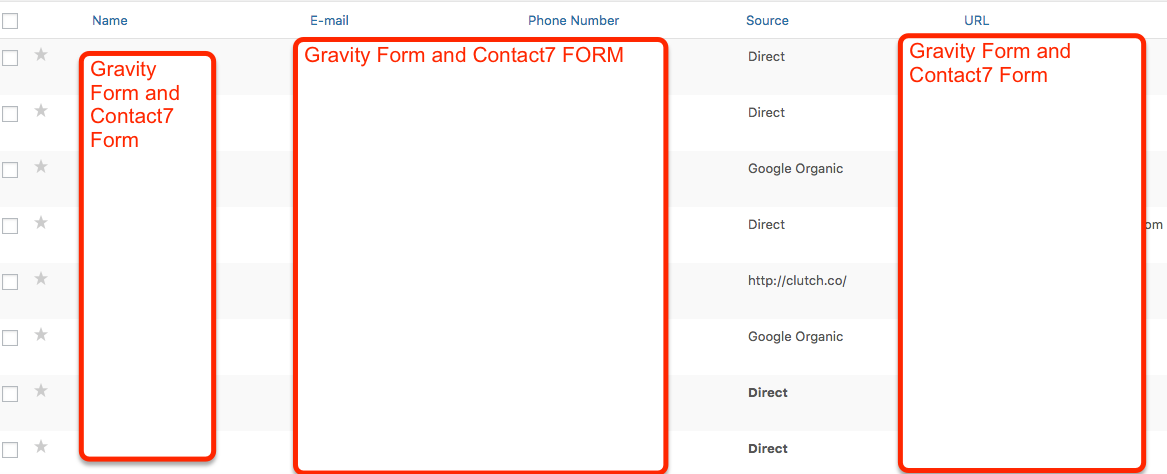
Gravity Form and Contact7 Form Lead Source using Google Tag Manager
Leads Source from Gravity Forms using Google Tag Manager
Warning:if you do n’t know about javascript or do n’t have developing knowledge then do n’t try to Lead Source Form Tracking using Google Tag Manager for Zoho, Gravity Form, Contact7 Form without using Any plugin that can broke your site, Cart and other functionality
Disclaimer: Google tag manager belongs to Google property
Track transaction-specific conversion values in Oscommerce (gtag.js)
Recently one of client ask me to implement dynamic adword conversion on directly putting code or also using Google Tag Manager on Oscommerce with (gtag.js), Once I looked Oscommerce asked to make test order once I place a tested then I told it’s possible implemented directly (gtag.js) and also using Google Tag Manager.
Just written a Custom PHP Code with (gtag.js) that will help you track dynamic adword Conversion tracking using (gtag.js) for Oscommerce
First you need write a custom php on Success Pages on Oscommerce (gtag.js) to track dynamic Adword conversion tracking for Oscommerce
Like that
<?php if ((basename($PHP_SELF) == FILENAME_CHECKOUT_SUCCESS)
Warning:if you do n’t know about javascript/ Custom PHP Code or do n’t have developing knowledge then do n’t try to Dynamic Adword Conversion Tracking Code in Oscommerce a custom javascript/ Custom PHP without using Any plugin that can broke your site, Cart and other functionality
Disclaimer: Google tag manager belongs to Google property
Criteo OneTag on BigCommerce Stencil Themes using Google Tag Manager
Recently one client asked me to Implement Criteo OneTag via Google Tag Manager on BigCommerce Stencil Themes using Google Tag Manager with the help Datalayer, Once client asks me to implement Criteo, They have told me they tried so many freelancers, but do not get right to BigCommerce Stencil Themes, Once I looked Criteo OneTag and Stencil Themes, I said I will implement correct way of Criteo On usin Google Tag Manager!
Require these Tags need to Implement Criteo OneTag on BigCommerce Stencil Themes to Work using Google Tag Manager
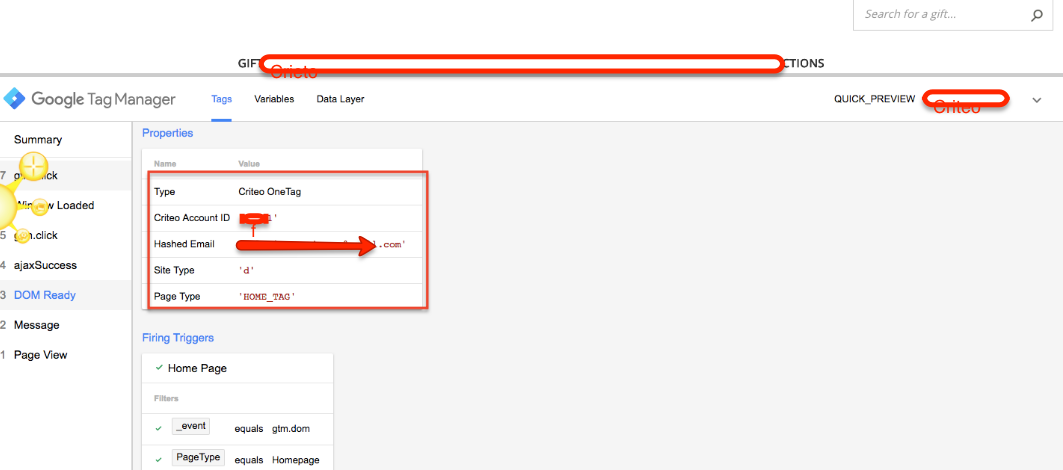
Homepage dataLayer using Google Tag Manger for BigCommerce Stencil Themes
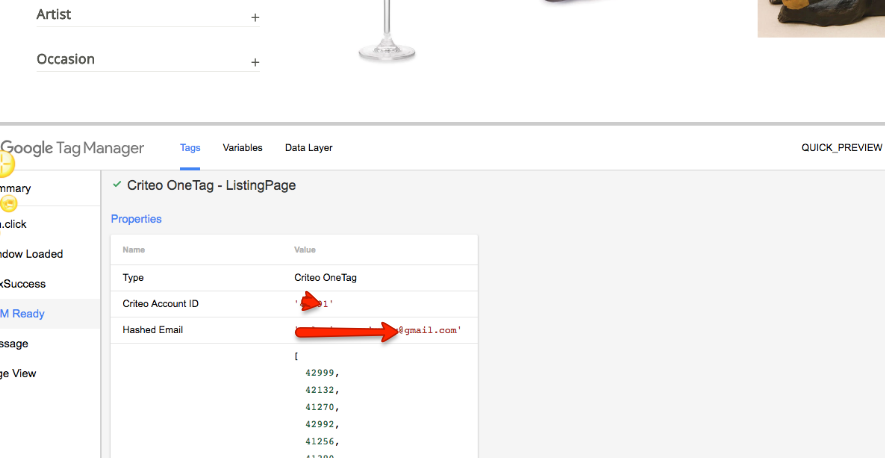
Listing page dataLayer using Google Tag Manager for BigCommerce Stencil Themes
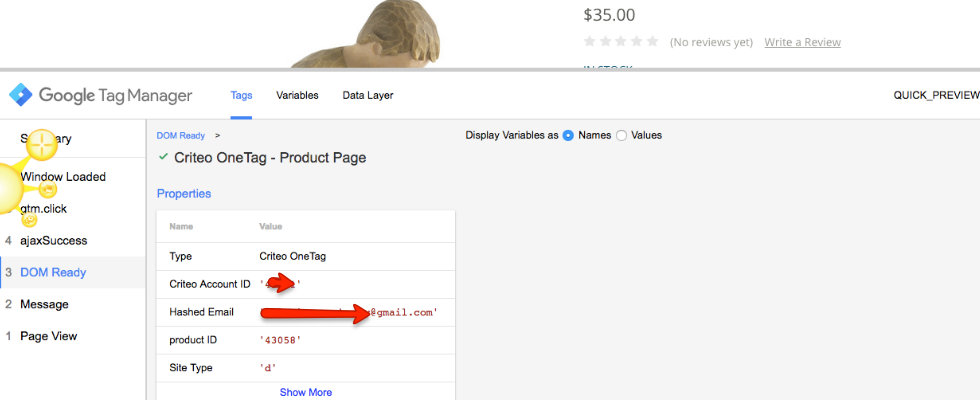
Product page dataLayer using Google Tag Manager for BigCommerce Stencil Themes
Basket page dataLayer using Google Tag Manager for BigCommerce Stencil Themes
Sales Confirmation page dataLayer using Google Tag Manager for BigCommerce Stencil Themes
1. Install Google Tag Manager on Google Tag Manager on BigCommerce Stencil Themes for Implement Criteo OneTag
Paste this code as high in the <head> of the page as possible:
<!– Google Tag Manager –> <script>(function(w,d,s,l,i){w[l]=w[l]||[];w[l].push({‘gtm.start’: new Date().getTime(),event:’gtm.js’});var f=d.getElementsByTagName(s)[0], j=d.createElement(s),dl=l!=’dataLayer’?’&l=’+l:”;j.async=true;j.src= ‘https://www.googletagmanager.com/gtm.js?id=’+i+dl;f.parentNode.insertBefore(j,f); })(window,document,’script’,’dataLayer’,’GTM-XXXX’);</script> <!– End Google Tag Manager –>
Additionally, paste this code immediately after the opening <body> tag:
<!– Google Tag Manager (noscript) –> <noscript><iframe src=”https://www.googletagmanager.com/ns.html?id=GTM-XXXX” height=”0″ width=”0″ style=”display:none;visibility:hidden”></iframe></noscript> <!– End Google Tag Manager (noscript) –>
Note: Make you will replace GTM Tracking Code with your GTM ID XXXXX
2. Homepage dataLayer: Implemented Criteo OneTag on BigCommerce Stencil Themes using Google Tag Manager
Implemented Criteo OneTag via Google Tag Manager
3.Listing page dataLayer: Implemented Criteo OneTag on BigCommerce Stencil Themes using Google Tag Manager on Listed Products Pages
Implement data layers for Ctriteo via Google Tag Manager
4.Product page dataLayer: Implemented Criteo OneTag on BigCommerce Stencil Themes using Google Tag Manager on product Page
Product Page Implemented Criteo OneTag on BigCommerce Stencil
5.Basket page dataLayer: Implemented Criteo OneTag on BigCommerce Stencil Themes using Google Tag Manager on Basket page or Cart
Criteo OneTag BigCommerce Stencil Marketplace using Google Tag Manager
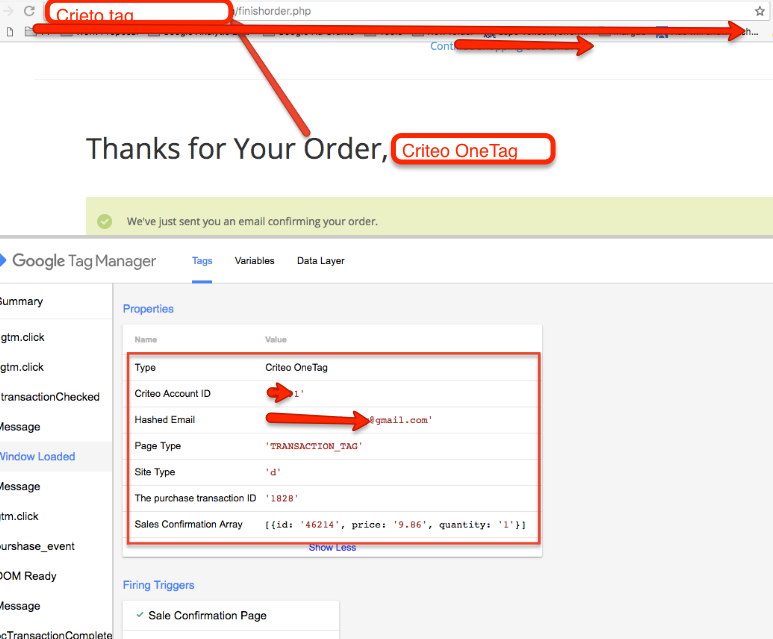
5.Sales Confirmation page dataLayer: Implemented Criteo OneTag on BigCommerce Stencil Themes using Google Tag Manager on Criteo OneTag Implemented on Sales Confirmation
Criteo OneTag Sales Confirmation page on BigCommerce Stencil Themes
Warning:if you do n’t know about javascript or do n’t have developing knowledge then do n’t try to Criteo OneTag on BigCommerce Stencil Themes using Google Tag Manager a custom javascript without using Any plugin that can broke your site, Cart and other functionality
Disclaimer: Google tag manager belongs to Google property
Google Analytics Enhanced eCommerce and eCommerce Tracking for RMS Hotel Booking Engine using Google Tag Manager
Recently One of client ask me to implement e-commerce tracking on RMS Booking Engine using Google Tag Manager, one I looked online RMS Hotel website and found they are using RMS Hotel Booking E-commerce Tracking using Google Tag Manager!
Enhanced eCommerce and eCommerce tracking for Hotel Websites for RMS Online Hotel Reservation without Touch Booking Engine using Google Tag Manager
1. Install Google Tag Manager on Your online Hotel Website and RMS Hotel Booking Engine for Set Up Enhanced eCommerce a using Google Tag Manager without touch code of sites and Booking Engine for RMS Hotel Reservation Systems
Paste this code as high in the <head> of the page as possible:
<!– Google Tag Manager –> <script>(function(w,d,s,l,i){w[l]=w[l]||[];w[l].push({‘gtm.start’: new Date().getTime(),event:’gtm.js’});var f=d.getElementsByTagName(s)[0], j=d.createElement(s),dl=l!=’dataLayer’?’&l=’+l:”;j.async=true;j.src= ‘https://www.googletagmanager.com/gtm.js?id=’+i+dl;f.parentNode.insertBefore(j,f); })(window,document,’script’,’dataLayer’,’GTM-XXXX’);</script> <!– End Google Tag Manager –>
Additionally, paste this code immediately after the opening <body> tag:
<!– Google Tag Manager (noscript) –> <noscript><iframe src=”https://www.googletagmanager.com/ns.html?id=GTM-XXXX” height=”0″ width=”0″ style=”display:none;visibility:hidden”></iframe></noscript> <!– End Google Tag Manager (noscript) –>
Note: Make you will replace GTM Tracking Code with your GTM ID XXXXX
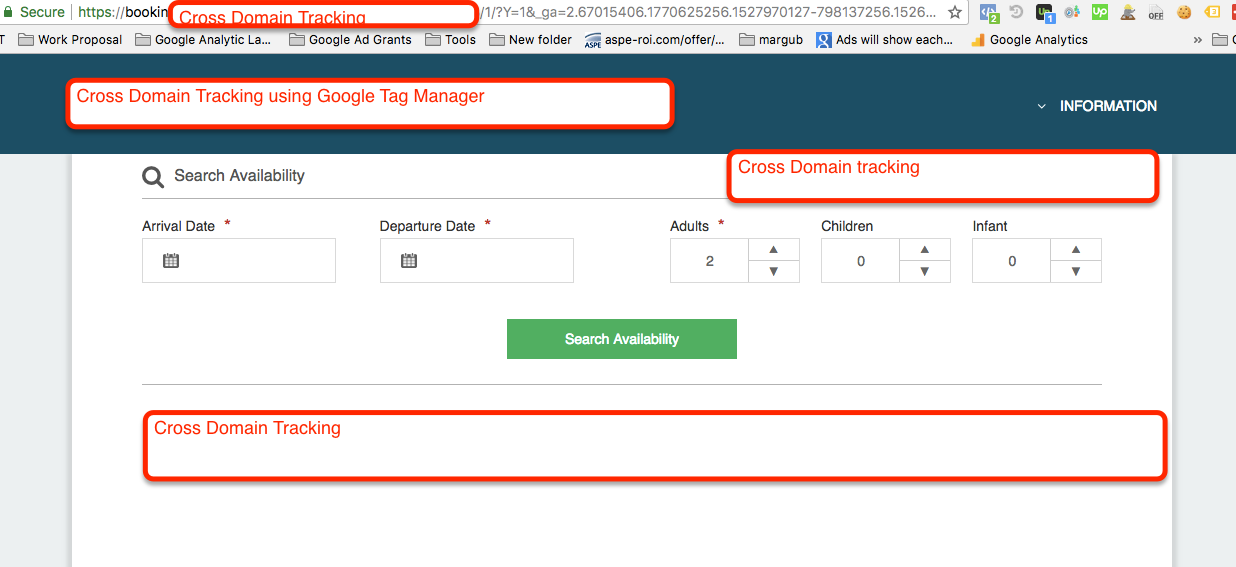
2. Setup Cross-domain tracking to Share cookie information between Hotel website and RMS Hotel booking engine using Google Tag Manager without code of Hotel website and Booking engine for RMS Online Hotel Reservation Systems
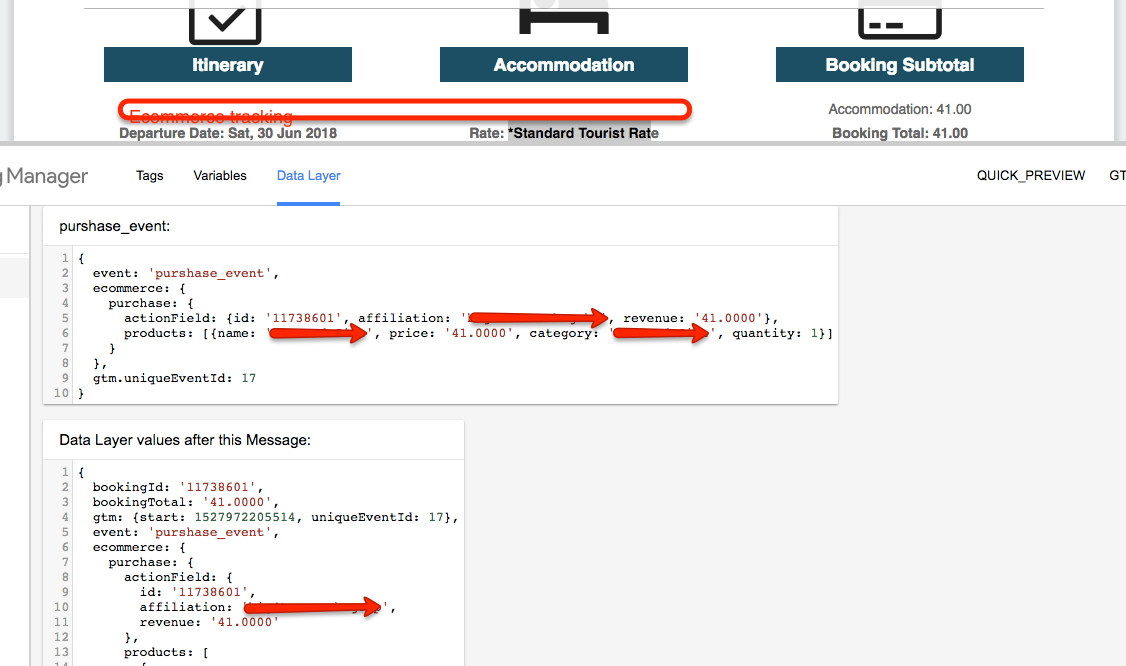
Track eCommerce data from External RMS Hotel Booking Engine
It’s time to verify eCommerce tracking for RMS Hotel Booking Engine using Google Tag Manager in Google Analytic
eCommerce data from External RMS Hotel Booking Engine usging Google Tag Manager
Warning:if you do n’t know about javascript or do n’t have developing knowledge then do n’t try to RMS Hotel Booking Engine Ecommerce Tracking using Google Tag Manager a custom javascript without using Any plugin that can broke your site, Cart and other functionality
Disclaimer: Google tag manager belongs to Google property