Tracking Ecommerce tracking with GTM URL query parameters

Standard

Ecommerce Tracking URL Query Parameters with Google Tag Manager

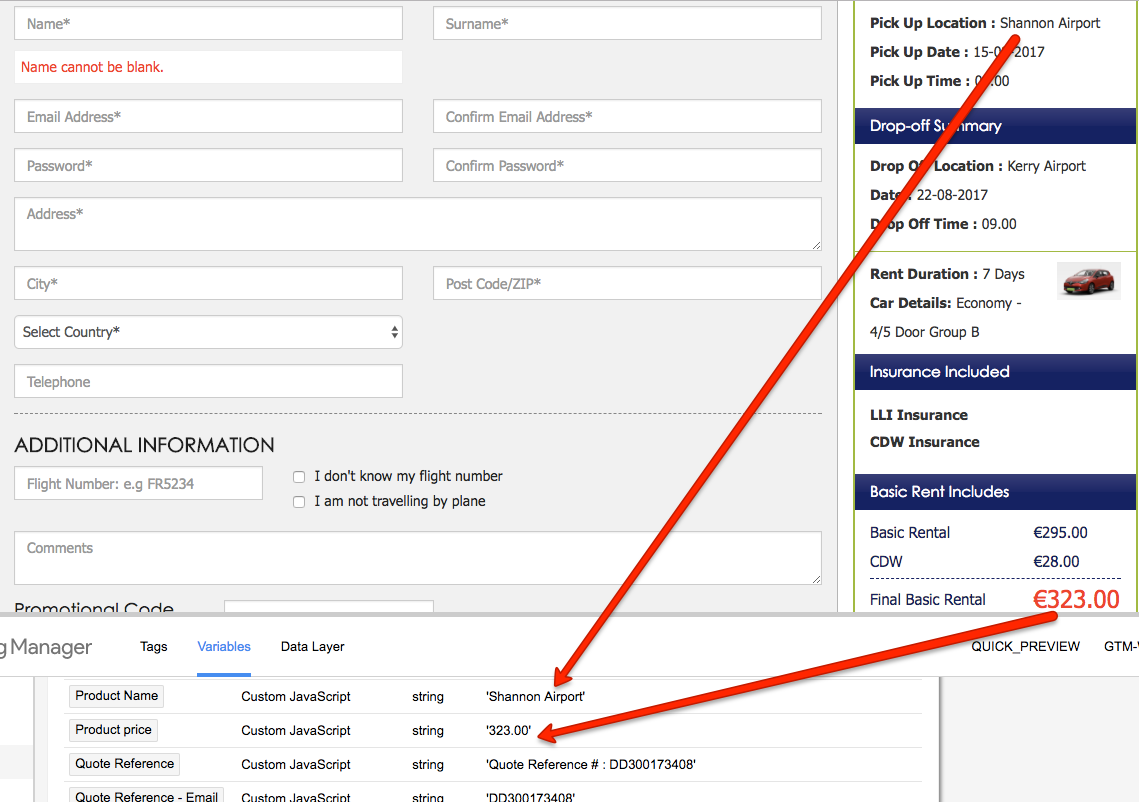
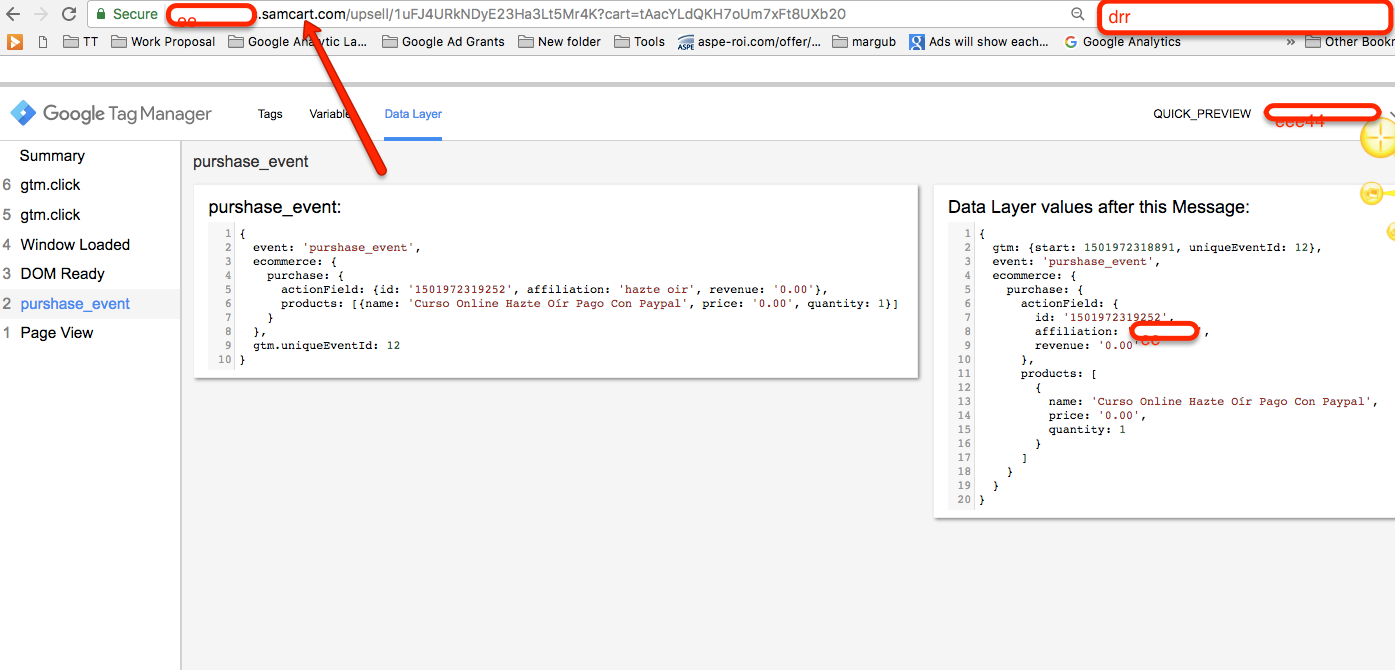
Recently once client asks me to E-commerce/eCommerce tracking with GTM query with URL to work transaction details in Google Analytic. Once I will look success url / Thank You page URL of the query that passing all the value in the URL, so that I saw two possibilities either I need to write a data layer on Success page or use custom javascript a Get URL query using Google Tag Manager.

Require to Ecommerce Tracking URL Query Parameter using Google Tag Manager
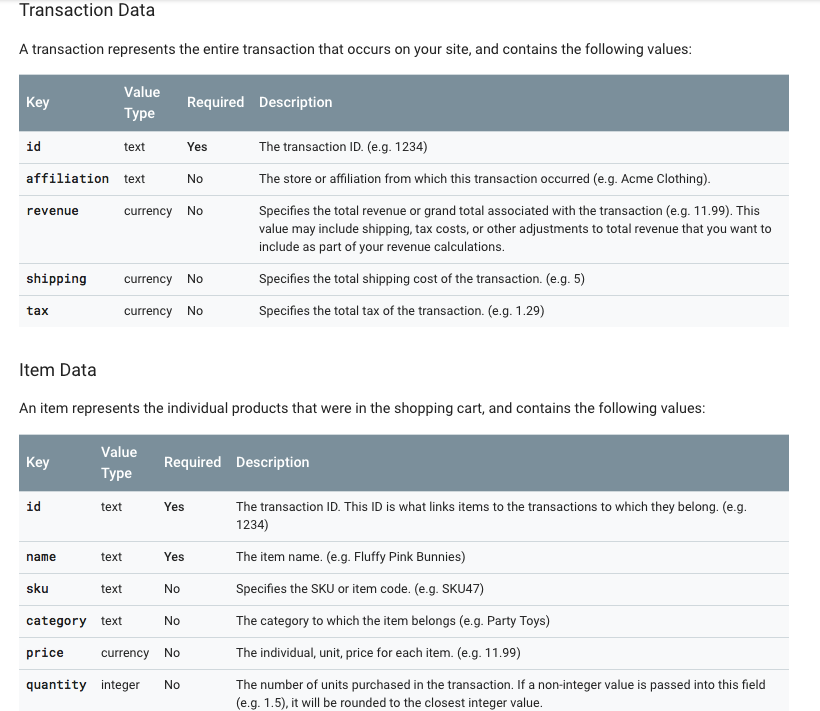
Ecommerce Tracking URL Query Parameter

  1. First Install Google Tag Manager on Your E-commerce  Shop to Ecommerce Tracking URL query parameters using Google Tag Manager
Paste this code as high in the <head> of the page as possible:
<!– Google Tag Manager –>
<script>(function(w,d,s,l,i){w[l]=w[l]||[];w[l].push({‘gtm.start’:
new Date().getTime(),event:’gtm.js’});var f=d.getElementsByTagName(s)[0],
j=d.createElement(s),dl=l!=’dataLayer’?’&l=’+l:”;j.async=true;j.src=
‘https://www.googletagmanager.com/gtm.js?id=’+i+dl;f.parentNode.insertBefore(j,f);
})(window,document,’script’,’dataLayer’,’GTM-XXXX’);</script>
<!– End Google Tag Manager –>
Additionally, paste this code immediately after the opening <body> tag:
<!– Google Tag Manager (noscript) –>
<noscript><iframe src=”https://www.googletagmanager.com/ns.html?id=GTM-XXXX”
height=”0″ width=”0″ style=”display:none;visibility:hidden”></iframe></noscript>
<!– End Google Tag Manager (noscript) –>

Note: Make you will replace GTM Tracking Code with your GTM ID XXXXX

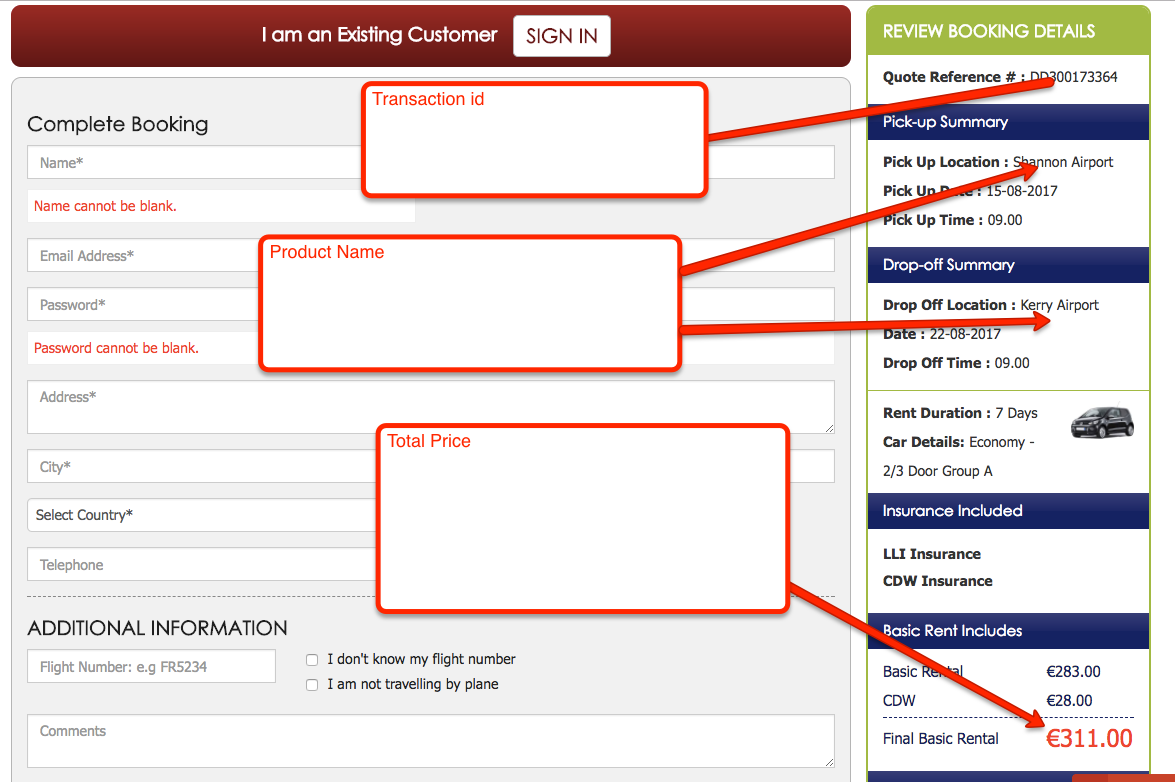
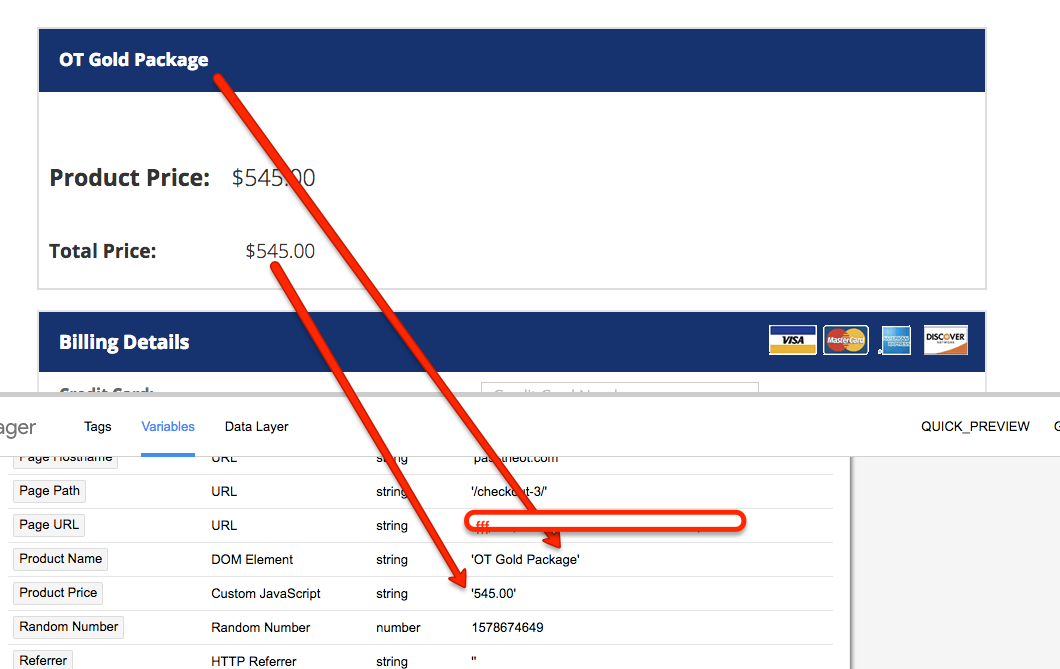
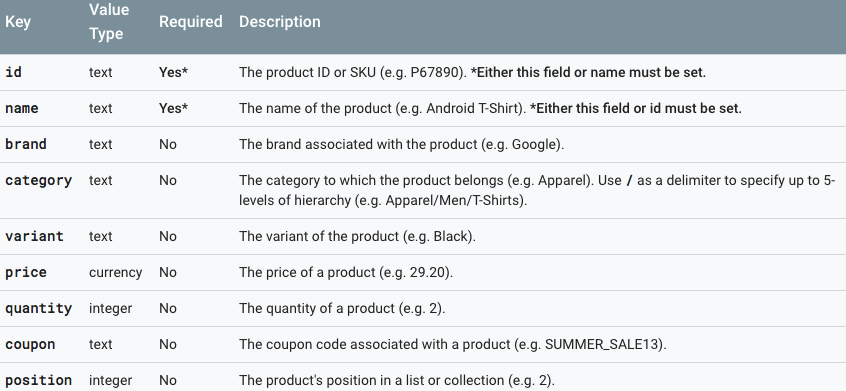
2. Written JavascripT to get the value of product name, product price and Total using google tag manager for Tracking Ecommerce tracking with GTM URL query parameters

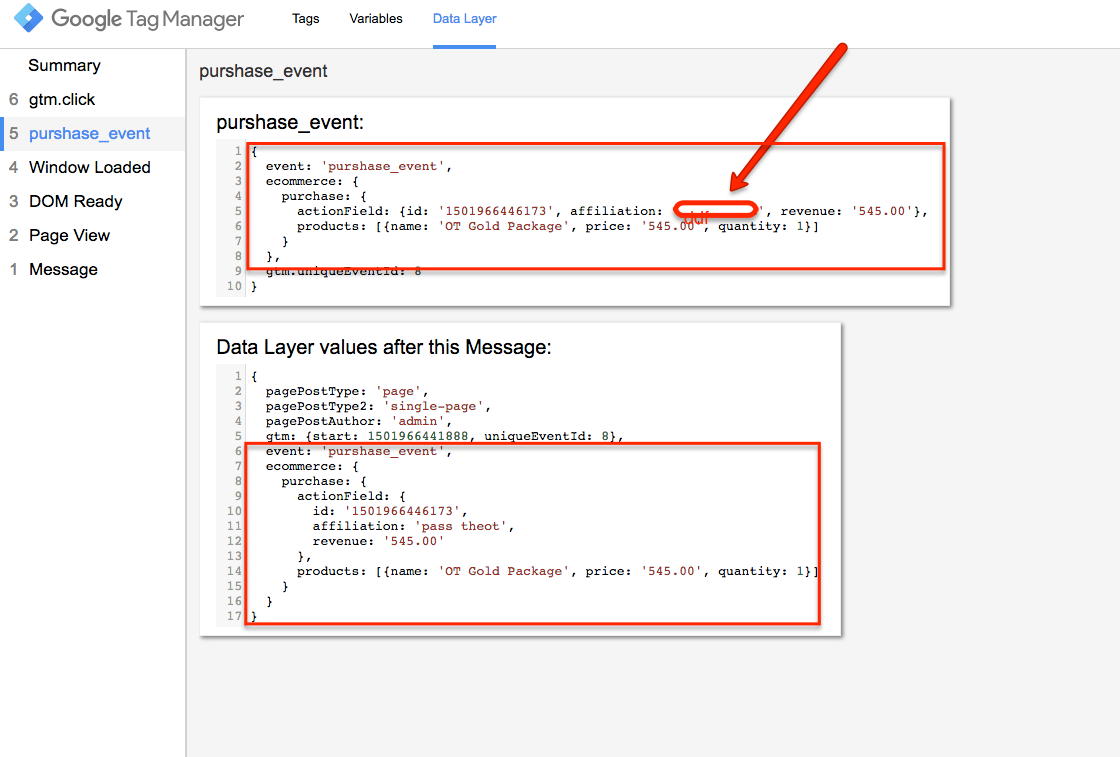
After that getting all value create a data layer custom html and creating a trigger using a javascript on query so that fire correct place Ecommerce tracking based URL query.
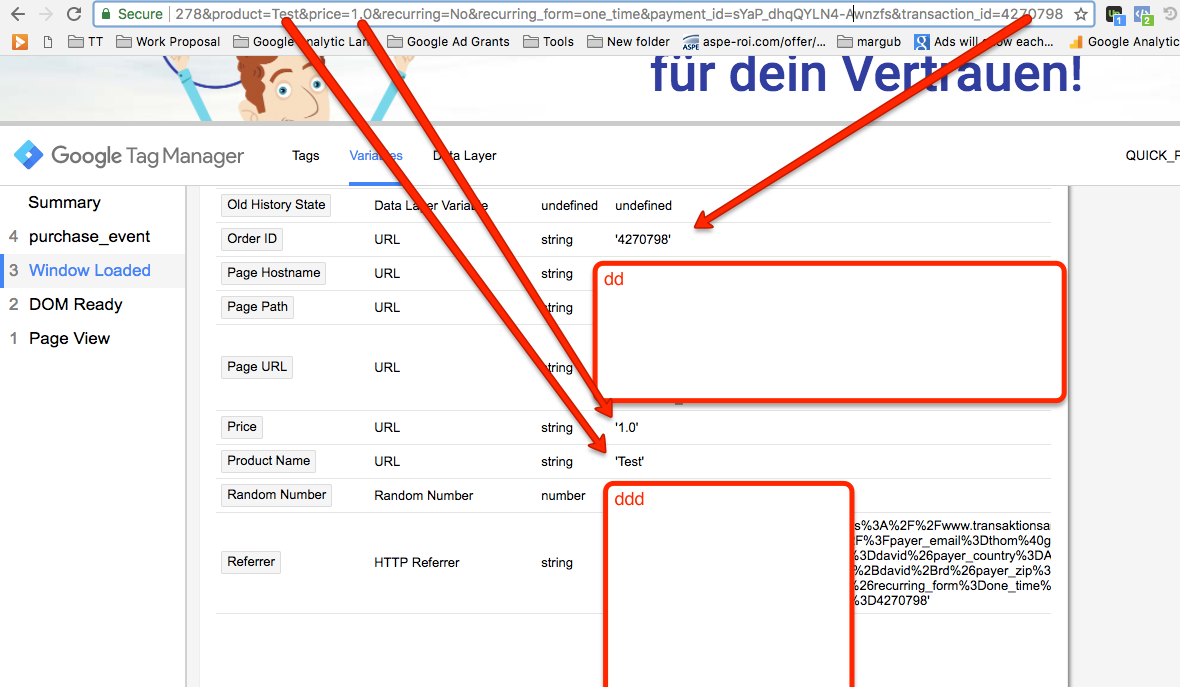
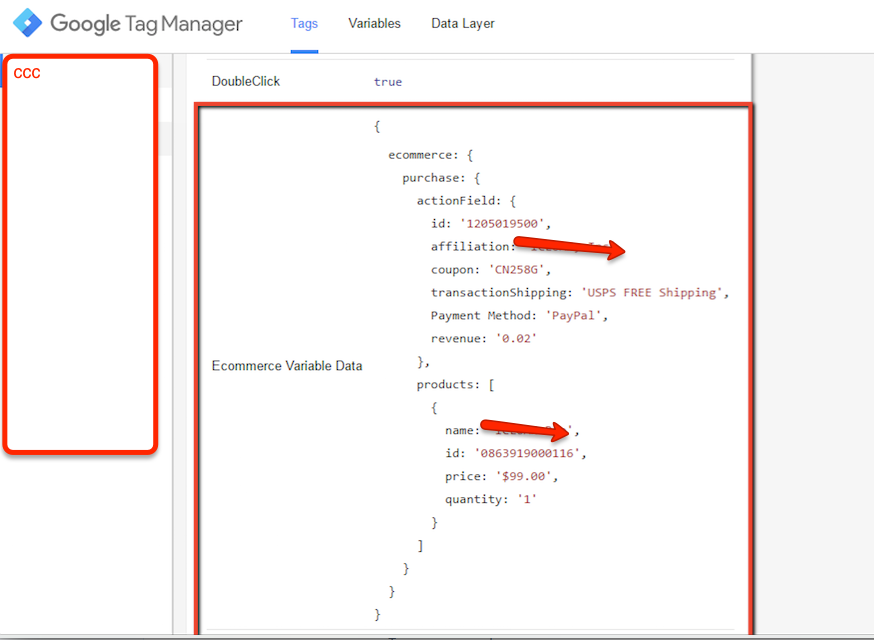
See screen get all value using URL String using Google Tag Manager

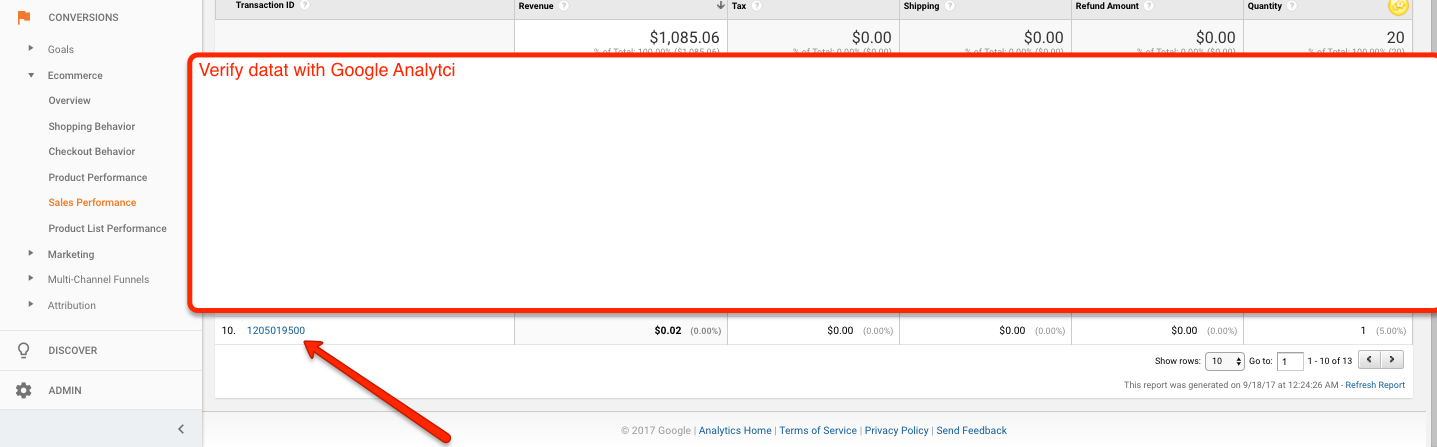
3. Now it’s time verify URl query e-commerce tracking using Google Tag Manager that help you identify whether it’s working e-commerce tracking or not ?
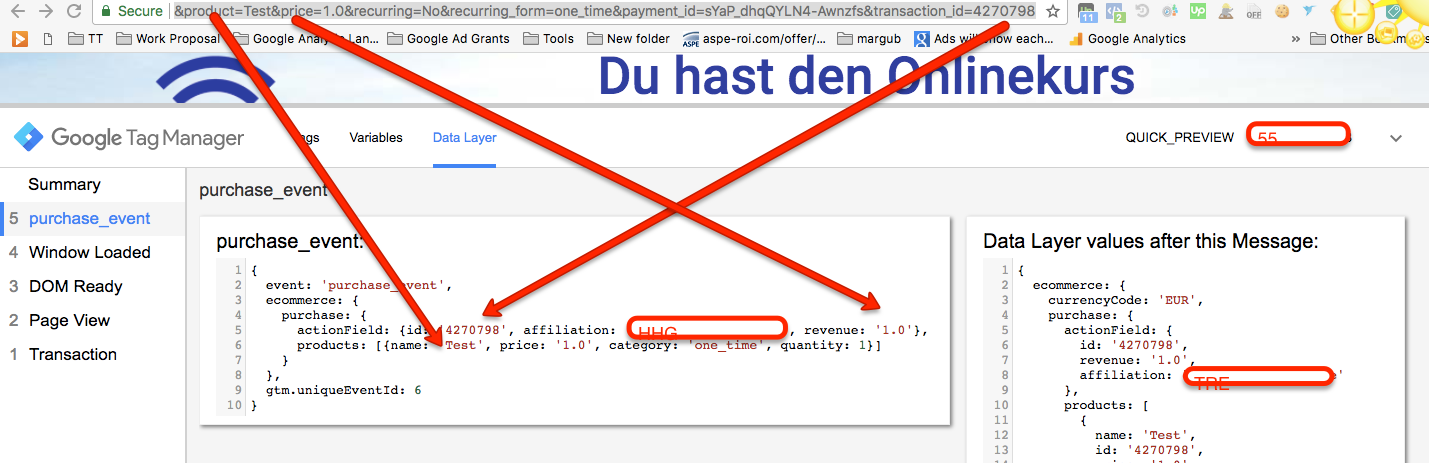
Warning:if you do n’t know about javascript/ Datalayer/Jquery or do n’t have developing knowledge then do n’t try Ecommerce Tracking URL Query Parameters with Google Tag Manager a custom javascript without using Any plugin that can broke your site, Cart and other functionality 

Disclaimer: Google tag manager belongs to Google property 

For Contact: mappchero@gmail.com

No Fields Found.
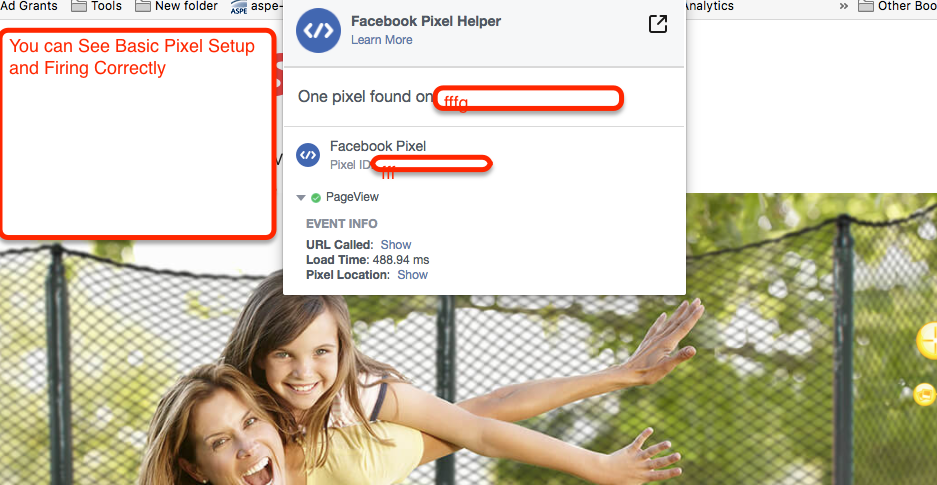
Facebook Conversion Pixel on Bigcommerce Using Google Tag Manager

Standard

Bigcommerce Facebook Conversion Pixel Implement using Google Tag Manager without touching Code on BigCommerce (with Stencil themes or Any theme of BigCommerce) 

Recently once client ask me to Facebook Standard Events pixel include ViewContent, AddtoCart, AddToWishlist, InitiateCheckout, AddPaymentInfo and Purchase Pixel etc.

To Work Advance Facebook Pixel on Bigcommerce using Google Tag Manager 

  content_name: 'Require a Product Name ',
  content_category: 'Require a Product Category',
  content_ids: ['1234'] Require a Product id that must be match with product,
  content_type: 'product',
  value: 0.50, Require a Product revenue ,
  currency: 'USD'

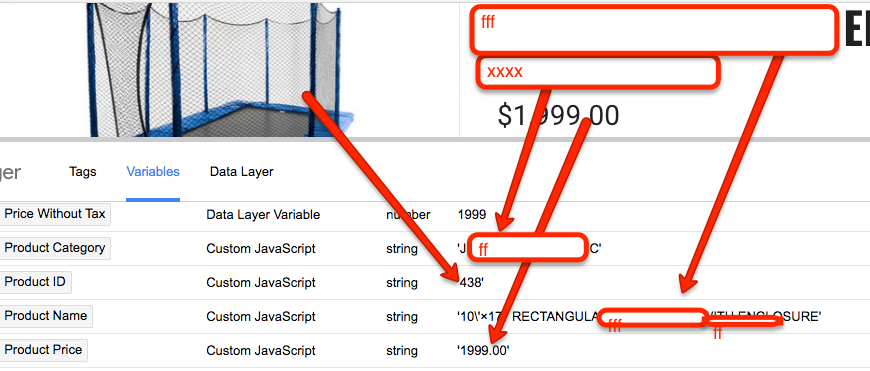
content_name: Require product Name get using Google Tag Manager using a custom javascript/Data Layer
content_category: Require Product Category geting using Google Tag Manager using a Custom Javascript /Data Layer
content_ids:One of toughest job getting product id using google tag manager using a custom, Probably more easier to using Data Layer , 
value: Product amount and Total order value using Google Tag Manager using a custom javascript/Data layer 

1. First Set up Facebook Basic Pixel on Bigcommerce  using Google Tag Manager

<!– Facebook Pixel Code –>
<script>
!function(f,b,e,v,n,t,s){if(f.fbq)return;n=f.fbq=function(){n.callMethod?
n.callMethod.apply(n,arguments):n.queue.push(arguments)};if(!f._fbq)f._fbq=n;
n.push=n;n.loaded=!0;n.version=’2.0′;n.queue=[];t=b.createElement(e);t.async=!0;
t.src=v;s=b.getElementsByTagName(e)[0];s.parentNode.insertBefore(t,s)}(window,
document,’script’,’https://connect.facebook.net/en_US/fbevents.js’);
fbq(‘init’, ‘xxxxxxxxxxxxxxxxx’); // Insert your pixel ID here.
fbq(‘track’, ‘PageView’);
</script>
<noscript><img height=”1″ width=”1″ style=”display:none”
src=”https://www.facebook.com/tr?id=xxxxxxxxxxxxxxxxx&ev=PageView&noscript=1″
/></noscript>
<!– DO NOT MODIFY –>
<!– End Facebook Pixel Code –>

Facebook Pixel on Bigcommerce

Install The Facebook Pixel In Your Bigcommerce

Note: Make you will replace Facebook Pixel Id with your Facebook Pixel ID XXXXX

2. Write a custom Javascript to get all the value above described for Bigcommerce to work Facebook Pixel

Bigcommerce Facebook Dynamic Product Ads

Add dynamic conversion value, Product id , Product Name, Product Category with BigCommerce

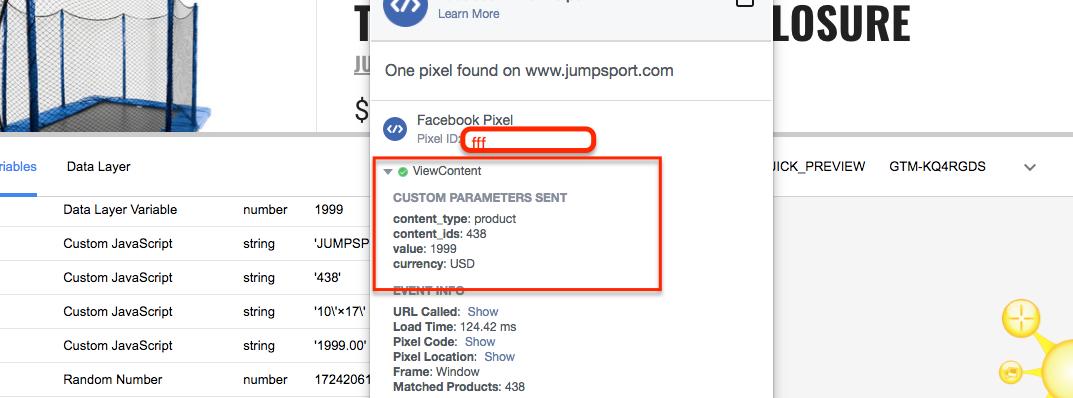
3.ViewContent – Need to verify to facebook viewContent Pixel with facebook helper and implement through Google Tag Manager

ViewContent big commerce facebook pixel

ViewContent Facebook Pixel in Bigcommerce

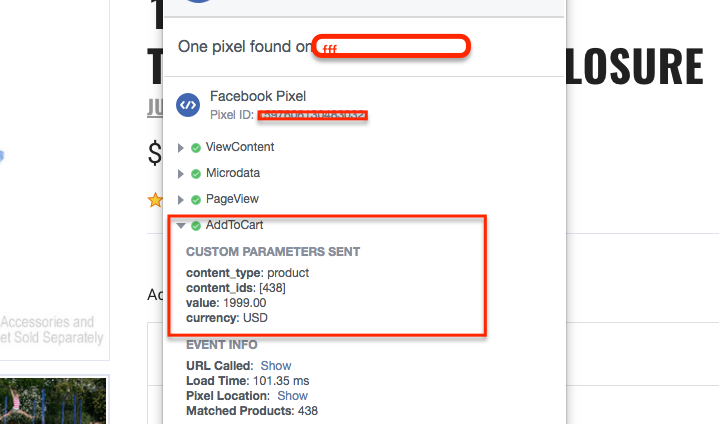
4. AddToCart – When a product is added to click on add to cart button using Google Tag Manager on Bigcommerce Facebook Pixel

AddToCart facebook pixel bigcommerce

AddToCart facebook pixel bigcommerce

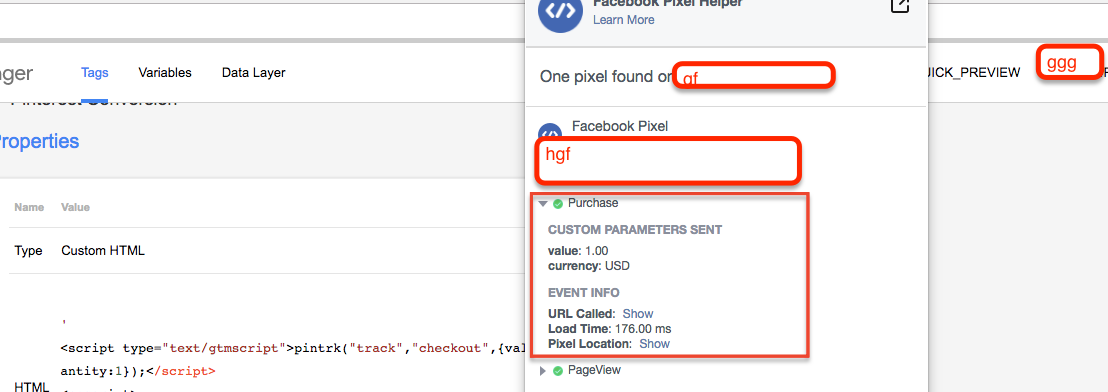
4. Purchase – When a Purchased completed on Bigcommerce Facebook Pixel using Google Tag Manager

Bigcommerce Facebook Conversion Tracking

Facebook Conversion Tracking on Bigcommerce

Warning:if you do n’t know about javascript/ Datalayer/Jquery or do n’t have developing knowledge then do n’t try Facebook Conversion Pixel on Bigcommerce Using Google Tag Manager a custom javascript without using Any plugin that can broke your site, Cart and other functionality 

Disclaimer: Google tag manager belongs to Google property 

For Contact: mappchero@gmail.com

I am available for Hire on Freelancer: Freelancer.com

I am available for Hire on Upwork: Upwork.com

I am available for Hire on Peopleperhour: Peopleperhour.com

I am available for Hire on Guru: Guru.com

No Fields Found.

Bigcommerce Dynamic Adwords Conversion Tracking using Google Tag Manager

Standard

Dynamic Adwords conversion Tracking in BigCommerce using Google Tag Manager

Recently, one of my clients asks me to implement dynamic adword conversion tracking using Google Tag Manager include an order id with Dynamic total revenue using Javascript to avoid duplicate adword Transaction.

Once I looked his website and found there was an error in Google Tag Manager code that was not placed on the right place, quite difficult to place right place because, these errors found in the most BigCommerce product Pages and Home Pages.

  1. GTM JavaScript code not found as a direct child of the <head> tag
  2. GTM no-script code not found: either missing or not in <body>

To Work Google Tag Manager in BigCommerce without any Error I modified tracking theme code of BigCommerce (Stencil)

BigCommerce Google Adwords Conversion Tracking

BigCommerce Google Adwords Conversion Tracking using Google Tag Manager

  1. First Install Google Tag Manager on Your Bigcommerce for BigCommerce Google Adwords Dynamic Conversion using Google Tag Manager
Paste this code as high in the <head> of the page as possible:
<!– Google Tag Manager –>
<script>(function(w,d,s,l,i){w[l]=w[l]||[];w[l].push({‘gtm.start’:
new Date().getTime(),event:’gtm.js’});var f=d.getElementsByTagName(s)[0],
j=d.createElement(s),dl=l!=’dataLayer’?’&l=’+l:”;j.async=true;j.src=
‘https://www.googletagmanager.com/gtm.js?id=’+i+dl;f.parentNode.insertBefore(j,f);
})(window,document,’script’,’dataLayer’,’GTM-XXXX’);</script>
<!– End Google Tag Manager –>
Additionally, paste this code immediately after the opening <body> tag:
<!– Google Tag Manager (noscript) –>
<noscript><iframe src=”https://www.googletagmanager.com/ns.html?id=GTM-XXXX”
height=”0″ width=”0″ style=”display:none;visibility:hidden”></iframe></noscript>
<!– End Google Tag Manager (noscript) –>

Note: Make you will replace GTM Tracking Code with your GTM ID XXXXX

2. Written a Custom Javascript to get order id and Total Order value using Google Tag Manager for Adword Dynamic conversion for Bigcommerce

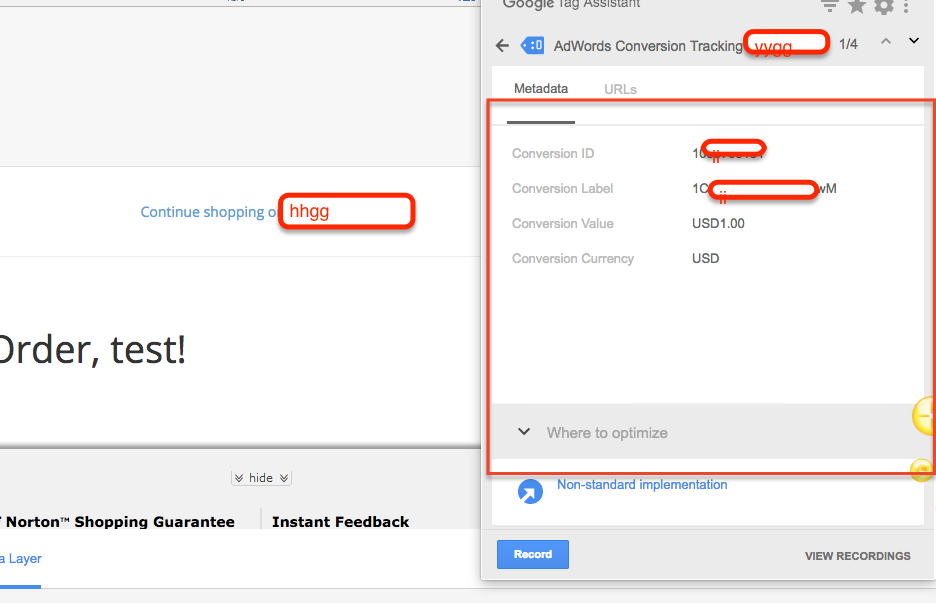
3.  Now it’s time to verify Dynamic Adwords conversion Tracking in BigCommerce through Google Tag Manager with help of Google Tag Assistant 

Adwords Conversion Tracking Tag Manager

Warning:if you do n’t know about javascript or do n’t have developing knowledge then do n’t try to Google Analytic Dynamic Adwords conversion Tracking in BigCommerce using Google Tag Manager a custom javascript without using Any plugin that can broke your site, Cart and other functionality 

Disclaimer: Google tag manager belongs to Google property 

For Contact: mappchero@gmail.com

No Fields Found.
Implementing Product Schema Markup & Structured Data SEO For Ecommerce Product Pages

Standard

Implementing Product Schema Markup For Ecommerce Product Pages using Google Tag Manager

Recently once client ask me to implement schema on e-commerce website and other local website using Google Tag Manager, once I look his website I said it’s possible to implement schema using Google Tag Manager with with JSON-LD. For Tracking product page schema need to apply some custom javascript or Data layer to Getting like Product price and Stock in or Stock out.

Implementing Product Schema markup involves adding structured data tags to the HTML code of a webpage. The specific tags and attributes used will depend on the product and the information you want to provide about it. Here are some general steps for implementing Product Schema markup:

  1. Familiarize yourself with the Product schema vocabulary available on schema.org
  2. Identify the product pages on your website that you want to markup.
  3. Review the information you want to provide about the products on those pages and determine which tags and attributes you will need to use.
  4. Add the structured data tags to the HTML code of the relevant pages. The most common way to do this is by adding the tags to the page’s <head> or <body> section.
  5. Test the implemented schema using Google’s Structured Data Testing Tool to ensure that it is properly formatted and contains no errors.
  6. Once you have added the schema, you can monitor it using Google Search Console, which enables you to check for errors and see how Google is interpreting your structured data.

First you need to generate Product schema code using schema.org some other website to generate product schema with JSON-LD.

<div itemscope itemtype=”http://schema.org/Product”>
    <h1 itemprop=”name”>Prodcut Name</h1>
    <img src=”-product.png” alt=”Prodcut Alt Tag” itemprop=”image” />
    <p itemprop=”description”>
        This is a really amazing product. In fact, we think you will be amazed.
        <span itemprop=”sku”>123456789</span>
    </p>
    <div itemprop="aggregateRating" itemscope itemtype="http://schema.org/AggregateRating">
        <span itemprop=”ratingValue”>4</span> stars, based on 
        <span itemprop=”reviewCount”>1,987</span> reviews.
    </div>
    <div itemprop=”offers” itemscope itemtype=”http://schema.org/Offer”>
        <meta itemprop=”priceCurrency” content=”USD” />
        $<span itemprop=”price”>For Product Price need to write custom javascript</span> |
        <span itemprop=”availability”>In-stock</span>
    </div>
</div>

It’s important to note that the implementation process can be complex and may require knowledge of HTML and web development. If you are not familiar with these technologies, it may be helpful to work with a developer or technical SEO expert to implement the schema correctly.

Warning: If you do n’t know about javascript or do n’t have developing knowledge then do n’t try to Implementing Product Schema Markup & Structured Data SEO For Ecommerce Product Pages that can broke your site, Cart and other functionality 

Disclaimer: Google tag manager belongs to Google property 

For Contact: mappchero@gmail.com

I am available for Hire on Freelancer: Freelancer.com

I am available for Hire on Upwork: Upwork.com

I am available for Hire on Peopleperhour: Peopleperhour.com

I am available for Hire on Guru: Guru.com


FoxyCart Ecommerce Tracking for Google Analytics using Google Tag Manager

Standard

Setup FoxyCart Ecommerce Tracking for Google Analytics using Google Tag Manager

Recently once of client  ask to implement E-commerce tracking on FoxyCart using Google Tag Manager, Implementing E-commerce Tracking on Foxy bit of challenging to get all the information to work E-commerce Tracking. For that I need to write a couple of custom javascript to get all the required information using a custom javascript to Work E-commerce Tracking on FoxyCart.

FoxyCart Ecommerce Tracking for Google Analytics

FoxyCart Ecommerce Tracking

FoxyCart Ecommerce Tracking for Google Analytics

1. First Install Google Tag Manager on FoxyCart  for Set Up E-commerce Tracking using Google Tag Manager

Where you will put Google Tag Manager on FoxyCart

FoxyCart administration ———> “configuration”——–> “Add custom header and footer code to your templates” option. ———–>“footer” textarea:

Paste this code as high in the <head> of the page as possible:

<!– Google Tag Manager –>
<script>(function(w,d,s,l,i){w[l]=w[l]||[];w[l].push({‘gtm.start’:
new Date().getTime(),event:’gtm.js’});var f=d.getElementsByTagName(s)[0],
j=d.createElement(s),dl=l!=’dataLayer’?’&l=’+l:”;j.async=true;j.src=
‘https://www.googletagmanager.com/gtm.js?id=’+i+dl;f.parentNode.insertBefore(j,f);
})(window,document,’script’,’dataLayer’,’GTM-XXXX’);</script>
<!– End Google Tag Manager –>
Additionally, paste this code immediately after the opening <body> tag:
<!– Google Tag Manager (noscript) –>
<noscript><iframe src=”https://www.googletagmanager.com/ns.html?id=GTM-XXXX”
height=”0″ width=”0″ style=”display:none;visibility:hidden”></iframe></noscript>
<!– End Google Tag Manager (noscript) –>

Note: Make you will replace GTM Tracking Code with your GTM ID XXXXX

2. Written a Custom Javascript to Set Up E-commerce Tracking using Google Tag Manager for FoxyCart

Custom Javascript written FoxyCart Ecommerce Tracking

FoxyCart E-commerce Tracking Custom Javascript using Google Tag Manager written Array

3.  Now it’s time to verify FoxyCart Ecommerce Tracking with Google Analytic tracking implemented through Google Tag Manager 

FoxyCart E-commerce Verify using Google Anaytic

Implemented FoxyCart Ecommerce Tracking for Google Analytics using Google Tag Manager

Warning:if you do n’t know about javascript/ Datalayer/Jquery or do n’t have developing knowledge then do n’t try FoxyCart Ecommerce Tracking using Google Tag Manager a custom javascript without using Any plugin that can broke your site, Cart and other functionality 

Disclaimer: Google tag manager belongs to Google property 

For Contact: mappchero@gmail.com

No Fields Found.
Booking Engine and Hotel Website Ecommerce Tracking using Google Tag Manager

Standard

Ecommerce Tracking for Travel Booking and Hotel Website using Google Tag Manager

Recently, one of clients asks me to track eCommerce tracking for travel, hotel and booking engine e-commerce tracking using Google Tag Manager. Quite interesting to track e-commerce with booking engine and also tracked other type of e-commerce tracking using Google Tag Manager.

  1. eCommerce and Enhnaced E-commerce Tracking for a booking engine using Google Tag Manager.
  2. eCommerce and Enhnaced E-commerce for an airline booking using Google Tag Manager
  3. eCommerce and Enhnaced E-commerce for a Hotel Websites using Google Tag Manager
  4. eCommerce and Enhnaced E-commerce for Wubook booking system using Google Tag Manager
  5. eCommerce and Enhnaced E-commerce for AN Online Reservations using Google Tag Manager
Ecommerce Tracking for Travel

Enhanced eCommerce Tracking for Reservation And Booking

1. First Install Google Tag Manager on MemberMouse for Set Up E-commerce Tracking using Google Tag Manager

Paste this code as high in the <head> of the page as possible:

<!– Google Tag Manager –>
<script>(function(w,d,s,l,i){w[l]=w[l]||[];w[l].push({‘gtm.start’:
new Date().getTime(),event:’gtm.js’});var f=d.getElementsByTagName(s)[0],
j=d.createElement(s),dl=l!=’dataLayer’?’&l=’+l:”;j.async=true;j.src=
‘https://www.googletagmanager.com/gtm.js?id=’+i+dl;f.parentNode.insertBefore(j,f);
})(window,document,’script’,’dataLayer’,’GTM-XXXX’);</script>
<!– End Google Tag Manager –>
Additionally, paste this code immediately after the opening <body> tag:
<!– Google Tag Manager (noscript) –>
<noscript><iframe src=”https://www.googletagmanager.com/ns.html?id=GTM-XXXX”
height=”0″ width=”0″ style=”display:none;visibility:hidden”></iframe></noscript>
<!– End Google Tag Manager (noscript) –>

Note: Make you will replace GTM Tracking Code with your GTM ID XXXXX

2. Written Javascript to get the value of product name, product price and Total using google tag manager for booking engine e-commerce tracking 

Forms Google Analytics eCommerce Tracking using Google Tag Manager

Standard

Forms Google Analytics eCommerce Tracking using Google Tag Manager

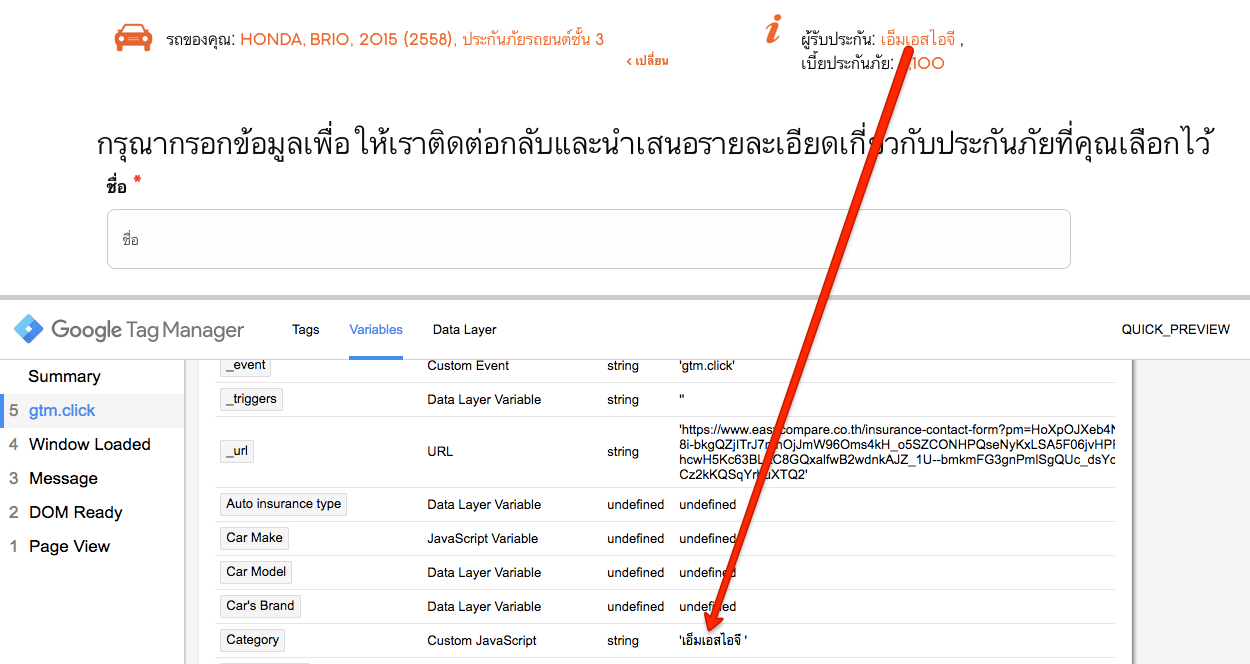
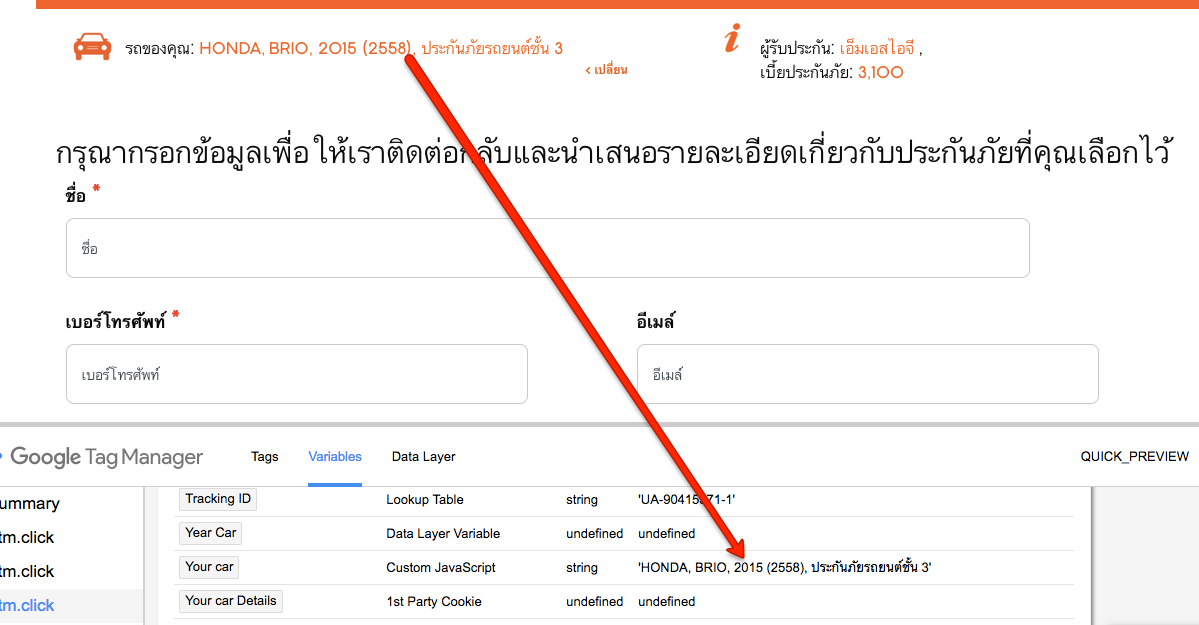
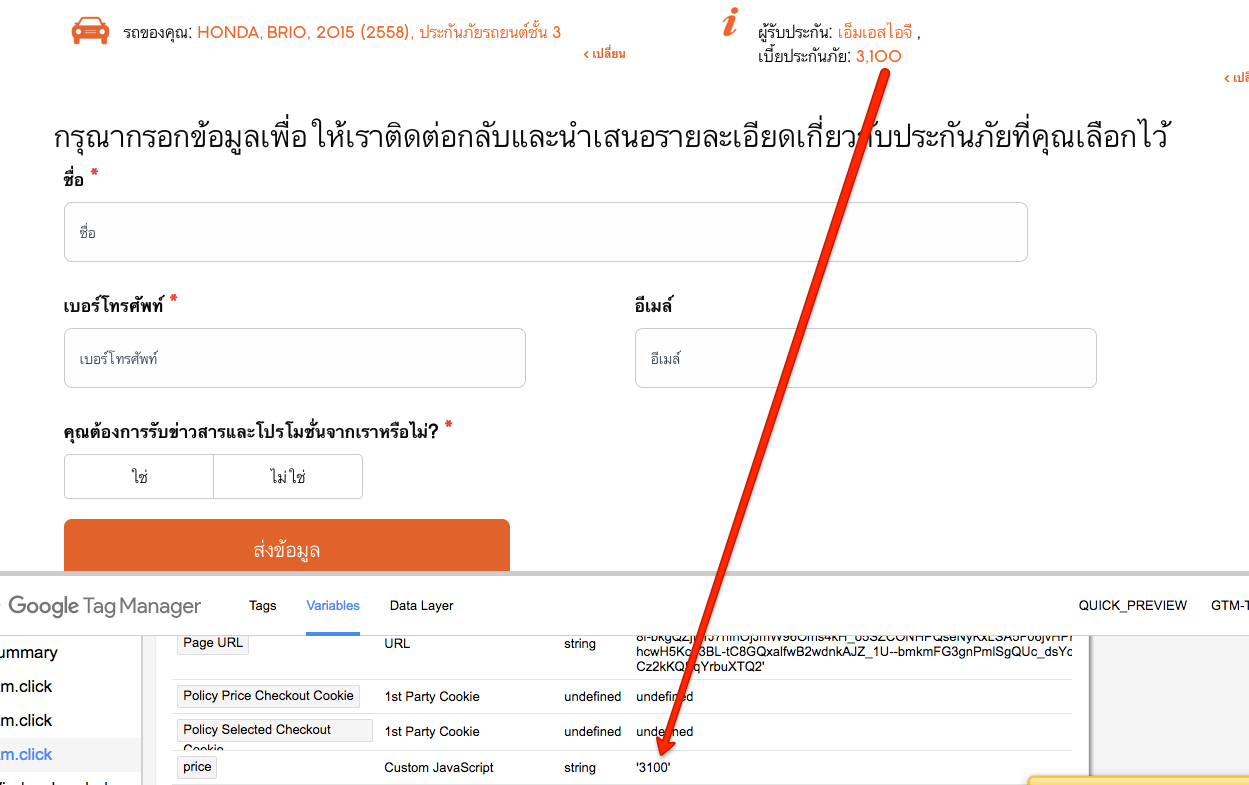
Recently once client asked me to set up eCommerce tracking for form based e-commerce tracking without generating a transaction id, once I looked for and found it there was a product name, product price and Product Category. I told client yes, it’s possible to implement e-commerce tracking using Google Tag Manager.

Also Recently couple of other form tracking E-commerce tracking set up using Google Tag Manager 

  1. Using Caldera Forms Google Analytics eCommerce Tracking using Google Tag Manager
  2. Track Infusionsoft Sales With Google Analytics E-Commerce Tracking using Google Tag Manager
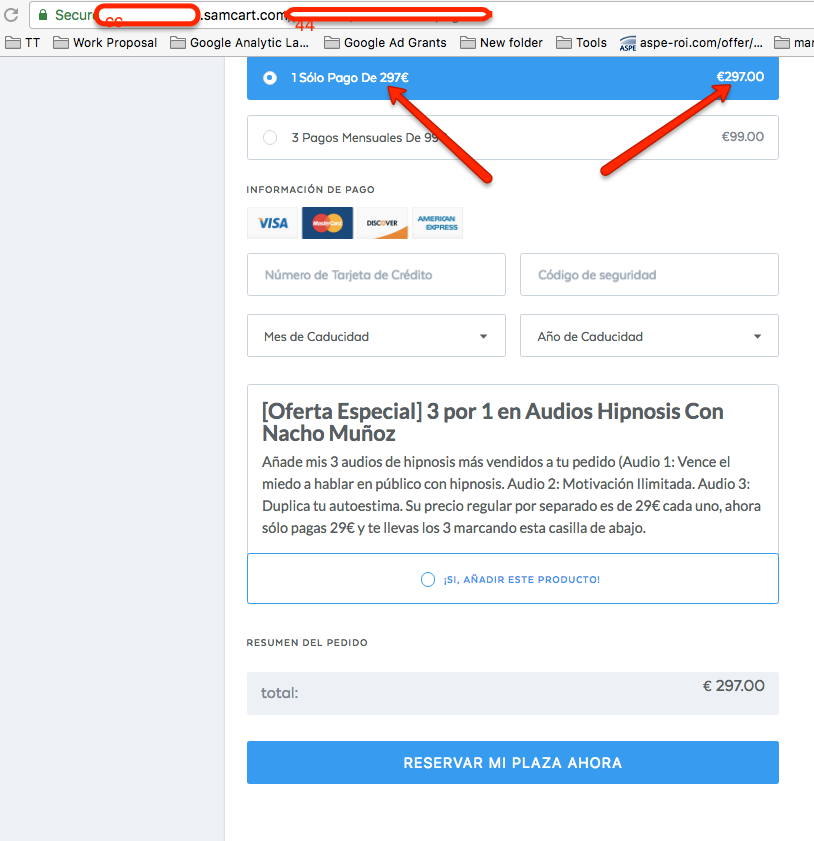
  3. Ecommerce Tracking For SamCart using Google Tag Manager
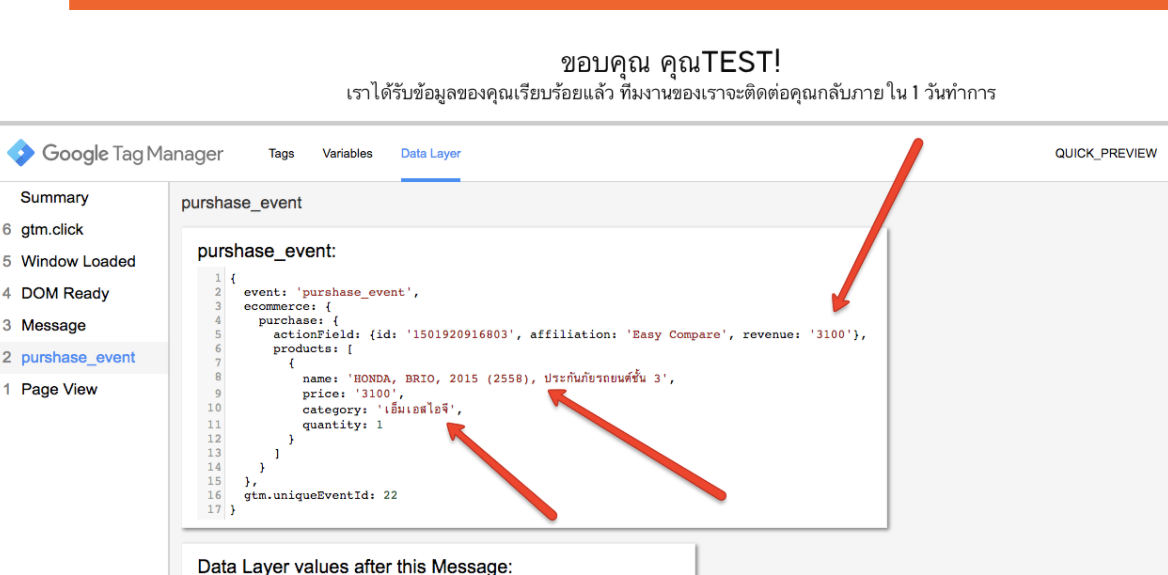
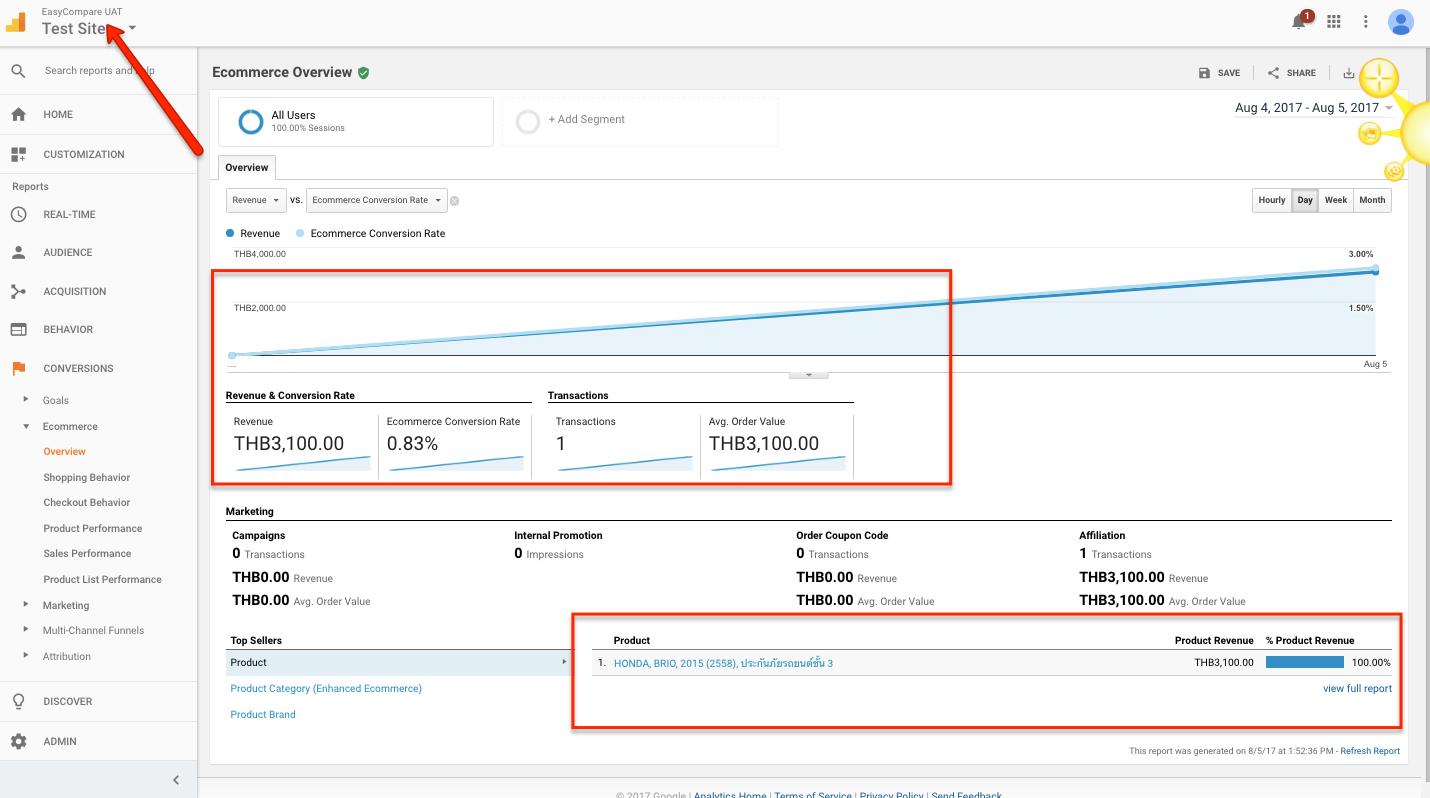
  4. Insurance Form type e-commerce Tracking using Google Tag Manager
  5. Click Funnel Ecommerce Tracking using Google Tag Manager or any type for based E-commerce Tracking

  1.  First Install Google Tag Manager on Form based for Set Up E-commerce Tracking using Google Tag Manager

Paste this code as high in the <head> of the page as possible:

<!– Google Tag Manager –>
<script>(function(w,d,s,l,i){w[l]=w[l]||[];w[l].push({‘gtm.start’:
new Date().getTime(),event:’gtm.js’});var f=d.getElementsByTagName(s)[0],
j=d.createElement(s),dl=l!=’dataLayer’?’&l=’+l:”;j.async=true;j.src=
‘https://www.googletagmanager.com/gtm.js?id=’+i+dl;f.parentNode.insertBefore(j,f);
})(window,document,’script’,’dataLayer’,’GTM-XXXX’);</script>
<!– End Google Tag Manager –>
Additionally, paste this code immediately after the opening <body> tag:
<!– Google Tag Manager (noscript) –>
<noscript><iframe src=”https://www.googletagmanager.com/ns.html?id=GTM-XXXX”
height=”0″ width=”0″ style=”display:none;visibility:hidden”></iframe></noscript>
<!– End Google Tag Manager (noscript) –>

Note: Make you will replace GTM Tracking Code with your GTM ID XXXXX

2. Create a custom javascript get the value of price, category and revenue using Google tag Manager

Forms Google Analytics eCommerce

Forms Google Analytics eCommerce

3.  Now written a custom with E-commerce tracking including a data layer code that will fire on success and create a tag and trigger to fire e-commerce tracking using Google Tag Manager for Forms Google Analytics eCommerce Tracking

Warning:if you do n’t know about javascript or do n’t have developing knowledge then do n’t try to Forms Google Analytics eCommerce using Google Tag Manager a custom javascript without using Any plugin that can broke your site, Cart and other functionality 

Disclaimer: Google tag manager belongs to Google property 

For Contact: mappchero@gmail.com

No Fields Found.
Google Analytics Ecommerce Tracking For SamCart using Google Tag Manager

Standard

Google Analytics Ecommerce Tracking For SamCart using Google Tag Manager

Get the full details of Google Analytics Ecommerce Tracking by integrating with SamCart using Google Tag Manager

Recently one of client asked me to implement e-commerce tracking with SamCart using Google Tag Manager because client selling digital product using  SamCart. so that client can discover full marketing metrics for about sales from where sales are generating and does not want miss a single sales from where are coming. including adword conversion and other marketing tool using Google Tag Manager so that he can identify each and every source of leads.

Ecommerce Tracking For SamCart

  1.  First Install Google Tag Manager on SamCart for Set Up E-commerce Tracking using Google Tag Manager

Paste this code as high in the <head> of the page as possible:

<!– Google Tag Manager –>
<script>(function(w,d,s,l,i){w[l]=w[l]||[];w[l].push({‘gtm.start’:
new Date().getTime(),event:’gtm.js’});var f=d.getElementsByTagName(s)[0],
j=d.createElement(s),dl=l!=’dataLayer’?’&l=’+l:”;j.async=true;j.src=
‘https://www.googletagmanager.com/gtm.js?id=’+i+dl;f.parentNode.insertBefore(j,f);
})(window,document,’script’,’dataLayer’,’GTM-XXXX’);</script>
<!– End Google Tag Manager –>
Additionally, paste this code immediately after the opening <body> tag:
<!– Google Tag Manager (noscript) –>
<noscript><iframe src=”https://www.googletagmanager.com/ns.html?id=GTM-XXXX”
height=”0″ width=”0″ style=”display:none;visibility:hidden”></iframe></noscript>
<!– End Google Tag Manager (noscript) –>

Note: Make you will replace GTM Tracking Code with your GTM ID XXXXX

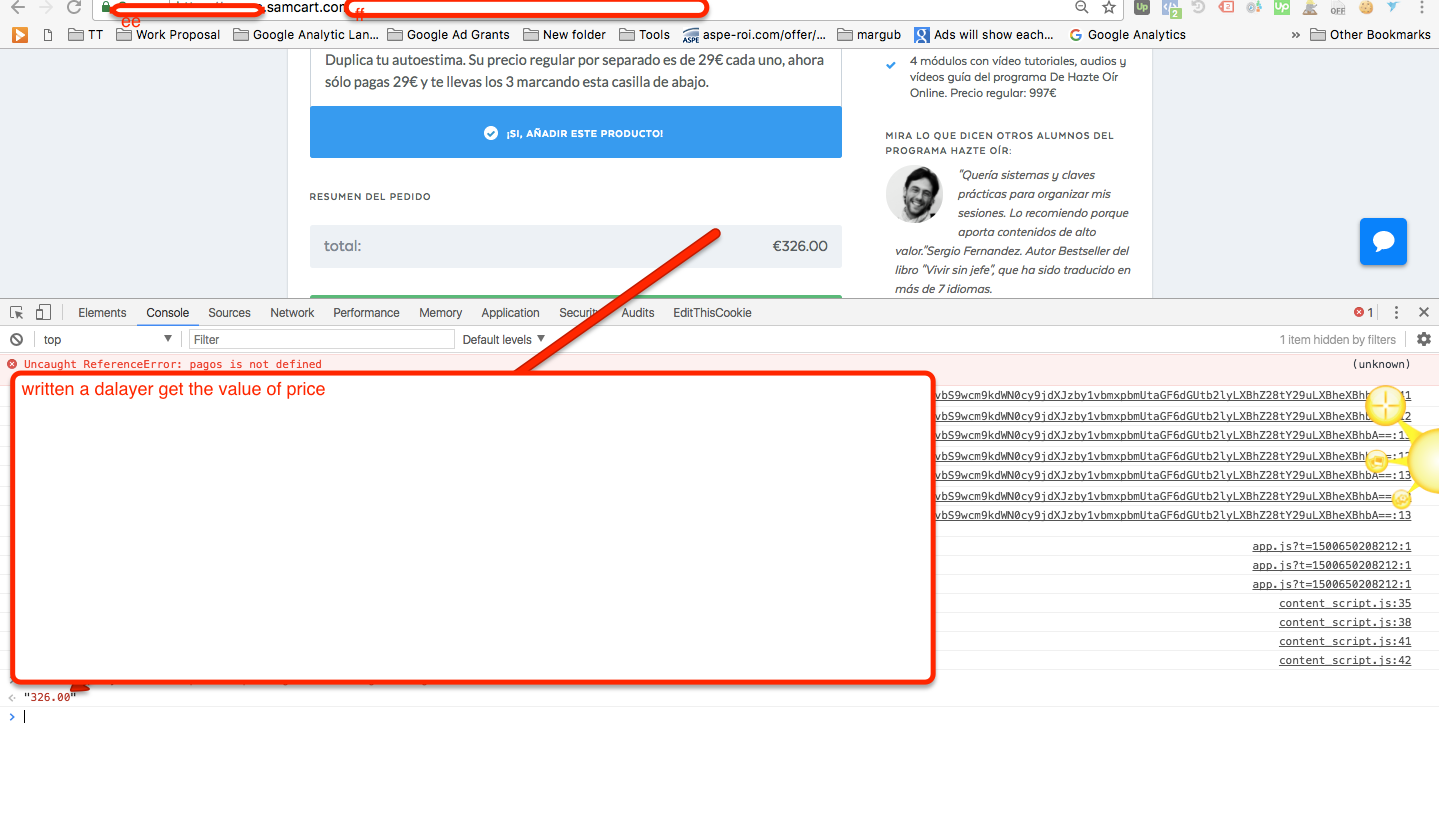
2. Written a a data layer to capture value of price and Product etc then written a  javascript to get work E-commerce tracking for SamCart , All the get on Click using Data Layer.


Ecommerce Tracking For SamCart

Use custom javascript/ Datalayer get value SmartCart Google eCommerce Tracking

3.  Now written a custom with E-commerce tracking including a data layer code that will fire on success and create a tag and trigger to fire e-commerce tracking using Google Tag Manager for SamCart

Warning:if you do n’t know about javascript or do n’t have developing knowledge then do n’t try toSamCart Ecommerce Tracking using Google Tag Manager a custom javascript without using Any plugin that can broke your site, Cart and other functionality 

Disclaimer: Google tag manager belongs to Google property 

For Contact: mappchero@gmail.com

No Fields Found.
MemberMouse Google eCommerce Tracking sales data into Google Analytics

Standard

Integration with Google Adwords/Analytics eCommerce Tracking for MemberMouse without putting a code on Website

MemberMouse Google eCommerce Tracking sales data into Google Analytics using Google Tag Manager

Recently once client ask to implement e-commerce tracking using google tag manager for membermouse, because they already tried couple of solution does not worked for him, once I have looked his website and said surely i will set up ecommerce tracking using google tag manager. bit challenge to e-commerce tracking for MemberMouse passing value of datalayer to work like form based e-commerce tracking take easy to payment from customer. 

See below screenshot of MemberMouse

MemberMouse eCommerce Tracking

MemberMouse Google eCommerce Tracking using Google Tag Manager

  1. First Install Google Tag Manager on MemberMouse for Set Up E-commerce Tracking using Google Tag Manager

Paste this code as high in the <head> of the page as possible:

<!– Google Tag Manager –>
<script>(function(w,d,s,l,i){w[l]=w[l]||[];w[l].push({‘gtm.start’:
new Date().getTime(),event:’gtm.js’});var f=d.getElementsByTagName(s)[0],
j=d.createElement(s),dl=l!=’dataLayer’?’&l=’+l:”;j.async=true;j.src=
‘https://www.googletagmanager.com/gtm.js?id=’+i+dl;f.parentNode.insertBefore(j,f);
})(window,document,’script’,’dataLayer’,’GTM-XXXX’);</script>
<!– End Google Tag Manager –>
Additionally, paste this code immediately after the opening <body> tag:
<!– Google Tag Manager (noscript) –>
<noscript><iframe src=”https://www.googletagmanager.com/ns.html?id=GTM-XXXX”
height=”0″ width=”0″ style=”display:none;visibility:hidden”></iframe></noscript>
<!– End Google Tag Manager (noscript) –>

Note: Make you will replace GTM Tracking Code with your GTM ID XXXXX

2. Written a a data layer to get value for price and Product etc then written a  javascript to get work E-commerce tracking for MemberMouse

MemberMouse Google eCommerce Tracking

Use custom javascript get value MemberMouse Google eCommerce Tracking

3.  Now written a custom with E-commerce tracking including a data layer code that will fire on success and create a tag and trigger to fire e-commerce tracking using Google Tag Manager for MemberMouse

Warning:if you do n’t know about javascript or do n’t have developing knowledge then do n’t try to MemberMouse Ecommerce Tracking using Google Tag Manager a custom javascript without using Any plugin that can broke your site, Cart and other functionality 

Disclaimer: Google tag manager belongs to Google property 

For Contact: mappchero@gmail.com

No Fields Found.
eCommerce Tracking on weebly using Google Tag Manager

Standard

Implement E-commerce Tracking on Weebly Using Google Tag Manager

Recently once client ask me to implement e-commerce tracking on weebly because weebly does not provide a unique url on each url, weebly is mapped url as iframe in actual domain like

<frameset rows=”100%,*border=”0“>
  <frame src=”http://example.weebly.com/” frameborder=”0” />
  <frame frameborder=”0noresize />
  </frameset>
   

What Challenge to implement E-commerce tracking in Weebly using Google Analytic 

  1. Website ajax based geting very difficult information to work E-commerce Tracking on Weebly 
  2. Product array to work ecommerce tracking
  3. Data Layer is not working due iframe and ajax 

To Implement Ecommerce Tracking on Weebly using Custom Javascript

BigCommerce Enhanced Ecommerce Tracking

Implement Enhanced Ecommerce Tracking on Weebly using Google Tag Manager

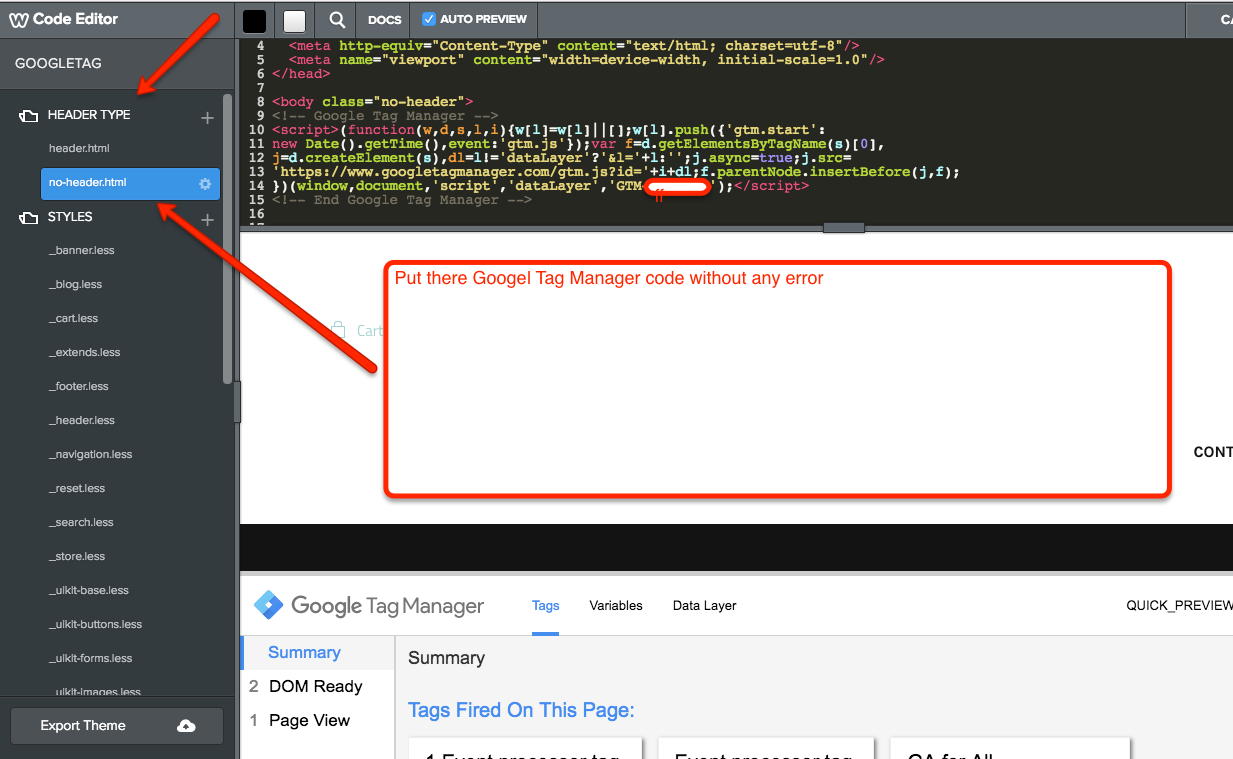
First Install Google Tag Manager on Your Weebly for Set Up E-commerce Tracking using Google Tag Manager

https://www.weebly.com/editor/main.php#

e-commerce tracking on weebly

Setup Google Tag Manager on Weebly

Paste this code as high in the <head> of the page as possible:
<!– Google Tag Manager –>
<script>(function(w,d,s,l,i){w[l]=w[l]||[];w[l].push({‘gtm.start’:
new Date().getTime(),event:’gtm.js’});var f=d.getElementsByTagName(s)[0],
j=d.createElement(s),dl=l!=’dataLayer’?’&l=’+l:”;j.async=true;j.src=
‘https://www.googletagmanager.com/gtm.js?id=’+i+dl;f.parentNode.insertBefore(j,f);
})(window,document,’script’,’dataLayer’,’GTM-XXXX’);</script>
<!– End Google Tag Manager –>
Additionally, paste this code immediately after the opening <body> tag:
<!– Google Tag Manager (noscript) –>
<noscript><iframe src=”https://www.googletagmanager.com/ns.html?id=GTM-XXXX”
height=”0″ width=”0″ style=”display:none;visibility:hidden”></iframe></noscript>
<!– End Google Tag Manager (noscript) –>


Note: Make you will replace GTM Tracking Code with your GTM ID XXXXX

  • Product Array : To Track product detail for Weebly Ecommerce Tracking using Google Tag Manager used custom javascript to get the value of price, product and brand etc

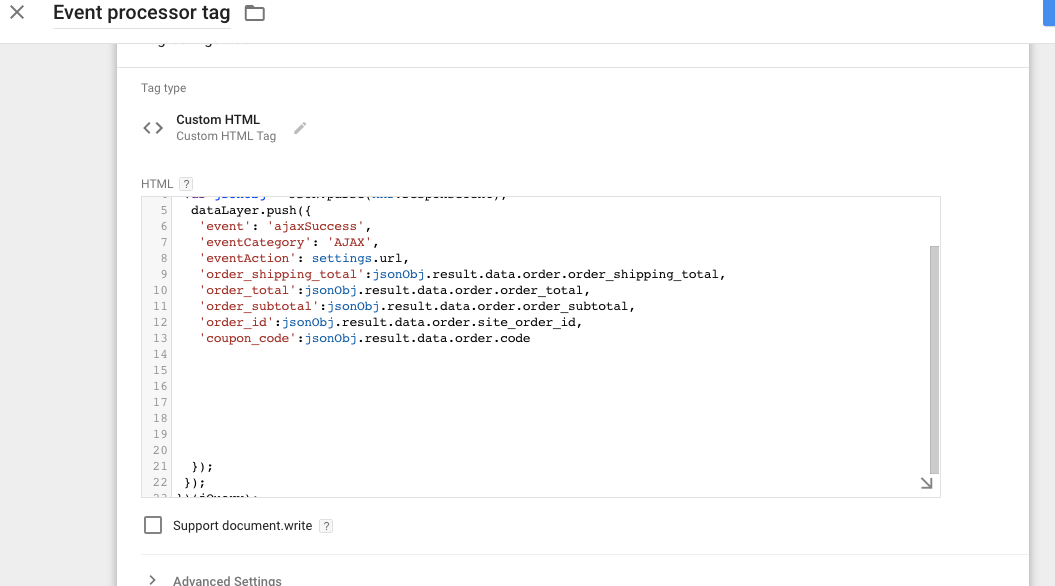
Get Order details from ajax using Google Tag Manager: To track order total value , Shipping details and coupon code details using Custom javascript for ecommece on weebly.

Written Custom html pull out all the information on weebly for E-commece Tracking


Weebly eCommerce Tracking

eCommerce Tracking in Google Analytics using Google Tag Manager

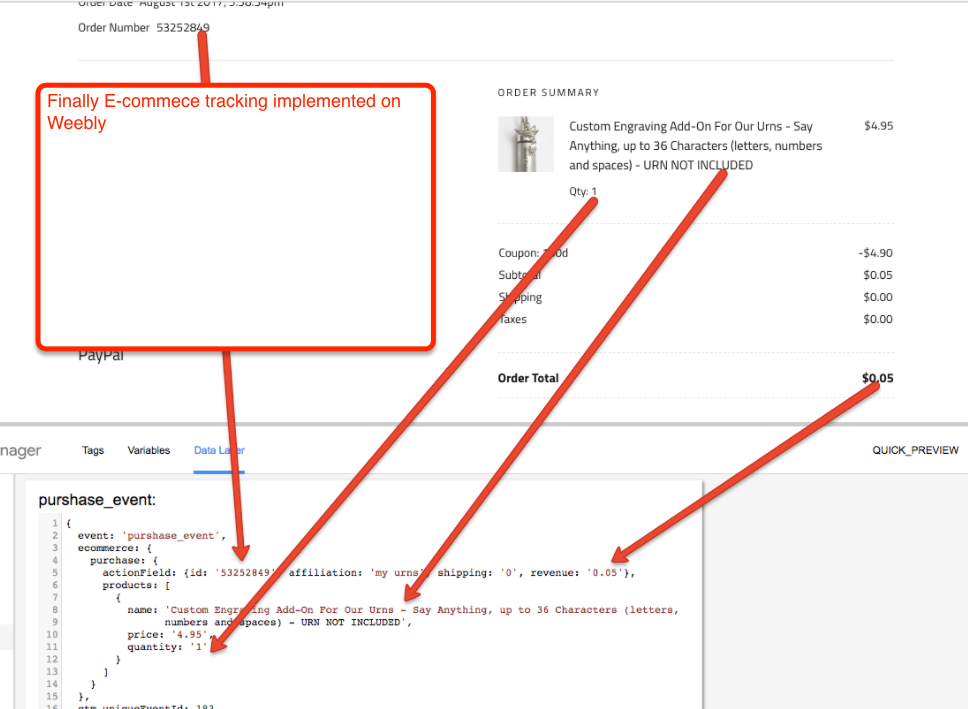
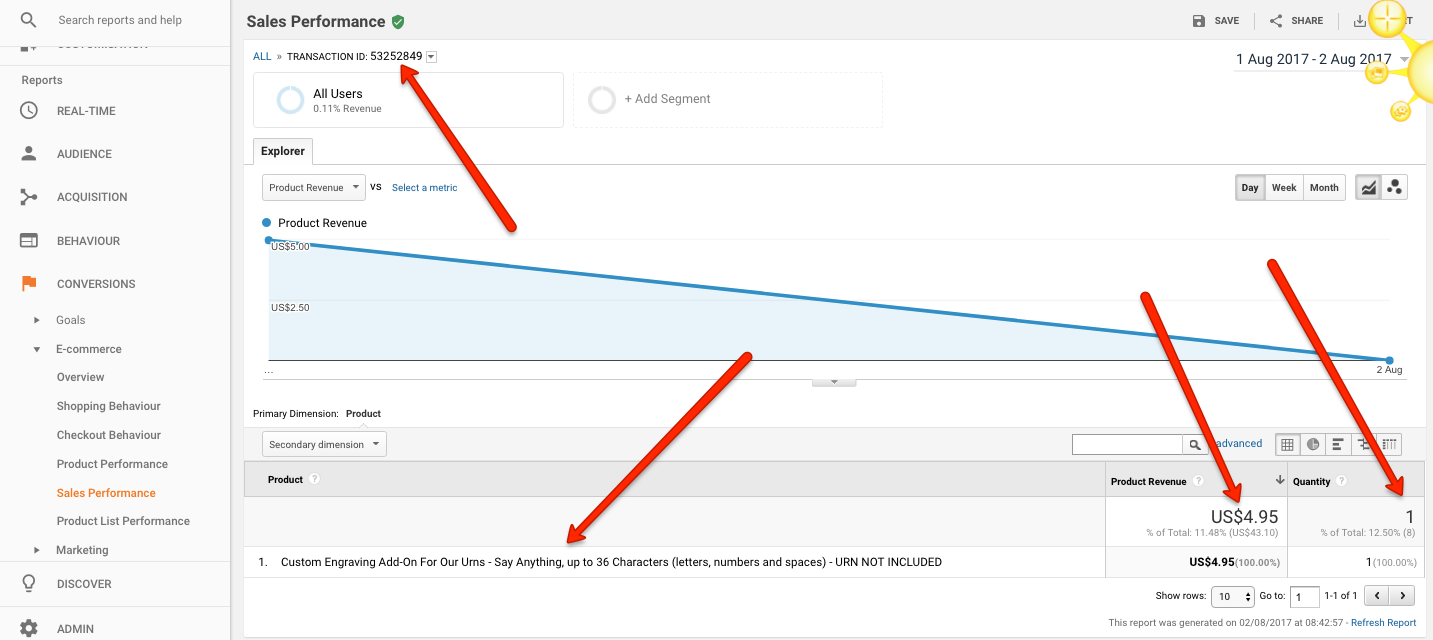
Now time to verify e-commerce tracking for Weebly using Google Tag Manager and Verified with Google Analytic

Passing all the details for e-commerce tracking for weebly

Verified E-commerce tracking for weebly using Google Analytic

Warning:if you do n’t know about javascript or do n’t have developing knowledge then do n’t try to Weebly Ecommerce Tracking using Google Tag Manager a custom javascript without using Any plugin that can broke your site, Cart and other functionality 

Disclaimer: Google tag manager belongs to Google property 

For Contact: mappchero@gmail.com

No Fields Found.