Prestashop GA4 eCommerce Tracking using Google Tag Manager

Standard

Prestashop GA4 Integration Enhanced Ecommerce Tracking using Google Tag Manager

PrestaShop is a popular e-commerce platform used by many online retailers. If you’re using PrestaShop, it’s important to track your website’s performance to ensure that your business is growing and you’re meeting your goals. One way to do this is by using Google Analytics 4 (GA4) ecommerce tracking. In this article, I will explain what GA4 ecommerce tracking is and how to set it up on your PrestaShop website.

What is GA4 ecommerce tracking?

GA4 ecommerce tracking is a way to track e-commerce transactions on your website using Google Analytics 4. With GA4 ecommerce tracking, you can see how many sales you’re making, how much revenue you’re generating, and which products are the most popular. You can also see where your customers are coming from, which pages they’re visiting, and how they’re interacting with your website.

Setting up GA4 ecommerce tracking on PrestaShop

To set up GA4 ecommerce tracking on PrestaShop, you’ll need to follow these steps:

Step 1: Create a GA4 property
The first step is to create a GA4 property in your Google Analytics account. To do this, go to the Admin section of your Google Analytics account, select “Create Property,” and then select “GA4.” Follow the prompts to set up your property.

Step 2: Install the GA4 tracking code
Next, you’ll need to install the GA4 tracking code on your PrestaShop website. You can do this by adding the code to your website’s header or footer. To do this, go to your PrestaShop dashboard, select “Preferences,” and then select “Google Analytics.” Paste your GA4 tracking code into the “Google Analytics tracking code” field.

Step 3: Set up ecommerce tracking
Once you’ve installed the GA4 tracking code, you’ll need to set up ecommerce tracking. To do this, go to your Google Analytics account, select your GA4 property, and then select “Ecommerce Settings” under “Data Streams.” Turn on “Enable Enhanced Ecommerce Reporting” and “Enable Ecommerce Reporting.”

Step 4: Add ecommerce tracking to your website
Finally, you’ll need to add ecommerce tracking to your website. This involves adding code to your website’s product pages, cart pages, and confirmation pages. You can use the GA4 ecommerce tracking plugin for PrestaShop to make this process easier.

Benefits of using GA4 ecommerce tracking on PrestaShop

There are several benefits to using GA4 ecommerce tracking on PrestaShop:

  1. You can see which products are the most popular and adjust your inventory accordingly.
  2. You can track your revenue and see how much money you’re making from your online store.
  3. You can see where your customers are coming from and adjust your marketing efforts accordingly.
  4. You can see which pages on your website are performing the best and optimize your website for better performance.

Conclusion

GA4 ecommerce tracking is an essential tool for any online retailer using PrestaShop. By setting up GA4 ecommerce tracking, you can track your website’s performance, see where your customers are coming from, and adjust your marketing efforts accordingly. With the benefits of GA4 ecommerce tracking, you can optimize your website and grow your online business.

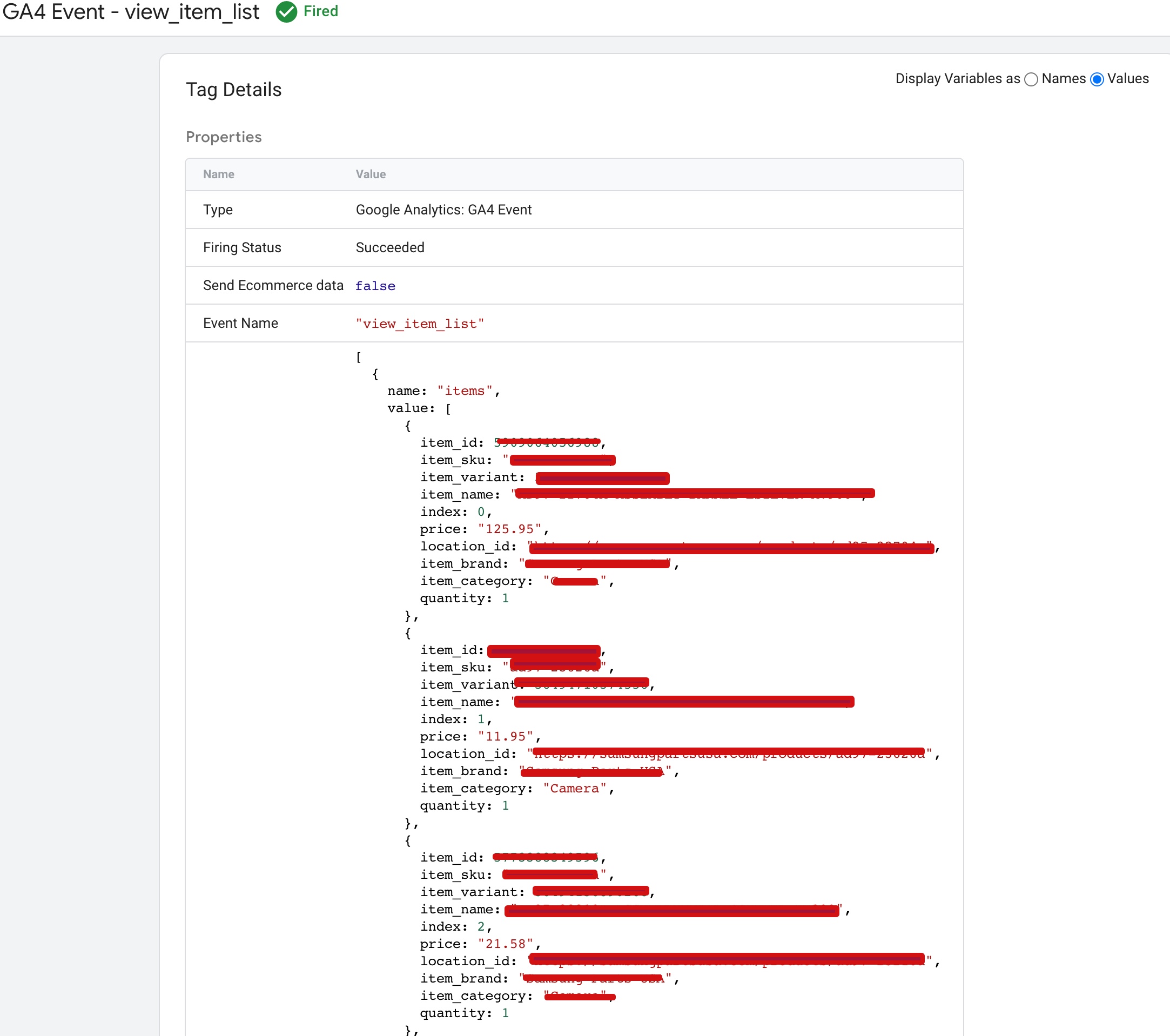
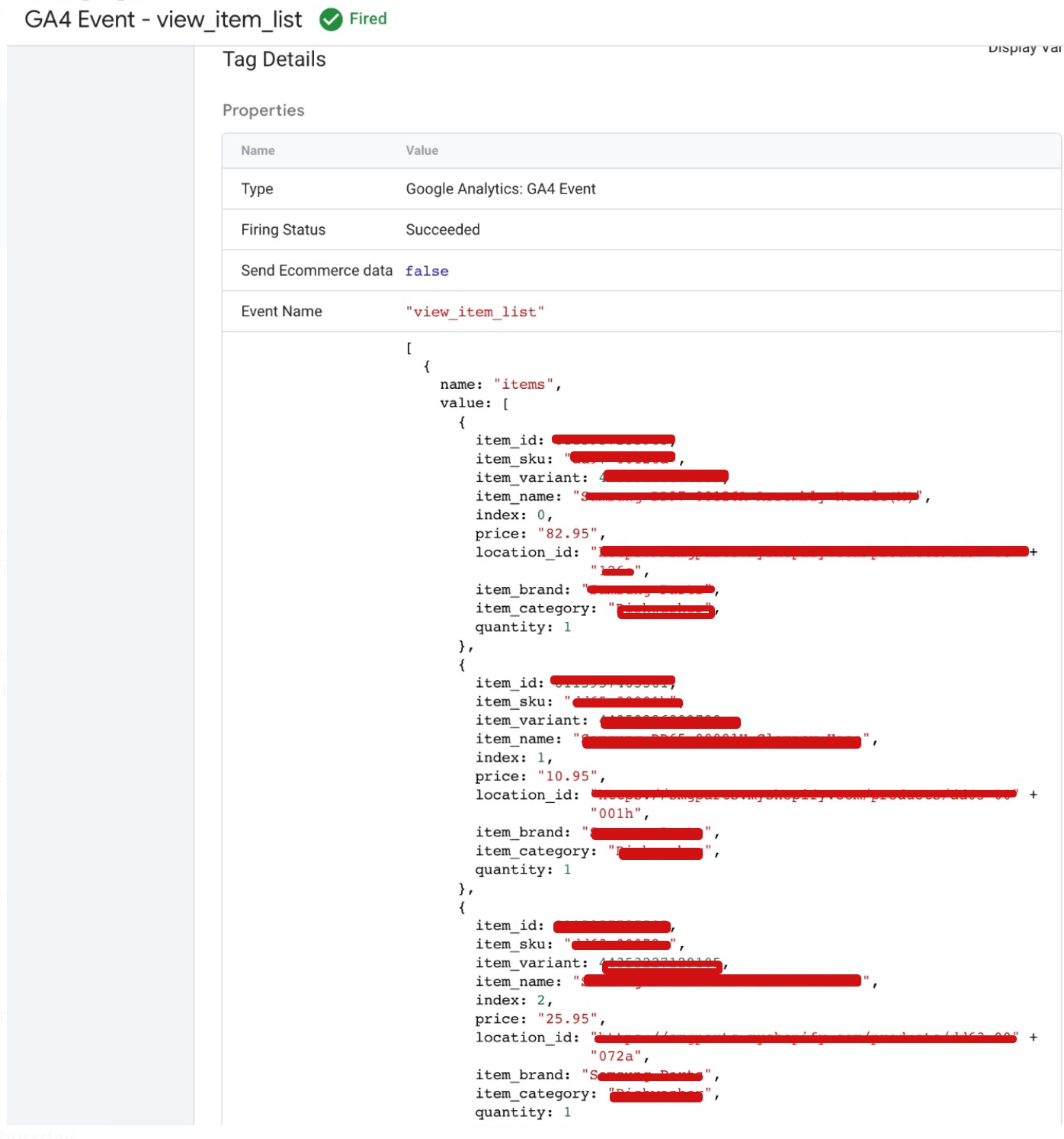
The “view_item_list” event in GA4 ecommerce tracking is used to track when a user views a list of items on your website. This can include category pages, search results pages, or any other page that displays a list of products.
Prestashop GA4 integration

Prestashop Google Tag Manager for GA4 eCommerce Tracking

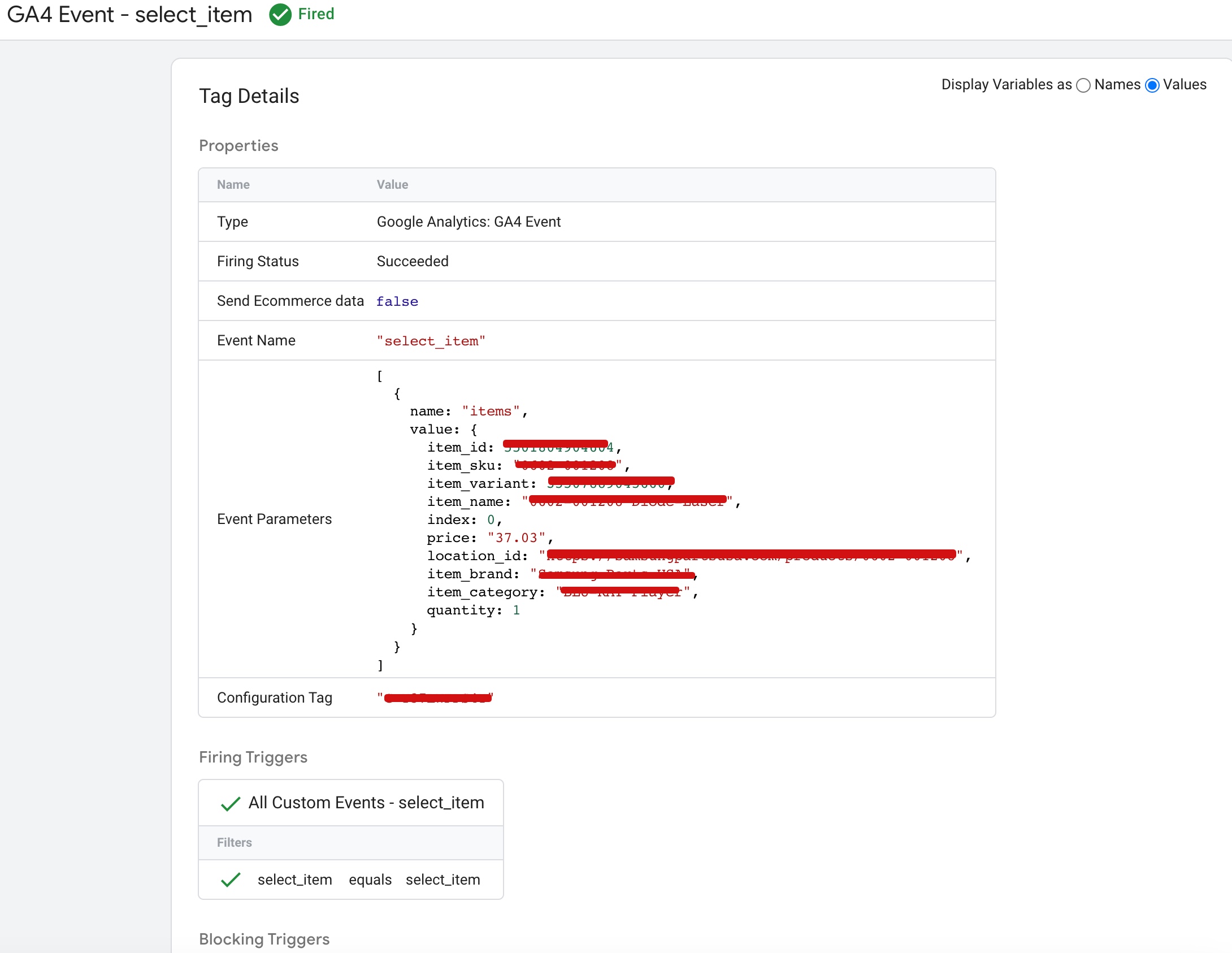
The “select_item” event in GA4 ecommerce tracking is used to track when a user selects a specific product or item on your website. This event is typically triggered when a user clicks on a product image or title to view the product details or add the item to their cart.
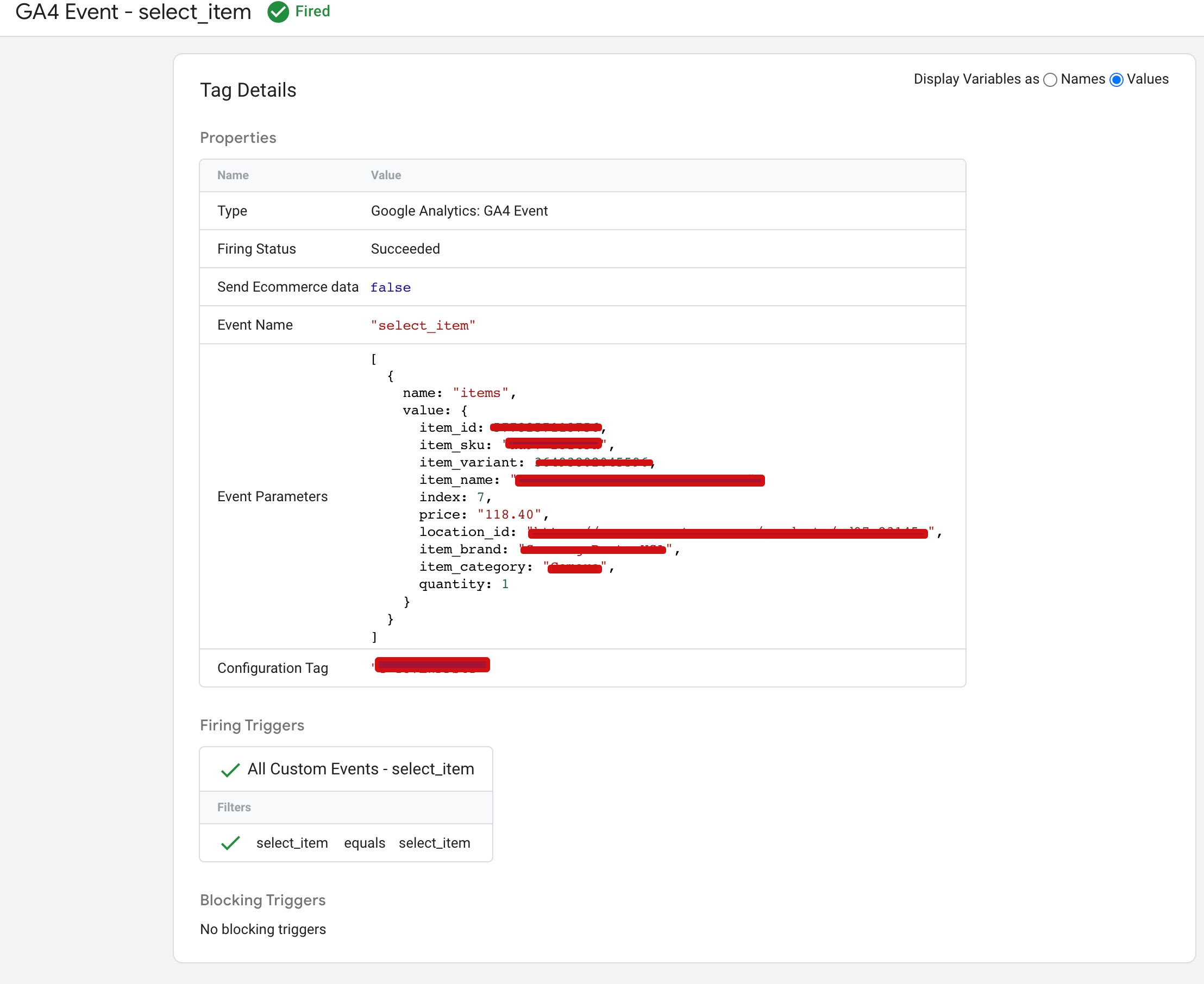
Google Analytics 4 (GA4) with PrestaShop

Implement Google Analytics 4 (GA4) on Prestashop using Google Tag Manager

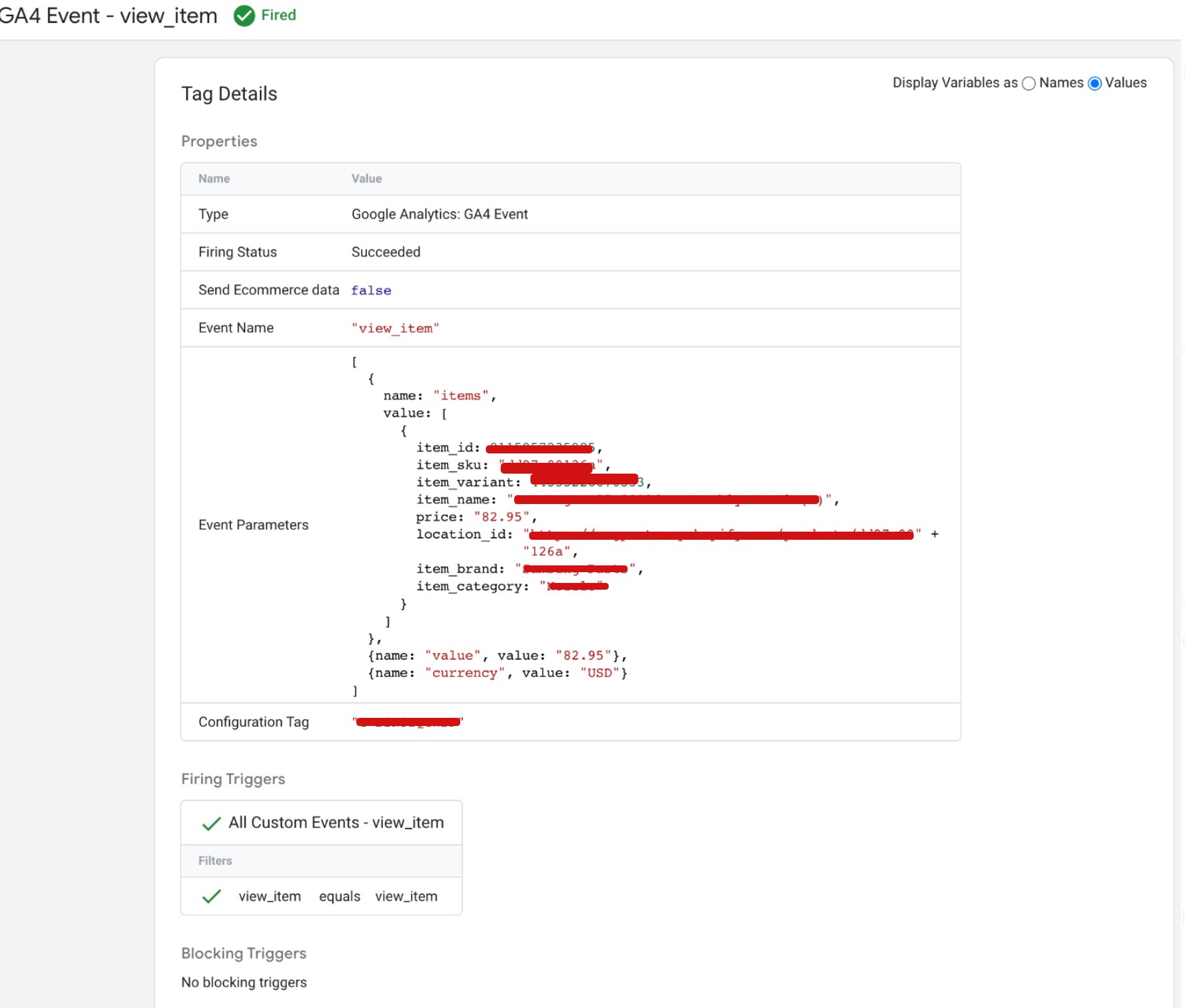
The “view_item” event in GA4 ecommerce tracking is used to track when a user views a specific product or item on your website. This event is typically triggered when a user lands on a product details page or clicks on a product from a list of items.
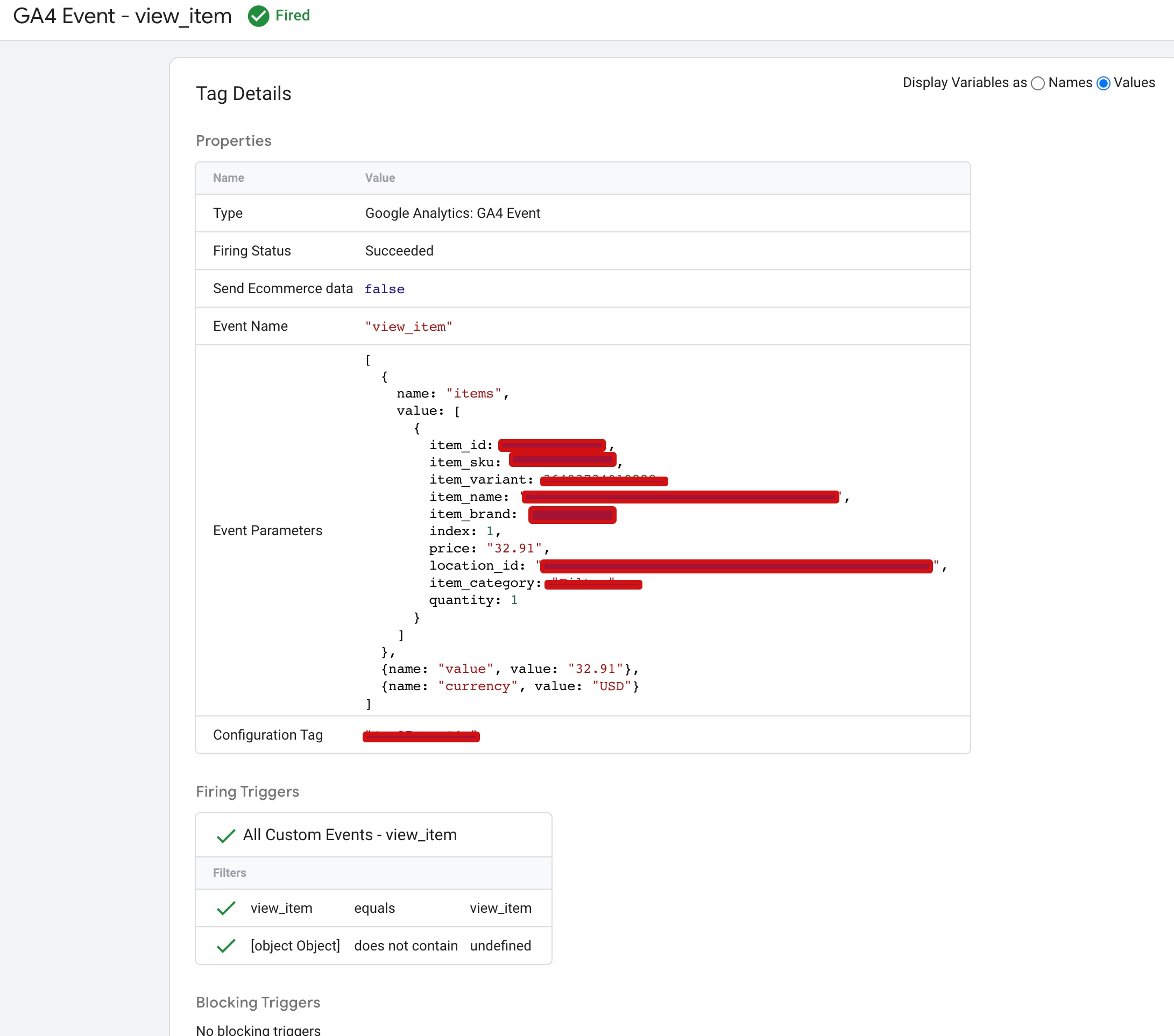
Prestashop GA4 Data layer Tracking

Set Up Google Analytics 4 (GA4) on PrestaShop using Google Tag Manager

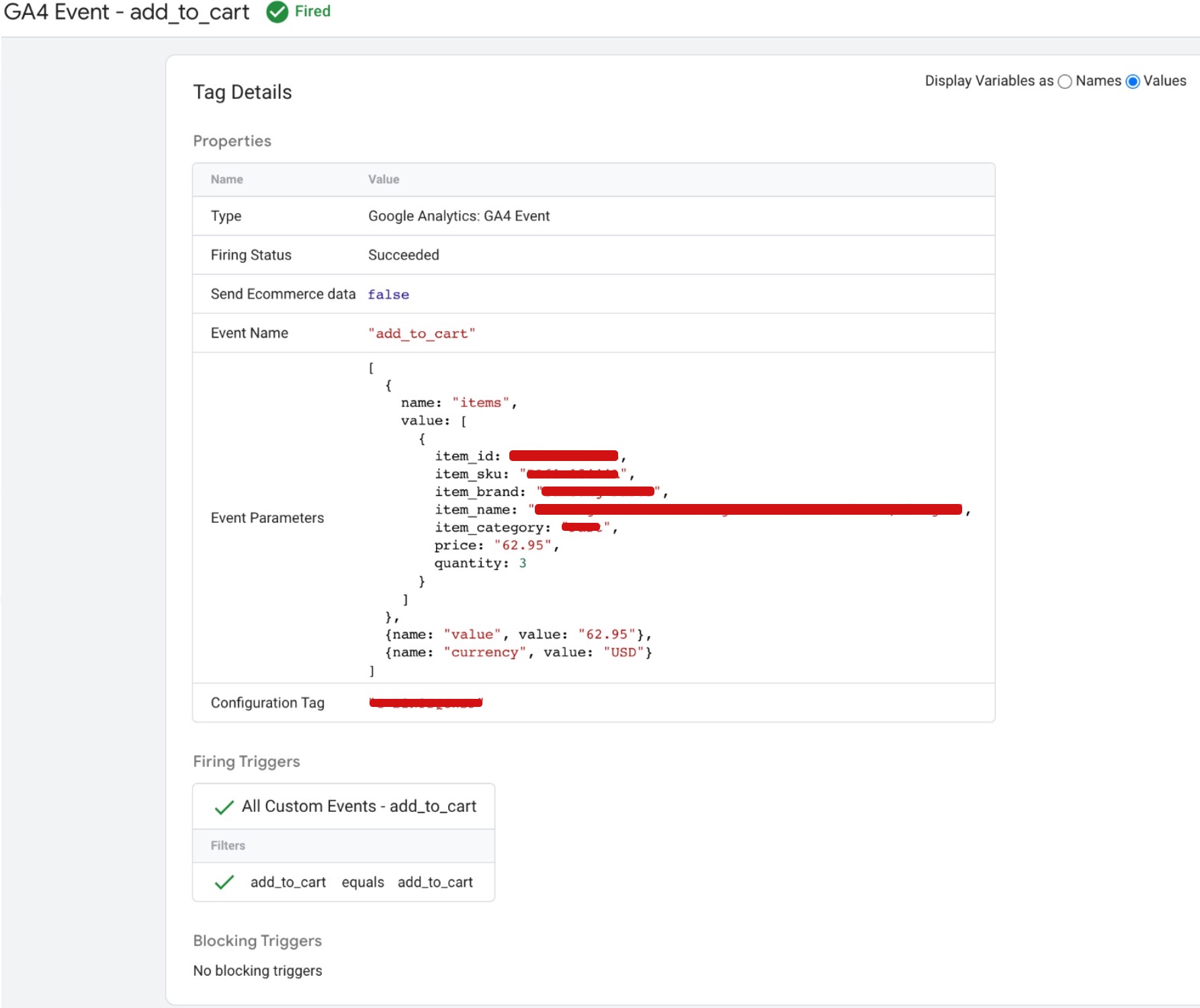
The “add_to_cart” event in GA4 ecommerce tracking is used to track when a user adds a product to their shopping cart on your website. This event is typically triggered when a user clicks on the “Add to Cart” button for a specific product.
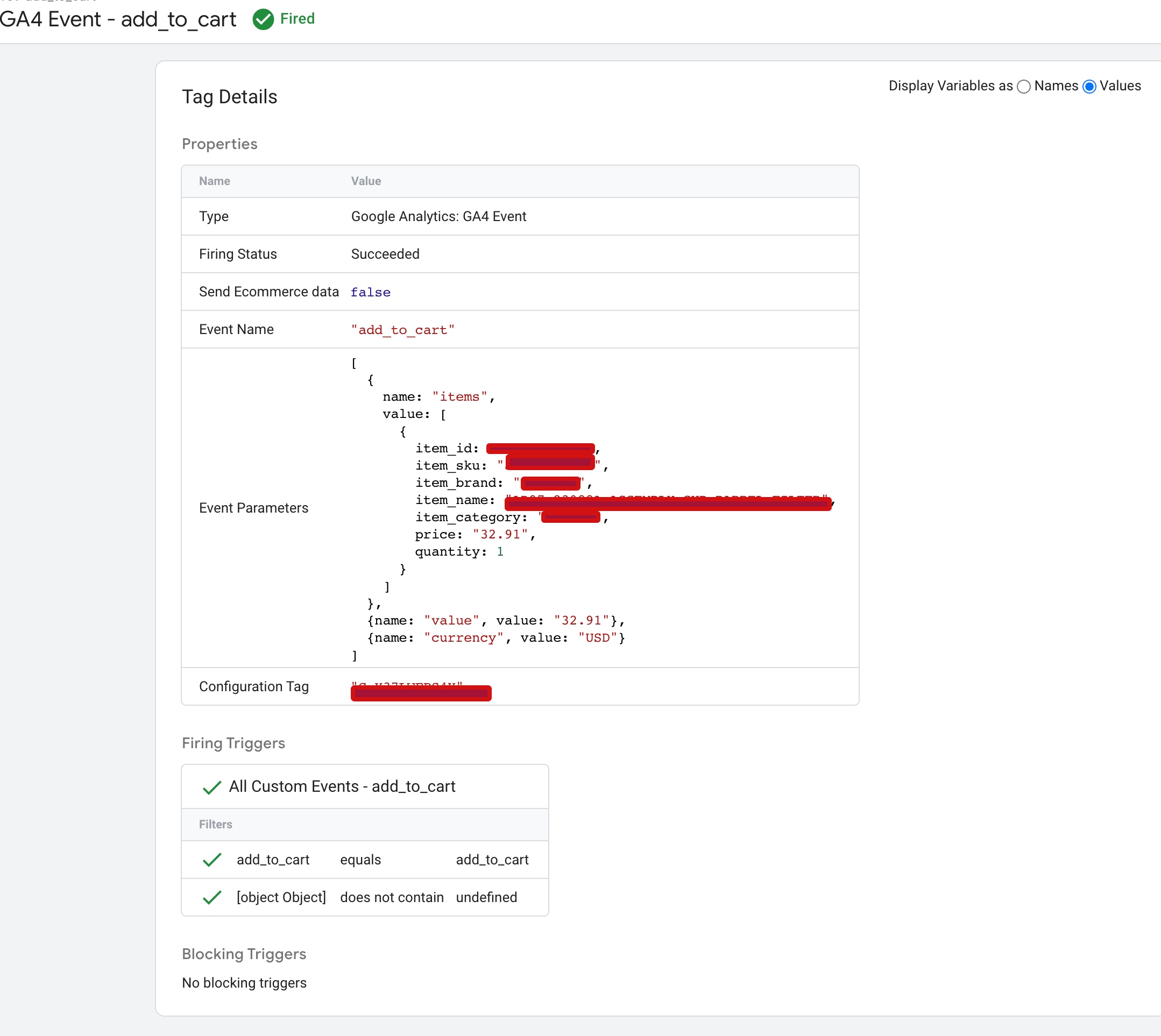
Prestashop GA4 Google Analytics 4

Google Tag Manager GA4 Revenue eCommerce Tracking in PrestaShop

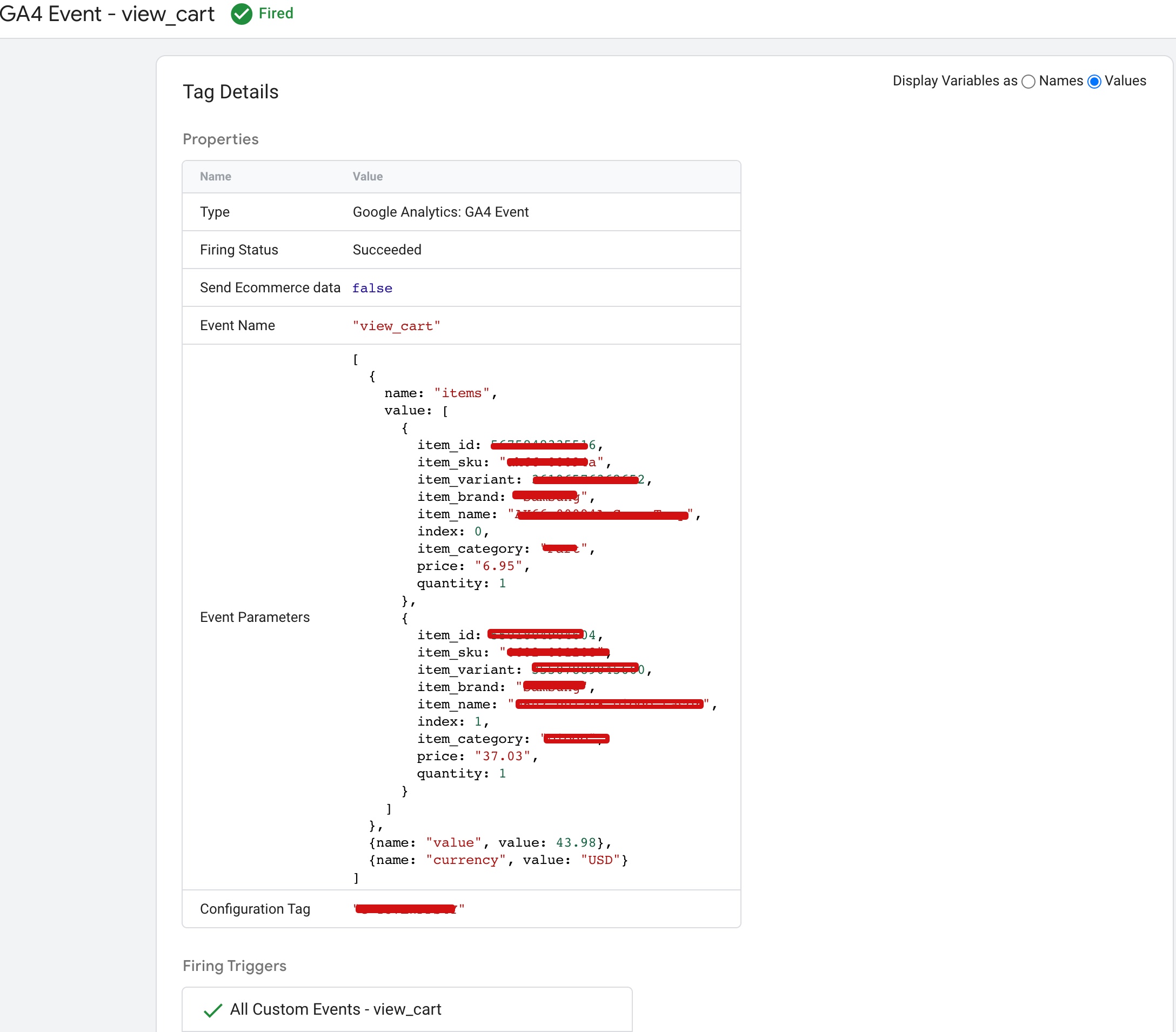
The “view_cart” event in GA4 ecommerce tracking is used to track when a user views their shopping cart on your website. This event is typically triggered when a user clicks on the shopping cart icon or navigates to the cart page.
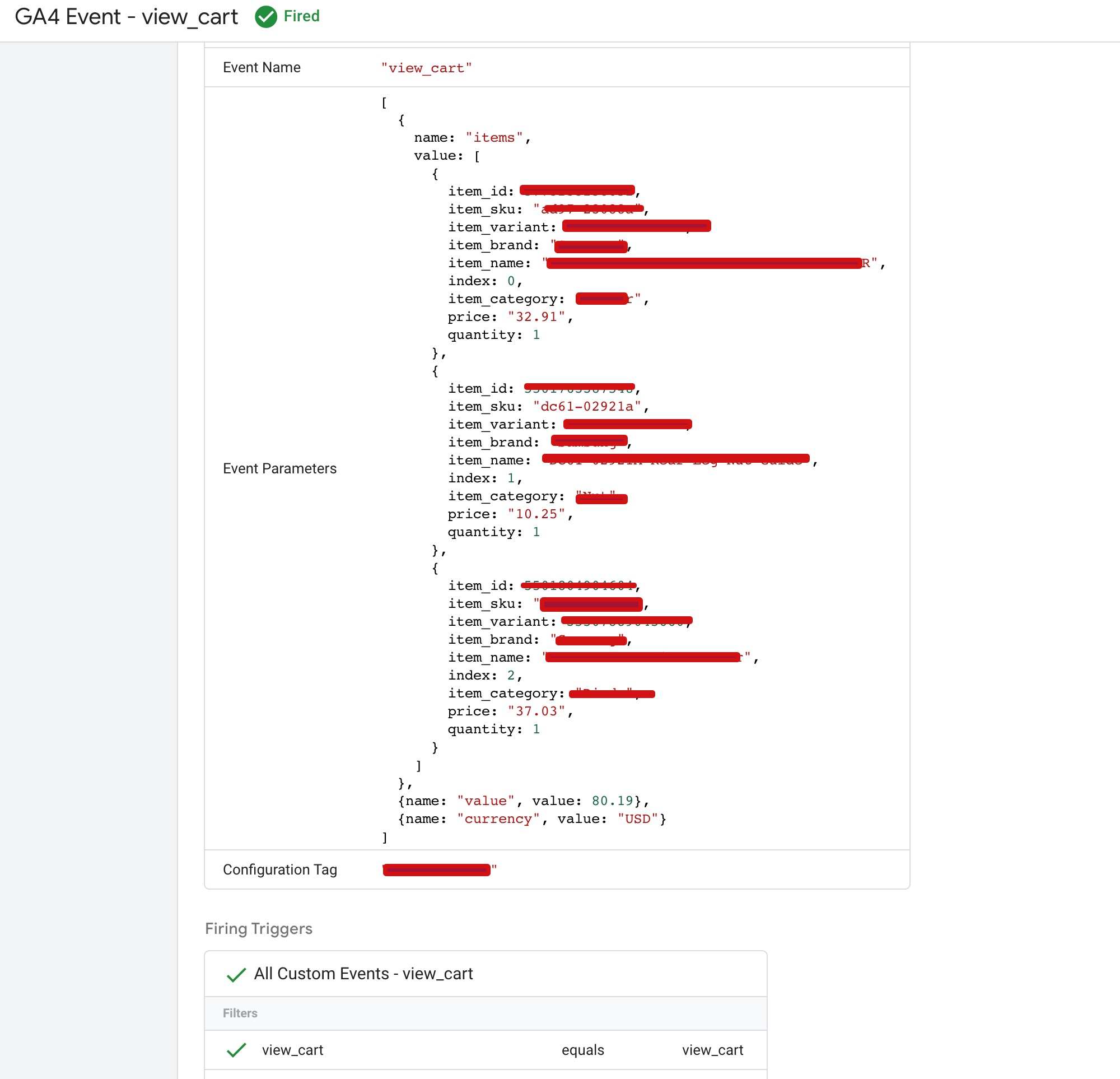
Prestashop (GA4) eCommerce Tracking

Google Tag Manager Prestashop (GA4) Enhanced Ecommerce for GA4

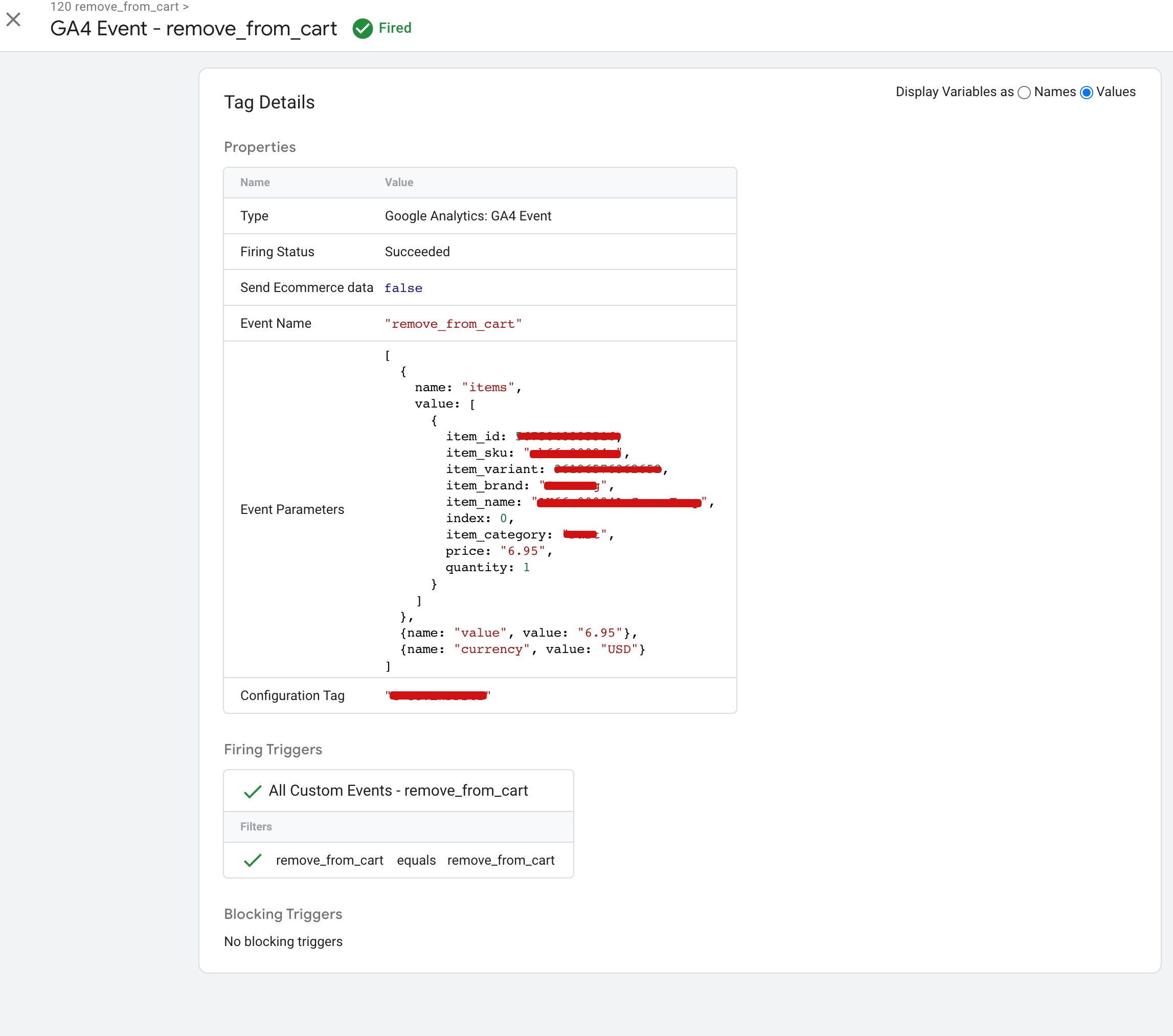
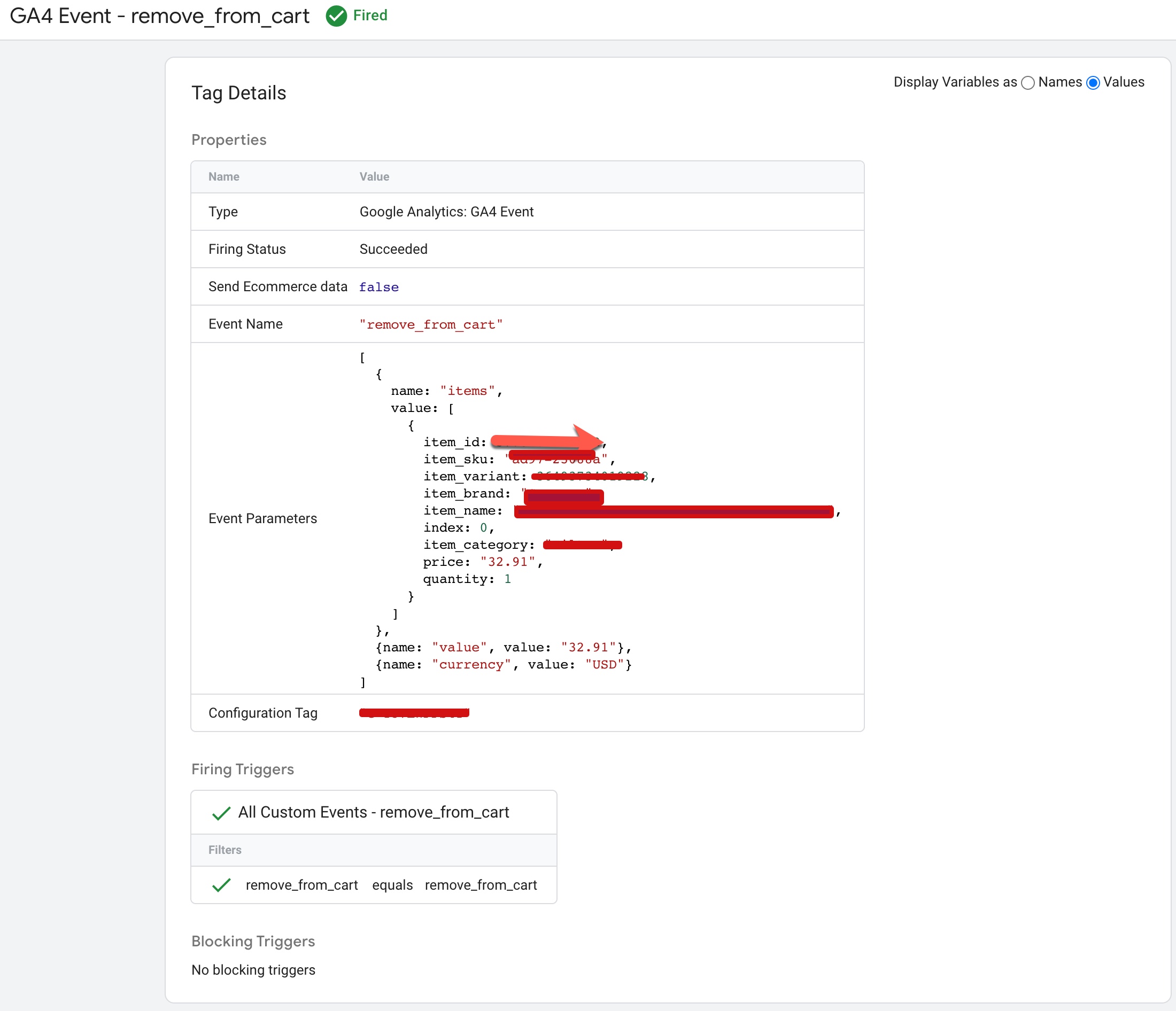
The “remove_from_cart” event in GA4 ecommerce tracking is used to track when a user removes an item from their shopping cart on your website. This event is typically triggered when a user clicks on the “remove” button next to an item in their cart.
GA4 Prestashop Google Tag Manager

PrestaShop Enhanced eCommerce for Advanced Google Analytics 4 (GA4) using Google Tag Manager

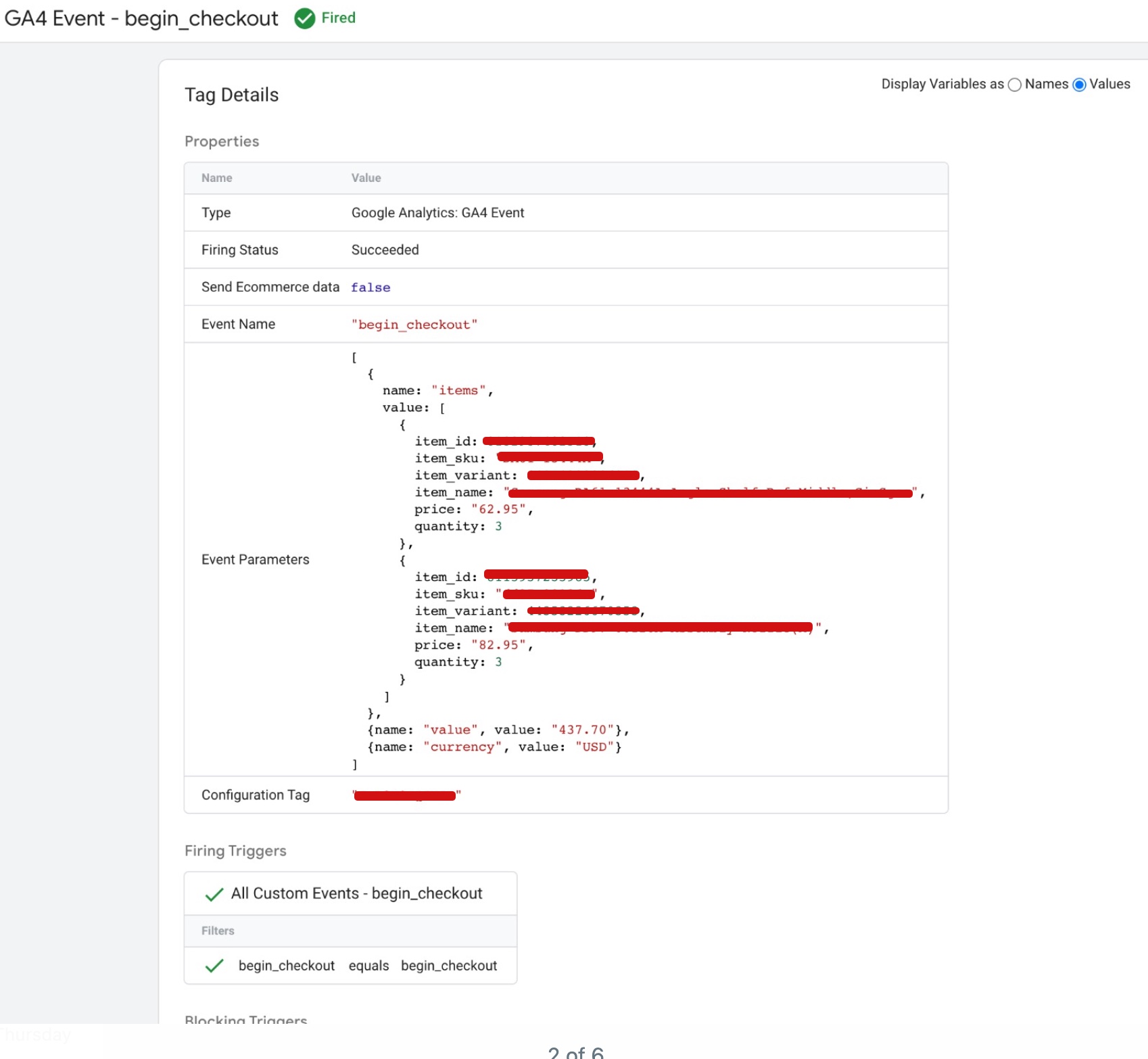
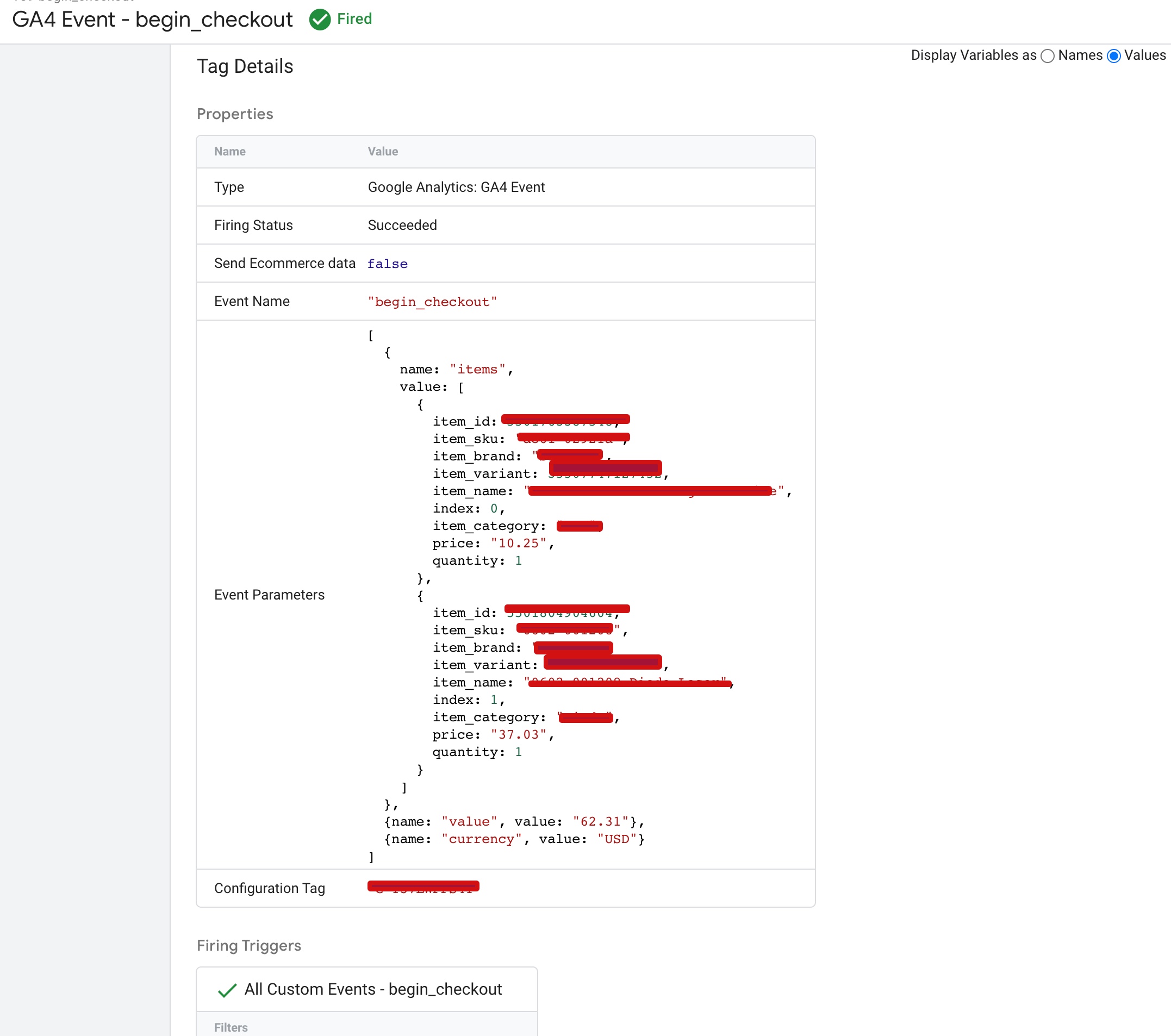
The “begin_checkout” event in GA4 ecommerce tracking is used to track when a user begins the checkout process on your website. This event is triggered when a user clicks on the “checkout” button on your website’s shopping cart or basket page.
Google Analytics 4 Migration Prestashop

Google Analytics 4 (GA4) With Google Tag Manager For Prestashop

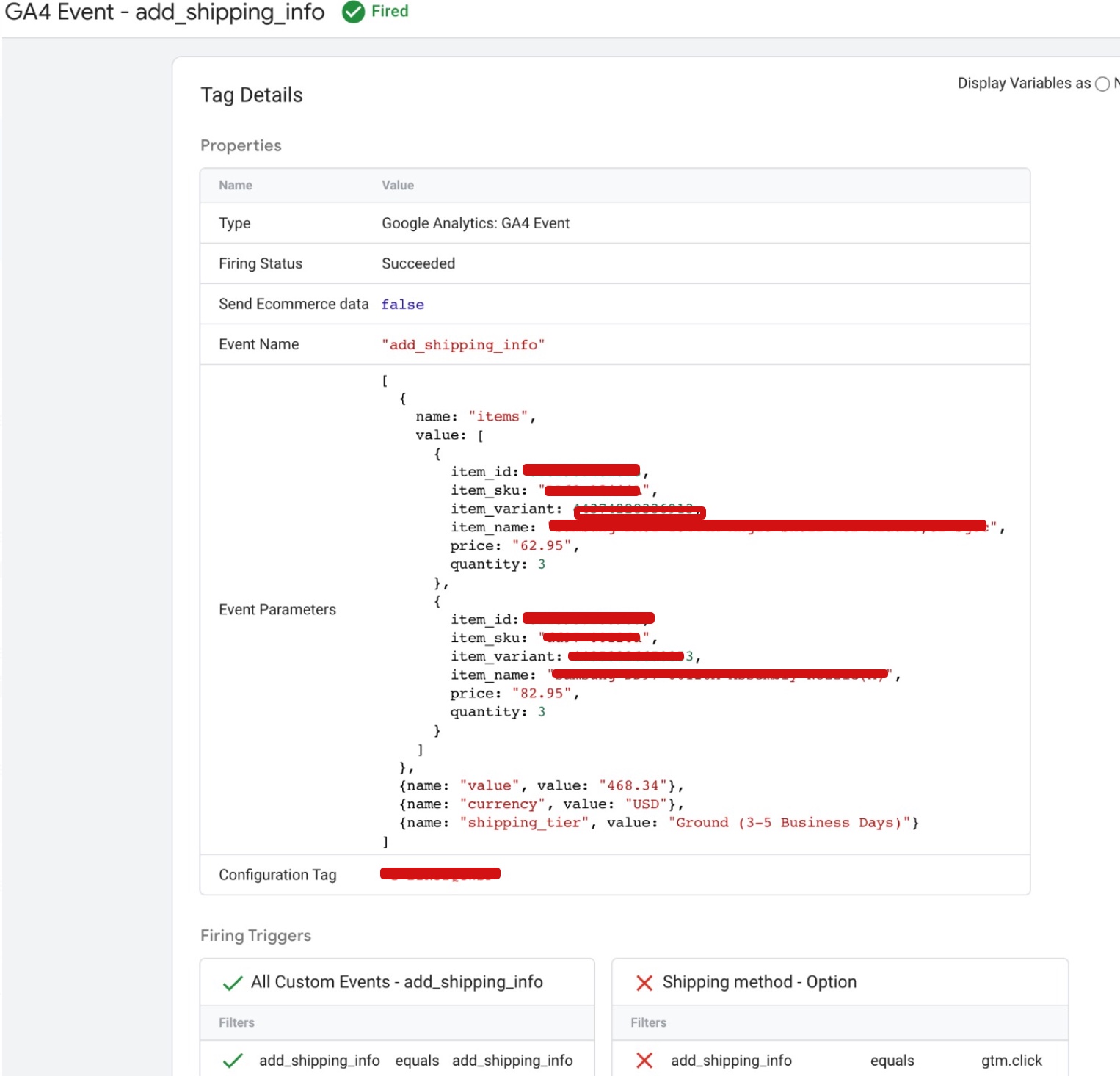
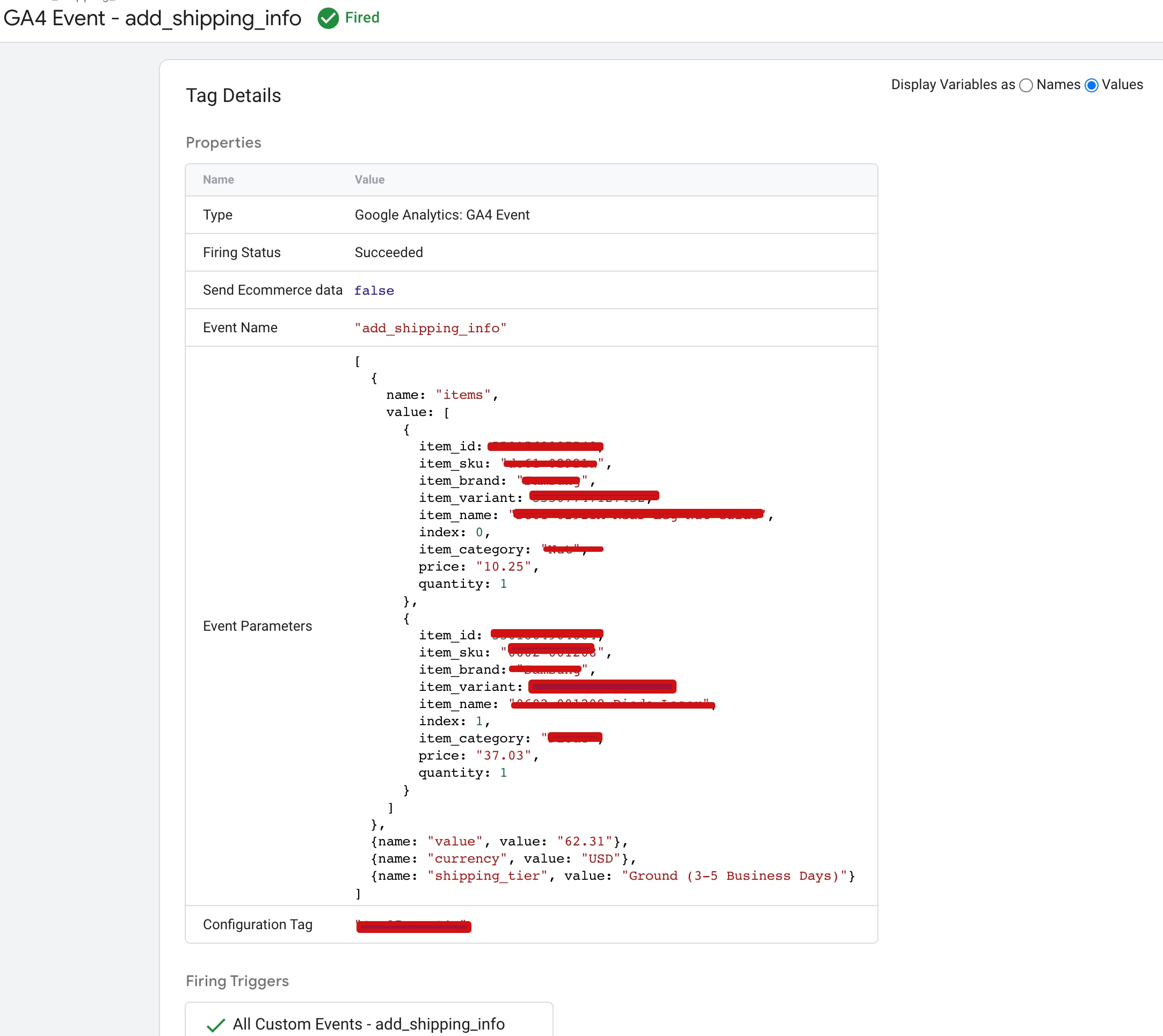
The “add_shipping_info” event in GA4 ecommerce tracking is used to track when a user enters their shipping information during the checkout process on your website. This event is triggered when a user fills in the shipping address and other relevant details on the shipping information page.
Setup PrestaShop GA4 (Google Analytics 4)

Connect Google Analytics 4 (GA4) to PrestaShop eCommerce Tracking

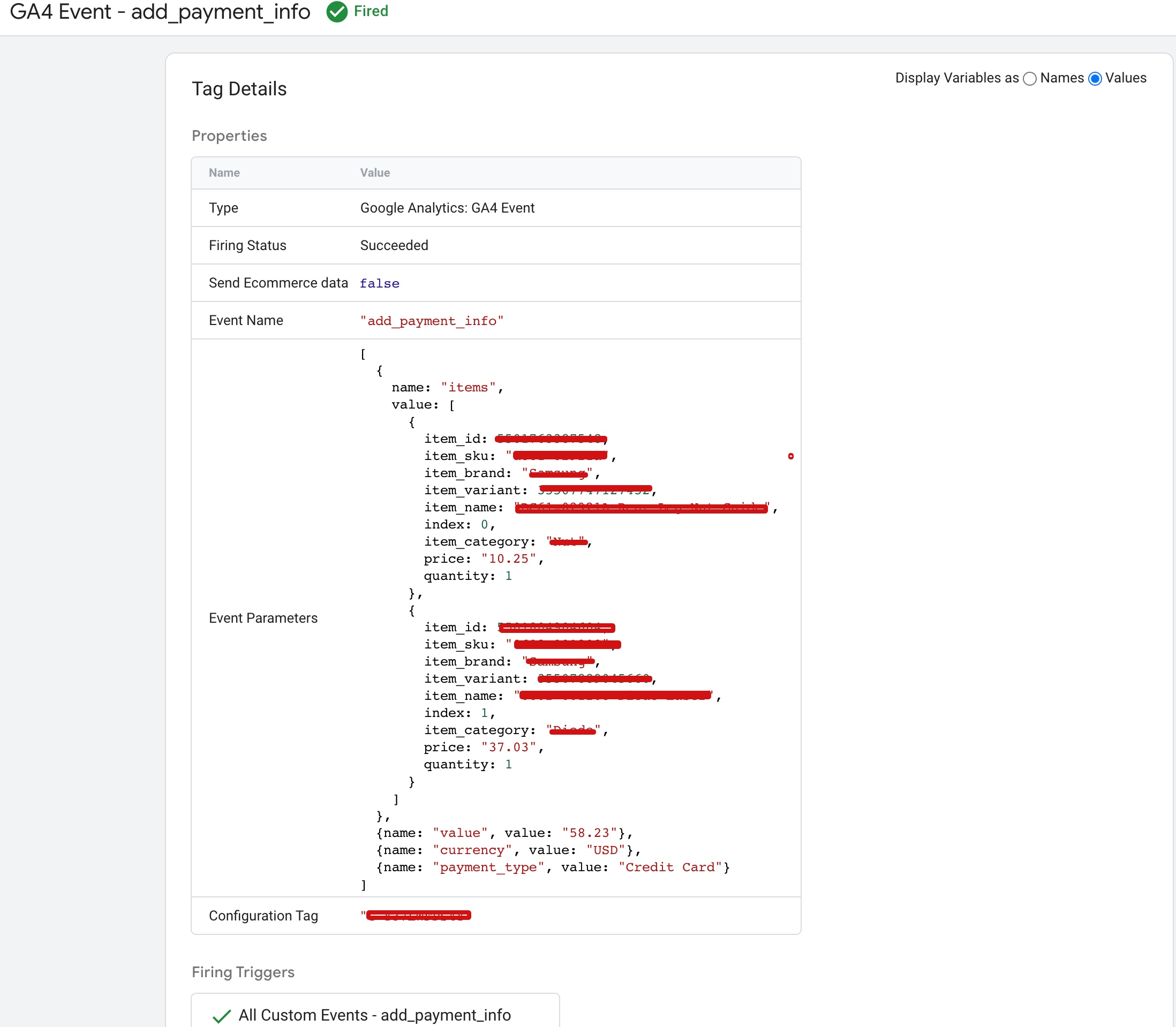
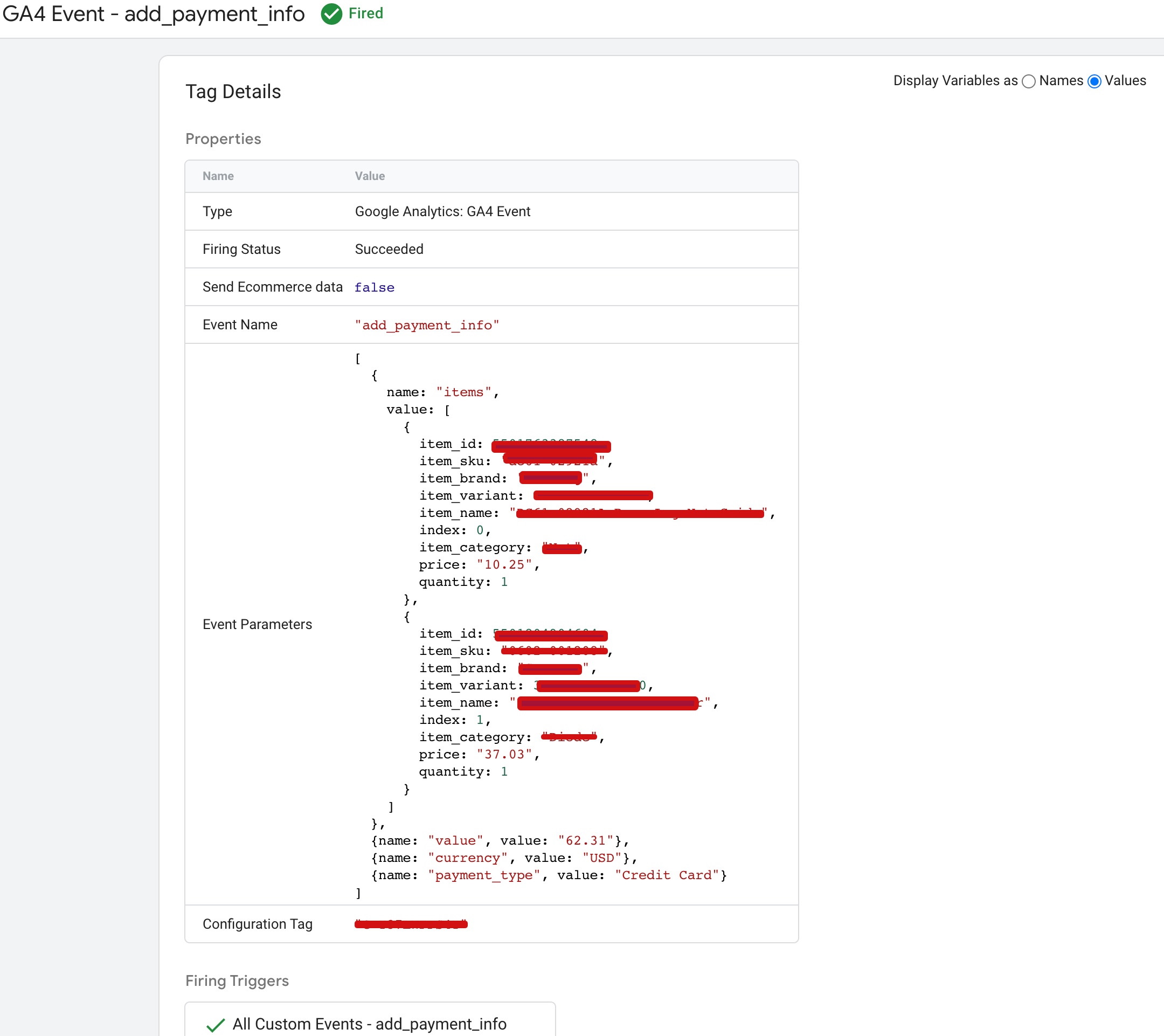
The “add_payment_info” event in GA4 ecommerce tracking is used to track when a user enters their payment information during the checkout process on your website. This event is triggered when a user fills in their payment details on the payment information page.
Integrate GA4 with Your PrestaShop

Google Analytics (GA4) Integration with PrestaShop using Google Tag Manager

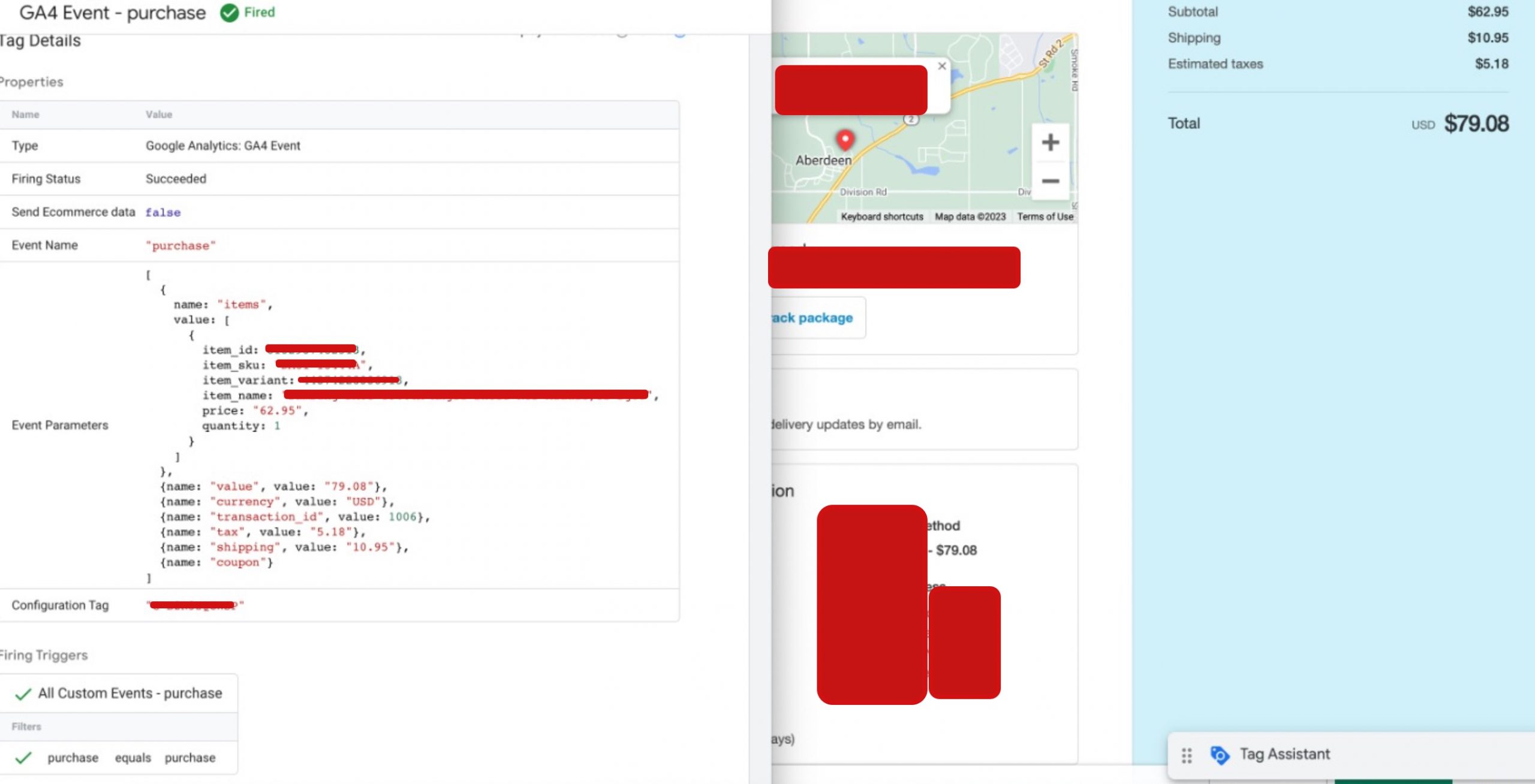
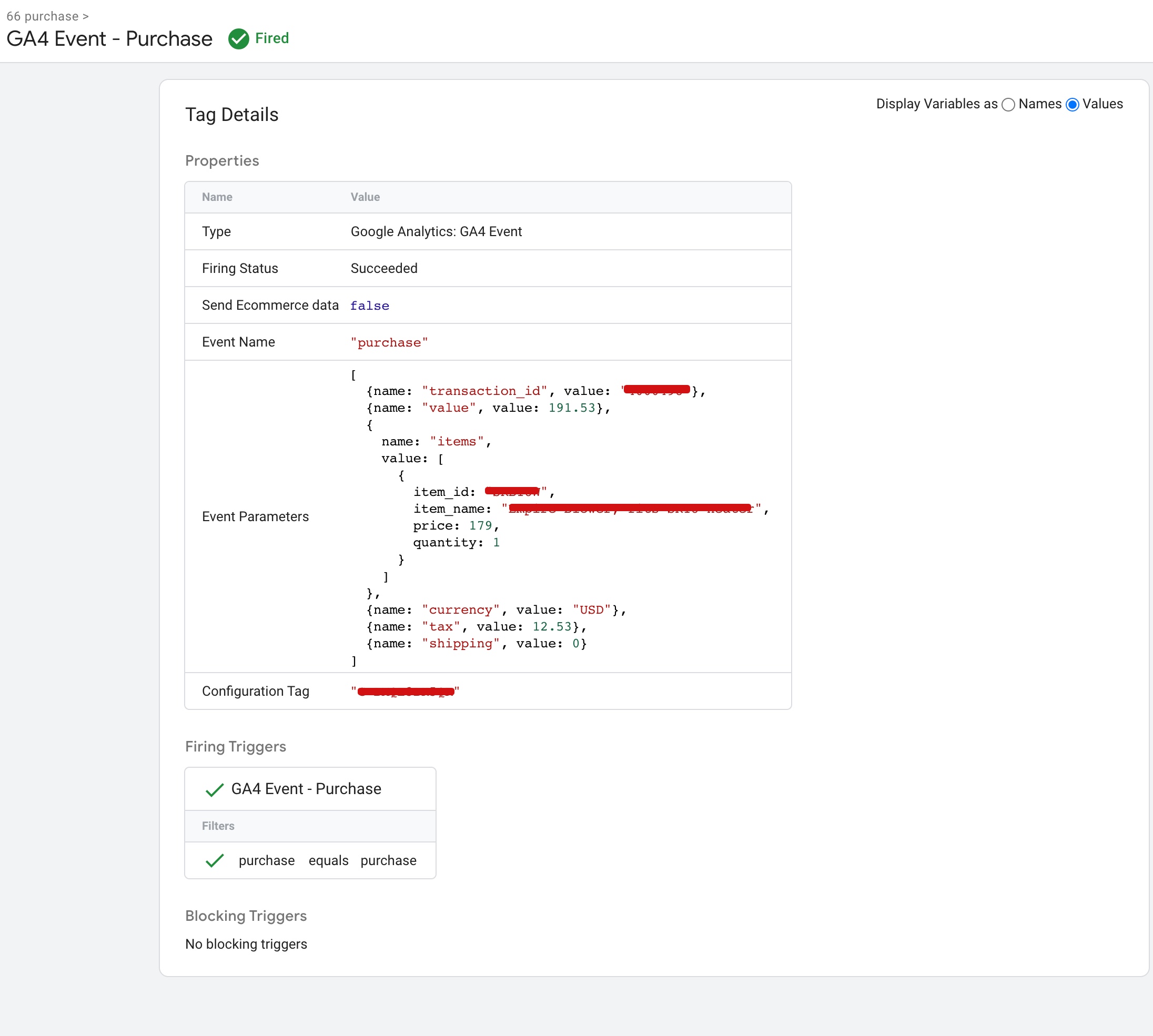
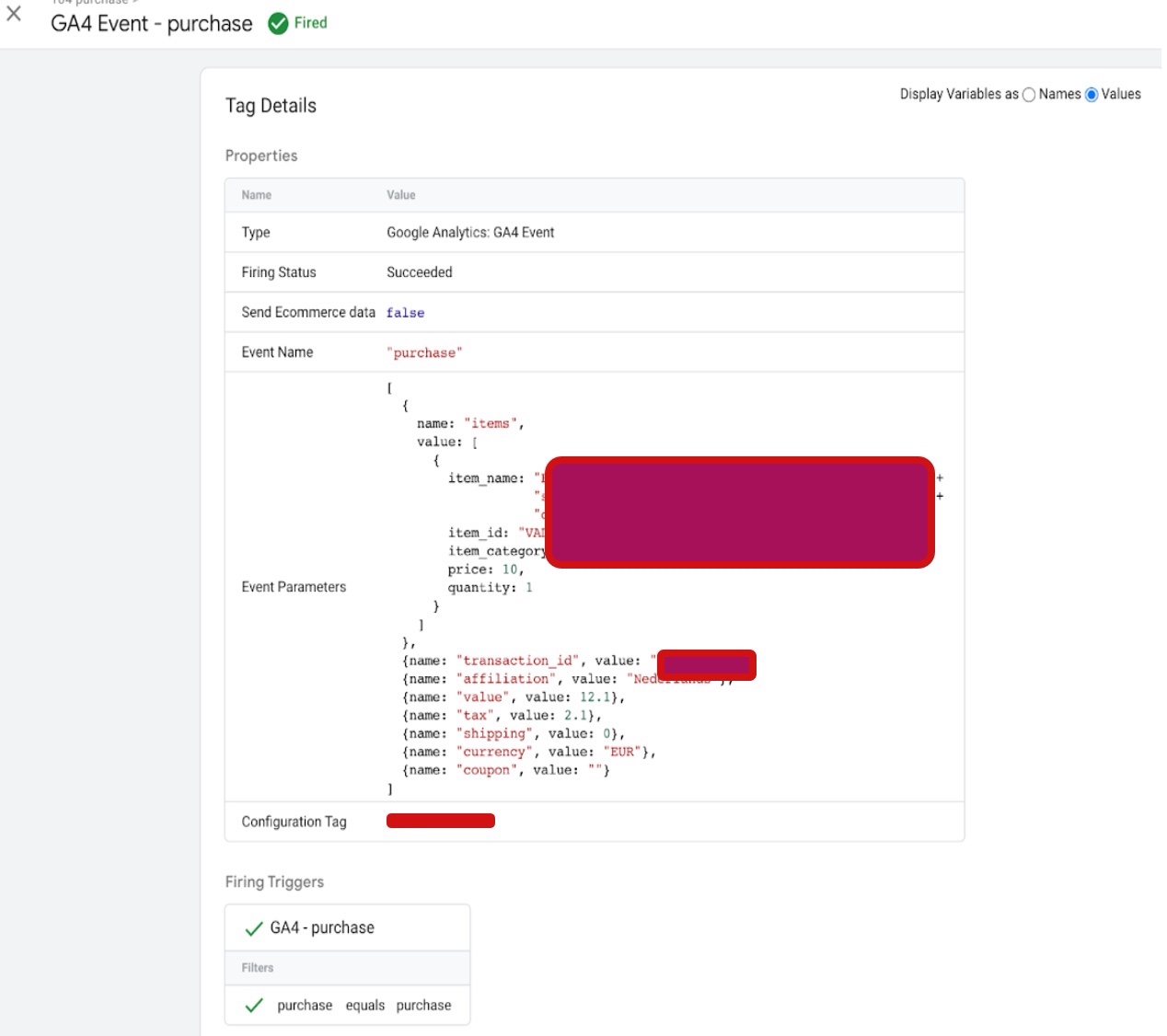
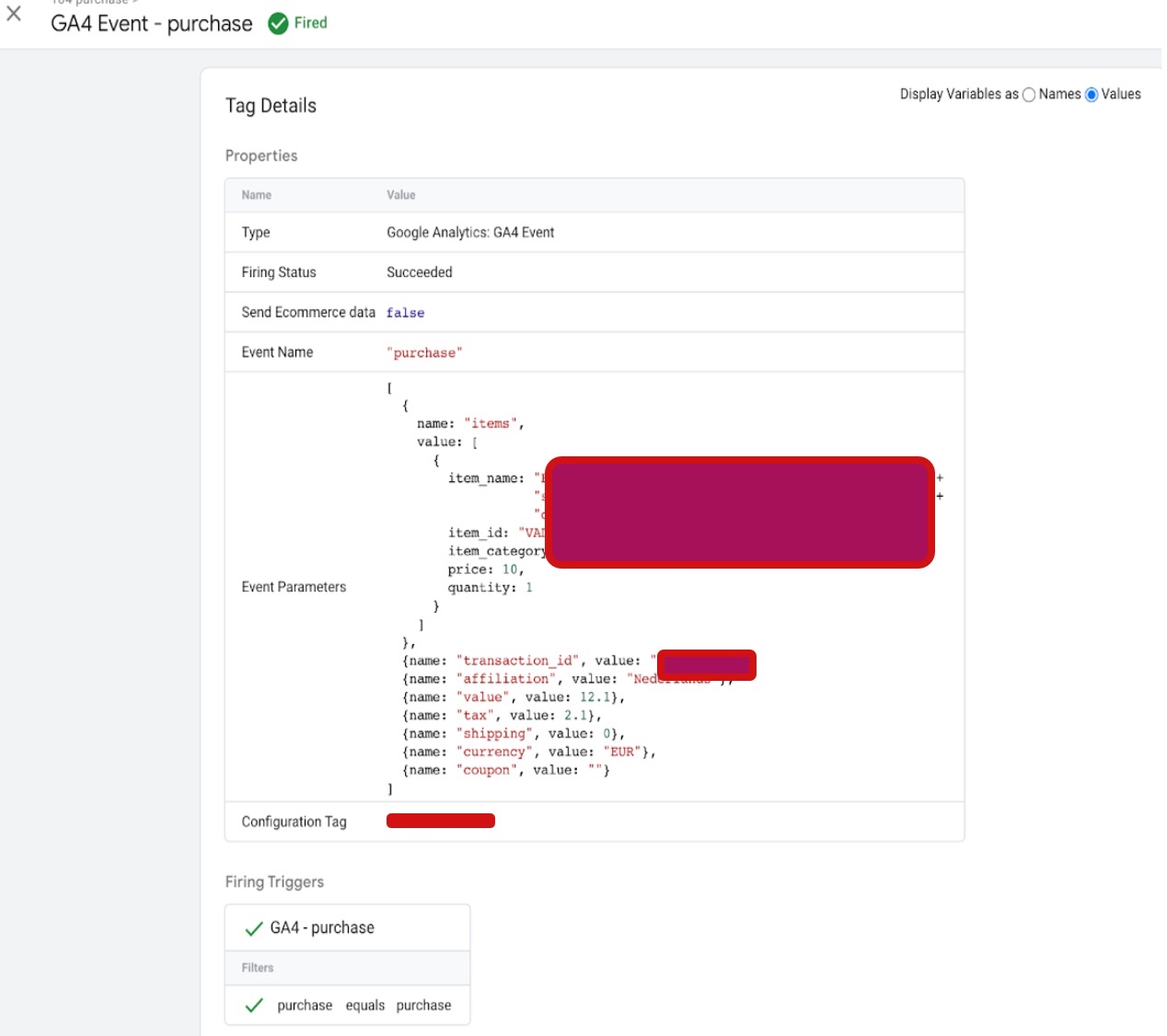
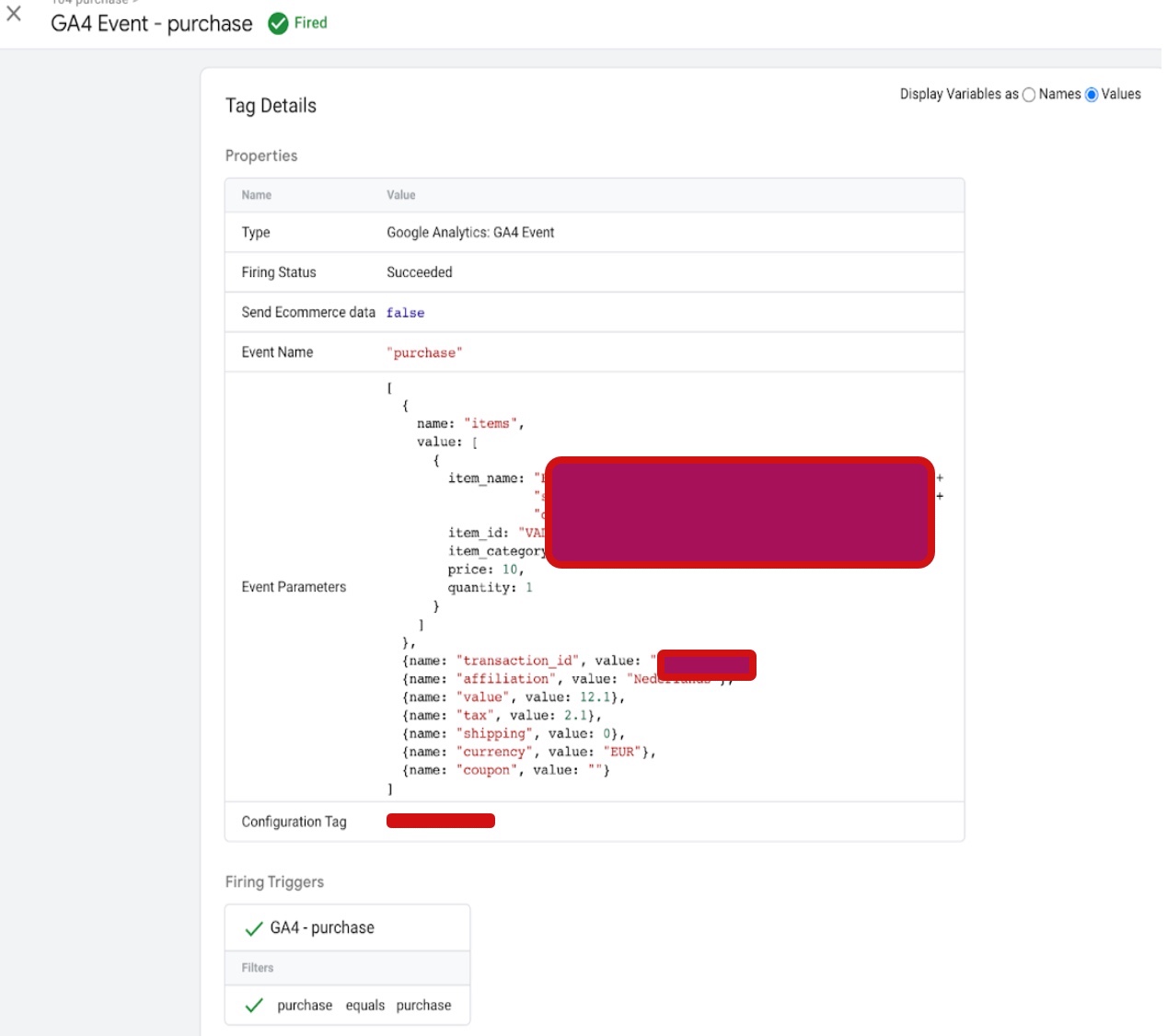
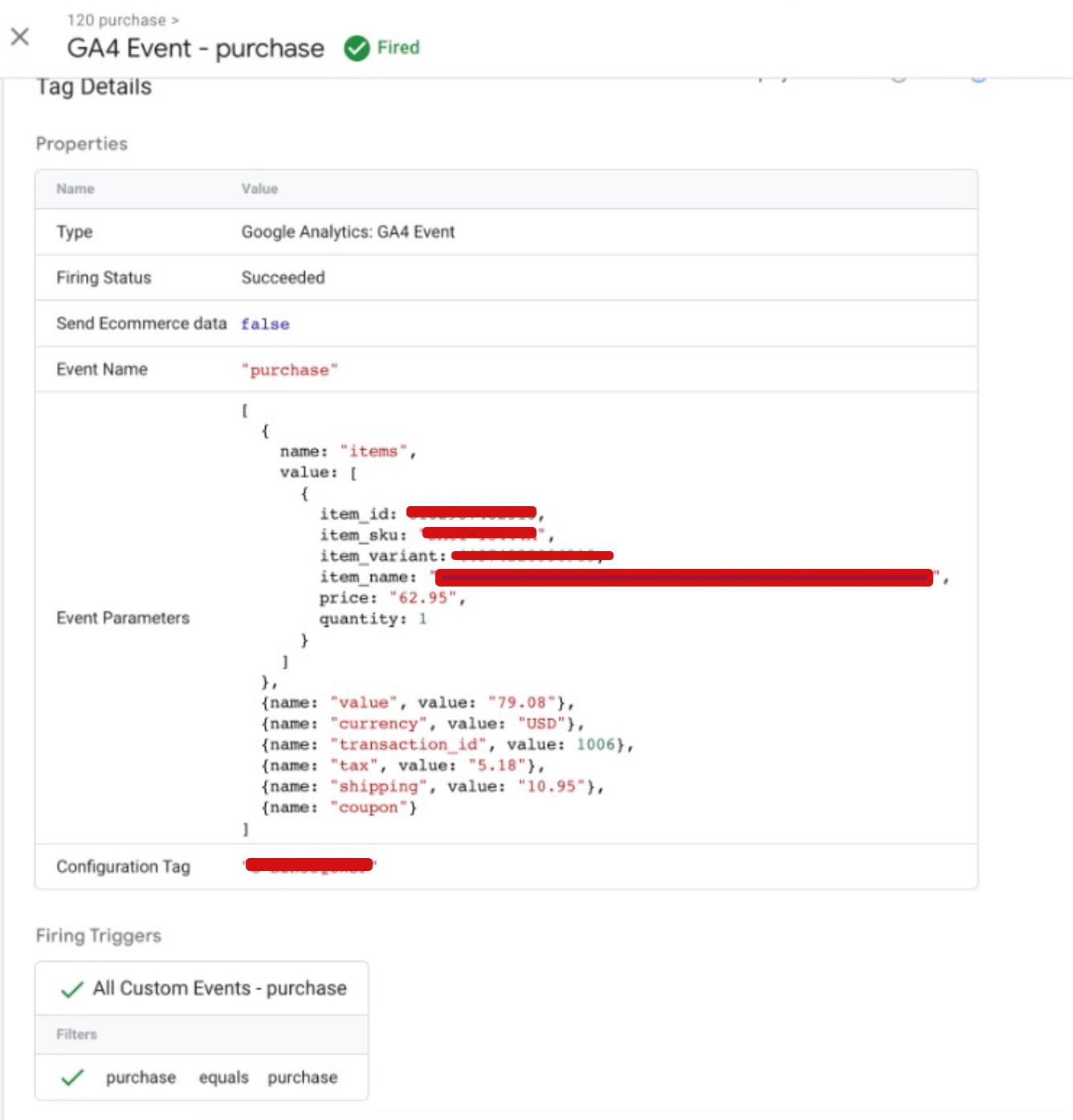
The “purchase” event in GA4 ecommerce tracking is used to track when a user completes a purchase on your website. This event is triggered when the user has successfully submitted payment for their order.
Google Analytics 4 (GA4) Setup for PrestaShop

Tracking Prestashop with Google Analytics 4 (GA4) Enhanced Ecommerce using Google Tag Manager

Warning: If you don’t know about javascript or don’t have developing knowledge then don’t try to Prestashop Google Analytic 4 (GA4) eCommerce Tracking using Google Tag Manager that can break your site, Cart and other functionality 

Disclaimer: Google tag manager belongs to Google property 

For Contact: mappchero@gmail.com

I am available for Hire on Freelancer: Freelancer.com

I am available for Hire on Upwork: Upwork.com

I am available for Hire on Peopleperhour: Peopleperhour.com

I am available for Hire on Guru: Guru.com
Pestashop Google Ads Dynamic Remarketing Tags

Standard

Prestashop is an open-source e-commerce platform that allows businesses to create and manage an online store. It is a popular platform that is used by many businesses to sell their products online. Google Ads is an advertising platform that allows businesses to create and display ads on Google’s search engine and partner sites. Dynamic remarketing is a feature in Google Ads that allows businesses to show personalized ads to people who have previously visited their website or app.

Prestashop Google Ads Dynamic Remarketing Tags are a set of code snippets that need to be added to the Prestashop store’s pages in order to enable dynamic remarketing with Google Ads. These tags allow Google Ads to collect data about the products that people are viewing on the Prestashop store and use this data to show personalized ads to them on the Google Display Network.

The process of setting up Prestashop Google Ads Dynamic Remarketing Tags involves a few steps. First, the business needs to have a Google Ads account set up and linked to their Prestashop store. They also need to have enabled the Google Ads dynamic remarketing feature. Once these prerequisites are met, they can proceed with the following steps.

Install the Google Ads remarketing tag: The first step is to install the Google Ads remarketing tag on the Prestashop store. This involves copying the code provided by Google Ads and pasting it into the Prestashop store’s header section. The remarketing tag is a piece of JavaScript code that allows Google Ads to track the people who visit the store.

Add the product ID to the tag: The next step is to modify the Google Ads remarketing tag to include the product ID of the products that people view on the store. This is important because it allows Google Ads to collect data about the products that people are interested in and use this data to show personalized ads to them.

Add the product details to the tag: In addition to the product ID, businesses can also add other product details such as the product name, category, and price to the Google Ads remarketing tag. This information is useful for creating more personalized ads.

Configure the Google Ads campaign: Once the Google Ads remarketing tag is set up on the Prestashop store, the business needs to configure the Google Ads campaign. This involves setting up the targeting options, ad format, and ad content. The ads can be customized to show the products that people have viewed on the Prestashop store, as well as other related products.

By using dynamic remarketing with Google Ads, businesses can show highly relevant ads to people who have already shown an interest in their products. This can help increase conversions and drive more sales for the business. The personalized nature of the ads can also help build brand loyalty and keep people coming back to the store.

In addition to the benefits mentioned above, Prestashop Google Ads Dynamic Remarketing Tags offer several other advantages. For example:

Easy to set up: Setting up the Google Ads remarketing tag on a Prestashop store is relatively easy and can be done by anyone with basic technical knowledge.

Cost-effective: Dynamic remarketing with Google Ads can be a cost-effective way to drive more sales for the business. Since the ads are only shown to people who have already shown an interest in the products, the likelihood of conversion is higher.

Customizable: The ads can be customized to show the products that people have viewed on the Prestashop store, as well as other related products. This allows businesses to tailor the ads to the interests of the people who are most likely to convert.

In conclusion, Prestashop Google Ads Dynamic Remarketing Tags are an important tool for businesses that want to increase sales and build brand loyalty. By using dynamic remarketing with Google Ads, businesses

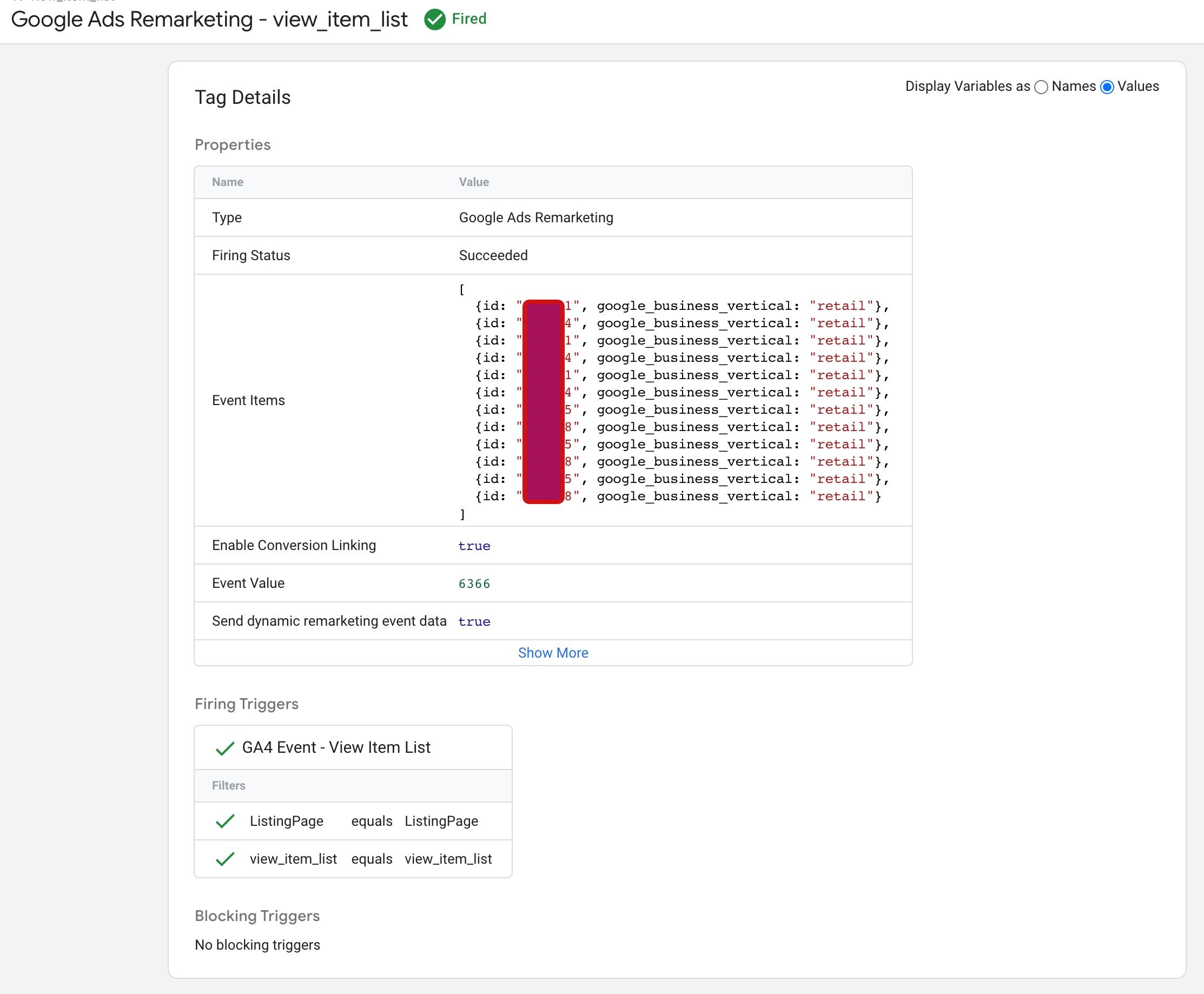
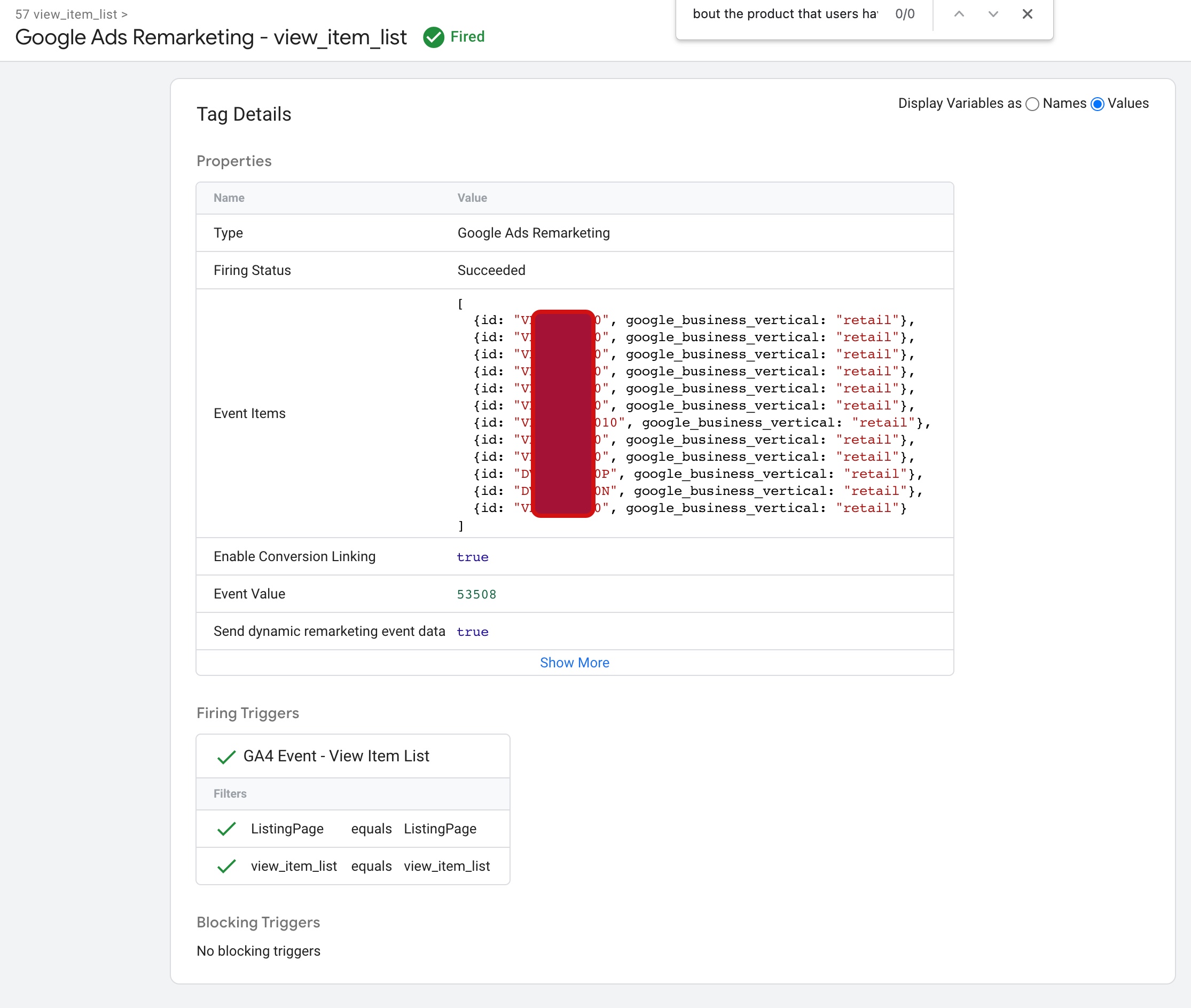
The Prestashop Dynamic Remarketing Tag view_item_list is a code snippet that can be added to a Prestashop store to track when a user views a list of products on a page. This tag is used in dynamic remarketing campaigns to collect data about the products that users have viewed and use this data to show personalized ads to them on the Google Display Network.

Dynamic Remarketing Google Ads

Google Dynamic Remarketing for PrestaShop using Google Tag Manager

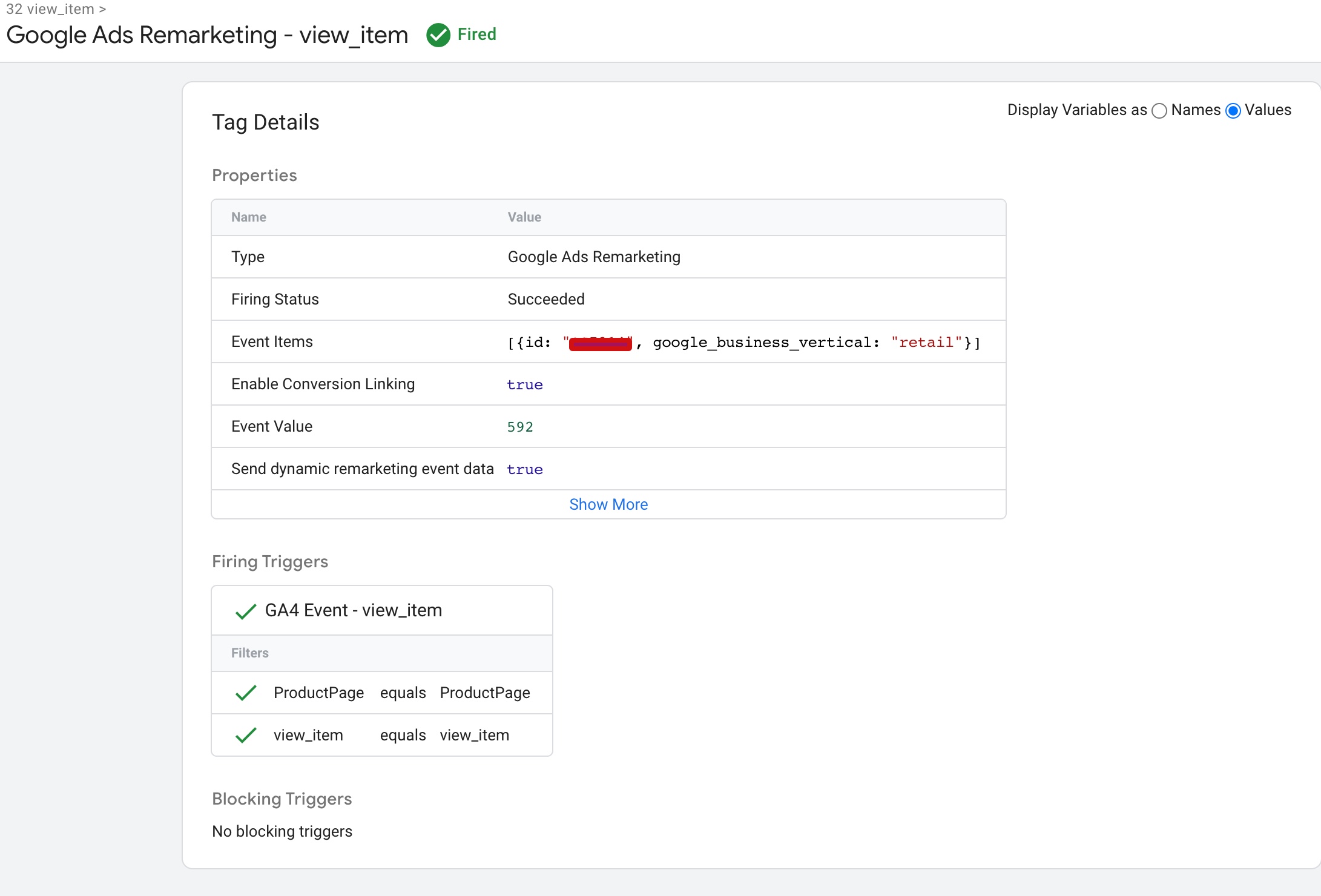
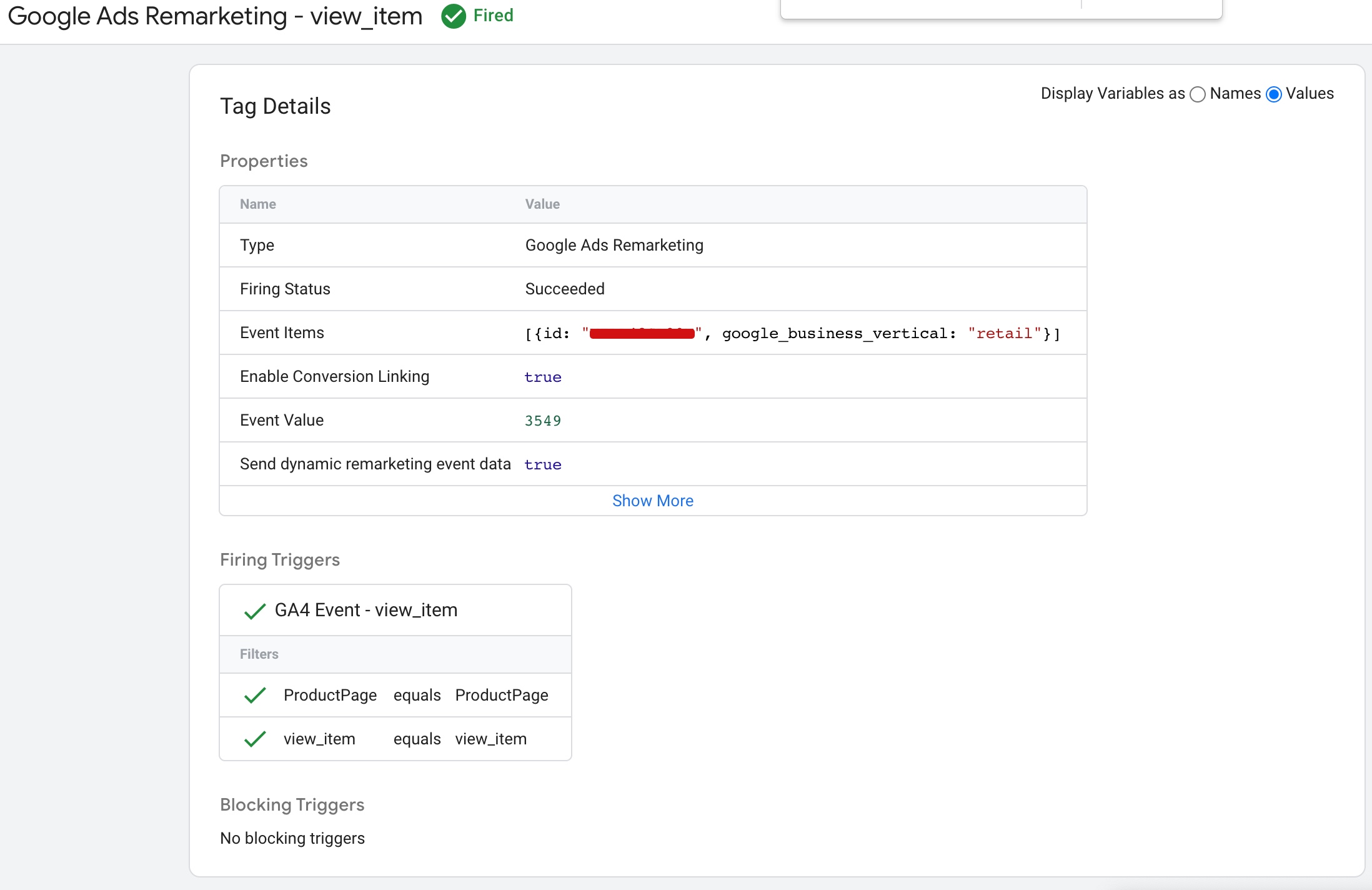
The Prestashop Dynamic Remarketing Tag view_item is a code snippet that can be added to a Prestashop store to track when a user views a specific product on a page. 

Google Dynamic Remarketing Tag for Prestashop

Prestashop Google Ads Dynamic Remarketing Tag Implementation using Google Tag Manager

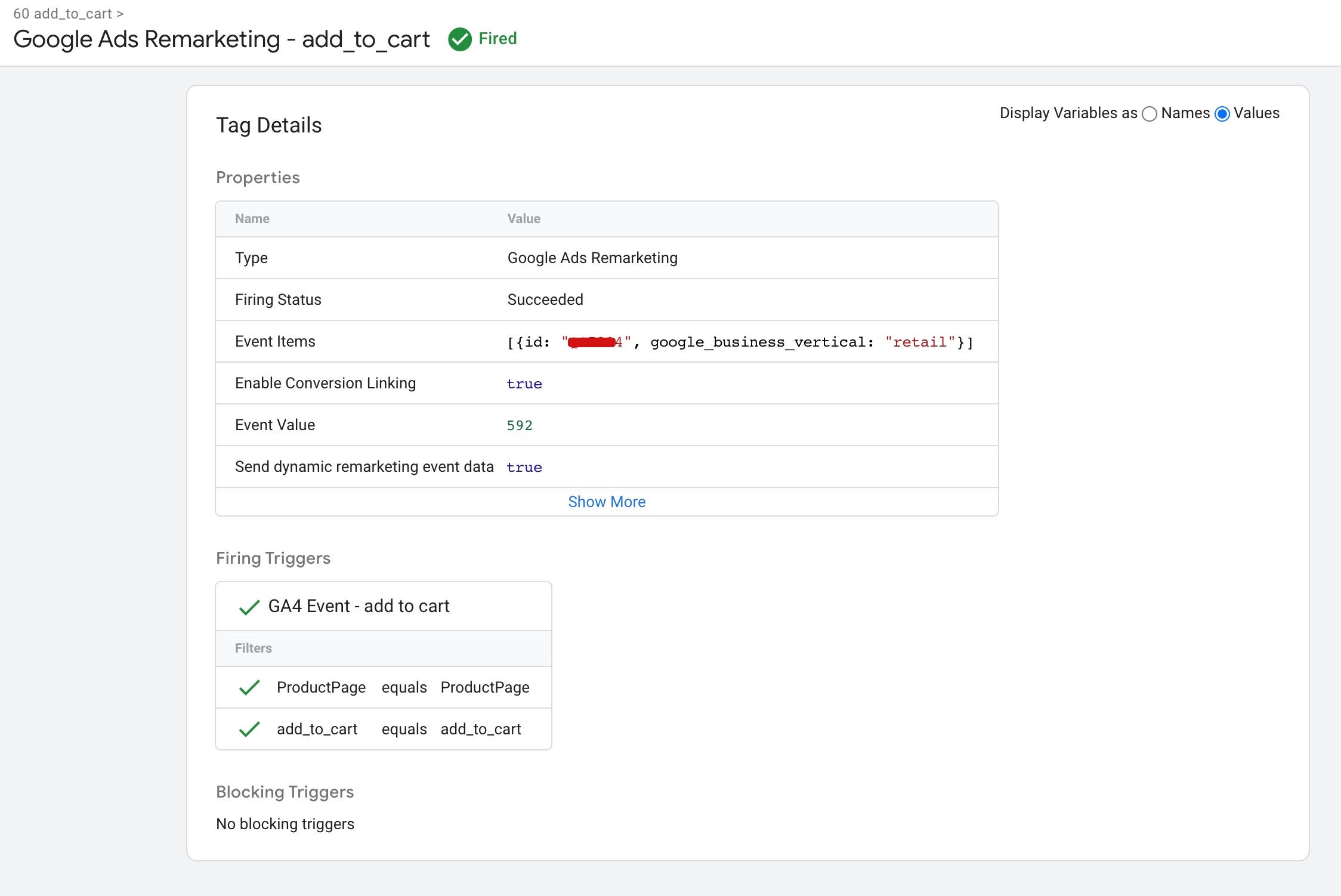
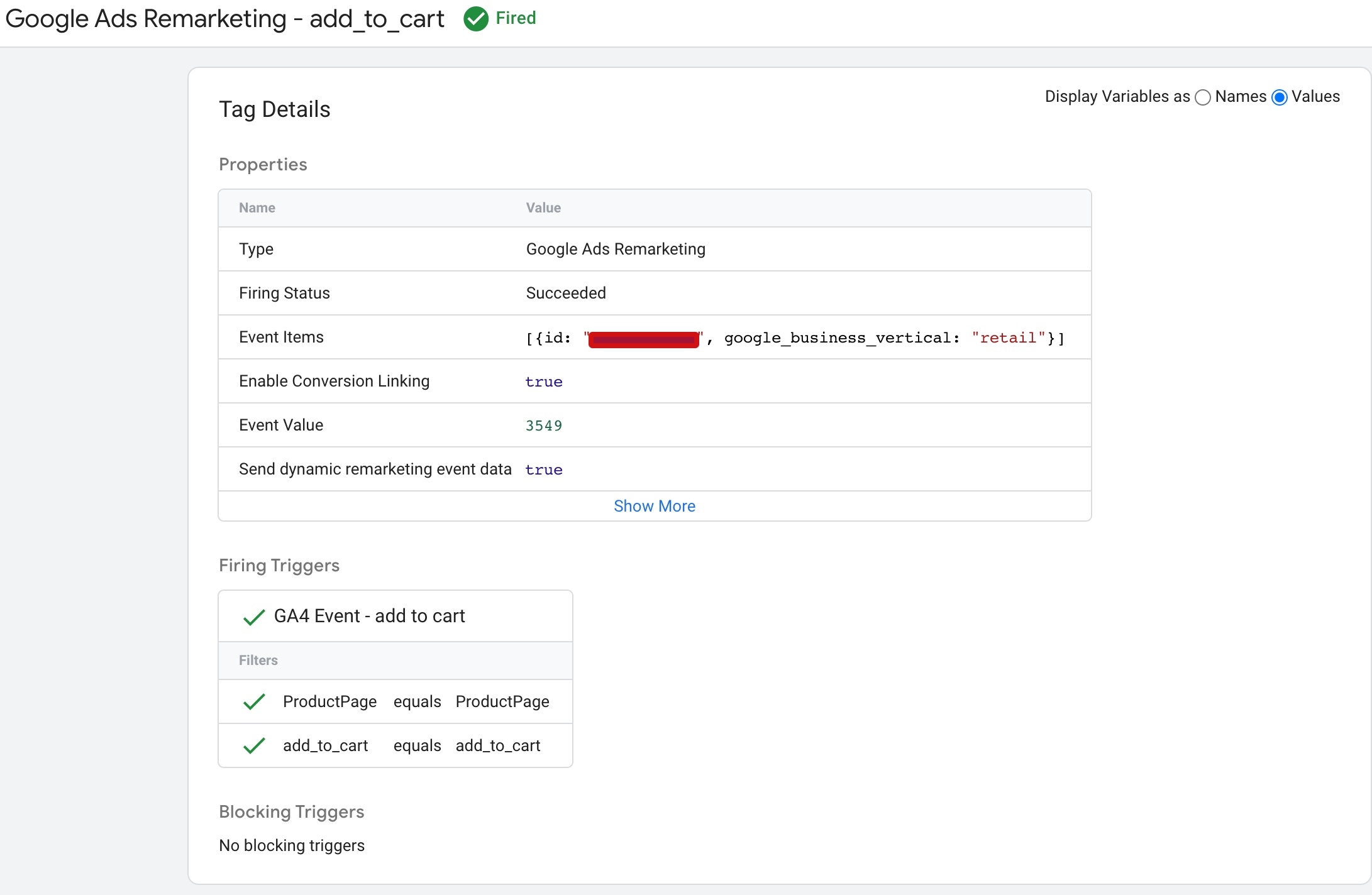
The Prestashop Dynamic Remarketing Tag add_to_cart is a code snippet that can be added to a Prestashop store to track when a user adds a product to their cart.

PrestaShop Dynamic Remarketing Google Ads

Google Dynamic Remarketing Tag for PrestaShop using Google Tag Manager

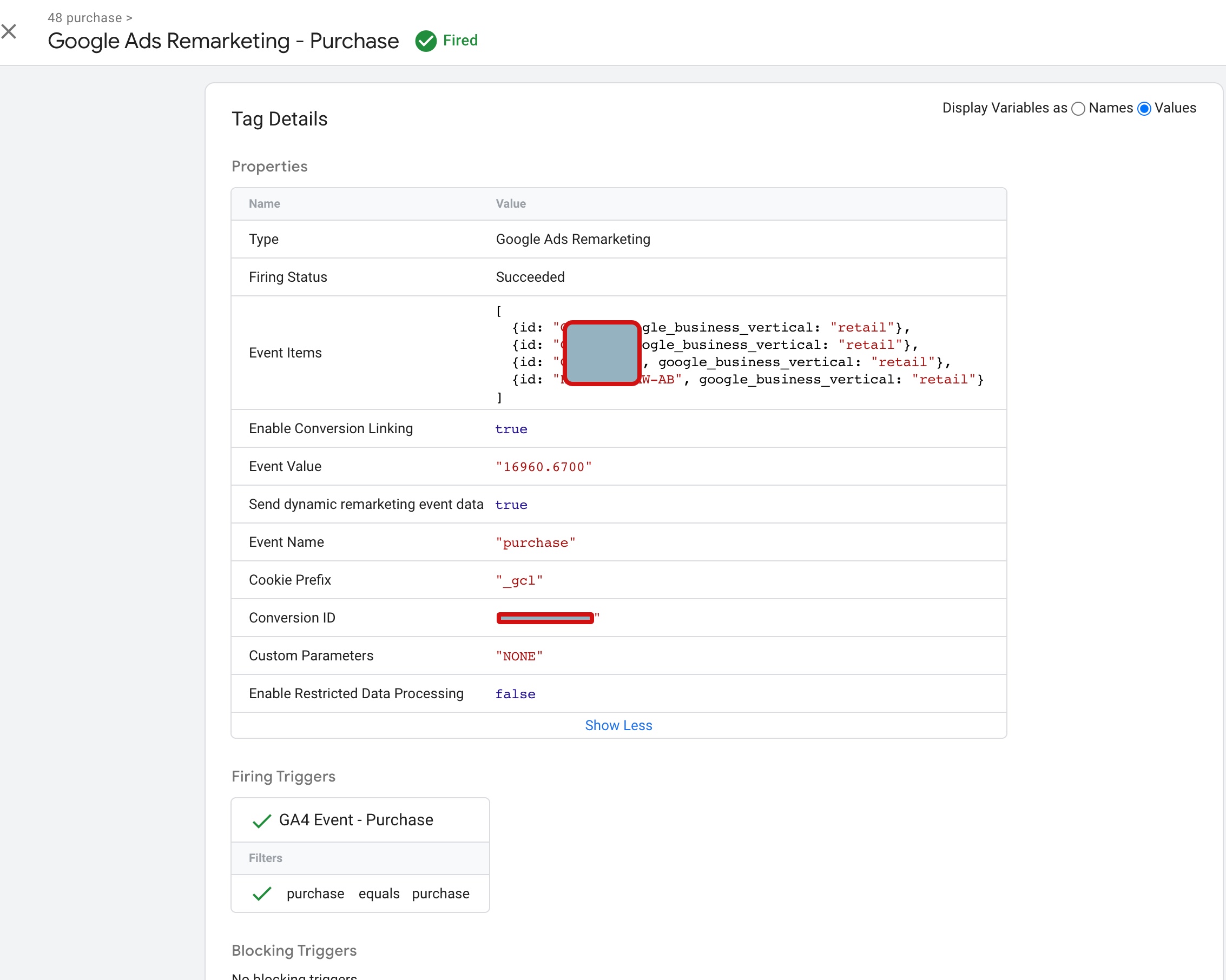
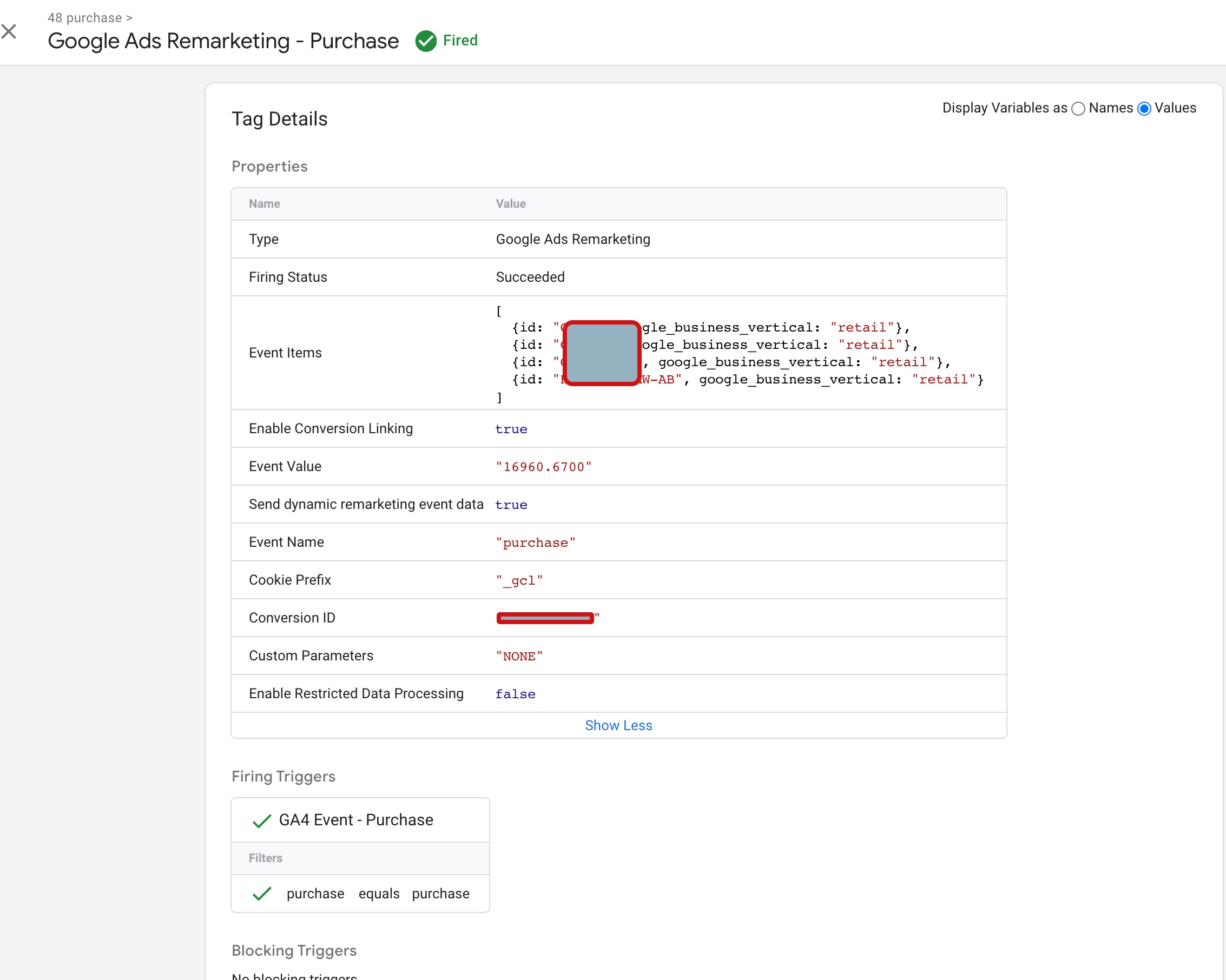
The Prestashop Dynamic Remarketing Tag purchase is a code snippet that can be added to a Prestashop store to track when a user makes a purchase.

Warning: If you don’t know about javascript or don’t have developing knowledge then don’t try to Pestashop Google Ads Dynamic Remarketing Tags using Google Tag Manager that can break your site, Cart and other functionality 

Disclaimer: Google tag manager belongs to Google property 

For Contact: mappchero@gmail.com

I am available for Hire on Freelancer: Freelancer.com

I am available for Hire on Upwork: Upwork.com

I am available for Hire on Peopleperhour: Peopleperhour.com

I am available for Hire on Guru: Guru.com
GA4 eCommerce Tracking for Shopify Stores

Standard

GA4 is the latest version of Google Analytics, and it provides advanced eCommerce tracking capabilities for Shopify stores. With GA4, Shopify store owners can gain more detailed insights into customer behavior, track user behavior across multiple platforms and devices, and make data-driven decisions to optimize their eCommerce strategy.

One of the key features of GA4 eCommerce tracking is enhanced eCommerce tracking. This allows store owners to gain a deeper understanding of customer behavior, such as how customers interact with products, add them to their cart, and complete purchases. With this information, store owners can optimize their product offerings, pricing, and checkout process to increase sales.

GA4 also provides cross-platform tracking, which means that store owners can track user behavior across multiple platforms and devices, including desktops, mobile devices, and even offline interactions. This provides a more comprehensive view of customer behavior and allows store owners to optimize their eCommerce strategy across all touchpoints.

In addition, GA4 takes a user-centric approach to tracking, which means that it tracks individual users across multiple sessions and devices. This provides a more holistic view of customer behavior and allows store owners to gain insights into customer lifetime value and retention.

GA4 also allows store owners to track custom events, such as clicks on specific buttons, form submissions, and video views. This provides additional insights into how customers interact with a website and helps store owners to optimize the user experience.

Another important aspect of GA4 is its focus on data privacy. GA4 is designed with data privacy in mind, providing better control over data collection and processing. This helps store owners to comply with data privacy regulations and build customer trust.

GA4 also offers a more intuitive user interface, making it easier for store owners to navigate and analyze their data. Store owners can create custom reports and dashboards, which can be used to track key performance indicators (KPIs) and identify areas for optimization.

One of the biggest advantages of GA4 eCommerce tracking for Shopify stores is its ability to provide more accurate data. GA4 uses advanced tracking capabilities and data modeling techniques to provide more accurate data, which helps store owners to make more informed decisions about their eCommerce strategy.

Overall, GA4 eCommerce tracking provides Shopify store owners with more comprehensive insights into customer behavior, allowing them to optimize their eCommerce strategy and improve the customer experience. By integrating GA4 with their Shopify store, store owners can gain a deeper understanding of customer behavior across all touchpoints and make data-driven decisions to increase sales and grow their business.

Here are some of the key features of GA4 eCommerce tracking for Shopify stores:

Enhanced eCommerce Tracking: GA4 provides more detailed insights into customer behavior, such as how customers interact with products, add them to their cart, and complete purchases. This allows store owners to gain a deeper understanding of customer behavior and optimize their eCommerce strategy accordingly.

Cross-Platform Tracking: GA4 allows store owners to track user behavior across multiple platforms and devices, including desktops, mobile devices, and even offline interactions. This helps store owners to better understand the customer journey and optimize their eCommerce strategy across all touchpoints.

Custom Event Tracking: GA4 allows store owners to track custom events, such as clicks on specific buttons, form submissions, and video views. This provides additional insights into how customers interact with a website and helps store owners to optimize the user experience.

User-Centric Approach: GA4 takes a user-centric approach to tracking, rather than a session-centric approach. This means that GA4 tracks individual users across multiple sessions and devices, providing a more holistic view of customer behavior.

Data Privacy: GA4 is designed with data privacy in mind, providing better control over data collection and processing. This helps store owners to comply with data privacy regulations and build customer trust.

Overall, GA4 eCommerce tracking provides Shopify store owners with more comprehensive insights into customer behavior, allowing them to optimize their eCommerce strategy and improve the customer experience. By integrating GA4 with their Shopify store, store owners can gain a deeper understanding of customer behavior across all touchpoints and make data-driven decisions to increase sales and grow their business.

To set up GA4 eCommerce tracking on Shopify “view_item_list”, you will need to add the necessary code to your product collection pages. This code includes the event parameters for the “view_item_list” event, such as the event category and the product information.

Shopify ecommerce tracking GA4

Shopify GA4 enhanced eCommerce using Google Tag Manager with Custom Data Layer

To set up GA4 eCommerce tracking on Shopify “select_item“, you will need to add the necessary code to your product pages. This code includes the event parameters for the “select_item” event, such as the event category and the product information.

 Set Up GA4 Ecommerce Tracking on Shopify

Set up Ecommerce Google Analytics 4 (GA4) on Shopify using Google Tag Manager

To set up GA4 eCommerce tracking on Shopify “view_item“, you will need to add the necessary code to your product pages. This code includes the event parameters for the “view_item” event, such as the event category and the product information.

GA4 on Shopify

Set up GA4 eCommerce Enhanced Tracking for Shopify using Google Tag Manager

To set up GA4 eCommerce tracking on Shopify “add_to_cart“, you will need to add the necessary code to your cart page or the “add to cart” button on your product pages. This code includes the event parameters for the “add_to_cart” event, such as the event category and the product information.

Add Google Analytics 4 to Shopify

Google Analytics 4 Setup on Shopify eCommerce Tracking using Google Tag Manager

To set up GA4 eCommerce tracking on Shopify “view_cart“, you will need to add the necessary code to your cart page. This code includes the event parameters for the “view_cart” event, such as the event category and the product information.

 Google Analytics 4 implementation Shopify

set up Google Analytics 4 (GA4) on your Shopify Store using Google Tag Manager

To set up GA4 eCommerce tracking on Shopify “remove_from_cart“, you will need to add the necessary code to your cart page or the “remove from cart” button on your cart page. This code includes the event parameters for the “remove_from_cart” event, such as the event category and the product information.

shopify ga4 purchase event

Shopify ga4 Integration eCommerce Tracking using Google Tag Manager

To set up GA4 eCommerce tracking on Shopify “begin_checkout“, you will need to add the necessary code to your checkout page. This code includes the event parameters for the “begin_checkout” event, such as the event category and the product information.

Set up Google Analytics 4 (GA4) on Shopify

Implement Shopify GA4 Ecommerce tracking using Google Tag Manager

To set up GA4 eCommerce tracking on Shopify “add_shipping_info“, you will need to add the necessary code to your shipping information page or the button that the user clicks to submit their shipping information. This code includes the event parameters for the “add_shipping_info” event, such as the event category and the shipping information.

Advanced E-commerce GA4 Shopify Tracking

Shopify E-commerce GA4 Tracking Implementation using Google Tag Manager

To set up GA4 eCommerce tracking on Shopify “add_payment_info“, you will need to add the necessary code to your payment information page or the button that the user clicks to submit their payment information. This code includes the event parameters for the “add_payment_info” event, such as the event category and the payment information.

Setup GA4 (Google Analytics 4) On Shopify

Google Analytics 4 (GA4) Setup in Shopify using Google Tag Manager

To set up GA4 eCommerce tracking on Shopify “purchase“, you will need to add the necessary code to your order confirmation page or the button that the user clicks to complete their purchase. This code includes the event parameters for the “purchase” event, such as the event category and the transaction details.

Shopify GA4 Revenue Tracking

Install GA4 On Shopify Using Purchase Customer Events using Google Tag Manager

Warning: If you don’t know about javascript or don’t have developing knowledge then don’t try to GTM  Shopify Ecommerce GA4 Purchase Value Tracking using Google Tag Manager that can break your site, Cart and other functionality 

Disclaimer: Google tag manager belongs to Google property 

For Contact: mappchero@gmail.com

I am available for Hire on Freelancer: Freelancer.com

I am available for Hire on Upwork: Upwork.com

I am available for Hire on Peopleperhour: Peopleperhour.com

I am available for Hire on Guru: Guru.com
GTM Ecommerce GA4 Purchase Value Tracking

Standard

GTM Ecommerce GA4 purchase value tracking refers to the process of tracking the purchase value of ecommerce transactions in Google Analytics 4 using Google Tag Manager (GTM). Google Analytics 4 is the latest version of Google Analytics and includes new features and updates, including Enhanced Ecommerce, which allows for more advanced tracking of ecommerce data.

GTM is a tag management system that allows you to add and update tags on your website without the need for a developer. With GTM, you can set up and manage tags for various tracking tools, including Google Analytics, and send data to those tools through triggers.

To track purchase value in Google Analytics 4 using GTM, you would need to set up Enhanced Ecommerce for your website and send purchase data as an event with the purchase value included. GTM makes this process easier by allowing you to set up the tags and triggers necessary to send the data to Google Analytics 4 without needing to modify your website’s code.

Tracking purchase value in Google Analytics 4 using GTM Ecommerce has several benefits:

Understand revenue: Tracking purchase value allows you to see the revenue generated by your ecommerce transactions. This data is crucial for understanding the financial performance of your online business.

Analyze user behavior: By tracking purchase value, you can analyze user behavior and see which products are the most profitable, which channels are driving the most revenue, and which customer segments are most valuable.

Improve marketing campaigns: With purchase value data, you can optimize your marketing campaigns and allocate your budget more effectively. For example, you can identify which channels and campaigns are driving the highest revenue and focus your efforts on those channels.

Monitor trends: By tracking purchase value over time, you can monitor trends and see how your ecommerce revenue is growing or declining. This can help you make informed decisions about pricing, inventory management, and other business strategies.

Setting up GTM Ecommerce GA4 purchase value tracking is important for several reasons:

Accurate revenue tracking: Without purchase value tracking, it can be difficult to accurately track the revenue generated by your ecommerce transactions. By setting up purchase value tracking in Google Analytics 4 using GTM, you can ensure that your revenue data is accurate and up-to-date.

Data-driven decision-making: Purchase value data is crucial for making data-driven decisions about your ecommerce business. With this data, you can identify which products and channels are driving the most revenue, which customer segments are the most valuable, and which marketing campaigns are the most effective.

Optimization of marketing campaigns: By tracking purchase value, you can optimize your marketing campaigns to focus on the channels and campaigns that are driving the highest revenue. This can help you allocate your marketing budget more effectively and generate a higher return on investment.

Monitoring of ecommerce trends: By tracking purchase value over time, you can monitor trends in your ecommerce revenue and identify areas for improvement. For example, if you see a decline in revenue from a particular product or channel, you can investigate the cause and take action to address the issue.

Ecommerce Tracking Setup in GA4

GA4 Ecommerce Purchase Event Setup using Google Tag Manager

Warning: If you don’t know about javascript or don’t have developing knowledge then don’t try to GTM Ecommerce GA4 Purchase Value Tracking using Google Tag Manager that can break your site, Cart and other functionality 

Disclaimer: Google tag manager belongs to Google property 

For Contact: mappchero@gmail.com

I am available for Hire on Freelancer: Freelancer.com

I am available for Hire on Upwork: Upwork.com

I am available for Hire on Peopleperhour: Peopleperhour.com

I am available for Hire on Guru: Guru.com
Revenue Tracking with GA4 eCommerce Tracking

Standard

GA4 (Google Analytics 4) eCommerce Tracking is a feature that enables website owners to track and analyze user behavior related to online shopping. GA4 eCommerce Tracking provides businesses with insights into their customers’ purchase behavior, allowing them to optimize their sales strategy and improve their bottom line.

Here’s how GA4 eCommerce Tracking works:

Enable eCommerce Tracking: First, you need to enable eCommerce tracking in your GA4 property. This can be done by going to your property’s Admin settings and turning on eCommerce tracking.

Implement Enhanced Measurement: To capture eCommerce data, you need to implement Enhanced Measurement. This is a feature that automatically tracks user interactions on your website, such as clicks on product links, add-to-cart buttons, and purchase events.

Set up Conversion Tracking: Next, you’ll need to set up conversion tracking by defining your conversion goals. For example, you may want to track purchases, sign-ups, or other actions that are important to your business.

Analyze Your Data: Once you have eCommerce tracking set up, you can start analyzing your data. You can view reports on the products users are buying, the revenue generated, and other key metrics. This information can help you make data-driven decisions about your eCommerce strategy.

GA4 (Google Analytics 4) eCommerce Tracking offers a number of benefits to businesses that use it to track and analyze their customers’ online shopping behavior.

Here are some of the key benefits:

Improved Tracking Accuracy: GA4 eCommerce Tracking uses advanced measurement techniques to capture more accurate data on user interactions with your eCommerce website. This means that you’ll get a more complete picture of your customers’ behavior, and be better able to identify areas for improvement in your online shopping experience.

Deeper Insights: With GA4 eCommerce Tracking, you can track user behavior across multiple devices and platforms, giving you a more comprehensive view of your customers’ journey from browsing to purchase. This deeper insight can help you understand which marketing channels are driving the most sales, which products are most popular, and how you can optimize your eCommerce strategy to improve conversions.

Enhanced Personalization: By analyzing user behavior, you can create more personalized shopping experiences for your customers. For example, you can use data on which products users have viewed or added to their cart to recommend related items, or offer targeted promotions to customers who have abandoned their carts.

Better ROI: By understanding which marketing channels and campaigns are driving the most sales, you can optimize your advertising spend and improve your return on investment (ROI). This can help you allocate your resources more effectively, and focus on the strategies that are most likely to generate revenue.

Cross-Platform Insights: With GA4 eCommerce Tracking, you can track user behavior across multiple platforms, including your website, mobile app, and social media channels. This gives you a more comprehensive view of your customers’ behavior, and helps you understand how different platforms are contributing to your overall sales.

GA4 eCommerce Purchase Event

GA4 eCommerce Tracking, Reporting using Google Tag Manager

Warning: If you don’t know about javascript or don’t have developing knowledge then don’t try to Revenue Tracking with GA4 eCommerce Tracking using Google Tag Manager that can break your site, Cart and other functionality 

Disclaimer: Google tag manager belongs to Google property 

For Contact: mappchero@gmail.com

I am available for Hire on Freelancer: Freelancer.com

I am available for Hire on Upwork: Upwork.com

I am available for Hire on Peopleperhour: Peopleperhour.com

I am available for Hire on Guru: Guru.com
OpenCart Google Ads Dynamic Remarketing Tag Setup

Standard

OpenCart Google Ads Dynamic Remarketing Tag Setup is a process of adding a specific tracking code on an OpenCart website to enable Google Ads to track and target visitors with personalized ads.

Dynamic Remarketing is a Google Ads advertising feature that allows advertisers to show ads to people who have previously visited their website. The feature allows advertisers to create remarketing lists and display ads that are tailored to a user’s previous actions on their website.

The Google Ads Dynamic Remarketing Tag is a specific tracking code that needs to be added to an OpenCart website to enable Google Ads to track user behavior and create customized ads based on their past actions. The tag is a snippet of code that is placed on the website, which tracks users’ activity on the site and helps Google Ads to identify which products or services a user has viewed, and then shows ads promoting those products or services on other websites that the user subsequently visits.

By setting up the OpenCart Google Ads Dynamic Remarketing Tag, advertisers can retarget users with ads across the Google Display Network, encouraging them to return to their website and complete a purchase, sign up for a newsletter, or take any other desired action.

OpenCart Google Ads Dynamic Remarketing Tag Setup is needed to help online businesses create more targeted and effective advertising campaigns by retargeting visitors who have previously interacted with their website. Here are some of the key reasons why businesses may need to set up the Google Ads Dynamic Remarketing Tag on their OpenCart website:

Improve ad targeting: Dynamic remarketing allows businesses to serve ads to users who have previously visited their website, promoting specific products or services based on their past interactions with the site. This helps to ensure that ads are more relevant and targeted, increasing the likelihood of conversion.

Increase conversions: By targeting users who have already interacted with their website, businesses can encourage them to return and complete a purchase or other desired action. This can help to increase conversion rates and overall revenue.

Maximize ROI: Retargeting with dynamic remarketing allows businesses to maximize the value of their advertising spend by targeting users who are more likely to convert. This can help to improve the ROI of advertising campaigns, making them more cost-effective.

Build brand awareness: By displaying ads to users who have previously interacted with their website, businesses can help to build brand awareness and recognition, increasing the likelihood of repeat business and word-of-mouth referrals.

Overall, OpenCart Google Ads Dynamic Remarketing Tag Setup is a powerful tool that can help businesses to improve the effectiveness of their advertising campaigns and drive more conversions and revenue.

Dynamic Remarking”view_item_list” Events: The Open Dynamic Remarketing Tag for “view_item_list” is a tracking code that can be added to an OpenCart website to enable Google Ads to track user behavior and create personalized ads based on the specific product or service a user has viewed on the website.

Dynamic Remarking”view_item” Events: The Dynamic Remarketing Tag for “view_item” is a specific type of tracking code that can be added to an OpenCart website to enable Google Ads to track user behavior and create personalized ads based on the specific product or service a user has viewed on the website.

GA4 eCommerce Tracking Set Up via Google Tag Manager

Standard

GA4 eCommerce tracking set up is the process of configuring your GA4 property to track and analyze eCommerce transactions on your website. With eCommerce tracking set up, you can gain valuable insights into your customers’ behavior, track the performance of your products, and optimize your online store for improved sales and conversions.

The set up process typically involves adding the global site tag (gtag.js) to your website, enabling enhanced eCommerce tracking in your GA4 property, implementing product data, and adding the purchase event to your website’s checkout page. You may also need to set up conversion tracking to track specific actions on your website.

Once your eCommerce tracking is set up, you can monitor your data in GA4 to gain insights into your customers’ behavior, such as what products they’re buying, how much they’re spending, and where they’re dropping off in the purchase funnel. This information can help you make data-driven decisions to improve your online store and boost sales.

There are several benefits to setting up GA4 eCommerce tracking, including:

Better understanding of customer behavior: eCommerce tracking allows you to gain insights into how customers interact with your online store, including what products they’re buying, how much they’re spending, and where they’re dropping off in the purchase funnel.

Improved product performance: With eCommerce tracking set up, you can track the performance of individual products, including how many times they’ve been viewed, how many times they’ve been added to carts, and how many times they’ve been purchased.

Optimization of your online store: Armed with insights into customer behavior and product performance, you can make data-driven decisions to optimize your online store for improved sales and conversions. For example, you may choose to adjust product pricing, redesign your checkout process, or promote certain products to increase sales.

Tracking of conversion rates: eCommerce tracking allows you to track conversion rates for specific actions on your website, such as adding a product to a cart, initiating checkout, or completing a purchase. This information can help you identify areas for improvement and optimize your online store accordingly.

Enhanced reporting: GA4 offers more robust reporting capabilities than previous versions of Google Analytics, allowing you to create custom reports, visualize data in new ways, and gain deeper insights into customer behavior.

Overall, setting up GA4 eCommerce tracking can help you better understand your customers, improve your online store’s performance, and make data-driven decisions to boost sales and conversions.

Google Analytics 4 (GA4) Ecommerce Tracking for Google Tag Manager

Warning: If you don’t know about javascript or don’t have developing knowledge then don’t try to GA4 eCommerce Tracking Set Up via Google Tag Manager that can break your site, Cart and other functionality 

Disclaimer: Google tag manager belongs to Google property 

For Contact: mappchero@gmail.com

I am available for Hire on Freelancer: Freelancer.com

I am available for Hire on Upwork: Upwork.com

I am available for Hire on Peopleperhour: Peopleperhour.com

I am available for Hire on Guru: Guru.com
Migrate to Google Analytics 4 (GA4) Ecommerce Tracking

Standard

Migrating to Google Analytics 4 (GA4) Ecommerce tracking involves upgrading your existing Universal Analytics (UA) Ecommerce tracking implementation to the newer GA4 version. This allows you to take advantage of the enhanced features and capabilities of GA4, which include more advanced tracking of user behavior and improved integration with other Google marketing tools.

GA4 Ecommerce tracking offers several benefits over UA Ecommerce tracking, such as more detailed information on user engagement and conversion paths, better cross-device tracking, and improved data privacy controls. It also includes features like predictive analytics, machine learning, and enhanced data modeling that can help businesses gain deeper insights into their customer behavior and improve their ecommerce performance.

To migrate to GA4 Ecommerce tracking, you will need to set up a new GA4 property, enable Ecommerce tracking, configure your website or app to send enhanced Ecommerce data to GA4, set up product data, create conversion events, test your implementation, and launch your GA4 Ecommerce tracking. The process requires some technical knowledge and may involve updating your website or app code, but it’s worth the effort to take advantage of the advanced features and capabilities of GA4 Ecommerce tracking.

There are several reasons why businesses should consider migrating to Google Analytics 4 (GA4) Ecommerce tracking:

More advanced tracking of user behavior: GA4 Ecommerce tracking provides more detailed information on user engagement, including data on user behavior across multiple devices, channels, and touchpoints. This allows businesses to gain a more complete understanding of their customer journeys and make data-driven decisions to improve their ecommerce performance.

Improved data privacy controls: GA4 Ecommerce tracking includes enhanced data privacy controls that help businesses comply with data protection regulations like GDPR and CCPA. This includes features like data deletion on demand, user consent management, and data minimization.

Better integration with other Google marketing tools: GA4 Ecommerce tracking is designed to work seamlessly with other Google marketing tools like Google Ads, Google Tag Manager, and Firebase. This allows businesses to get a more complete view of their marketing performance and optimize their campaigns more effectively.

Machine learning and predictive analytics: GA4 Ecommerce tracking includes machine learning and predictive analytics capabilities that can help businesses identify new opportunities for growth and optimize their ecommerce operations. This includes features like automated insights and predictive metrics.

Future-proofing your analytics setup: As Google continues to develop and invest in GA4, it is likely that UA Ecommerce tracking will eventually be deprecated. By migrating to GA4 Ecommerce tracking now, businesses can future-proof their analytics setup and ensure that they are prepared for any upcoming changes.

Google Analytics 4 Migration Ecommerce Tracking

Migrate to Google Analytics 4 (GA4) Ecommerce Tracking using Google Tag Manager

Warning: If you don’t know about javascript or don’t have developing knowledge then don’t try to Migrate to Google Analytics 4 (GA4) Ecommerce Tracking using Google Tag Manager that can break your site, Cart and other functionality 

Disclaimer: Google tag manager belongs to Google property 

For Contact: mappchero@gmail.com

I am available for Hire on Freelancer: Freelancer.com

I am available for Hire on Upwork: Upwork.com

I am available for Hire on Peopleperhour: Peopleperhour.com

I am available for Hire on Guru: Guru.com
Google Analytics 4 Enhanced Ecommerce tracking

Standard

Google Analytics 4 (GA4) Enhanced Ecommerce tracking is a powerful feature that allows website owners and digital marketers to track and analyze customer behavior and purchase patterns on their website.

Google Analytics 4 (GA4) Enhanced Ecommerce tracking is a powerful tool that enables website owners and digital marketers to track and analyze customer behavior and purchase patterns on their ecommerce websites. With GA4 Enhanced Ecommerce tracking, you can monitor various ecommerce metrics such as product views, add-to-cart events, checkout behavior, and purchase transactions. By analyzing this data, you can gain valuable insights into your customers’ behavior and optimize your marketing campaigns, user experience, and ultimately increase revenue. GA4 Enhanced Ecommerce tracking also provides customizable ecommerce reports, including the Product Performance report, Sales Performance report, Shopping Behavior report, and Checkout Behavior report. These reports enable you to make data-driven decisions and improve your website’s performance. By implementing GA4 Enhanced Ecommerce tracking, you can gain a competitive advantage, boost your website’s SEO, and achieve your ecommerce goals.

With GA4 Enhanced Ecommerce tracking, you can track and analyze various ecommerce metrics, such as product views, add-to-cart events, checkout behavior, and purchase transactions. This data can help you identify opportunities to improve your website’s user experience, increase conversions, and optimize your marketing campaigns.

To set up Enhanced Ecommerce tracking in GA4, you need to first enable the feature in your GA4 property settings. Once enabled, you can use the GA4 Enhanced Ecommerce tracking code to track user behavior on your website.

You can also set up various ecommerce reports in GA4 to visualize and analyze your ecommerce data. These reports include the Product Performance report, Sales Performance report, Shopping Behavior report, and Checkout Behavior report. These reports can help you identify which products are performing well, which pages are leading to drop-offs in the checkout process, and other key insights into your ecommerce performance.

There are several reasons why you should implement Google Analytics 4 (GA4) Enhanced Ecommerce tracking on your website:

Detailed insights into customer behavior: GA4 Enhanced Ecommerce tracking allows you to track and analyze a wide range of customer behavior, including product views, add-to-cart events, checkout behavior, and purchase transactions. This data can help you understand how customers are interacting with your website and where they might be experiencing issues or barriers to purchase.

Optimized marketing campaigns: By tracking ecommerce metrics such as product revenue and conversion rates, you can identify which marketing channels and campaigns are driving the most sales and revenue. This data can help you optimize your marketing efforts and allocate your budget more effectively.

Improved user experience: By analyzing customer behavior and identifying areas where customers are dropping off or abandoning their carts, you can make targeted improvements to your website’s user experience. This can help reduce bounce rates, increase conversions, and ultimately drive more revenue.

Enhanced reporting capabilities: GA4 Enhanced Ecommerce tracking provides a range of customizable ecommerce reports, including the Product Performance report, Sales Performance report, Shopping Behavior report, and Checkout Behavior report. These reports can help you gain valuable insights into your ecommerce performance and make data-driven decisions to improve your website’s performance.

Set up ecommerce events for Enhanced Ecommerce tracking

Google Analytics 4 (GA4) Enhanced Ecommerce Tracking using Google Tag Manager

Warning: If you don’t know about javascript or don’t have developing knowledge then don’t try to Google Analytics 4 (GA4) Enhanced Ecommerce tracking using Google Tag Manager that can break your site, Cart and other functionality 

Disclaimer: Google tag manager belongs to Google property 

For Contact: mappchero@gmail.com

I am available for Hire on Freelancer: Freelancer.com

I am available for Hire on Upwork: Upwork.com

I am available for Hire on Peopleperhour: Peopleperhour.com

I am available for Hire on Guru: Guru.com
Magento 2 Google Ads Dynamic Remarketing Tag Tracking using Google Tag Manager

Standard

Magento 2 Google Ads Dynamic Remarketing Tracking is a feature that allows online merchants using the Magento 2 platform to set up and track Dynamic Remarketing campaigns on Google Ads. Dynamic remarketing allows you to show personalized ads to users who have visited your website, viewed specific products, or abandoned their shopping cart.

The Google Ads Dynamic Remarketing is a piece of code that tracks the behavior of users on your website, such as the products they viewed, added to their cart, and purchased. This information is used to create targeted ads that appear on the Google Display Network to remind users of products they showed interest in or abandoned in their cart.

By setting up Google Ads Dynamic Remarketing Tracking in Magento 2, online merchants can leverage the power of dynamic Remarketing to drive more sales and increase their return on investment (ROI) from Google Ads.

There are several benefits of using Magento 2 Google Ads Dynamic Remarketing Tracking:

Personalized Ads: Dynamic Remarketing allows you to create personalized ads based on users’ behavior on your website. This helps to increase the relevance of your ads, which can lead to higher click-through rates (CTR) and conversion rates.

Increased ROI: By targeting users who have already shown interest in your products, you are more likely to convert them into paying customers. This can lead to an increased return on investment (ROI) from your Google Ads campaigns.

Higher Engagement: Dynamic Remarketing ads are more engaging than standard display ads because they feature products that users have already shown interest in. This can lead to higher engagement rates and a better user experience.

Cost-Effective: Dynamic Remarketing ads are often more cost-effective than other types of advertising because they target users who have already shown interest in your products. This can lead to a higher ROI and lower cost per acquisition (CPA).

Easy Implementation: Magento 2 Google Ads Dynamic Remarketing Tracking is easy to implement and can be set up in just a few steps. Once set up, the tag will automatically track user behavior on your website and allow you to create targeted ads based on that behavior.

The “view_item_list” dynamic remarketing event in Magento 2 is used to track when a user views a category page on your website. This event sends data to Google Analytics about the products displayed on the category page, including their ID, name, category, brand (if applicable), price, and list (the name of the category page).

Dynamic Remarketing Setup for Google Ads

Google Ads Dynamic Remarketing Magento 2 using Google Tag Manager

The “view_item” dynamic remarketing event in Magento 2 is used to track when a user views a product page on your website. This event sends data to Google Analytics about the product that was viewed, including its ID, name, category, brand (if applicable), price, and variant (if applicable).

Google Dynamic Remarketing Tag Magento 2

Magento 2 Google Adwords Dynamic Remarketing Tag Tracking using Google Tag Manager

The “add_to_cart” dynamic remarketing event in Magento 2 is used to track when a user adds a product to their cart on your website. This event sends data to Google Analytics about the product that was added to the cart, including its ID, name, category, brand (if applicable), price, and quantity.

Configure Google Ads Dynamic Remarketing in Magento 2

Dynamic Remarketing tag on your Magento 2 using Google Tag Manager

The “purchase” dynamic remarketing event in Magento 2 is used to track when a user completes a purchase on your website. This event sends data to Google Analytics about the products that were purchased, including their IDs, names, categories, brands (if applicable), prices, and quantities.

Setting Up Dynamic Remarketing for Magento 2

Magento 2 Dynamic Remarketing Tag Setup for Google Ads using Google Tag Manager

Warning: If you don’t know about javascript or don’t have developing knowledge then don’t try to Magento 2 Google Ads Dynamic Remarketing Tag Tracking using Google Tag Manager that can break your site, Cart and other functionality 

Disclaimer: Google tag manager belongs to Google property 

For Contact: mappchero@gmail.com

I am available for Hire on Freelancer: Freelancer.com

I am available for Hire on Upwork: Upwork.com

I am available for Hire on Peopleperhour: Peopleperhour.com

I am available for Hire on Guru: Guru.com