Iframe YouTube Video Tracking with UPVUE PLAYER using Google Tag Manager

Standard

Automatically Track IFrame YouTube videos with UPVUE PLAYER (Captions and transcripts include hearing impaired and second-language viewers) using Google Tag Manager

Iframe YouTube videos event tracking with UPVUE PLAYER (Captions and transcripts include hearing impaired and second-language viewers) using Google Tag Manager.

If you are looking youtube video tracking using Google Tag Manager Like Iframe YouTube Video,  Pop Up youtube video tracking and Track IFrame YouTube videos with UPVUE PLAYER.

Step 1. Create the YouTube is Present Macro with UPVUE PLAYER using Google Tag Manager 

Macro Name: YouTube is Present for UPVUE PLAYER using Google Tag Manager
Macro Type: Custom Javascript
Custom Javascript: See below in Screen
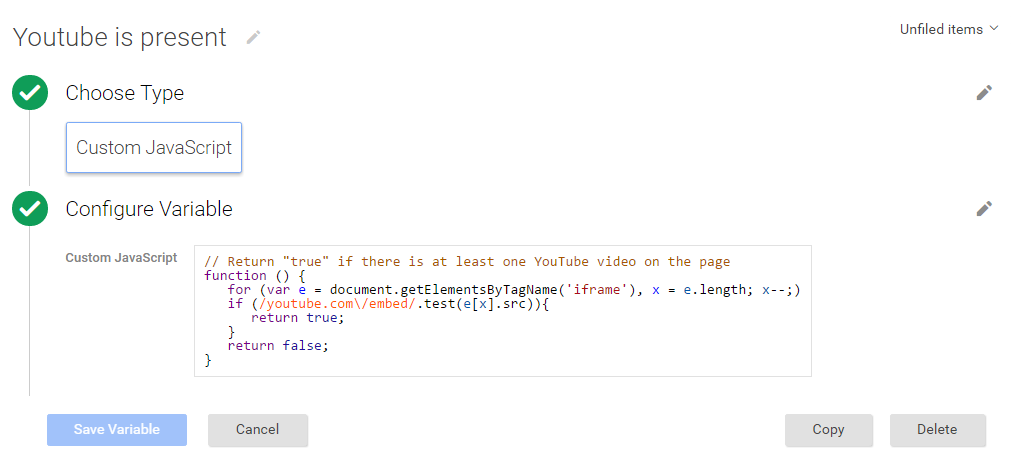
Tracking YouTube Presence using Google Tag Manager

Tracking YouTube Presence using Google Tag Manager

Step 2. Track IFrame YouTube videos with UPVUE PLAYER using Google Tag Manager 

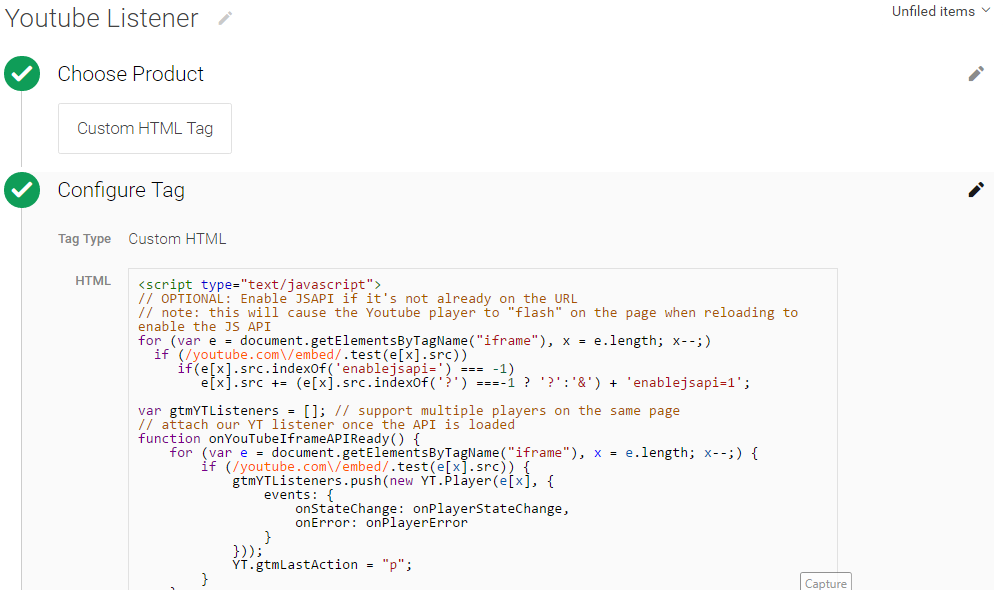
Tag Name: YouTube Listener to IFrame YouTube videos with UPVUE PLAYER Google Tag Manager
Tag Type: Custom HTML Tag

Note:  You need to modify below HTML Code according to Youtube Video using Like Iframe YouTube Video,  Pop Up youtube video tracking and Track IFrame YouTube videos with UPVUE PLAYER.

<script type=”text/javascript”>
for (var e = document.getElementsByTagName(“iframe”), x = e.length; x–;)
if (/youtube.com\/embed/.test(e[x].src))
if(e[x].src.indexOf(‘enablejsapi=’) === -1)
e[x].src += (e[x].src.indexOf(‘?’) ===-1 ? ‘?’:’&’) + ‘enablejsapi=1’;

var gtmYTListeners = [];
function onYouTubeIframeAPIReady() {
for (var e = document.getElementsByTagName(“iframe”), x = e.length; x–;) {
if (/youtube.com\/embed/.test(e[x].src)) {
gtmYTListeners.push(new YT.Player(e[x], {
events: {
onStateChange: onPlayerStateChange,
onError: onPlayerError
}
}));
YT.gtmLastAction = “p”;
}
}
}
function onPlayerStateChange(e) {
e[“data”] == YT.PlayerState.PLAYING && setTimeout(onPlayerPercent, 1000, e[“target”]);
var video_data = e.target[“getVideoData”](),
label = ‘ ‘+video_data.title;
if (e[“data”] == YT.PlayerState.PLAYING && YT.gtmLastAction == “p”) {
dataLayer.push({
event: “youtube”,
action: “play”,
label: label
});
YT.gtmLastAction = “”;
}
if (e[“data”] == YT.PlayerState.PAUSED) {
dataLayer.push({
event: “youtube”,
action: “pause”,
label: label
});
YT.gtmLastAction = “p”;
}
}

function onPlayerError(e) {
dataLayer.push({
event: “error”,
action: “GTM”,
label: “youtube:” + e
})
}

// report the % played if it matches 0%, 25%, 50%, 75% or completed
function onPlayerPercent(e) {
if (e[“getPlayerState”]() == YT.PlayerState.PLAYING) {
var t = e[“getDuration”]() – e[“getCurrentTime”]() <= 1.5 ? 1 : (Math.floor(e[“getCurrentTime”]() / e[“getDuration”]() * 4) / 4).toFixed(2); if (!e[“lastP”] || t > e[“lastP”]) {
var video_data = e[“getVideoData”](),
label = ‘ ‘+video_data.title;
e[“lastP”] = t;
dataLayer.push({
event: “youtube”,
action: t * 100 + “%”,
label: label
})
}
e[“lastP”] != 1 && setTimeout(onPlayerPercent, 1000, e);
}
}

window.onbeforeunload = function (e) {
var e = e || window.event;
// For IE and Firefox prior to version 4
if(e)
e.returnValue = ‘na’;
// For Safari
return ‘na’;
};
window.onbeforeunload = trackYTUnload;

function trackYTUnload() {
for (var i = 0; i < gtmYTplayers.length; i++)
if (gtmYTlisteners[i].getPlayerState() === 1) { // playing
var video_data = gtmYTlisteners[i][‘getVideoData’](),
label = ‘ ‘+video_data.title;
dataLayer.push({
event: ‘youtube’,
action: ‘exit’,
label: label
});
}
}
// load the Youtube JS api and get going
var j = document.createElement(“script”),
f = document.getElementsByTagName(“script”)[0];
j.src = “//www.youtube.com/iframe_api”;
j.async = true;
f.parentNode.insertBefore(j, f);
</script>

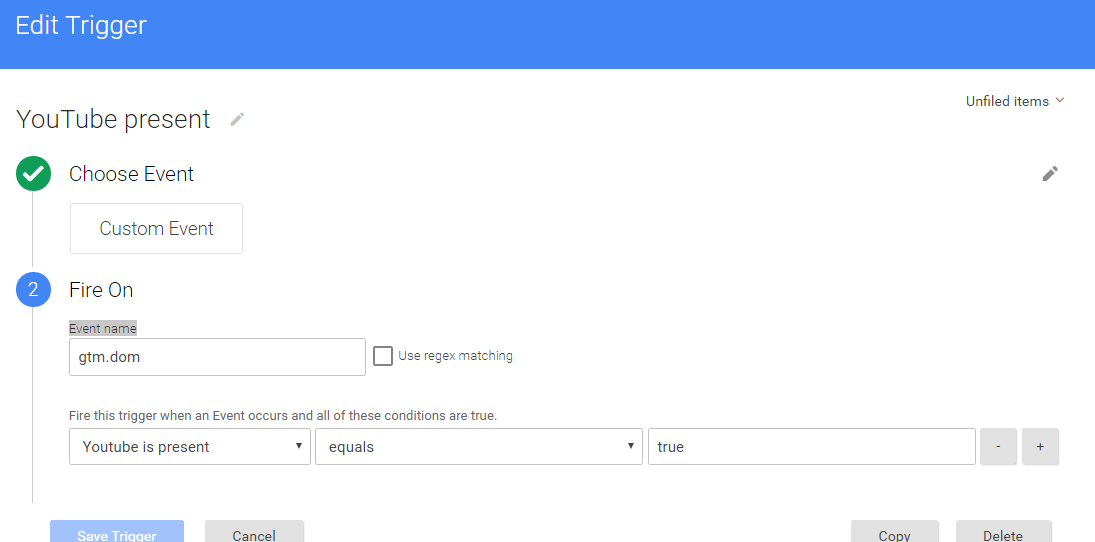
Firing Rules 

Rule Name: YouTube present
Conditions:
{Event name equals gtm.dom
{{YouTube is Present}} equals true
2016-06-10_0337d

Step 3. Create Macros for Event Action, Event Category, and Event Label Iframe Youtube Video  with UPVUE PLAYER using Google Tag Manager 

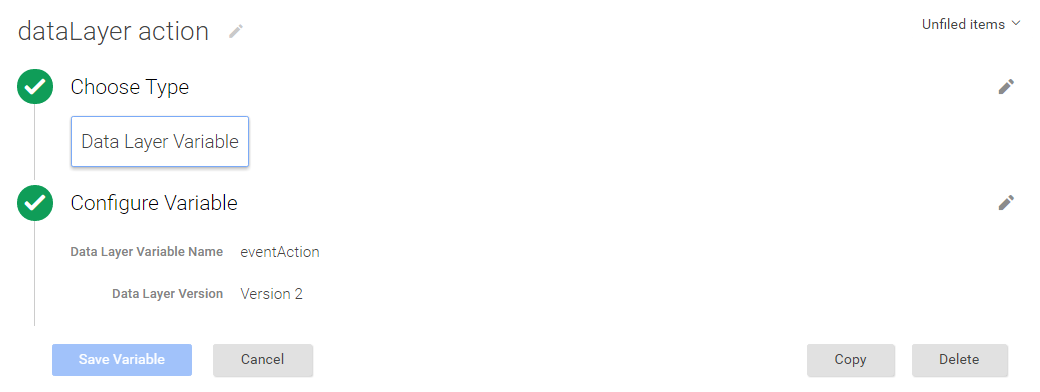
A: Event Action Macro using Iframe Youtube Video with UPVUE PLAYER using Google Tag Manager

Macro Name: dataLayer action
Macro Type: Data Layer Variable
Data Layer Variable Name: eventAction
Data Layer Version: Version 2
Default Value: (blank)
2016-06-12_1535

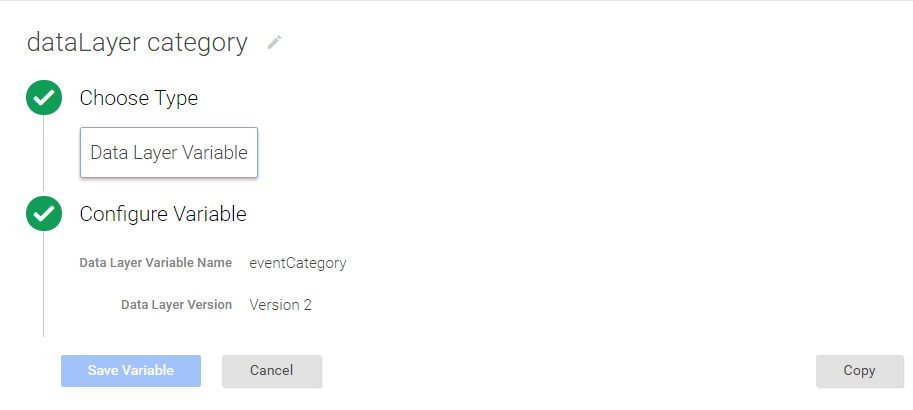
B: Event Category Macro using Iframe Youtube Video with UPVUE PLAYER using Google Tag Manager

Macro Name: dataLayer category
Macro Type: Data Layer Variable
Data Layer Variable Name: eventCategory
Data Layer Version: Version 2
Default Value: (blank)
Event Category Macro using Iframe Youtube Video with UPVUE PLAYER using Google Tag Manager

Event Category Macro using Iframe Youtube Video with UPVUE PLAYER using Google Tag Manager

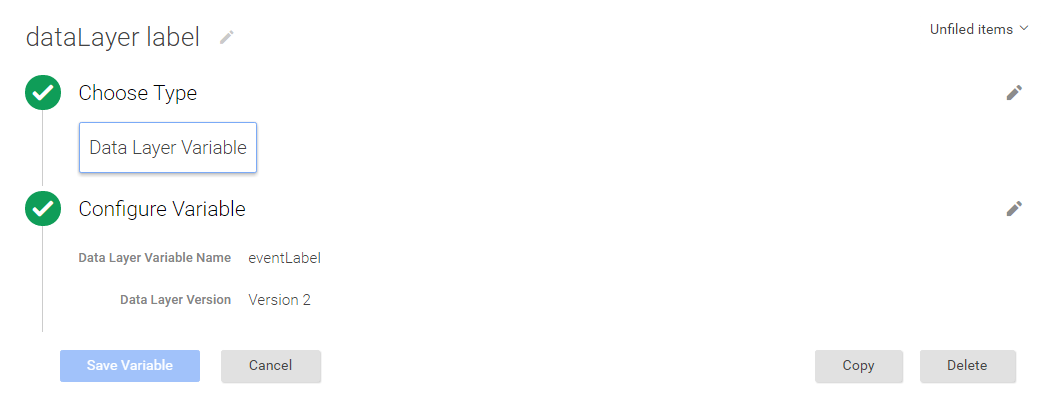
C: Event Label Macro Iframe Youtube Video with UPVUE PLAYER using Google Tag Manager

Macro Name: dataLayer label
Macro Type: Data Layer Variable
Data Layer Variable Name: eventLabel
Data Layer Version: Version 2
Default Value: (blank)
 Event Label Macro Iframe Youtube Video with UPVUE PLAYER using Google Tag Manager

Event Label Macro Iframe Youtube Video with UPVUE PLAYER using Google Tag Manager

Step 4. Create UA Youtube Event – UA Tag & Check for YouTube Event Rule Iframe Youtube Video  with UPVUE PLAYER using Google Tag Manager 

Tag Name: UA YouTube Video Tracking – Video Page
Tag Type: Universal Analytics
Tracking ID: (your Google Analytics ID)
Track Type: Event
Event Tracking Parameters:
Category: {{dataLayer category}}
Action: {{dataLayer label}}
Label: {{dataLayer action}}
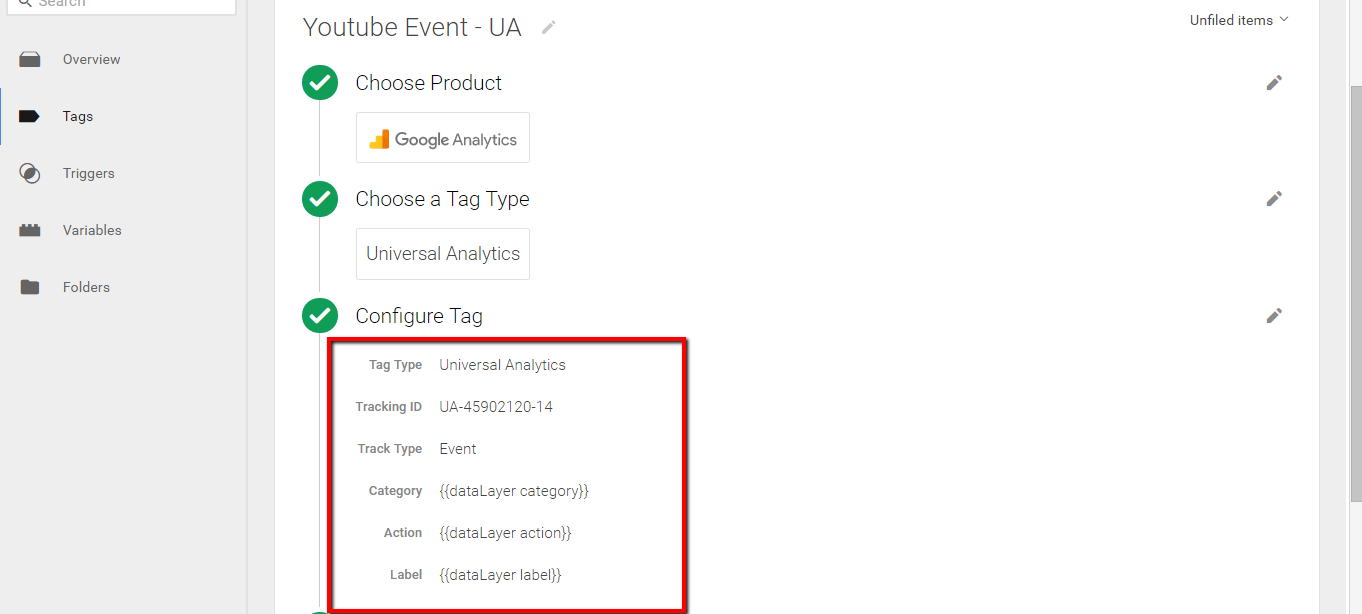
 YouTube Video Pop Tracking

Tag Setup for YouTube Video Pop Tracking

Firing Rules

Rule Name: YouTube event

Fire On

Event name equals youtube
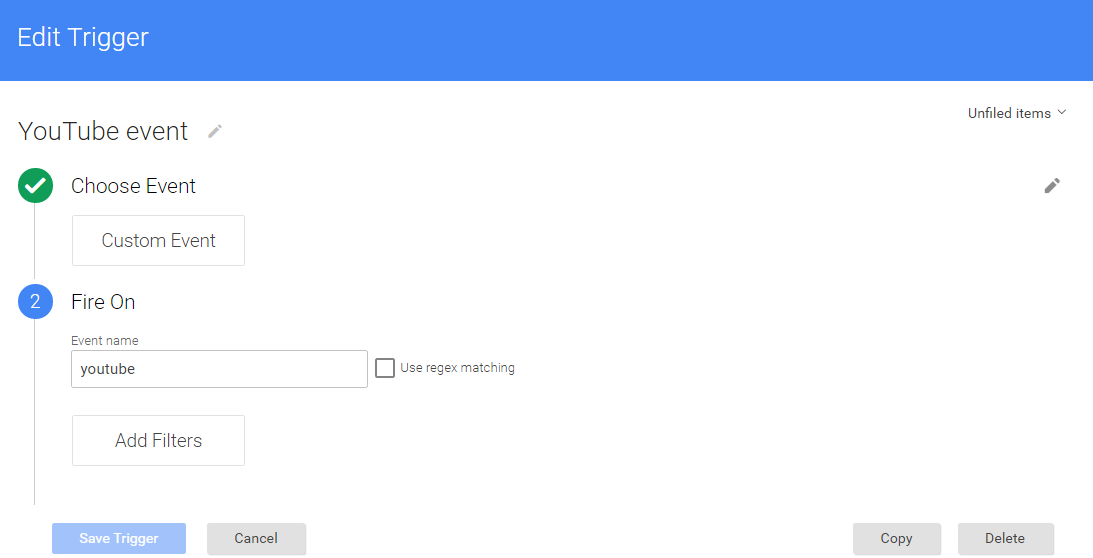


Custom Even Tracking for Youbube Video

Custom Even Tracking for Youbube Video

Step 5. Check iframe Youtube with UPVUE PLAYER using Google Tag Manage into Google Analytics Real-Time Report
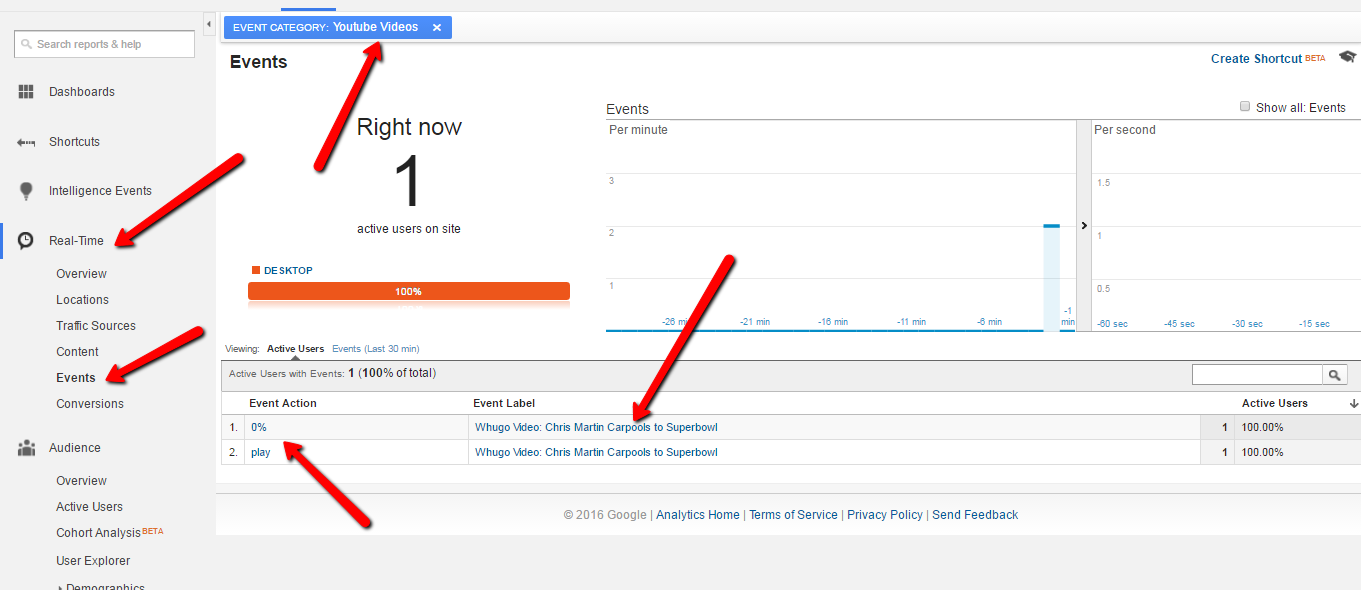
Real Time YouTube Video Tracking

Real Time YouTube Video Tracking

Warning:if you do n’t know about javascript or do n’t have developing knowledge then do n’t try to implement on iframe Youtube with UPVUE PLAYER using Google Tag Manager that can broke your site, Cart and other functionality 

Disclaimer: Google tag manager belongs to Google property 

For Contact: mappchero@gmail.com

I am avaible for Hire on Freelancer: Freelancer.com

I am avaible for Hire on Upwork: Upwork.com

I am avaible for Hire on Peopleperhour: Peopleperhour.com

I am avaible for Hire on Guru: Guru.com

No Fields Found.
pop up and Lightbox youtube video tracking using Google Tag Manager

Standard

Pop up Light box YouTube Video Tracking via Google Tag Manager (Pop up)

Are you looking how to analyze the reach of different types of interaction with Pop Up out YouTube Video on the web pages.

Pop-up lightboxes can be used to track YouTube video views by embedding the YouTube video within the lightbox and adding tracking code to the video’s URL. This allows you to track metrics such as views, play rate, and engagement directly in your analytics platform. Some popular analytics platforms that support YouTube tracking include Google Analytics, Adobe Analytics, and Mixpanel. Additionally, you can also use third-party tools such as Wistia, Vidyard, or SproutVideo to track and host your YouTube videos.

When you have a site with embedded / Pop up lightbox YouTube Videos tracking you could track how your visitors have interaction with YouTube Video using Google Tag Manager and You can see result in Google Analytic.

To track a pop-up or lightbox YouTube video using Google Analytics, you can use Google Tag Manager to set up tracking events. Here are the general steps:

Create a new tag in Google Tag Manager and choose “YouTube Video” as the tag type.

Enter the YouTube video ID or URL and any other relevant settings, such as autoplay or loop.

Create a trigger for the tag, such as a click on a button or a specific pageview.

Add Google Analytics tracking to the tag by selecting the appropriate Google Analytics property and tracking type.

Test the tag and publish it to your website.

Once the tag is set up and published, you should be able to view YouTube video metrics in your Google Analytics reports, such as video views, play time, and completion rate. You can also set up custom events to track specific user interactions with the video, such as play, pause, and volume changes.

This can provide you with an understanding of the way people have interacted along with your Pop up lightbox /iframe/Any Type of YouTube videos using Google Tag Mag Manager. like

  • Play events
  • Pause events
  • Watch to End events
  • 10, 25, 50, 75, & 90% Completion events

Step 1. Create the YouTube is Present Macro with Pop up Light box YouTube Video Tracking using Google Tag Manager 

Macro Name: YouTube is Present for Pop up Light box YouTube Video Tracking using Google Tag Manager
Macro Type: Custom Javascript
Custom Javascript: See below in Screen

Tracking Pop up Light box YouTube Video Tracking Presence using Google Tag Manager

Tracking Pop up Light box YouTube Video Tracking Presence using Google Tag Manager

Step 2. Track Pop up Light box YouTube Video Tracking using Google Tag Manager 

Tag Name: YouTube Listener to Pop up Light box YouTube Video Tracking using Google Tag Manager
Tag Type: Custom HTML Tag

Note:  You need to modify below HTML Code according to YouTube Video using Jquery for Pop up Light box YouTube Video Tracking  using Google Tag Manager similar like below

<script>
$(function() {
$(“.play”).jqueryVideoLightning({
});
});
</script>

2016-06-12_1511

Firing Rules 

Rule Name: YouTube present
Conditions:
{Event name equals gtm.dom
{{YouTube is Present}} equals true

YouTube Video Tracking using Google Tag Manager

Pop up Light box YouTube Video Tracking using Google Tag Manager

Step 3. Create Macros for Event Action, Event Category, and Event Label Pop up Light box YouTube Video Tracking using Google Tag Manager

A: Event Action Macro using Pop up Light box YouTube Video Tracking using Google Tag Manager

Macro Name: dataLayer action
Macro Type: Data Layer Variable
Data Layer Variable Name: eventAction
Data Layer Version: Version 2
Default Value: (blank)

Pop up Light box YouTube Video Tracking

Pop up Light box YouTube Video Tracking using Google Tag Manager

B: Event Category Macro using Pop up Light box YouTube Video Tracking using Google Tag Manager

Macro Name: dataLayer category
Macro Type: Data Layer Variable
Data Layer Variable Name: eventCategory
Data Layer Version: Version 2
Default Value: (blank)

Pop up Light box YouTube Video

Pop up Light box YouTube Video Tracking using Google Tag Manager

C: Event Label Macro using Pop up Light box YouTube Video Tracking using Google Tag Manager

Macro Name: dataLayer label
Macro Type: Data Layer Variable
Data Layer Variable Name: eventLabel
Data Layer Version: Version 2
Default Value: (blank)

Light box YouTube Video Tracking using Google Tag Manager

Pop up Light box YouTube Video Tracking using Google Tag Manager

Step 4. Create UA Youtube Event – UA Tag & Check for YouTube Event Rule Pop up Light box YouTube Video Tracking using Google Tag Manager

Tag Name: UA YouTube Video Tracking – Video Page
Tag Type: Universal Analytics
Tracking ID: (your Google Analytics ID)
Track Type: Event
Event Tracking Parameters:
Category: {{dataLayer category}}
Action: {{dataLayer label}}
Label: {{dataLayer action}}

 YouTube Video Pop Tracking

Tag Setup for Pop up Light box YouTube Video Tracking using Google Tag Manager

Firing Rules

Rule Name: YouTube event

Fire On

Event name equals youtube

Custom Even Tracking for Youbube Video

Warning:if you do n’t know about javascript or do n’t have developing knowledge then do n’t try to implement on Pop up Light box YouTube Video Tracking using Google Tag Manager that can broke your site, Cart and other functionality 

Disclaimer: Google tag manager belongs to Google property 

For Contact: mappchero@gmail.com

I am avaible for Hire on Freelancer: Freelancer.com

I am avaible for Hire on Upwork: Upwork.com

I am avaible for Hire on Peopleperhour: Peopleperhour.com

I am avaible for Hire on Guru: Guru.com

Shopify Ecommerce Setup Using Google Tag Manager

Standard

E-commerce Tracking in Shopify using Google Tag Manager 

Recently so many client ask me to implement E-commerce and Enhanced E-commerce tracking through Google Tag Manager on Shopify, As usual you know very well why e-commerce tracking on the website, You can see in revenue and number sale which product sales, you can see in Google Analytic. There was a certain limitation with Shopify, but recently I have seen Shopify migrate hosted to domain checkout on Shopify.

To set up GA4 Shopify Ecommerce with a data layer, you need to add ecommerce data to the data layer for each event that you want to track. Here are the steps:

  1. Set up a Google Analytics 4 property for your Shopify store.

2. Install Google Tag Manager on your Shopify store.

3. Set up the data layer on your Shopify store’s checkout pages. You can add ecommerce data to the data layer using JavaScript, and you should add the following data for each event:

  • For the “purchase” event: transaction ID, transaction revenue, and any other transaction-level data you want to track.
  • For the “add to cart” event: product ID, product name, and product price.
  • For the “remove from cart” event: product ID, product name, and product price.
  • For the “checkout” event: step number and any other checkout-level data you want to track.

4. Create a new Google Tag Manager tag for GA4 and configure it with your GA4 measurement ID.

5. Use the data layer variables to map the ecommerce data to the GA4 ecommerce event parameters.

6. Set up triggers in Google Tag Manager to track ecommerce events, such as add to cart, remove from cart, initiate checkout, and purchase.

7. Test the GA4 tags and triggers to make sure they are set up correctly and are tracking the right events.

Once you complete these steps, you should be able to track your Shopify store’s ecommerce activity in Google Analytics 4 using the data layer, and use the data to optimize your store’s performance and improve the customer experience.

Click to Below Link see a new article for Related to Shopify for GA4

Setup Google Analytics 4 Ecommerce Tracking on Shopify (Non-Plus) without an App

Set Up Advance eCommerce Google Analytics 4 (GA4) on Shopify Plus with Google Tag Manager without Any Shopify App

GA4 Shopify Enhanced Ecommerce Tracking without using Elevar Plugin for Shopify Basic Versions

Integrating E-commerce Track Google Tag Manager with Shopify

Google Tag Manager on Shopify

Google Tag Manager to Shopify

  1. First Install Google Tag Manager on Shopify Ecommerce Tracking without touching Code
How to put Google Tag Manager Code on Shopify put on Theme.liquid file.  
Online Store ——->Themes ——>click on Edit HTML/CSS
Paste this code as high in the <head> of the page as possible:
<!– Google Tag Manager –>
<script>(function(w,d,s,l,i){w[l]=w[l]||[];w[l].push({‘gtm.start’:
new Date().getTime(),event:’gtm.js’});var f=d.getElementsByTagName(s)[0],
j=d.createElement(s),dl=l!=’dataLayer’?’&l=’+l:”;j.async=true;j.src=
‘https://www.googletagmanager.com/gtm.js?id=’+i+dl;f.parentNode.insertBefore(j,f);
})(window,document,’script’,’dataLayer’,’GTM-XXXX’);</script>
<!– End Google Tag Manager –>
Additionally, paste this code immediately after the opening <body> tag:
<!– Google Tag Manager (noscript) –>
<noscript><iframe src=”https://www.googletagmanager.com/ns.html?id=GTM-XXXX”
height=”0″ width=”0″ style=”display:none;visibility:hidden”></iframe></noscript>
<!– End Google Tag Manager (noscript) –>

Note: Make you will replace GTM Tracking Code with your GTM ID XXXXX

2. Add to DataLayer on Checkout on Order Confirmation for E-commerce tracking on Shopify using Google Tag Manager

Google Tag Manager Shopify Installation

Google Tag Manager Checkout Page Data Layer on Shopify

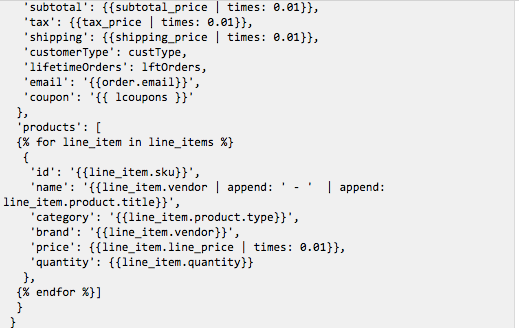
Written Custom E-commerce Tracking Code using Help of Custom HTML on Google Tag Manager on Shopify without Touching Code/ Data Layer on the website for E-commerce/eCommerce Tracking 

Implementing E-Commerce Tracking on Shopify using Google Tag Manager

Implementing E-Commerce Tracking on Shopify via Google Tag Manager

Warning:if you do n’t know about javascript/ Datalayer/Jquery or do n’t have developing knowledge then do n’t try on Shopify Google Tag Manager Ecommerce Tracking without touching Codea custom javascript without using Any plugin that can broke your site, Cart and other functionality 

Disclaimer: Google tag manager belongs to Google property 

For Contact: mappchero@gmail.com

I am avaible for Hire on Freelancer: Freelancer.com

I am avaible for Hire on Upwork: Upwork.com

I am avaible for Hire on Peopleperhour: Peopleperhour.com

I am avaible for Hire on Guru: Guru.com

Bigcommerce Dynamic Remarketing Tag Setup using Google Tag Manager

Standard

AdWords Dynamic Remarketing in BigCommerce using Google Tag Manager

Remarketing lets in you to expose commercials to human beings who’ve previously visited your website or used your cell app. Dynamic remarketing takes this one step similarly through displaying your site visitors an ad with the particular product that they had formerly viewed on your web site.

To set up dynamic remarketing tags in BigCommerce, you’ll need to add the following events and parameters to your Google Ads or Facebook Ads account:

  1. “view_item” event: Triggers when a user views a specific product on your website. The following parameters can be passed with this event
  2. “add_to_cart” event: Triggers when a user adds a product to their cart. The following parameters can be passed with this event:
  3. “purchase” event: Triggers when a user completes a purchase on your website. The following parameters can be passed with this event:
  4. “view_search_results” event: Triggers when a user views search results for a specific query. The following parameters can be passed with this event:
  5. “view_item_list” event: Triggers when a user views a list of products, such as a category page. The following parameters can be passed with this event:
  6. “google_business_vertical” parameter: Specifies the type of vertical for the product data, such as “retail” for ecommerce.

This is an example of a Google Analytics gtag script that sends a “view_item” event with the value of $998.55 and includes an array of two items with their respective IDs and “google_business_vertical” set to “retail”. The script would be placed on the product detail page of your website to track when a user views a specific product.

By including the “google_business_vertical” parameter, you can indicate to Google Ads that you’re advertising products in the retail category. This can help improve the accuracy of your product recommendations and ensure that your ads are displayed to the right audience.

It’s important to note that this script is specific to Google Analytics and may not be compatible with other analytics platforms or advertising networks. Make sure to check the documentation for your specific platform to ensure that you’re sending the correct events and parameters.

Send Google Ads Dynamic Remarketing Events (view_item) Data with Google Tag Manager with 

By passing these events and parameters to your dynamic remarketing tags, you can create more targeted and effective remarketing campaigns based on user behavior on your BigCommerce.

Before Start implementing Dynamic remarkeitng tag setup on Bigcommerce using Google Tag Manager

Step 1. First Install Google Tag Manager on Your Bigcommerce Website/Store

Copy the code below and paste it onto every page of your website. Place it immediately after the opening <body> tag.

<!– Google Tag Manager –>
<noscript><iframe src=”//www.googletagmanager.com/ns.html?id=GTM-XXXXXX
height=”0″ width=”0″ style=”display:none;visibility:hidden”></iframe></noscript>
<script>(function(w,d,s,l,i){w[l]=w[l]||[];w[l].push({‘gtm.start’:
new Date().getTime(),event:’gtm.js’});var f=d.getElementsByTagName(s)[0],
j=d.createElement(s),dl=l!=’dataLayer’?’&l=’+l:”;j.async=true;j.src=
‘//www.googletagmanager.com/gtm.js?id=’+i+dl;f.parentNode.insertBefore(j,f);
})(window,document,’script’,’dataLayer’,’GTM-XXXXXX‘);</script>
<!– End Google Tag Manager –>

Note: Make you will replace GTM Tracking Code with your GTM ID

Step 2. You need place dataLayer.push variables as your need into category.html, default.html, search.html, Panel/ProductDetails.html, Snippets/CartItem.html, cart.html and order.html

Similar Like Datalyer above given Pages

<script>
var dataLayer = window.dataLayer || [];
dataLayer.push({
‘google_tag_params’: {
‘ecomm_prodid’: ‘12345’,
‘ecomm_pagetype’: ‘cart’,
‘ecomm_totalvalue’: 59.99
}
});
</script>

 Place dataLayer code on the appropriate template file 

Go to Edit editor on your BigCommerce store Design->Edit HTML/CSS

1. Category.html

<script type=”text/javascript”>
dataLayer.push({
‘event’: ‘fireRemarketingTag’,
‘google_tag_params’: {
‘ecomm_prodid’: ‘ ‘,
‘ecomm_pagetype’: ‘product’,
‘ecomm_totalvalue’: 0
}
});
</script>

2. Search.html

<script type=”text/javascript”>
dataLayer.push({
‘event’: ‘fireRemarketingTag’,
‘google_tag_params’: {
‘ecomm_prodid’: ‘%%GLOBAL_ProductId%%’,
‘ecomm_pagetype’: ‘searchresults’,
‘ecomm_totalvalue’: 0
}
});
</script>

3. Default.htm

<script type=”text/javascript”>
dataLayer.push({
‘event’: ‘fireRemarketingTag’,
‘google_tag_params’: {
‘ecomm_prodid’: ‘ ‘,
‘ecomm_pagetype’: ‘Home’,
‘ecomm_totalvalue’: 0
}
});

</script>

4. Panel/ProductDetails.html

<script type=”text/javascript”>
dataLayer.push({
‘event’: ‘fireRemarketingTag’,
‘google_tag_params’: {
‘ecomm_prodid’: ‘%%GLOBAL_ProductId%%’,
‘ecomm_pagetype’: ‘product’,
‘ecomm_totalvalue’: ‘%%GLOBAL_ProductPrice%%’
}
});
</script>

5. Cart.html

<script type=”text/javascript”>
dataLayer.push({
‘event’: ‘fireRemarketingTag’,
‘google_tag_params’: {
‘ecomm_prodid’: ‘%%GLOBAL_CartItems%%’,
‘ecomm_pagetype’: ‘cart’,
‘ecomm_totalvalue’: ‘%%GLOBAL_CartTotal%%’
}
});
</script>

6. order.html

<script type=”text/javascript”>
dataLayer.push({
‘event’: ‘fireRemarketingTag’,
‘google_tag_params’: {
ecomm_pagetype: ‘purchase’,
‘ecomm_totalvalue’: %%GLOBAL_OrderAmount%%
}
});
</script>

Step 3. Need to be Setup Remarketing Campaign in AdWords

 Google Tag Manager Big-commerce Re-marketing

Big-commerce Re-marketing Tag Using Google Tag Manager


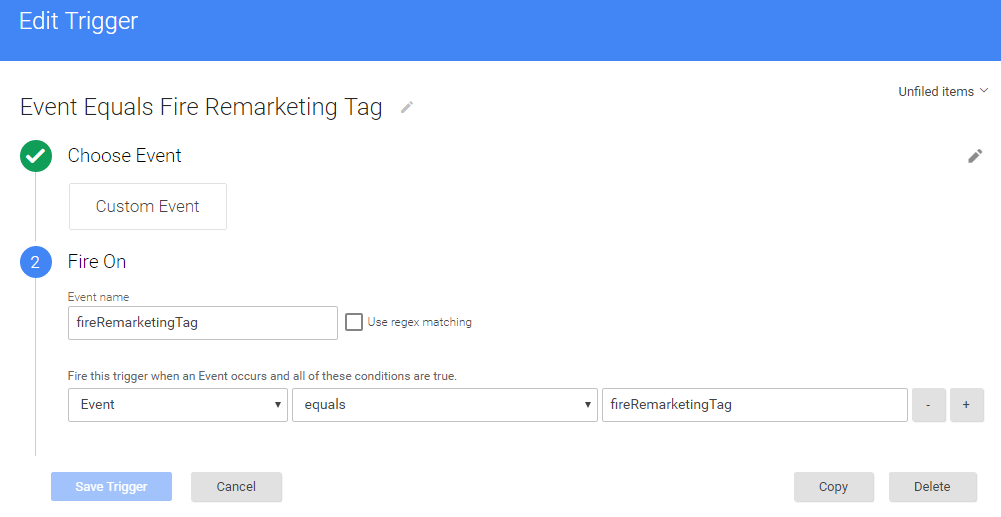
Step 4. Configure Tags, Variable and Rule for Setup Re-marketing Campaign in Google Tag Manager

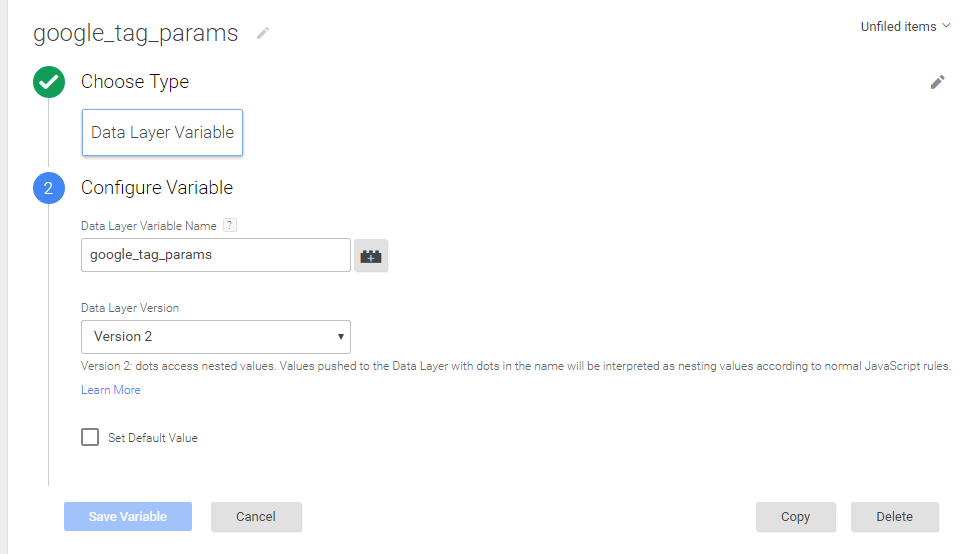
  1. You need create a variable to Data Layer Variable called google_tag_params to Choose this option to supply custom parameters in a data layer variable.

2016-05-31_0815

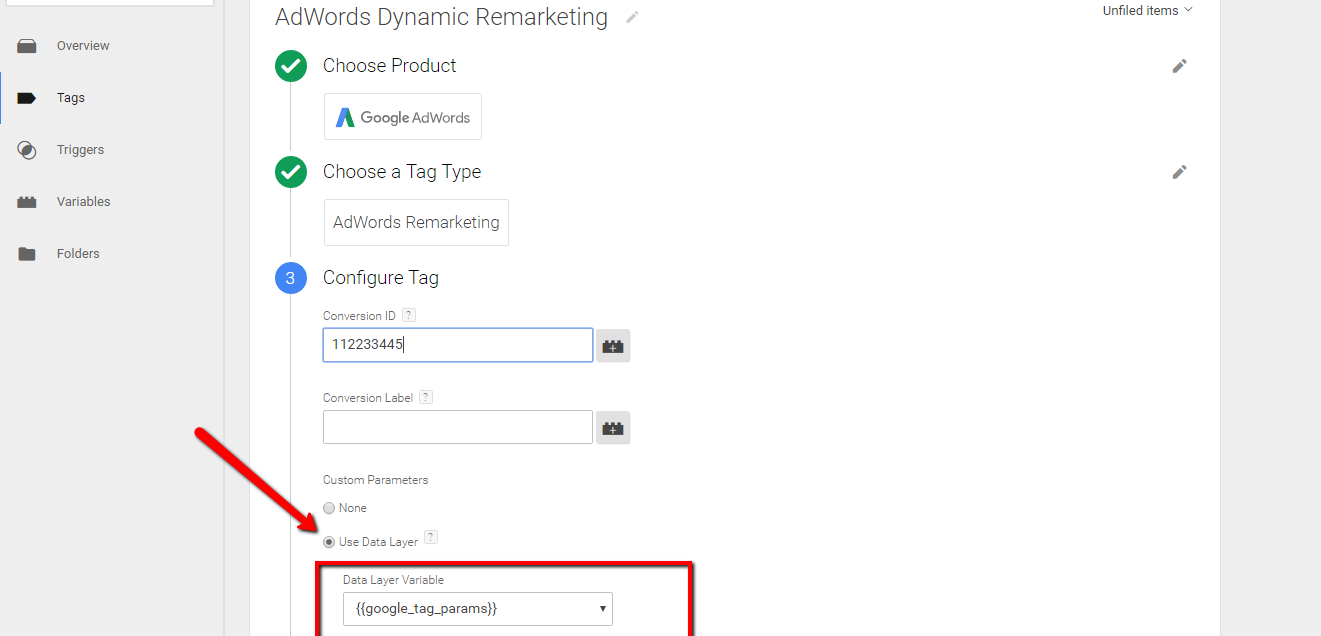
2. Create a Tag for  Dynamic Re-marketing Setup using Google Tag Manager

2016-05-31_0821

3. Create a Rule for Fire Re-marketing Tag Setup using Google Tag Manager

x

Google Dynamic Re-marketing Setup Using Google Tag Manager Article – https://support.google.com/tagmanager/answer/6106009?hl=en&rd=1

For Developer Guide For Remarketing Setup – https://developers.google.com/adwords-remarketing-tag/parameters

For Troubleshoot of Dynamic Re marketing using Google Tag Manager –  Use Tag Assistance  – https://chrome.google.com/webstore/detail/tag-assistant-by-google/kejbdjndbnbjgmefkgdddjlbokphdefk?hl=en

For Contact: mappchero@gmail.com

Warning:if you do n’t know about javascript or do n’t have developing knowledge then do n’t try to implement on Bigcommerce Dynamic Re marketing Setup using Google Tag Manager  that can broke your site, Cart and other functionality 

Disclaimer: Google tag manager belongs to Google property 

I am avaible for Hire on Freelancer: Freelancer.com

I am avaible for Hire on Upwork: Upwork.com

I am avaible for Hire on Peopleperhour: Peopleperhour.com

I am avaible for Hire on Guru: Guru.com

Google Tag Manager for BigCommerce E-Commerce & Enhanced Ecommerce Tracking

Standard

Recently I have work to implement Google Analytic E-commerce Tracking in Bigcommerce using Google Tag Manager

GA4 BigCommerce eCommerce tracking allows you to track important metrics related to your eCommerce business on your BigCommerce store in Google Analytics 4 (GA4). By implementing eCommerce tracking, you can gain insights into your customers’ behavior, including what products they’re interested in, what items are in their cart, and what purchases they’ve made.

With GA4 BigCommerce eCommerce tracking, you can track a variety of important eCommerce metrics, such as revenue, transactions, conversion rates, and average order value. You can also track product and category performance, and gain insights into customer behavior by analyzing metrics such as cart abandonment rate and checkout behavior. By using this data to inform your marketing and sales strategies, you can improve the customer experience, increase sales, and grow your business.

Click to Below Link see a new article for Related to BigCommerce for GA4

BigCommerce for GA4 Enhanced Ecommerce Tracking using Google Tag Manager

Implement Google Analytics 4 (GA4) Ecommerce & Enhanced Ecommerce using Google Tag Manager

1. What is ecommerce tracking?

Google Analytic Ecommerce following is a piece of code you can incorporate on your site or application to gather exchange information like like product sales, purchase amounts, and billing locations, and connect it to your Google Analytics account.

2. Why set up ecommerce tracking?

With ecommerce following, you can better comprehend the estimation of your online business. Utilize the Ecommerce Reports to segment and analyze your data, and find connections between your advertising effort, user engagement, and transactions..

Benefits of Google Analytic E-Commerce Tracking using Google Tag Manager in Bigcommerce

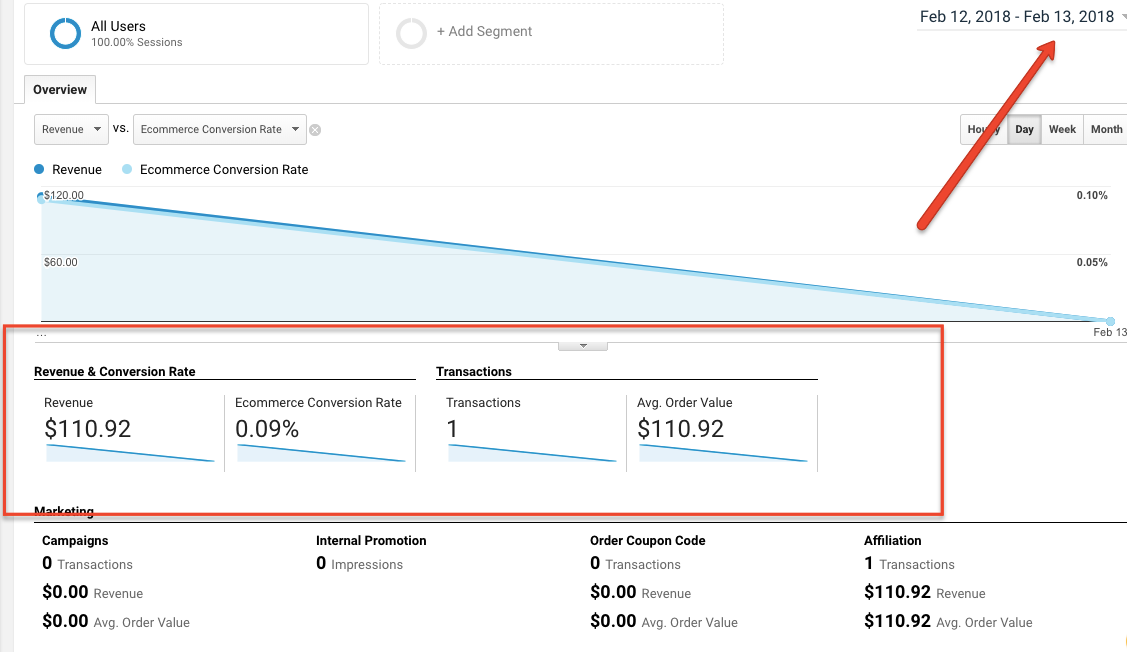
Sales Data will avaible to your in Google Analytic E-commerce Tracking Reports includes using Google Tag Manager on Bigcommerce

  • Conversion rate
  • Number of transactions
  • Total revenue
  • Average order value
  • Number of unique purchases
  • Quantity of products sold
  • Quantity of each product sold
  • Revenue by product
  • Average price of products

Step 1. First Install Google Tag Manager on Your Bigcommerce for Setup E-commerce Tracking using Google Tag Manager

Copy the code below and paste it onto every page of your website. Place it immediately after the opening <body> tag.

<!– Google Tag Manager –>
<noscript><iframe src=”//www.googletagmanager.com/ns.html?id=GTM-XXXXXX
height=”0″ width=”0″ style=”display:none;visibility:hidden”></iframe></noscript>
<script>(function(w,d,s,l,i){w[l]=w[l]||[];w[l].push({‘gtm.start’:
new Date().getTime(),event:’gtm.js’});var f=d.getElementsByTagName(s)[0],
j=d.createElement(s),dl=l!=’dataLayer’?’&l=’+l:”;j.async=true;j.src=
‘//www.googletagmanager.com/gtm.js?id=’+i+dl;f.parentNode.insertBefore(j,f);
})(window,document,’script’,’dataLayer’,’GTM-XXXXXX‘);</script>
<!– End Google Tag Manager –>

Note: Make you will replace GTM Tracking Code with your GTM ID and GTM Tag should not placed inside of a <div> or other tag.

if you will not able to place google tag manager code before opening <body> tag. E-commerce tracking will not work for bigcommerce tracking.

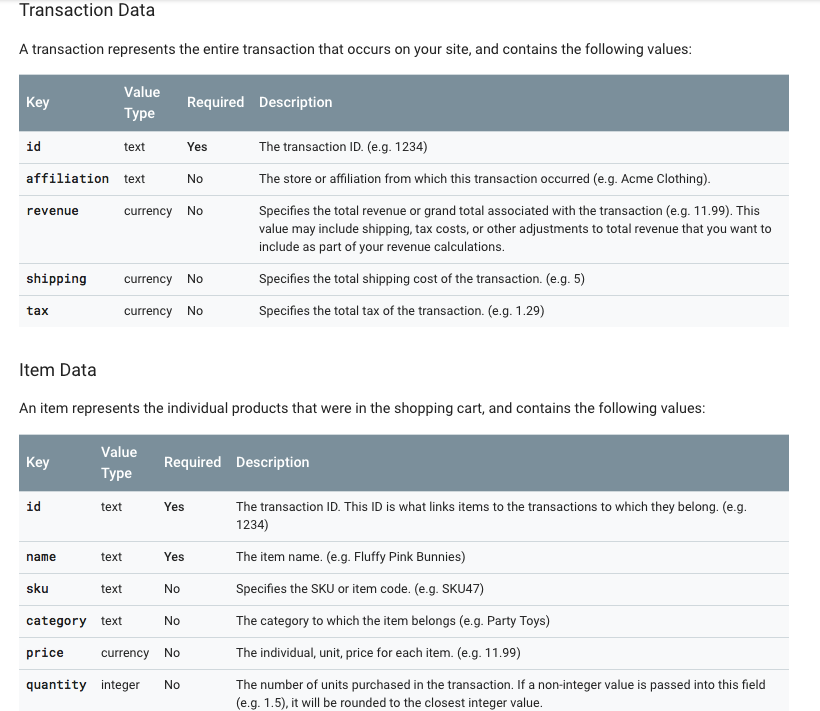
Step 2. E-commerce data layer code will be implemented in Bigcommerce using Google Tag Manager for Universal Google Analytic

Note:  First you need go to Bigcommerce control panel———> go to Advanced Settings ——–> Web Analytics. Put Bigcommerce E-commerce Tracking Datalayer tracking Code into the box. or Ideally it should be on order confirmation Page only 

<script type=”text/javascript”>
var dataLayer = new Array();
function trackGTMEcommerce() {
this._addTrans = addTrans;
this._addItem = addItems;
this._trackTrans = trackTrans;
}

var transaction = {};

function addTrans(orderID, store, total, tax, shipping, city, state, country) {
transaction.transactionId = orderID;
transaction.transactionAffiliation = store;
transaction.transactionTotal = total;
transaction.transactionTax = tax;
transaction.transactionShipping = shipping;

}
function addItems(orderID, sku, product, variation, price, quantity) {

‘id’: orderID,
‘sku’: sku,
‘name’: product,
‘category’: variation,
‘price’: price,
‘quantity’: quantity
});

}

function trackTrans() {
dataLayer.push(transaction);
}

var pageTracker = new trackGTMEcommerce();
</script>

Step 3.Now Configure Trigger , Tag and Event Triggers in Google Tag Manager for BigCommerce 

2016-06-02_0338

Configure Google Tag Manager for E-commerce Tracking in BigCommerce

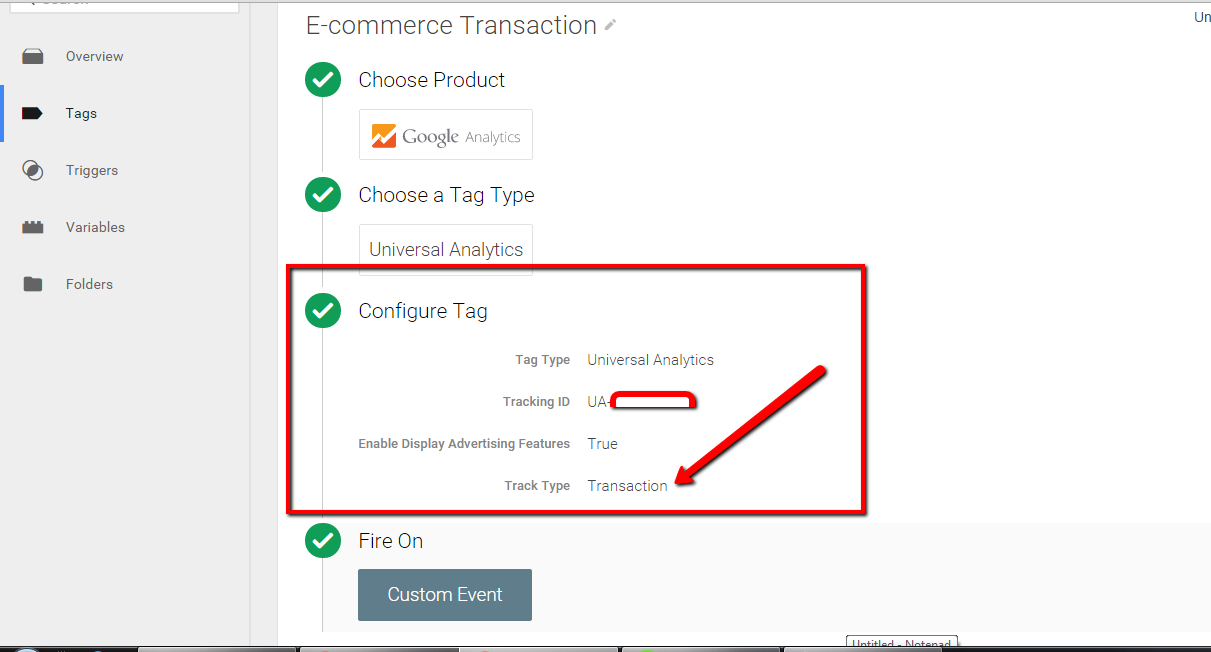
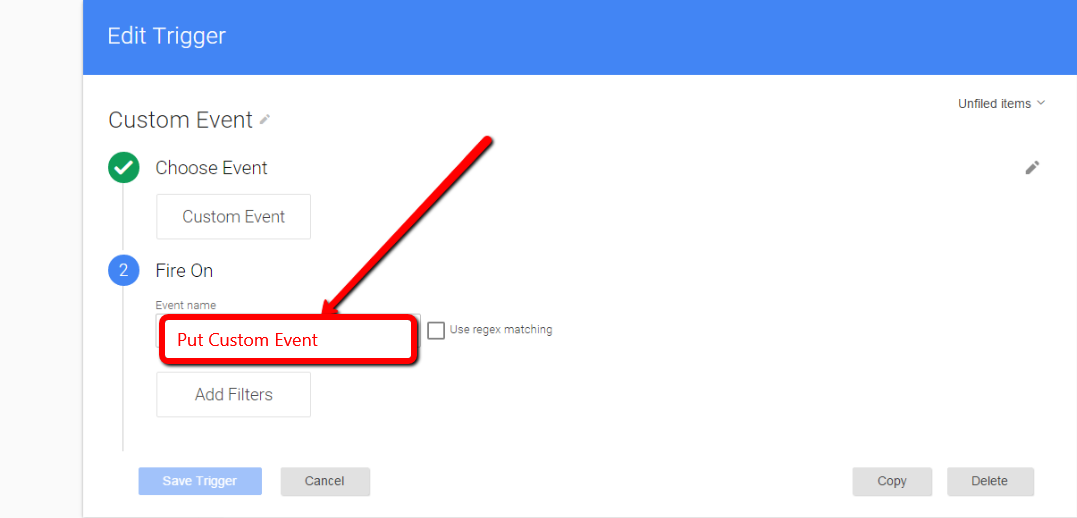
Now Create Google Tag Manager Custom Event to firing E-commerce Datalayer in Bigcommerce 

Setup Ecommerce custom event for Bigcommerce

Setup Ecommerce custom event for Bigcommerce

E-commerce Tracking using Google Tag Manager – https://support.google.com/tagmanager/answer/6107169?hl=en

For Troubleshoot of Bigcommerce E-commerce tracking using Google Tag Manager –  Use Tag Assistance  – https://chrome.google.com/webstore/detail/tag-assistant-by-google/kejbdjndbnbjgmefkgdddjlbokphdefk?hl=en

For Contact: mappchero@gmail.com

Warning:if you do n’t know about javascript or do n’t have developing knowledge then do n’t try to implement on Bigcommerce E-commerce tracking using Google Tag Manager  that can broke your site, Cart and other functionality 

Disclaimer: Google tag manager belongs to Google property 

I am avaible for Hire on Freelancer: Freelancer.com

I am avaible for Hire on Upwork: Upwork.com

I am avaible for Hire on Peopleperhour: Peopleperhour.com

I am avaible for Hire on Guru: Guru.com