
Google Analytics 4 (GA4) eCommerce Tracking for Single Page Applications (SPA)

Standard

Integrate Google Analytics 4 (GA4) eCommerce Tracking with Single Page Applications (SPA) with Google Tag Manager

Google Analytics 4 (GA4) is a web analytics platform offered by Google that provides insights into user behavior on websites and mobile apps. GA4 is designed to track user behavior across multiple platforms and devices, including Single Page Applications (SPAs).

A Single Page Application (SPA) is a web application that loads a single HTML page and dynamically updates its content as the user interacts with it, without requiring a full page reload. SPAs work differently from traditional websites, and tracking user behavior on them requires some adjustments to the tracking code.

GA4 is well suited for tracking user behavior on SPAs. It allows you to track virtual pageviews and custom events to simulate the behavior of traditional pageviews, and to track specific user actions such as button clicks, form submissions, and video views.

In addition, GA4’s Enhanced Measurement feature allows you to track user interactions automatically without setting up additional tags for each event. This feature makes it easier to track user behavior on SPAs and gain insights into how users interact with your application.

There are several benefits to using Google Analytics 4 (GA4) for Single Page Applications (SPAs) with Google Tag Manager (GTM):

Accurate tracking: GA4 provides a more accurate tracking solution for SPAs than traditional Google Analytics. GTM allows you to track user behavior accurately without requiring a full page reload.

Simplified tracking: GTM simplifies the process of tracking user behavior on SPAs by allowing you to deploy and manage your tags without modifying the code directly. This makes it easier to track user behavior and gain valuable insights into how users interact with your application.

Enhanced Measurement: GA4’s Enhanced Measurement feature allows you to track user interactions automatically without setting up additional tags for each event. This feature simplifies the process of tracking user behavior on SPAs and provides a more accurate representation of user behavior.

Custom event tracking: GA4 allows you to track custom events on your SPA, such as button clicks, form submissions, and video views. This enables you to gain insights into how users interact with specific features of your application.

Cross-device tracking: GA4 allows you to track user behavior across multiple devices and platforms, including SPAs. This provides a more comprehensive view of user behavior and allows you to optimize your user experience across all devices.

Better user insights: GA4 provides more granular user insights than traditional Google Analytics, allowing you to analyze user behavior at a deeper level and gain insights into user engagement, retention, and conversion.

Overall, using GA4 for SPAs with GTM provides a more accurate and comprehensive tracking solution, simplifies the tracking process, and allows you to gain deeper insights into user behavior on your SPA.

Google Analytics 4 (GA4) Ecommerce Tracking for Single Page Applications (SPA) is a feature of GA4 that allows you to track ecommerce-related events and transactions on your Single Page Application. With GA4 Ecommerce Tracking for SPAs, you can gain insights into how users interact with your ecommerce site, what products they are interested in, and how they navigate the purchasing process.

To use GA4 Ecommerce Tracking for SPAs, you need to set up ecommerce tracking in your GA4 property and implement the necessary code on your SPA. Once set up, you can track a range of ecommerce-related events and actions, including:

  • Product detail views: When a user views the details of a product
  • Add to cart: When a user adds a product to their shopping cart
  • Remove from cart: When a user removes a product from their shopping cart
  • Begin checkout: When a user starts the checkout process
  • Purchase: When a user completes a purchase
  • Refund: When a user requests a refund for a purchase
  • Promotion views: When a user views a promotion or discount offer
  • Promotion clicks: When a user clicks on a promotion or discount offer

GA4 Ecommerce Tracking for SPAs allows you to track these events and actions as virtual pageviews and events, so you can see how users navigate through your ecommerce site and where they encounter obstacles or drop off.
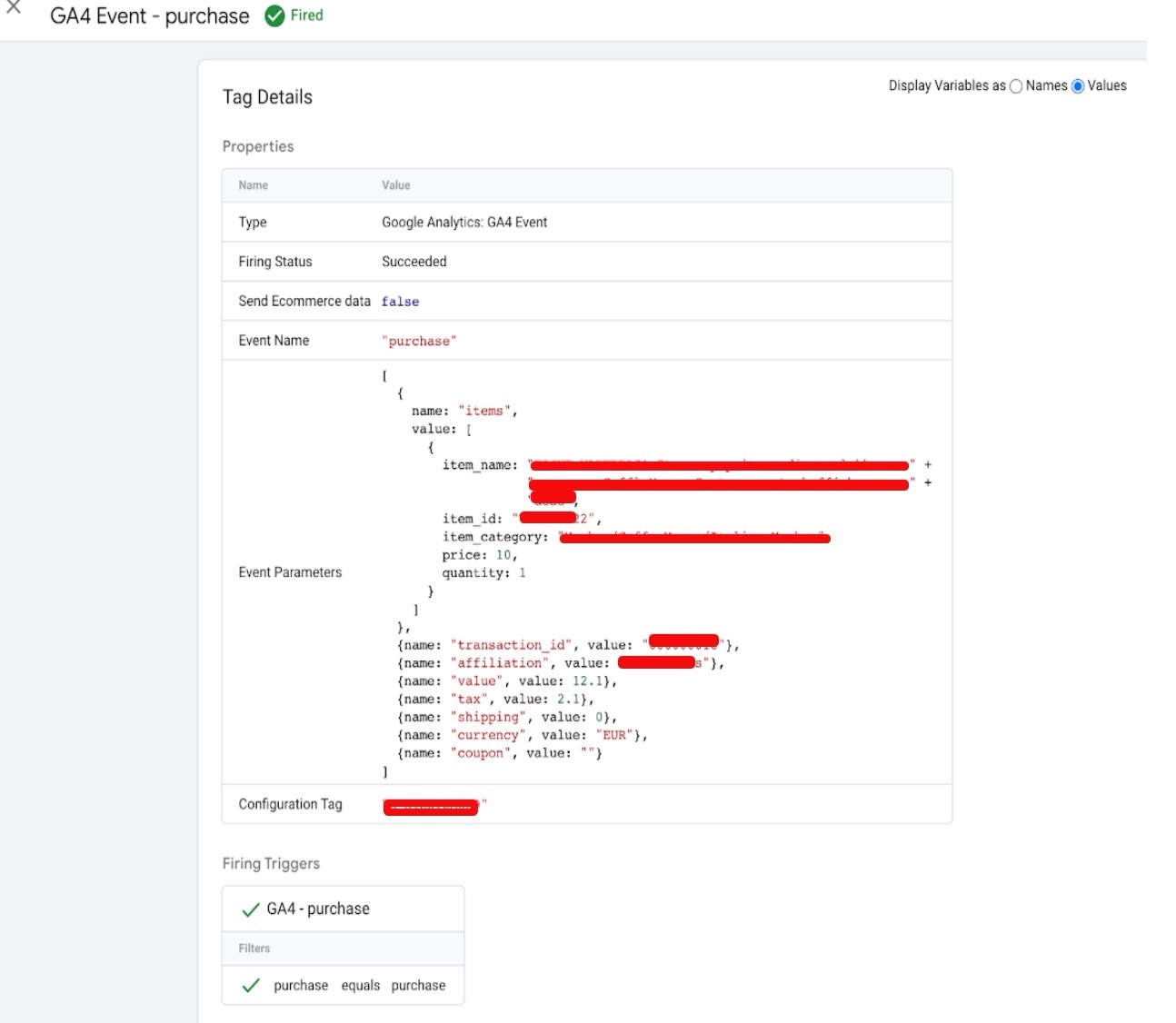
Track single page apps in Google Analytics 4 (GA4)

Tracking Google Analytics 4 (GA4) Single-Page Applications with Google Tag Manager

Warning: If you do n’t know about javascript or do n’t have developing knowledge then do n’t try to Google Analytics 4 (GA4) eCommerce Purchase Tracking for Single Page Applications (SPA) that can broke your site, Cart and other functionality 

Disclaimer: Google tag manager belongs to Google property 

For Contact: mappchero@gmail.com

I am available for Hire on Freelancer: Freelancer.com

I am available for Hire on Upwork: Upwork.com

I am available for Hire on Peopleperhour: Peopleperhour.com

I am available for Hire on Guru: Guru.com
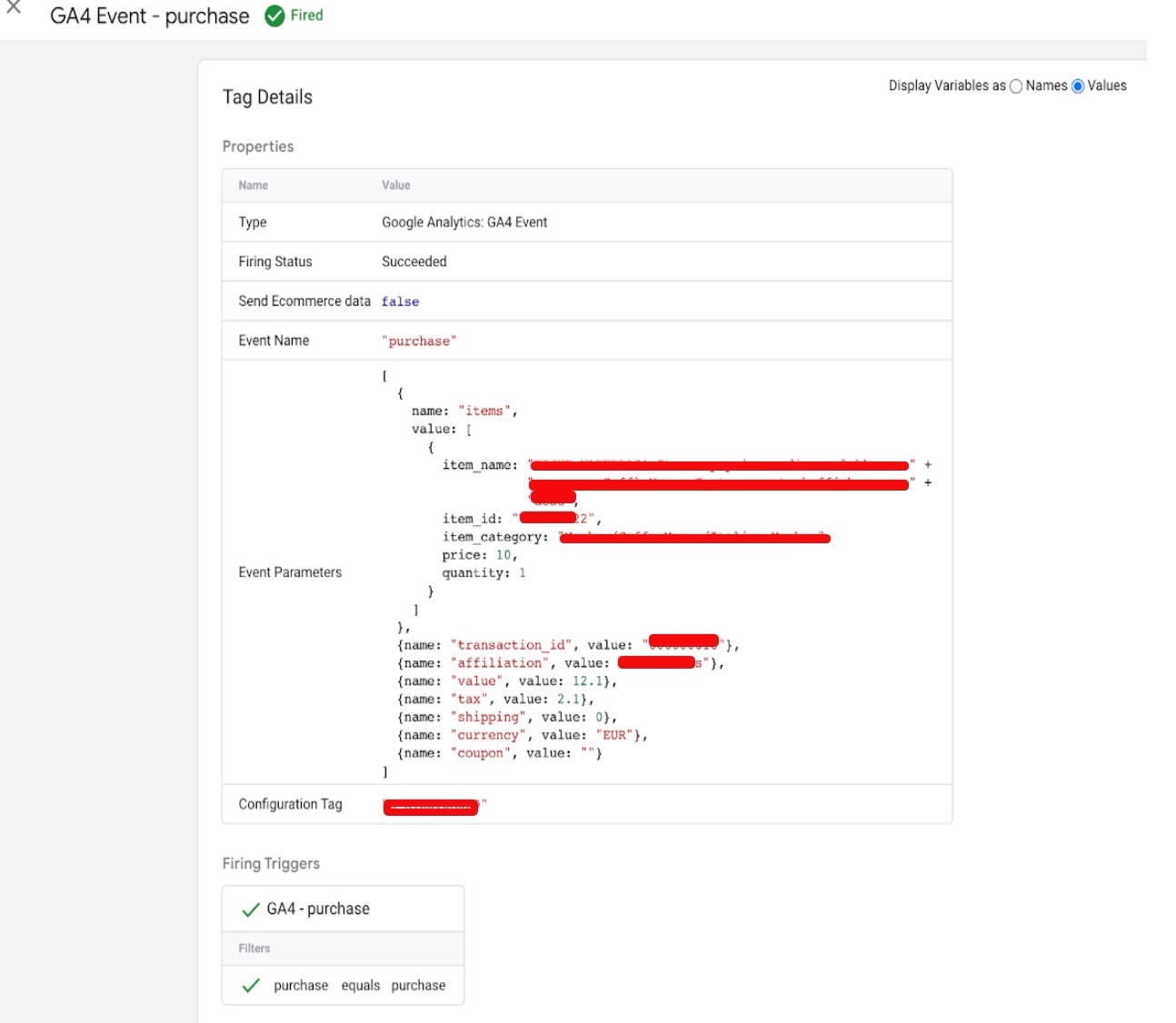
Fix Duplicate Transactions in Google Analytics 4 (GA4)

Standard

Solution and Fix Duplicate Transactions in Google Analytics 4 (GA4) using Google Tag Manager

Google Analytics 4 (GA4) Duplicate Purchase Revenue refers to an issue where the GA4 tracking code on a website or app is reporting multiple purchase events for the same transaction, leading to an overestimation of the total revenue.

This issue can occur due to several reasons, such as:

  1. Technical issues with the website or app that lead to the same transaction being recorded multiple times in GA4.

2. User behavior, such as refreshing the page or clicking the purchase button multiple times, resulting in multiple purchase events being sent to GA4.

3. Errors in the implementation of GA4 tracking code or third-party integrations that are sending duplicate purchase events to GA4.

Duplicate purchase revenue can negatively impact your data accuracy, as it can lead to overestimation of the total revenue, conversion rate, and other metrics related to sales. To mitigate this issue, it’s important to identify the underlying cause and take the necessary steps to prevent or fix the duplication. This may involve troubleshooting technical issues, reviewing user behavior, or auditing the GA4 tracking code and integrations.

If you are experiencing duplicate purchase revenue in Google Analytics 4 (GA4), there are a few potential reasons and solutions to explore.

Duplicate Purchase Events: Check to make sure that you are not sending duplicate purchase events to GA4. This can happen if your website or app is sending multiple purchase events for a single transaction. Ensure that your code is only sending one purchase event per transaction.

Duplicate Transactions: Another potential issue is that you are processing duplicate transactions on your end, such as charging a customer multiple times for a single purchase. Check your payment processing systems to ensure that transactions are only being processed once.

Refunds and Cancellations: Refunds and cancellations can also cause duplicate purchase revenue in GA4. When a customer receives a refund or cancels an order, the original purchase event should be updated or removed, rather than sending a new purchase event. Make sure that your system is handling refunds and cancellations correctly.

Third-Party Integrations: If you have third-party integrations that send purchase data to GA4, check to make sure that they are not sending duplicate data. Contact the third-party service to determine if they are experiencing any issues.

Disclaimer: Google tag manager belongs to Google property 

For Contact: mappchero@gmail.com

I am available for Hire on Freelancer: Freelancer.com

I am available for Hire on Upwork: Upwork.com

I am available for Hire on Peopleperhour: Peopleperhour.com

I am available for Hire on Guru: Guru.com
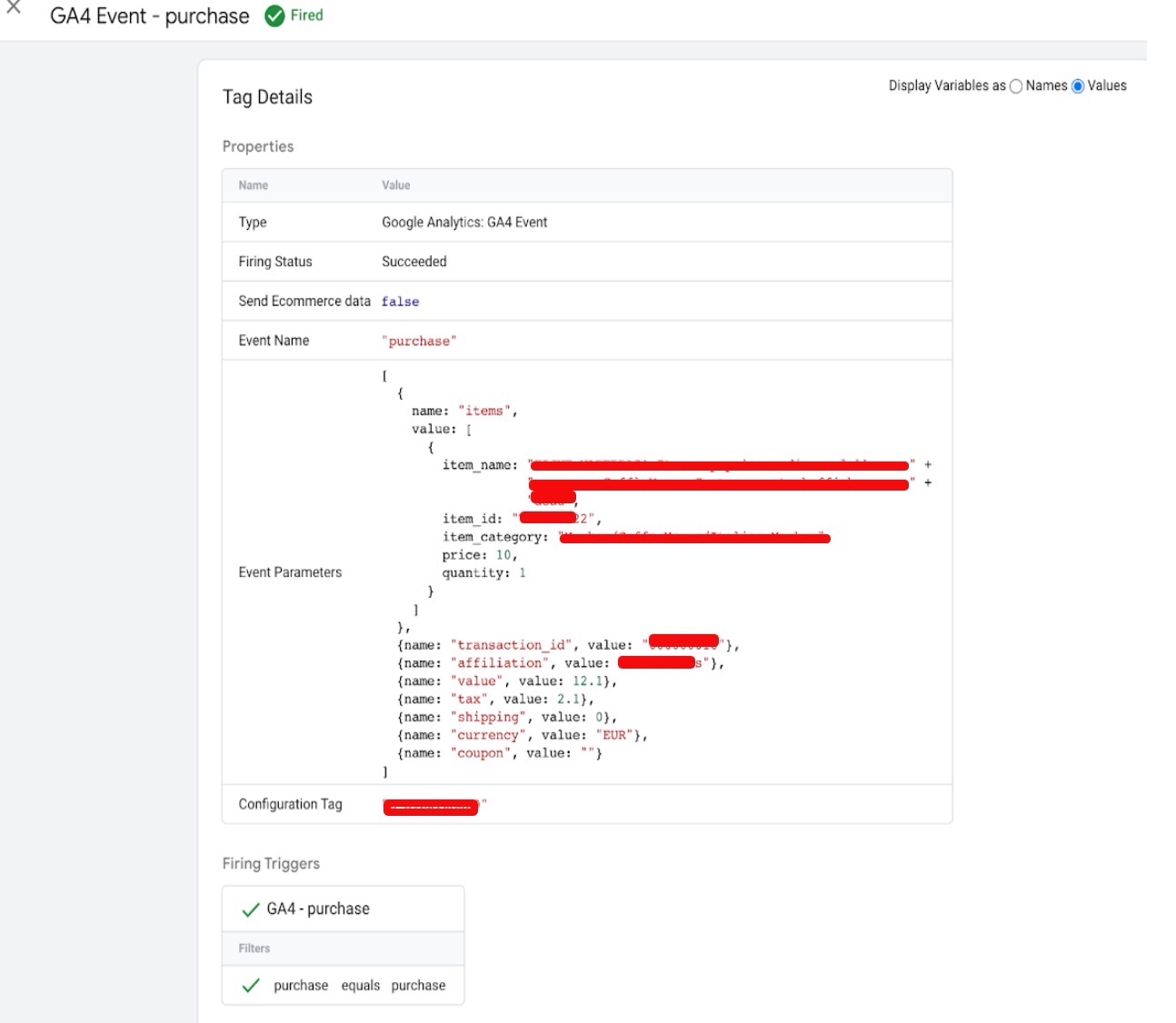
 

Google Analytic (GA4) eCommerce tracking for Travel Booking site

Standard

GA4 ecommerce tracking for travel booking sites refers to the use of Google Analytics 4 (GA4) to track and analyze ecommerce activity on travel booking websites. Specifically, GA4 ecommerce tracking allows you to track user behavior and purchasing activity on your site, as well as analyze the performance of your travel products and marketing campaigns.

By implementing GA4 ecommerce tracking on your travel booking site, you can track important metrics such as revenue, product purchases, and travel-specific data (e.g. number of passengers, travel dates, etc.), and use this data to optimize your site for better performance and increased revenue.

Some examples of ecommerce events that can be tracked using GA4 include product detail views, add to carts, purchases, cancellations, and refunds. In addition to tracking these standard ecommerce events, you can also set up custom events to track non-standard ecommerce actions that are specific to your travel booking site.

To implement GA4 ecommerce tracking specifically for travel booking sites, there are a few additional considerations to keep in mind:

Track travel-specific metrics: In addition to tracking revenue and product purchases, you may want to track travel-specific metrics such as number of passengers, flight or hotel bookings, and travel dates. This will allow you to better understand the performance of your travel products and optimize your site accordingly.

Use custom dimensions to track travel-specific data: You can use custom dimensions in GA4 to track additional data specific to your travel booking site, such as the type of travel (e.g. flights, hotels, car rentals), the destination, and the travel provider. This will allow you to slice and dice your data in more meaningful ways and gain deeper insights into your users’ behavior.

Use enhanced measurement for tracking travel-related events: Enhanced measurement can be particularly helpful for tracking travel-related events such as flight searches, hotel bookings, and car rentals. By enabling enhanced measurement, you can automatically track these events without the need for additional code.

Use UTM parameters to track campaign performance: UTM parameters can be used to track the performance of your marketing campaigns, including email campaigns, social media ads, and paid search campaigns. By tagging your URLs with UTM parameters, you can track how users are interacting with your site and which campaigns are driving the most revenue.

To implement GA4 ecommerce tracking for travel booking sites, follow these steps:

1. Set up a GA4 property for your website in Google Analytics.

2. Enable ecommerce tracking for your GA4 property.

3. Set up the enhanced measurement tag on your website. This will automatically track ecommerce

4. events such as product detail views, add to carts, and purchases.

5. Implement the following parameters for your ecommerce events:
“currency” to track the currency of the transaction
“value” to track the revenue generated by the transaction
“items” to track the products or services purchased, along with their prices and quantities.

6. Set up custom events to track non-standard ecommerce actions, such as cancellations or refunds.

7. Use the data collected from ecommerce tracking to analyze the performance of your products and marketing campaigns, and make data-driven decisions to optimize your site and increase revenue

In addition to the above steps, it’s important to ensure that your ecommerce tracking is GDPR-compliant by obtaining user consent for tracking and implementing appropriate data retention policies.

GA4 ecommerce tracking for travel

To implement GA4 ecommerce tracking for travel booking sites using Google Tag Manager

Warning: If you do n’t know about javascript or do n’t have developing knowledge then do n’t try to Google Analytic (GA4) eCommerce purchase tracking for Travel Booking site that can broke your site, Cart and other functionality 

Disclaimer: Google tag manager belongs to Google property 

For Contact: mappchero@gmail.com

I am available for Hire on Freelancer: Freelancer.com

I am available for Hire on Upwork: Upwork.com

I am available for Hire on Peopleperhour: Peopleperhour.com

I am available for Hire on Guru: Guru.com
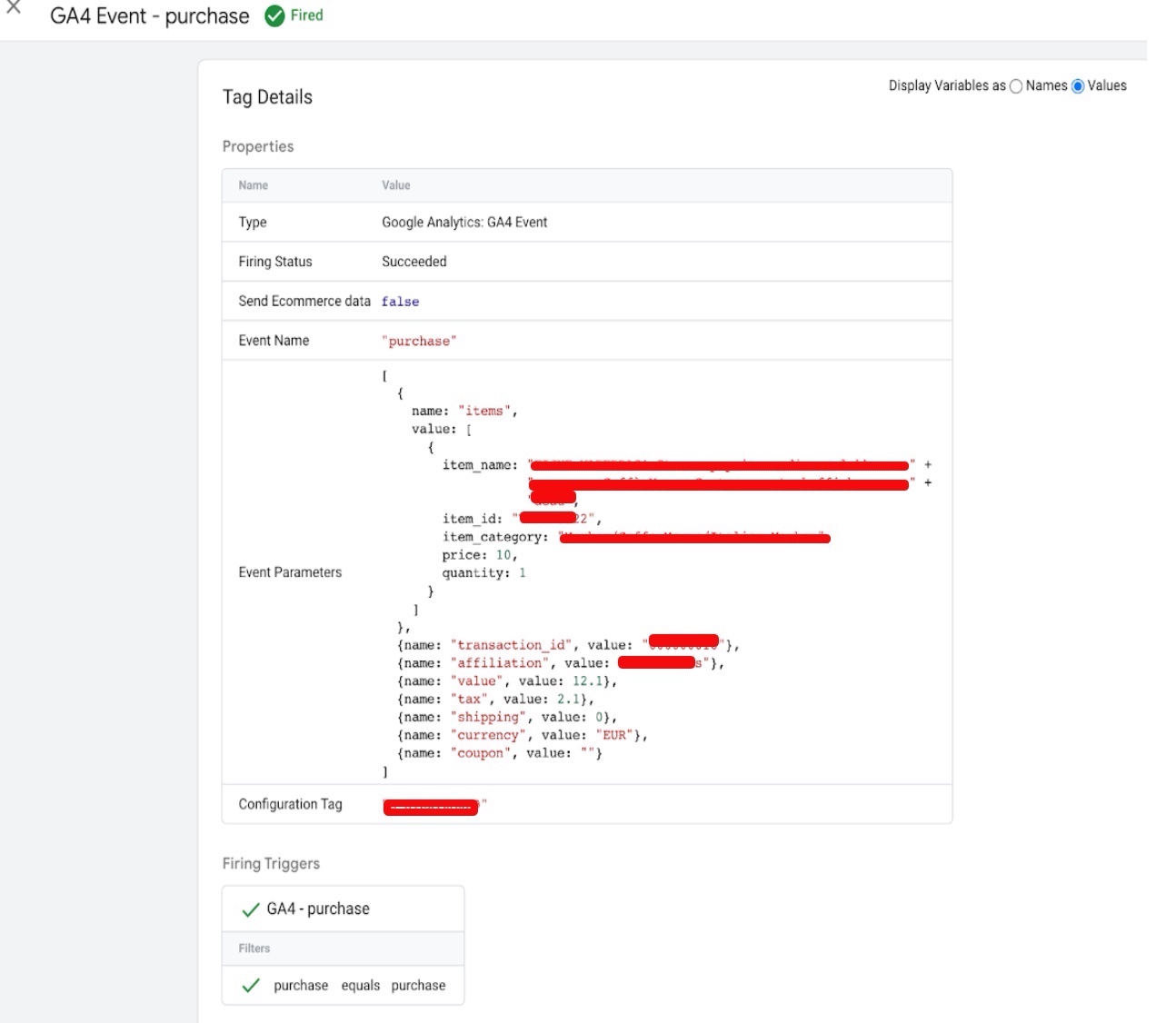
 

Troubleshooting GA4 Ecommerce Tracking in Google Analytics

Standard

Troubleshooting Google Analytic 4 (GA4) Ecommerce Tracking using Google Tag Manager

Troubleshooting GA4 ecommerce tracking in Google Analytics refers to the process of identifying and resolving any issues or errors that may be preventing the accurate tracking and reporting of ecommerce data in GA4. Ecommerce tracking allows website owners to track key metrics such as revenue, transactions, and average order value, which can provide valuable insights into the performance of an online store.

When troubleshooting GA4 ecommerce tracking, the goal is to ensure that all ecommerce data is being accurately collected and reported in Google Analytics. This involves checking that the GA4 tag is installed correctly on the website, verifying that ecommerce tracking is enabled in the GA4 property settings, checking that the correct events are firing on the website, verifying that ecommerce data is being sent to the GA4 property, and using the Measurement Protocol to send data directly to Google Analytics if necessary. By resolving any issues with GA4 ecommerce tracking, website owners can ensure that they have access to accurate and valuable data that can help them make informed decisions about their ecommerce strategy.

When troubleshooting GA4 ecommerce tracking in Google Analytics, there are several things you can check to make sure everything is set up correctly:

Check that the GA4 tag is installed correctly on your website: Make sure that the GA4 tag is properly installed on your website. You can check this by using the Tag Assistant Chrome extension, which will show you any errors in your tag installation.

Verify that ecommerce tracking is enabled: Check that ecommerce tracking is enabled in your GA4 property settings. To do this, go to “Admin” > “Data Streams” > “Configure Ecommerce Settings”. Make sure that “Enable Enhanced Ecommerce Reporting” is turned on.

Check your events: Verify that the correct events are firing on your website for ecommerce tracking. You can use the Google Analytics Debugger Chrome extension to check that the events are firing correctly.

Check your data: Make sure that ecommerce data is being sent to your GA4 property by checking the “Ecommerce” tab in the “Conversions” section of Google Analytics. You should be able to see data such as revenue, transactions, and average order value.

Use the Measurement Protocol: If you are still having issues with tracking ecommerce data, you can use the Measurement Protocol to send data directly to Google Analytics. This allows you to bypass any issues with tag installation or event tracking.

Disclaimer: Google tag manager belongs to Google property 

For Contact: mappchero@gmail.com

I am available for Hire on Freelancer: Freelancer.com

I am available for Hire on Upwork: Upwork.com

I am available for Hire on Peopleperhour: Peopleperhour.com

I am available for Hire on Guru: Guru.com
Google Analytics 4 (GA4) for Hotels Ecommerce Tracking

Standard

Switching from Google’s UA to a Google Analytics 4 (GA4) for Hotels Ecommerce Tracking with Google Tag Manager

Google Analytics 4 is a powerful analytics tool that can help hotels track and analyze their ecommerce data, including online sales and revenue data. Google Tag Manager (GTM) is a free tool that can be used to simplify the process of setting up and managing Google Analytics 4 ecommerce tracking for hotels.

With GTM, hotels can create ecommerce tags to track specific ecommerce events such as purchases, refunds, and product impressions. These tags can be customized to track specific parameters such as product IDs, transaction IDs, and revenue. GTM also enables hotels to set up a data layer on their website, which is a JavaScript object that contains the data required for ecommerce tracking. The data layer sends ecommerce data to GTM, where it can be collected and analyzed in Google Analytics 4.

To set up ecommerce tracking with GTM, hotels must first create a Google Analytics 4 property and obtain the measurement ID. They should then install the Google Tag Manager code on their website and set up ecommerce tags to track ecommerce events. The ecommerce data layer should also be set up on the website to send ecommerce data to GTM. Finally, hotels should test their implementation thoroughly to ensure that the data is being sent correctly and publish their ecommerce tags in GTM.

Google Analytics 4 offers robust ecommerce tracking capabilities that can help hotels to track and analyze their online sales and revenue data. Here are some ways in which hotels can use Google Analytics 4 for ecommerce tracking:

Set up ecommerce tracking: Hotels can use Google Analytics 4 to track ecommerce data, including the number of transactions, revenue, and average order value. Ecommerce tracking requires the installation of a tracking code and setting up ecommerce tracking in the Google Analytics 4 interface.

Monitor product performance: With ecommerce tracking in Google Analytics 4, hotels can monitor the performance of their products and services. They can track metrics such as product views, clicks, and conversions to see which products are performing well and which need improvement.

Analyze customer behavior: Ecommerce tracking in Google Analytics 4 allows hotels to track user behavior on their website, such as which pages visitors are viewing and how they are interacting with the website. This information can help hotels to better understand their customers and improve their online shopping experience.

Track marketing campaigns: Google Analytics 4 can be used to track the effectiveness of hotel marketing campaigns, including email marketing, social media advertising, and pay-per-click (PPC) advertising. This can help hotels to optimize their marketing efforts and drive more sales.

Analyze checkout behavior: Google Analytics 4 ecommerce tracking can also help hotels to analyze checkout behavior, such as cart abandonment rates and checkout completion rates. This information can help hotels to identify and address any issues with the checkout process and improve the overall shopping experience for customers.

Here are the steps to set up ecommerce tracking with GTM:

Set up a Google Analytics 4 property: Before setting up ecommerce tracking, hotels must first create a Google Analytics 4 property and obtain the measurement ID.

Install Google Tag Manager: Hotels should then install the Google Tag Manager code on their website to start using GTM.

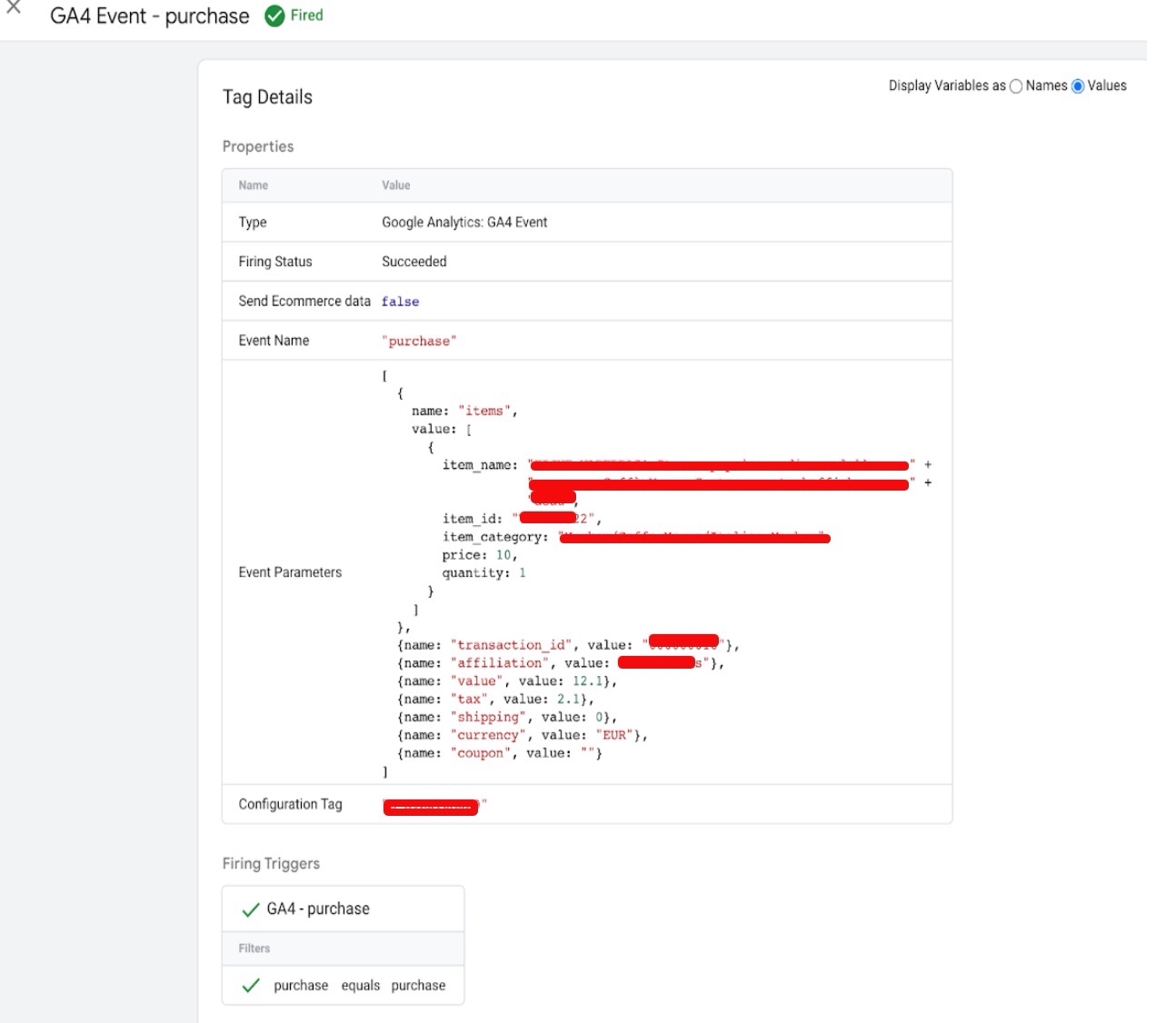
Set up GTM ecommerce tags: With GTM, hotels can create ecommerce tags to track specific ecommerce events such as purchases, refunds, and product impressions. These tags can be customized to track specific parameters such as product IDs, transaction IDs, and revenue.

Set up ecommerce data layer: The ecommerce data layer is a JavaScript object that contains the data required for ecommerce tracking. Hotels should set up the data layer on their website to send ecommerce data to GTM.

Test and publish: After setting up ecommerce tracking with GTM, hotels should thoroughly test their implementation to ensure that the data is being sent correctly. Once everything is working as expected, the ecommerce tags can be published in GTM.

By setting up ecommerce tracking with Google Tag Manager, hotels can streamline the process of collecting and analyzing ecommerce data in Google Analytics 4.

Google Analytics 4 (GA4) E-commerce for hotel

Google Analytics 4 (GA4) E-commerce Conversion for hotel with Google Tag Manager

Warning: If you do n’t know about javascript or do n’t have developing knowledge then do n’t try to Google Analytics 4 (GA4) Purchase for Hotels Ecommerce Tracking that can broke your site, Cart and other functionality 

Disclaimer: Google tag manager belongs to Google property 

For Contact: mappchero@gmail.com

I am available for Hire on Freelancer: Freelancer.com

I am available for Hire on Upwork: Upwork.com

I am available for Hire on Peopleperhour: Peopleperhour.com

I am available for Hire on Guru: Guru.com


Google Analytics 4 (GA4) eCommerce tracking for Teachable

Standard

Set Up Google Analytics 4 (GA4) Ecommerce Tracking for Teachable with Google Tag Manager

Google Analytics 4 eCommerce tracking for Teachable is a way to track and analyze eCommerce activity on your Teachable online school using Google Analytics 4. With this tracking in place, you can gain valuable insights into how your online courses are performing, which products are selling best, and how your marketing efforts are driving sales.

The eCommerce tracking feature in Google Analytics 4 allows you to track a range of eCommerce metrics, including revenue, transactions, and product performance. You can also see where your customers are coming from, what devices they are using to access your Teachable school, and how they are interacting with your site.

By using Google Analytics 4 eCommerce tracking with Teachable, you can make data-driven decisions about how to optimize your online school for increased sales and revenue. For example, you can use the data to make improvements to your product offerings, adjust your marketing strategies, or optimize your checkout process.

There are several benefits to using Google Analytics 4 eCommerce tracking for Teachable. Here are some of the key advantages:

Track important eCommerce metrics: With Google Analytics 4 eCommerce tracking, you can easily track and analyze important eCommerce metrics like revenue, transactions, and product performance. This data can give you valuable insights into how your Teachable school is performing and where you can make improvements to increase sales and revenue.

Understand your audience: Google Analytics 4 eCommerce tracking can also help you understand your audience better. You can see where your customers are coming from, what devices they are using, and how they are interacting with your Teachable school. This information can help you optimize your site for a better user experience and target your marketing efforts more effectively.

Make data-driven decisions: By using Google Analytics 4 eCommerce tracking, you can make data-driven decisions about how to improve your online school. You can use the data to make improvements to your product offerings, adjust your marketing strategies, or optimize your checkout process. This can help you increase sales and revenue and grow your online business.

Easy integration with Teachable: Google Analytics 4 eCommerce tracking is easy to set up and integrate with Teachable. Once you have set up the tracking, you can start collecting valuable data about your Teachable school without any additional effort.

Cost-effective: Google Analytics 4 eCommerce tracking is a cost-effective way to gain valuable insights into your online school’s performance. It is free to use, and you only need to invest a little time to set up the tracking and start collecting data.

To set up Google Analytics 4 eCommerce tracking for Teachable with Google Tag Manager, you will need to follow these steps:

Set up a Google Analytics 4 property:

  1. Sign in to your Google Analytics account and navigate to the Admin section.
    In the Property column, click on “Create Property” and select “Google Analytics 4.”
    Follow the prompts to set up your new property.
    Set up Google Tag Manager for your Teachable school:

2. Create a Google Tag Manager account if you don’t have one already.
Install the Google Tag Manager script on your Teachable school by following the instructions in the Tag Manager interface.
Create a Google Tag Manager container for your Google Analytics 4 property:

3. In your Google Tag Manager account, create a new container for your Google Analytics 4 property.
Add a new Google Analytics tag to your container and configure it to use your Google Analytics 4 property ID.
Set up eCommerce tracking in Google Tag Manager:

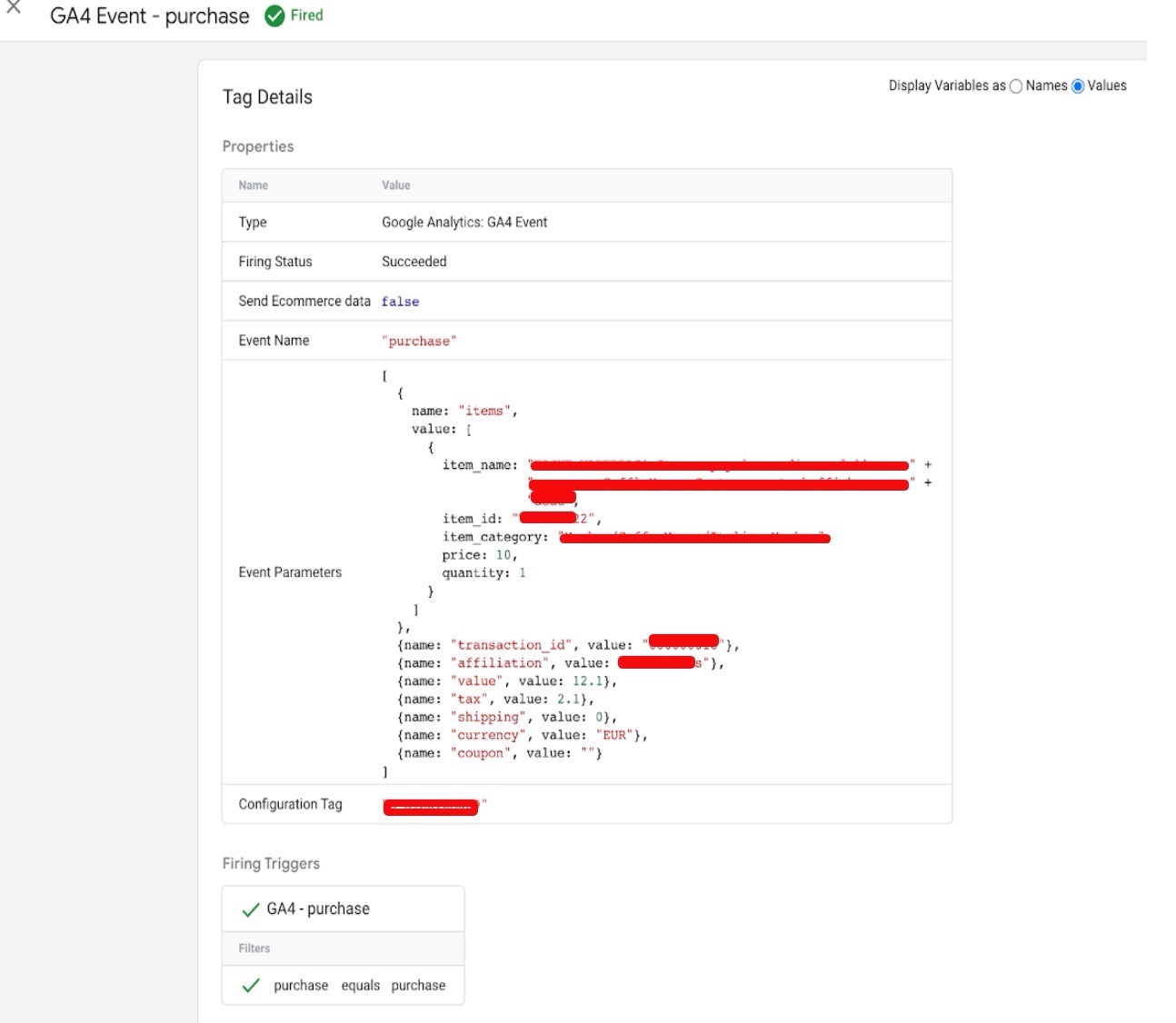
3. Add an eCommerce tracking tag to your container by selecting the “Google Analytics: GA4 Configuration” tag type and configuring it to track eCommerce data.
Add a trigger to fire the eCommerce tracking tag on relevant pages, such as the order confirmation page.
Connect Google Tag Manager to Teachable:

In your Teachable admin area, navigate to “Settings” and click on “Analytics.”
Enter your Google Tag Manager container ID in the “Google Tag Manager ID” field and save your changes.
Test your setup:

Make a test purchase on your Teachable school to ensure that the transaction data is being tracked correctly in Google Analytics 4.

Once your setup is complete, you will be able to track eCommerce data in your Google Analytics 4 property, including revenue, transactions, and product performance.

Connect Google Analytics 4 (GA4) for Teachable

Teachable Google Analytics 4 (GA4) Ecommerce Tag for Google Tag Manager

Warning: If you do n’t know about javascript or do n’t have developing knowledge then do n’t try to Google Analytics 4 (GA4) Purchase eCommerce tracking for Teachable that can broke your site, Cart and other functionality 

Disclaimer: Google tag manager belongs to Google property 

For Contact: mappchero@gmail.com

I am available for Hire on Freelancer: Freelancer.com

I am available for Hire on Upwork: Upwork.com

I am available for Hire on Peopleperhour: Peopleperhour.com

I am available for Hire on Guru: Guru.com


Google Analytics 4 (GA4) eCommerce Tracking for Odoo

Standard

Odoo is an open-source enterprise resource planning (ERP) system that includes a variety of business applications, including eCommerce functionality. Google Analytics 4 is the latest version of Google’s analytics platform, which is designed to help businesses understand and analyze user behavior across multiple devices and channels.

Odoo is an all-in-one business management software that includes a range of applications, such as accounting, inventory, CRM, and e-commerce. Google Analytics is a web analytics service offered by Google that tracks and reports website traffic and user behavior.

Google Analytics 4 (GA4) is the latest version of Google Analytics, which includes several new features and capabilities designed to help businesses better understand their customers’ journeys across different platforms and devices.

If you’re using Odoo’s e-commerce application and want to integrate GA4, you can do so by following these steps:

Create a GA4 property: First, you need to create a new GA4 property in your Google Analytics account. Go to the Google Analytics homepage, click on the Admin button, and select Create Property. Follow the prompts to set up your new property.

Connect Odoo to GA4: In Odoo, go to the website application and click on the Configuration menu. Then, select Settings and scroll down to the Google Analytics section. Enter your GA4 Measurement ID, which you can find in the Admin section of your GA4 property.

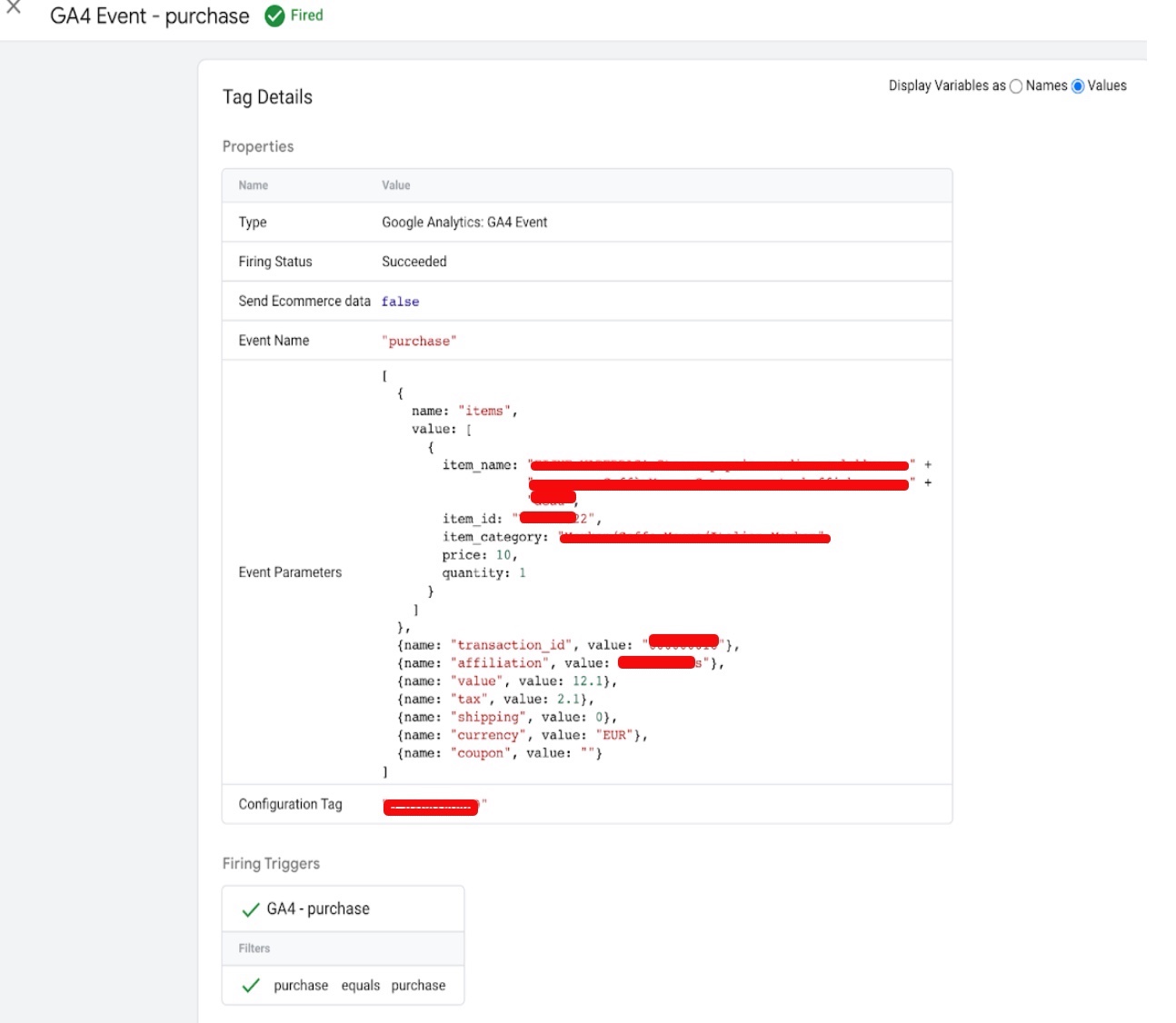
Enable e-commerce tracking: To track e-commerce data in GA4, you need to enable e-commerce tracking in both Odoo and GA4. In Odoo, go to the website application and click on the Configuration menu. Then, select Settings and scroll down to the E-commerce section. Make sure the Enable E-commerce Tracking option is turned on. In GA4, go to the Admin section and select E-commerce Settings. Turn on the Enable Enhanced E-commerce Reporting option.

Test your setup: Once you’ve connected Odoo to GA4 and enabled e-commerce tracking, it’s a good idea to test your setup to make sure it’s working correctly. You can do this by placing a test order on your website and checking the e-commerce data in your GA4 account.

By integrating GA4 with Odoo’s e-commerce application, you can gain valuable insights into your customers’ behavior and use that data to optimize your online store and improve your sales.

GA4 eCommerce events on Odoo

Set up Google Analytic 4 (GA4) Purchase ecommerce events for Odoo with Google Tag Manager

Warning: If you do n’t know about javascript or do n’t have developing knowledge then do n’t try to Google Analytics 4 (GA4) Purchase event eCommerce Tracking for Odoo that can broke your site, Cart and other functionality 

Disclaimer: Google tag manager belongs to Google property 

For Contact: mappchero@gmail.com

I am available for Hire on Freelancer: Freelancer.com

I am available for Hire on Upwork: Upwork.com

I am available for Hire on Peopleperhour: Peopleperhour.com

I am available for Hire on Guru: Guru.com
 

Google Analytics 4 Ecommerce Tracking for Booking

Standard

Integrate Google Analytics 4 with Booking Ecommerce Tracking with Google Tag Manager

Google Analytics 4 (GA4) Ecommerce Tracking for Booking is a feature of Google Analytics 4 that allows website owners and marketers to track ecommerce transactions and booking-related metrics on their website. Ecommerce tracking in Google Analytics 4 provides valuable insights into user behavior and purchase patterns, helping website owners optimize their online booking processes, identify revenue opportunities, and make data-driven decisions to improve overall business performance.

With Google Analytics 4 (GA4) Ecommerce Tracking for Booking, you can track the following metrics related to bookings:

  • Total revenue and revenue by product or service
  • Number of transactions and conversion rates
  • Average order value
  • Product and service performance metrics, such as quantity sold, revenue, and refund rates
  • Shipping and tax information

User behavior on your booking pages, such as time spent, page views, and drop-off rates
By tracking these metrics, you can gain valuable insights into how users interact with your booking process, identify areas for improvement, and make data-driven decisions to optimize your website and improve business performance.

To set up Google Analytics 4 Ecommerce tracking for booking with Google Tag Manager, you can follow these steps:

  1. Set up a Google Analytics 4 Configuration Tag in GTM:
    In GTM, create a new configuration tag for Google Analytics 4. In the tag settings, make sure to choose “Google Analytics: GA4 Configuration” as the tag type, and enter your GA4 property ID.

2. Enable Enhanced Ecommerce in your GA4 property:
In your GA4 property, go to “Data Streams” and select the appropriate data stream. Click “Measurement Settings” and enable “Enhanced Measurement”.

3. Create an Ecommerce Purchase Event Tag in GTM:
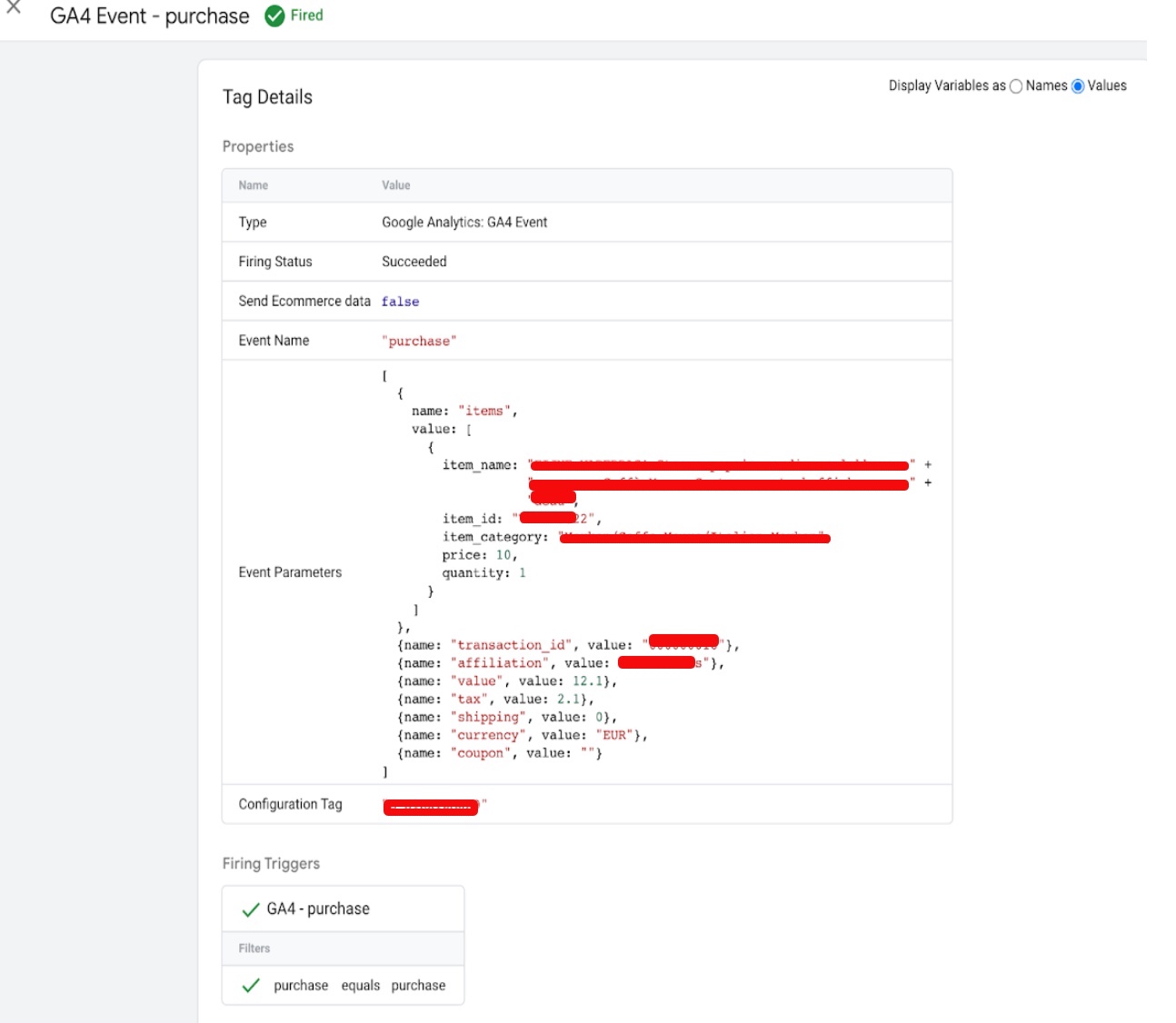
In GTM, create a new event tag for Ecommerce Purchase. In the tag settings, choose “Google Analytics: GA4 Event” as the tag type, and select the GA4 Configuration Tag created in step 1.

4. Configure the Ecommerce Purchase Event Tag:
In the tag configuration, set the “Event name” to “purchase”, and fill in the relevant Ecommerce data, including transaction ID, revenue, currency, and other optional parameters like shipping, tax, etc.

6. Trigger the Ecommerce Purchase Event Tag:
Configure a trigger to fire the Ecommerce Purchase Event Tag when a booking is made. This will depend on the specifics of your booking platform, but could include triggers based on URL or form submission.

7. Test and Publish:
Use the GTM Preview mode to test your Ecommerce tracking and ensure that events are firing correctly. Once everything is working as expected, publish the changes to your GTM container.

Google Analytics 4 Ecommerce Tracking for Booking

Enable Customer Purchase Tracking in Booking with Google Analytics 4 (GA4) with Google Tag Manager

Warning: If you do n’t know about javascript or do n’t have developing knowledge then do n’t try to Google Analytics 4 Purcahse Tracking for Booking that can broke your site, Cart and other functionality 

Disclaimer: Google tag manager belongs to Google property 

For Contact: mappchero@gmail.com

I am available for Hire on Freelancer: Freelancer.com

I am available for Hire on Upwork: Upwork.com

I am available for Hire on Peopleperhour: Peopleperhour.com

I am available for Hire on Guru: Guru.com


Google Analytics 4 (GA4) Ecommerce Tracking for Classy

Standard

Google Analytics 4 (GA4) Integration eCommerce Tracking for Classy using Google Tag Manager

Google Analytics 4 Ecommerce Tracking for Classy is a way to track and analyze the performance of donations made through the Classy platform using Google Analytics 4.

Google Analytics 4 is the latest version of Google’s web analytics platform, which offers a new approach to tracking user behavior across multiple devices and platforms. Ecommerce tracking in Google Analytics 4 allows you to track important data related to your online transactions, including revenue, conversion rates, and other valuable metrics.

Classy is a popular online fundraising platform that enables nonprofits and social impact organizations to collect donations and manage their fundraising efforts. By setting up Google Analytics 4 Ecommerce tracking for Classy, organizations can gain insights into their donation performance and make data-driven decisions to improve their fundraising strategies.

Ecommerce tracking in Classy involves setting up events to track key actions taken by donors, such as making a donation, adding items to their cart, and removing items from their cart. These events are then sent to Google Analytics 4, where they can be analyzed to gain insights into donation performance and user behavior. This can help organizations understand what is working well and what areas need improvement, so they can optimize their fundraising efforts and maximize their impact.

To set up Classy Google Analytics 4 (GA4) Ecommerce tracking with Google Tag Manager, you can follow these steps:

  1. Create a Google Analytics 4 property
    • Sign in to your Google Analytics account
    • Click on the Admin button
    • Under the Property column, click on the dropdown menu and select “Create Property”
    • Follow the steps to set up your new property
    • Note the Measurement ID for later use

2. Set up Enhanced Ecommerce tracking in Classy

    • Log in to your Classy account
    • Go to the “Integrations” tab
    • Find the Google Analytics integration and click “Configure”
    • Enable the “Enhanced Ecommerce” option
    • Enter your Google Analytics 4 property Measurement ID
    • Save the configuration

3. Set up a Google Tag Manager container

    • Sign in to your Google Tag Manager account
    • Create a new container for your website
    • Follow the steps to add the Google Tag Manager code to your website

4. Set up the GA4 tags in Google Tag Manager

    • In your Google Tag Manager container, create a new tag
    • Choose “Google Analytics: GA4 Configuration” as the tag type
    • Enter your Google Analytics 4 property Measurement ID
    • Save the tag
    • Create a new trigger
    • Choose “All Pages” as the trigger type
    • Save the trigger
    • Assign the trigger to the GA4 tag

5. Set up the Ecommerce events in Google Tag Manager

    • Create a new tag
    • Choose “Google Analytics: GA4 Event” as the tag type
    • Enter the event parameters for the “purchase”, “add to cart”, and “remove from cart” events
    • Save the tag
    • Create a trigger for each event
    • Assign each trigger to the corresponding GA4 event tag

6. Test your tracking

    • Make a donation through your Classy donation form
    • Verify that the events are being tracked correctly in your Google Analytics 4 property
    • Once you have completed these steps, you should be able to track your Classy donations as
    • Ecommerce events in Google Analytics 4 using Google Tag Manager.
Set Up Google Analytics 4 for Classy

GA4 eCommerce Tracking Reporting for Classy with Google Tag Manager

Warning: If you do n’t know about javascript or do n’t have developing knowledge then do n’t try to Google Analytics 4 (GA4) Ecommerce Tracking for Classy that can broke your site, Cart and other functionality 

Disclaimer: Google tag manager belongs to Google property 

For Contact: mappchero@gmail.com

I am available for Hire on Freelancer: Freelancer.com

I am available for Hire on Upwork: Upwork.com

I am available for Hire on Peopleperhour: Peopleperhour.com

I am available for Hire on Guru: Guru.com

Google Analytic (GA4) Ecommerce Tracking on Shopware 5

Standard

Set Up Google Analytics eCommerce tracking in Shopware 5 using Google Tag Manager

GA4 eCommerce tracking for Shopware 5 is crucial for gaining insights into customer behavior and optimizing the online store for better sales performance. Here are some of the key reasons why GA4 eCommerce tracking is needed for Shopware 5:

Improved tracking accuracy: GA4 eCommerce tracking allows for more accurate tracking of eCommerce events such as product views, add to cart, and purchases. This provides valuable insights into customer behavior, which can help optimize the online store for better sales performance.

Cross-device tracking: With GA4 eCommerce tracking, online retailers can track customers across multiple devices, including mobile phones, tablets, and desktop computers. This provides a more complete picture of customer behavior, allowing online stores to optimize their marketing efforts accordingly.

Deeper insights: GA4 provides a more comprehensive view of customer behavior by tracking multiple touchpoints across different devices and platforms. This allows online retailers to get a better understanding of how customers engage with their brand and products, and use this information to make informed business decisions.

Personalization: With the enhanced data collection capabilities of GA4, online retailers can create more personalized experiences for their customers. By understanding customer behavior and preferences, online stores can provide tailored recommendations and promotions that are more likely to result in sales.

Improved marketing ROI: GA4 eCommerce tracking allows online retailers to better understand the effectiveness of their marketing campaigns, and make data-driven decisions to optimize their marketing spend. This can lead to improved ROI on marketing investments and better business outcomes overall.

To set up a data layer in Shopware 5 for GA4 ecommerce tracking using Google Tag Manager, follow these steps:

Install Google Tag Manager: Install Google Tag Manager on your Shopware 5 store by adding the Google Tag Manager script to your website header or footer.

Set up ecommerce tracking in GA4: Follow Google’s instructions to set up ecommerce tracking in GA4.

Create data layer variables in Tag Manager: In Tag Manager, create data layer variables for the ecommerce events you want to track, such as “addToCart” or “purchase”. To do this, go to “Variables” in the left-hand menu and create a new variable with the type “Data Layer Variable”. Enter the name of the variable (e.g. “addToCart”) and set the data layer version to “Version 2”.

Configure ecommerce tracking in Tag Manager: In Tag Manager, set up triggers to fire the data layer variables you created when specific events occur on your Shopware 5 store, such as when a user adds a product to their cart. To do this, go to “Triggers” in the left-hand menu and create a new trigger with the type “Custom Event”. Enter the name of the event you want to track (e.g. “addToCart”) and select the data layer variable you created in step 3.

Test ecommerce tracking: Use the Google Tag Assistant extension for Google Chrome to test that ecommerce events are being tracked correctly. This will allow you to verify that the data layer variables and triggers are set up correctly

Google Analytics 4 (GA4 ) for Shopware 5

Set up eCommerce Purchase Tracking Events GA4 for Shopware 5 using Google Tag  Manager

Warning: If you do n’t know about javascript or do n’t have developing knowledge then do n’t try to Google Analytic (GA4) Ecommerce Tracking on Shopware 5 that can broke your site, Cart and other functionality 

Disclaimer: Google tag manager belongs to Google property 

For Contact: mappchero@gmail.com

I am available for Hire on Freelancer: Freelancer.com

I am available for Hire on Upwork: Upwork.com

I am available for Hire on Peopleperhour: Peopleperhour.com

I am available for Hire on Guru: Guru.com