Google Analytics 4 (GA4) Enhanced Ecommerce Tracking

Standard

Google Analytics 4 (GA4) eCommerce tracking is a feature of Google Analytics 4 that allows website owners to track and analyze eCommerce activity on their website. It provides a more advanced and accurate way to measure user behavior and revenue for online businesses.

With GA4 eCommerce tracking, you can monitor user behavior throughout the entire eCommerce process, from product browsing to checkout and purchase. This includes tracking metrics such as product views, add-to-cart events, checkout steps, and completed purchases. You can also track other important eCommerce metrics, such as revenue, average order value, and conversion rate.

GA4 eCommerce tracking provides several benefits, including:

Improved accuracy: GA4 eCommerce tracking provides more accurate data on user behavior and revenue compared to previous versions of Google Analytics.

Deeper insights: With GA4 eCommerce tracking, you can gain deeper insights into user behavior and customer journeys, helping you optimize your eCommerce website and improve your revenue.

Cross-device tracking: GA4 eCommerce tracking allows you to track user behavior across multiple devices, providing a more complete view of user behavior and customer journeys.

Integration with Google Ads: GA4 eCommerce tracking integrates with Google Ads, allowing you to track the effectiveness of your Google Ads campaigns and optimize your ad spend.

Integration with Google BigQuery: GA4 eCommerce tracking integrates with Google BigQuery, allowing you to export your data to BigQuery for more advanced analysis and reporting.

Here are some benefits of using Google Tag Manager (GTM) for implementing Google Analytics 4 (GA4) eCommerce tracking:

Simplified Implementation: GTM simplifies the process of implementing GA4 eCommerce tracking by allowing you to add and manage tags without having to modify the code on your website.

Flexible Tracking: GTM offers a range of built-in and custom tags that allow you to track a variety of eCommerce events, such as product impressions, add to cart, checkout steps, and completed purchases.

Customization: GTM provides a high degree of customization, allowing you to define your own eCommerce events and trigger rules based on user behavior on your website.

Debugging: GTM includes a preview and debug mode that allows you to test and troubleshoot your GA4 eCommerce tracking implementation before it goes live on your website.

Enhanced Performance: GTM can improve the performance of your website by loading tags asynchronously, which means that they don’t slow down your website’s loading speed.

Data Layer: GTM’s data layer feature provides a way to organize and standardize the data that is sent to GA4, making it easier to analyze and understand user behavior on your website.

Better Insights: With GA4 eCommerce tracking implemented through GTM, you can gain better insights into user behavior and eCommerce performance, helping you make data-driven decisions to improve conversions and revenue on your website.

Google Analytics 4 (GA4) eCommerce tracking

Google Analytics 4 (GA4) with Enhanced eCommerce using Google Tag Manager

Warning: If you don’t know about javascript or don’t have developing knowledge then don’t try to Google Analytics 4 (GA4) Enhanced Ecommerce Tracking that can break your site, Cart and other functionality 

Disclaimer: Google tag manager belongs to Google property 

For Contact: mappchero@gmail.com

I am available for Hire on Freelancer: Freelancer.com

I am available for Hire on Upwork: Upwork.com

I am available for Hire on Peopleperhour: Peopleperhour.com

I am available for Hire on Guru: Guru.com

Google Ads Dynamic Remarketing Tracking and Smart Shopping for BigCommerce

Standard

Dynamic Remarketing Events and Parameters for BigCommerce using Google Tag Manager

Google Ads Dynamic Remarketing Tracking and Smart Shopping are two powerful advertising features offered by Google Ads that allow eCommerce businesses to retarget their website visitors with personalized ads. These features can be set up for BigCommerce using Google Tag Manager.

Dynamic Remarketing is a feature that allows advertisers to show personalized ads to people who have visited their website or app. These ads are tailored to the user’s behavior on the website, displaying the products or services they viewed, and may also include special offers or promotions. By using dynamic remarketing, advertisers can reach potential customers who are more likely to convert since they have already shown interest in the business’s products or services.

Smart Shopping, on the other hand, is a type of automated Google Ads campaign that uses machine learning to optimize ad performance. Smart Shopping combines standard Shopping and display remarketing campaigns into one, allowing advertisers to reach potential customers across the Google Search Network, Google Display Network, YouTube, and Gmail. Smart Shopping also uses dynamic remarketing to show personalized ads to people who have already interacted with the business’s website or app.

Google Tag Manager is a tool that allows eCommerce businesses to manage and deploy tracking tags on their website. By using Google Tag Manager, businesses can easily set up and manage tracking tags for various advertising platforms, including Google Ads. Setting up Dynamic Remarketing Tracking and Smart Shopping for BigCommerce using Google Tag Manager allows businesses to track and target their website visitors with personalized ads, leading to higher conversion rates and increased revenue.

Google Ads Dynamic Remarketing tags for BigCommerce can be set up using Google Tag Manager. Here’s how:

  1. Sign in to your Google Ads account and create a new Dynamic Remarketing campaign.

2. Click on “Tag setup” and select “Google Tag Manager” as the tag type.

3. Click on “View the Google Tag Manager container code” and copy the code.

4. Log in to your BigCommerce store and navigate to “Storefront > Script Manager”.

5. Click on “Create a Script” and select “Script type” as “Google Analytics”.

6. Paste the Google Tag Manager container code in the “Script contents” field.

7. Click on “Save” and publish the script.

8. Back in Google Ads, click on “Continue”.

9. Configure your tag by selecting the “Google Ads Remarketing” template and filling in the necessary information, including your Google Ads ID and any custom parameters you want to include in the tag.

10 . Save the tag and publish your changes in Google Tag Manager.

By setting up Dynamic Remarketing tags for BigCommerce using Google Tag Manager, you can create more personalized and targeted ads for your potential customers. The tag allows you to track specific actions that users take on your website, such as adding items to their cart or viewing specific products. This information can be used to create ads that show the products that users have shown an interest in, increasing the likelihood of a conversion. Additionally, by using Google Tag Manager, you can easily manage and update your tags without the need for additional coding or technical knowledge.

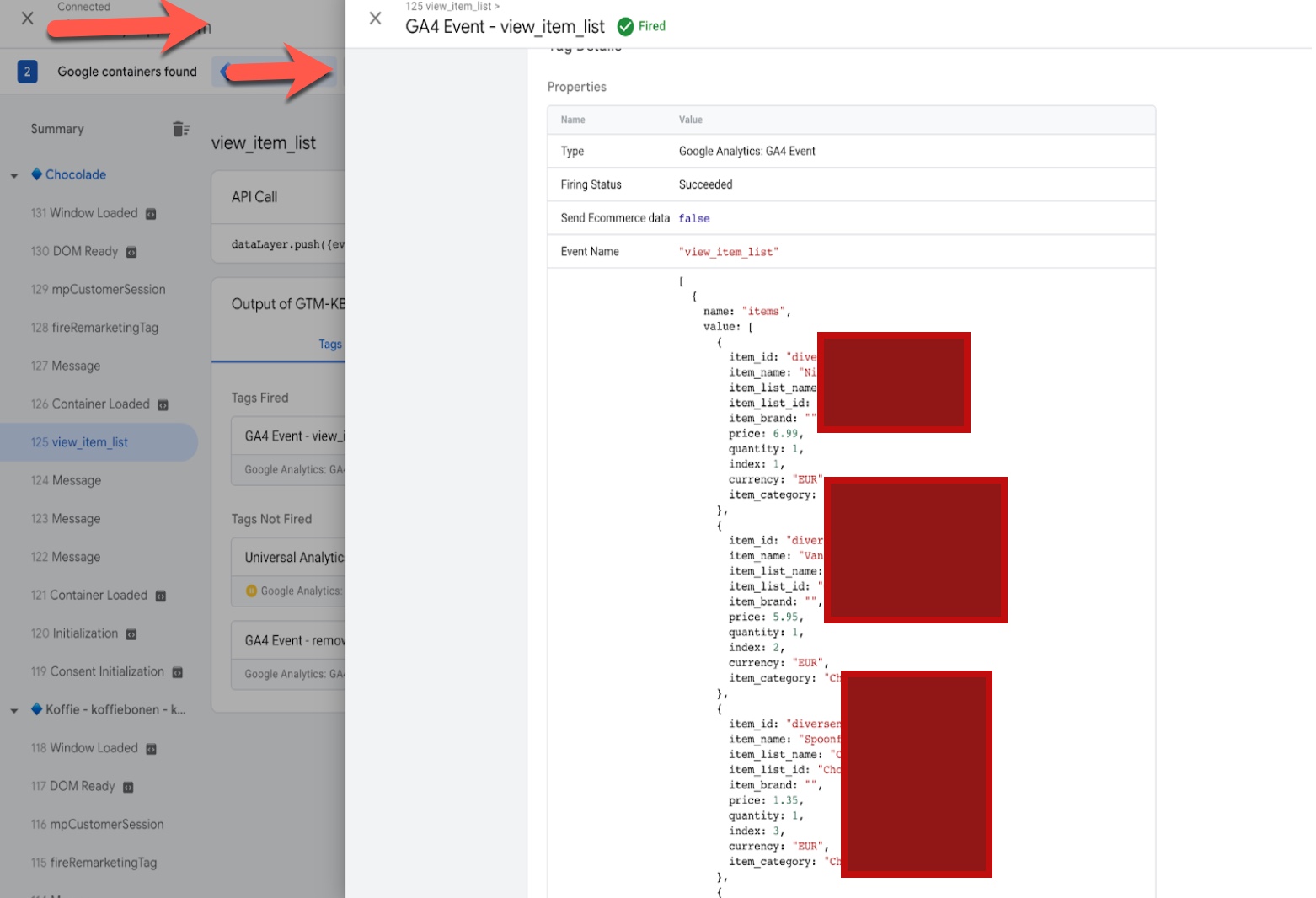
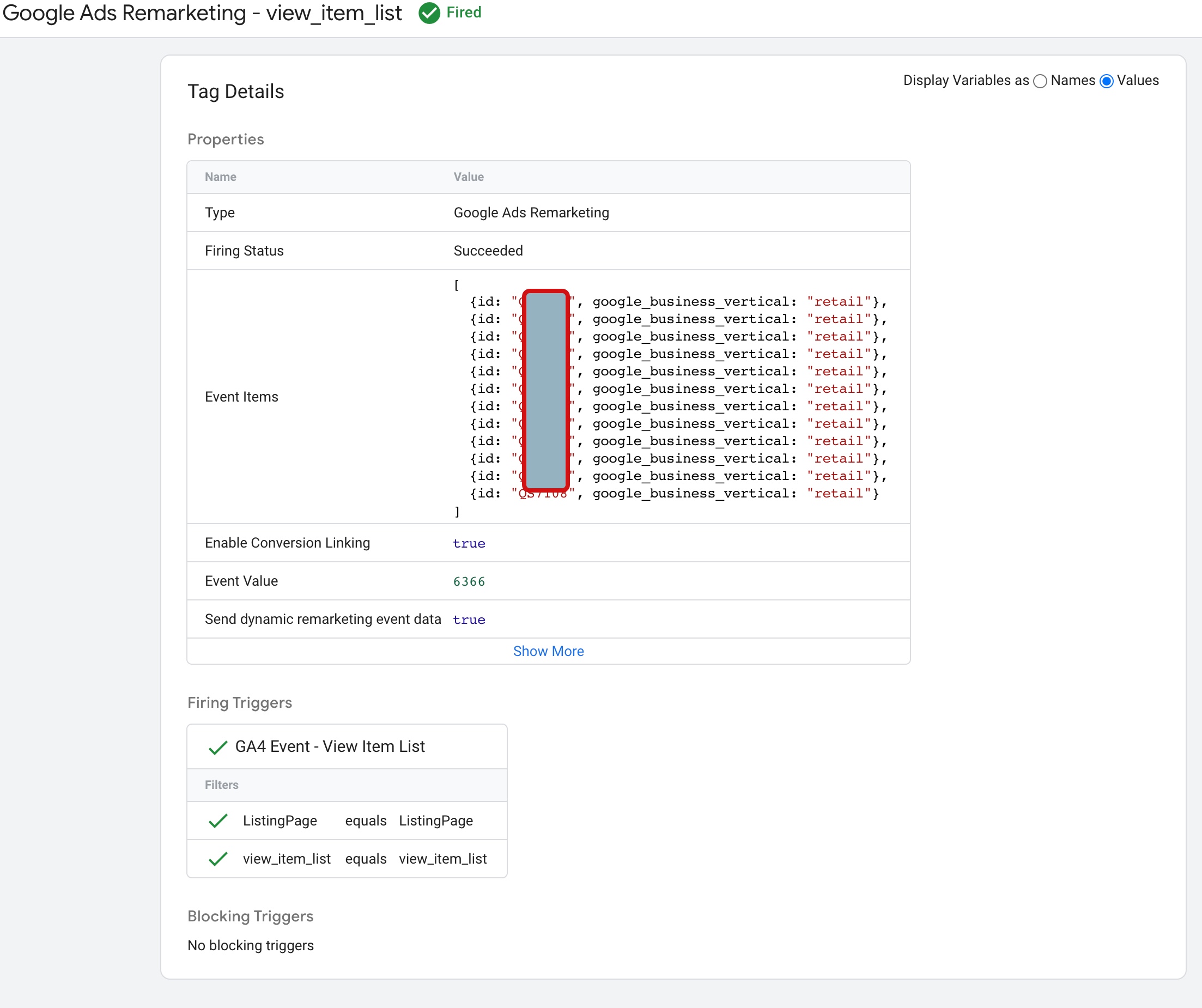
“view_item_list” is a standard event parameter in Google Tag Manager that tracks when a user views a list of related products on a website, such as a category or search results page. Google Ads Dynamic Remarketing Tags for “view_item_list” allow you to track these interactions and target users with personalized ads based on their previous product views.

 Dynamic Remarketing Tag for Dynamic Ads

Google Ads Dynamic Remarketing Tag Setup for BigCommerce using Google Tag Manager

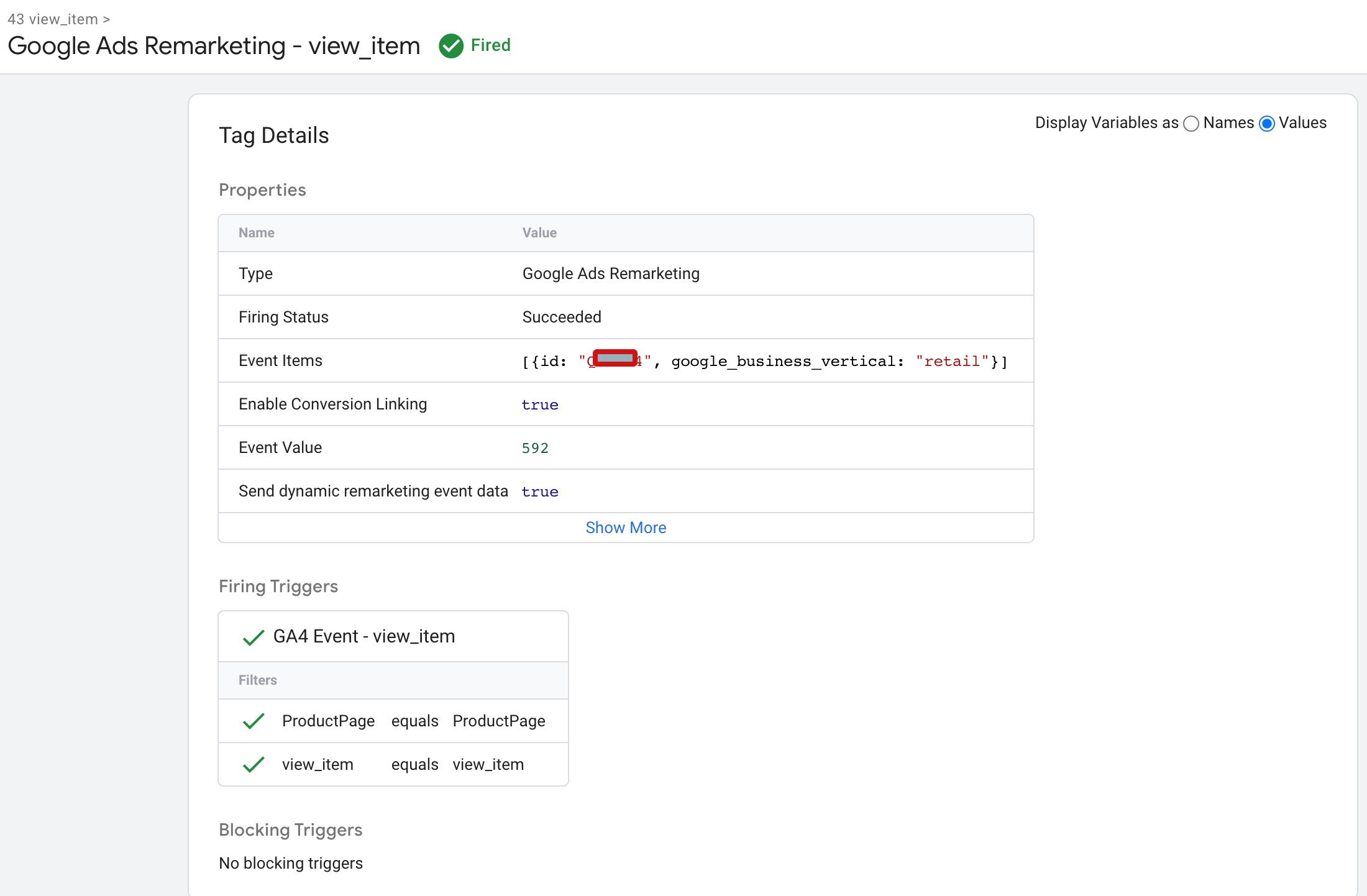
“view_item” is a standard event parameter in Google Tag Manager that tracks when a user views a specific product on a website. Remarketing tags are a type of tag that allow you to track user behavior on your website and target them with personalized ads based on that behavior.

Dynamic Remarketing Tracking for BigCommerce

Install Google Ads Remarketing Tag in BigCommerce using Google Tag Manaer

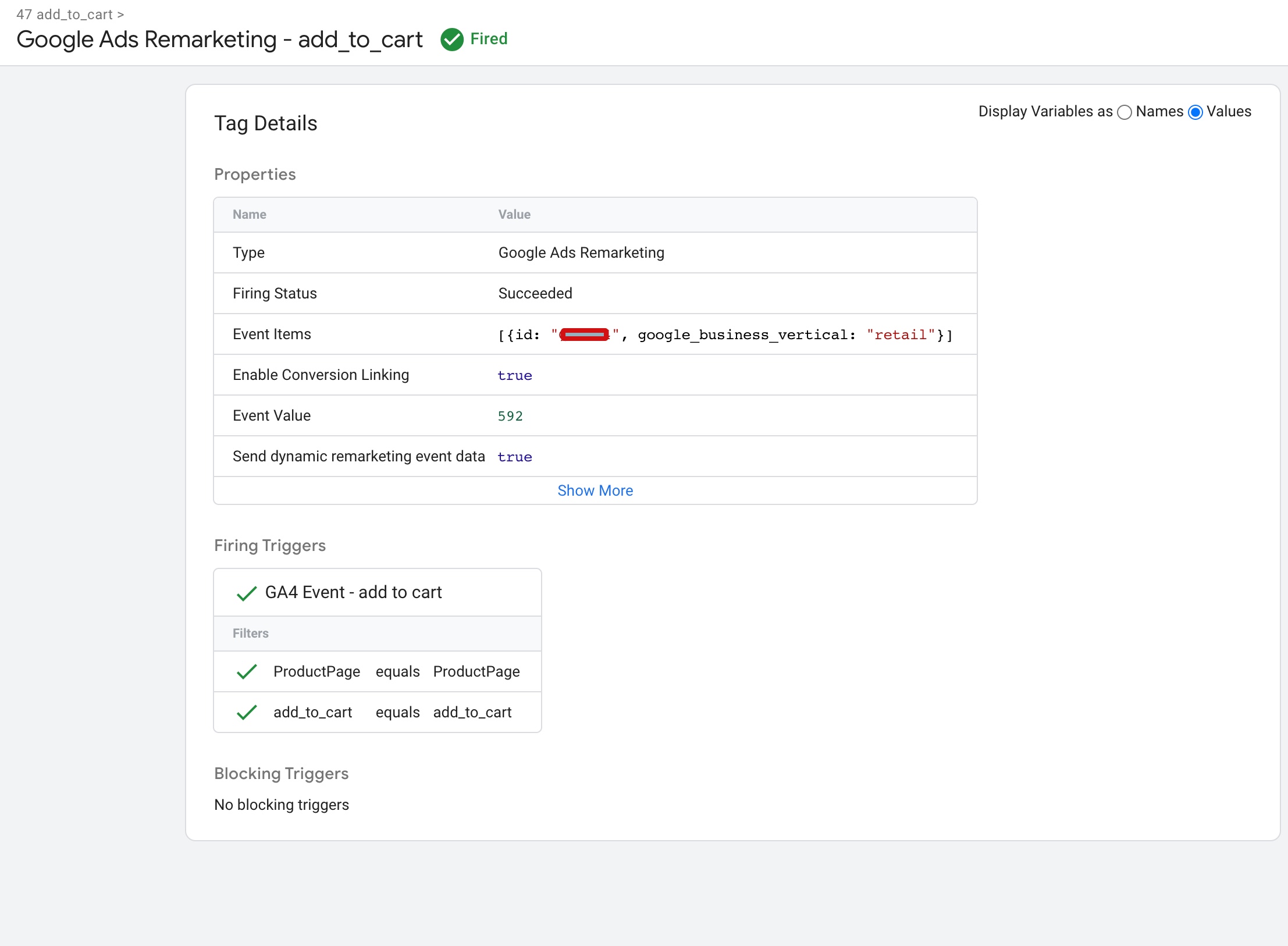
“add_to_cart” is a standard event parameter in Google Tag Manager that tracks when a user adds a product to their shopping cart on a website. Google Ads Dynamic Remarketing Tags for “add_to_cart” allow you to track these interactions and target users with personalized ads based on their previous cart activity.

Dynamic Remarketing Setup for Google Ads for BigCommerce

Dynamic Remarketing Tracking for BigCommerce using Google Tag Manager

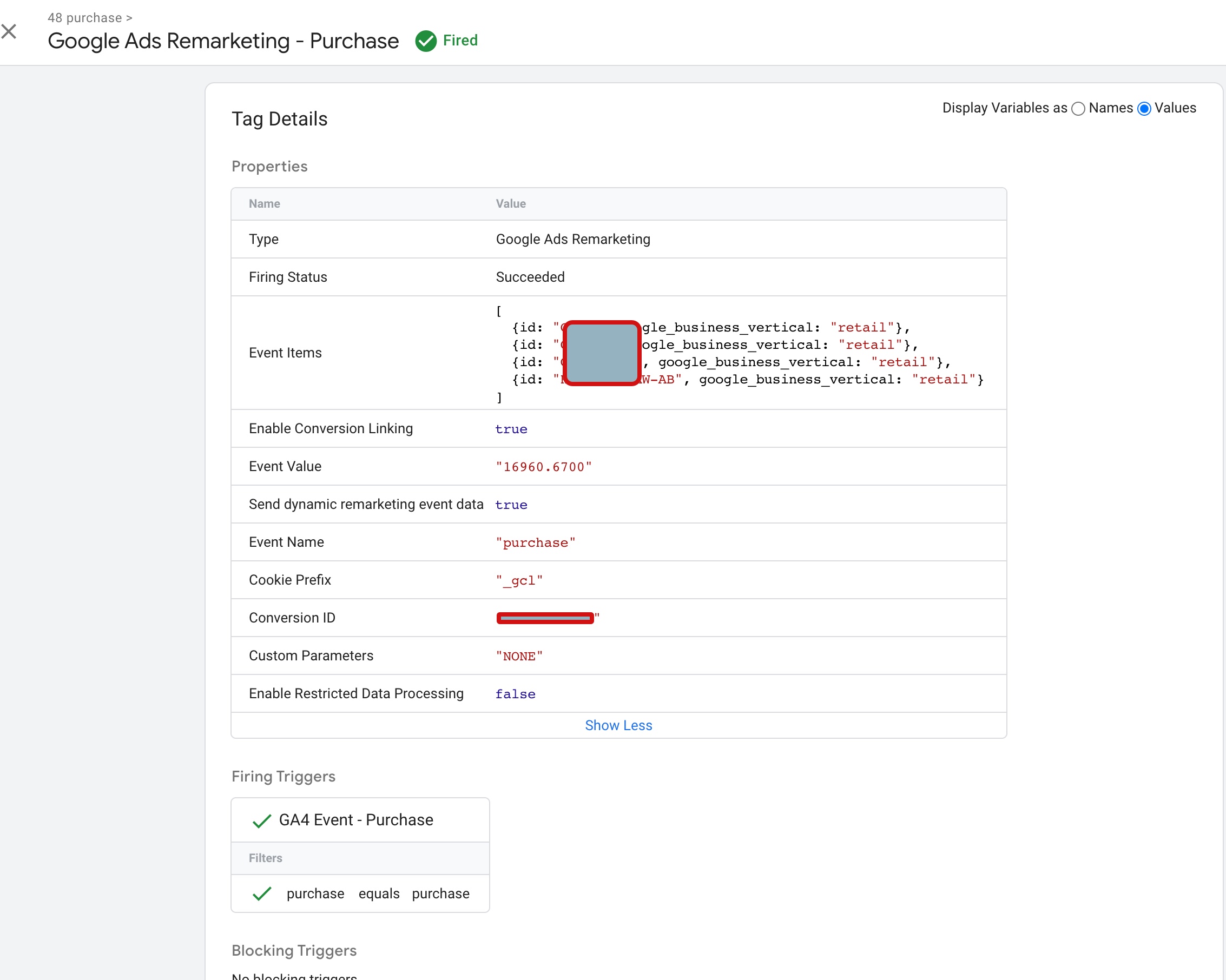
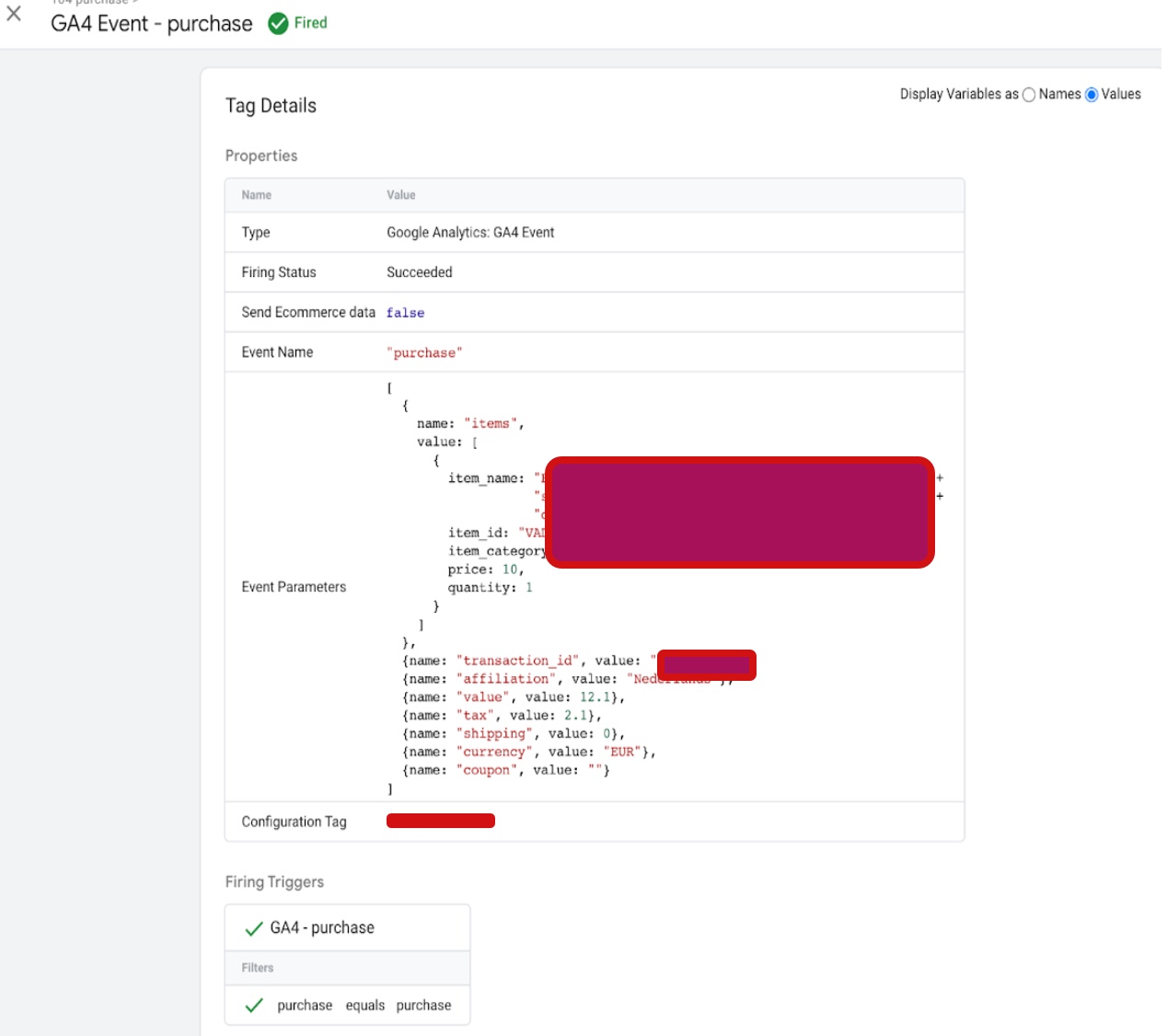
purchase” is a standard event parameter in Google Tag Manager that tracks when a user completes a purchase on a website. Google Ads Dynamic Remarketing Tags for “purchase” allow you to track these interactions and target users with personalized ads based on their previous purchase activity.

Google Ads Dynamic Remarketing Tag for "purchase" for BigCommerce

Google Ads Shopping Dynamic Remarketing Tag Setup BigCommerce using Google Tag Manager

Warning: If you don’t know about javascript or don’t have developing knowledge then don’t try to Google Ads Dynamic Remarketing Tracking and Smart Shopping for BigCommerce that can break your site, Cart and other functionality 

Disclaimer: Google tag manager belongs to Google property 

For Contact: mappchero@gmail.com

I am available for Hire on Freelancer: Freelancer.com

I am available for Hire on Upwork: Upwork.com

I am available for Hire on Peopleperhour: Peopleperhour.com

I am available for Hire on Guru: Guru.com

GA4 Migration for Enhanced eCommerce & Advanced Event Tracking

Standard

GA4 migration for enhanced eCommerce and advanced event tracking refers to the process of upgrading your existing Universal Analytics tracking to the newer Google Analytics 4 (GA4) tracking method in order to take advantage of the enhanced eCommerce and advanced event tracking features available in GA4.

Enhanced eCommerce tracking in GA4 provides more detailed and accurate information about customer behavior and purchasing patterns on your website or app, which can help you make more informed business decisions. It allows you to track product impressions, clicks, views, purchases, refunds, and more.

Advanced event tracking in GA4 enables you to track custom events on your website or app that are not included in the default event tracking. This allows you to track specific user interactions with your site or app, such as form submissions, button clicks, or video plays.

Migrating to GA4 involves creating a new GA4 property in your Google Analytics account, enabling enhanced eCommerce and advanced event tracking, updating your tracking code, mapping your existing events to the new event names in GA4, and setting up custom events. Once you have completed the migration, you can start using the enhanced eCommerce and advanced event tracking features in GA4 to gain deeper insights into your customers’ behavior and optimize your business strategy accordingly.

There are several benefits of GA4 migration for enhanced eCommerce and advanced event tracking. Here are some of the key benefits:

Enhanced eCommerce tracking: GA4’s enhanced eCommerce tracking provides more detailed and accurate information about customer behavior and purchasing patterns on your website or app. This allows you to make more informed business decisions and optimize your website or app to improve the customer experience.

Advanced event tracking: With GA4’s advanced event tracking, you can track custom events on your website or app that are not included in the default event tracking. This allows you to track specific user interactions with your site or app, such as form submissions, button clicks, or video plays, and gain deeper insights into your customers’ behavior.

More accurate data: GA4’s event tracking model is based on events rather than sessions, which means that it provides more accurate data on user behavior. This is because events allow you to track individual actions taken by users, rather than just tracking sessions as a whole.

Better cross-device tracking: GA4 provides better cross-device tracking, which allows you to track user behavior across multiple devices and platforms. This means that you can get a more complete view of your customers’ behavior and preferences.

Improved machine learning capabilities: GA4 includes advanced machine learning capabilities that can help you identify trends and patterns in your data, and make predictions about future customer behavior. This can help you make more informed business decisions and optimize your website or app accordingly.

Great! I’d be happy to assist you with GA4 migration for enhanced eCommerce and advanced event tracking. Here are the steps you can follow:

Create a new GA4 property: If you haven’t already, create a new GA4 property in your Google Analytics account. You can do this by going to the admin section of your Google Analytics account, clicking on the “Create Property” button, and selecting “GA4 property”.

Set up enhanced eCommerce: To set up enhanced eCommerce tracking, you’ll need to enable it in your GA4 property settings. Go to the “Data Streams” section of your GA4 property, click on your data stream, and then click on “Configure Enhanced Measurement”. From there, you can enable enhanced eCommerce tracking.

Update your tracking code: Once you’ve enabled enhanced eCommerce tracking, you’ll need to update your tracking code to include the new parameters. You can find the updated tracking code in the “Tagging” section of your GA4 property settings.

Migrate your existing events: If you’re already tracking events in your Universal Analytics property, you’ll need to migrate them to your new GA4 property. You can do this by mapping your existing event categories, actions, and labels to the new event names in your GA4 property.

Set up custom events: GA4 also allows you to track custom events that aren’t included in the default event tracking. You can set up custom events by defining them in your GA4 property settings and updating your tracking code to include the new event parameters.

Test your tracking: Once you’ve set up enhanced eCommerce tracking and migrated your events, it’s important to test your tracking to make sure everything is working correctly. You can use the Google Analytics Debugger Chrome extension to check if your events are firing correctly.

GA4 Migration for Enhanced eCommerce

Upgrade To Google Analytics 4 (GA4) Migration for Enhanced eCommerce using Google Tag Manager

Warning: If you don’t know about javascript or don’t have developing knowledge then don’t try to GA4 Migration for Enhanced eCommerce & Advanced Event Tracking that can break your site, Cart and other functionality 

Disclaimer: Google tag manager belongs to Google property 

For Contact: mappchero@gmail.com

I am available for Hire on Freelancer: Freelancer.com

I am available for Hire on Upwork: Upwork.com

I am available for Hire on Peopleperhour: Peopleperhour.com

I am available for Hire on Guru: Guru.com

Optimizing eCommerce Performance with GA4 Advanced Tracking, Reporting & Analysis

Standard

Google Analytics 4 (GA4) is the latest version of Google Analytics that offers advanced tracking, reporting, and analysis capabilities for eCommerce websites.

Here are some ways to leverage GA4 for eCommerce tracking, reporting, and analysis:

Set up enhanced eCommerce tracking: GA4 allows you to track eCommerce data such as product clicks, views, purchases, and cart additions. By setting up enhanced eCommerce tracking, you can get detailed insights into how your customers interact with your products and optimize your eCommerce strategy accordingly.

Use events for custom tracking: GA4 allows you to track custom events such as add-to-wishlist, remove-from-cart, and checkout-step. By tracking these events, you can get deeper insights into your customers’ behavior and identify areas for improvement.

Analyze customer journeys: GA4 offers a powerful feature called the “User Explorer” that allows you to analyze the customer journey of individual users. By analyzing the user journey, you can identify areas where customers drop off and optimize your website to improve the customer experience.

Use predictive analytics: GA4 offers a feature called “Predictive Metrics” that allows you to predict future customer behavior based on historical data. By using predictive analytics, you can identify potential high-value customers and tailor your marketing strategy accordingly.

Utilize machine learning: GA4 uses machine learning to analyze your data and provide insights that are difficult to identify manually. By utilizing machine learning, you can identify patterns and trends in your data that can help you optimize your eCommerce strategy.

Use funnel analysis: GA4 allows you to track funnel data, such as the number of visitors who added a product to their cart but did not complete the purchase. By analyzing the funnel, you can identify areas of your eCommerce site that need improvement.

Use cohort analysis: GA4 allows you to analyze customer behavior over time by creating cohorts based on specific actions. By analyzing cohort data, you can identify trends in customer behavior and adjust your eCommerce strategy accordingly.

Utilize attribution modeling: GA4 allows you to attribute conversions to specific marketing channels, such as social media or email campaigns. By analyzing attribution data, you can optimize your marketing strategy and allocate your budget more effectively.

Set up custom dimensions: GA4 allows you to create custom dimensions to track data specific to your eCommerce business, such as product categories or customer demographics. By tracking custom dimensions, you can gain deeper insights into your customers and optimize your eCommerce strategy accordingly.

Use the insights hub: GA4 offers an insights hub that provides recommendations and insights based on your data. By utilizing the insights hub, you can get quick insights into your data and optimize your eCommerce strategy accordingly.

Overall, GA4 offers several powerful tools for eCommerce tracking, reporting and analysis.

Warning: If you don’t know about javascript or don’t have developing knowledge then don’t try to Optimizing eCommerce Performance with GA4 Advanced Tracking, Reporting & Analysis that can break your site, Cart and other functionality 

Disclaimer: Google tag manager belongs to Google property 

For Contact: mappchero@gmail.com

I am available for Hire on Freelancer: Freelancer.com

I am available for Hire on Upwork: Upwork.com

I am available for Hire on Peopleperhour: Peopleperhour.com

I am available for Hire on Guru: Guru.com

Google Analytics 4 (GA4) Integration Enhanced Ecommerce with Magneto 2

Standard

Google Analytics 4 (GA4) Integration Enhanced Ecommerce with Magento 2 is a method of integrating GA4 with a Magento e-commerce website to track user behavior and conversion events.

Enhanced Ecommerce is a feature of GA4 that provides insights into the entire e-commerce sales funnel, from product views to purchases. By integrating GA4 Enhanced Ecommerce with Magento, online store owners can get a better understanding of customer behavior and optimize their sales funnel accordingly.

The integration involves adding the GA4 tracking code to your Magento 2 store, setting up data layer variables to track product impressions, clicks, and purchases, and configuring the GA4 Enhanced Ecommerce settings in the Google Analytics interface.

Once the integration is set up, store owners can use GA4 to track various e-commerce metrics, such as product performance, revenue, and conversion rates. They can also set up custom reports and analyze customer behavior to optimize the shopping experience and increase sales.

Google Analytics 4 (GA4) Integration Enhanced Ecommerce with Magento using Google Tag Manager is a method of setting up GA4 Enhanced Ecommerce tracking on a Magento 2 e-commerce website through Google Tag Manager (GTM).

Google Tag Manager is a free tool that allows you to manage and deploy various tracking and marketing tags on your website without requiring any code changes. By using GTM, you can easily set up and configure GA4 Enhanced Ecommerce tracking on your Magento 2 store.

To set up GA4 Integration Enhanced Ecommerce with Magento 2 using GTM, you need to follow these steps:

  1. Set up a GA4 property and obtain the measurement ID.

2. Install the GTM container code on your Magento 2 website.

3. Create a GA4 tag in GTM and configure it to track Enhanced Ecommerce data.

4. Set up data layer variables on your Magento 2 website to capture product information and other Enhanced Ecommerce data.

5. Configure triggers in GTM to fire the GA4 tag when certain events occur on your website, such as product views, clicks, and purchases.

Once you have completed these steps, you should be able to see Enhanced Ecommerce data in your GA4 reports, including product performance, revenue, and conversion rates. You can use this data to optimize your sales funnel and improve the customer experience on your Magento store.

Google Analytics 4 (GA4) Integration Enhanced Ecommerce with Magento using Google Tag Manager is a method of setting up GA4 Enhanced Ecommerce tracking on a Magento e-commerce website through Google Tag Manager (GTM).

Google Tag Manager is a free tool that allows you to manage and deploy various tracking and marketing tags on your website without requiring any code changes. By using GTM, you can easily set up and configure GA4 Enhanced Ecommerce tracking on your Magento store.

To set up GA4 Integration Enhanced Ecommerce with Magento 2 using GTM, you need to follow these steps:

  1. Set up a GA4 property and obtain the measurement ID.

2. Install the GTM container code on your Magento  2 website.

3. Create a GA4 tag in GTM and configure it to track Enhanced Ecommerce data.

4. Set up data layer variables on your Magento 2 website to capture product information and other Enhanced Ecommerce data.

5. Configure triggers in GTM to fire the GA4 tag when certain events occur on your website, such as product views, clicks, and purchases.

Once you have completed these steps, you should be able to see Enhanced Ecommerce data in your GA4 reports, including product performance, revenue, and conversion rates. You can use this data to optimize your sales funnel and improve the customer experience on your Magento 2 store.

view_item_list” is a GA4 event in Magento 2 that tracks when a customer views a list of products on the website, such as a category or search results page. This event fires when a product list page is loaded and can capture information such as the list name, the list position of each product, and the product details.

Magento 2 Google Analytics 4 (GA4)

Migration Enhanced Ecommerce GA4 Magento 2 using Google Tag manager

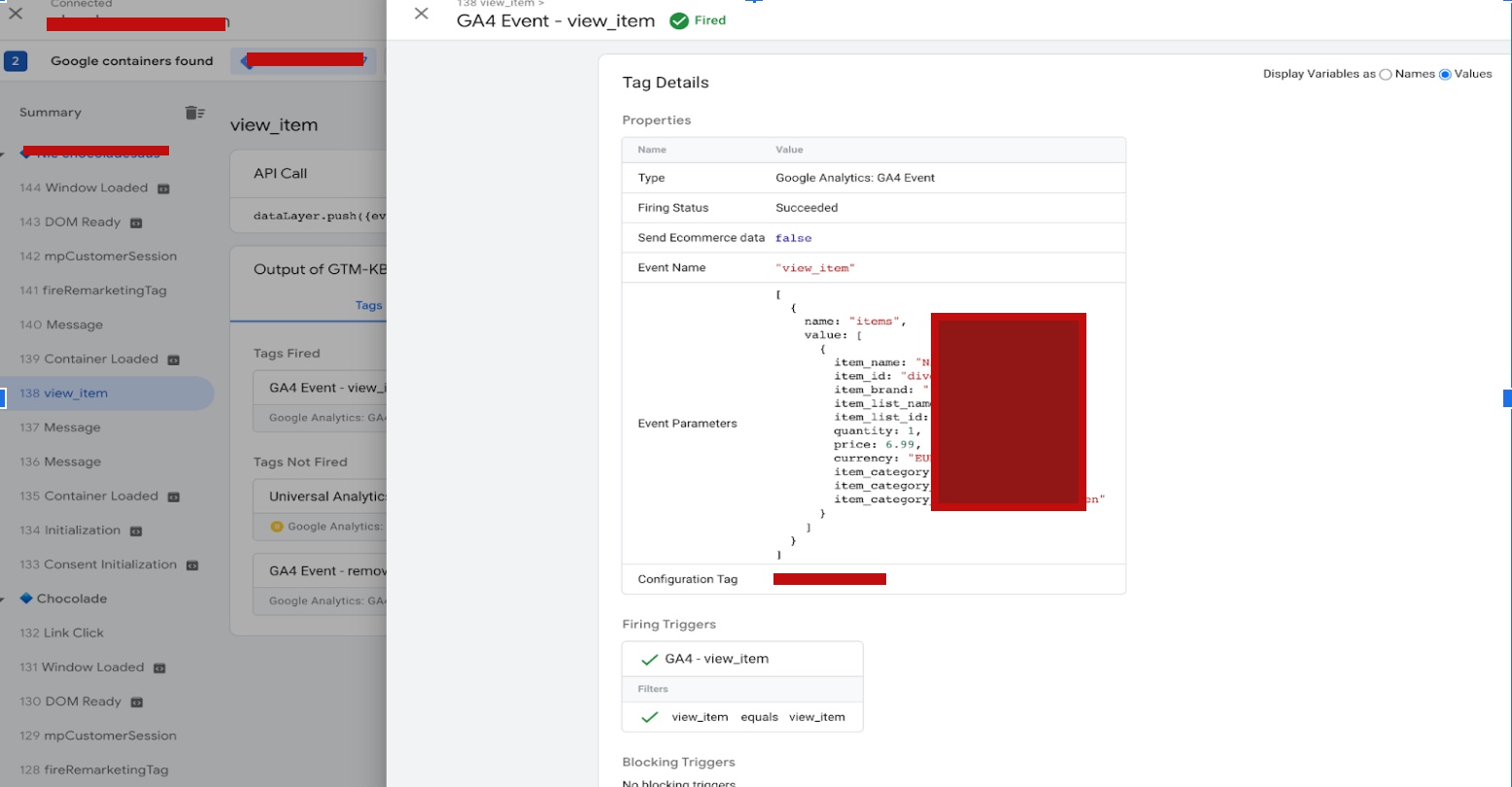
view_item” is a GA4 event in Magento 2 that tracks when a customer views a product on the website. This event fires when a product page is loaded and can capture information such as the product name, category, ID, and price.

GA4 Integration Enhanced Ecommerce with Magneto 2

Google Analytics 4 (GA4) Enhanced Ecommerce Tracking using Google Tag Manager

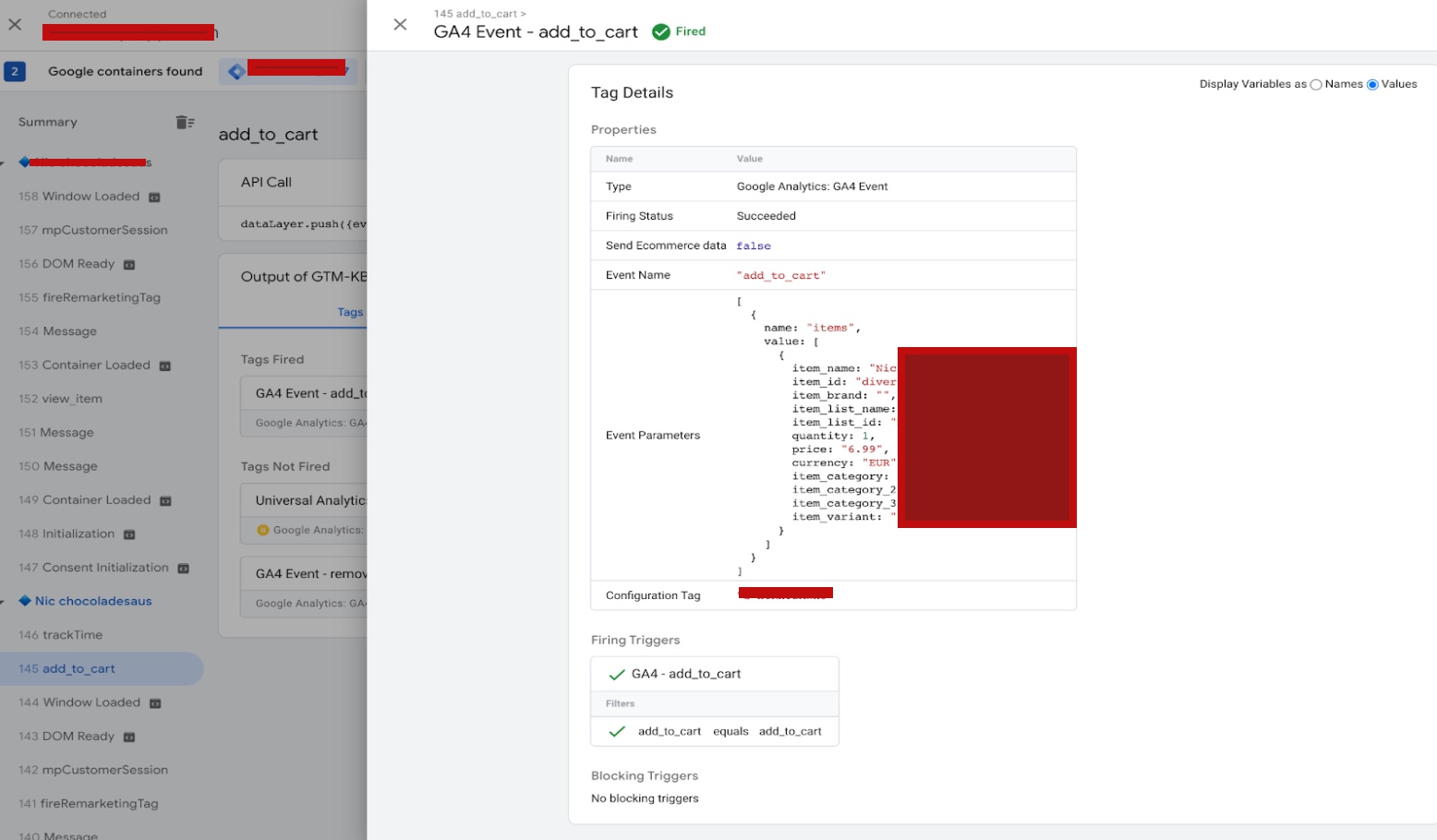
“add_to_cart” is a GA4 event in Magento 2 that tracks when a customer adds a product to their cart. This event fires when a customer clicks the “Add to Cart” button on a product page or product list page and can capture information such as the product name, ID, quantity, and price.

Migrate to Google Analytics 4 (GA4) for Magento 2

Google Analytics 4 (GA4) Integration for Magento 2 using Google Tag Manager

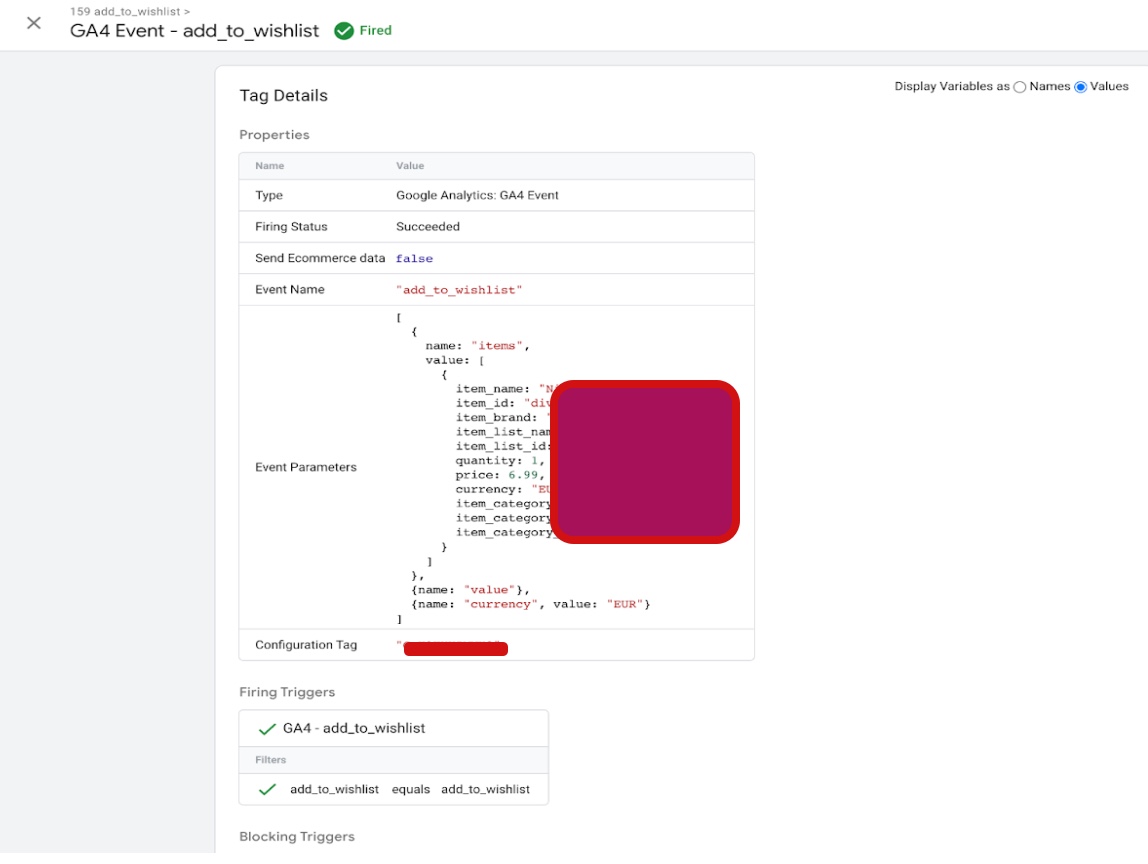
add_to_wishlist” is a GA4 event in Magento 2 that tracks when a customer adds a product to their wishlist. This event fires when a customer clicks the “Add to Wishlist” button on a product page or product list page and can capture information such as the product name, ID, and price.

GA4 Integration For Magento 2

Add Google Analytics 4 (GA4) With Magento 2 for Enhanced Ecommerce with Magneto 2

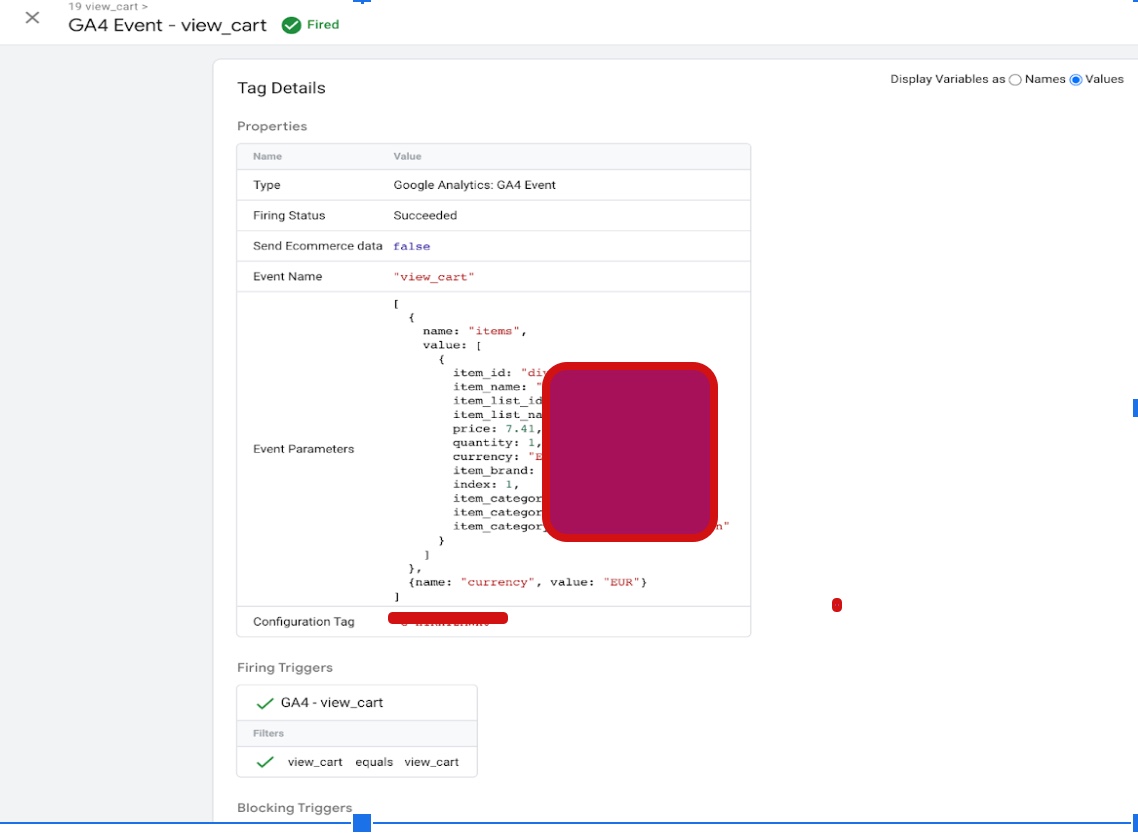
“View_cart” is an event in Google Analytics 4 (GA4) that tracks when a user views their shopping cart on an e-commerce website. In Magento 2, view_cart GA4 tracking can be implemented using Google Tag Manager (GTM) to capture this event and send the data to your GA4 account.

magento 2 google analytics 4 (GA4) ecommerce tracking

Google Tag Manager (GTM) for Magento 2 for GA4 Ecommerce Tracking

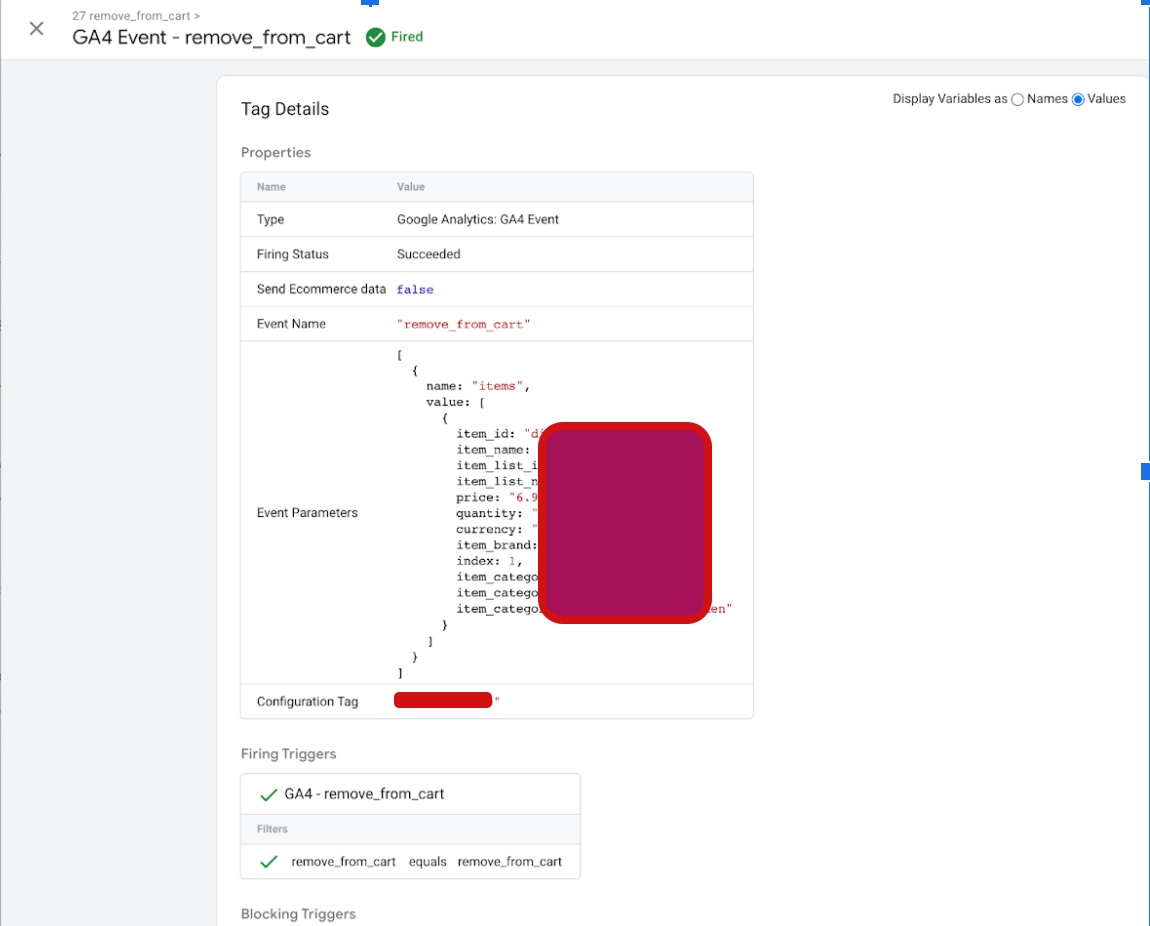
“Remove_from_cart” is an event in Google Analytics 4 (GA4) that tracks when a user removes a product from their shopping cart on an e-commerce website. In Magento 2, remove_from_cart GA4 tracking can be implemented using Google Tag Manager (GTM) to capture this event and send the data to your GA4 account.

GA4 Integration For Magento 2

Set up Google Analytics 4 (GA4) eCommerce tracking in Magento 2 using Google Tag Manager

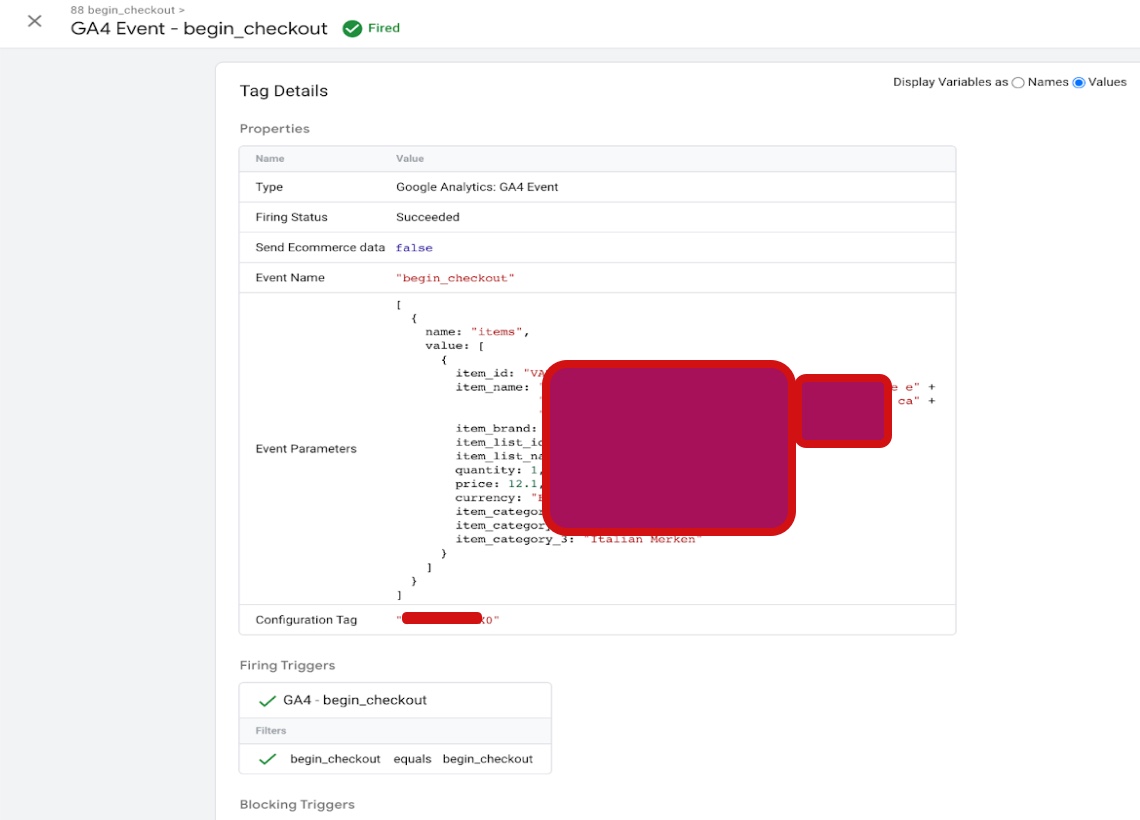
“Begin_checkout” is an event in Google Analytics 4 (GA4) that tracks when a user starts the checkout process on an e-commerce website. In Magento 2, begin_checkout GA4 tracking can be implemented using Google Tag Manager (GTM) to capture this event and send the data to your GA4 account.

Magento 2 Google Analytics 4 (GA4) Enhanced eCommerce

Implement Google Analytics 4 (GA4) eCommerce on Magento 2 using Google Tag Manager

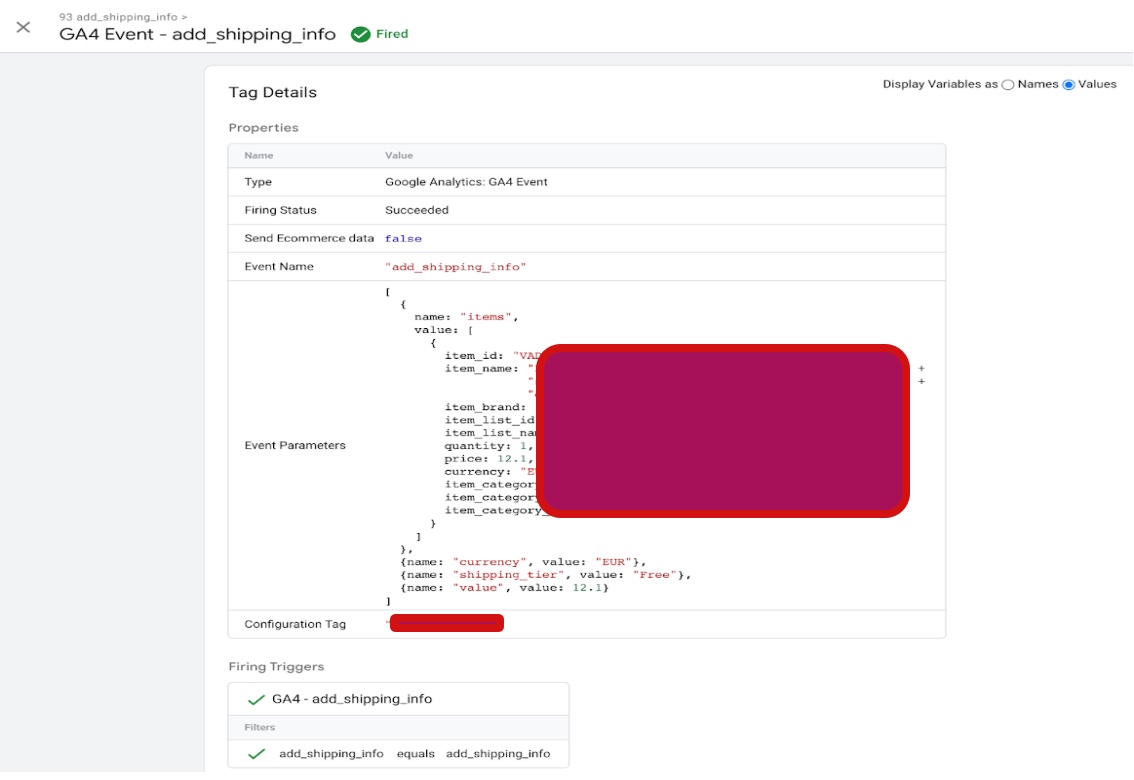
Add_shipping_info” is an event in Google Analytics 4 (GA4) that tracks when a user enters their shipping information during the checkout process on an e-commerce website. In Magento 2, add_shipping_info GA4 tracking can be implemented using Google Tag Manager (GTM) to capture this event and send the data to your GA4 account.

Magento 2 Enhanced eCommerce for GA4

Magento 2 Google Analytics 4 (GA4) Enhanced eCommerce using Google Tag Manager

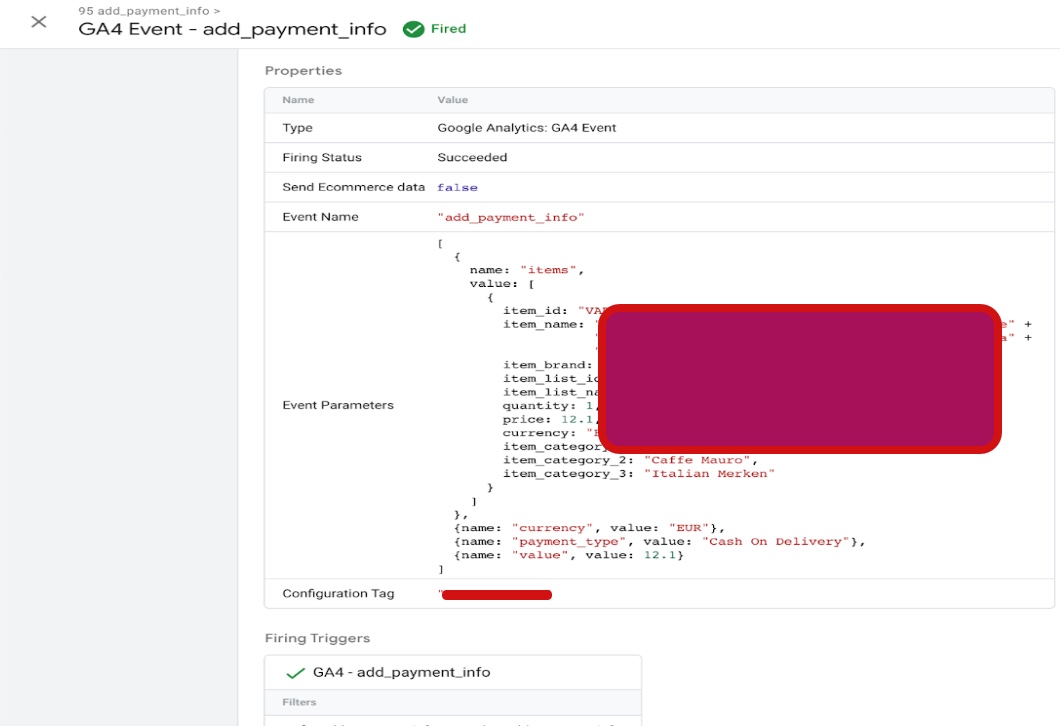
Add_payment_info” is an event in Google Analytics 4 (GA4) that tracks when a user enters their payment information during the checkout process on an e-commerce website. In Magento 2, add_payment_info GA4 tracking can be implemented using Google Tag Manager (GTM) to capture this event and send the data to your GA4 account.

magento 2 google analytics 4 (GA4)

Google Analytic 4 (GA4) Magento 2 Enhanced Ecommerce Data With Google Tag Manager

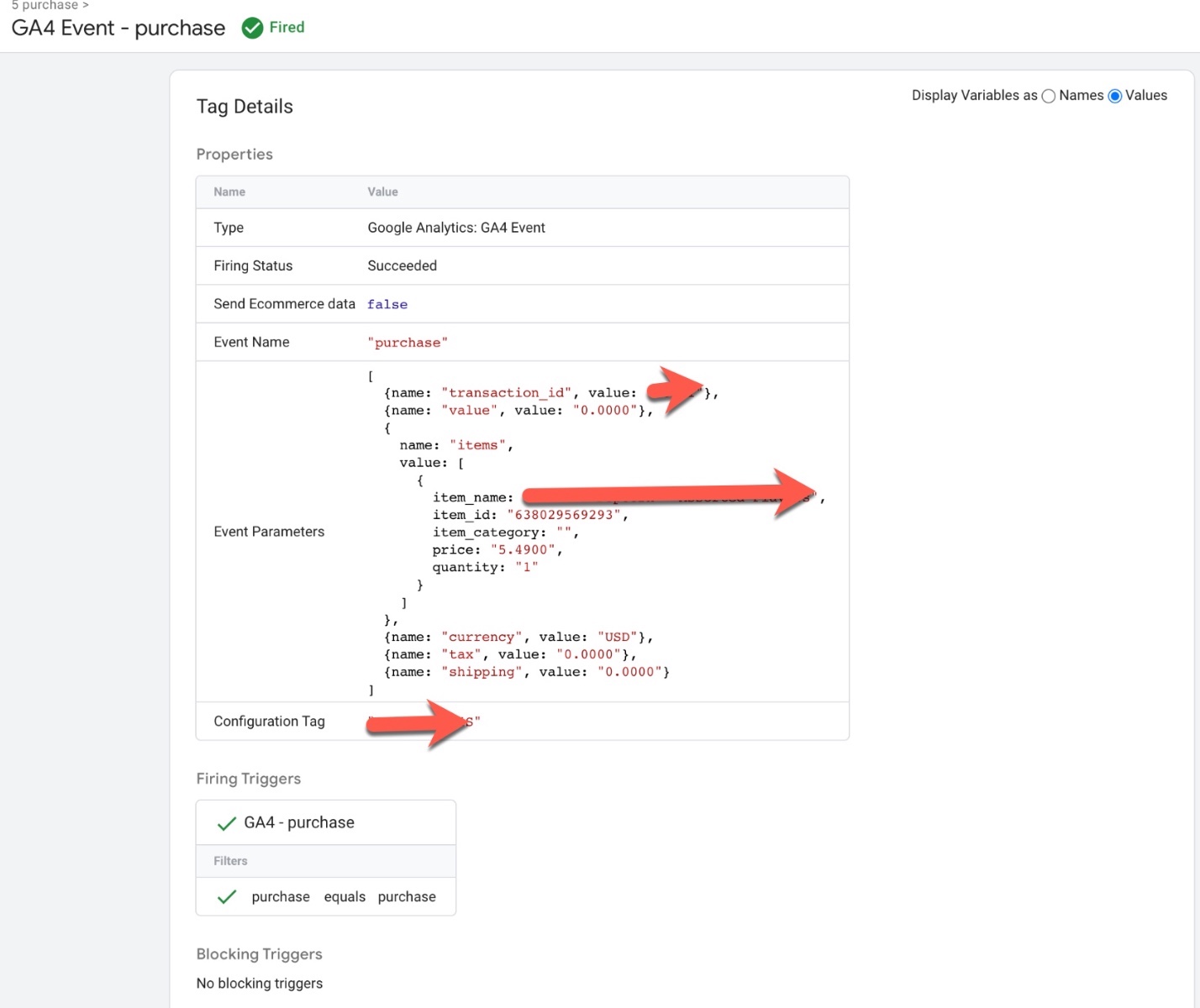
purchase” is an event in Google Analytics 4 (GA4) that tracks when a user completes a purchase on an e-commerce website. In Magento 2, purchase GA4 tracking can be implemented using Google Tag Manager (GTM) to capture this event and send the data to your GA4 account.

Implement Google Analytics 4 (GA4) on Magento 2

Google Analytics 4 (GA4) For Magento Ecommerce Tracking Purchase Tracking using Google Tag Manager

Warning: If you don’t know about javascript or don’t have developing knowledge then don’t try to Google Analytics 4 (GA4) Integration Enhanced Ecommerce with Magneto 2 that can break your site, Cart and other functionality 

Disclaimer: Google tag manager belongs to Google property 

For Contact: mappchero@gmail.com

I am available for Hire on Freelancer: Freelancer.com

I am available for Hire on Upwork: Upwork.com

I am available for Hire on Peopleperhour: Peopleperhour.com

I am available for Hire on Guru: Guru.com

Google Analytics 4 (GA4) Integration Enhanced Ecommerce with BigCommerce

Standard

Google Analytics 4 (GA4) Integration Enhanced Ecommerce with BigCommerce is a way of setting up and tracking ecommerce data in Google Analytics 4. Enhanced Ecommerce tracking allows you to track detailed information about user interactions on your ecommerce website, such as product views, add-to-carts, and purchases. By integrating GA4 with BigCommerce, you can ensure that this data is accurately recorded and analyzed in your GA4 reports.

The integration involves setting up a data layer on your BigCommerce website that captures the relevant ecommerce data and passes it to GA4 via Google Tag Manager (GTM). This data can then be used to gain deeper insights into your customers’ shopping behavior, identify which products are most popular, and optimize your marketing efforts.

Setting up GA4 Integration Enhanced Ecommerce with BigCommerce requires some technical knowledge, but there are step-by-step guides available online to help you through the process. Once set up, you can use GA4’s advanced reporting capabilities to gain deeper insights into your ecommerce performance and improve your online sales.

Google Analytics 4 (GA4) Integration Enhanced Ecommerce with BigCommerce is important for ecommerce businesses for several reasons:

Accurate tracking of ecommerce data: Enhanced Ecommerce tracking allows you to track detailed information about user interactions on your ecommerce website, such as product views, add-to-carts, and purchases. By integrating GA4 with BigCommerce, you can ensure that this data is accurately recorded and analyzed in your GA4 reports.

Better understanding of customer behavior: By tracking ecommerce data, you can gain a better understanding of your customers’ shopping behavior and preferences. This information can be used to optimize your website design, product offerings, and marketing efforts.

Improved marketing optimization: Enhanced Ecommerce tracking can help you identify which marketing channels and campaigns are driving the most sales and revenue. By integrating GA4 with BigCommerce, you can optimize your marketing efforts based on this data and improve your ROI.

Advanced reporting capabilities: GA4 provides more advanced reporting capabilities than previous versions of Google Analytics, including machine learning-powered insights and predictive analytics. By integrating GA4 with BigCommerce, you can take advantage of these features to gain deeper insights into your online sales and customer behavior.

Integrating Google Analytics 4 (GA4) Enhanced Ecommerce with BigCommerce using Google Tag Manager (GTM) is a great option if you want to have more flexibility and control over your tracking. Here are the steps to set it up:

  1. Create a GA4 property: If you haven’t already done so, you’ll need to create a GA4 property in your Google Analytics account.

2. Set up Google Tag Manager: If you haven’t already done so, you’ll need to set up Google Tag Manager for your BigCommerce store.

3. Set up a data layer: In order to pass data from your BigCommerce store to GA4, you’ll need to set up a data layer. This is a JavaScript object that stores information about user interactions on your site, such as product views, add-to-carts, and purchases.

4. Configure your BigCommerce triggers: In GTM, create triggers to track user interactions on your BigCommerce site, such as product views, add-to-carts, and purchases.

5. Map your data layer to GA4: In GTM, create a new variable for each piece of data you want to track, such as product ID, product name, and product price. Map these variables to the corresponding GA4 fields under “Enhanced Ecommerce Settings” in your GA4 tag.

6. Test your setup: Preview and test your GTM setup to ensure that data is being passed correctly from your BigCommerce site to GA4.

With these steps completed, you should now be able to view Enhanced Ecommerce data in your GA4 reports. This will include information such as product views, add-to-carts, and purchases, as well as detailed funnel analysis to help you identify any areas of your online store that may need optimization.

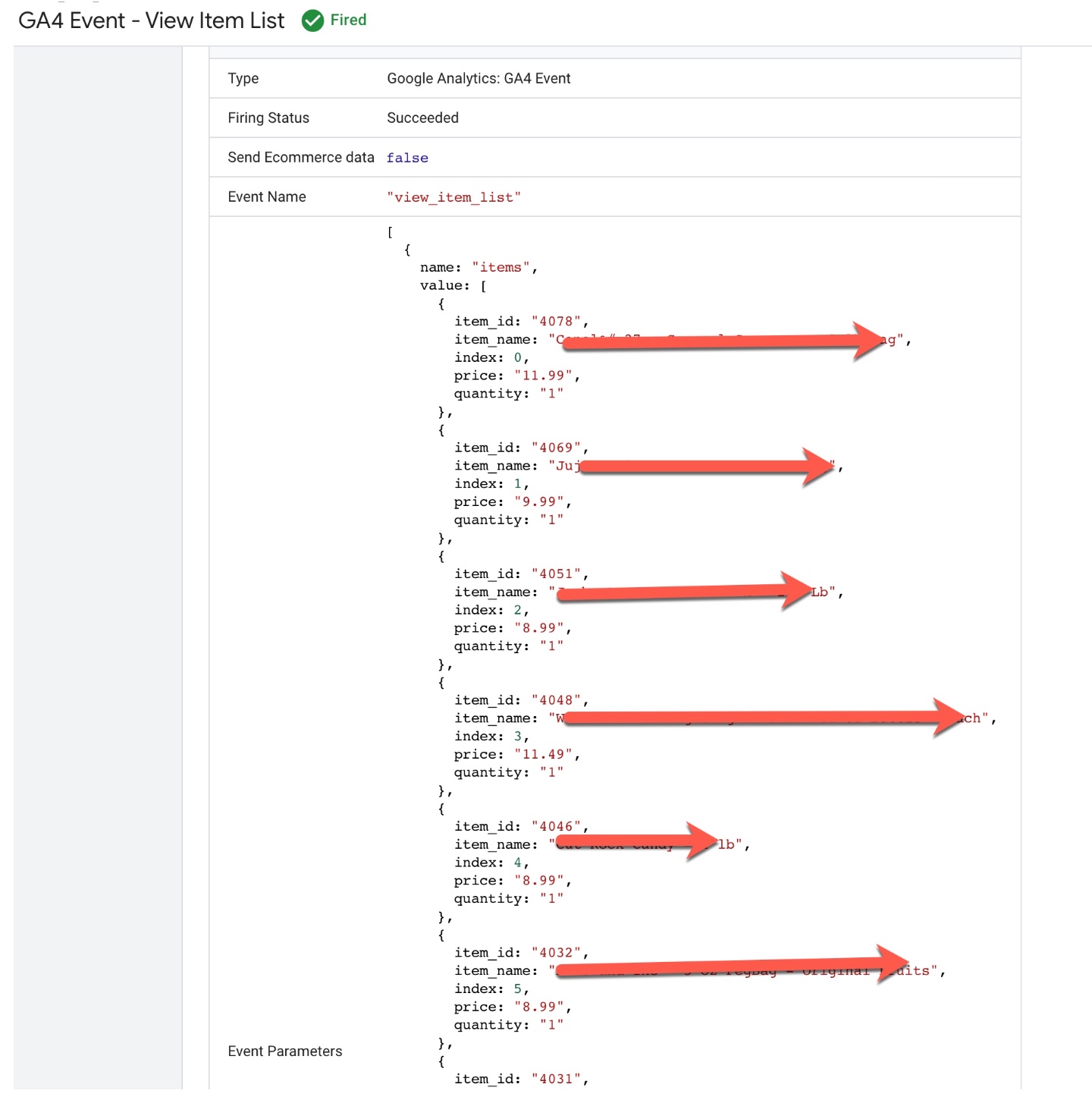
In BigCommerce, you can use the “view_item_list” event to track when a user views a list of products, such as a category page or search results page. You can use this data to understand which products are most popular and which categories are getting the most traffic, as well as to optimize your site’s navigation and product display.
Bigcommerce Google Analytics 4 (GA4)

 Setting Up GA4 Enhanced eCommerce Tracking for BigCommerce

In BigCommerce, you can use the “select_item” event to track when a user selects a product on a category page, search results page, or product page. This event can help you understand which products are being viewed and selected the most, and which product attributes (such as color or size) are the most popular.
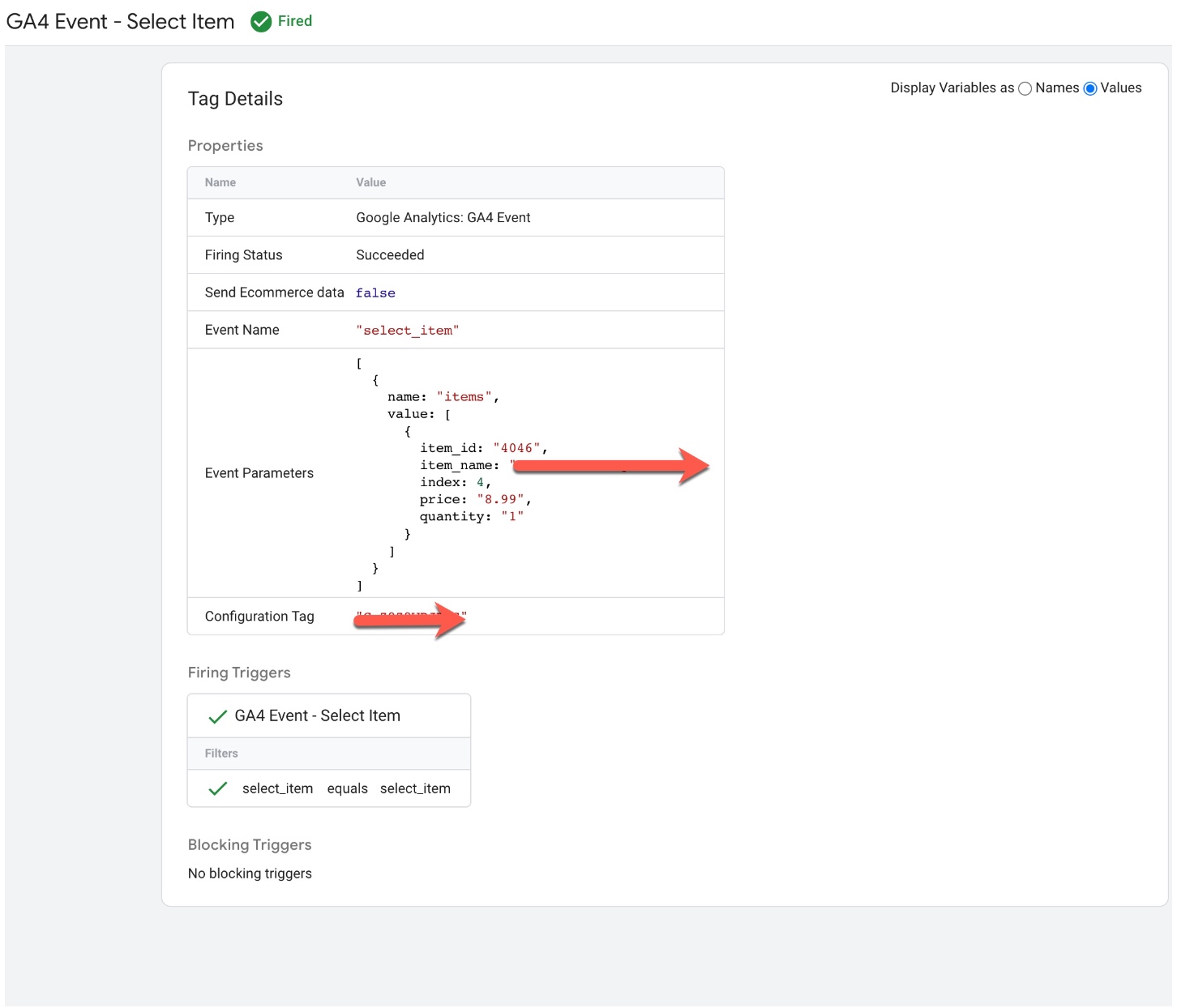
bigcommerce enhanced conversion tracking

Tracking Enhanced Ecommerce With Google Analytics 4 (GA4) in BigCommerce

In BigCommerce, you can use the “view_item” event to track when a user views a product detail page. This event can help you understand which products are being viewed the most, how long users spend on each product page, and which product attributes (such as color or size) are the most popular.
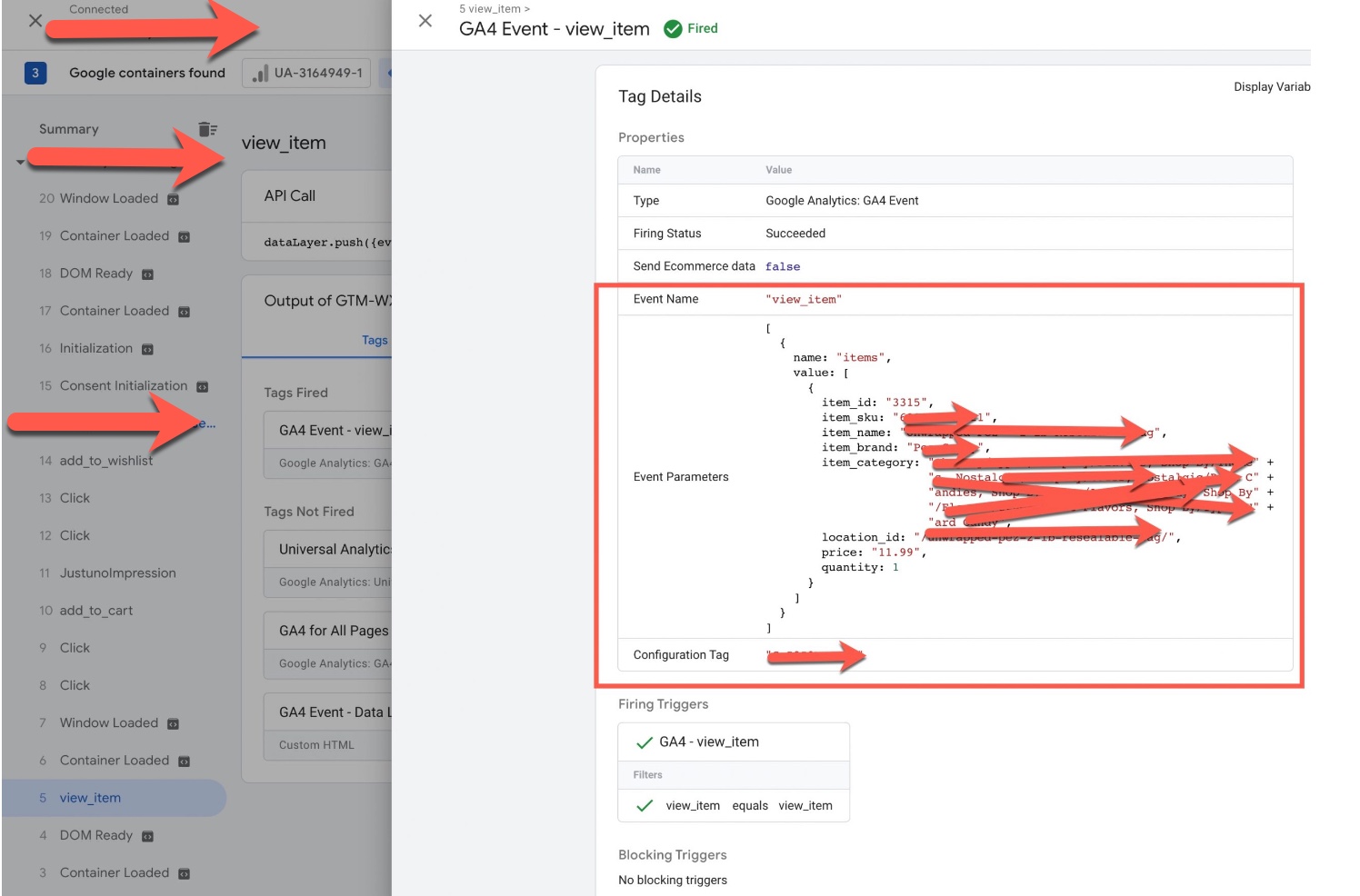
BigCommerce Google Analytics 4 (GA4) through Google Tag Manager

BigCommerce Google Analytics 4 (GA4) Enhanced Ecommerce Tracking (GTM)

In BigCommerce, you can use the “add_to_cart” event to track when a user adds a product to their shopping cart. This event can help you understand which products are being added to carts the most, how often users are abandoning their carts, and which product attributes (such as color or size) are the most popular.
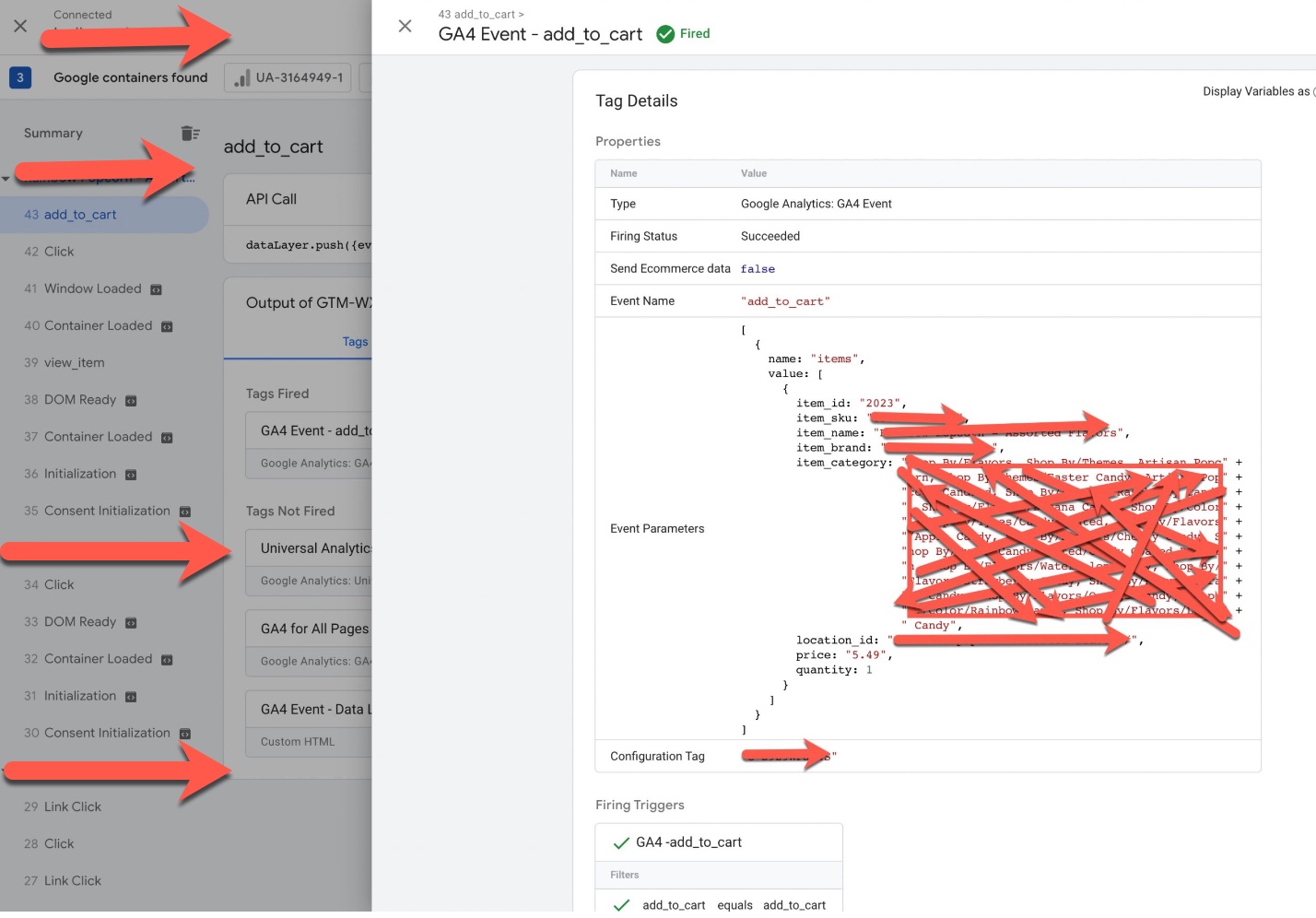
Install Google Analytics 4 (GA4) on BigCommerce

Google Analytics 4 (GA4) BigCommerce Integration Enhanced Ecommerce using Google Tag Manager

In BigCommerce, you can use the “add_to_wishlist” event to track when a user adds a product to their wishlist. This event can help you understand which products are being added to wishlists the most, which users are adding products to wishlists, and how often users are coming back to their wishlist to complete a purchase.
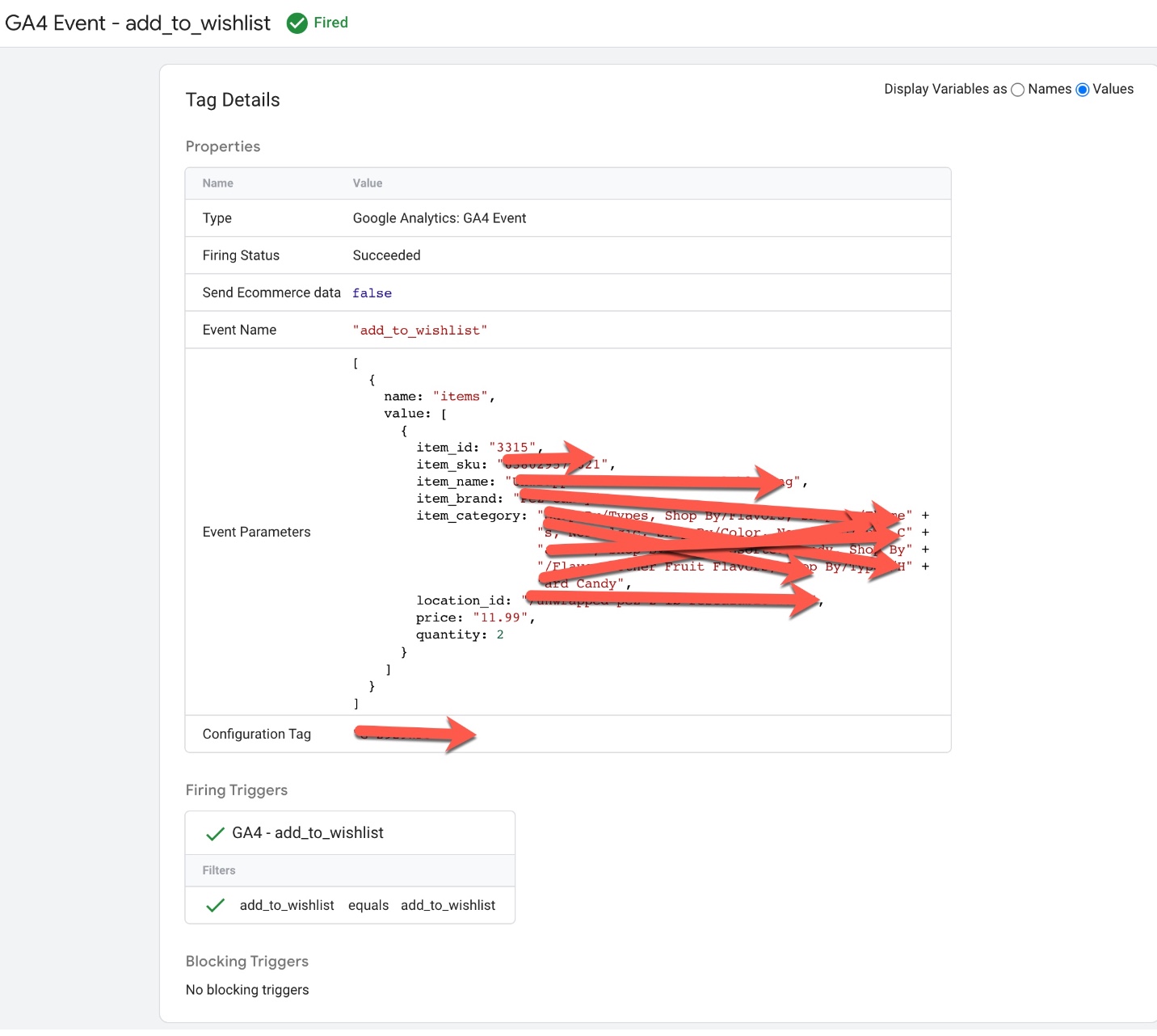
Connect Google Analytics 4 to BigCommerce

Implement Google Analytics 4 (GA4) for Enhanced E-commerce on BigCommerce

In BigCommerce, you can use the “view_cart” event to track when a user views their shopping cart. This event can help you understand how many users are adding products to their cart, how often they’re viewing their cart, and how many users are abandoning their carts.
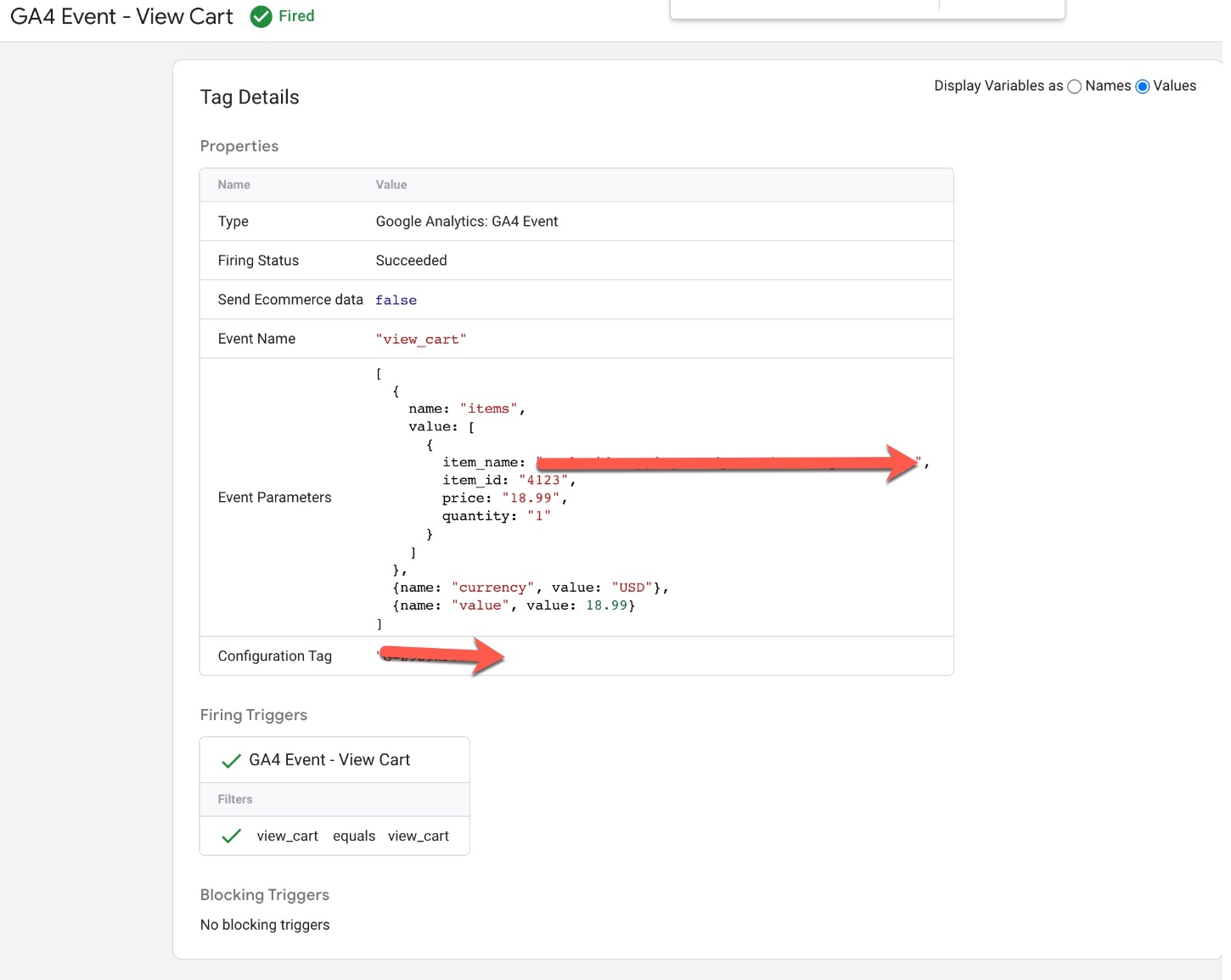
BigCommerce GA4 Google Tag Manager Enhanced Ecommerce Tracking

Setup BigCommerce Enhanced Ecommerce GA4 using Google Tag Manager

In BigCommerce, you can use the “begin_checkout” event to track when a user starts the checkout process. This event can help you understand how many users are starting the checkout process, how many steps are in your checkout flow, and how long it takes for users to complete the checkout process.
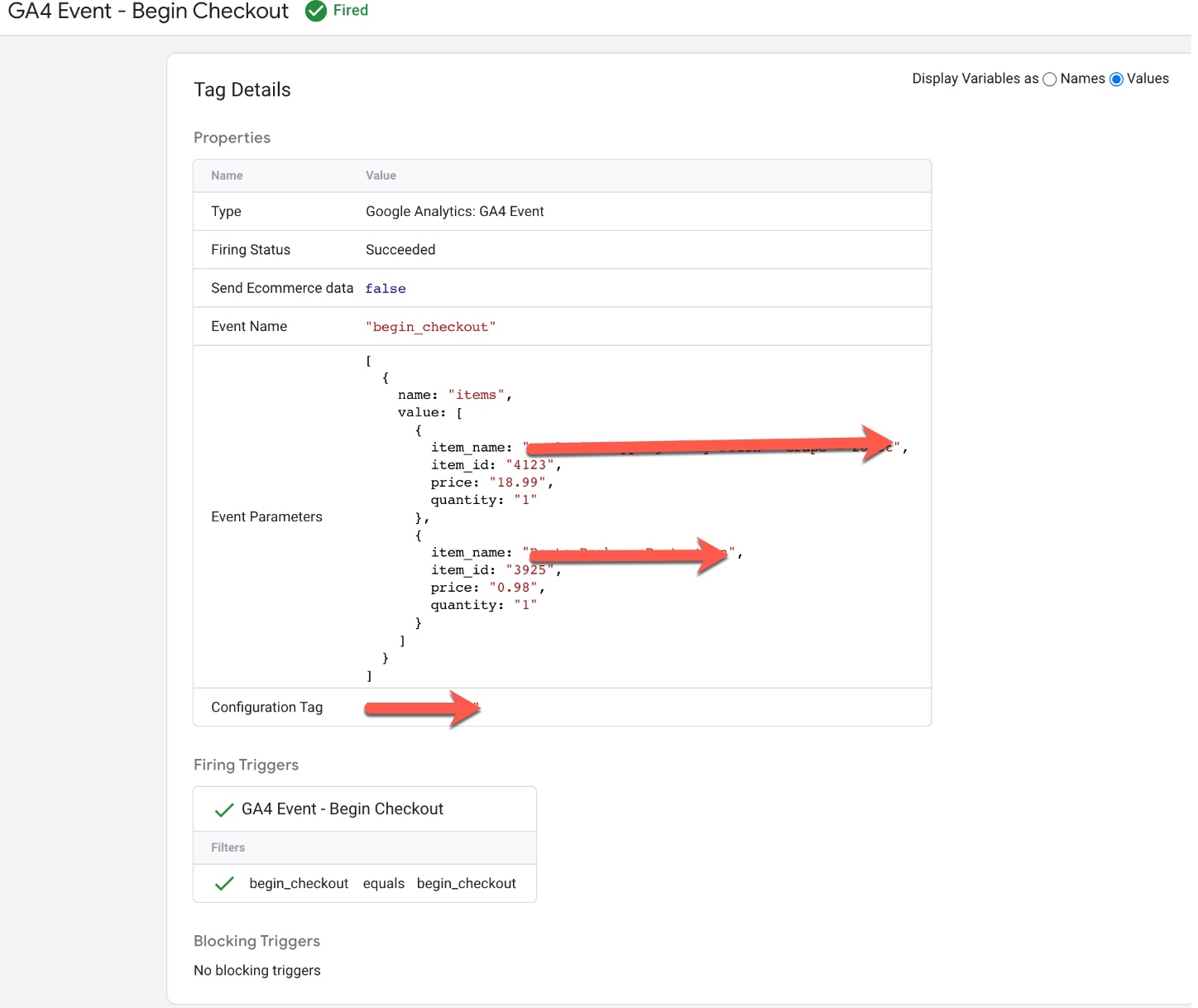
GA4 Upgrade Enhanced Ecommerce for BigCommerce

Google Analytics 4 (GA4) Enhanced eCommerce Tracking set up for BigCommerce using Google Tag Manager

In BigCommerce, you can use the “add_shipping_info” event to track when a user enters their shipping information during the checkout process. This event can help you understand how many users are adding shipping information, how many users are abandoning the checkout process at this stage, and how long it takes for users to enter their shipping information.
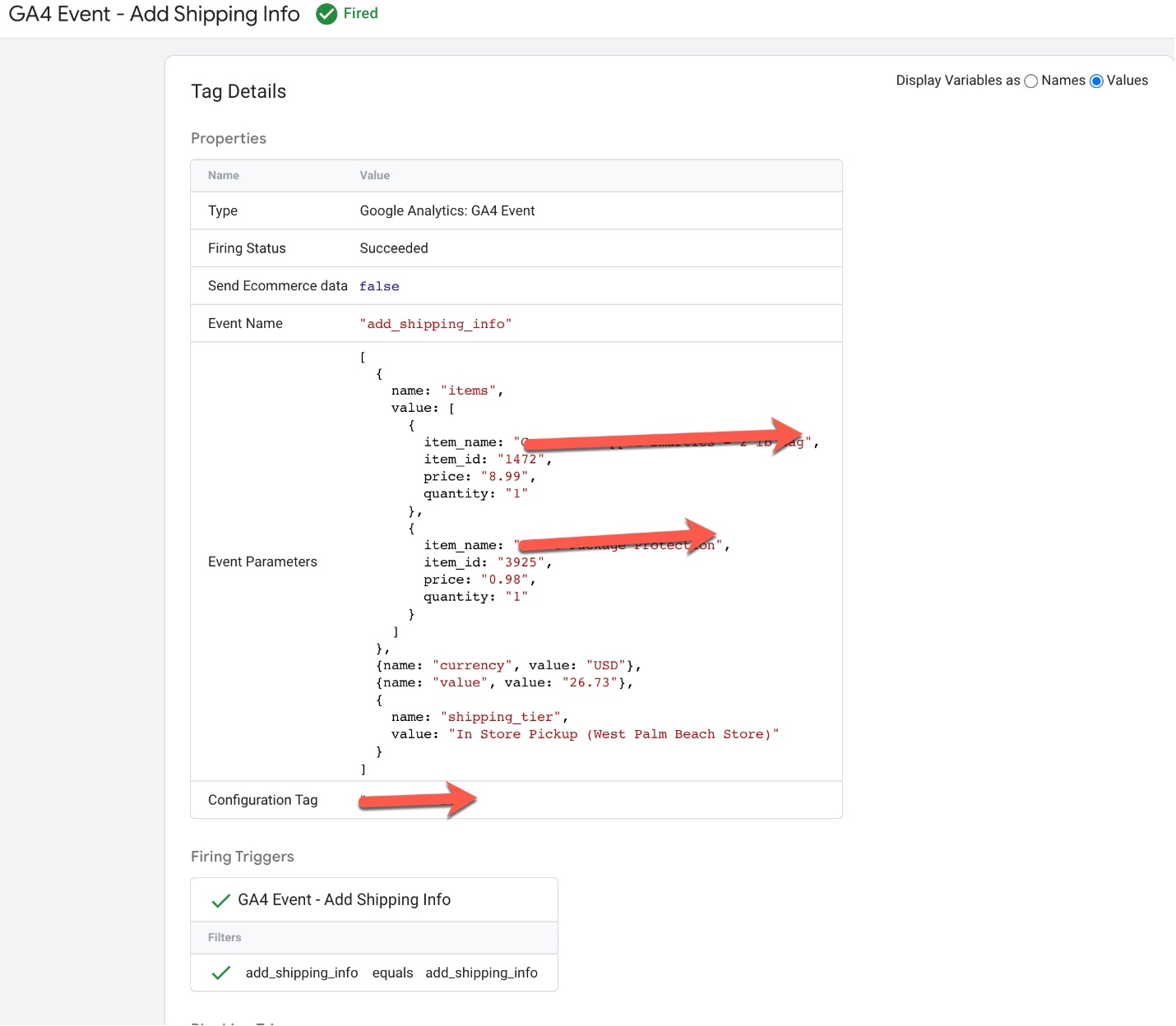
Add Google Analytics 4 (GA4) to BigCommerce

Switching to Google Analytics 4 (GA4) Enhanced eCommerce Tracking for BigCommerce

In BigCommerce, you can use the “add_payment_info” event to track when a user enters their payment information during the checkout process. This event can help you understand how many users are adding payment information, how many users are abandoning the checkout process at this stage, and how long it takes for users to enter their payment information.
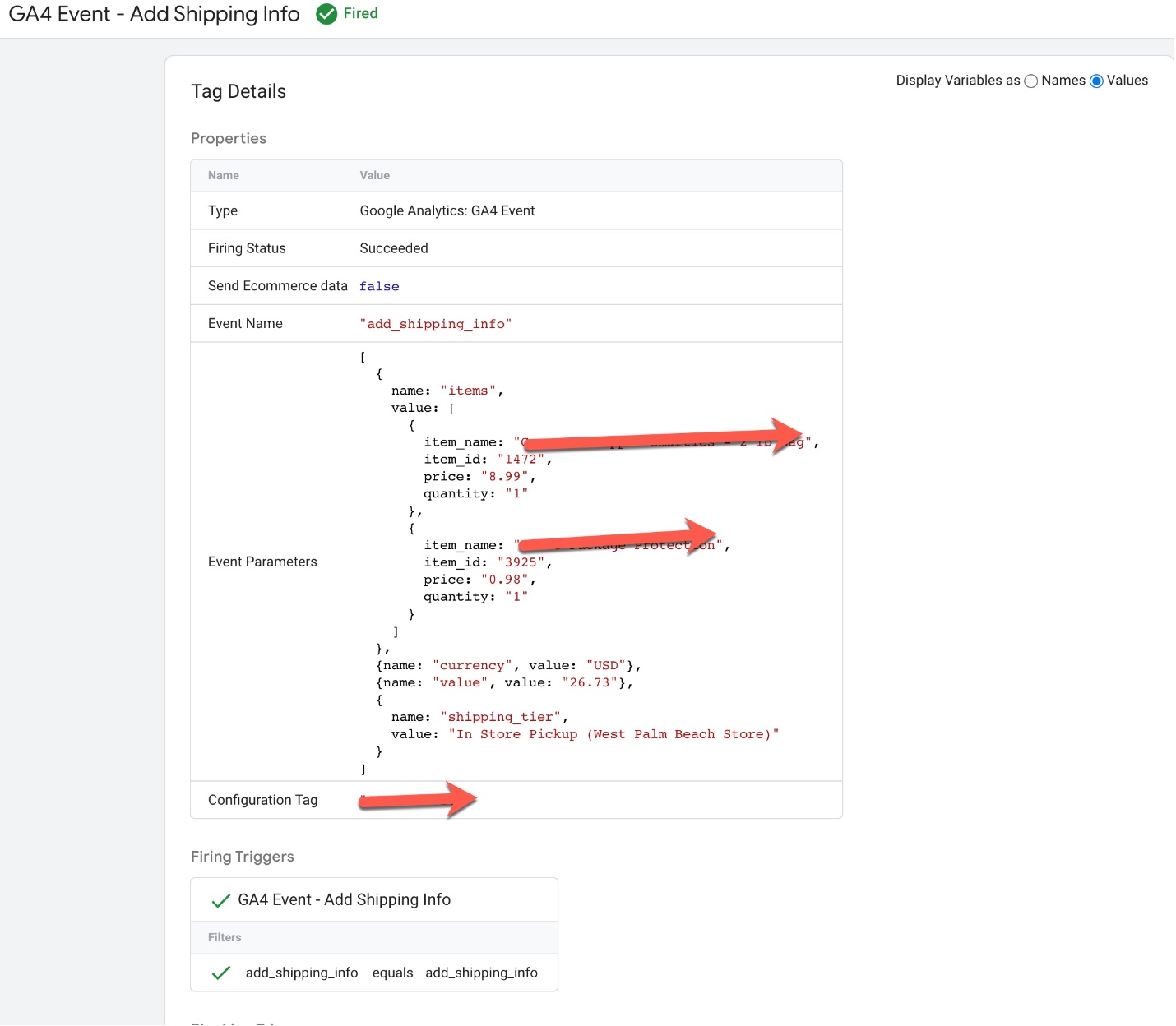
Upgrade to GA4 Enhanced eCommerce Tracking for BigCommerce

Switch from Universal Analytics to Google Analytics 4 (GA4) Enhanced eCommerce Tracking for BigCommerce

In BigCommerce, you can use the “purchase” event to track when a user completes a purchase on your website. This event can help you understand how many users are completing purchases, how much revenue your website is generating, and what products are being purchased.
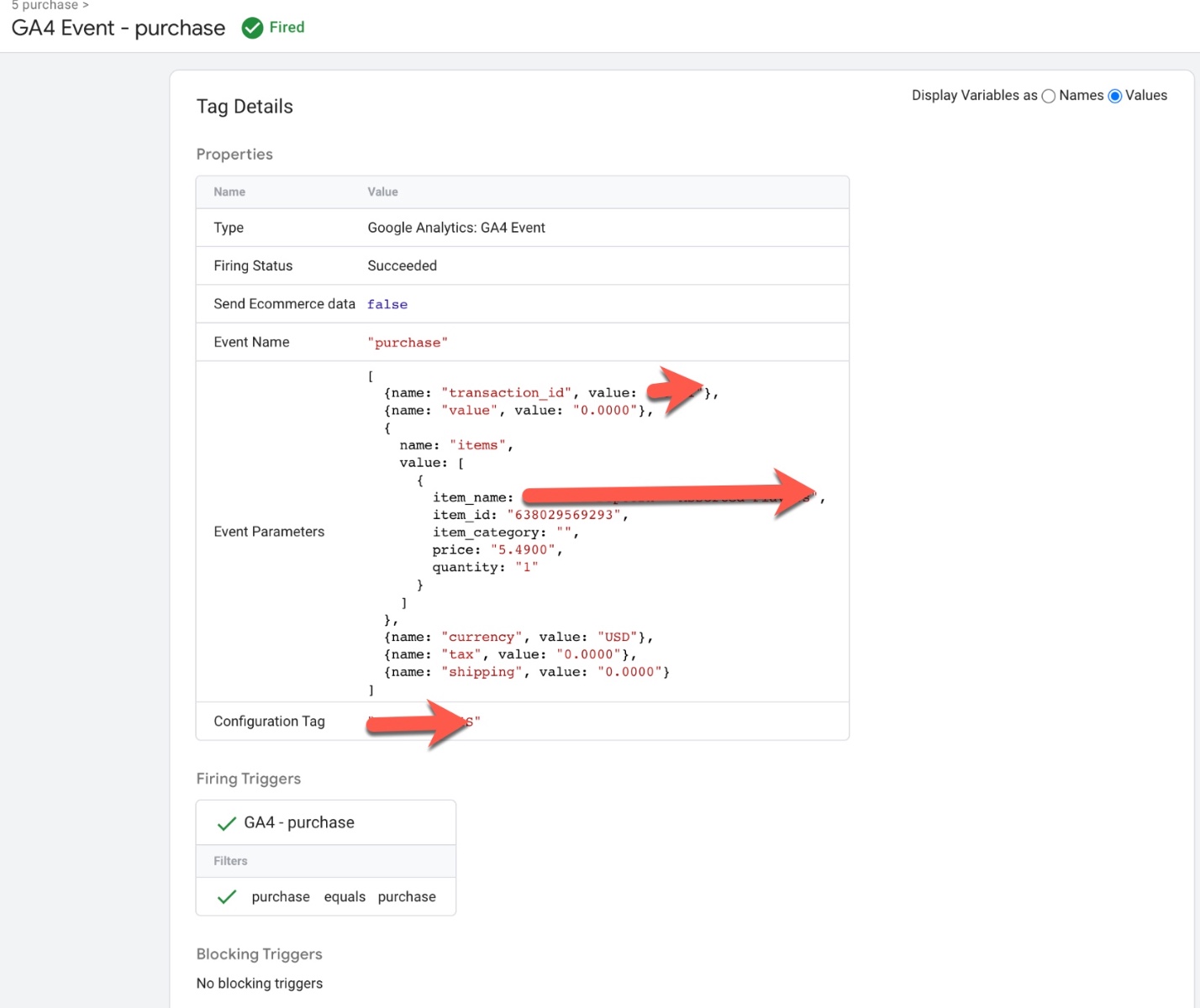
Google Analytics 4 Integration for BigCommerce

Google Analytics 4 (GA4) Purchase Event Tracking for Enhanced eCommerce Tracking for BigCommerce using Google Tag Manager

Warning: If you don’t know about javascript or don’t have developing knowledge then don’t try to Google Analytics 4 (GA4) Integration Enhanced Ecommerce with BigCommerce that can break your site, Cart and other functionality 

Disclaimer: Google tag manager belongs to Google property 

For Contact: mappchero@gmail.com

I am available for Hire on Freelancer: Freelancer.com

I am available for Hire on Upwork: Upwork.com

I am available for Hire on Peopleperhour: Peopleperhour.com

I am available for Hire on Guru: Guru.com

GA4 Troubleshoot & Assist with Google Tag Manager

Standard

GA4 Troubleshoot & Assist with Google Tag Manager refers to the process of identifying and resolving issues related to Google Analytics 4 (GA4) and Google Tag Manager (GTM). GA4 is the latest version of Google Analytics, which offers new features and functionalities to track user behavior and measure website/app performance. GTM is a tool used to implement tracking codes and tags on a website or app without the need for developer assistance.

When troubleshooting and assisting with GA4 and GTM, the goal is to ensure that data is collected accurately and effectively. This involves identifying issues that may be preventing data from being sent to GA4, such as incorrect tag configuration, incorrect data layer implementation, or issues with user behavior tracking. Once the issue is identified, a solution is implemented to resolve the issue and ensure that data is accurately collected and reported in GA4.

Some common issues that may arise when working with GA4 and GTM include issues with data tracking, data accuracy, duplicate data, and incorrect tracking of events or e-commerce transactions. Troubleshooting and assisting with these issues requires a strong understanding of GA4 and GTM, as well as the technical skills to identify and resolve the underlying issues.

Sure, I’d be happy to help you troubleshoot and assist with Google Analytics 4 (GA4) and Google Tag Manager (GTM). Here are some common issues and solutions:

Issue 1: GA4 not receiving data from GTM

Solution:

  • Check if the GA4 tag is firing correctly in GTM.
  • Check if the GA4 property ID is correct and matches the one in GTM.
  • Check if there are any filters applied to the view in GA4 that may be excluding data.
  • Check if there are any issues with the data layer or the triggers in GTM that may be preventing data from being sent to GA4.

Issue 2: GA4 data is missing or incomplete

Solution:

  • Check if there are any filters applied to the view in GA4 that may be excluding data.
  • Check if the GA4 tag is firing correctly in GTM.
  • Check if there are any issues with the data layer or the triggers in GTM that may be preventing data from being sent to GA4.
  • Check if there are any issues with the data being collected by your website or app that may be affecting the data being sent to GA4.

Issue 3: GA4 is reporting incorrect data

Solution:

  • Check if there are any filters applied to the view in GA4 that may be affecting the data being reported.
  • Check if there are any issues with the data being collected by your website or app that may be affecting the data being sent to GA4.
  • Check if there are any issues with the data layer or the triggers in GTM that may be affecting the data being sent to GA4.
  • Check if there are any issues with the configuration of the GA4 tag in GTM that may be affecting the data being sent to GA4.

Issue 4: GA4 is reporting duplicate or inflated data

Solution:

  • Check if there are multiple GA4 tags firing on the same page or app screen. If so, remove the duplicate tags to prevent data inflation.
  • Check if there are any issues with the configuration of the GA4 tag in GTM that may be causing duplicate data to be sent to GA4.
  • Check if there are any issues with the data layer or the triggers in GTM that may be causing duplicate data to be sent to GA4.
  • Check if there are any issues with the way data is being collected by your website or app that may be causing duplicate data to be sent to GA4.

Issue 5: GA4 is not tracking specific events or user behavior

Solution:

  • Check if the event or user behavior you want to track is configured correctly in GTM and firing the GA4 tag.
  • Check if the event or user behavior you want to track is configured correctly in GA4 and being recorded in the correct report.
  • Check if there are any issues with the data layer or the triggers in GTM that may be preventing the event or user behavior from being tracked in GA4.
  • Check if there are any issues with the way data is being collected by your website or app that may be preventing the event or user behavior from being tracked in GA4.

Issue 6: GA4 is not tracking e-commerce transactions or revenue correctly

Solution:

  • Check if the e-commerce tracking code is implemented correctly in your website or app and is sending data to GA4.
  • Check if the GA4 tag in GTM is configured to track e-commerce transactions and is firing correctly.
  • Check if there are any issues with the data layer or the triggers in GTM that may be preventing e-commerce data from being sent to GA4.
  • Check if there are any issues with the way data is being collected by your website or app that may be preventing e-commerce data from being sent to GA4.

I’d be happy to help you with GA4 Troubleshoot & Assist with Google Tag Manager. Here are some additional tips and best practices that may be helpful:

  1. Test your implementation: It’s important to test your GA4 and GTM implementation to ensure that data is being collected and reported accurately. Use the Google Tag Assistant Chrome extension or the GA4 DebugView to check if your tags are firing correctly and if data is being sent to GA4.

2. Use descriptive names: When creating tags, triggers, and variables in GTM, use descriptive names that clearly indicate what they are used for. This can make it easier to identify issues and troubleshoot your implementation.

3. Use the data layer: The data layer is a JavaScript object that stores information about user behavior, such as pageviews, clicks, and form submissions. Use the data layer to send this information to GTM and GA4, rather than relying on DOM events or other methods of data collection.

4. Set up error tracking: Use GTM to track errors and exceptions that occur on your website or app, such as 404 errors or JavaScript errors. This can help you identify issues that may be affecting your user experience and website performance.

If you’re still experiencing issues after trying these solutions, please provide more details on the specific issue you’re facing, and I’ll do my best to assist you further.

Warning: If you don’t know about javascript or don’t have developing knowledge then don’t try to GA4 Troubleshoot & Assist with Google Tag Manager that can break your site, Cart and other functionality 

Disclaimer: Google tag manager belongs to Google property 

For Contact: mappchero@gmail.com

I am available for Hire on Freelancer: Freelancer.com

I am available for Hire on Upwork: Upwork.com

I am available for Hire on Peopleperhour: Peopleperhour.com

I am available for Hire on Guru: Guru.com
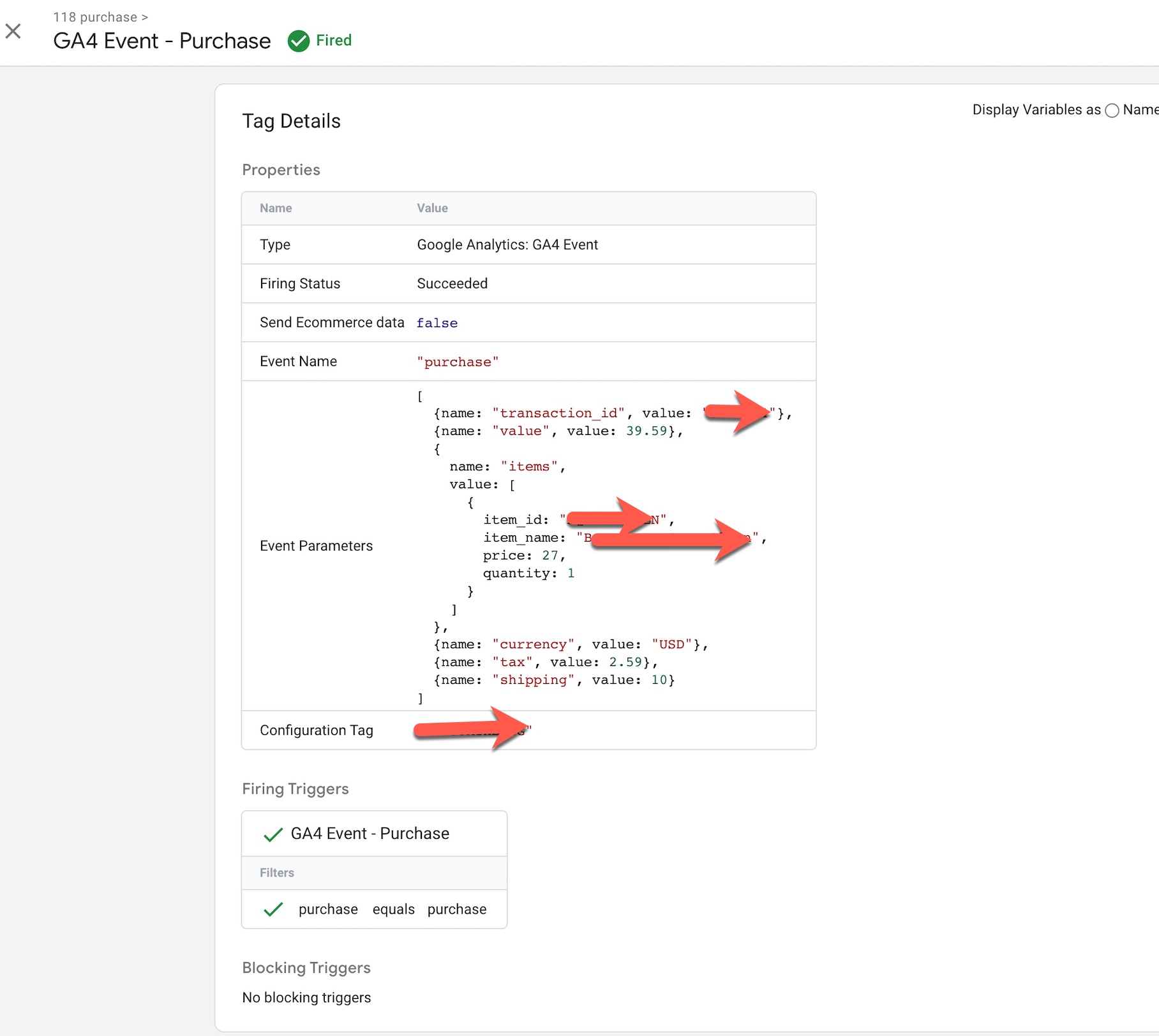
GA4 Troubleshoot and setup in-depth Conversion Tracking

Standard

Google Analytics 4 (GA4) is the latest version of Google’s web analytics platform, which allows you to track user behavior and website performance. Conversion tracking in GA4 is the process of measuring user interactions with your website that lead to a specific goal, such as a purchase or a form submission. In-depth conversion tracking goes beyond simply tracking the number of conversions and looks at the specific actions that users take on your website that lead to those conversions.

Troubleshooting conversion tracking in GA4 involves identifying and addressing any issues that prevent accurate tracking of user conversions. This could include checking that the GA4 tracking code is installed correctly, verifying that conversion events are being triggered correctly, and ensuring that conversion event configurations are set up correctly.

Setting up in-depth conversion tracking in GA4 involves identifying the specific conversion actions that you want to track, setting up conversion tracking for each action using the GA4 event measurement framework, using the GA4 Conversion API to send additional data about the user and their conversion action, and using advanced features such as custom dimensions and metrics to track additional information about your users and their behavior on your website.

I’d be happy to provide some guidance on troubleshooting and setting up in-depth conversion tracking in GA4.

Troubleshooting:

  1. Check if the GA4 tracking code is installed correctly on all pages of your website. You can use the Google Tag Assistant Chrome extension to verify if the tracking code is installed correctly.

2. Make sure that your conversion events are being triggered correctly. You can use the GA4 Debug View to see if your events are being fired when a user completes a conversion action.

3. Check that your conversion event configurations (such as conversion value and conversion window) are set up correctly. Make sure that the conversion event is configured to track the specific action you want to measure.

4. Check that your conversion event settings are consistent across all of your marketing channels. Inconsistent settings can lead to inaccurate attribution.

Setting up in-depth conversion tracking:

  1. Identify the conversion actions you want to track. This could include purchases, form submissions, or other user actions that indicate a successful conversion.

2. Set up conversion tracking for each action using the GA4 event measurement framework. You can use pre-built conversion events or create custom events based on your specific needs.

3. Use the GA4 Conversion API to send additional data about the user and their conversion action, such as product information, revenue, or user demographic information.

4. Use advanced features such as custom dimensions and custom metrics to track additional information about your users and their behavior on your website.

5. Use the GA4 reports to analyze your conversion data and make data-driven decisions about your marketing strategy.

I hope these tips help you troubleshoot and set up in-depth conversion tracking in GA4! Let me know if you have any other questions.

Warning: If you don’t know about javascript or don’t have developing knowledge then don’t try to GA4 Troubleshoot and setup in-depth Conversion Tracking that can break your site, Cart and other functionality 

Disclaimer: Google tag manager belongs to Google property 

For Contact: mappchero@gmail.com

I am available for Hire on Freelancer: Freelancer.com

I am available for Hire on Upwork: Upwork.com

I am available for Hire on Peopleperhour: Peopleperhour.com

I am available for Hire on Guru: Guru.com
Acuity (Squarespace) Scheduling Setup event for Google Analytic 4 (GA4)

Standard

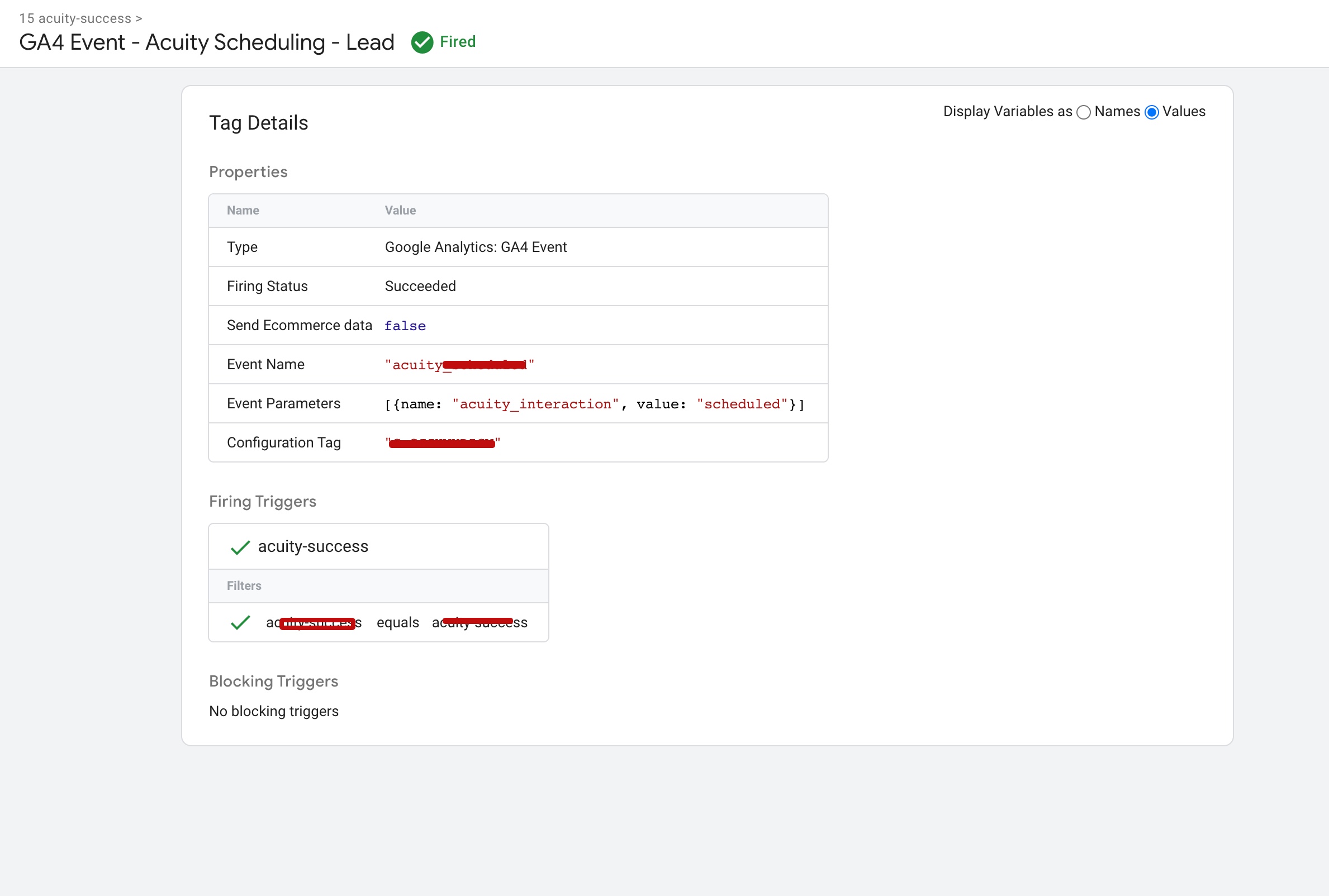
Acuity (Squarespace) Scheduling Setup event for Google Analytics 4 (GA4) involves configuring event tracking for specific user interactions on your Acuity Scheduling booking page, such as booking confirmations, appointment rescheduling, or appointment cancellations. By setting up event tracking, you can monitor user behavior and measure the effectiveness of your Acuity Scheduling booking page.

To set up an event for Acuity (Squarespace) Scheduling in GA4, you need to first create a new event in your GA4 property. This involves defining the event name, category, and action, and adding any relevant parameters to track. Once you have created the event, you can add the GA4 tracking code to your Acuity (Squarespace) Scheduling booking page. This code should be added to the header section of the booking page to ensure that it tracks all user interactions.

After adding the GA4 tracking code, it’s important to test the event to make sure it’s working properly. You can do this by completing a test booking and checking if the event shows up in your GA4 property. If the event is tracked successfully, you can start analyzing the data to gain insights into user behavior and optimize your booking page to improve conversion rates.

Overall, setting up event tracking for Acuity (Squarespace) Scheduling in GA4 is a powerful way to monitor user behavior and measure the effectiveness of your booking page. By tracking specific user interactions,

Setting up an event for Acuity Scheduling in Google Analytics 4 (GA4) using Google Tag Manager (GTM) can be done in a few simple steps. Here’s how:

  1. Set up a GA4 Property:
    • Sign in to your Google Analytics account
    • Create a new GA4 property if you haven’t already
    • Follow the prompts to set up the property

2. Set up a Tag in GTM:

    • Sign in to your Google Tag Manager account
    • Create a new tag by clicking “Tags” and then “New”
    • Enter a name for your tag
    • Choose “Google Analytics: GA4 Event” as the tag type
    • Configure the tag by filling out the following fields:
    • Category: Enter a category for your event (e.g., “Booking”)
    • Action: Enter an action for your event (e.g., “Confirmed”)
    • Label: Enter a label for your event (e.g., “{{Appointment Type}}”)
    • Event Name: Enter a name for your event (e.g., “Booking Confirmation”)
    • Parameters: Add any additional parameters you want to track (e.g., {{Appointment Date}})
    • Choose “All Pages” as the trigger type
    • Save the tag

3. Add GTM Code to Acuity Scheduling:

    • Sign in to your Acuity (Squarespace) Scheduling account
    • Click on “Business Settings” and then “Integrations”
    • Select “Google Analytics” and paste the GTM code snippet in the “Google Tag Manager” section
    • Save the changes

4. Test the Event:

    • After adding the tag, it’s important to test that it’s working properly
    • Visit your Acuity Scheduling booking page and complete a test booking
    • After completing the booking, go back to your GA4 property and navigate to “Real-time” and then “Events”
    • Check if the test event shows up in your GA4 property

That’s it! You have now set up an event for Acuity(Squarespace) Scheduling in GA4 using Google Tag Manager. The event will track the number of bookings and provide information about the type of appointment, appointment date, and other parameters you have chosen to track.

Acuity (Squarespace) Scheduling Google Analytics 4 (GA4)

Implement Acuity (Squarespace) Scheduling Google Analytics 4 (GA4) using Google Tag Manager

Warning: If you don’t know about javascript or don’t have developing knowledge then don’t try to Acuity (Squarespace) Scheduling Setup event for Google Analytic 4 (GA4) that can break your site, Cart and other functionality 

Disclaimer: Google tag manager belongs to Google property 

For Contact: mappchero@gmail.com

I am available for Hire on Freelancer: Freelancer.com

I am available for Hire on Upwork: Upwork.com

I am available for Hire on Peopleperhour: Peopleperhour.com

I am available for Hire on Guru: Guru.com
 

Displaying GA4 event parameters (Event Value) in Google Data Studio

Standard

Displaying GA4 event parameters in Google Data Studio involves adding event parameters as dimensions and metrics in a report. GA4 event parameters are custom data that you can send along with events to track additional information about user behavior on your website or app. For example, you can use event parameters to track the product category or SKU that a user viewed or purchased, the video ID that a user watched, or the button label that a user clicked.

By displaying GA4 event parameters in Google Data Studio, you can gain insights into how users are interacting with your website or app and use this information to optimize your marketing and user experience strategies. In addition, you can combine event parameters with other GA4 dimensions and metrics to create custom reports that meet your specific business needs.

To display GA4 event parameters in Google Data Studio, you need to connect your GA4 property to Data Studio and select the event and event parameters you want to display. You can then add the event parameters as dimensions and metrics in your report to analyze and visualize the data.

To display GA4 event parameters in Google Data Studio, follow these steps:

  1. Connect your GA4 property to Google Data Studio.
    2. Create a new report in Google Data Studio or open an existing one.
    3. Add a new data source by clicking on the “Create New Data Source” button.
    4. In the “Connector” section, select “Google Analytics 4”.
    5. Choose the GA4 property that contains the event parameters you want to display.
    6. Select the event you want to display parameters for.
    7. In the “Dimensions” section, click on “Add a Dimension”.
    8. Select “Event Parameter Name” and “Event Parameter Value” from the dropdown menus.
    9. In the “Metrics” section, click on “Add a Metric”.
    10. Select the metric that corresponds to the event parameter you want to display (e.g. “Event Count” for the number of times the event was triggered).
    11. Save your data source and use the dimensions and metrics you selected to create your report.

You can repeat steps 7-10 for each event parameter you want to display in your report.


Display GA4 event parameter in google data studio

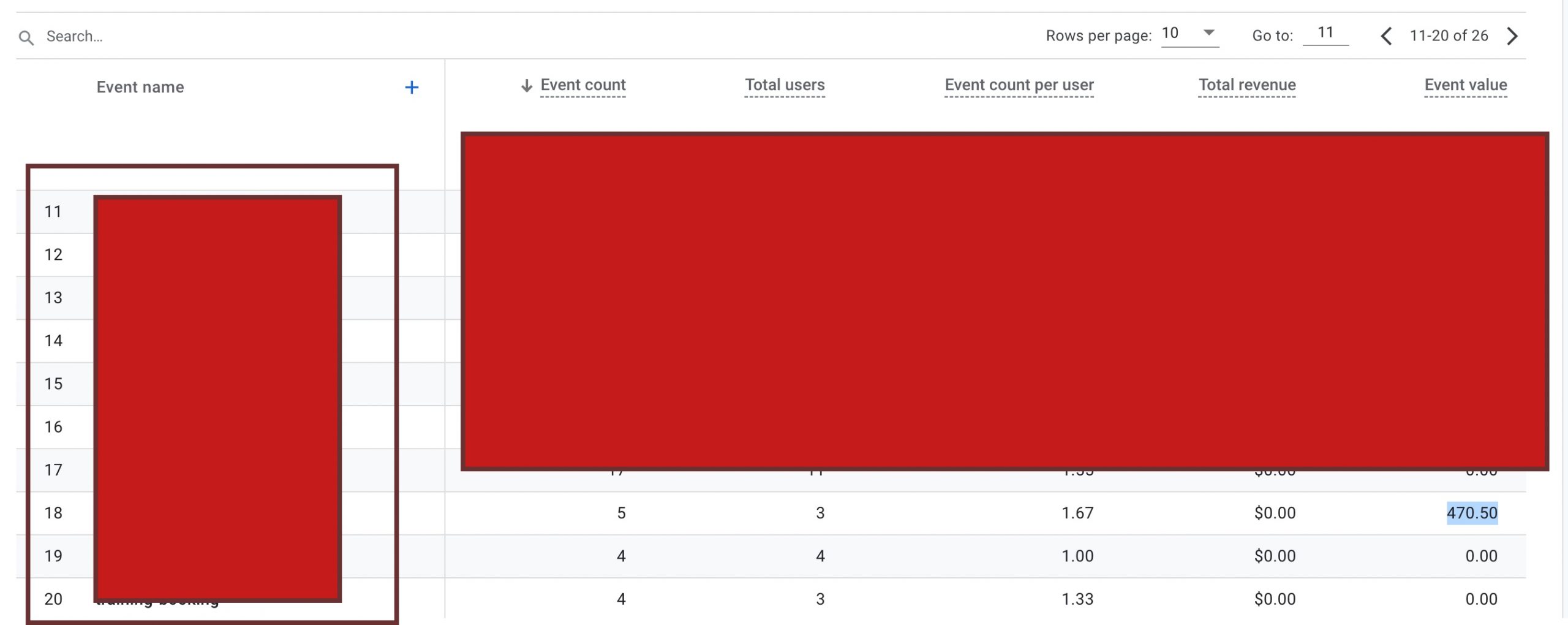
Display GA4 event value show in google data studio with GA4 Event parameter

Warning: If you do n’t know about javascript or do n’t have developing knowledge then do n’t try to Displaying GA4 event parameters (Event Value) in Google Data Studio that can broke your site, Cart and other functionality 

Disclaimer: Google tag manager belongs to Google property 

For Contact: mappchero@gmail.com

I am available for Hire on Freelancer: Freelancer.com

I am available for Hire on Upwork: Upwork.com

I am available for Hire on Peopleperhour: Peopleperhour.com

I am available for Hire on Guru: Guru.com