Squarespace Form Submission with Google Tag Manager

Standard

Are You Looking to Track Squarespace Form Submission with Google Tag Manager

Recently one client ask me to track to track squarespace form submission using Google Tag Manager because it’s bit of tracking to squarespace form using Google tag Manager.

Even you will ask to squarespace support they will not help much tracking correct form submission and they also very poor documentation about form submission. without correct form submission of Squarespace you can not track actual return of investment like Adword, SEO and other marketing. That’s every marketer want correct form submission.

After that I have decided write to easy solution track squarespace form submission using Google Tag Manager.

How to Track Squarespace form submissions with Google Tag Manager

Step 1. First Install Google Tag Manager on Your Squarespace that will allow track traffic and form Submission

Google Tag Manager Code inject in SquareSpace 

Login into your Squarespace account ——>Click on the “Settings” ——-> Click on the“Advanced Setting”—-> Click on the”Code Injection” ——-> in the header section.

Copy the code below and paste it onto every page of your website. Place it immediately after the opening <body> tag.

<!– Google Tag Manager –>
<noscript><iframe src=”//www.googletagmanager.com/ns.html?id=GTM-XXXXXX
height=”0″ width=”0″ style=”display:none;visibility:hidden”></iframe></noscript>
<script>(function(w,d,s,l,i){w[l]=w[l]||[];w[l].push({‘gtm.start’:
new Date().getTime(),event:’gtm.js’});var f=d.getElementsByTagName(s)[0],
j=d.createElement(s),dl=l!=’dataLayer’?’&l=’+l:”;j.async=true;j.src=
‘//www.googletagmanager.com/gtm.js?id=’+i+dl;f.parentNode.insertBefore(j,f);
})(window,document,’script’,’dataLayer’,’GTM-XXXXXX‘);</script>
<!– End Google Tag Manager –>

Note: Make you will replace GTM Tracking Code with your GTM ID

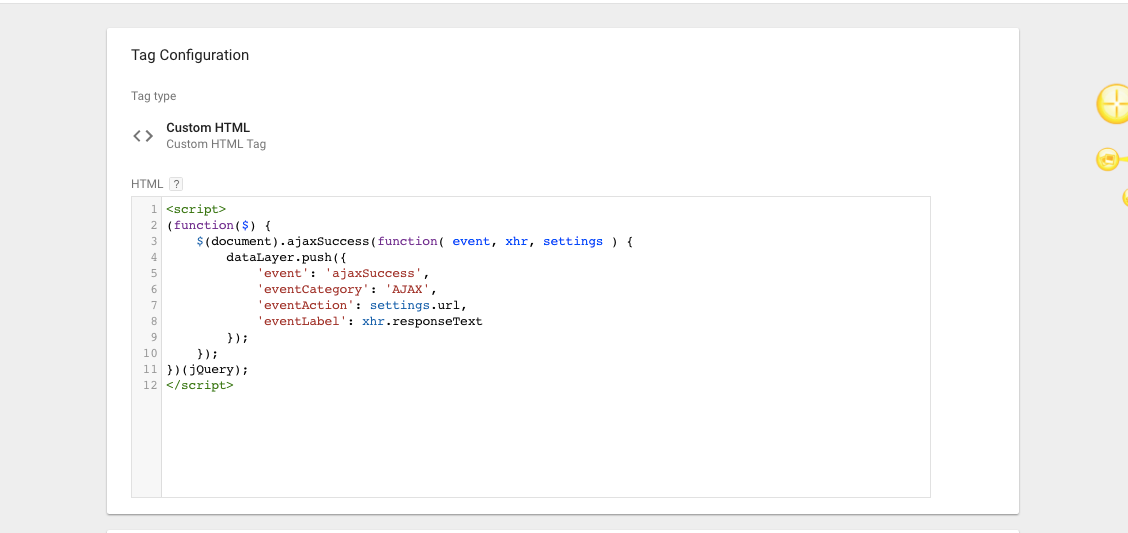
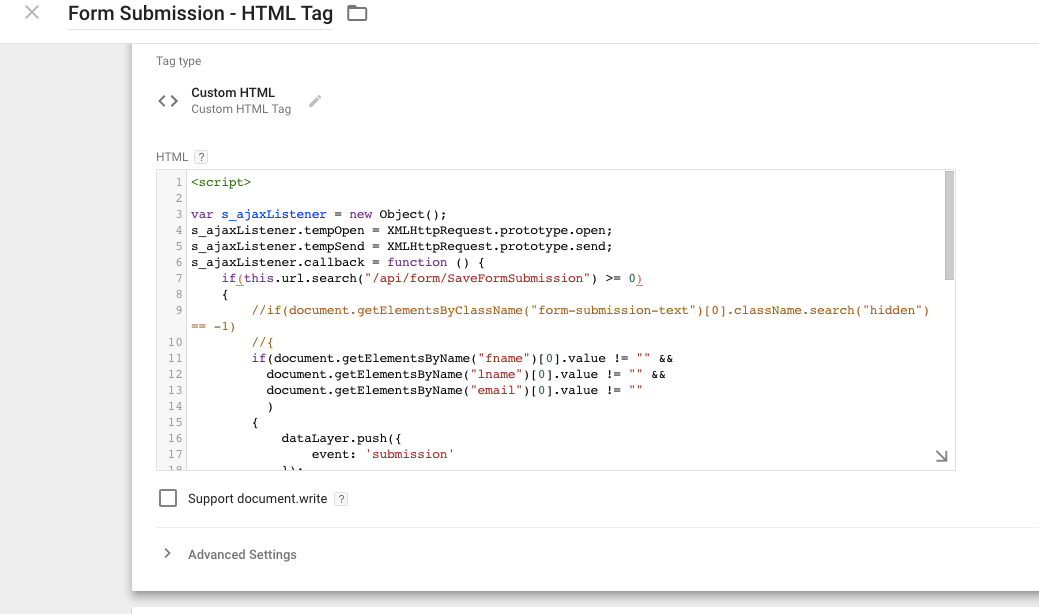
Step 2. Need to create a custom html javascrit to track squarespace form submission 

Name of Custom HTML – Squarespace form Submission

Custom HTML Squarespace form Submission using Google Tag Manager

Custom HTML Squarespace for Google Tag Manager

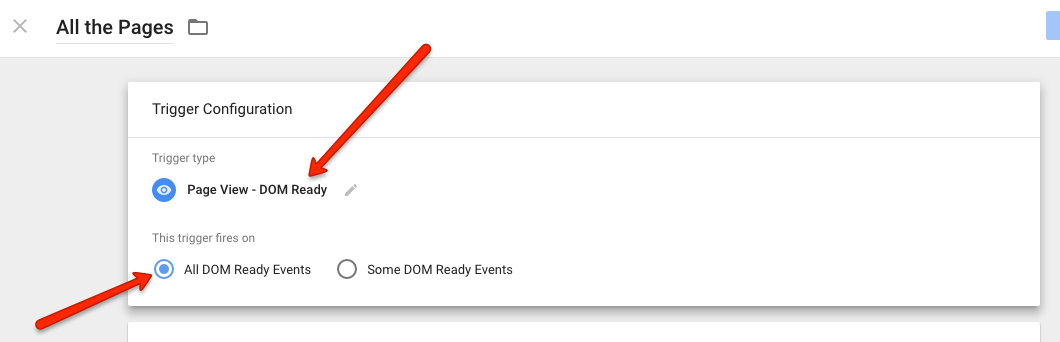
Step 3. Triggering for ” Squarespace form Submission validation on submit” without Putting Code on Squarespace template for form submission using Google Tag Manager

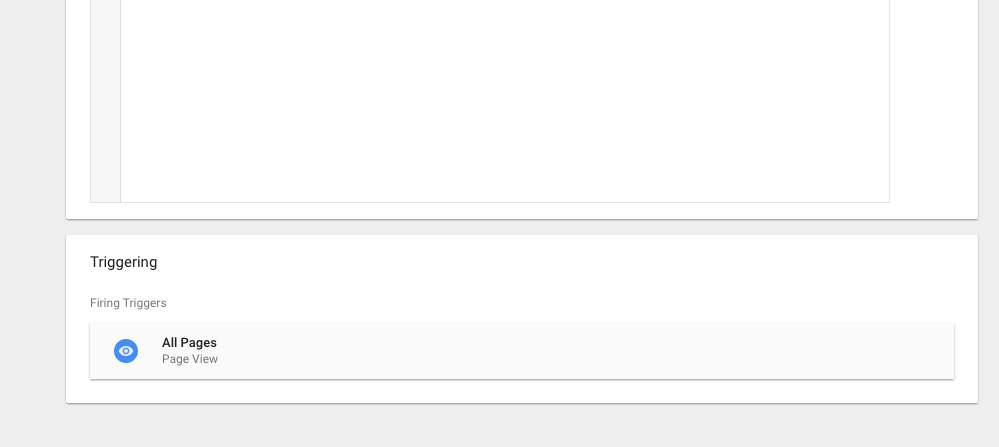
Trigger to Track Contact Form Submission on Squarespace using Google tag manager

Track Contact Form Submission on Squarespace using Google tag manager

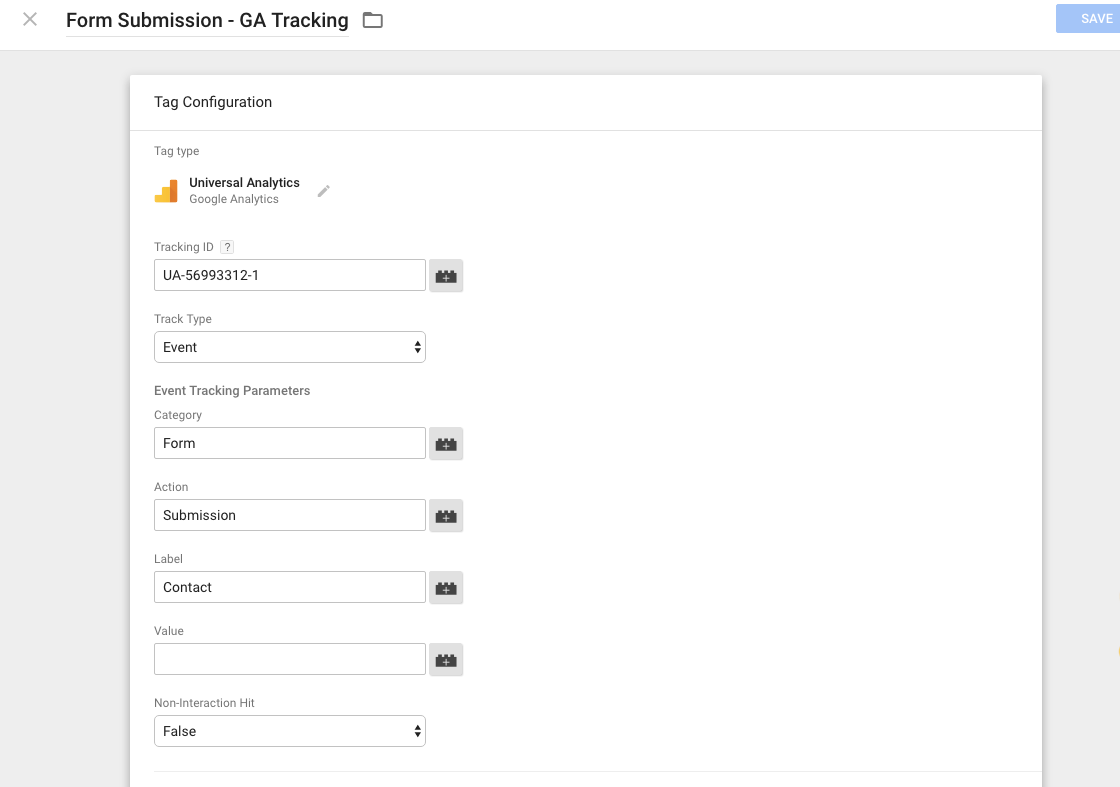
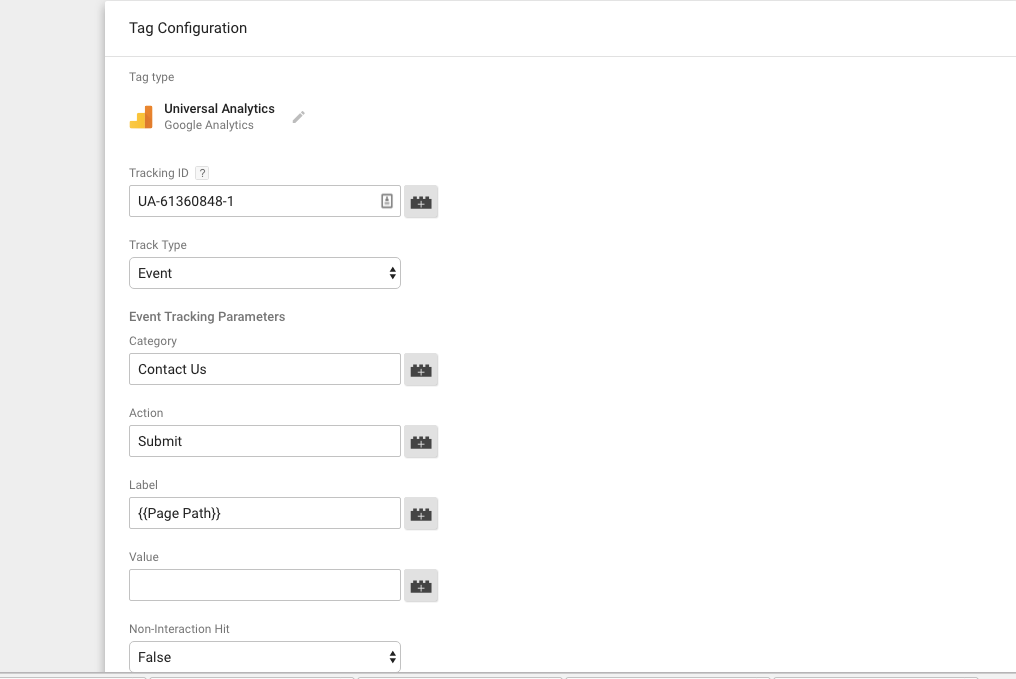
Step 4. Create a Tag for Track to Squarespace form Submission in Google Analytics using Google Tag manager.

SquareSpace For Tags for Google Tag Manager

Create a Tag Squarespace form Submissions using Google Tag Manager

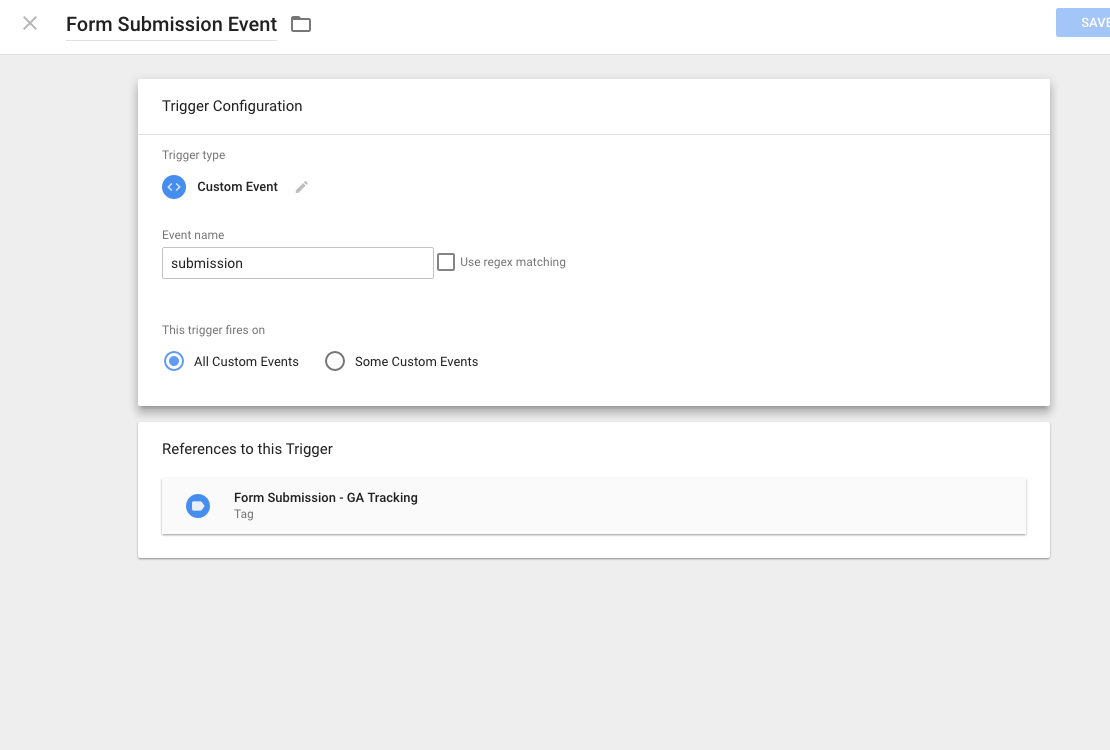
Step 5. Trigger to track Squarespace form Submission in Google Analytics using Google Tag manager.

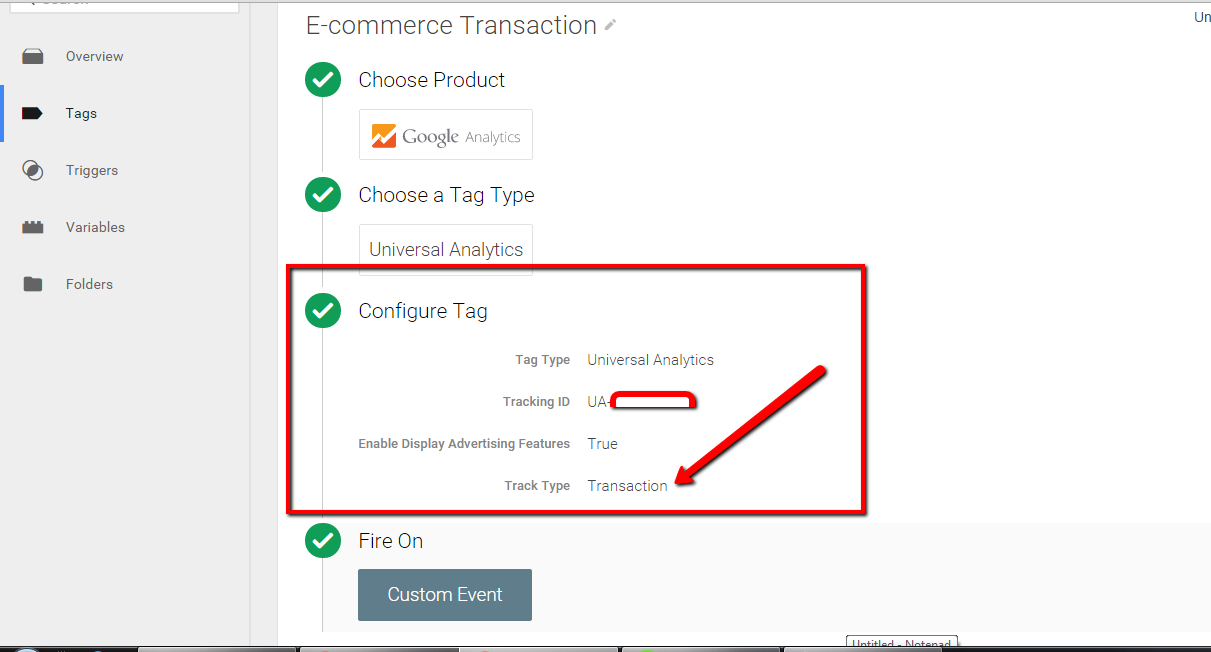
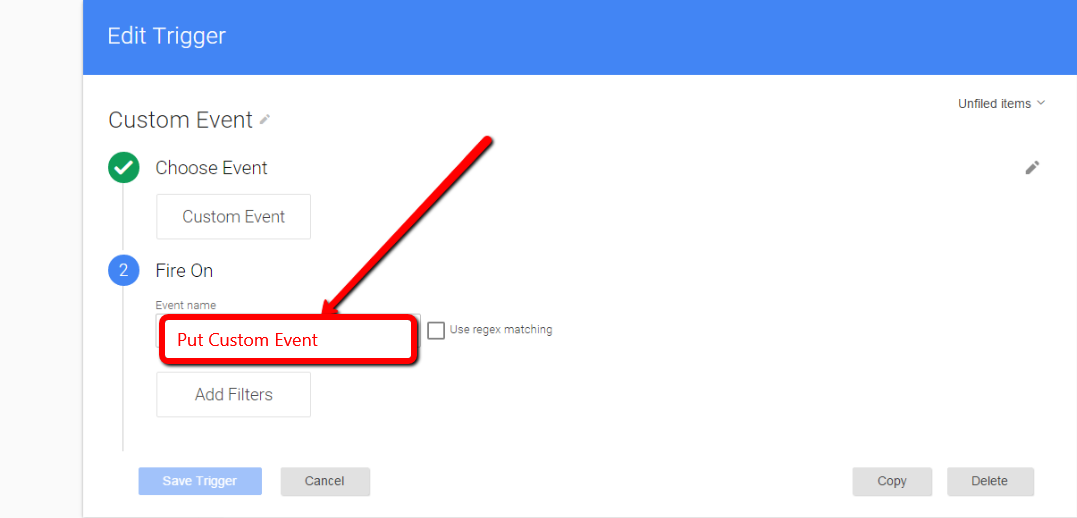
Custom Event for Squarespace form Submission using Google Tag Manager

Custom Event for Squarespace forms Submission

For Contact: mappchero@gmail.com

Warning:if you do n’t know about javascript or do n’t have developing knowledge then do n’t try to implement on Squarespace form submission using Google Tag Manager  that can broke your site, Cart and other functionality 

Disclaimer: Google tag manager belongs to Google property 

Contact Form 7 with Google Tag Manager without a Plugin in WordPress

Standard

Are you looking WordPress Contact Form 7 Submission/Ajax form Submission using Google Tag Manager

Are you looking to track Contact form 7 Successful form Submission Tracking using Google Tag Manager without plugin and using javascript or if you don’t login to your back-end of WordPress don’t need worry about it, Make sure you have already Place Google Tag Manager on the website.

One of Challenging part to track successful form submission on Contact form 7 Tracking in Google Analytic and lots of questions I have seen on the internet How to track success Contact 7 form submission on “track WordPress Contact Form 7 with Google Tag Manager” and Track WordPress Contact Form 7 with Google Tag Manager! And Some people written solution if you use the plugin of google tag manager “GTM Plugin for WordPress by DuracellTomi“, I am going to provide a solution track contact 7 form Submission using Google Tag Manager!

Why it’s more completed to tracking Contact form 7 submission using Google Analytic / Google Tag Manager, Because due to ajax based form Submission that’s alway will be challenging track on Google Analytic that will not track as usual other form submission for track ajax form using Custom Javascript or Redirect to thank You Page.

How to make Successfully form Submission Tracking using Google Tag Manager in WordPress Contact Form 7 with Google Tag Manager without a Plugin!

Step 1. First Install Google Tag Manager on Your Website /Store

Copy the code below and paste it onto every page of your website. Place it immediately after the opening <body> tag.

<!– Google Tag Manager –>
<noscript><iframe src=”//www.googletagmanager.com/ns.html?id=GTM-XXXXXX
height=”0″ width=”0″ style=”display:none;visibility:hidden”></iframe></noscript>
<script>(function(w,d,s,l,i){w[l]=w[l]||[];w[l].push({‘gtm.start’:
new Date().getTime(),event:’gtm.js’});var f=d.getElementsByTagName(s)[0],
j=d.createElement(s),dl=l!=’dataLayer’?’&l=’+l:”;j.async=true;j.src=
‘//www.googletagmanager.com/gtm.js?id=’+i+dl;f.parentNode.insertBefore(j,f);
})(window,document,’script’,’dataLayer’,’GTM-XXXXXX‘);</script>
<!– End Google Tag Manager –>

Note: Make you will replace GTM Tracking Code with your GTM ID

Step 2. Need to create a custom html javascrit to track contact us 7 form submission using without Plugin

Name of Custom HTML – Contact 7 Form Submission validation on submit

Contact Form 7 submit with Google Tag Manager

Contact Form 7 validation on submit using Google Tag Manager

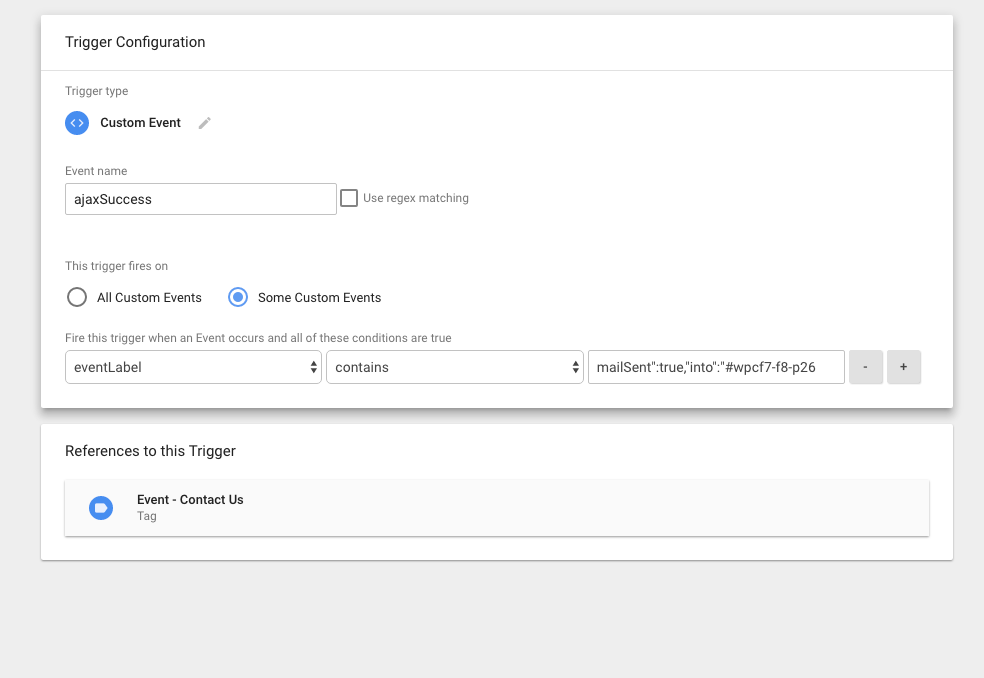
Step 3. Triggering for “Contact 7 Form Submission validation on submit” without Plugin a tracking form submission using Google Tag Manager

Ajax Form Tracking Contact 7 Form Submission

Track Contact Form 7 Submissions in Google Analytics

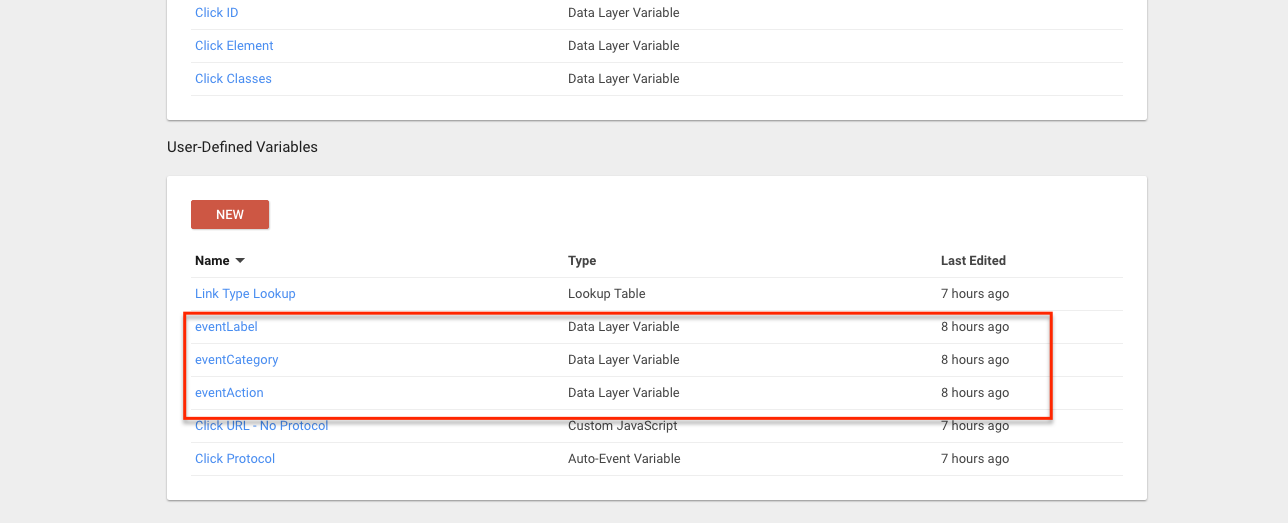
Step 4. Create a variable for Track Contact 7 form submission using Google Tag Manager

Custom Variables for Contact 7 form Submission

WordPress contact form 7 variables using Google Tag Manager

Step 5. Create a Tag for Track to Contact 7 form Submission in Google Analytics using Google Tag manager.

Google Tag Manager Contact 7 Tags

Contact 7 For Tags for Google Tag Manager

Step 6. Trigger to track Contact 7 form Submission in Google Analytics using Google Tag manager.

Custom Event to track contact 7 form submission

Contact 7 form Submission fire on Custom Event

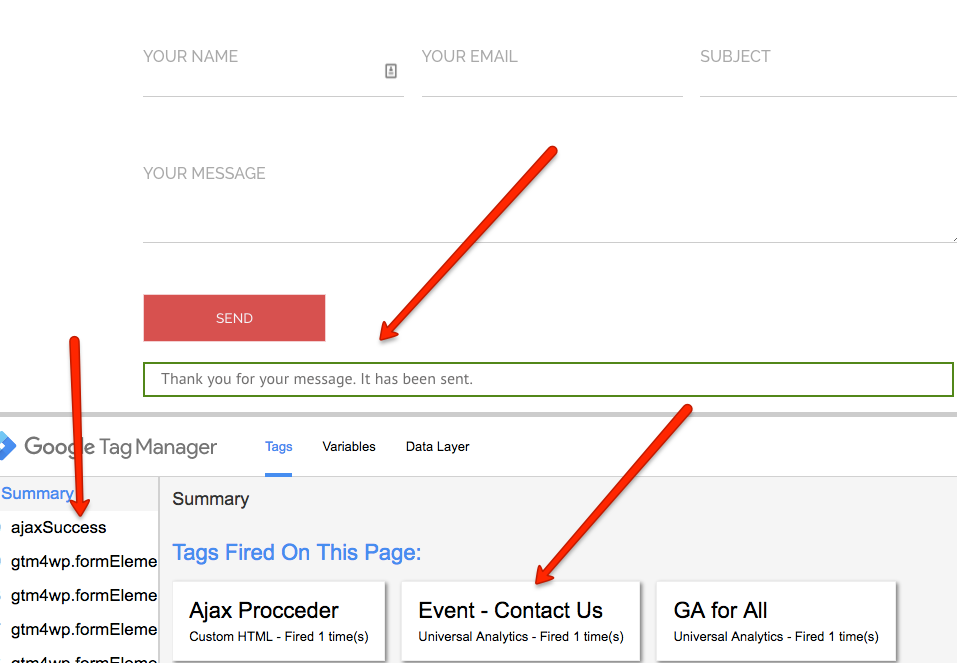
Step 7. Now time test contact 7 form submission on the website using Debug mode of Google Tag manager

Successfully Contact form 7 tracking

Tested on Contact form 7 Submission using Google Tag Manager

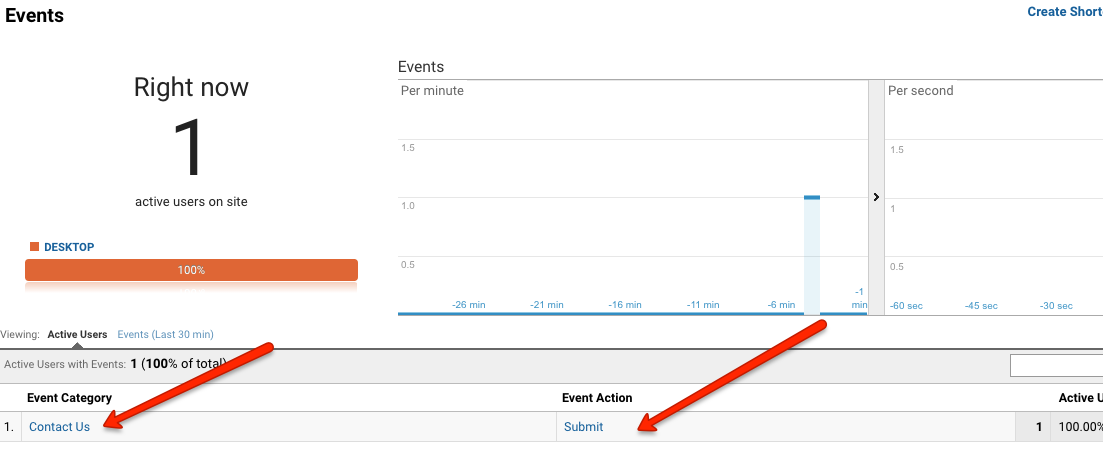
Step 6. Result Verify in Google Analytic for Contact 7 form Submission and Successfully tracking as event Google Analytic.

Contact 7 Form event Tracking in Google Analytic

Event Tracking in Google Analytic for Contact 7 Form

For Contact: mappchero@gmail.com

Warning:if you do n’t know about javascript or do n’t have developing knowledge then do n’t try to implement on contact 7 form submission using Google Tag Manager  that can broke your site, Cart and other functionality 

Disclaimer: Google tag manager belongs to Google property 

No Fields Found.

HTML5 Video Views & Progress Tracking using Google Tag Manager /Google Analytic

Standard

Recently one client has asked to track HTML5 video performance using Google Analytic/Google Tag Manager

Track HTML5 Video Views and Progress Tracking  using  Google Tag Manager / Google Analytics

You can monitor the performance of HTML5 Video Tracking using Google Analytic/Google Tag Manager, that will help you understand about your users behavior, How users are interacting with your HTML5 Video players. Anybody who has embedded HTML5 video players on their web site knows how precious it may be to figure out whether visitors are really seeing those videos. You may need to monitor whether they quit short or whether individuals are viewing until the ending.

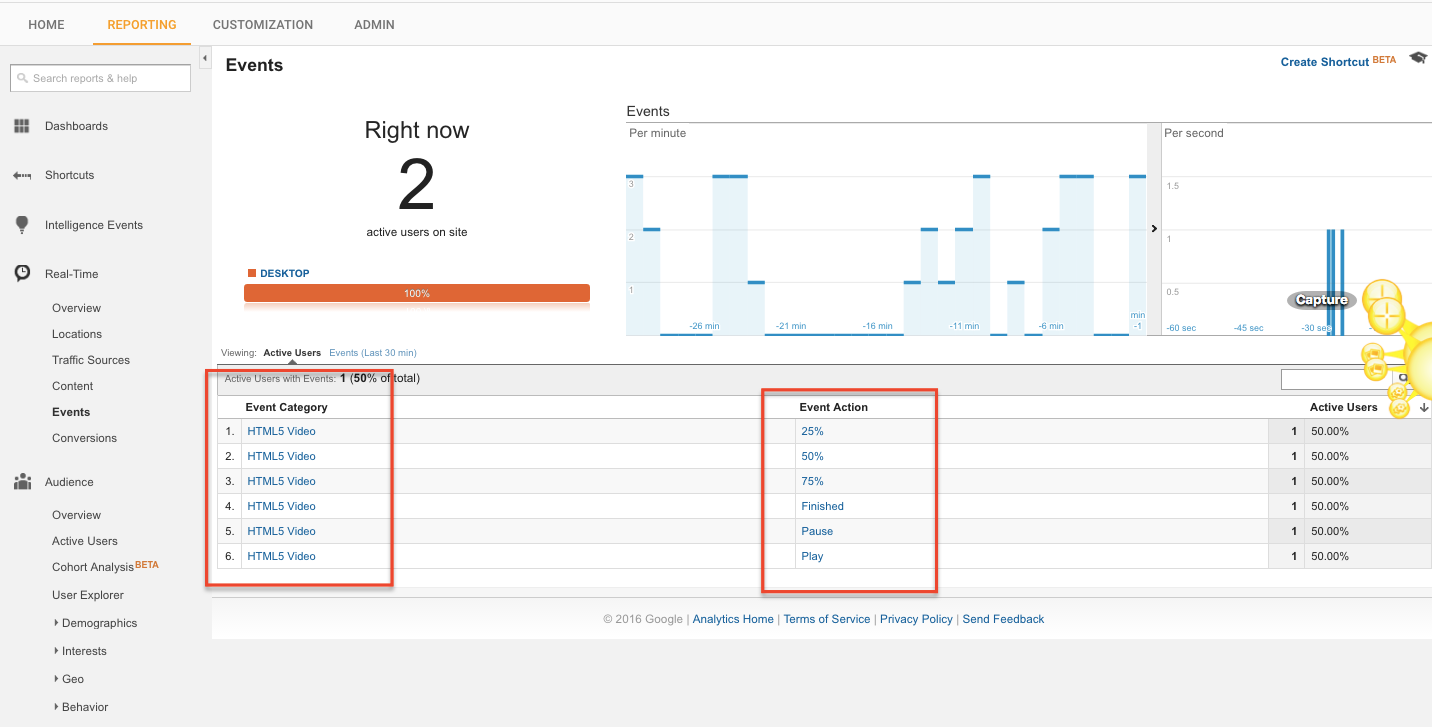
Default Configuration:  you will see default progress metrics in your google Analytic

  • Play
  • Paused 
  • End
  • 25% 
  • 50%
  • 75%
  • 100%

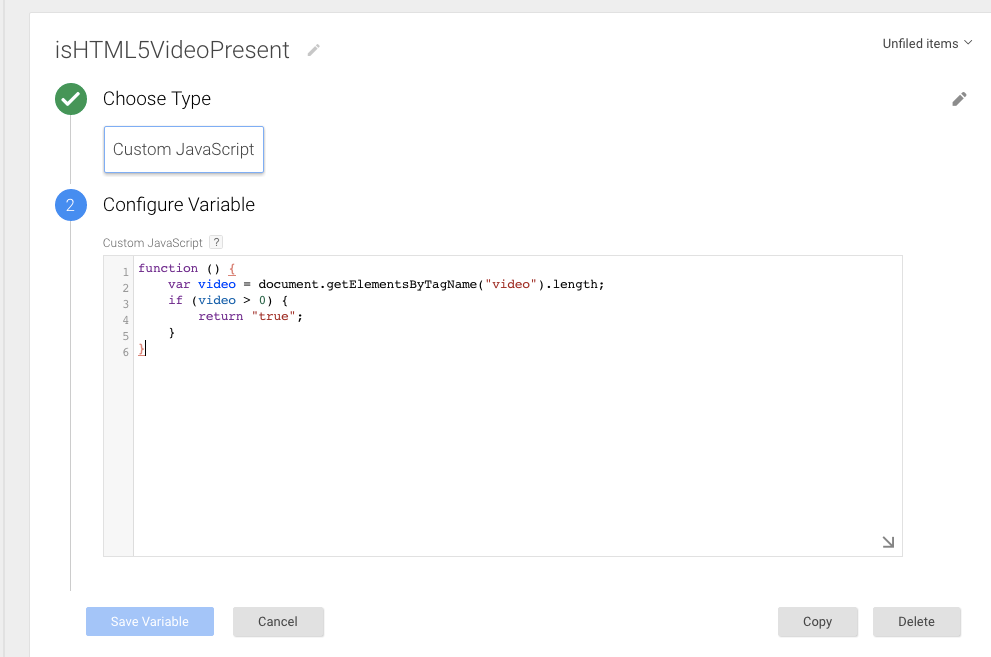
Step 1. Create the isHTML5 Video Present Tracking  is Macro  Tracking using Google Tag Manager/Google Analytic  

function () {
var video = document.getElementsByTagName(“video”).length;
if (video > 0) {
return “true”;
}
}

Tracking HTML5 Videos with GTM

HTML5 Video Tracking for Google Tag Manager

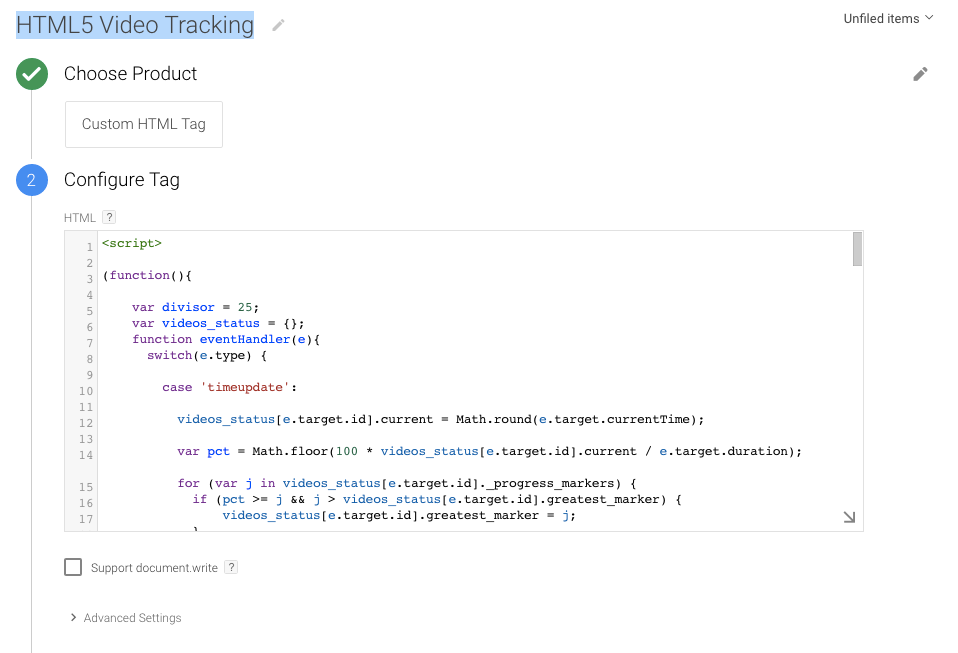
Step 2. Create Custom HMTL Tag for HTML5 Video Tracking using Google Tag Manager 

Tag Name:HTML5 Video Tracking Tags using Google Tag Manager
Tag Type: Custom HTML Tag

Track Click on html5 video

Tracking HTML5 Players with Google Tag Manager

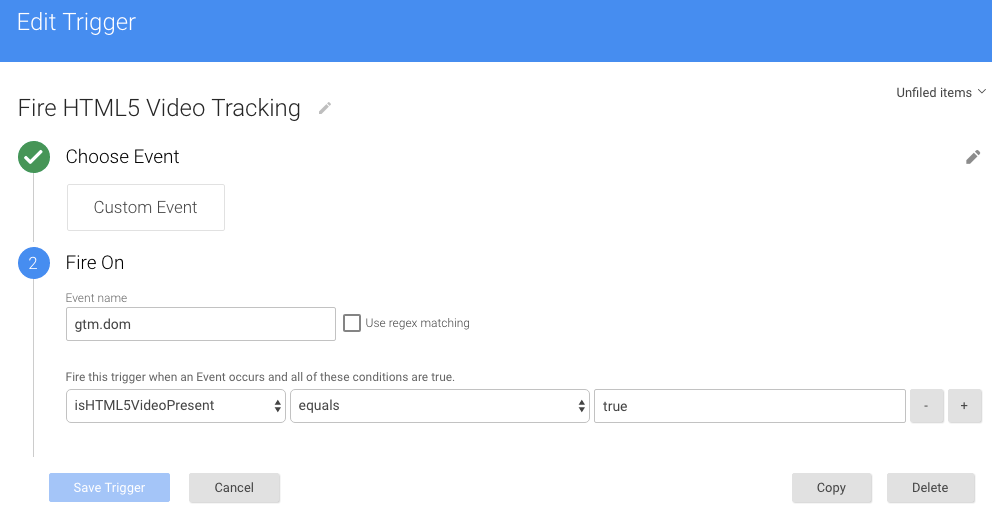
Firing Rules 

Rule Name: Fire HTML5 Video Tracking
Conditions:
{Event name equals gtm.dom
{{isHTML5 Video Present}} equals true

HTML5 Video Measurement with Google Tag Manager

Track HTML5 Video Events using Google Tag Manager

Step 3. Create Macros for Event Action, Event Category, and Event Label HTML5 Video Tracking using Google Tag Manager

Step 4. Create UA HTML5 Video Event – UA Tag & Check for HTML5 Event Tracking using Google Tag Manager

Now Now time show results Html5 Video Tracking result and Verified with Google Analytics 

htm

For Contact: mappchero@gmail.com

Warning:if you do n’t know about javascript or do n’t have developing knowledge then do n’t try to implement onHtml5 Video Tracking using Google Tag Manager  that can broke your site, Cart and other functionality 

Disclaimer: Google tag manager belongs to Google property 

Google Adwords Website Call Conversion Integration With WordPress

Standard

Recently once my client asks to implement Google AdWords Call Forwarding, Call Extensions Call Conversions to a WordPress Site.

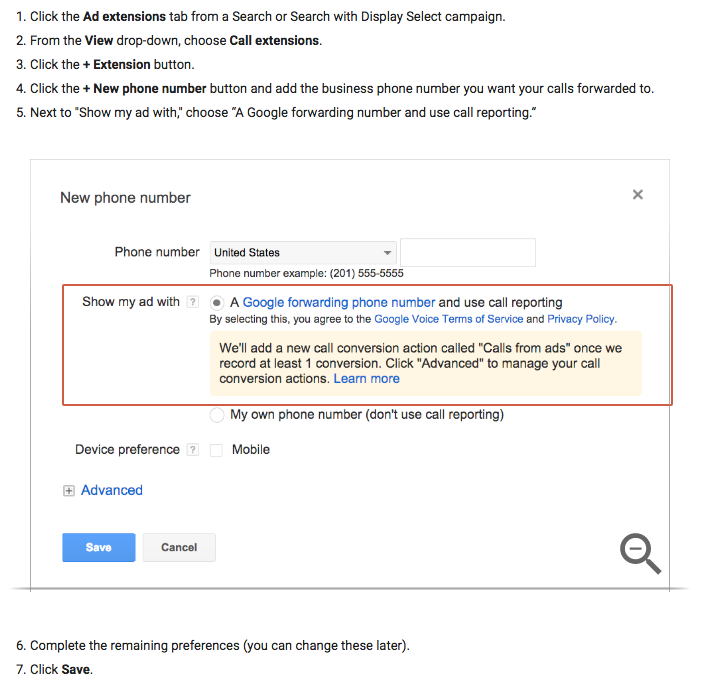
Google forwarding numbers allow you phone caller area code, offering details like call length, call start and end time, only advertising, and whether the call was connected and report on the calls you receive through call extensions. You use automated bid strategies to raise chance of conversions and can count telephone calls of a given duration as conversions.

How to implement Google Adword Call Forwarding Tracking  on WordPress

Step 1: Set up Google forwarding numbers – Add a Google forwarding number to a new call extension

Google Forwarding Number on a WordPress Site

Adwords Website Call Conversion Integration

Step 2: Google AdWords Conversion Tracking Code – Setting up the conversion tracking for your conversion action Calls from Website

Add the tag to your website on the WordPress

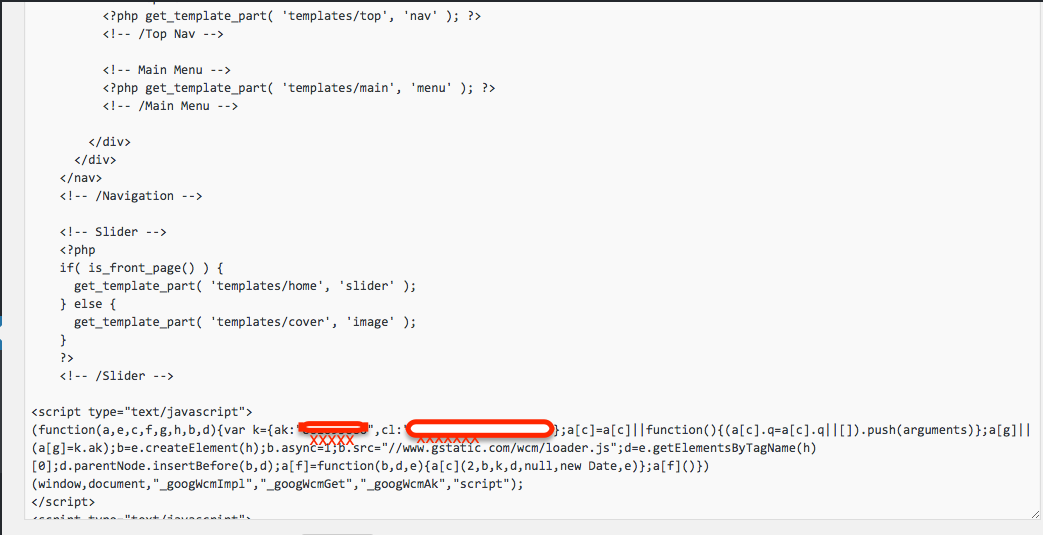
Either you or your webmaster will need to add the conversion tracking tag below to your website. Add the tag between the <head> and </head> tags of the page where the phone number appears on your website.

Go to WordPress Admin —-> Appearance —>Header.php

<script type=”text/javascript”>
(function(a,e,c,f,g,h,b,d){var k={ak:”xxxxx”,cl:”xxxxxx”};a[c]=a[c]||function(){(a[c].q=a[c].q||[]).push(arguments)};a[g]||(a[g]=k.ak);b=e.createElement(h);b.async=1;b.src=”//www.gstatic.com/wcm/loader.js”;d=e.getElementsByTagName(h)[0];d.parentNode.insertBefore(b,d);a[f]=function(b,d,e){a[c](2,b,k,d,null,new Date,e)};a[f]()})(window,document,”_googWcmImpl”,”_googWcmGet”,”_googWcmAk”,”script”);
</script>

Adding Website Call Conversions to a WordPress Site

Google Call Forwarding Call Extensions and Call Conversions

Note: Make you will replace ak and CL with your conversion tracking

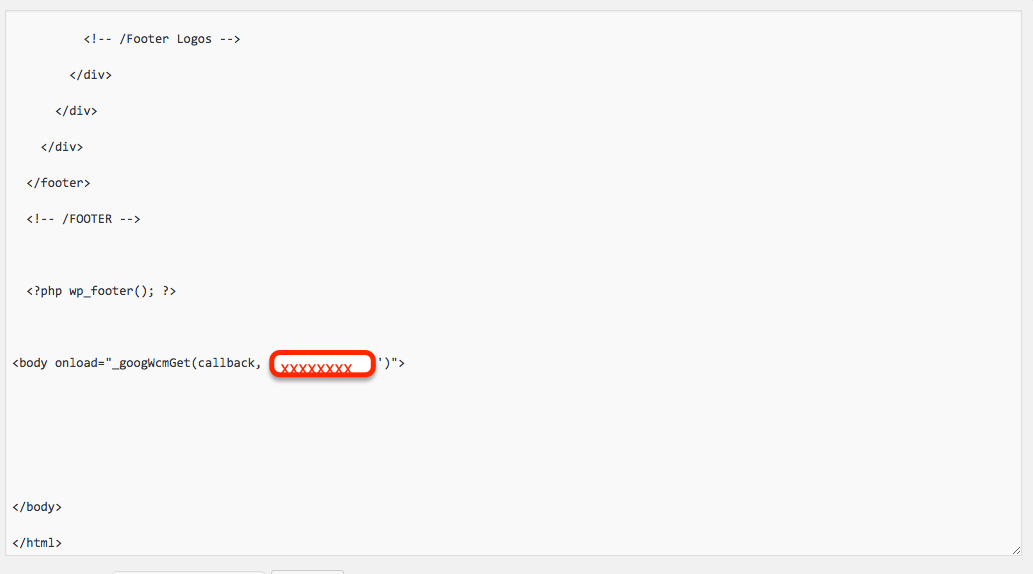
Step 3: Google AdWords Conversion Tracking Code – Add code to replace your number with a Google forwarding number on WordPress 

Go to WordPress Admin —-> Appearance —>footer.php

 <?php wp_footer(); ?>  <body onload=”_googWcmGet(callback, ‘x-xxxx-xxx-xxx’)”>

AdWords Call Tracking with Google Tag Manager

Adwords Website Call Conversion

Note: Make you will replace with your phone  x-xxxx-xxx-xxx

Step 4: Replace your phone number with a Google forwarding number Format.

<span class=”number”>x-xxx-xxx-xxx</span>

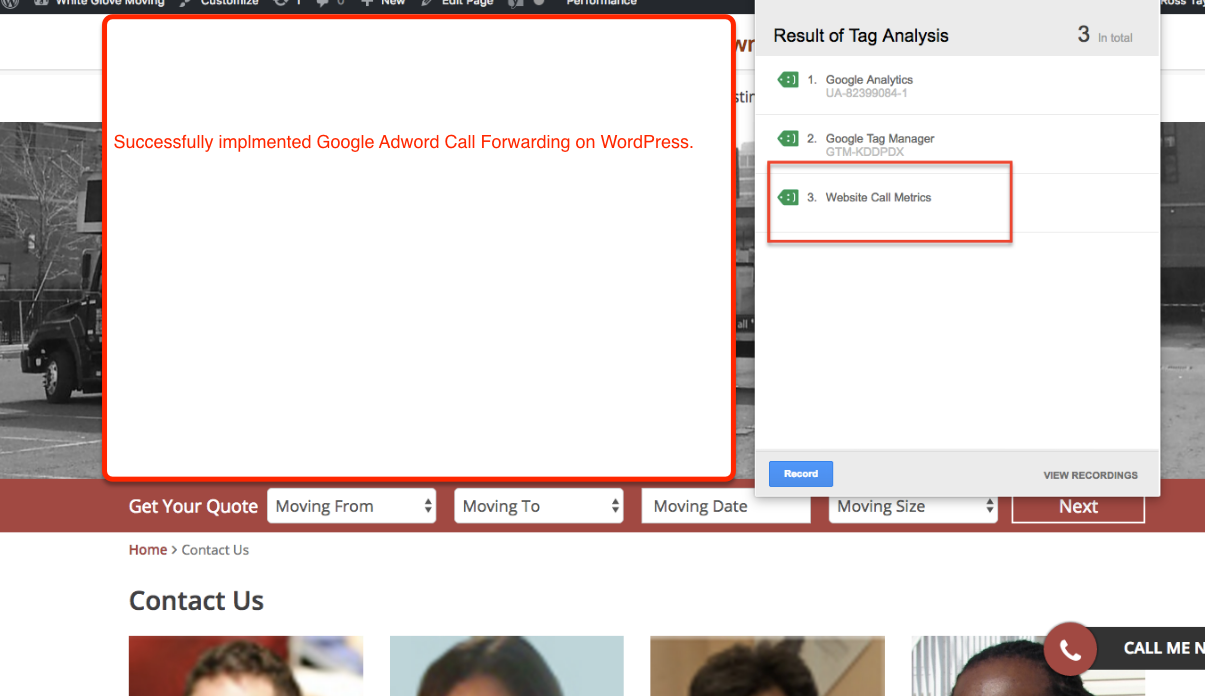
Step 5: Now Google Adword Call forwarding Successfully implements in WordPress and Verified with Google Tag Assistance

2016-08-27_0233

For Contact: mappchero@gmail.com

Warning:if you do n’t know about javascript or do n’t have developing knowledge then do n’t try to implement on Google adword Call Forwaring  that can broke your site, Cart and other functionality 

Disclaimer: Google tag manager belongs to Google property 

Implement Dynamic Remarketing Tag in Volusion using Google Tag Manager

Standard

Recently I have worked for one of my client who want to Implement volution dynamic remarketing Tag

Dynamic Remarketing means who has visited your website and re-engaged with users who has already visited with Custom Parameters of Dynamic Remarketing. To help you convert more visitor with Volusion Dynamic Remarketing using Google Tag Manager. Less CPC with maximize ROI of your Store with Volusion Dynamic Remarketing Tag 

Setting up Volution Dynamic Remarketing Tag via Google Tag Manager

Step 1. First Need to be installed Google Tag Manager on Volusion Store for Dynamic Remarketing

Copy the code below and paste it onto every page of your website. Place it immediately after the opening <body> tag.

<!– Google Tag Manager –>
<noscript><iframe src=”//www.googletagmanager.com/ns.html?id=GTM-XXXXXX
height=”0″ width=”0″ style=”display:none;visibility:hidden”></iframe></noscript>
<script>(function(w,d,s,l,i){w[l]=w[l]||[];w[l].push({‘gtm.start’:
new Date().getTime(),event:’gtm.js’});var f=d.getElementsByTagName(s)[0],
j=d.createElement(s),dl=l!=’dataLayer’?’&l=’+l:”;j.async=true;j.src=
‘//www.googletagmanager.com/gtm.js?id=’+i+dl;f.parentNode.insertBefore(j,f);
})(window,document,’script’,’dataLayer’,’GTM-XXXXXX‘);</script>
<!– End Google Tag Manager –>

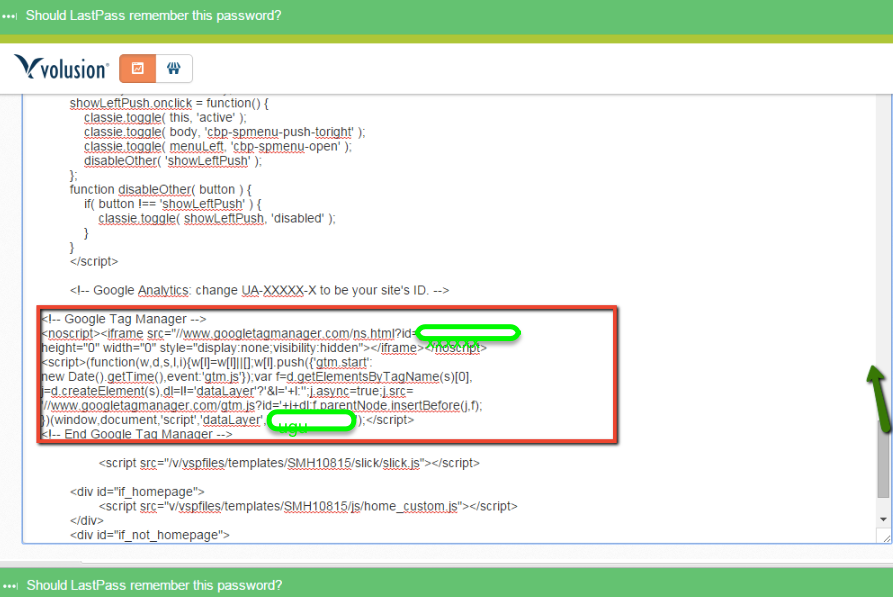
Step 2. For Install Google Tag Manager in your Volution Store your admin area, got t to Design > File Editor in your Admin Area —->In the Live Edit page, click on your template.htm

add Google Dynamic Remarketing Code in Volusion

Volusion Dynamic Remarketing Using Google Tag Manager

Step 3. Below Customization Code need to place on Volusion for Dynamic Remarketing Tag 

Volusion Dynamic RemarketingIf home page 

<!--If home page-->
if(pathname == "/" || pathname == "Default.asp" || pathname == "default.asp"){
var pagetype = 'home';
var googleprice = '';
var googleprodid ='';
};

If Product Page

if(pathname.indexOf('-p/') > -1){
var pagetype = 'product';
var googleprice = $('span[itemprop="price"]').html().split('<')[0].replace('£','').replace(',','').trim();
var googleprodid = global_Current_ProductCode;
};

Step 4. Need to be Setup Remarketing Campaign in AdWords

Volution AdWords dynamic remarketing Using Google Tag Manager

Volution AdWords dynamic remarketing Using Google Tag Manager

Step 5. Configure Tags, Variable and Rule for Setup Volusion Dynamic Re-marketing Tag Campaign in Google Tag Manager

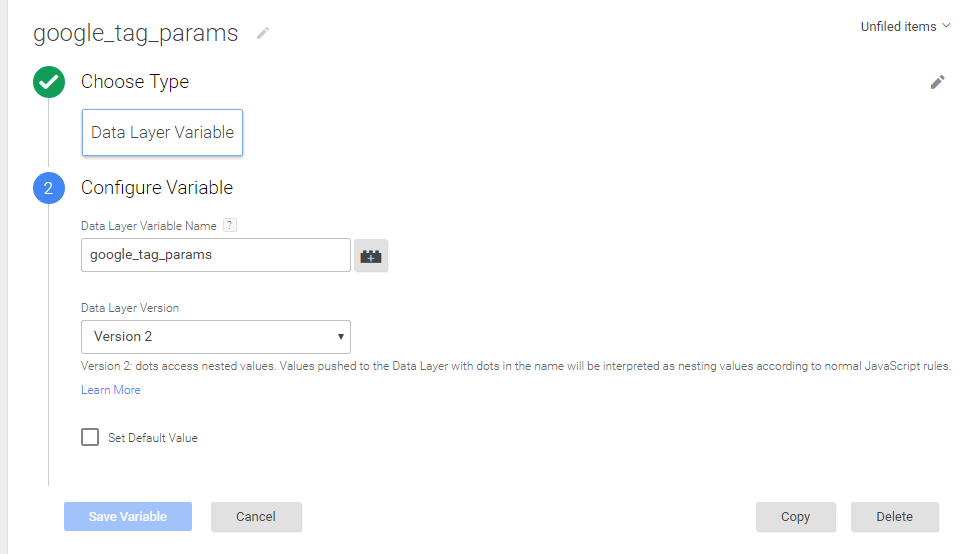
  1. You need create a variable to Data Layer Variable called google_tag_params to Choose this option to supply custom parameters in a data layer variable.
Volusion Dynamic Remarketing Setup

Add Google Dynamic Remarketing Code in Volusion Store

Google Dynamic Re-marketing Setup Using Google Tag Manager Article – https://support.google.com/tagmanager/answer/6106009?hl=en&rd=1

For Developer Guide For Remarketing Setup – https://developers.google.com/adwords-remarketing-tag/parameters

For Troubleshoot of Dynamic Re marketing using Google Tag Manager –  Use Tag Assistance  – https://chrome.google.com/webstore/detail/tag-assistant-by-google/kejbdjndbnbjgmefkgdddjlbokphdefk?hl=en

For Contact: mappchero@gmail.com

Warning:if you do n’t know about javascript or do n’t have developing knowledge then do n’t try to implement on Volusion Dynamic Re-marketing Setup using Google Tag Manager  that can broke your site, Cart and other functionality 

Disclaimer: Google tag manager belongs to Google property 

Track Ecommerce transaction with Google Tag Manager in Vb.net

Standard

Recently, one of the client has asked to implement e-commerce tracking on ASP.NET ( Vb.net) website using Google Tag Manager

E-commerce tracking is one of most challenging part to implement in ASP.NET (Vb.net)

E-Commerce tracking even allows you to see your conversions to improve. Doesn’t that sound thrilling? It is fairly easy to empower your site for creating such advice. All that you need is a couple of codes that are additional. Naturally, you even have to examine the information presented to make the most of it.Transaction data passed back by the payment gateway or is usually saved in your back end systems.

You have to pass this info to the script that is analytics. To put it differently, you will use a server side language like PHP write a JavaScript directly to the resultant HTML page and to get the data.

You can see this features set up ecommerce tracking using Google Tag Manager in .net website.

  • Transaction Revenue
  • Transaction Tax
  • Transaction Shipping
  • Item Revenue
  • Revenue per Transaction
  • Revenue per Visit
  • Total Value
  • Revenue per Item
    Implementing E-Commerce Tracking via Google Tag Manager

    E-Commerce Conversion Tracking Using Google Tag Manager

    Google Tag Manager eCommerce Tracking installation

    Google Tag Manager integration (GTM)

    Step 1. First Install Google Tag Manager on Your ASP.NET ( Vb.net) website for Setup E-commerce Tracking using Google Tag Manager

    Copy the code below and paste it onto every page of your website. Place it immediately after the opening <body> tag.

    <!– Google Tag Manager –>
    <noscript><iframe src=”//www.googletagmanager.com/ns.html?id=GTM-XXXXXX
    height=”0″ width=”0″ style=”display:none;visibility:hidden”></iframe></noscript>
    <script>(function(w,d,s,l,i){w[l]=w[l]||[];w[l].push({‘gtm.start’:
    new Date().getTime(),event:’gtm.js’});var f=d.getElementsByTagName(s)[0],
    j=d.createElement(s),dl=l!=’dataLayer’?’&l=’+l:”;j.async=true;j.src=
    ‘//www.googletagmanager.com/gtm.js?id=’+i+dl;f.parentNode.insertBefore(j,f);
    })(window,document,’script’,’dataLayer’,’GTM-XXXXXX‘);</script>
    <!– End Google Tag Manager –>

    Note: Make you will replace GTM Tracking Code with your GTM ID.

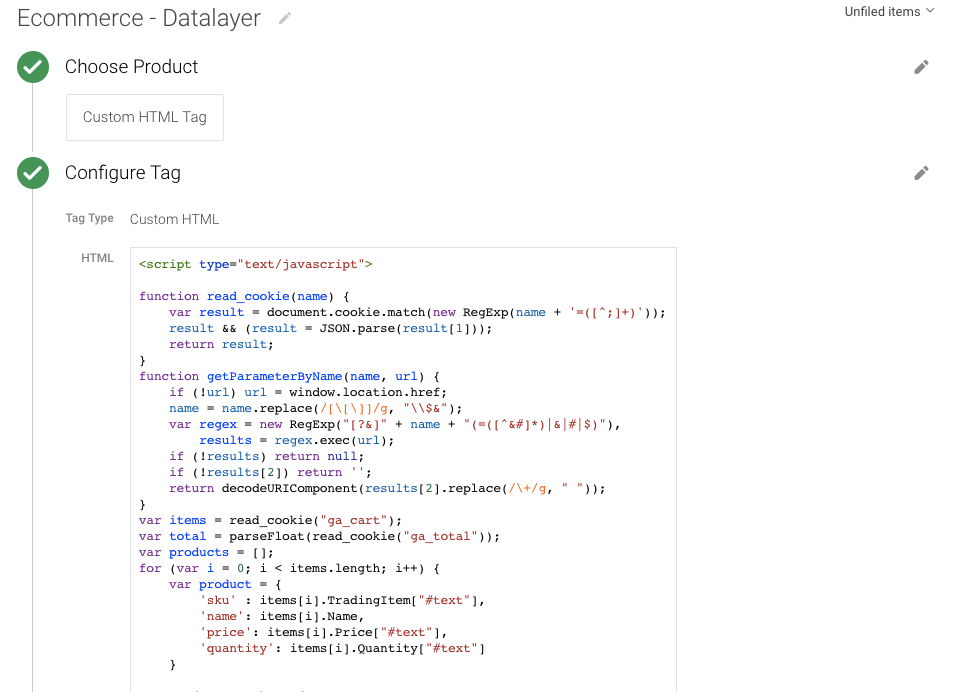
Step 2. Create a data layer using Custom HTML Tag 

<script type=”text/javascript”>

function read_cookie(name) {
var result = document.cookie.match(new RegExp(name + ‘=([^;]+)’));
result && (result = JSON.parse(result[1]));
return result;
}
function getParameterByName(name, url) {
if (!url) url = window.location.href;
name = name.replace(/[\[\]]/g, “\\$&”);
var regex = new RegExp(“[?&]” + name + “(=([^&#]*)|&|#|$)”),
results = regex.exec(url);
if (!results) return null;
if (!results[2]) return ”;
return decodeURIComponent(results[2].replace(/\+/g, ” “));
}
var items = read_cookie(“ga_cart”);
var total = parseFloat(read_cookie(“ga_total”));
var products = [];
for (var i = 0; i < items.length; i++) {
var product = {
‘sku’ : items[i].TradingItem[“#text”],

 DataLayer In Custom JavaScript Variables

Google Tag Manager Data Layer ECommerce

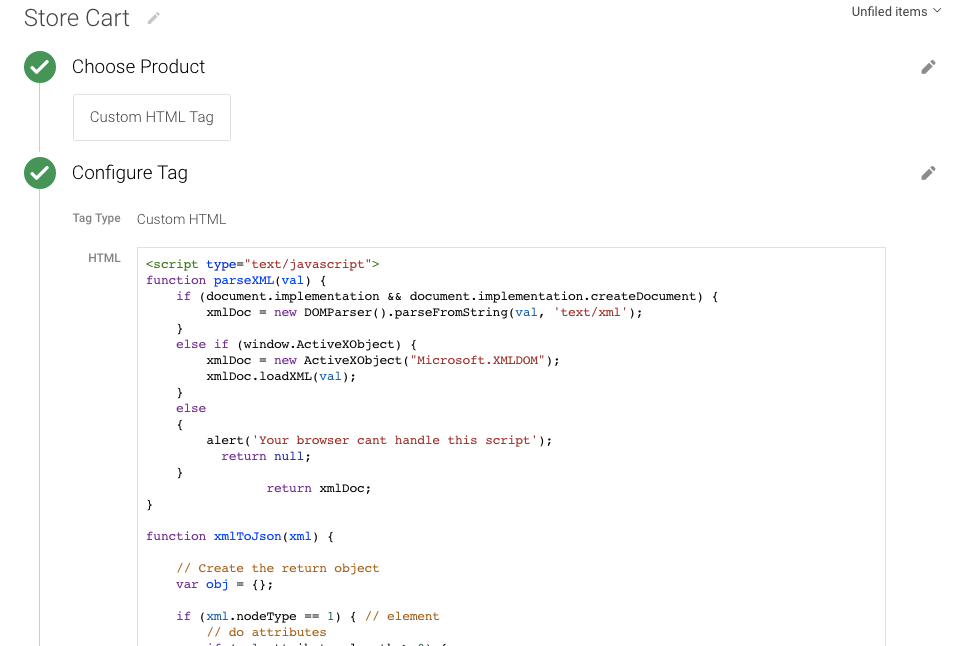
Step 3. Create a data layer using Custom HTML Tag for Store

<script type=”text/javascript”>
function parseXML(val) {
if (document.implementation && document.implementation.createDocument) {
xmlDoc = new DOMParser().parseFromString(val, ‘text/xml’);
}
else if (window.ActiveXObject) {
xmlDoc = new ActiveXObject(“Microsoft.XMLDOM”);
xmlDoc.loadXML(val);
}
else
{
alert(‘Your browser cant handle this script’);
return null;
}
return xmlDoc;
}

function xmlToJson(xml) {

// Create the return object
var obj = {};

if (xml.nodeType == 1) { // element
// do attributes
if (xml.attributes.length > 0) {
obj[“@attributes”] = {};
for (var j = 0; j < xml.attributes.length; j++) {
var attribute = xml.attributes.item(j);
obj[“@attributes”][attribute.nodeName] = attribute.nodeValue;
}

Google Tag Manager E-commerce data Layer

Implement using the Data Layer

For Contact: mappchero@gmail.com

Warning:if you do n’t know about javascript or do n’t have developing knowledge then do n’t try to implement on ASP.NET () E-commerce  Setup using Google Tag Manager  that can broke your site, Cart and other functionality 

Disclaimer: Google tag manager belongs to Google property 

Enhanced E-comerce and eCommerce Tracking for OpenCart using Google Tag Manager

Standard

Are you looking to implement Enhanced Ecommerce and eCommerce Tracking for OpenCart using Google Tag Manager using Javascript without making any change on the openCart.

Recently once client want to implement e-commerce tracking without any plugin or without making changes on the website and challenges accepted and implemented through Google Tag Manager.

Google Analytics Improved Enhanced Ecommerce enable sales information,product impression, promotion, sales data to be sent with any of occasions and your Google Analytics pageviews. Use pageviews to monitor product purchases and product impressions, and use occasions to monitor product clicks and checkout measures.

What is Enhanced E-commerce Tracking for OpenCart using Google Tag Manager?

Because Opencart is an Ajax website, I decided to implement through Using a Custom JavaScript Macro

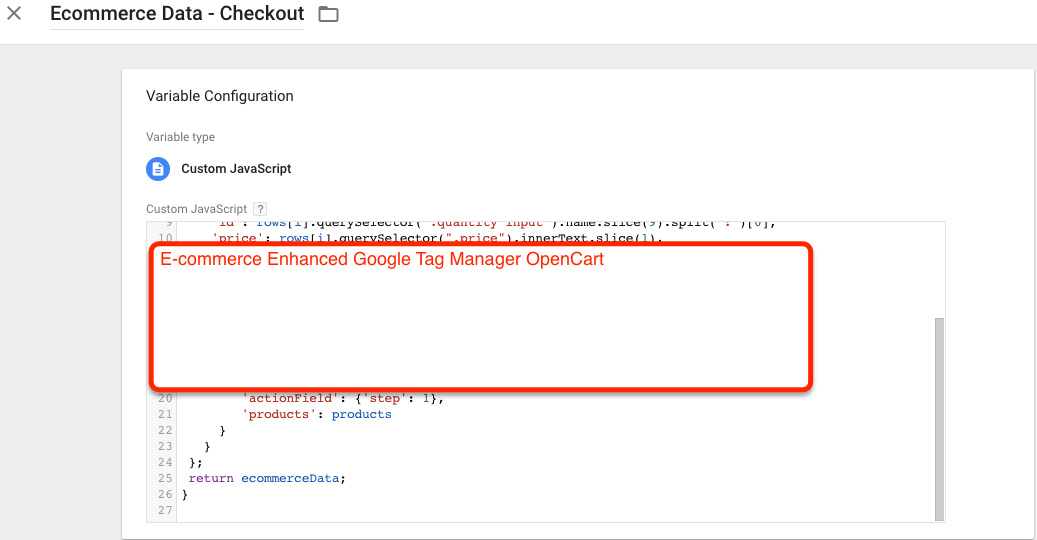
opencart google analytics ecommerce tracking

Custom Javascritp opencart analytics ecommerce tracking

To Implement Enhanced Ecommerce Tracking OpenCart using Google Tag Manager

  1. First Install Google Tag Manager on Your OpenCart for Set Up E-commerce Tracking using Google Tag Manager without touch Code of OpenCart
Paste this code as high in the <head> of the page as possible:
<!– Google Tag Manager –>
<script>(function(w,d,s,l,i){w[l]=w[l]||[];w[l].push({‘gtm.start’:
new Date().getTime(),event:’gtm.js’});var f=d.getElementsByTagName(s)[0],
j=d.createElement(s),dl=l!=’dataLayer’?’&l=’+l:”;j.async=true;j.src=
‘https://www.googletagmanager.com/gtm.js?id=’+i+dl;f.parentNode.insertBefore(j,f);
})(window,document,’script’,’dataLayer’,’GTM-XXXX’);</script>
<!– End Google Tag Manager –>
Additionally, paste this code immediately after the opening <body> tag:
<!– Google Tag Manager (noscript) –>
<noscript><iframe src=”https://www.googletagmanager.com/ns.html?id=GTM-XXXX”
height=”0″ width=”0″ style=”display:none;visibility:hidden”></iframe></noscript>
<!– End Google Tag Manager (noscript) –>

Note: Make you will replace GTM Tracking Code with your GTM ID XXXXX

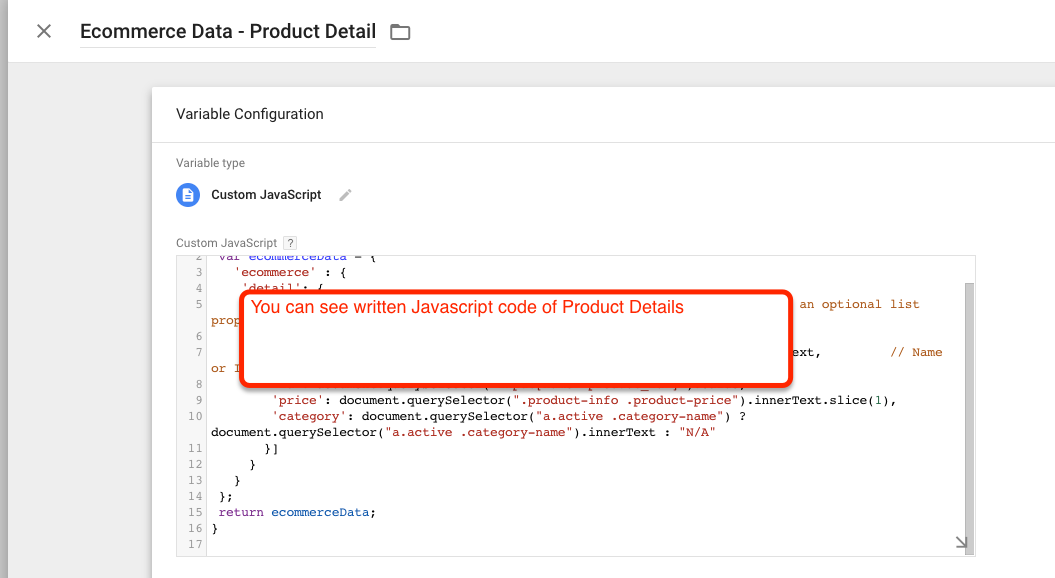
2. Product Detail Impressions: To Track product impression for OpenCart E-commerce and Enhanced E-commerce Tracking using Google Tag Manager used custom javascript to get the value of price, product and brand etc

Implementation of Google Tag Manager in OpenCart

Ecommerce Tracking through Google Tag Manager to Opencart

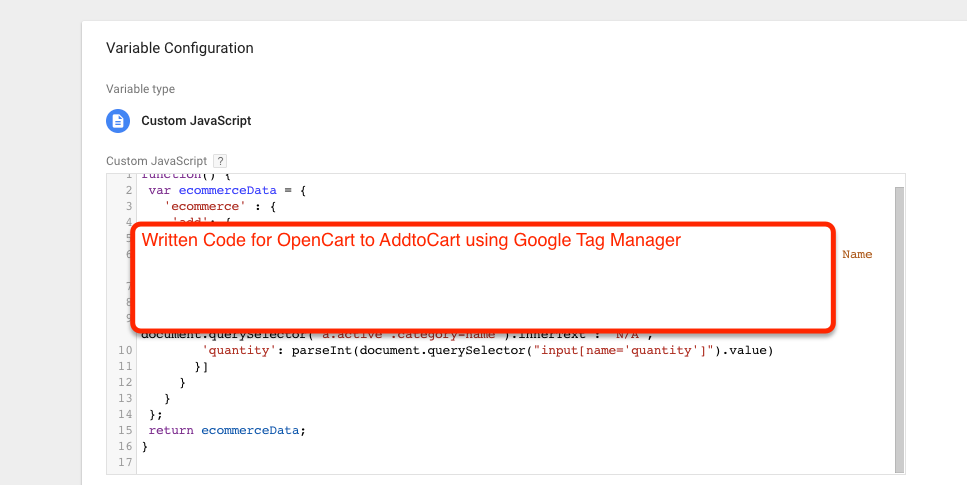
2.  Add to Cart: To measure additions add to Cart Product added for OpenCart Enhanced Ecommerce Tracking using Google Tag Manager used custom javascript to get the value of price, product and brand etc

eCommerce Tracking for OpenCart

Opencart Enhance Ecommerce with Google Tag Manager

3.  Measuring Checkout Steps: To measure Checkout Steps that will tell us , How many people reach to till checkout and drop out and went till another step for Opencart Enhanced Ecommerce with Google Tag Manager

OpenCart Google Tag Manager Ecommerce Tracking

Google Tag Manager Ecommerce Tracking on Opencart

Warning: If you do n’t know about javascript or do n’t have developing knowledge then do n’t try to Enhanced E-comerce and eCommerce Tracking for OpenCart using Google Tag Manager that can broke your site, Cart and other functionality 

Disclaimer: Google tag manager belongs to Google property 

For Contact: mappchero@gmail.com

I am available for Hire on Freelancer: Freelancer.com

I am available for Hire on Upwork: Upwork.com

I am available for Hire on Peopleperhour: Peopleperhour.com

I am available for Hire on Guru: Guru.com

No Fields Found.

Volusion eCommerce Conversion Tracking into Google Analytics using Google Tag Manager

Standard

Capturing Ecommerce Transaction Data Details On Your Volusion store in Google Analytic using Google Tag Manager

Recently I have worked one of client to implement e-commerce tracking on Volusion using Google Tag Manager.

To set up GA4 conversion tracking in Volusion eCommerce, you will need to enter your GA4 measurement ID in the Volusion “Settings” and enable enhanced e-commerce tracking and GA4 conversion tracking. Then, create a conversion event in your GA4 property and specify the trigger type. After completing these steps, Volusion will send data to your GA4 property, and you’ll be able to see conversion data in your GA4 reports.

Google Analytics 4 (GA4) Volusion eCommerce Tracking without Module with data layer using Google Tag Manager

Setting Up GA4 Volusion Enhanced eCommerce Tracking via Google Tag Manager

Volusion E-commerce monitoring permits you to measure the number of transactions and sales that your website generates. Google Analytics that allows for you to monitor on-line transactions on e-commerce web sites. It presents specific analytical knowledge to help set up the proper route to maximum ROI.

Volusion E-Commerce tracking even allows you to see on-line traffic sources to enhance your conversions. It’s as a substitute simple to enable your website for generating such information. All you need is a couple of additional codes. Of path, you additionally have got to analyze the information presented to benefit from it.

What data you will get it form Implement E-commerce tracking in Volusion using Google Tag Manager?

  • Revenue from product sales from your volusion Store
  • Average order value from your volusion Store
  • Total transactions and product purchases from your volusion Store
  • Number of days/sessions before a transaction occurred from your volusion Store
  • Sales performance on particular dates from your volusion Store

Volusion Ecommerce Tracking using Google Tag Manager can be generated Transaction Data by JavaScript on the OrderFinished.asp page within your Volusion Store.

Volusion E-commerce Tracking Two type of JavaScript that help you to track E-commerce Sales using Google Tag Manager 

Volusion E-commerce Tracking using Google Tag Manager by Transaction Array Contents

  • Order[0] = Order ID
  • Order[1] = Unused
  • Order[2] = Payment Amount
  • Order[3] = Affiliate Commissionable Value
  • Order[4] = Sales Tax
  • Order[5] = Total Shipping Cost
  • Order[6] = Billing City
  • Order[7] = Billing State
  • Order[8] = Billing Country
  • Order[9] = Email Address

Volusion Ecommerce Tracking using Google Tag Manager by Order Details Array Contents

  • OrderDetails[X][0] = Order ID
  • OrderDetails[X][1] = Order Detail ID
  • OrderDetails[X][2] = Product Code
  • OrderDetails[X][3] = Product Name
  • OrderDetails[X][5] = Product Price
  • OrderDetails[X][6] = Quantity

Step 1. First Install Google Tag Manager on Your Volusion for Setup E-commerce Tracking using Google Tag Manager

Copy the code below and paste it onto every page of your website. Place it immediately after the opening <body> tag.

<!– Google Tag Manager –>
<noscript><iframe src=”//www.googletagmanager.com/ns.html?id=GTM-XXXXXX
height=”0″ width=”0″ style=”display:none;visibility:hidden”></iframe></noscript>
<script>(function(w,d,s,l,i){w[l]=w[l]||[];w[l].push({‘gtm.start’:
new Date().getTime(),event:’gtm.js’});var f=d.getElementsByTagName(s)[0],
j=d.createElement(s),dl=l!=’dataLayer’?’&l=’+l:”;j.async=true;j.src=
‘//www.googletagmanager.com/gtm.js?id=’+i+dl;f.parentNode.insertBefore(j,f);
})(window,document,’script’,’dataLayer’,’GTM-XXXXXX‘);</script>
<!– End Google Tag Manager –>

Note: Make you will replace GTM Tracking Code with your GTM ID 

Step 2. For Install Google Tag Manager in your Volution Store your admin area, got t to Design > File Editor in your Admin Area —->In the Live Edit page, click on your template.htm

Google Analytics Ecommerce Tracking On Volusion

Google Analytics Ecommerce Tracking On Volusion using Google Tag Manager

Step 3. E-commerce data layer code will be implemented in Volusion using Google Tag Manager to track Sales data in Google Analytic 

<!– Start – Volusion E-commerce Tracking Google Tag Manager Transaction Script  –>
<script>
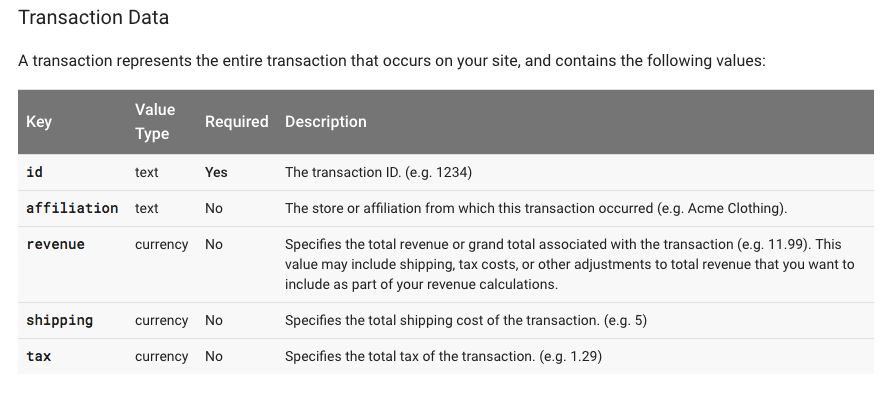
dataLayer = [{
‘transactionId’: Order[0],
‘transactionAffiliation’: ‘smileherb’,
‘transactionTotal’: Order[2],
‘transactionTax’: Order[4],
‘transactionShipping’: Order[5]
}];
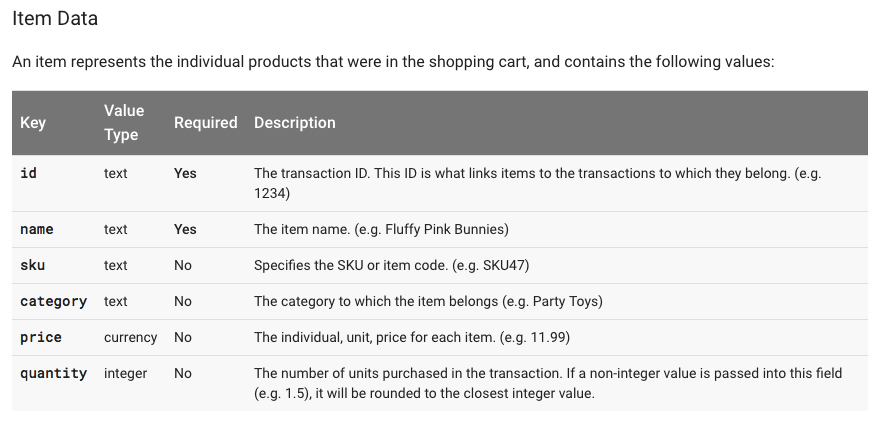
var transactionProducts = [];
for(var i=0;i<OrderDetails.length;i++) {
transactionProducts.push({
‘sku’: OrderDetails[i][2],
‘name’: OrderDetails[i][3],
‘category’: ‘none’,
‘price’: OrderDetails[i][5],
‘quantity’: OrderDetails[i][6]
})}
dataLayer.push({
    ‘transactionProducts’: transactionProducts
});
</script>
<!– End – Volusion E-commerce Tracking Google Tag Manager Transaction Script –>

Step 4. Now Configure Trigger , Tag and Event Triggers in Google Tag Manager for Volution E-commerce Tracking 

Installing Tracking Tag in Volusion

Google Analytics Ecommerce Tracking On Volusion

Step 5.  Now Create Google Tag Manager Custom Event to firing E-commerce Datalayer in Volusion Store in Google Tag Manager 

Setup Ecommerce custom event for Bigcommerce

Installing Tracking Tag in Volusion

Volusion E-commerce Tracking using Google Tag Manager – https://support.google.com/tagmanager/answer/6107169?hl=en

For Troubleshoot of Volution E-commerce tracking using Google Tag Manager –  Use Tag Assistance  – https://chrome.google.com/webstore/detail/tag-assistant-by-google/kejbdjndbnbjgmefkgdddjlbokphdefk?hl=en

For Contact: mappchero@gmail.com

Warning:if you do n’t know about javascript or do n’t have developing knowledge then do n’t try to implement on Volusion E-commerce tracking using Google Tag Manager  that can broke your site, Cart and other functionality 

Disclaimer: Google tag manager belongs to Google property 

I am avaible for Hire on Freelancer: Freelancer.com

I am avaible for Hire on Upwork: Upwork.com

I am avaible for Hire on Peopleperhour: Peopleperhour.com

I am avaible for Hire on Guru: Guru.com

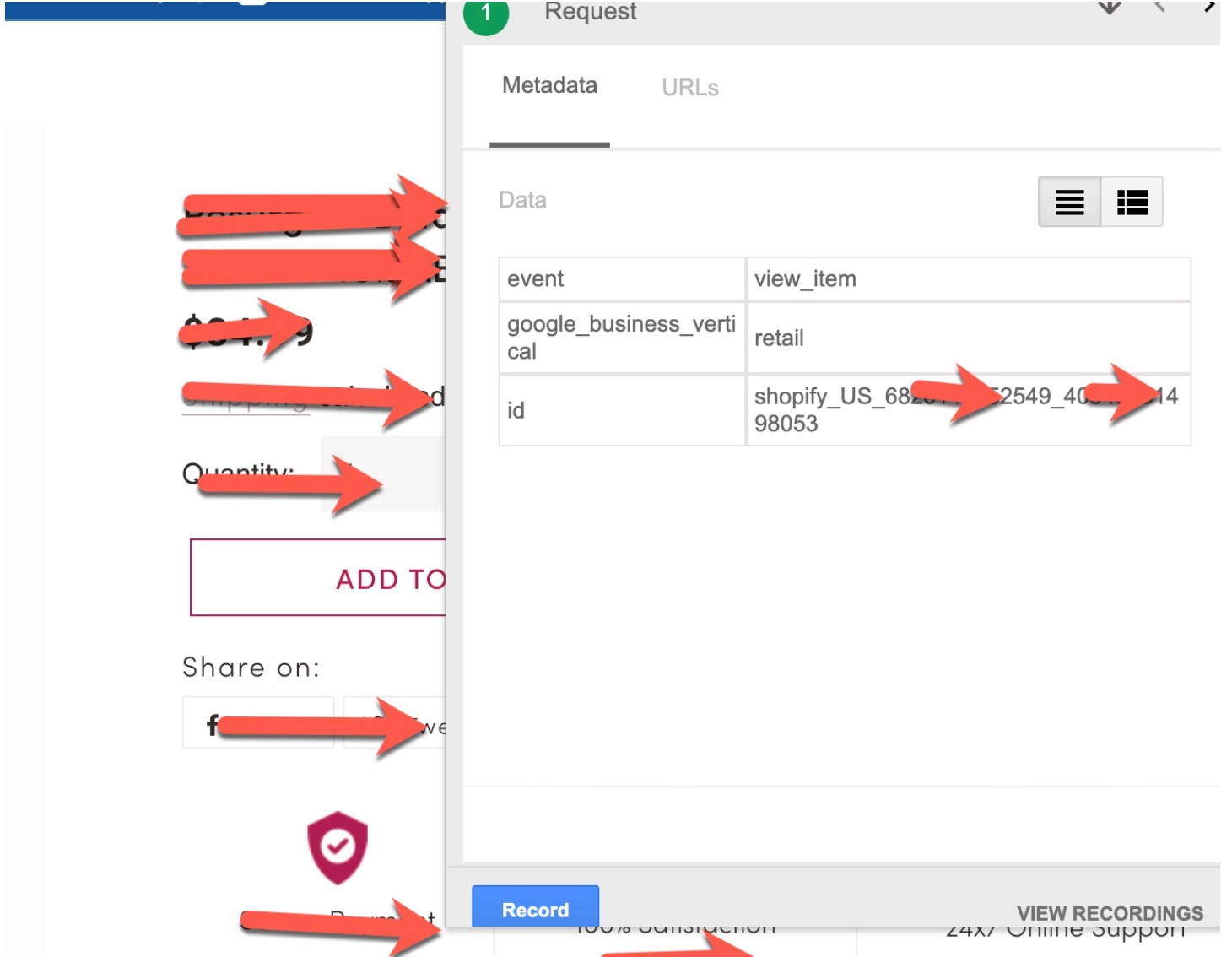
Implement Google Ads Dynamic Remarketing for Shopify

Standard

Tag your website for Google Ads dynamic remarketing to Shopify

To exhibit dynamic advertisements to persons who have visited your web page, add the dynamic remarketing tag with customized parameters to your website. The dynamic remarketing tag collects knowledge, such because the IDs of the products or services that folks viewed for your site, the types of pages considered to corresponding to looking cart pages, and the complete value of items.

To implement Google Ads Dynamic Remarketing for Shopify, you can follow these steps:

  1. Create a Google Ads account and link it to your Shopify store.

2. Set up Google Ads Conversion Tracking on your Shopify store to track the conversion events that you want to use for remarketing.

3. Create a Google Ads Remarketing tag and install it on your Shopify store.

4. Set up a Google Ads Remarketing campaign in Google Ads, selecting the Dynamic Remarketing campaign type and the appropriate product or service category.

5. Customize your Dynamic Remarketing campaign by creating product feeds that include your product information, such as images, descriptions, and prices.

6. Set up your Dynamic Remarketing ad templates, which will automatically pull the product information from your product feeds and generate ads for each product.

7. Launch your Dynamic Remarketing campaign and monitor its performance to optimize your ad targeting and bidding strategy.

More factors to use dynamic remarketing Tags for Shopify Dynamic Remarketing Campaign

To implement Google Ads Dynamic Remarketing for Shopify, you can use the following events to track user actions on your website:

view_item: This event should be triggered when a user views a specific product page. You can use this event to track which products a user has shown interest in and use this data to create highly targeted remarketing campaigns for those products. view_item_list: This event should be triggered when

view_item_list: This event should be triggered when a user views a list of products, such as a collection page or search results page. You can use this event to track which products a user has shown interest in.

view_search_results: This event should be triggered when a user performs a search on your website and views the search results page. You can use this event to track which search queries a user has performed and which products they have shown interest in.

add_to_cart: This event should be triggered when a user adds a product to their cart. You can use this event to track which products a user is interested in purchasing.

purchase: This event should be triggered when a user completes a purchase. You can use this event to track which products were purchased and how much revenue was generated.

By tracking these events, you can use the data to create highly-targeted remarketing campaigns that show users the products they have shown interest in or abandoned in their cart. To implement these events, you can use Google Tag Manager to set up event tracking and trigger the appropriate events based on user actions. Once the events are tracked, you can use them to create custom audiences and dynamic remarketing campaigns in Google Ads.

Implementation Google Ads Dynamic Remarketing for Shopify using Google Tag Manager

  • High performance layouts: AdWords calls which advertising layout that is dynamic is likely to perform best for the individual, arrangement, and stage where the advertisement will show. 

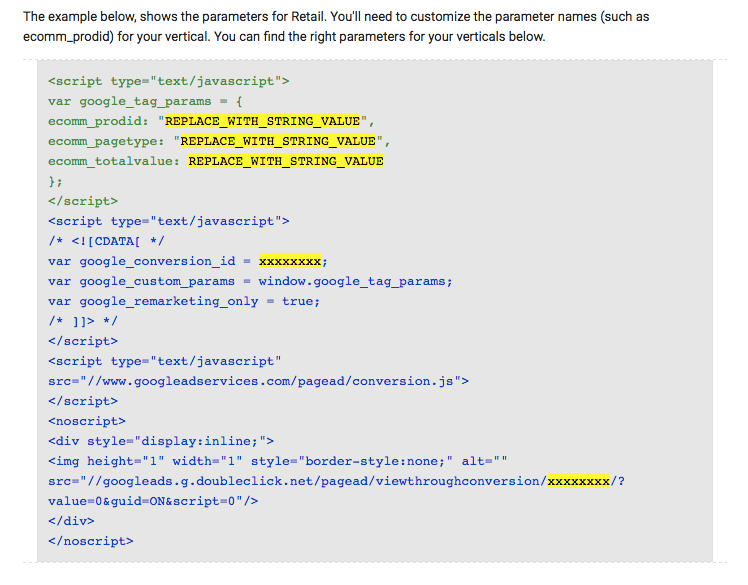
Custom Dynamic Tag with custom parameters for Shopify Dynamic Remarketing 

<script type=”text/javascript”>
var google_tag_params = {
ecomm_prodid: “REPLACE_WITH_STRING_VALUE“,
ecomm_pagetype: “REPLACE_WITH_STRING_VALUE“,
ecomm_totalvalue: REPLACE_WITH_STRING_VALUE
};
</script>

Dynamic Remarketing Tags Implement  in Shopify

  1.   Following the below instruction to set up dynamic Remarketing tags for Shopify

Login with Admin —–> Go to Online Store —–> Themes. (Place it immediately before the closing <body> tag.)

<script type=”text/javascript”>
{% if template contains ‘product’ %}
var google_tag_params = {
ecomm_prodid: ‘{{ product.id }}’,
ecomm_pagetype: ‘product’,
ecomm_totalvalue: {{ product.price | money_without_currency | replace: ‘,’, ” }}
};
{% elsif template contains ‘cart’ %}
var google_tag_params = {
{% if cart.item_count > 1 %}
ecomm_prodid: [{% for item in cart.items %}'{{ item.product_id }}_{{ item.variant.id }}'{% if forloop.last != true %},{% endif %}{% endfor %}],
{% elsif cart.item_count == 1 %}
ecomm_prodid: {% for item in cart.items %}'{{ item.product_id }}_{{ item.variant.id }}'{% endfor %},
{% else %}
ecomm_prodid: ”,
{% endif %}
ecomm_pagetype: ‘cart’,
ecomm_totalvalue: {{ cart.total_price | money_without_currency | replace: ‘,’, ” }}
};
{% elsif template contains ‘search’ %}
var google_tag_params = {
ecomm_prodid: ”,
ecomm_pagetype: ‘searchresults’,
ecomm_totalvalue: ”
};
{% elsif template contains ‘index’ %}
var google_tag_params = {
ecomm_pagetype: ‘home’,

};
{% else %}
var google_tag_params = {
ecomm_prodid: ”,
ecomm_pagetype: ‘other’,
ecomm_totalvalue: ”
};
{% endif %}
</script>
<script type=”text/javascript”>
/* <![CDATA[ */
var google_conversion_id = xxxxxx;
var google_custom_params = window.google_tag_params;
var google_remarketing_only = true;
/* ]]> */
</script>
<script type=”text/javascript” src=”//www.googleadservices.com/pagead/conversion.js”>
</script>
<noscript>
<div style=”display:inline;”>
<img height=”1″ width=”1″ style=”border-style:none;” alt=”” src=”//googleads.g.doubleclick.net/pagead/viewthroughconversion/xxxxxxx/?value=0&amp;guid=ON&amp;script=0″/>
</div>
</noscript>

Note: Make you will replace with your google_conversion_id

2. Shopify Dynamic Remarketing Tags for Order Confirmation Page

 <script type=”text/javascript”>
var google_tag_params = {
ecomm_prodid: [{% for line_item in order.line_items %}'{{ line_item.id }}'{% unless forloop.last %},{% endunless %}{% endfor %}],
ecomm_pagetype: ‘purchase’,
ecomm_totalvalue: {{order.total_price  | money_without_currency }},
};
</script>

<script type=”text/javascript”>
/* <![CDATA[ */
var google_conversion_id = xxxxxxxx;
var google_custom_params = window.google_tag_params;
var google_remarketing_only = true;
/* ]]> */
</script>
<script type=”text/javascript” src=”//www.googleadservices.com/pagead/conversion.js”>
</script>
<noscript>
<div style=”display:inline;”>
<img height=”1″ width=”1″ style=”border-style:none;” alt=”” src=”//googleads.g.doubleclick.net/pagead/viewthroughconversion/948315090/?value=0&amp;guid=ON&amp;script=0″/>
</div>
</noscript>

Set Up Google Ads Dynamic Remarketing in Shopify

Dynamic Remarketing Setup for Google Ads in Shopify

Note: Make you will replace with your google_conversion_id

Dynamic Remarketing for Shopify– https://support.google.com/tagmanager/answer/6107169?hl=en

For Troubleshoot of Dynamic Remarketing –  Use Tag Assistance  – https://chrome.google.com/webstore/detail/tag-assistant-by-google/kejbdjndbnbjgmefkgdddjlbokphdefk?hl=en

For Contact: mappchero@gmail.com

Warning:if you do n’t know about javascript or do n’t have developing knowledge then do n’t try to implement on Dynamic Remarketing that can broke your site, Cart and other functionality 

Disclaimer: Google tag manager belongs to Google property 

I am avaible for Hire on Freelancer: Freelancer.com

I am avaible for Hire on Upwork: Upwork.com

I am avaible for Hire on Peopleperhour: Peopleperhour.com

I am avaible for Hire on Guru: Guru.com
Embadded Tracking Vimeo video in Google Analytics using Tag Manager

Standard

Are you looking to Track Vimeo Videos with Google Tag Manager and Google Analytics (with iframe or without iframes on Vimeo) or Vimeo tracking inside a lightbox 

Get more insights than before into how people are participating with our powerful analytics tools with your Vimeo videos using Google Tag Manager and Google Analytic

To track embedded Vimeo videos in Google Analytics using Google Tag Manager, you can follow these steps:

Go to your Google Tag Manager account and create a new tag for your Vimeo video tracking.

Choose “Custom HTML” as your tag type and paste the Vimeo player code into the HTML box.

Add a listener to the Vimeo player to track the events you want to capture, such as play, pause, and finish.

Set up a trigger to fire the tag when the video starts playing.

Configure your tag to send data to Google Analytics, using the appropriate tracking code and event categories.

Test your tag and preview it in your Tag Manager account to ensure that it is working correctly.

Publish your tag and monitor your Google Analytics reports to track the performance of your Vimeo videos.

Note that Vimeo also offers its own analytics tools that can be used to track video performance, including views, engagement, and retention. These can be accessed by logging into your Vimeo account and going to the “Stats” section for your videos.

The setup of all of these options requires javascript and dependent on regardless if you are using Google Tag Manager you can put script directly into custom HTML in Google Tag Manager

This can provide you with an understanding of the way people have interacted embadded Vimeo  along using Google Tag Mag Manager. like

  • Play events
  • Pause events
  • Watch to End events
  • 10, 25, 50, 75, & 90% Completion events

Step 1. Tracking Vimeo Video views with Google Tag Manager

Tag Name:  Track Vimeo Video Engagement In Google Analytics Using Google tag manager
Tag Type: Custom HTML Tag

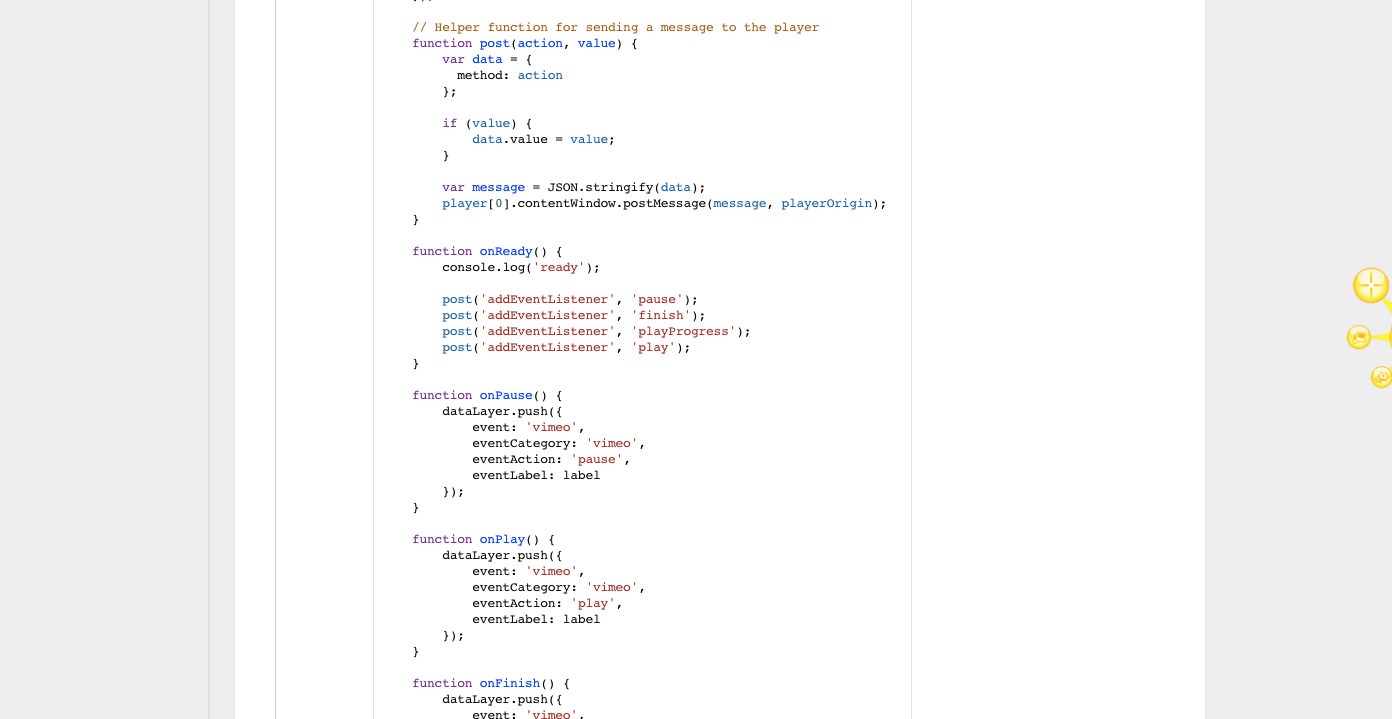
Note:  You need to modify below HTML Code according to Embedded Tracking Vimeo Video using  using below custom html Code 

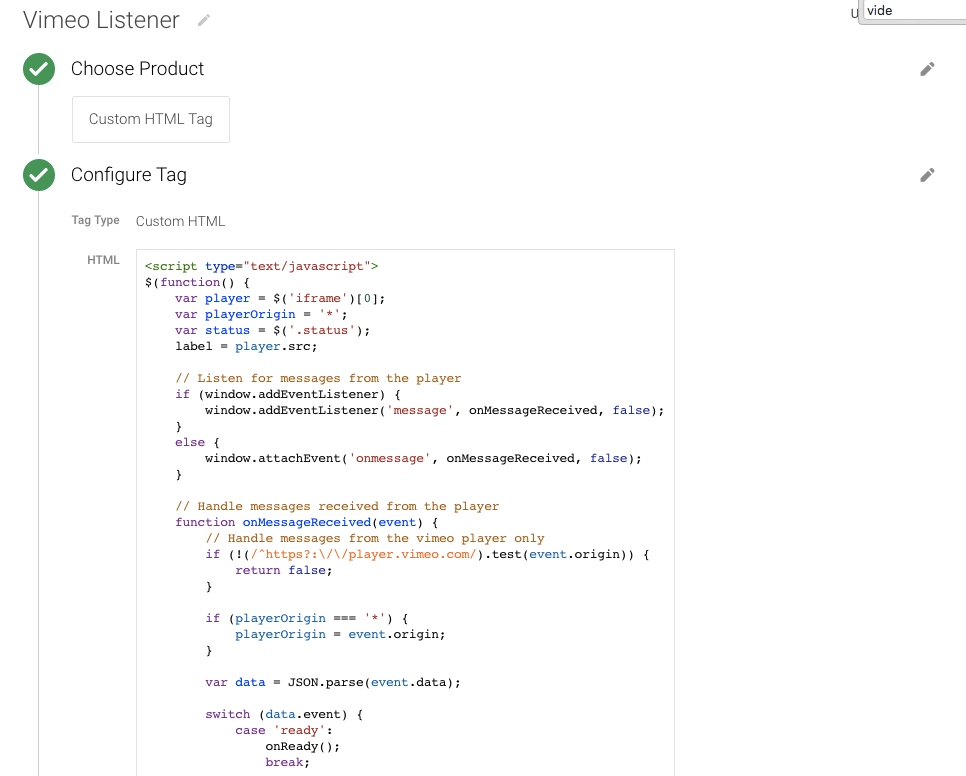
Videmo

Track Vimeo via Google Tag Manager

Tracking Vimeo using Google Tag Manager

Tracking Vimeo using Google Tag Manager

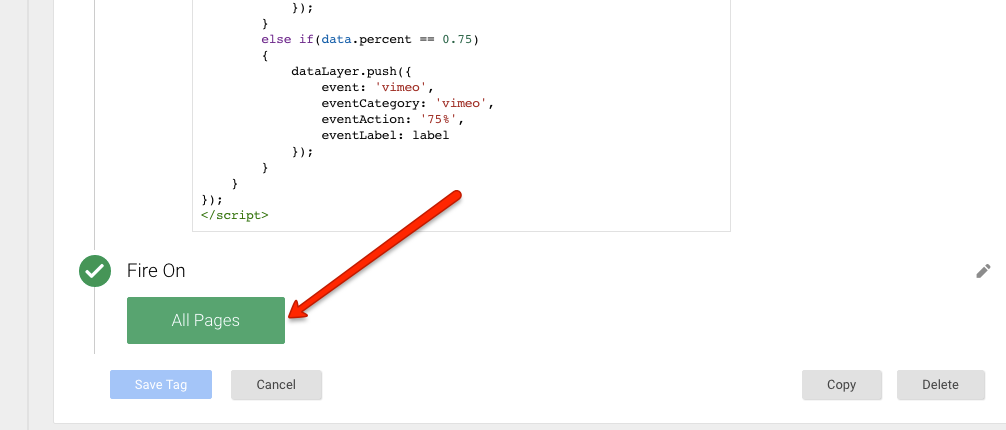
Firing Rules 

Rule Name: All Pages

Embedded Tracking Vimeo Video with Google Tag Manager

Embedded Tracking Vimeo Video with Google Tag Manager

Step 3. Create Macros for Event Action, Event Category, and Event Label Tracking Vimeo Video  with Google Tag Manager

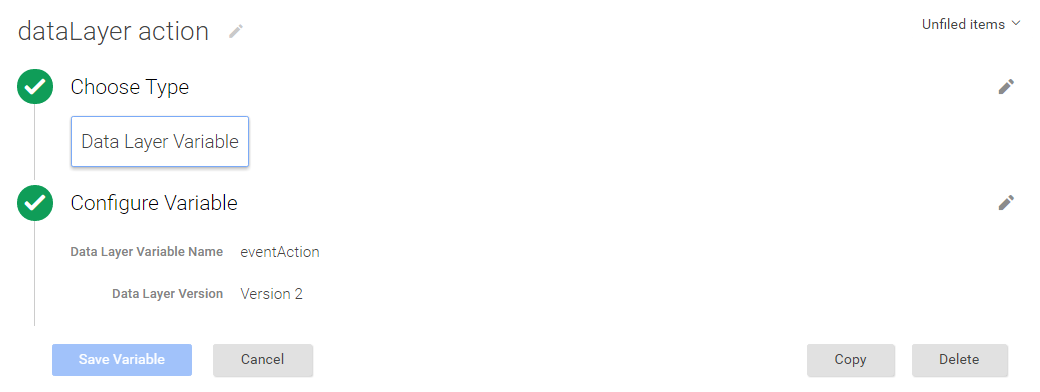
A: Event Action Macro using Tracking Vimeo Video views with Google Tag Manager

Macro Name: dataLayer action
Macro Type: Data Layer Variable
Data Layer Variable Name: eventAction
Data Layer Version: Version 2
Default Value: (blank)

Google Analytics Vimeo Video Tracking

Google Analytics Vimeo Video Tracking

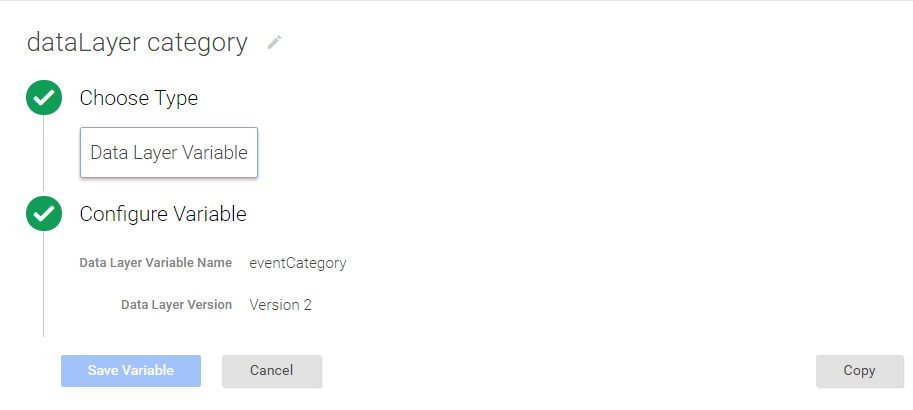
B: Event Category Macro Tracking using Vimeo Video views with Google Tag Manager

Macro Name: dataLayer category
Macro Type: Data Layer Variable
Data Layer Variable Name: eventCategory
Data Layer Version: Version 2
Default Value: (blank)

Event tracking for Vimeo in Google Tag Manager

Event tracking for Vimeo in Google Tag Manager

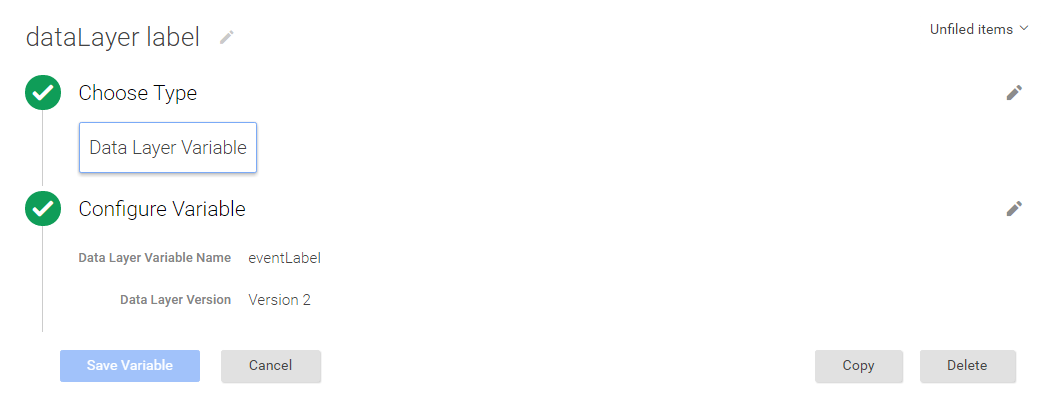
C: Event Label Macro using Tracking Vimeo Video views with Google Tag Manager

Macro Name: dataLayer label
Macro Type: Data Layer Variable
Data Layer Variable Name: eventLabel
Data Layer Version: Version 2
Default Value: (blank)

GTM and Vimeo Tracking

GTM and Vimeo Tracking

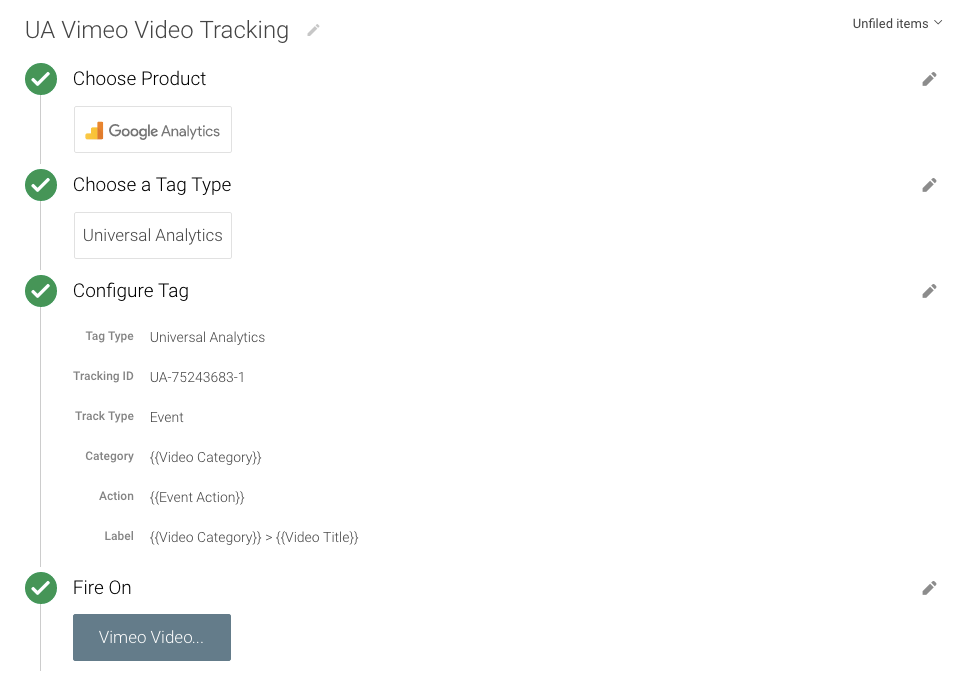
Step 4. Create UA Vimeo Video Event – UA Tag & Check for Vimeo Event Rule  Vimeo Video Tracking using Google Tag Manager

Tag Name: UA Vimeo Video Tracking – Video Page
Tag Type: Universal Analytics
Tracking ID: (your Google Analytics ID)
Track Type: Event
Event Tracking Parameters:
Category: {{dataLayer category}}
Action: {{dataLayer label}}
Label: {{dataLayer action}}

Vimeo Video Tracking

Google Tag Manager Vimeo Video Tracking – Tags

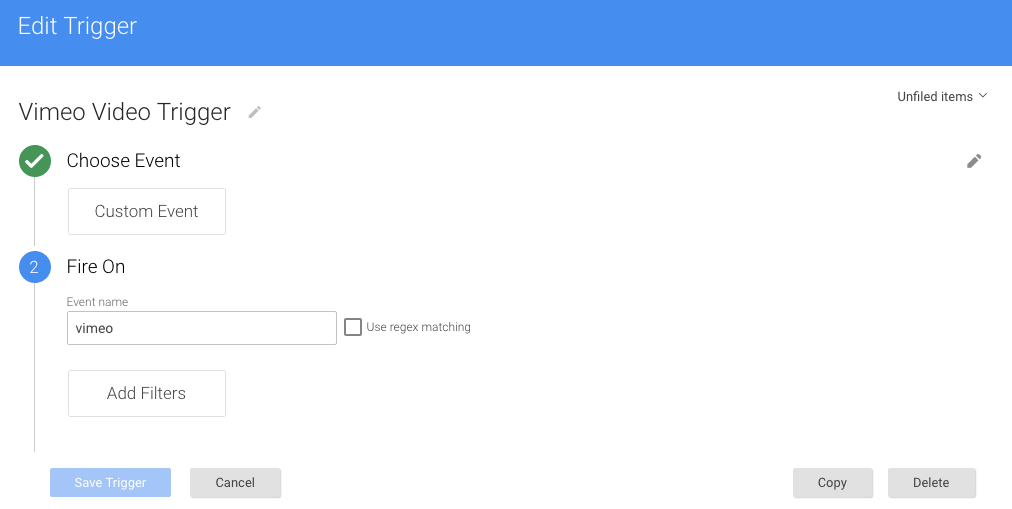
Firing Rules

Rule Name: Viemo event

Fire On

Event name equals vimeo

vimeo

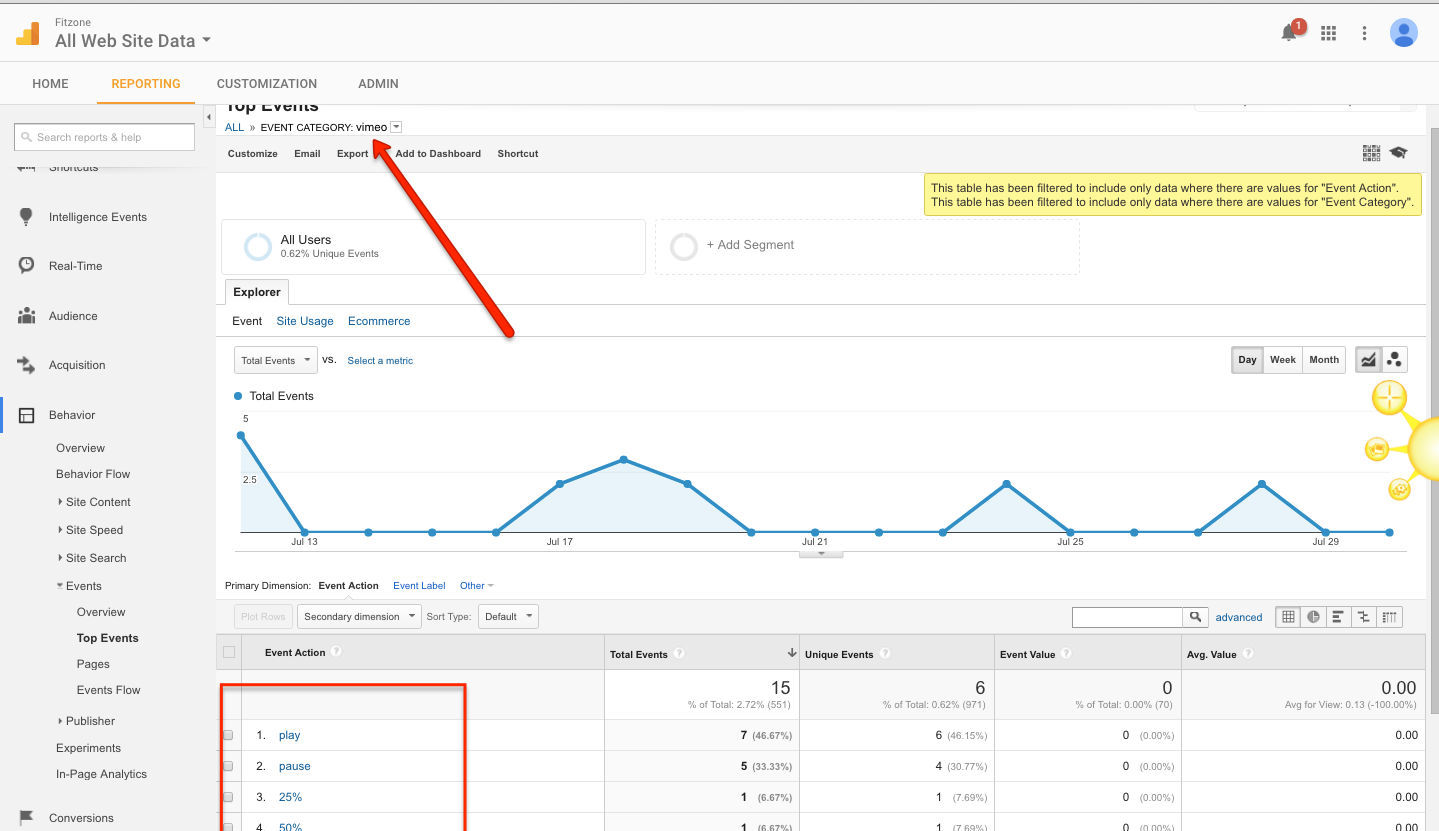
Result Behavior under Event in Google Analytic 

bb


Warning:if you do n’t know about javascript or do n’t have developing knowledge then do n’t try to implement on Vimeo Video Tracking using Google Tag Manager that can broke your site, Cart and other functionality 

Disclaimer: Google tag manager belongs to Google property 

I am avaible for Hire on Freelancer: Freelancer.com

I am avaible for Hire on Upwork: Upwork.com

I am avaible for Hire on Peopleperhour: Peopleperhour.com

I am avaible for Hire on Guru: Guru.com