Google Ads Dynamic Remarketing Tracking and Smart Shopping for BigCommerce

Standard

Dynamic Remarketing Events and Parameters for BigCommerce using Google Tag Manager

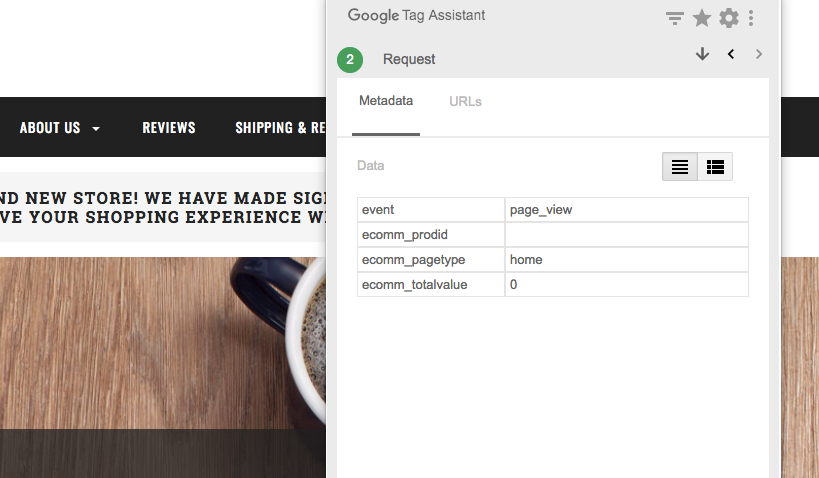
Google Ads Dynamic Remarketing Tracking and Smart Shopping are two powerful advertising features offered by Google Ads that allow eCommerce businesses to retarget their website visitors with personalized ads. These features can be set up for BigCommerce using Google Tag Manager.

Dynamic Remarketing is a feature that allows advertisers to show personalized ads to people who have visited their website or app. These ads are tailored to the user’s behavior on the website, displaying the products or services they viewed, and may also include special offers or promotions. By using dynamic remarketing, advertisers can reach potential customers who are more likely to convert since they have already shown interest in the business’s products or services.

Smart Shopping, on the other hand, is a type of automated Google Ads campaign that uses machine learning to optimize ad performance. Smart Shopping combines standard Shopping and display remarketing campaigns into one, allowing advertisers to reach potential customers across the Google Search Network, Google Display Network, YouTube, and Gmail. Smart Shopping also uses dynamic remarketing to show personalized ads to people who have already interacted with the business’s website or app.

Google Tag Manager is a tool that allows eCommerce businesses to manage and deploy tracking tags on their website. By using Google Tag Manager, businesses can easily set up and manage tracking tags for various advertising platforms, including Google Ads. Setting up Dynamic Remarketing Tracking and Smart Shopping for BigCommerce using Google Tag Manager allows businesses to track and target their website visitors with personalized ads, leading to higher conversion rates and increased revenue.

Google Ads Dynamic Remarketing tags for BigCommerce can be set up using Google Tag Manager. Here’s how:

  1. Sign in to your Google Ads account and create a new Dynamic Remarketing campaign.

2. Click on “Tag setup” and select “Google Tag Manager” as the tag type.

3. Click on “View the Google Tag Manager container code” and copy the code.

4. Log in to your BigCommerce store and navigate to “Storefront > Script Manager”.

5. Click on “Create a Script” and select “Script type” as “Google Analytics”.

6. Paste the Google Tag Manager container code in the “Script contents” field.

7. Click on “Save” and publish the script.

8. Back in Google Ads, click on “Continue”.

9. Configure your tag by selecting the “Google Ads Remarketing” template and filling in the necessary information, including your Google Ads ID and any custom parameters you want to include in the tag.

10 . Save the tag and publish your changes in Google Tag Manager.

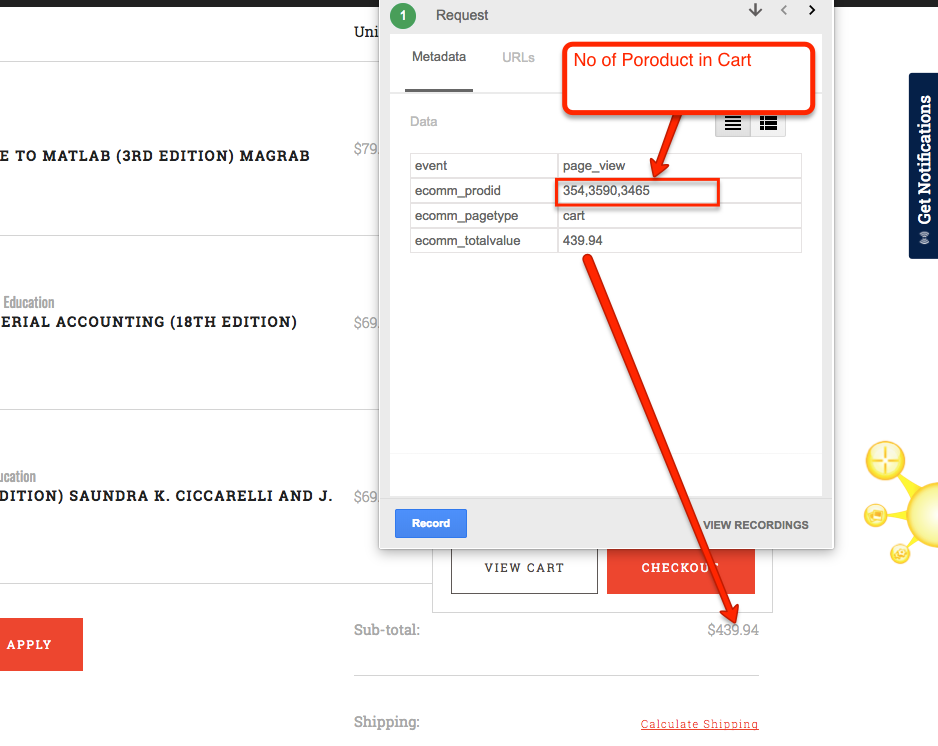
By setting up Dynamic Remarketing tags for BigCommerce using Google Tag Manager, you can create more personalized and targeted ads for your potential customers. The tag allows you to track specific actions that users take on your website, such as adding items to their cart or viewing specific products. This information can be used to create ads that show the products that users have shown an interest in, increasing the likelihood of a conversion. Additionally, by using Google Tag Manager, you can easily manage and update your tags without the need for additional coding or technical knowledge.

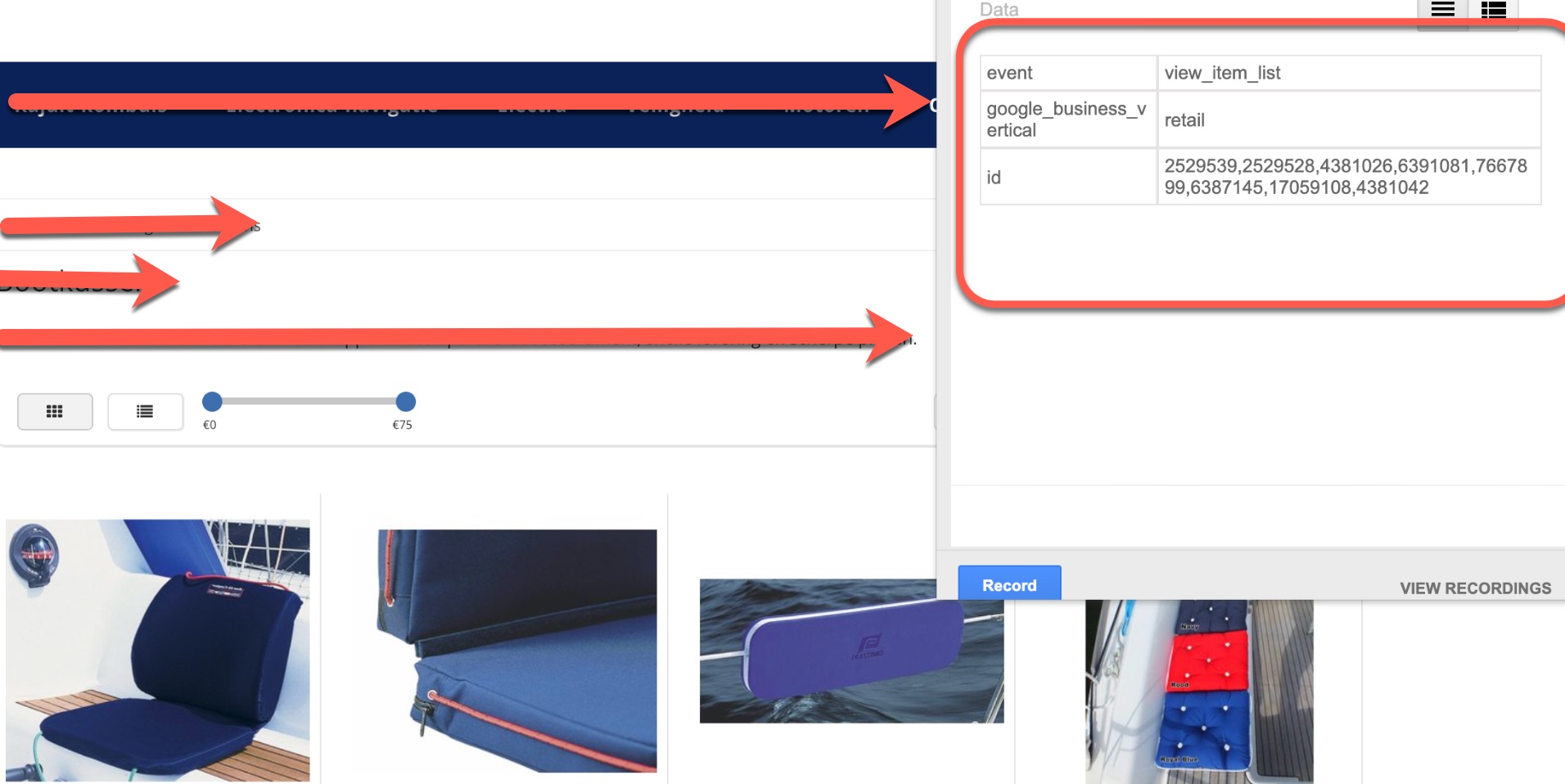
“view_item_list” is a standard event parameter in Google Tag Manager that tracks when a user views a list of related products on a website, such as a category or search results page. Google Ads Dynamic Remarketing Tags for “view_item_list” allow you to track these interactions and target users with personalized ads based on their previous product views.
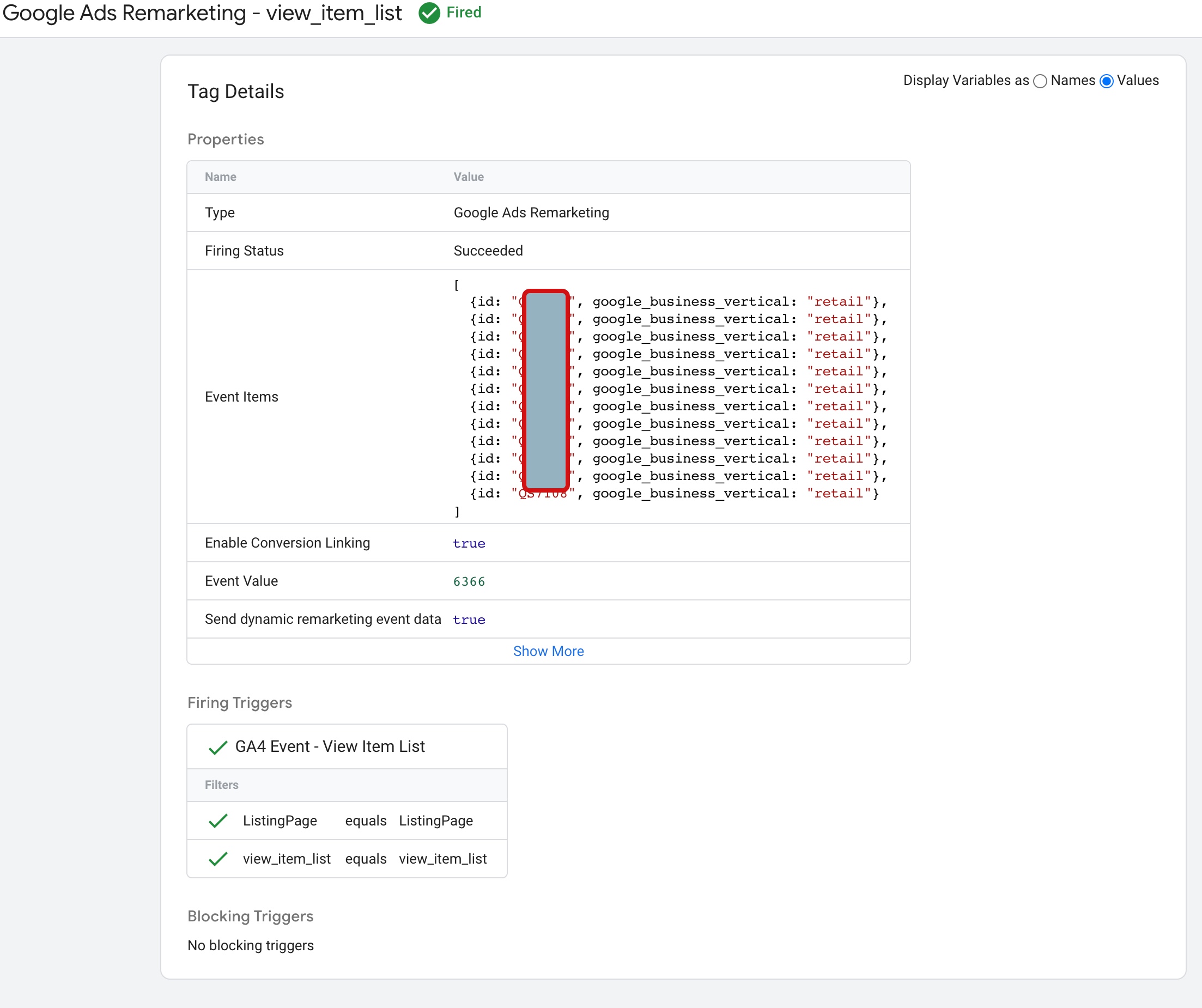
 Dynamic Remarketing Tag for Dynamic Ads

Google Ads Dynamic Remarketing Tag Setup for BigCommerce using Google Tag Manager

“view_item” is a standard event parameter in Google Tag Manager that tracks when a user views a specific product on a website. Remarketing tags are a type of tag that allow you to track user behavior on your website and target them with personalized ads based on that behavior.
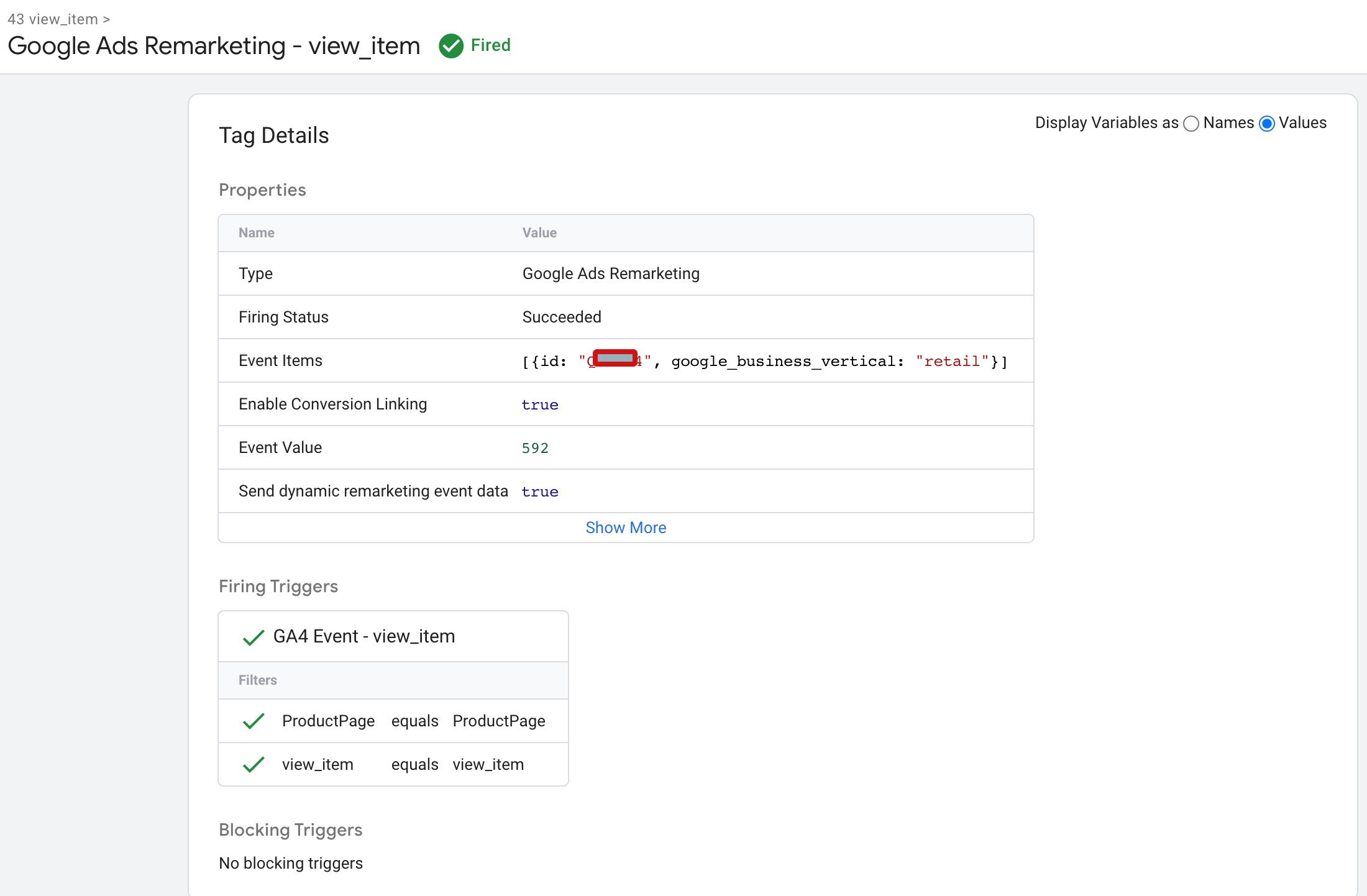
Dynamic Remarketing Tracking for BigCommerce

Install Google Ads Remarketing Tag in BigCommerce using Google Tag Manaer

“add_to_cart” is a standard event parameter in Google Tag Manager that tracks when a user adds a product to their shopping cart on a website. Google Ads Dynamic Remarketing Tags for “add_to_cart” allow you to track these interactions and target users with personalized ads based on their previous cart activity.
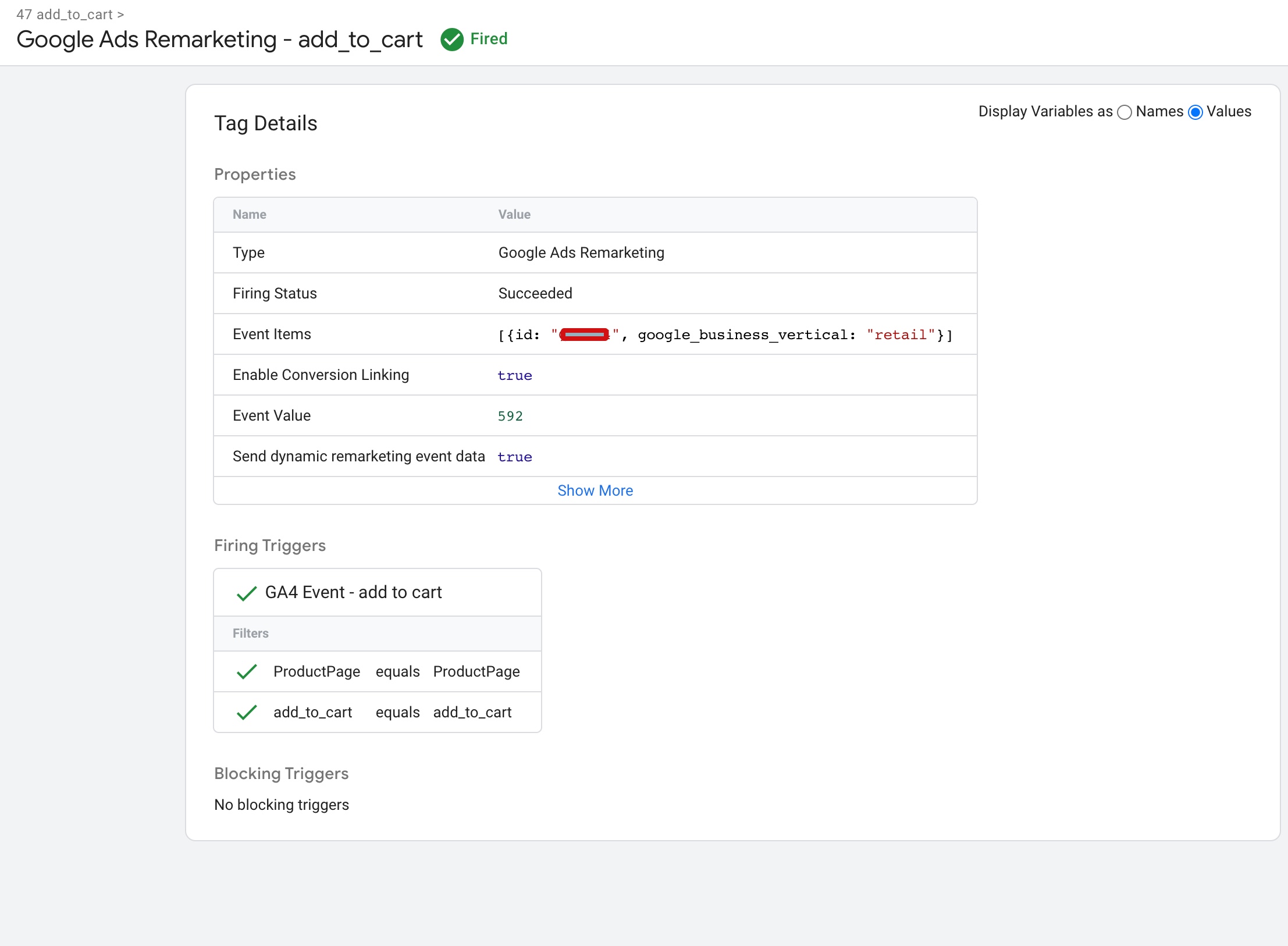
Dynamic Remarketing Setup for Google Ads for BigCommerce

Dynamic Remarketing Tracking for BigCommerce using Google Tag Manager

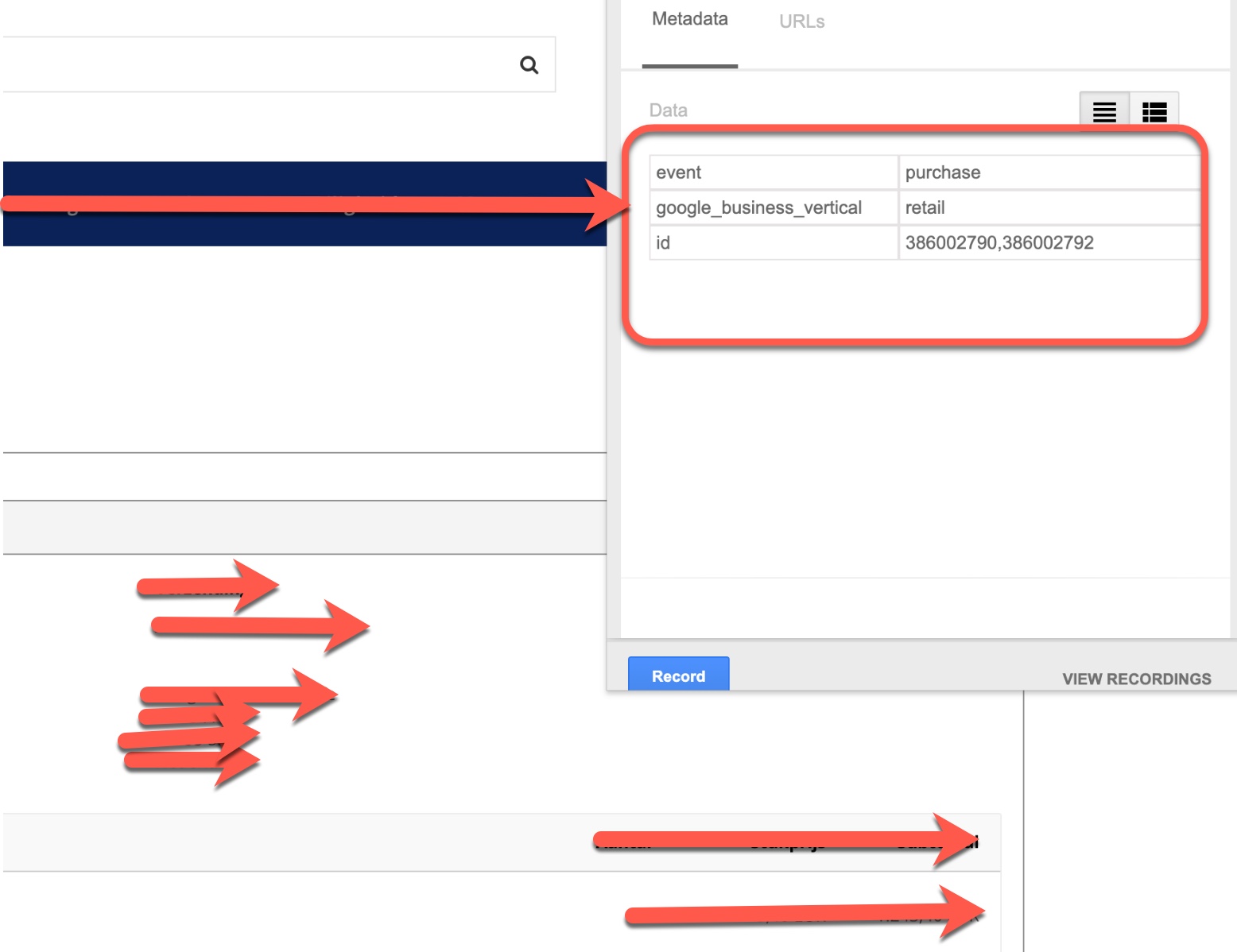
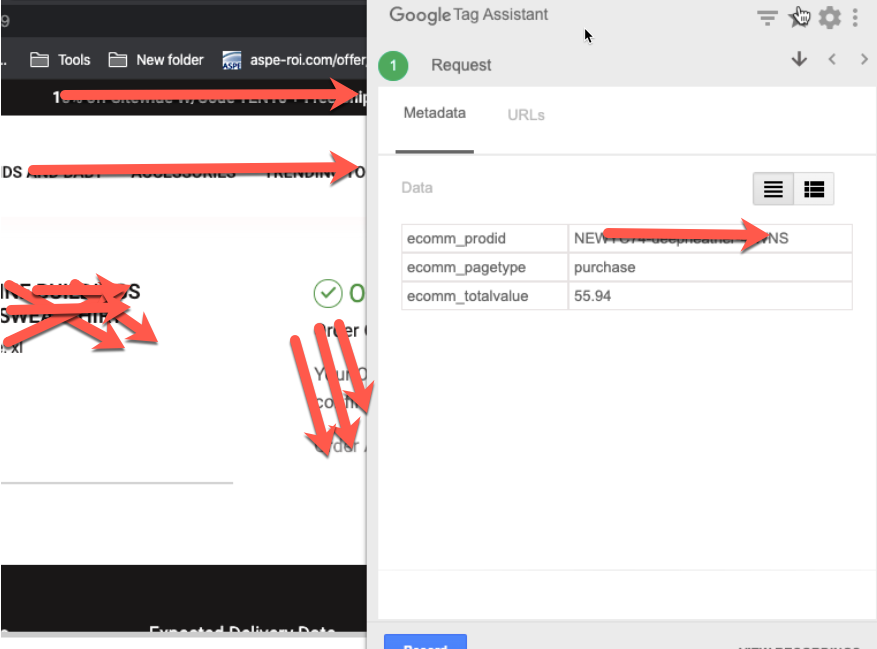
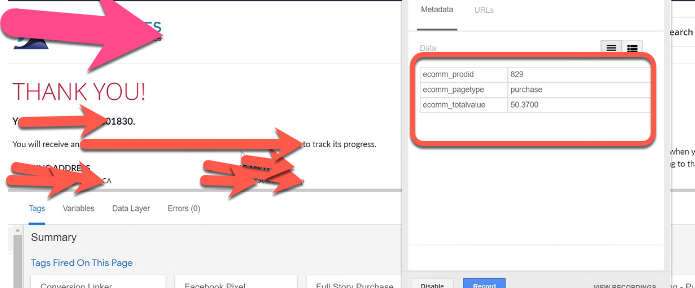
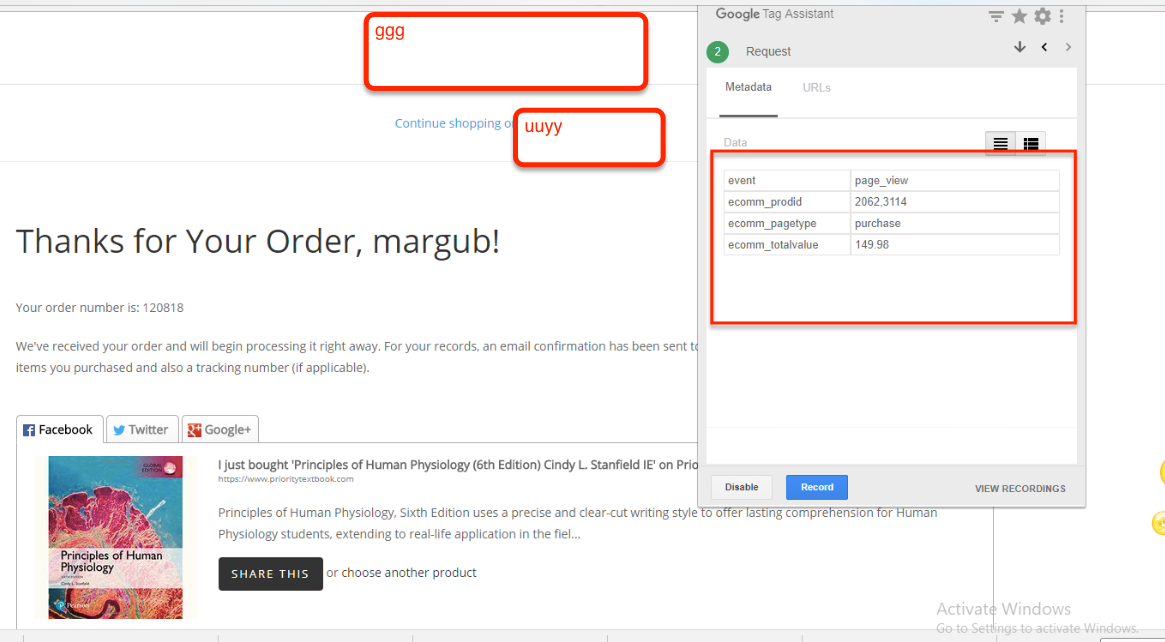
purchase” is a standard event parameter in Google Tag Manager that tracks when a user completes a purchase on a website. Google Ads Dynamic Remarketing Tags for “purchase” allow you to track these interactions and target users with personalized ads based on their previous purchase activity.
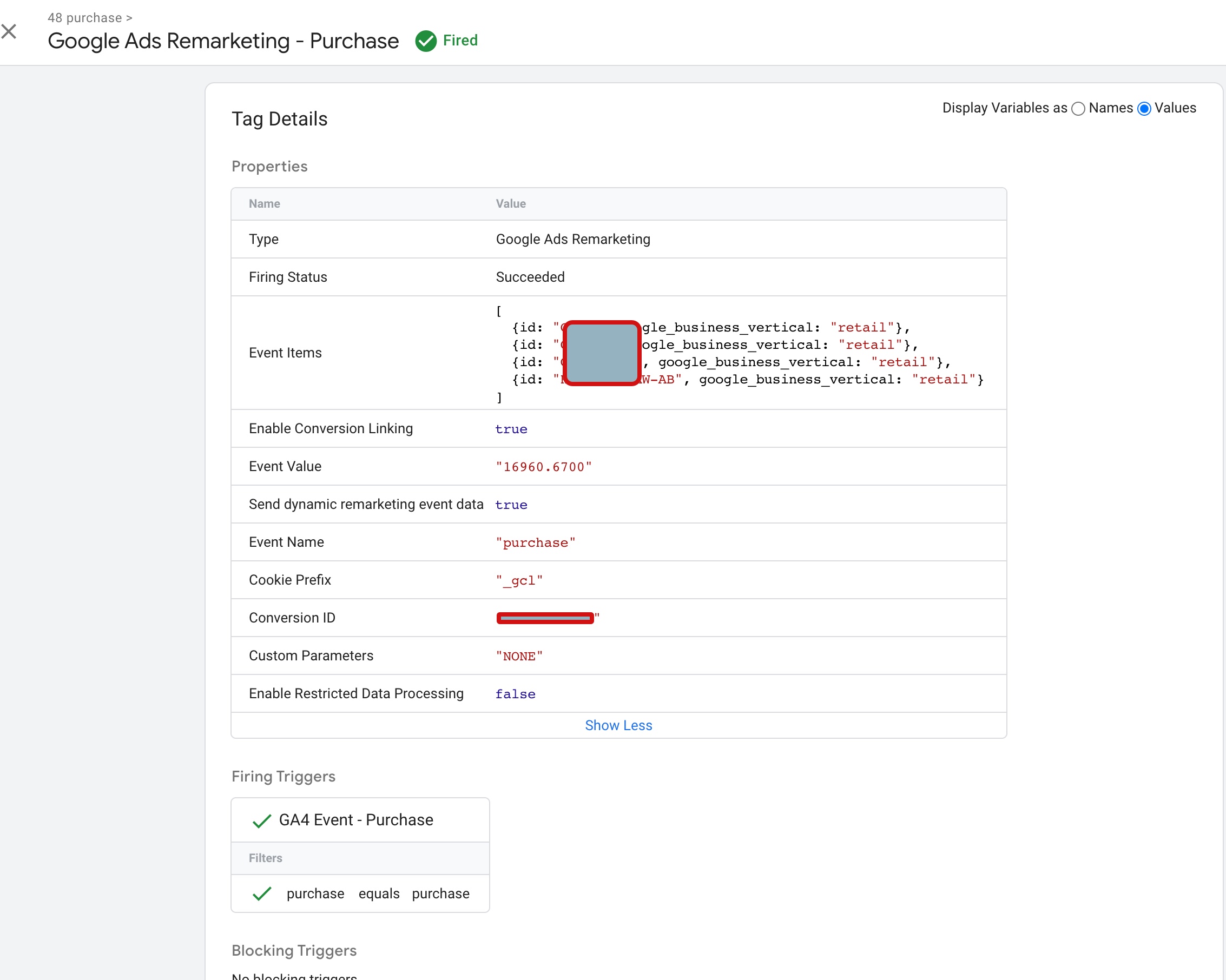
Google Ads Dynamic Remarketing Tag for "purchase" for BigCommerce

Google Ads Shopping Dynamic Remarketing Tag Setup BigCommerce using Google Tag Manager

Warning: If you don’t know about javascript or don’t have developing knowledge then don’t try to Google Ads Dynamic Remarketing Tracking and Smart Shopping for BigCommerce that can break your site, Cart and other functionality 

Disclaimer: Google tag manager belongs to Google property 

For Contact: mappchero@gmail.com

I am available for Hire on Freelancer: Freelancer.com

I am available for Hire on Upwork: Upwork.com

I am available for Hire on Peopleperhour: Peopleperhour.com

I am available for Hire on Guru: Guru.com
Set Up Google Ads Dynamic Remarketing Tag for Shopify Using Google Tag Manager

Standard

Implementation Google Ads Dynamic Remarketing for Shopify using Google Tag Manager

Recently once Client ask to implement dynamic remaketing tag for Shopify  using Google Tag Manager to run a dynamic shopping campaign to retarget users who visited the website previously without converting into Sales. 

Anatomy of a Google Ads dynamic remarketing event using Google Tag Manager – Dynamic remarketing events and parameters

Setup Google Dynamic Remarketing on Shopify

Implement Google Ads Dynamic Remarketing Tag using Google Tag Manager

Dynamic Remarketing Setup for Shopify

Dynamic Remarketing Setup for Google Ads for Shopify using Google Tag Manager

Google Ads Dynamic Remarketing Tag for Shopify using Google Tag Manager 

Paste this code as high in the <head> of the page as possible:

<!– Google Tag Manager –>

<script>(function(w,d,s,l,i){w[l]=w[l]||[];w[l].push({‘gtm.start’:
new Date().getTime(),event:’gtm.js’});var f=d.getElementsByTagName(s)[0],
j=d.createElement(s),dl=l!=’dataLayer’?’&l=’+l:”;j.async=true;j.src=
‘https://www.googletagmanager.com/gtm.js?id=’+i+dl;f.parentNode.insertBefore(j,f);
})(window,document,’script’,’dataLayer’,’GTM-XXXX’);</script>
<!– End Google Tag Manager –>

Additionally, paste this code immediately after the opening <body> tag:
<!– Google Tag Manager (noscript) –>
<noscript><iframe src=”https://www.googletagmanager.com/ns.html?id=GTM-XXXX”
height=”0″ width=”0″ style=”display:none;visibility:hidden”></iframe></noscript>
<!– End Google Tag Manager (noscript) –>

Note: Make you will replace GTM Tracking Code with your GTM ID XXXXX

Event parameter Dynamic Remarketing for Shopify for view_item: To Track when user visit a product details page using Event parameter Dynamic Remarketing (‘google_business_vertical’: ‘retail’) & ‘view_item’ using Google Tag Manager

Google Ads Dynamic Remarketing for Shopify

view_item Dynamic Remarketing Events Shopify using Google Tag Manager for Google_business_vertical

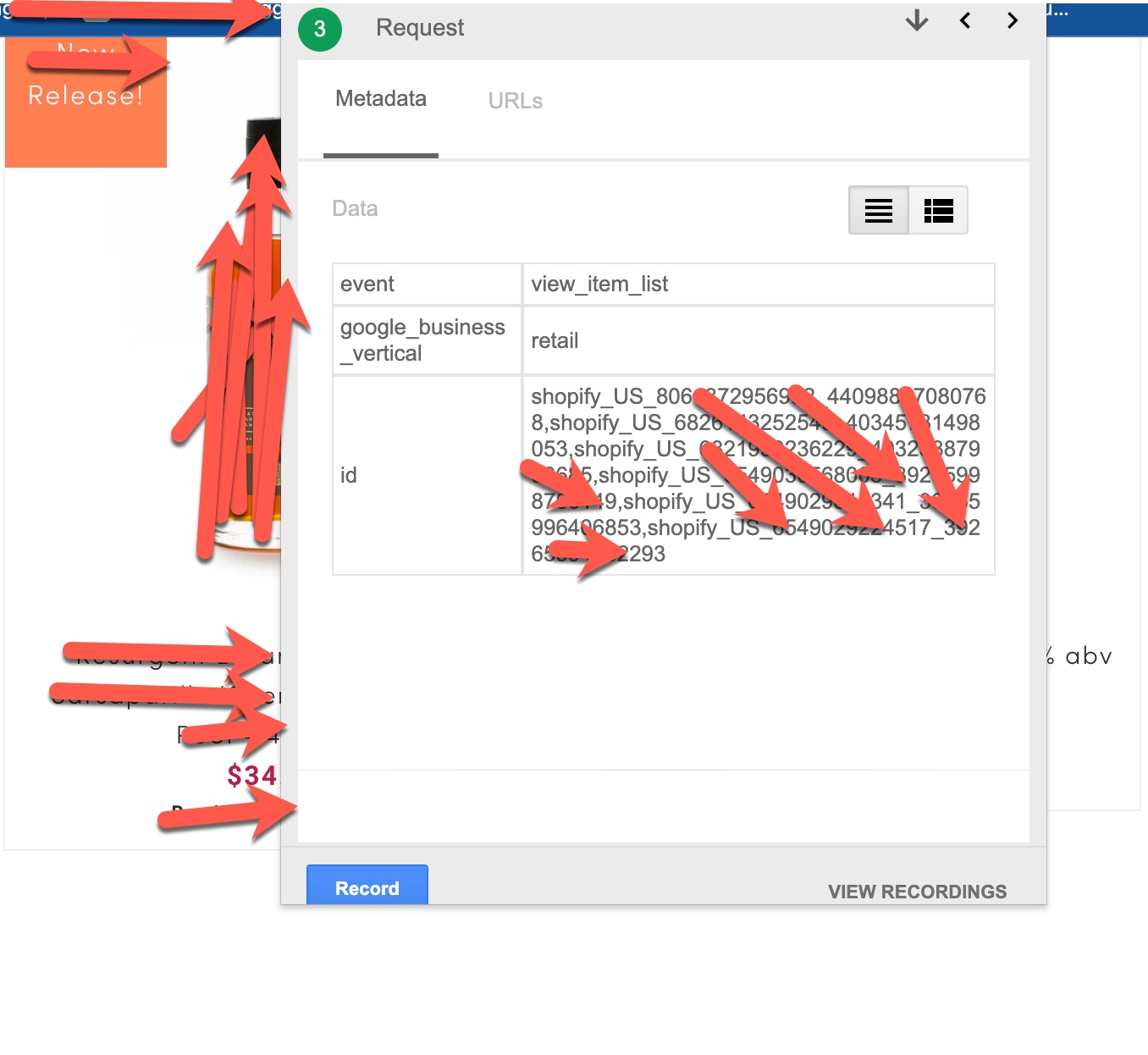
Event parameter Dynamic Remarketing for Shopify for view_item_list: To Track when user reach out category pages where list of product listed using Event parameter Dynamic Remarketing (‘google_business_vertical’: ‘retail’) & ‘view_item_list’ using Google Tag Manager 

 Implementation Dynamic Remarketing for Shopify

view_item_list Dynamic Remarketing Events Google Ads Dynamic Remarketing for Shopify for Google_business_vertical

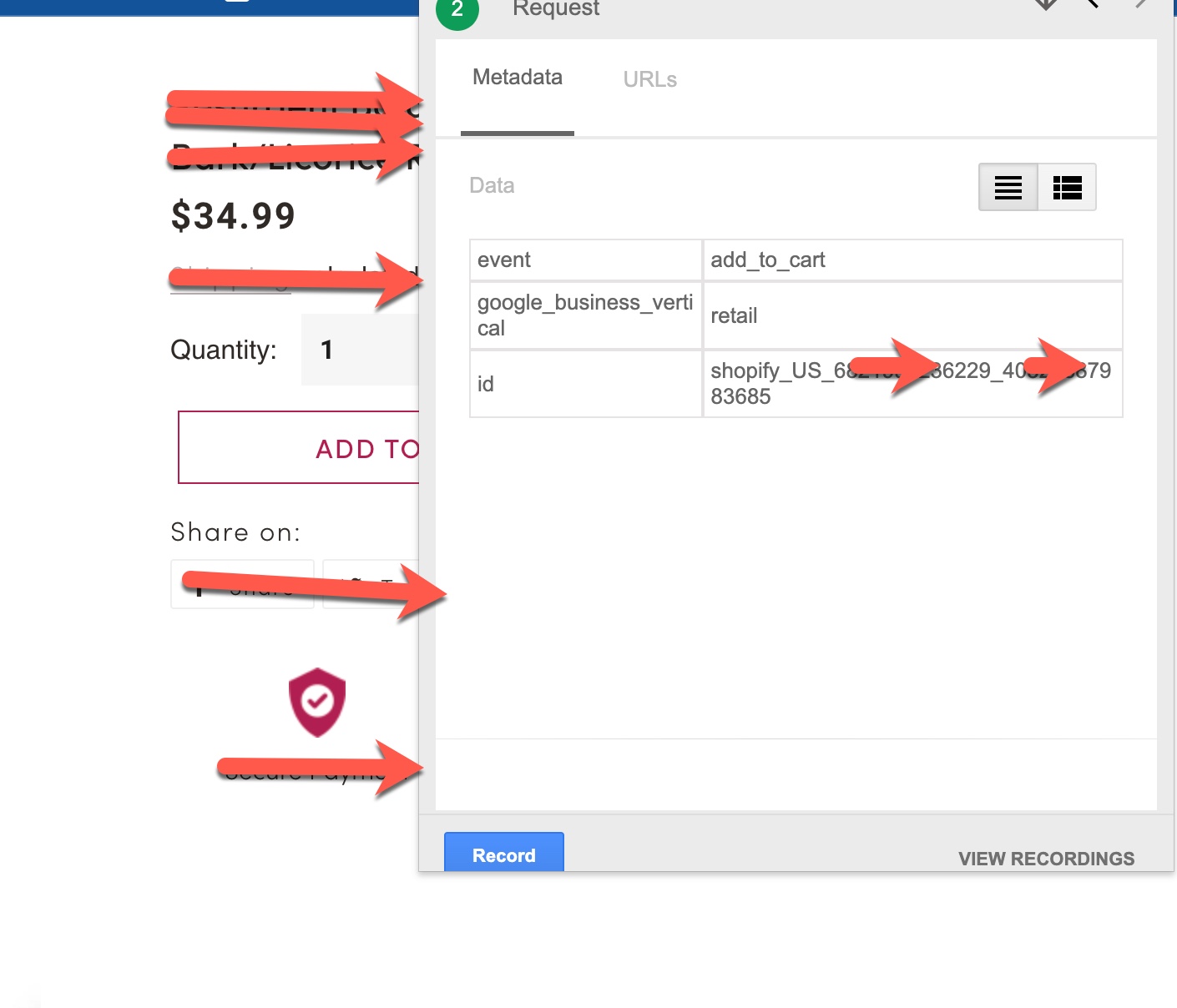
Event parameter Dynamic Remarketing for Shopify for add_to_cart: To Track when user visit a product details page then Click on AddtoCart using Event parameter Dynamic Remarketing (‘google_business_vertical’: ‘retail’) & ‘add_to_cart’ using Google Tag Manager 

Set Up Shopify Google Ads Dynamic Remarketing

add_to_cart Dynamic Remarketing Events Google Ads Dynamic Remarketing for Shopify for Google_business_vertical

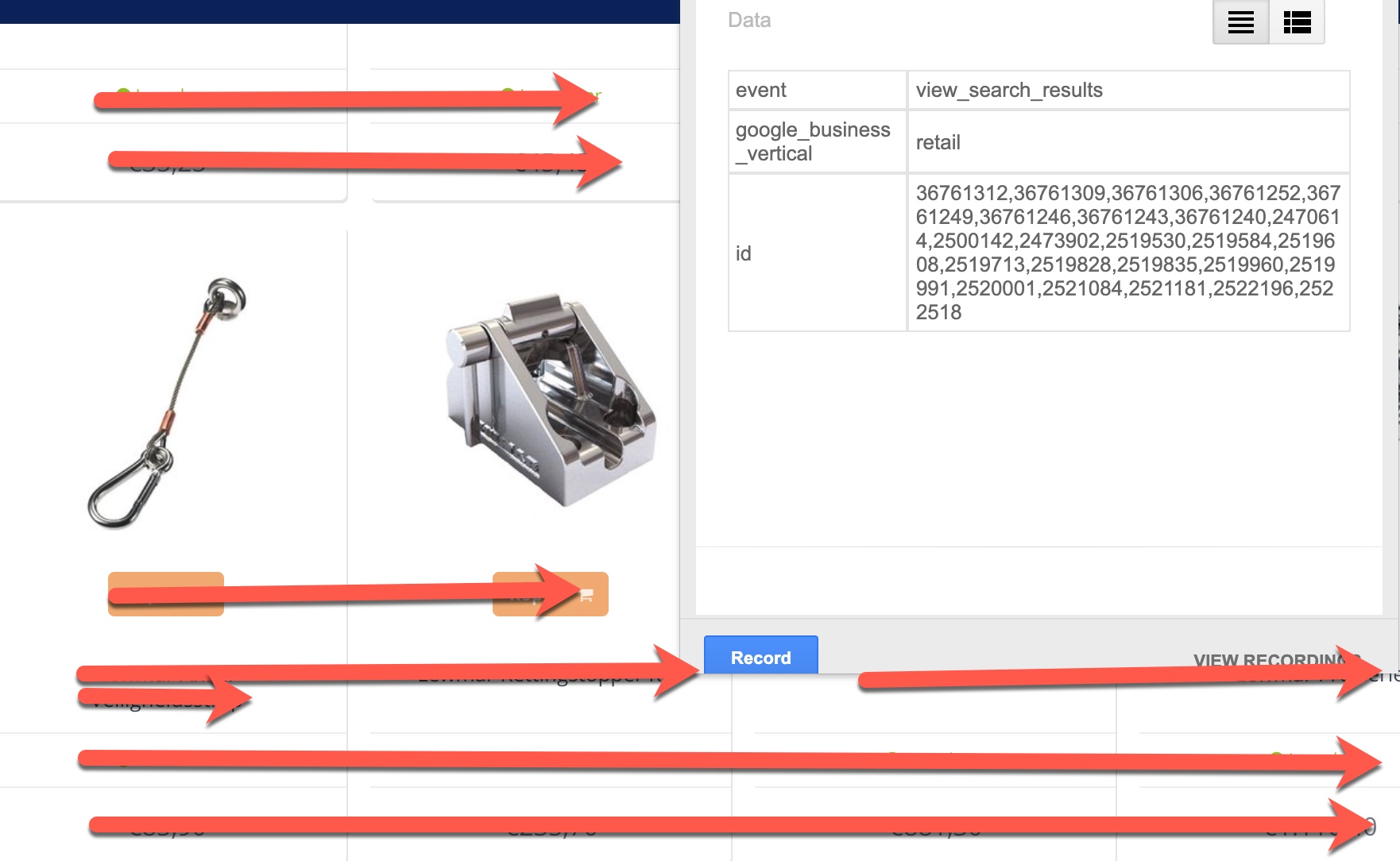
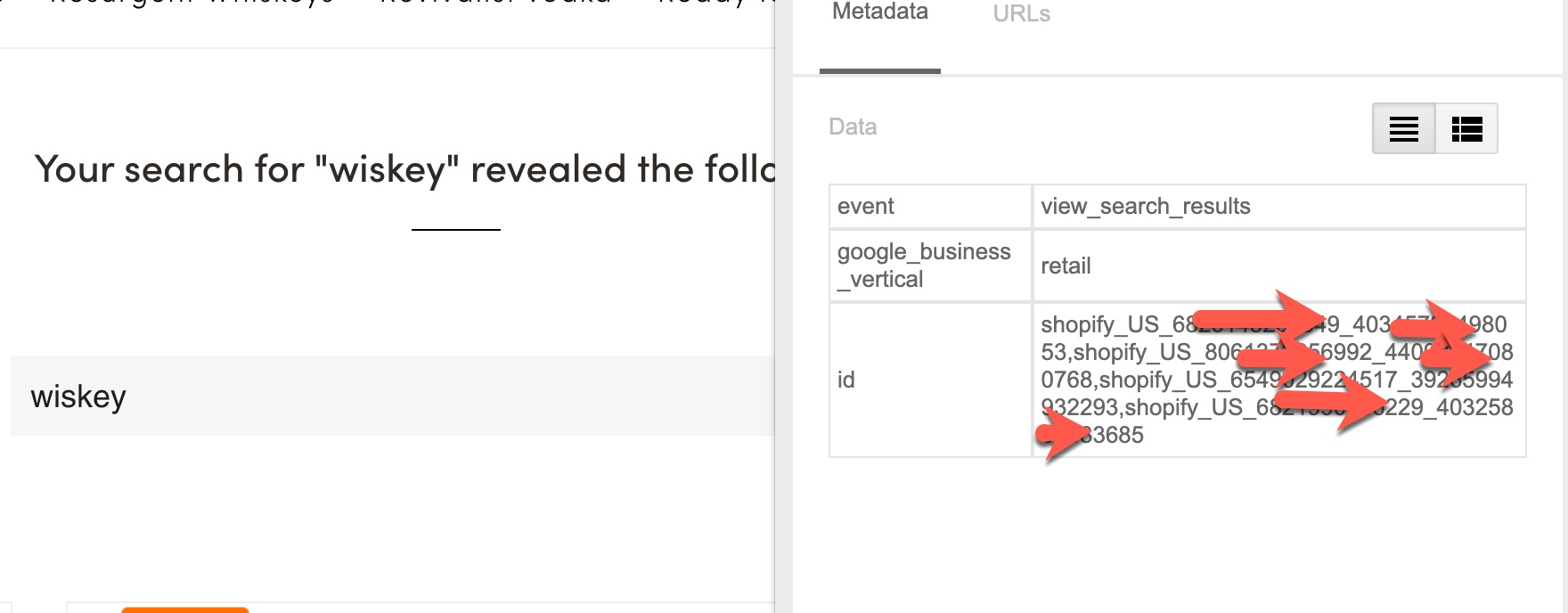
Event parameter Dynamic Remarketing for Shopify for view_search_results: To Track when user search a product on the website Search  using Event parameter Dynamic Remarketing (‘google_business_vertical’: ‘retail’) & ‘view_search_results’ using Google Tag Manager 

 Shopify Dynamic Remarketing Tracking

view_search_results Dynamic Remarketing Events Google Ads Dynamic Remarketing for Shopify for Google_business_vertical

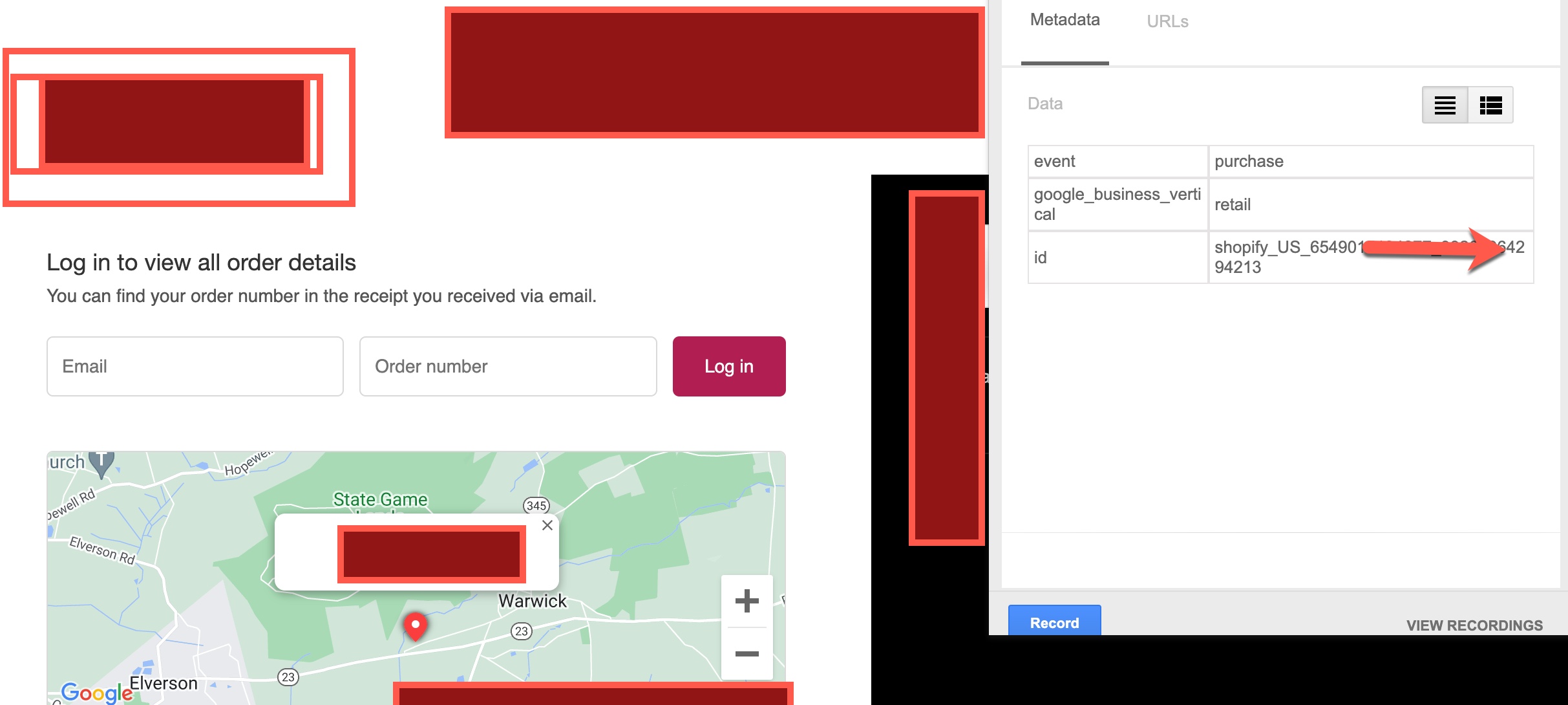
Event parameter Dynamic Remarketing for Shopify for purchase: To Track when user complete a purchase on the shopify using Event parameter Dynamic Remarketing (‘google_business_vertical’: ‘retail’) & ‘purchase’ using Google Tag Manage

purchase Dynamic Remarketing Events Google Ads Dynamic Remarketing for Shopify for Google_business_vertical

Warning: If you do n’t know about javascript or do n’t have developing knowledge then do n’t try to Set Up Google Ads Dynamic Remarketing Tag for Shopify Using Google Tag Manager using Google Tag Manager that can broke your site, Cart and other functionality 

Disclaimer: Google tag manager belongs to Google property 

For Contact: mappchero@gmail.com

I am available for Hire on Freelancer: Freelancer.com

I am available for Hire on Upwork: Upwork.com

I am available for Hire on Peopleperhour: Peopleperhour.com

I am available for Hire on Guru: Guru.com
Google Ads Dynamic Remarketing Events and Parameters with Google Tag Manager

Standard

Send Google Ads Dynamic Remarketing Events Data with Google Tag Manager

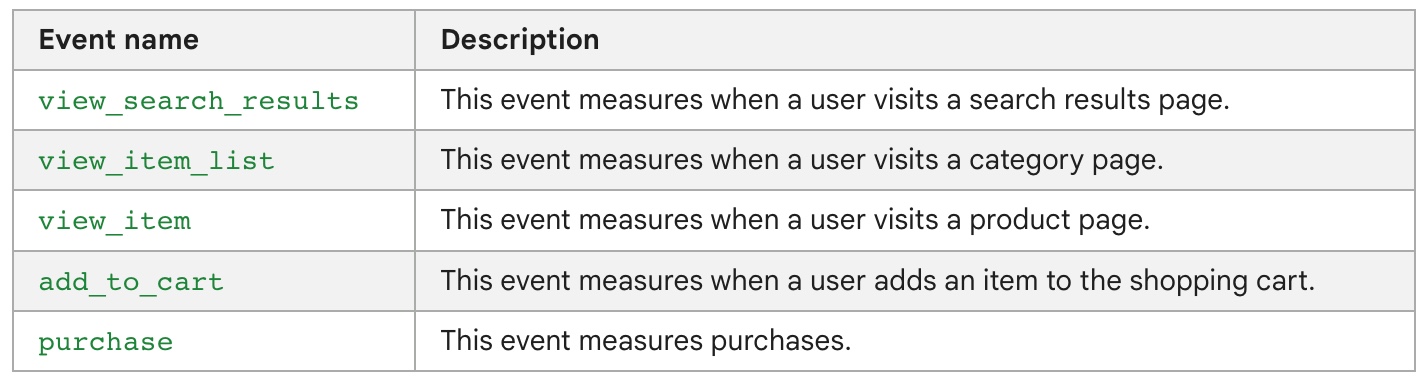
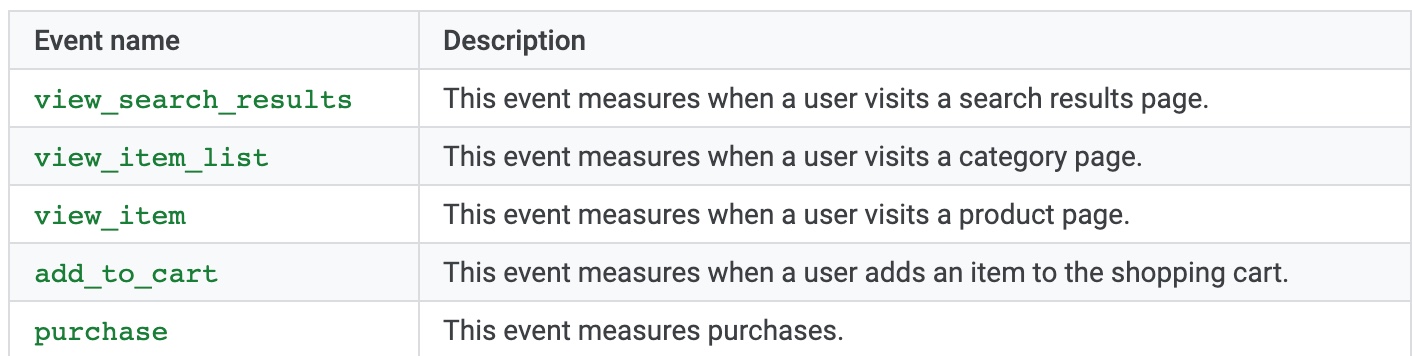
Recently, Google changed Dynamic Remarketing Pixel for eCommerce Tracking based on Dynamic remarketing events and parameters, Based on events view_search_results, view_item_list, view_item, add_to_cart and purchase.

Rcently I have implemented these website Like Woocoommerce , LightSpeed, Magento, Volusion, Bigcommerce , Neto, Shopify, SquareSpace,  Opencart, osCommerce, Joomla,  Drupal, OpenCart, PestaShop and Shopworks.

 ‘id’: Such as Primary identifier of the Ecommerce Product
‘google_business_vertical’: it will match with against with Vertical .

Google Ads Dynamic Remarketing Events

Google Ads Dynamic Remarketing events and parameters

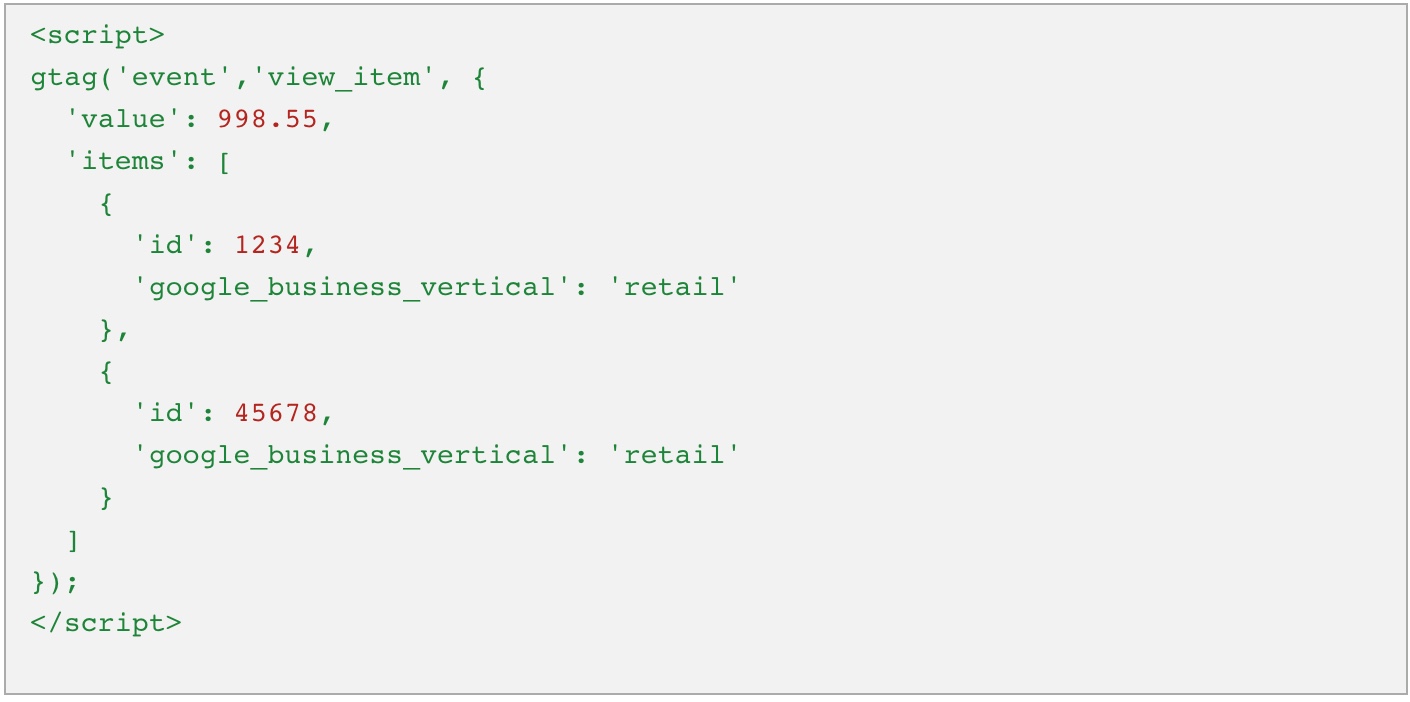
Below is an example of Google Dynamic remarketing events and parameters for Ecommerce Website 

<script>
gtag('event','view_item', {
'value': 554.55,
'items': [
{
'id': 6875343,
'google_business_vertical': 'retail'
},
{
'id': 7886555,
'google_business_vertical': 'retail'
}
]
});
</script>

1. view_item_list: When user visit to Category Pages using Google Ads Dynamic Remarketing Events and Parameters with Google Tag Manager

To measure view_item_list for Google Ads Dynamic Remarketing Events and Parameters with Google Tag Manager

Google Ads Dynamic Remarketing Events with New Event snippet

Google Ads Dynamic remarketing events with google_business_vertical

2. view_item: When user visit to Product Pages using Google Ads Dynamic Remarketing Events and Parameters with Google Tag Manager

To measure view_item for Google Ads Dynamic Remarketing Events and Parameters with Google Tag Manager

Send Google Ads Dynamic Remarketing Event Data

Custom Event Parameters for Google Ads Dynamic Remarketing Tag

3. add_to_cart: When user visit to Product Pages and add to product into Add to Cart using Google Ads Dynamic Remarketing Events and Parameters with Google Tag Manager

To measure add_to_cart  item to the shopping cart for Google Ads Dynamic Remarketing Events and Parameters with Google Tag Manager

Adding Dynamic Remarketing Tags using Google Tag Manager

Custom Event and Parameters Dynamic Remarketing Tags using Google Tag Manager

4. purchase: When user buy a product on the website using Google Ads Dynamic Remarketing Events and Parameters with Google Tag Manager

To measure purchase measure for Google Ads Dynamic Remarketing Events and Parameters with Google Tag Manager

Dynamic Remarketing based on Events

Dynamic Remarketing Set Up for Google Ads using Google Tag Manager

5. view_search_results: When user search a product on the website using Google Ads Dynamic Remarketing Events and Parameters with Google Tag Manager

To measure view_search_results measure for Google Ads Dynamic Remarketing Events and Parameters with Google Tag Manager

Dynamic Remarketing Events Data

Set up Google Ads Dynamic Remarketing for Events using Google Tag Manager

Warning: If you do n’t know about javascript or do n’t have developing knowledge then do n’t try to Implement Dynamic Remarketing Events and Parameters using Google Tag Manager that can broke your site, Cart and other functionality 

Disclaimer: Google tag manager belongs to Google property 

For Contact: mappchero@gmail.com

I am available for Hire on Freelancer: Freelancer.com

I am available for Hire on Upwork: Upwork.com

I am available for Hire on Peopleperhour: Peopleperhour.com

I am available for Hire on Guru: Guru.com

Dynamic Google Ads Remarketing Tags for Ruby on Rails using Google Tag Manager

Standard

Dynamic Google Ads Remarketing Tags for Ruby on Rails using Google Tag Manager without any plugins

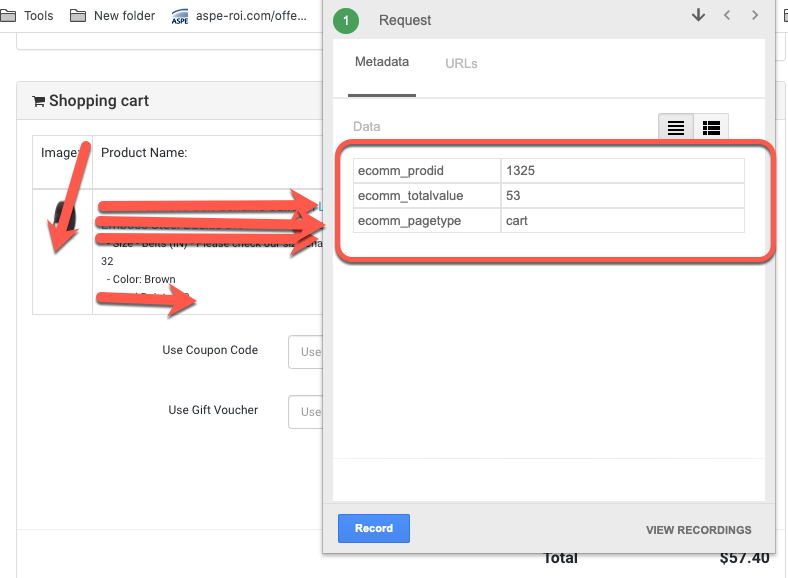
Recently, one of client asks to implement Google Ads dynamic Remarketing tag pixel in Ruby on Rails using Google Tag Manager without any plug-ins. Once I started looking eCommerce website for Ruby on Rails, then I see the possibility to dynamic Remarketing tags on Ruby on Rails using Google Tag Manager without any plugins. For Dynamic Remarketing Tags, You need to custom parameters to ecomm_prodid, ecomm_pagetype and ecomm_value, all of these three value pass dynamically for each and every product.

  • ecomm_prodid: “REPLACE_WITH_STRING_VALUE“,
  • ecomm_pagetype: “REPLACE_WITH_STRING_VALUE“,
  • ecomm_totalvalue: “REPLACE_WITH_STRING_VALUE”

Step 1: Install Google Tag Manager on Google Dynamic Google Ads Remarketing Tags for Ruby on Rails without any plugins

Paste this code as high in the <head> of the page as possible:
<!– Google Tag Manager –>
<script>(function(w,d,s,l,i){w[l]=w[l]||[];w[l].push({‘gtm.start’:
new Date().getTime(),event:’gtm.js’});var f=d.getElementsByTagName(s)[0],
j=d.createElement(s),dl=l!=’dataLayer’?’&l=’+l:”;j.async=true;j.src=
‘https://www.googletagmanager.com/gtm.js?id=’+i+dl;f.parentNode.insertBefore(j,f);
})(window,document,’script’,’dataLayer’,’GTM-XXXX’);</script>
<!– End Google Tag Manager –>
Additionally, paste this code immediately after the opening <body> tag:
<!– Google Tag Manager (noscript) –>
<noscript><iframe src=”https://www.googletagmanager.com/ns.html?id=GTM-XXXX”
height=”0″ width=”0″ style=”display:none;visibility:hidden”></iframe></noscript>
<!– End Google Tag Manager (noscript) –>

Note: Make you will replace GTM Tracking Code with your GTM ID XXXXX

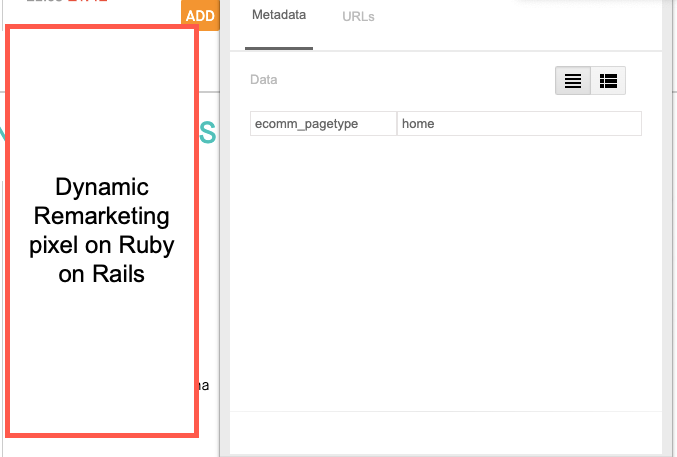
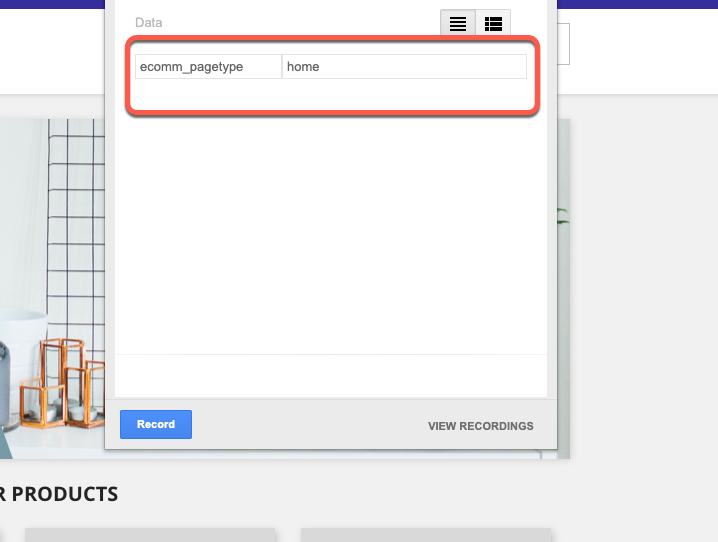
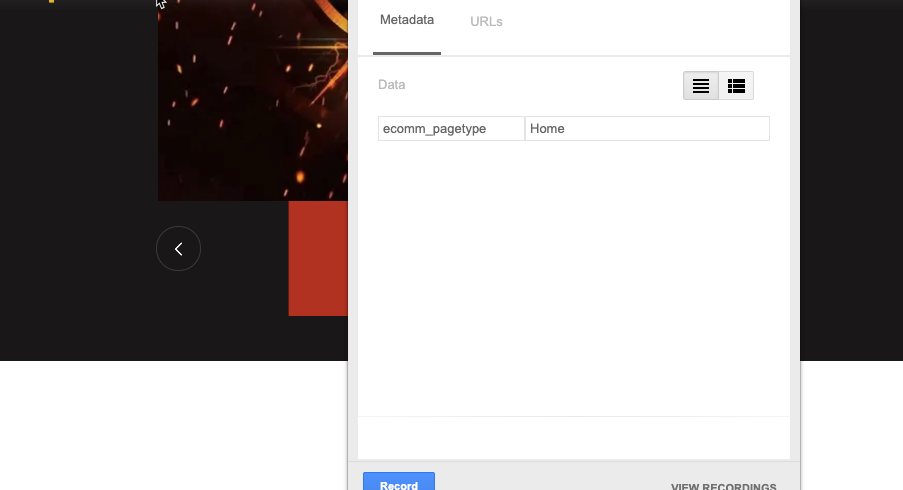
Step 2 – Home Page – When user visited there is so many putted then you need to pass ecomm_pagetype for Dynamic Google Ads Remarketing Tags for Ruby on Rails using Google Tag Manager

Dynamic Remarketing Tags for Ruby on Rails

Dynamic Remarketing Tags for Ruby on Rails using Google Tag Manager without any plugins

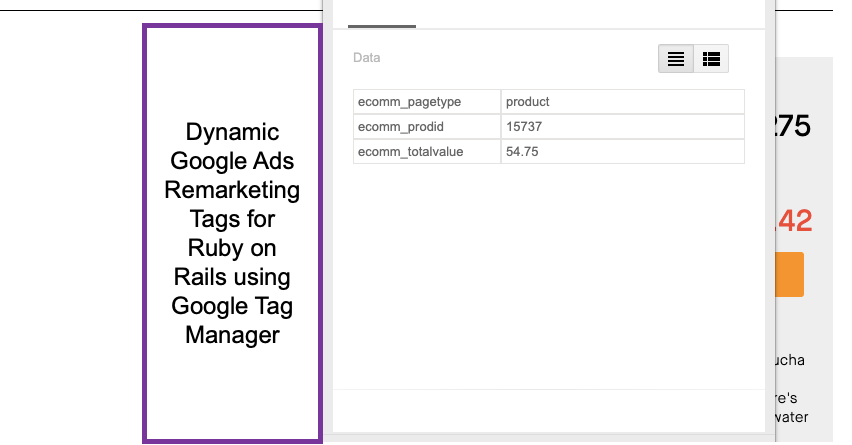
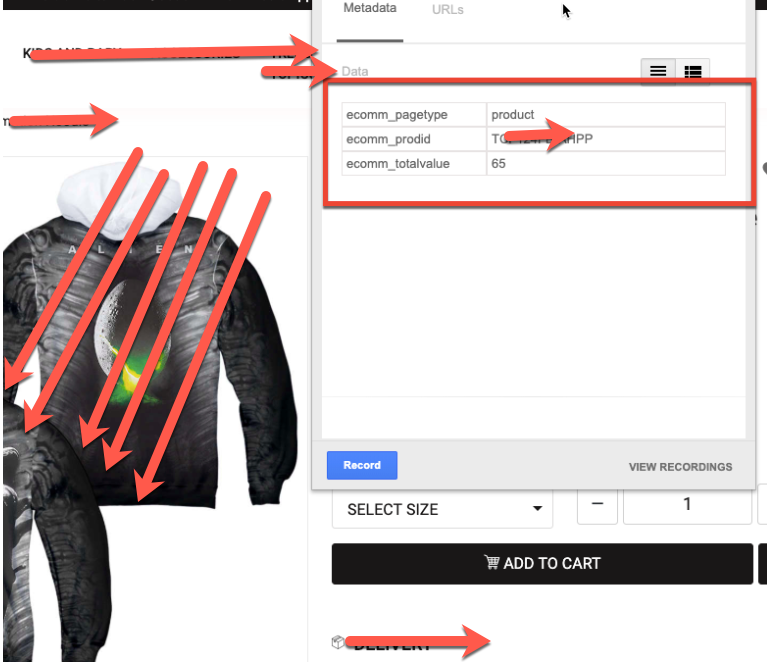
Step 3Product Page – When user visted to product pages then based on that dynamic remarketing pixel work for retargeted using Dynamic Remarketing Pixel for Ruby on Rails using Google Tag Manager

Ruby on Rails Google Dynamic Remarketing Tag

Dynamic Ads Google Dynamic Remarketing Pixel on Ruby on Rails using Google Tag Manager

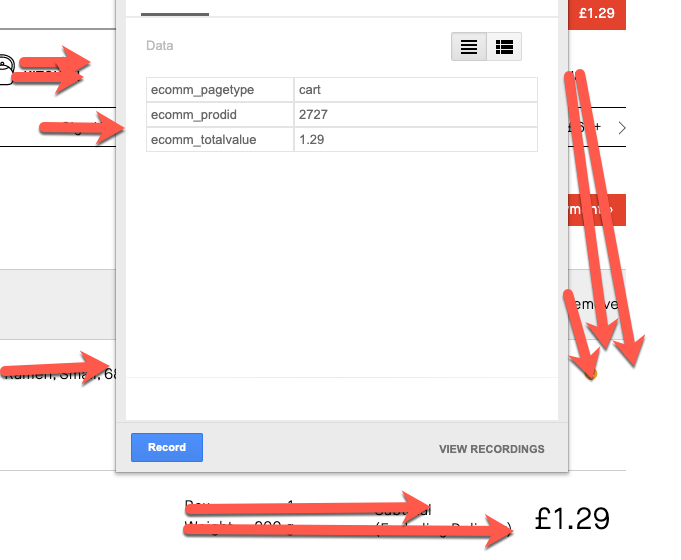
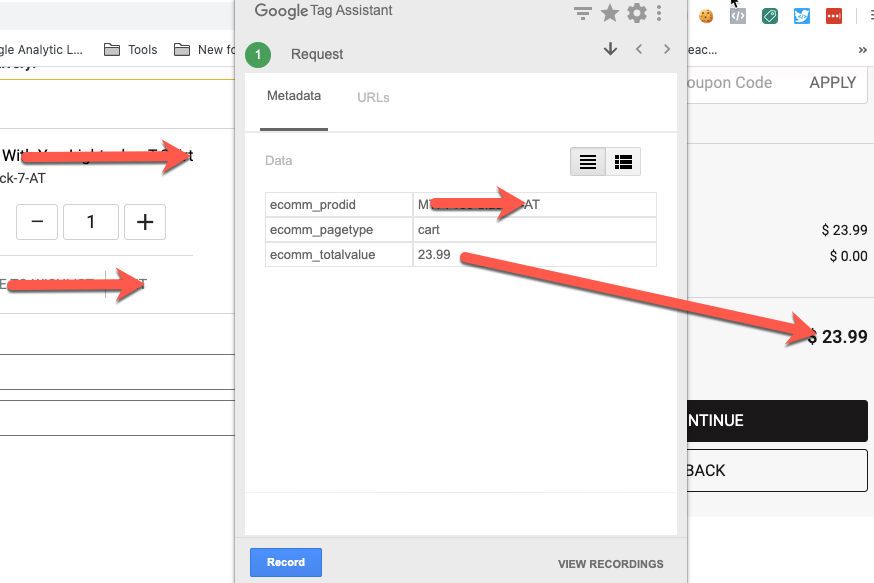
Step 4 – Cart Page –  When users went to cart page to select before buy confirm they are selecting the right product or not, using Dynamic Google Ads Remarketing Tags for Ruby on Rails using Google Tag Manager

Dynamic Remarketing Tag in Ruby on Rails

Dynamic Ads Google Dynamic Remarketing Pixel for Ruby on Rails using Google Tag Manager without Google Tag Manager

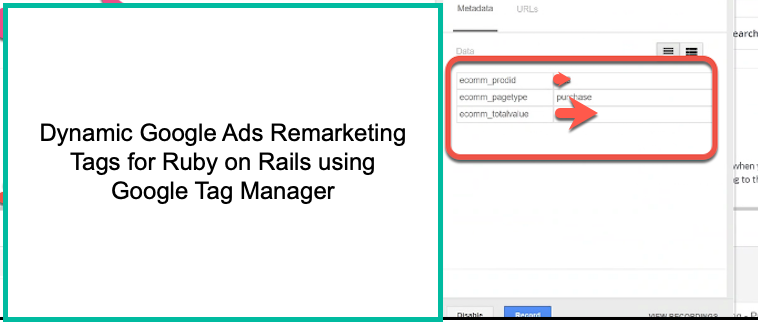
Step 5 – Purchase – When user buy this product that will reported in Facebook that came from Facebook ads then you will able to calculate actual ROI from Facebook Ads

 Google Dynamic Remarketing for Ruby on Rails

Integrate the Google Dynamic Remarketing Tag into Ruby on Rails using Google Tag Manager

Warning: If you do n’t know about javascript or do n’t have developing knowledge then do n’t try to Dynamic Google Ads Remarketing Tags for Ruby on Rails using Google Tag Manager that can broke your site, Cart and other functionality 

Disclaimer: Google tag manager belongs to Google property 

For Contact: mappchero@gmail.com

I am available for Hire on Freelancer: Freelancer.com

I am available for Hire on Upwork: Upwork.com

I am available for Hire on Peopleperhour: Peopleperhour.com

I am available for Hire on Guru: Guru.com
Google Dynamic Remarketing Tag for PrestaShop using Google Tag Manager

Standard

Google Dynamic Remarketing Tag for PrestaShop using Google Tag Manager using Google Tag Manager without any plugins

Recently one client asks me to implement Google Dynamic Remarketing Tag for PrestaShop using Google Tag Manager using Google Tag Manager without any plugins, To Implement Dynamic Remarketing Tag into PrestaShop to custom parameters ecomm_prodid, ecomm_pagetype and ecomm_totalvalue, All of these value should changes for every product and should match these id with product feed in Google Shopping then it will run dynamic remarketing and retargeting ads .

  • ecomm_prodid: “REPLACE_WITH_STRING_VALUE“,
  • ecomm_pagetype: “REPLACE_WITH_STRING_VALUE“,
  • ecomm_totalvalue: “REPLACE_WITH_STRING_VALUE”

Step 1: Install Google Tag Manager on Google Dynamic Remarketing Tag for PrestaShop using Google Tag Manager without any plugins

Paste this code as high in the <head> of the page as possible:
<!– Google Tag Manager –>
<script>(function(w,d,s,l,i){w[l]=w[l]||[];w[l].push({‘gtm.start’:
new Date().getTime(),event:’gtm.js’});var f=d.getElementsByTagName(s)[0],
j=d.createElement(s),dl=l!=’dataLayer’?’&l=’+l:”;j.async=true;j.src=
‘https://www.googletagmanager.com/gtm.js?id=’+i+dl;f.parentNode.insertBefore(j,f);
})(window,document,’script’,’dataLayer’,’GTM-XXXX’);</script>
<!– End Google Tag Manager –>
Additionally, paste this code immediately after the opening <body> tag:
<!– Google Tag Manager (noscript) –>
<noscript><iframe src=”https://www.googletagmanager.com/ns.html?id=GTM-XXXX”
height=”0″ width=”0″ style=”display:none;visibility:hidden”></iframe></noscript>
<!– End Google Tag Manager (noscript) –>

Note: Make you will replace GTM Tracking Code with your GTM ID XXXXX

Step 2 – Home Page – Google Dynamic Remarketing Tag for PrestaShop using Google Tag Manager

Google Dynamic Remarketing Tag for PrestaShop

Google Shopping Dynamic Remarketing using Google Tag Manager without any plugins

Step 3Product Page – When user entered to product pages then based on that dynamic remarketing pixel work for retargeted using Google Dynamic Remarketing Pixel for PrestaShop using Google Tag Manager

Google Dynamic Remarketing Tag

Dynamic Ads Google Dynamic Remarketing Pixel PrestaShop using Google Tag Manager

Step 4 – Cart Page –  When user went to Cart Pages to Google Dynamic Remarketing Tag for PrestaShop using Google Tag Manager without any plugins

Dynamic Remarketing Tag in Prestashop

Dynamic Remarketing on Prestashop using Google Tag Manager without any plugins

Step 5 – Purchase – When user place an order in Pestashop that will not retargeted because use already converted into sales Google Dynamic Remarketing Tag for PrestaShop using Google Tag Manager without using any plugins

 Google Dynamic Remarketing for PrestaShop

Integrate the Google Dynamic Remarketing Tag into Prestashop using Google Tag Manager

Warning: If you do n’t know about javascript or do n’t have developing knowledge then do n’t try to Google Dynamic Remarketing Tag for PrestaShop using Google Tag Manager that can broke your site, Cart and other functionality 

Disclaimer: Google tag manager belongs to Google property 

For Contact: mappchero@gmail.com

I am available for Hire on Freelancer: Freelancer.com

I am available for Hire on Upwork: Upwork.com

I am available for Hire on Peopleperhour: Peopleperhour.com

I am available for Hire on Guru: Guru.com
OpenCart Google Adwords Dynamic Remarketing using Google Tag Manager

Standard

OpenCart Google Adwords Dynamic Remarketing Setup using Google Tag Manager without any Plugins

Recently, one of client asks to implement Dynamic Remarketing Pixel setup on Opencart using Google Tag Manager without any plugins. Google Ads Dynamic Remarketing Tag to pass custom parameters using Google Tag Manager without touching Code of the openCart. To Pass custom variable ecomm_prodid, ecomm_pagetype and ecomm_totalvalue, To work dynamic remarekting in OpenCart , You require to setup dynamic paramaters in Google Analytic as Custom Dimension.

  • ecomm_prodid: “REPLACE_WITH_STRING_VALUE“,
  • ecomm_pagetype: “REPLACE_WITH_STRING_VALUE“,
  • ecomm_totalvalue: REPLACE_WITH_STRING_VALUE

Step 1: Install Google Tag Manager on OpenCart Google Adwords Dynamic Remarketing Setup using Google Tag Manager without any plugins

Paste this code as high in the <head> of the page as possible:
<!– Google Tag Manager –>
<script>(function(w,d,s,l,i){w[l]=w[l]||[];w[l].push({‘gtm.start’:
new Date().getTime(),event:’gtm.js’});var f=d.getElementsByTagName(s)[0],
j=d.createElement(s),dl=l!=’dataLayer’?’&l=’+l:”;j.async=true;j.src=
‘https://www.googletagmanager.com/gtm.js?id=’+i+dl;f.parentNode.insertBefore(j,f);
})(window,document,’script’,’dataLayer’,’GTM-XXXX’);</script>
<!– End Google Tag Manager –>
Additionally, paste this code immediately after the opening <body> tag:
<!– Google Tag Manager (noscript) –>
<noscript><iframe src=”https://www.googletagmanager.com/ns.html?id=GTM-XXXX”
height=”0″ width=”0″ style=”display:none;visibility:hidden”></iframe></noscript>
<!– End Google Tag Manager (noscript) –>

Note: Make you will replace GTM Tracking Code with your GTM ID XXXXX

Step 2 – Home Page – Google Adwords Dynamic Remarketing Setup for OpenCart using Google Tag Manager without touching website code or any Plugins

OpenCart Google Adwords Dynamic Remarketing

Google Adwords Dynamic Remarketing in OpenCart using Google Tag Manager

Step 3Product Page – When users are visited to product pages then based on that users retargeted Google Adwords Dynamic Remarketing in OpenCart using Google Tag Manager without any plugins

Google adwords Dynamic Remarketing in OpenCart

Setup Google adwords Dynamic Remarketing in OpenCart using Google Tag Manager

Step 4 – Cart Page –  When user entered to Cart Pages to Dynamic Remarketing Tags in Opencart using Google Tag Manager without any plugins 

Setup Google Adwords Remarketing on OpenCart

OpenCart Dynamic Remarketing Setup using Google Tag Manager without any plugins

Step 5 – Purchase – When user will complete purchased based dynamic remarketing that will not retargeted on Opencart Dynamic Remarketing using Google Tag Manager without any plugins

Warning: If you do n’t know about javascript or do n’t have developing knowledge then do n’t try to OpenCart Google Adwords Dynamic Remarketing using Google Tag Manager that can broke your site, Cart and other functionality 

Disclaimer: Google tag manager belongs to Google property 

For Contact: mappchero@gmail.com

I am available for Hire on Freelancer: Freelancer.com

I am available for Hire on Upwork: Upwork.com

I am available for Hire on Peopleperhour: Peopleperhour.com

I am available for Hire on Guru: Guru.com
Setup Google Ads Dynamic Remarketing Tag on Drupal without touching Code

Standard

Google Ads Dynamic Remarketing Tags on Drupal using Google Tag Manager without touching Code

Recently once client ask me to implement dynamic remarketing tag using Google Tag Manager on Drupal without touching Code of the website, Google Ads Dynamic Remarketing Tags on Drupal passing dynamic Value of ecomm_prodid, ecomm_pagetype and ecomm_totalvalue and Client stricktly mention without touch code of the website.

  • ecomm_prodid: “REPLACE_WITH_STRING_VALUE“,
  • ecomm_pagetype: “REPLACE_WITH_STRING_VALUE“,
  • ecomm_totalvalue: REPLACE_WITH_STRING_VALUE

Step 1: Install Google Tag Manager on Drupal, To Set Up Dynamic Remarketing Tag Tracking on Drupal using Google Tag Manager without touching Code of the website 

Paste this code as high in the <head> of the page as possible:
<!– Google Tag Manager –>
<script>(function(w,d,s,l,i){w[l]=w[l]||[];w[l].push({‘gtm.start’:
new Date().getTime(),event:’gtm.js’});var f=d.getElementsByTagName(s)[0],
j=d.createElement(s),dl=l!=’dataLayer’?’&l=’+l:”;j.async=true;j.src=
‘https://www.googletagmanager.com/gtm.js?id=’+i+dl;f.parentNode.insertBefore(j,f);
})(window,document,’script’,’dataLayer’,’GTM-XXXX’);</script>
<!– End Google Tag Manager –>
Additionally, paste this code immediately after the opening <body> tag:
<!– Google Tag Manager (noscript) –>
<noscript><iframe src=”https://www.googletagmanager.com/ns.html?id=GTM-XXXX”
height=”0″ width=”0″ style=”display:none;visibility:hidden”></iframe></noscript>
<!– End Google Tag Manager (noscript) –>

Note: Make you will replace GTM Tracking Code with your GTM ID XXXXX

Step 2 – Home Page – Setup Google Ads Dynamic Remarketing Pixel/Tags on  Drupal without touching Code using Google Tag Manager

install Retargeting Pixel in Drupal

Implement Google Ads Dynamic Remarketing in Drupal

Step 3Product Page – Setup Google Adwords Dynamic Remarketing Pixel in Drupal  using Google Tag Manager without touching Code

Dynamic Remarketing Tag on Drupal

Google Adwords Dynamic Remarketing Pixel on Drupal

Step 4 – Cart Page – Setting Up on Cart Page Google Adwords Remarketing Pixel Tags in Drupal without touching website Code using Google Tag Manager

Google Adword Dynamic Remarketing Tag on Drupal

Integrate Google Dynamic Remarketing Tags on Drupal

Step 5 – Purchase – Setting Up on Purchase Google Adword Dynamic Remarketing Tags in Drupal using Google Tag Manager

Google Adwords Dynamic Remarketing Drupal

Google Adwords Dynamic Remarketing on Drupal

Warning: If you do n’t know about javascript or do n’t have developing knowledge then do n’t try to Drupal  using Google Tag Manager that can broke your site, Cart and other functionality 

Disclaimer: Google tag manager belongs to Google property 

For Contact: mappchero@gmail.com

I am available for Hire on Freelancer: Freelancer.com

I am available for Hire on Upwork: Upwork.com

I am available for Hire on Peopleperhour: Peopleperhour.com

I am available for Hire on Guru: Guru.com
Setup Google Adwords Remarketing on Magento 2 without Touching Code

Standard

Google Ads Dynamic Remarketing Tag Tracking on Magento/Mangento 2 using Google Tag Manager

Recently, one of client asks implemented on Magento 2 Google Adwords/Ads Dynamic Remarketing Tag Tracking on Magento 2 using Google Tag Manager, they asked me to pass dynamic value on Magento 2 ecomm_prodid, ecomm_pagetype’ and ‘ecomm_totalvalue’ and also asked me to without touch website and asked use Google Tag Manager without touch Mangento 2 Code. Once I look Magento 2 then I said it’s possible without touch Magento 2 Web site.

  • ecomm_prodid: “REPLACE_WITH_STRING_VALUE“,
  • ecomm_pagetype: “REPLACE_WITH_STRING_VALUE“,
  • ecomm_totalvalue: REPLACE_WITH_STRING_VALUE

Step 1: Install Google Tag Manager on Magento 2, To Set Up Google Ads Dynamic Remarketing Tag Tracking on Magento 2 using Google Tag Manager

Paste this code as high in the <head> of the page as possible:
<!– Google Tag Manager –>
<script>(function(w,d,s,l,i){w[l]=w[l]||[];w[l].push({‘gtm.start’:
new Date().getTime(),event:’gtm.js’});var f=d.getElementsByTagName(s)[0],
j=d.createElement(s),dl=l!=’dataLayer’?’&l=’+l:”;j.async=true;j.src=
‘https://www.googletagmanager.com/gtm.js?id=’+i+dl;f.parentNode.insertBefore(j,f);
})(window,document,’script’,’dataLayer’,’GTM-XXXX’);</script>
<!– End Google Tag Manager –>
Additionally, paste this code immediately after the opening <body> tag:
<!– Google Tag Manager (noscript) –>
<noscript><iframe src=”https://www.googletagmanager.com/ns.html?id=GTM-XXXX”
height=”0″ width=”0″ style=”display:none;visibility:hidden”></iframe></noscript>
<!– End Google Tag Manager (noscript) –>

Note: Make you will replace GTM Tracking Code with your GTM ID XXXXX

Step 2 – Home Page – Setup Google Ads Dynamic Remarketing Pixel/Tags on  Magento 2 without touching Code 

Dynamic Remarketing Tags Magento 2

Google Ads Dynamic Remarketing Tag Magento 2 without touching Code

Step 3 –  Product Page – Setup Google Ads Dynamic Remarketing Tags in Mangento 2 using Google Tag Manager without touching Code 

magento 2 dynamic remarketing tag

Google Dynamic Remarketing Tag Magento 2

Step 4 – Cart Page – Setting Up on Cart Page Adword Dynamic Remarketing Pixel Tags in Magento 2 without touching website Code

google dynamic remarketing setting on magento 2

Magento 2 Google Adwords Dynamic Remarketing Tracking

Step 5 – Purchase – Setting Up on Purchase Google Ads Dynamic Remarketing Pixel Tags in Magento 2 using Google Tag Manager

Dynamic Google Remarketing Tag Magento 2

Magento 2 Google Adwords Dynamic Remarketing Tag

Also verify with Google Ad Dynamic Remarketing Tags

Magento 2 Dynamic Remarketing Tags

Magento 2 Google Tag AdWords Dynamic Remarkerting Tag

Warning: If you do n’t know about javascript or do n’t have developing knowledge then do n’t try to Magento 2 using Google Tag Manager that can broke your site, Cart and other functionality 

Disclaimer: Google tag manager belongs to Google property 

For Contact: mappchero@gmail.com

I am available for Hire on Freelancer: Freelancer.com

I am available for Hire on Upwork: Upwork.com

I am available for Hire on Peopleperhour: Peopleperhour.com

I am available for Hire on Guru: Guru.com
AdWords Dynamic Remarketing Tags in BigCommerce for Stencil Themes

Standard

Setting up AdWords Dynamic Remarketing Tags in BigCommerce for Stencil Themes 

Recently once of client ask to set up Adword Dynamic Remarketing in BigCommerce for Stencil themes with Updated Event snippet for dynamic remarketing page with Custom Parameters.

Recently Google Adword Updated Dynamic Remarketing tag with Global Tag with Dynamic Remarketing event snippets with Custom parameters for all the pages of your website.

Setting Up Dynamic Remarketing Tags for Stencil Themes

What is Adwords Dynamic Remarketing?

To show ads to people visit your website previously using custom parameters for Dynamic Remarketing show ads. and remind visitor they have already visited your website with help of remarketing tags.

Step 1 Insert your custom tag to all your web pages, right before the closing </body> tag.

Put Code on /manage/storefront-manager/scripts

<!-- Global Site Tag (gtag.js) - Google AdWords: xxxxxxxxx -->
<script async src="https://www.googletagmanager.com/gtag/js?id=AW-xxxxxxxx"></script>
<script>
window.dataLayer = window.dataLayer || [];
function gtag(){dataLayer.push(arguments)};
gtag('js', new Date());

  gtag('config', 'AW-123456789');
</script>
<!-- Event snippet for Example dynamic remarketing page -->
<script>
gtag('event', 'page_view', {'send_to': 'AW-123456789',
'ecomm_prodid': 'REPLACE_WITH_STRING_VALUE',
'ecomm_pagetype': 'REPLACE_WITH_STRING_VALUE',
'ecomm_totalvalue': 'REPLACE_WITH_STRING_VALUE'
});
</script>

Note: Make Sure you will replace Dynamic Remarketing Tracking Code with your Dynamic Remarketing Pixel AW- XXXXXXXX

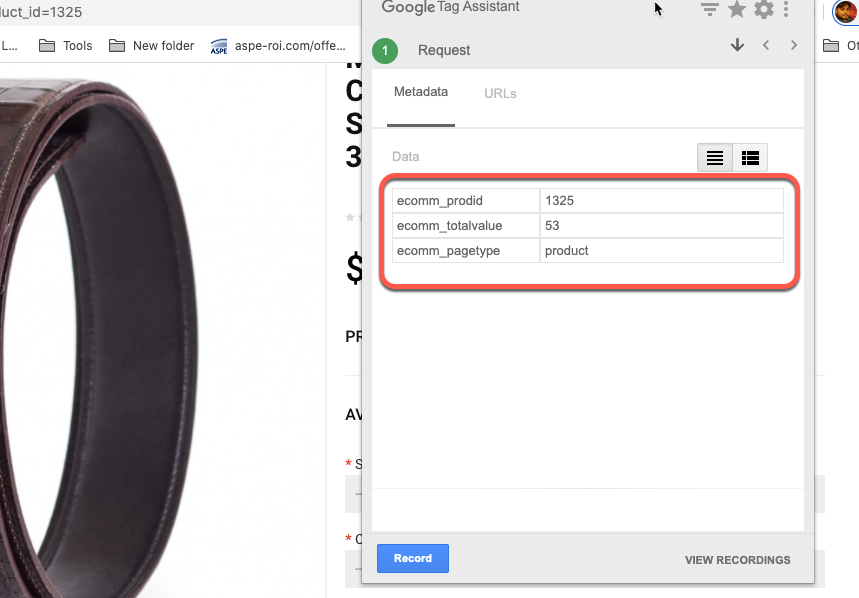
Step 2 – Home Page – Setup Dynamic Remarketing Pixel in Bigcommerce for Stencil Themes

Dynamic Remarketing Tags for Stencil Theme

BigCommerce Google Adwords Dynamic Remarketing Setup for Stencil

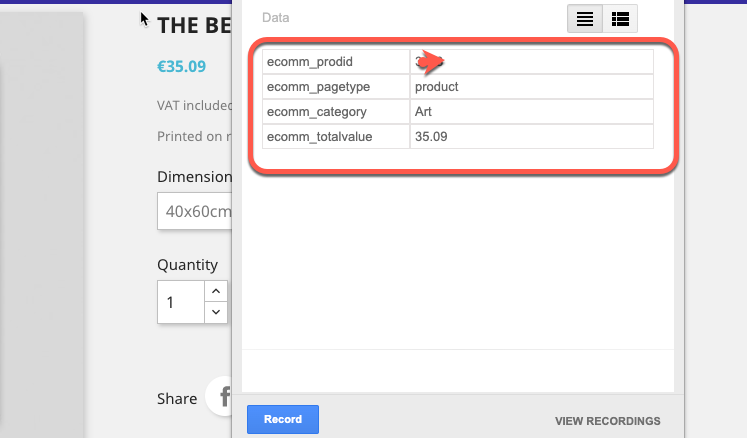
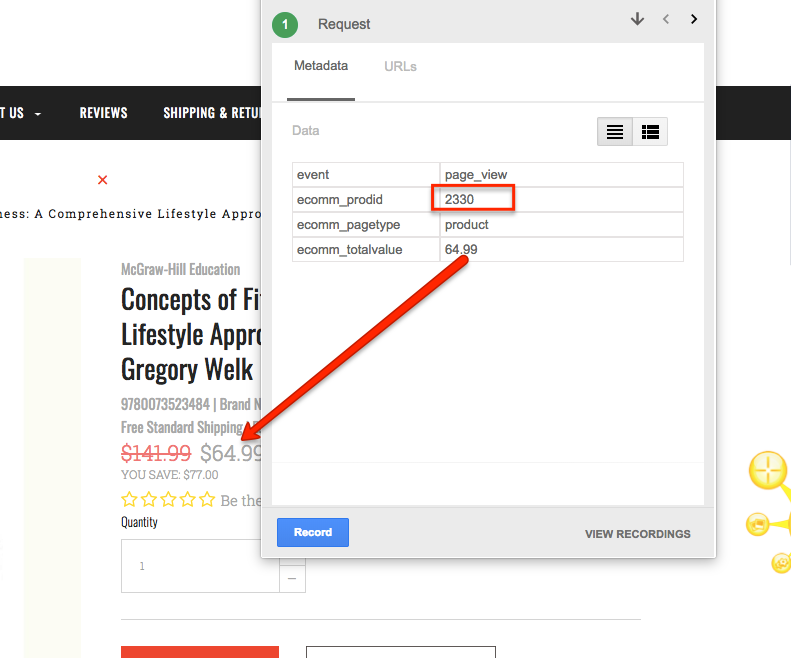
Step 3 – Product Page – Setup  Adword Dynamic Remarketing Pixel Tags in Bigcommerce for Stencil Theme

Dynamic Remarketing Tags in BigCommerce for Stencil

Set Up Dynamic Remarketing Tags for Product Page in BigCommerce – Stencil Themes

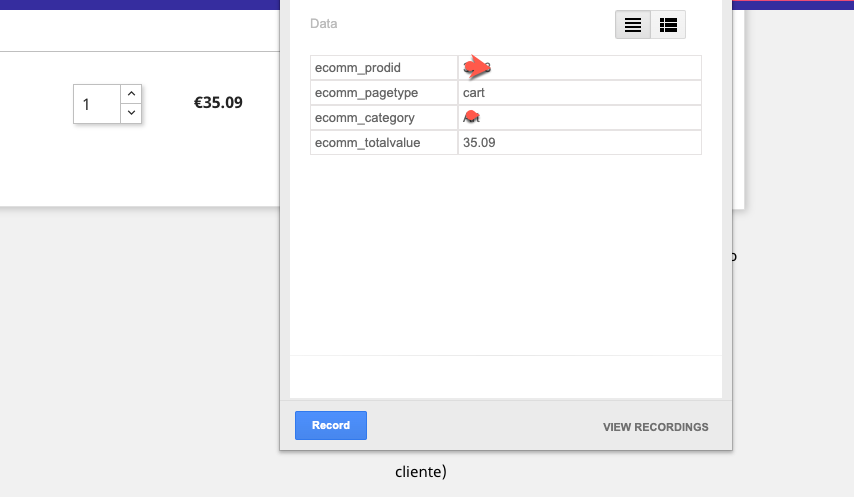
Step 4 – Cart Page – Setting Up on Cart Page Adword Dynamic Remarketing Pixel Tags in Bigcommerce for Stencil Theme.

For Getting Product Id You need to write a Product Array in Bigcommerce Stencil themes, without Product Array does not work Dynamic Remarketing Pixel.

Dynamic Remarketing Tags in BigCommerce for Stencil

Set Up Dynamic Remarketing Tags for Cart Pages in BigCommerce – Stencil Themes

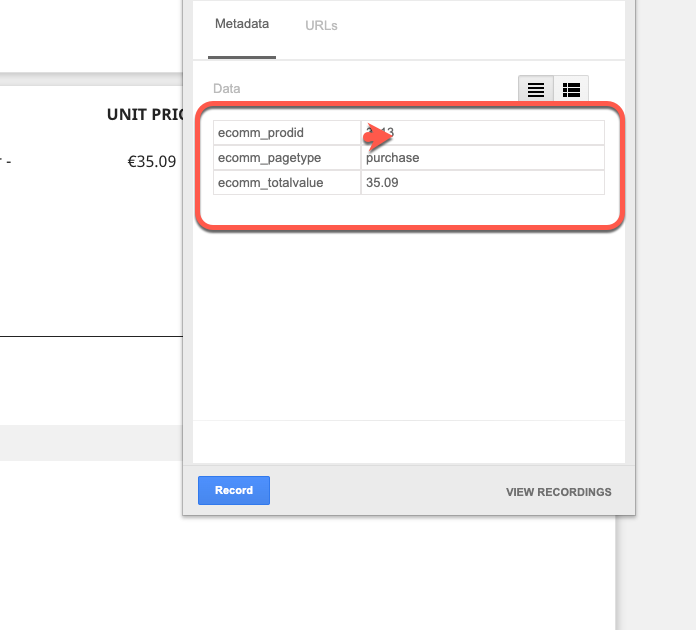
Step 5 – Purchase – Setting Up on Purchase Adword Dynamic Remarketing Pixel Tags in Bigcommerce for Stencil Theme.

Google Adwords Remarketing Tag Stencil Theme

BigCommerce Google Adwords Dynamic Remarketing Setup for Theme

Warning: If you do n’t know about javascript or do n’t have developing knowledge then do n’t try to AdWords Dynamic Remarketing Tags in BigCommerce for Stencil Themes that can broke your site, Cart and other functionality 

Disclaimer: Google tag manager belongs to Google property 

For Contact: mappchero@gmail.com
No Fields Found.